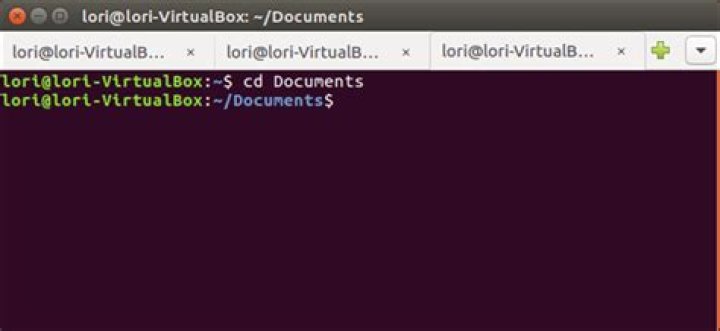
Linux users these days get to perform various operations through programs having high-end GUIs. However, there are multiple reasons to use the Linux command line called the Terminal.
- Through Terminal, you can access many powerful native Linux commands as well as the empowering command-line features of many desktop applications.
- You can install software to Ubuntu much more easier through the Command Line, than the graphical installation alternative.
- You might have seen that many online-help guides will tell you how to resolve a problem through the command Line. No matter which desktop environment you are using or which version of Linux you are on, the Terminal commands are usually the same.
The easiest way to access the Terminal is using the shortcut ctrl+alt+t. You will observe that every time you launch a new Terminal, it will open in a separate window. The Terminal, however, provides you with a preference to launch new Terminal sessions as tabs in the same Terminal window. With this tabbed interface, you can improve your productivity similarly as you do by using tabs in modern internet browsers.
Enabling tabs in Terminal
Launch the Terminal and select Preferences from the Edit menu as follows:
You will be able to see the following Preferences dialog; please make sure that the General tab is selected. From the “Open new terminals in:” drop-down, select Tab. When you click the Close button, your required changes will be confirmed and your Terminal will now be enabled to operate in a tabbed user interface.
Please note that you will be able to see a menu bar at the top of the Terminal or at the top panel of your Linux desktop(in case you have enabled Global Menus).
Adding a new tab
In order to add a new Terminal as a tab in the existing Terminal window, please select New Terminal from the Files menu as follows:
You will be able to see the new tab opened with the previous tab running its session.
Note: If you want to launch a new Terminal window instead of opening it in a tab, click ctrl+alt+t
When more than one tab is opened in a Terminal, you can add more tabs simply by clicking the plus button located on the upper right side of the tabs. New tabs are opened in the same directory as that of the previous Terminal tab.
Switching among tabs
You can switch from one tab to another in the following ways:
- Clicking on a specific tab to make it active.
- Clicking on the down arrow at the right side of the tabs and selecting the tab you want to switch to.
- All tabs are given a number from 1 to the number of tabs open. The shortcut Alt +[number of the tab] will take you to that tab.
Changing order of tabs
You can use one of the following ways to change the order of your tabs:
- Right-clicking the selected tab and clicking Move Terminal Left or Move terminal Right from the menu.
- Dragging a tab left or right.
Please remember that now the tabs will be in the new order and will be assigned new tab numbers. You will use these new numbers to switch among tabs using the Alt+[number of the tab] control.
Closing a tab
You can close a tab through the following ways:
- Clicking the x button of a tab.
- Selecting a tab and then clicking the Close tab option from the File menu,
Please remember that when you close the Terminal window, your tabs are not saved. However, the Terminal will still be enabled to display terminals in tabs form the next time you launch the Terminal.
After learning how to work with tabs, you will be able to utilize the added speed and ease of use that the Terminal empowers you with. As you start working in multiple tabs, you will see that it is very simple to add, close, rearrange and switch tabs for greater performance. Follow this tutorial to see how instead of opening a new Terminal for all your operations, it is a smart option to open and work in tabs in a single window.
- ← Working With Vi Editor in Linux
- How to Configure a Custom Start Up Sound in Ubuntu 18.04 LTS →
Karim Buzdar
About the Author: Karim Buzdar holds a degree in telecommunication engineering and holds several sysadmin certifications. As an IT engineer and technical author, he writes for various web sites. He blogs at LinuxWays.
If you work a lot in the command line, you probably keep more than one Terminal window open at once. However, instead of having separate windows, you can condense all your Terminal sessions onto one window using tabs.
We’ll show you how to open multiple Terminal sessions as tabs in Ubuntu.
To begin, open a Terminal window and select “Preferences” from the “Terminal” menu. The menu bar may either be on the title bar of the Terminal window or on the top panel on the desktop, depending on whether global menus are enabled in Ubuntu.
On the Preferences dialog box, make sure the General tab is active. Then, select “Tab” from the “Open new terminals in” drop-down list.
Click “Close” to accept the change and close the Preferences dialog box.
To open a new Terminal session on a new tab, select “New Terminal” from the “Terminal” menu.
A second Terminal session is opened on a new tab and the original session is also available on a tab. The name on the tab includes the current directory you’re in on that tab.
NOTE: Even when the Open new terminals in option is set to Tab, pressing Ctrl+Alt+T opens a new Terminal session in a new window, not a new tab.
Once you have two sessions open, you can open additional sessions using plus button to the right of the tabs.
When you add a new tab, whether it be through the Terminal menu or using the plus button, the new session is open to the same directory you were in on the tab that was currently active at that time.
There are several ways to switch among tabs. You can click on a tab to activate it, of course. You can also use the down arrow button on the far right to select the session you want or press Alt+1, Alt+2, etc. on your keyboard to jump to a specific tab. The tabs are numbered from the left, starting at 1.
If you want change the order of the tabs, you can click on a tab and drag it to another location on the tab bar. When you move tabs, they’re renumbered, so using the Alt+1, Alt+2 keyboard shortcuts to switch among the tabs will account for the new tab order. For example, if you move the third tab to the second position, Alt+2 would then activate what used to be the third tab.
To close a tab, click the “X” button on the right side of the tab.
You can also move and close tabs by right-clicking on a tab and selecting an option from the popup menu.
To close the Terminal window, and all the tabs, click the “X” button in the upper-left corner of the window.
The tabs are not saved when you close the Terminal window. However, the Open new terminals in setting is preserved and you can open multiple sessions on tabs the next time you open a Terminal window.
Microsoft recently released a new terminal application called Windows Terminal. The terminal application has a lot of features that the developers have been asking for years. One of those features is that ability to add any console window to a new tab. Let me show you how to add Ubuntu tab to the Windows Terminal.
By default, Windows Terminal comes with PowerShell and Command Prompt tabs. If you want to, you can add any number of other consols to the Windows Terminal. For example, if you are a web developer and need to add a Linux console to Windows Terminal. You can do that by adding a few lines of code in a JSON file.
Note: I assume you’ve already installed the new Windows Terminal app. If not, you can install it from the Microsoft Store.
Add Ubuntu Tab to Windows Terminal
1. Make sure that you’ve installed Ubuntu in Windows 10. If not, you can install Ubuntu in Windows 10 with just a few clicks. Follow that Ubuntu installation guide and come here next.
2. Before you can add Ubuntu tab to Windows Terminal, you need to generate a new GUID (Globally Unique Identifier). This is how Windows Terminal differentiates between different consols. To generate a new GUID, search for Ubuntu in the start menu and open it.
3. In the Ubuntu window, execute the uuidgen command. This will give a unique GUID, copy it. We are going to need that GUID in the coming steps. So, paste it somewhere safe.
A quick tip: Select the GUID with the mouse and right-click to copy.
4. Now, open Windows Terminal by searching for it in the start menu.
5. In the Terminal window, click on the dropdown icon and select “Settings”.
6. The above action will open the profiles.json file in your default code editor. In my case, the default code editor is VS Code. In the editor, scroll down until you see the Profiles array. At the end of the array add , .
7. Next, copy and paste the below code under the , while replacing YOUR_GUID with the actual GUID you got in step 3.
Note: If you’ve installed a specific version of Ubuntu then modify the 5th line in the below code and add the version number too. For example, if you’ve installed Ubuntu 18.04, modify the line as wsl.exe -d Ubuntu-18.04 .
8. Press Ctrl + S to save the JSON file.
9. Now, go back to the Windows Terminal and click on the dropdown menu. You will see the new Ubuntu option.
10. Click on the Ubuntu option and the Ubuntu terminal will open in Windows Terminal.
Add Custom Tab Icon to Ubuntu Tab in Windows Terminal
If you look at the dropdown menu, there is no icon next to the Ubuntu option. That’s because you haven’t added any. The good thing is, you can any image you want as the Ubuntu tab icon.
1. The first thing you need to do is find the icon you want to set. The icon should be in PNG format with transparent background and 32×32 size. You can use this website to find free icons.
2. Once you have the icon, save it somewhere on your hard disk. For instance, I have a dedicated folder in my I drive that hosts all the icons I use for various folders.
3. Now, open the profiles.json file, go to the Ubuntu profile, find the “icon” value and replace the dummy icon path with the actual icon path. In my case, the icon path is “I:/System Icons/ubuntu.png”.
4. Save the file.
That is it. You will see the new icon applied instantly in the Windows Terminal.
It is that simple to add Ubuntu tab to Windows Terminal. If you are facing any problems, comment below and I will try to help as much as possible.
If you work a lot in the command line, you probably keep more than one Terminal window open at once. However, instead of having separate windows, you can condense all your Terminal sessions onto one window using tabs in ubuntu terminal.
We’ll show you how to create tabs in ubuntu terminal.
To begin, open a Terminal window and select “Preferences” from the “Terminal” menu. The menu bar may either be on the title bar of the Terminal window or on the top panel on the desktop, depending on whether global menus are enabled in Ubuntu.
On the Preferences dialog box, make sure the General tab is active. Then, select “Tab” from the “Open new terminals in” drop-down list.
Click “Close” to accept the change and close the Preferences dialog box.
To open a new Terminal session on a new tab, select “New Terminal” from the “Terminal” menu.
A second Terminal session is opened on a new tab and the original session is also available on a tab. The name on the tab includes the current directory you’re in on that tab.
NOTE: Even when the Open new terminals in option is set to Tab, pressing Ctrl+Alt+T opens a new Terminal session in a new window, not a new tab.
Once you have two sessions open, you can open additional sessions using plus button to the right of the tabs.
When you add a new tab, whether it be through the Terminal menu or using the plus button, the new session is open to the same directory you were in on the tab that was currently active at that time.
There are several ways to switch among tabs. You can click on a tab to activate it, of course. You can also use the down arrow button on the far right to select the session you want or press Alt+1, Alt+2, etc. on your keyboard to jump to a specific tab. The tabs are numbered from the left, starting at 1.
If you want change the order of the tabs, you can click on a tab and drag it to another location on the tab bar. When you move tabs, they’re renumbered, so using the Alt+1, Alt+2 keyboard shortcuts to switch among the tabs will account for the new tab order. For example, if you move the third tab to the second position, Alt+2 would then activate what used to be the third tab.
To close a tab, click the “X” button on the right side of the tab.
You can also move and close tabs by right-clicking on a tab and selecting an option from the popup menu.
To close the Terminal window, and all the tabs, click the “X” button in the upper-left corner of the window.
The tabs are not saved when you close the Terminal window. However, the Open new terminals in setting is preserved and you can open tabs in ubuntu terminal the next time you use it.
J ust like how convenient are the modern internet browser tabs for quickly opening multiple web pages in a single browsing window, you can get the similar tabbed user interface on your Ubuntu Terminal too, and increase your productivity.
By default settings, Ubuntu launches Terminal in its own window every time you launch a new one. Using few simple steps, you can enable tabs so that you can work across several Terminal sessions in the same window. This tip is very useful, especially for those using Terminal a lot.
Enabling Tabbed UI on Ubuntu Terminal
Note that there are various third-party utilities that can revamp the Terminal and also bring in the tabbed interface, but in this guide we enable the tabs by using built-in Terminal preferences. Hence, no any downloads or installs, just tweaks! This guide is tested on Ubuntu 17.10, but should work in Ubuntu 16.04 LTS, 16.10 LTS, and 17.04 too.
Step 1) Launch Terminal.
Step 2) Click “Edit” > “Preferences”.
Open Terminal Preferences
Editing Preferences – Open Terminal in Tabs
Step 4) Click “Close”.
Step 5) To see the new settings in action, click “File” > “Open Terminal”.
Ubuntu 18.04 Lts Minimal Installation Option Review
” data-medium-file=” data-large-file=” src=” alt=”Open New Terminal” width=”542″ height=”233″> Open New Terminal
You should see new new tab added to the existing Terminal.
Tabs enabled in Ubuntu 17.10 Terminal
Like this tip? You may be interested in our another guide on how to lock the terminal with the super user password by using built-in Profile Preferences.
By Anand Kumar Under Tutorials On December 14, 2014
Many beginners feel uncomfortable with commands. It could be because of lots of typing and weird errors and warning they got while executing the commands. If you are one of them then this guide will help you to understand Ubuntu Terminal and how to use it.
What is Ubuntu Terminal?
Ubuntu Terminal is command line interface for users which could be used to run text commands. As you know all the activity we do on computers or any digital devices is because of the commands and instruction we give to those devices.
Ubuntu Terminal or just “Terminal” is itself a software package which is developed by GNOME community.
Ubuntu Terminal is, also, commonly known as Shell, Console, Command Prompt, CLI (abbr. of Command Line Interface). These are technically different things but as a beginner we may refer them as a same thing.
Why Ubuntu Terminal is important?
Unlike Windows or OSX Ubuntu is still being developed for cent percent GUI users. However, there are still some areas where command line interface is being used for configuring things. Sometimes, It is easy to use the Terminal instead of finding a GUI way.
The good part is, unlike Windows and OSX, the availability of tutorials to get things done. Internet is full of such tutorials and the Linux community especially Ubuntu is full of resources.
If you don’t aware about basic Ubuntu commands then follow the link. I have compiled over 50 basic commands that every beginners should know and a few most dangerous commands you should never use.
How to use Ubuntu Terminal?
How to open Terminal Window?
There are many ways to open a terminal window but for beginners the following methods would be handy.
- Search “Terminal” in unity
Terminal could be easily find in Ubuntu Unity. Simply open unity and start typing “terminal”. The terminal icon will simply appear on typing halfway. - Use Keyboard
From anywhere type hit Ctrl+Alt+t to open terminal window.
What are the alternatives of Ubuntu Terminal?
Ubuntu terminal do some simple task i.e. executing text commands you type into it. It is one of the most powerful tool. For any reason if you are looking for an alternative search Guake, Terminator. Actually you may find dozens of such software.
BUT, I will suggest you to stay with Ubuntu’s default terminal.
Ha sokat dolgozik a parancssorban, akkor valószínűleg több terminálablakot is nyit meg egyszerre. Azonban a külön ablakok helyett az összes terminálszekciót egy lapra helyezheti egy ablakra.
Megmutatjuk, hogyan nyithatunk meg több terminálszekciót az Ubuntu lapjaként.
Először nyissa meg a terminálablakot, és válassza a „Beállítások” menüpontot a „Terminál” menüből. A menüsor lehet a terminálablak címsorában vagy az asztal felső paneljén, attól függően, hogy a globális menük engedélyezve vannak-e az Ubuntu-ban.
A Beállítások párbeszédpanelen győződjön meg arról, hogy az Általános lap aktív. Ezután válassza ki a „Tab” opciót az „Új terminálok megnyitása” legördülő listából.
Kattintson a „Bezárás” gombra a módosítás elfogadásához és a Beállítások párbeszédpanel bezárásához.
Új terminál munkamenet megnyitásához egy új lapon válassza ki az „Új terminál” menüpontot a „Terminál” menüből.
A második terminál-munkamenet új lapon nyílik meg, és az eredeti munkamenet egy lapon is elérhető. A lapon található név tartalmazza az adott lapon lévő aktuális könyvtárat.
MEGJEGYZÉS: Még akkor is, ha az Új terminálok megnyitása opcióban Tab értékre van állítva, a Ctrl + Alt + T megnyomásával új terminál-munkamenet nyílik meg egy új ablakban, nem pedig egy új lapon.
Miután megnyitotta a két munkamenetet, további lapokat nyithat meg plusz gombbal a lapok jobb oldalán.
Ha új lapot ad meg, függetlenül attól, hogy a Terminál menüben vagy a plusz gombon keresztül van-e elérhető, az új munkamenet ugyanazon a könyvtáron van megnyitva, amelyik az adott pillanatban aktív lapon volt.
A lapok között többféleképpen lehet váltani. Természetesen a fülre kattintva aktiválhatja. A jobbra lévő lefelé mutató nyílgomb segítségével kiválaszthatja a kívánt munkamenetet, vagy nyomja meg az Alt + 1, Alt + 2 stb. Billentyűkombinációt, hogy egy adott lapra ugorjon. A füleket balról számozzuk, kezdve 1-től.
Ha módosítani szeretné a lapok sorrendjét, kattintson egy lapra, és húzza azt egy másik helyre a lapsávon. A lapok áthelyezésekor átszámozzák őket, így az Alt + 1, az Alt + 2 billentyűparancsok segítségével a lapok közötti váltáshoz az új lapok sorrendjét kell figyelembe venni. Ha például a harmadik lapot a második pozícióba helyezi, az Alt + 2 aktiválja azt, ami a harmadik lap volt.
Egy lap bezárásához kattintson a fül jobb oldalán található „X” gombra.
A lapok mozgatásához és bezárásához kattintson a jobb gombbal egy lapra, és válasszon egy opciót a felugró menüből.
A terminálablak és az összes fül bezárásához kattintson az ablak bal felső sarkában lévő „X” gombra.
A fülek nem kerülnek elmentésre a terminálablak bezárásakor. Az új terminálok megnyitása a beállításban azonban megmarad, és a legközelebbi terminálablak megnyitásakor több lapot is megnyithat a lapokon.
Geoffrey Carr
Ако работите много в командния ред, най-вероятно сте запазили повече от един прозорец на терминала наведнъж. Въпреки това, вместо да имате отделни прозорци, можете да кондензирате всичките си терминални сесии в един прозорец, като използвате разделите.
Ще ви покажем как да отваряте няколко терминални сесии като табове в Ubuntu.
За да започнете, отворете прозореца на терминала и изберете “Предпочитания” от меню “Терминал”. Лентата с менюта може да е в заглавната лента на прозореца на терминала или в горния панел на работния плот, в зависимост от това дали глобалните менюта са активирани в Ubuntu.
В диалоговия прозорец “Предпочитания” се уверете, че раздел “Общи” е активен. След това изберете “Tab” от падащия списък “Отваряне на нови терминали в”.
Кликнете върху “Затваряне”, за да приемете промяната и затворете диалоговия прозорец “Предпочитания”
За да отворите нова терминална сесия в нов раздел, изберете “Нов терминал” от меню “Терминал”.
В нов раздел се отваря втора сесия на терминала, а оригиналната сесия също е налице в раздел. Името в раздела включва текущата директория, в която сте в този раздел.
ЗАБЕЛЕЖКА: Дори ако опцията Отвори нови терминали в опцията е зададена на Tab, натискането на клавишите Ctrl + Alt + T отваря нова сесия на терминала в нов прозорец, а не нов раздел.
След като отворите две сесии, можете да отворите допълнителни сесии, като използвате бутона “плюс” вдясно от разделите.
Когато добавите нов раздел, независимо дали е чрез менюто Терминал или като използвате бутона “плюс”, новата сесия е отворена за същата директория, в която сте били в раздела, който понастоящем е активен по това време.
Има няколко начина за превключване между разделите. Можете да кликнете върху раздел, за да го активирате, разбира се. Можете също така да използвате бутона на стрелката надолу отдясно, за да изберете сесията, която искате, или натиснете Alt + 1, Alt + 2 и т.н. на клавиатурата си, за да преминете към конкретен раздел. Разделителните номера са номерирани отляво, като се започва от 1.
Ако искате да промените реда на разделите, можете да кликнете върху раздел и да го плъзнете до друго място в лентата на разделите. Когато преместите раздели, те се преномерират, така че чрез клавишните комбинации Alt + 1, Alt + 2, за да превключвате между разделите, ще се отчита новата последователност на таблите. Ако например преместите третия раздел на второ място, Alt + 2 ще активира това, което е било третият раздел.
За да затворите раздел, кликнете върху бутона “X” от дясната страна на раздела.
Можете също така да премествате и затваряте раздели, като щракнете с десния бутон върху раздел и изберете опция от изскачащото меню.
За да затворите прозореца на терминала и всички раздели, кликнете върху бутона “X” в горния ляв ъгъл на прозореца.
Разделите не се запазват, когато затворите прозореца на терминала. Въпреки това отворените нови терминали в настройката се запазват и можете да отваряте няколко сесии на раздели при следващото отваряне на прозореца на терминала.
- เคล็ดลับ
- บล็อก
- ทำอย่างไร
- หน้าต่าง
- โทรศัพท์
- หลัก
- บล็อก
- วิธีเพิ่มแท็บลงใน Terminal ของ Ubuntu
ในการเริ่มต้นให้เปิดหน้าต่างเทอร์มินัลและเลือก “Preferences” จากเมนู “Terminal” แถบเมนูอาจอยู่ในแถบชื่อเรื่องของหน้าต่างเทอร์มินัลหรือบนแผงด้านบนของเดสก์ท็อปทั้งนี้ขึ้นอยู่กับว่ามีการเปิดใช้งานเมนูระดับโลกใน Ubuntu หรือไม่
ในกล่องโต้ตอบกำหนดลักษณะให้ตรวจสอบว่าได้เปิดใช้งานแท็บทั่วไปแล้ว จากนั้นเลือก “Tab” จาก “เปิดรายการใหม่ใน” รายการแบบเลื่อนลง
คลิก “Close” เพื่อยอมรับการเปลี่ยนแปลงและปิดกล่องโต้ตอบ Preferences
หากต้องการเปิดเซสชัน Terminal ใหม่บนแท็บใหม่ให้เลือก “New Terminal” จากเมนู “Terminal”
หมายเหตุ: แม้ว่าจะมีการตั้งค่าเทอร์มินัลใหม่ในตัวเลือกเป็น Tab การกด Ctrl + Alt + T จะเปิดเซสชันเทอร์มินัลใหม่ในหน้าต่างใหม่ไม่ใช่แท็บใหม่
มีหลายวิธีในการสลับไปมาระหว่างแท็บ คุณสามารถคลิกที่แท็บเพื่อเปิดใช้งานได้แน่นอน นอกจากนี้คุณยังสามารถใช้ปุ่มลูกศรลงที่ด้านขวาสุดเพื่อเลือกเซสชันที่ต้องการหรือกด Alt + 1, Alt + 2 ฯลฯ บนแป้นพิมพ์เพื่อข้ามไปยังแท็บเฉพาะ แท็บจะมีหมายเลขจากด้านซ้ายเริ่มจาก 1
หากคุณต้องการเปลี่ยนลำดับของแท็บคุณสามารถคลิกที่แท็บและลากไปยังตำแหน่งอื่นบนแถบแท็บ เมื่อคุณย้ายแท็บระบบจะเรียงลำดับใหม่ดังนั้นการใช้แป้นพิมพ์ลัด Alt + 1, Alt + 2 เพื่อสลับไปมาระหว่างแท็บจะเป็นการระบุลำดับแท็บใหม่ ตัวอย่างเช่นถ้าคุณย้ายแท็บที่สามไปยังตำแหน่งที่สอง Alt + 2 จะเปิดใช้งานสิ่งที่เคยเป็นแท็บที่สาม
หากต้องการปิดแท็บให้คลิกปุ่ม “X” ที่ด้านขวาของแท็บ
หากต้องการปิดหน้าต่างเทอร์มินัลและแท็บทั้งหมดให้คลิกปุ่ม “X” ที่มุมซ้ายบนของหน้าต่าง




