@exfileme
Updated October 18, 2019, 6:20pm EDT
Your Windows account password may be a local user account password or the same password as your Microsoft account. Whichever you’re using, you can change it from the Settings app and sign in with a different password.
You can also change your password through Microsoft’s website (if it’s a Microsoft account) or change a forgotten password from the sign-in screen.
Change Your Password from the Settings App
You can change your password from the Settings app, whether it’s a local password or a Microsoft account password. Click the Start button and select the “gear” icon shown along the Start menu’s left edge. This opens the Settings app.
Alternatively, click the gear icon on the taskbar if you previously pinned the Settings app.
With the Settings app opens, select the “Accounts” tile.
The app opens to “Your Info” by default. Click on “Sign-In Options” on the left followed by the “Password” entry listed under “Sign-In Options” on the right. The Password entry expands to include a “Change” button that you click to continue.
Follow the steps to verify your identity, such as looking at a face recognition camera, swiping a finger, or entering a PIN or password. Once you’re verified, enter the current password followed by a new password.
Click the “Next” button to finish.
Change Your Microsoft Account Password Online
The Sign-in Options windows (Settings > Accounts > Sign-In Options) in the Settings app provides a “Change Your Microsoft Account Password” link. It essentially sends you to Bing, which provides instructions on how to change your password online.
First, sign in to your Microsoft account on the company’s website using the current password. Once the site loads, click the “Security” option listed along the top. You’ll see a “Change Password” option on the following page and a “Change” link.
Click that link to enter your current password followed by the new password (twice). To finish, click the “Save” button.
Change Your Password from the Sign-in Screen
This method begins only after you failed to sign in using a forgotten password. Once you hit the Enter key and submit the wrong password, a “Reset Password” link appears under the password entry field. Click the link.
Windows will ask you to confirm your identity. If you’re using a Microsoft account, you may have to provide a code sent to a phone number associated with your account. If you’ve set up security questions for a local account, you’ll have to answer those questions.
After providing the information, click the arrow button to create and then confirm your new password.
Replies (4)
Windows Key+i > Accounts > Sign-in options > Under password, remove it. Now, it will ask only PIN login.
If PIN is not already set up, under Sign-in options, set up PIN first before removing password.
If you want to keep both, you can keep both. At the lock screen, Press Sign-in options > Dial pad icon is for PIN and Key is for Password. press Dial pad to login with PIN
Best regards
Vijay Verma
Timezone: UTC+05:30, PST+12:30
Availability Hours (UTC) : 05:00 AM – 05:00 PM
22 people found this reply helpful
Was this reply helpful?
Sorry this didn’t help.
Great! Thanks for your feedback.
How satisfied are you with this reply?
Thanks for your feedback, it helps us improve the site.
How satisfied are you with this reply?
Thanks for your feedback.
My name is Angel. I am an Independent Advisor. Thank you for posting in Microsoft Community.
Follow these steps to set up a PIN on your Windows User Account:
1. Press the Windows +S key combination to display the Search box.
2. Type the word pin into the Search box, then click Set up PIN sign-in.
3. Find the “PIN” section and click the Add button.
4. Type in the password for your User Account, then click the Ok button.
5. Select and enter a 4 digit numeric pin, then enter it again for confirmation.
6. Exit the PIN setup utility.
From now on you’ll be able to log in to your Windows account by entering your 4 digit PIN instead of your password.
You can change your PIN at any time by following the steps below:
1. Press the Windows +S key combination to display the Search box.
2. Type the word pin into the Search box, then click Set up PIN sign-in.
3. Find the “PIN” section and click the Change button.
4. Enter your Windows password, then click the Ok button.
5. Select and enter a new 4 digit numeric pin, then enter it again for confirmation.
6. Click the Finish button.
7.Exit the PIN setup utility.
Hope the information provided is useful. If the issue persists, reply here and we will be glad to help you.
This brief tutorial shows students and new users how to change or reset their Windows 10 passwords.
Windows allows you to change your password if you know your current password. You can do this easily with Windows.
However, if you do not know your current password, then you’ll have to reset it. This is quite difficult and may be a bit of a challenge for someone who has no technical background.
If you’re a student or new user looking for a computer to start learning on, the easiest place to start is Windows 10. Windows 10 is the most recent version of operating systems for personal computers developed and released by Microsoft as part of its Windows NT family.
Windows 10 has grown into one of the best operating systems, years after its release and is used by millions of users around the world.
Changing your Windows Password
If you already know your password, then simply use the steps below to change it.
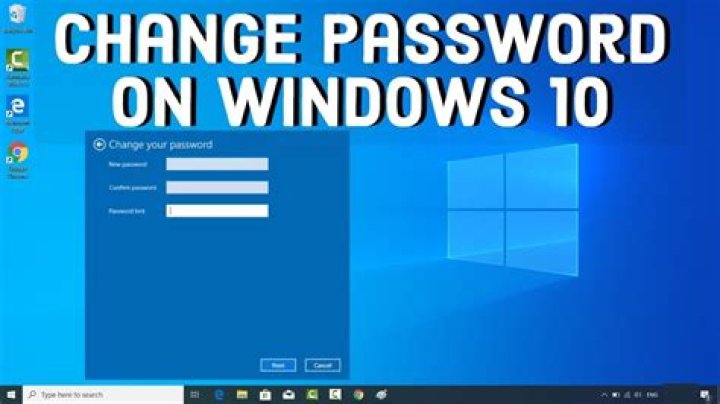
Select Start > Settings > Accounts > Sign-in options . Under Password, select the Change button and follow the steps.
Follow the steps to change your current password.
Note: The above process will only work if you know your current password. If you don’t, then continue below.
Reset your Windows Password
If you’ve forgotten or lost your Windows 10 password for a local account and need to sign back in to your computer, then continue below to learn how to reset your password and gain access to your computer.
If you have a Windows 10 computer, at least 1803, then you will have answered security questions when you were setting up your device at first.
On the login screen, type the password you think it’s correct. If it comes back as incorrect, then select the Reset password link on the sign-in screen.
At the reset link, enter the security questions provided. This will be the same you answered when you first setup your machine.
- Answer your security questions.
- Enter a new password.
- Sign in as usual with the new password.
Resetting your Computer
If you still can’t answer the security questions above, and still not able to login, then another option will be to reset your device.
Resetting your device will permanently delete your data, programs and settings.
To reset your device, which will delete data, programs, and settings:
- Press the Shift key while you select the Power button >Restart in the lower-right corner of the screen.
- On the Choose an option screen, select Troubleshoot >Reset this PC.
- Select Remove everything.
That should get you back into your machine.
Conclusion:
This post showed you how to change or reset your Windows password. It also showed you how to reset your computer if you can’t get into your computer with a password.
If you find any error above, please use the comment form below to report.
You may also like the post below:
Published by Student
This post was not written by a robot! I spend my spare time searching for ways to help students and new users get to know and understand Linux, Ubuntu, Windows, and Open Source software.
Leave a Reply Cancel reply
This site uses Akismet to reduce spam. Learn how your comment data is processed.
Last Updated: September 6, 2019
This article was written by Nicole Levine, MFA. Nicole Levine is a Technology Writer and Editor for wikiHow. She has more than 20 years of experience creating technical documentation and leading support teams at major web hosting and software companies. Nicole also holds an MFA in Creative Writing from Portland State University and teaches composition, fiction-writing, and zine-making at various institutions.
This article has been viewed 5,985 times.
This wikiHow teaches you how to change or reset the password you use to sign in to Windows 10.
I edited this screenshot of a Windows icon.n
I edited this screenshot of a Windows icon.n
How to change the default Windows 10 password? In this tutorial we’ll show you the most convenient ways to change Windows 10 password with administrator account. If you use a Microsoft account on your Windows 10 computer, you need to follow the instructions in Method 2 of this guide (or sign into Microsoft online webpage) to change your password.
Method 1: Change Windows 10 Password from Control Panel
Open the Control Panel. Set the View by option to Large icons. Click User Accounts.
Click the Manage another account link.
Click the user account that you want to change the password for.
On the next screen, click the Change the password option.
Type in your current password and then enter the new one you wish to use. Click Change password.
Method 2: Change Windows 10 Password from PC Settings
Press the Windows + I keys together to open the Settings app. Click Accounts.
Click Sign-in options on the left side, and click the Change button under Password section on the right side.
Enter your current password and click Next.
Enter and reenter a new password, and set a password hint. Click Next.
Method 3: Change Windows 10 Password from Computer Management
Right-click on This PC icon on your desktop and then select Manage.
In Computer Management, expand to Local Users and Groups -> Users in the left pane. Right-click on your desired user in the middle pane, and then select Set Password.
Click the Proceed button to confirm.
Enter your new password twice and click OK.
Method 4: Change Windows 10 Password Using Netplwiz
Press the Windows + R keys together to open the Run box. Type netplwiz and hit Enter.
In the User Accounts window, highlight a user account you would like to change password for, and then click the Reset Password button.
Enter the new password for your user account, and then click OK.
Method 5: Change Windows 10 Password from Command Prompt
At the Command Prompt, type net user and press Enter. It will list all user accounts on your computer, including the account whose password you want to change.
Type the following command to change your user password. Replace “Tom” with your account name and “123” with your new password.
The last 3 methods allow you to change Windows 10 password without providing administrator password. But all these ways require you to log on to Windows 10 as administrator account. If you lose admin rights, you might need to take use of PCUnlocker to reset a forgotten administrator password.
Sharing is caring!
- Share
- Pin
Do you need to change your password for your computer? This is something I suggest everyone do at least once a year. This will help with hacking and refresh your security measures. Follow these steps below.
If You Remember Your Password
Windows 10 has gotten better with how it is navigated and where things are done. In order to c hange your password you can do it one of 2 ways. You can go through settings and change it locally or if you are using your Microsoft account to log in you can go to Microsoft.com and login and change it there.
To change your password on your computer, go to Start then click on the head at the top of the list. Once there, select “Change account settings.”
Once the box pops up go to Sign in options on the left. Scroll down if you must to get to the password section.
Then click on the Change button. You will see a place to enter your PIN if you use a Microsoft account. Enter your PIN and password to proceed. Then it will ask you to enter the last 4 digits of the phone number they have on file and click next.
Enter the code you get texted to your phone. This will allow you to enter the old password and the new password you want to use. Now you have changed the password for your account.
Remember that if you use a Microsoft account you just changed the password for your online account as well since they are tied together.
Local Account Password Change
If you have a local account all you have to do is put in your old password and click next. Then put in the new password you wish to use along with a password hint. Make the hint good but not too good so other people cant guess it if they know you.
You can also change your Microsoft password online. Just go to Microsoft.com and click on the head in the top right to sign in. Enter your email and password to get into your account. Then click on the head again and click My Microsoft Account.
Once you get to this page
then scroll down to Security and click on the box.
Click on Change Password and follow the prompts to reset your password.
Now that you have changed your password make sure to update
your list or note where you keep your passwords.
What If You Forgot Your Password?
Have you ever gotten locked out of your computer and can’t remember the password? This can be a big problem since all your data and probably your password list is on the computer. Don’t worry, with Windows 10 there are a few options to get back in.
If you use a Microsoft account to sign into your computer then you can easily get back into your machine. On another computer go to Microsoft.com and click the head in the top right corner to sign in.
Put in your email address and when you get to the password just click on forgot my password. Re-enter your email address and click next.
They will send you a Password Reset Code to the email address. Go to this email and get the code. Put the code in and click next.
Reset your password. Once done, go back to your computer and put in the new password. Voila, you are back in your computer.
If you have a local account on your computer you can just click the Forgot Password link on the sign in screen. It will bring up the option to input the security answers you set up when you set up your account. Once you enter these you will be able to reset your password and get back into your computer.
What if these don’t
work?
What happens if you don’t have a Microsoft account or can’t remember the answers to your security questions. This can happen if you haven’t had to enter your password for a long time or haven’t used the computer for many months.
To reset with this method you will need a Windows 10 install flash drive. You can find how to do this here.
With your flash drive in the computer, restart and boot to the flash drive. Once the install screen comes up choose the repair option in the bottom left.
When the blue screen comes up click on the troubleshoot button then click on Command Prompt and follow the steps below.
- Now that Command Prompt is open,
type the following command: copy c:windowssystem32utilman.exe c: - …and then press Enter.
You should see a 1 file(s) copied confirmation. - Next, type this command, again
followed by Enter: copy c:windowssystem32cmd.exe
c:windowssystem32utilman.exe - Answer with Y or Yes
to question about the overwrite of the utilman.exe file. You
should now see another file copy confirmation.
Now remove any flash drives or discs that you used to boot from in Step 1 and restart the computer.
When the Windows 10 login screen is available, click the Ease of Access Icon in the bottom right. This should open a command prompt.
Now you need to execute the net user command as shown below, replacing myusername with your user name and mynewpassword with the password you want to start using.
net user myusername mynewpassword
For example, I would use the command like this: net user “Carl Gerber” Num63rs
Note: You only need to use double quotes around your user name if it happens to have a space in it.
Tip: If you get a The user name could not be found message , execute net user to see the list of Windows 10 users on the computer for reference and then try again with a valid username. A System error 8646 / The system is not authoritative for the specified account… message indicates that you’re using a Microsoft account to log in to Windows 10, not a local account. See the Important call-out in the introduction at the top of this page for more on that.
Log In With New Password
Now, close Command Prompt and login with the new password you just set.
Now that you are in you should reverse the hack that makes this password reset trick work. To do this use your flash drive to get back into the command prompt in the troubleshooting window.
Once Command Prompt is open again execute this command: copy c:utilman.exe c:windowssystem32utilman.exe. Confirm the overwriting by answering Yes and then restart your computer.
Note:
While there’s no requirement that you reverse these changes, it would be irresponsible of me to suggest that you don’t. What if you need access to Ease of Access from the logon screen someday? Also, please know undoing these changes won’t undo your password change so don’t worry about that.
If your laptop based on Windows 8 Operating System is “Password-Protected” means when Windows start booting, then you need to enter your Windows 8 Admin Password to login/Sign in to your device. But if you have lost or forgot your Windows Password and lost the access to your laptop as well, then you can change or reset Windows 8 Password to access your Windows laptop.
Before trying any solution given below to prevent from this problem, you should at first try to guess your password or check whether you have saved your Windows 8 Password somewhere like on hard copy & diary, or on soft copy like Notepad. If yes, then you can simply enter the password mentioned on such notes and trying to access your Windows device. But in case if don’t have any saved password either in soft copy or in hard copy, then you go next method.
Now, it is time to guess your Windows 8 Password. This method can also be used to recover your password. Some well-crafted passwords are usually inspired by things most familiar to us in our lives and check whether your Windows 8 password could have something with a favorite set of numbers, a fond memory from childhood, your family, friends or child’s birthday and/or name, your phone number, your pets and/ or may be its some combination. These are the just ideas to guess your Windows 8 password successfully.
But if the problem is still persists after guessing your Windows 8 Password, you can perform “Password Resetting” operation to access your Windows 8 laptop. Note that at this situation, you can also try access to your Windows desktop with another user account if you have. However, to access your Windows 8 Admin account, password resetting operation is only solution in this case. Let’s go for the solution.
I forgot my Laptop Password Windows 8: How to Change or Reset Windows 8 Password?
Method 1: Use Windows 8 Password Reset Disk
If you log into your Windows laptop, then you can easily create a Windows 8 Password Reset Disk. To do so, follow steps below.
Create Windows 8 Password Reset Disk:
Step 1: Type “Password Reset” in “Windows Search box” and select “Create a password reset disk” option and open it
Step 2: Now, click on “Create a password reset disk”, and in “Forgotten Password Wizard” window, insert your USB driver and select “Next”.
Step 3: In next window, select your USB drive that you want to create the password key on, and then click on “Next”
Step 4: Enter your current account password and click on “Next”
Step 5: Once done, “Windows 8 password reset disk” is created and you can easily check and use this password recovery key in future when you forgot your password.
So, you can use “Windows 8 Password Reset Disk” to reset your password. But in case if don’t have “Windows 8 Password Reset disk” and you have forgotten your password, then you are too late to create password reset disk. So, you can go for next steps.
Method 2: How to reset Windows 8 password with another available Admin Account?
If you have other admin account and you are able to log in your computer with this account, then you can perform password resetting operation of Admin account you can’t access, with this admin account.
Step 1: Right-click on “My Computer” and select “Manage”
Step 2: In the opened “Computer Management window”, click “Local Users and Groups” folder and “Users” folder
Step 3: All Windows accounts will be displayed for you. Right-click on the account you want to edit and select “set Password”
Step 4: Now, click on “Proceed”. Type new password and confirm it and then hit “OK”. This way, you have successfully reset Windows 8 password
Method 3: Reset Microsoft Account Password for Windows 8
When you forgot Windows 8 password associated with your Microsoft Account, then you can reset Microsoft Account password using your phone and other supported devices, and then you can try to access to your Windows laptop with your Microsoft Account.
Step 1: Open browser in your phone
Step 2: Visit “Microsoft Official site” and try to log into your account
Step 3: In “Why can’t you sign in?” screen, click on “I forgot my password” radio button and click on “Next”
Step 4: Now, you will receive security code using the recovery email address or phone number that you have registered in your Microsoft Account. You will be asked to create a new password.
Step 5: Once Microsoft Account password reset operation is complete, try accessing your Windows 8 desktop with your Microsoft Account login details
Method 4: I forgot my Laptop Password Windows 8, how to recover with Windows password recovery tool
You can use “Windows Password Recovery Tool” to recover or reset lost Windows 8 Admin password. This is also known as “Password Cracker” tool helps to legally crack or unlock your own Windows password. In this case, you can use “Ophcrack” – Windows password cracker which is one of the best third-party freeware Windows password recovery tool available for Windows 8 and/or other supported versions. This program starts, locates the Windows user accounts, and proceeds to crack or recover the password automatically. You can download “Ophcrack” tool from its official website and perform password recovery operation.
Method 5: Reset your Windows 8
“Resetting Windows 8” is very different process than just “resetting Windows 8 Password”. “Resetting Windows 8” will remove all of your installed apps, programs and even all of your saved data. This way, you will be able to log into your Windows 8 again.
Step 1: Press & hold “Shift” key and restart your Windows 8 laptop
Step 2: This way, you will be entered into “Advanced startup Options” screen
Step 3: In “Advanced Startup Options”, choose “Troubleshoot > Reset your PC”
Step 4: Follow-on screen instructions to finish the resetting operation. Once done, you will be able to login to your Windows 8.
Conclusion
I am sure this article helped you on “I forgot my Laptop Password Windows 8” issue and provides complete guideline to reset or change your Windows 8 password to access your device. You can read & follow our instructions to do so. If this article really helped you, then you can share this article with others to help them.
Table of Contents
If you’re reading this, it most likely means that you’re looking for a way to change your Windows password remotely, i.e. from a Remote Desktop connection (RDP protocol): this is a typical scenario for remote workers and system administrators who often have to access remote systems (such as Virtual Machines) through another Windows machine.
When such situation arises, the standard CTRL + ALT + DEL key combo cannot be used, because it would be captured by the local OS (the one used by the PC we’re using to access the remote environment), which will prompt its own change password screen: therefore, we would be able to change the local Windows account password instead of the remote one.
Using CTRL + ALT + END
Luckily enough, there is another key combo that we can use to trigger the change password screen on the remote system: CTRL + ALT + END. This command is specifically meant to be the “three-finger salute” equivalent for remote desktop connections and can be safely used to remotely change password, because it won’t be “intercepted” by the local OS in any way.
The END key is usually located close to the CANC key (that’s arguably why it was chosen as replacement hotkey).
Using the On-Screen Keyboard
If you don’t want (or you are unable) to use the CTRL + ALT + END key combo, you can still access the “change password” screen using the Windows On-Screen Keyboard. To activate it, just click to the Start menu, then type “ost” and click to the On-Screen Keyboard icon that will show up.
Now we can press CTRL + ALT using the hardware keyboard and then simultaneously click the third key (DEL / CANC) using the On-Screen Keyboard, thus determining the “three-finger salute” key combo on the remote PC.
What if it’s already too late?
In the unfortunate event that the password expires before you can change it, the remote access tool will give you an error message like this when you connect:
An authentication error has occurred. The Local Security Authority cannot be contacted. This could be due to an expired password. Please update your password if it has expired. For assistance, contact your administrator or technical support.
In this case, all we can do is contact your System Administrator (or IT help-desk support) and request a password reset: once this is done we’ll able to log back into the remote system and change the default password with a personal, secureone.
Why Windows doesn’t warn me?
As you most likely already know, if your Active Directory (or local group policy) has been configured with expiring passwords, all users will receive a dedicated warning some days before the expiration date to remind them about changing their passwords before it’s too late.
However, these warnings will only be shown when the user session is actually opened – i.e., when the user performs the login process.
To put it in other words, you need to “open” your user session to receive that warning: if you connect back to an existing session, you won’t receive such notice.
Unfortunately, when using Remote Desktop, most users don’t perform the logout / disconnect process, they just shut down the RDP client and then re-open it to reconnect whenever they need to: when they do this, the same AD user session is kept open and “recycled” over and over (the remote login process is used to “reconnect to it” instead of open a new session); for that very reason, the system never get the chance to properly warn them. Such scenario doesn’t occur when those users physically work on their device, because their user session will also end whenever they perform a reboot, power off, or other maintenance activities that frequently occur during their daily activity at the office, yet often avoided when using RDP.
Anyway, the only possible “workaround” for this issue is to force the users to close their user session before closing the RDP client: this can be easily done using the Disconnect command available from the Windows Start menu.
Conclusions
That’s it: we hope that this post will help many Windows users who are looking for a way to remotely change their password through Remote Desktop connection (RDP).
I have a laptop and desktop, both of which are associated by my Windows @live account. I want to change the password that I enter when first turning on the device or when awoken from sleep/lock-screen. The password for each device is different and I know its not the @live account password, but every step I try and take it won’t let me change the start up password. Only my account password.
I’m trying to lock my kids out of the computers and they have lost them but the know the password and I can’t change it..
There are two type of accounts usually you’ve on personal Windows 10. One is Microsoft account and another is local account.
If you’re on Microsoft account, you need to use its password to login and unlock system after sleep. To change Microsoft account password, you can go to and click Change password link.
However, if you don’t want to use Microsoft account password on your system for anonymous reason, you can switch to a local account . A local account can have its own password, or you can even go with blank password as well.
To change a local account password, refer this support article:
Hope this helps!
Microsoft MVP (Windows IT Pro), since 2014 · Windows Insider MVP · Windows Help ()
3 people found this reply helpful
Was this reply helpful?
Sorry this didn’t help.
Great! Thanks for your feedback.
How satisfied are you with this reply?
Thanks for your feedback, it helps us improve the site.




