Instagram logo displayed on an Apple iPhone, Photographer: Andrew Harrer/Bloomberg
Instagram CEO and co-founder Kevin Systrom has made it a goal to foster a safer environment for the photo social network app. As a result, a couple of new security features have been added to the app recently.
Instagram will now start placing a screen over sensitive photos and videos, which have been reported by someone in the community. If you want to see posts that have been covered, then you will simply have to tap on it. This is Instagram’s way of making it less likely to have “unwanted experiences in the app.”
Instagram also added an extra security layer to protect users against hacks, known as two-factor authentication. Instagram’s two-factor authentication will require a code every time a new device logs into your account.
How Do You Enable Two-Factor Authentication On Instagram?
To activate two-factor authentication, open the Instagram app and go to your profile by tapping on the “Me” icon. Then go to the Options menu by tapping on the gear icon:
Options menu on Instagram
Under the “Two-Factor Authentication” menu, enable “Require Security Code”:
The menu for enabling “require security code”
After you enable the feature, Instagram will text message you a security code from the number 326-65. If you have not added a phone number to your account, then you will be asked to do so.
The two-factor authentication menu also provides you with Backup Codes if you lose access to your phone number and cannot receive a security code by text:
Instagram two-factor authentication backup codes
In the Backup Codes menu, there are two options for backing up the numbers in case you need to get back into your account. The two options are copying codes and taking a screenshot. The “Copy Codes” option copies the 5 backup codes to the clipboard. I would recommend pasting these numbers to an email and sending it to yourself. And the “Take Screenshot” option adds a screenshot of the backup codes to your camera roll. You may want to backup this image to one of your photo cloud backup services like Google Photos, Dropbox or OneDrive. And you can also request new codes if you are worried that the set of backup codes were stolen or if you have used a lot of them.
Why Is Two-Factor Authentication Important?
Two-factor authentication is important because password and identity theft is increasing every year. And the tools for stealing usernames and passwords of millions of people are becoming much more sophisticated. This is especially problematic because many people use the same username and passwords for multiple services, making it easier to steal identities.
Personally, I know a few people that have had their Instagram account hacked. The hackers deleted their photos and replaced it with spammy photos and links. Many people have been turning to Twitter to get help on how to resolve their Instagram getting hacked:
My instagram literally just got hacked by a Russian hacker lol
Day 4 since my @instagram account was hacked by a Russian hacker. No response. Even w pics of my kids in play! #help @facebook Please RT
@instagram My IG account got hacked and hacker changed associated email-id (So can’t reset password). Pls HELP.
@instagram I filed a second report later once I realized the hacker had changed the username. Results:
@instagram I literally hate instagram. Why is there no way to contact instagram. A hacker deleted my account and I can’t get it back
Instagram also recently launched a new website called instagram-together.com where you can learn how to manage privacy and security on the photo social network app. Some of the tutorials on the website include account blocking, managing photo tagging, comment filtering/reporting/deleting and see fewer posts like the ones that are being displayed in the Search & Explore section.
What are your thoughts about Instagram’s new two-factor authentication feature? Do you plan to set it up for your account? Please leave a comment!
I have written over 20,000 articles about startups, gadgets and large technology companies over the last ten years. My Forbes column focuses on the tech economy, startups
Instagram has finally added the two-factor authentication to its iOS app. This means you can make your Instagram account more secure by enabling the two-factor authentication. When this feature is enabled Instagram will send a unique code to your mobile phone before authenticating the login request. So even if someone has been able to get access to your username and current password, he or she won’t be able to get into your account without entering the unique passcode that was sent to your mobile number. Follow the steps below to enable two factor authentication on Instagram for iPhone or iPad and make your account more secure.
Enable Two-Factor Authentication On Instagram
- Launch Instagram app.
- Tap on the profile button located on right most side of the button bar.
- Once you are on the profile screen tap on the Settings button that is the one with gear glyph.
- You will now see the ‘Options‘ screen. Here you have to tap on the ‘Two-factor Authentication‘ option.
- Enable the toggle for ‘Require security code‘ and then tap on ‘Add Number‘.
- Type in your Phone number and hit the ‘Next‘ button.
- Instagram will send you a code via text message, enter it.
- Now finally take a screenshot of Backup codes that are displayed on your screen.
That’s it. Now every time you or someone else tries to log into your Instagram account you will receive a secret code on your phone number that will be required to authenticate the login. If you don’t have your Phone at hand, you can use one of the codes that you took screenshot of instead to login.
Instagram announced on March 23, 2017 that the company did enable two-factor authentication support for all users of the service.
Two-factor authentication adds a security layer to the sign in process on Instagram. What is meant by that is that you are required to complete a second authentication step before you are signed in to your account and can start using the Instagram application.
An attacker would have to gain access to the username and password, and also the security code that is sent to the user when a new sign in is initiated. Please note that you are only asked to complete the second authentication step if you sign in from an unknown device according to the “Keeping Instagram Safe” page.
Instagram supports two different types of codes that users may use to complete the two-factor authentication process. The first comes via SMS, and it is the primary means of authentication. You get a code via SMS which you need to enter to complete the sign in process.
The second is one of several backup codes. These codes are one-use codes that are generated automatically when you setup the new authentication feature on Instagram.
How to enable two-factor authentication on Instagram
The only requirement for enabling two-factor authentication on Instagram is that you add a mobile phone number to the user profile. You can do so during the setup process, and don’t need to add the phone number prior to that.
Two-factor authentication is supported on Android and iOS devices.
Step 1: Click on the profile icon in the bottom menu bar. Tap on the menu icon that is displayed in the top right corner when the profile page opens.
Step 2: Scroll down until you find Two-Factor Authentication listed there, and tap on the option. Toggle “Require Security Code” to enable the security feature for your Instagram account.
Instagram displays a prompt when you toggle the security option:
Turning on two-factor authentication means we’ll send you a security code to enter every time you log in.
Step 3: The next step depends on whether you have added a mobile phone number to Instagram already or not. If you have, you get a six digit code sent to the number which you need to enter. If you have not, you are asked to enter and verify the phone first.
Step 4: Backup codes are listed on the next page. These codes can be used as one-time codes to sign in. Can be useful if the SMS don’t arrive on your device for instance for whatever reason.
How to turn two-factor authentication off again
You can turn off two-factor authentication again at any point in time, provided that you can access the account.
Turning off is simpler. You follow the steps outlined above, but toggle the “require security code” feature to off this time. You need to confirm the turning off of the security feature in the next step when a prompt is displayed to you.
Disabling two-factor authentication on Instagram requires no extra confirmation of any kind.
Closing Words
Support for two-factor authentication for all users is an important step in keeping Instagram accounts safe. It is easy enough to setup, but only supports SMS or backup codes for now. Support for other code generation options, through applications for instance, would certainly be a welcome addition.
Now You: do you use Instagram?
Instagram is where you can post something that’s funny or do some real business and make money. Whether you are an Instagram influencer or an average user, it is important to keep your Instagram account safe and secure. People who know you may find your Instagram password easily if it is easily guessed. To avoid compromising your social media account with others, it is important to switch on the Instagram two-factor authentication.
In this article, we will see how to keep hackers at bay by enabling Instagram two-factor authentication and see your login activity.
Enable Instagram Two-Factor Authentication
Two Factor authentication, aka Two-Step Verification, is an important step in securing your Instagram account. You will get an SMS or verification code on the authentication app every time you (or someone) tries to log in to your Instagram account.
- Open the Instagram app on your iPhone or Android.
- Go to the profile tab.
- Tap on the menu icon at the top right corner.
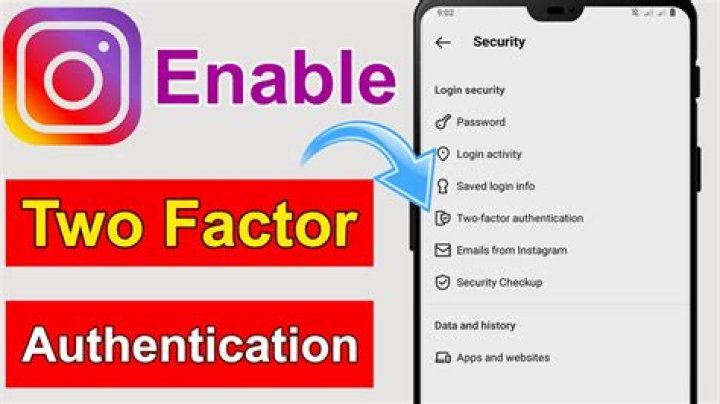
- Go to Settings > Security.
- Tap the “Two-Factor Authentication” option.
- Tap Get Started.
- From the next screen, toggle on either of the options.
You can use the authentication from an authenticator app, or get 2FA codes as a text message on the registered cellular number. If you choose the authenticator app method, you will need to have the Google Authenticator app on your phone. You will also get a bunch of backup codes for your account in any case you lose access to your number or authenticator app.
See Your Instagram Login Activity
Are you thinking of enabling the Instagram two-factor authentication followed by some unusual activities on your account? Then you want to look into your Instagram login activity as well. From there, you can find out who signed in to your Instagram account, from where, and which device.
- Go to Instagram settings from the app.
- Tap on Security > Login Activity.
- There you will find all the previously logged-in devices and locations.
- Tap the three dots icon near any location and tap Sign Out to kick out any unauthorized sign-ins.
If someone already knew your password, you will see unwanted login activities on the Login Activities screen. Once you enable two-factor authentication for your Instagram account, other logins will be removed. Also, you can change your account password as an extra layer of security.
Instagram has finally added the two-factor authentication to its iOS app. This means you can make your Instagram account more secure by enabling the two-factor authentication. When this feature is enabled Instagram will send a unique code to your mobile phone before authenticating the login request. So even if someone has been able to get access to your username and current password, he or she won’t be able to get into your account without entering the unique passcode that was sent to your mobile number. Follow the steps below to enable two factor authentication on Instagram for iPhone or iPad and make your account more secure.
Enable Two-Factor Authentication On Instagram
- Launch Instagram app.
- Tap on the profile button located on right most side of the button bar.
- Once you are on the profile screen tap on the Settings button that is the one with gear glyph.
- You will now see the ‘Options‘ screen. Here you have to tap on the ‘Two-factor Authentication‘ option.
- Enable the toggle for ‘Require security code‘ and then tap on ‘Add Number‘.
- Type in your Phone number and hit the ‘Next‘ button.
- Instagram will send you a code via text message, enter it.
- Now finally take a screenshot of Backup codes that are displayed on your screen.
That’s it. Now every time you or someone else tries to log into your Instagram account you will receive a secret code on your phone number that will be required to authenticate the login. If you don’t have your Phone at hand, you can use one of the codes that you took screenshot of instead to login.
All the major social networks on the Internet have already had two-factor authentication enabled for their user accounts for quite a while now. Instagram has also recently joined the club. They recently updated their mobile apps with the two-factor authentication feature. This guide will show you how to enable this feature on your Android smartphone and operate it if you’ve never used it before.
How to Set Two-Factor Authentication on Instagram
First, make sure you have updated the app from the Play Store. Search for “Instagram” in the Play Store, and hit the Update button (if it is available).
1. Open Instagram and tap on the profile icon to open your profile.
2. Open the Settings by tapping on the three dots in the top-right corner.
3. In the Settings panel you should now see a new option for “Two-factor authentication” under the Account section. Tap on it, and on the next screen tap on the Toggle button next to “Require Security Code” to enable the feature. Tap on “Turn on” when prompted to turn on the feature.
4. On the next screen you will be asked to enter a six-digit code that will be sent to your phone number. You must add your active phone number in the Settings to be able to receive the code. Instagram will send the code to verify your number. You can even change the number for receiving the code by tapping on “Change it” at the end.
5. After your phone number is verified, Instagram will give you some backup codes. These backup codes can be used in cases when you don’t receive the six-digit code on your phone or you are unable to access it for some reason during login authentication. An automatic screenshot of the codes will be taken and saved to your gallery. You can even copy and save it somewhere else. Make sure no one else gets access to these codes. These are just for emergency situations.
The security feature is all set. Two-factor authentication has been enabled for your Instagram account. Next time you log in you will be asked for a six-digit code after you enter the correct password. If you are unable to access the code on your phone, you can make use of the backup codes.
Conclusion
Instagram also has a security feature for if it finds a login from a suspicious location – it will force you to reset your password the next time you open the app. However, two-factor authentication offers an additional layer of security, and it is recommended that you enable it right away. Make use of it and prevent your precious memories from falling into the wrong hands.
Abhishek is a Freelance Tech blogger and an avid coder. He’s an Android Freak and loves customizing and fixing all things digital. You might also want to check out his blog where he shares his love for Tech.
Recently, Instagram added an amazing new security feature, Two-Factor Authentication (2FA), to its mobile apps. Let’s review both what 2FA is and why you should enable it today!
Over the past few months, the groovyPost team has been focusing on keeping our digital lives more secure by providing tips on everything from creating strong passwords you can remember to warnings that your Yahoo! Accounts were hacked. Continuing down this path of online security, today we’re going to review how you can secure an app you probably use every day, Instagram!
Why Secure Instagram?
Everyone loves photos. That’s obvious by the smash, galactic, success of Instagram, the photo-centric social network service acquired by Facebook in 2012 for just a billion bucks. It’s hard to find anyone these days not using the service as it takes the difficulty out of sharing public and private moments with friends, family, and even strangers. Ah, but there it is. For many of us, what we love about Instagram is the ability to share private photos with only those we choose. As we talk about frequently, there’s almost no better way to lock things down, including on Instagram, than two-factor authentication (aka – multifactor authentication, or two-step verification). Not only does two-factor help mitigate easy to guess passwords, but it also mitigates the risk of lost passwords as in the Yahoo! incident.
Convinced? Perfect! Let’s get to it. We got photos to take!
Setup Two-Factor Authentication on Instagram
For this article, I am using the Android version of Instagram, but the instructions work the same for iOS. Not all accounts currently have 2FA (Two-Factor Authentication) enabled. I had to use my sibling’s device to grab the screenshots used in this article. So if you’re not seeing 2FA in your account at the moment, just bookmark this article and walk through it once Instagram rolls out the feature to your account.
Launch Instagram, open your User Profile, then tap the Settings button, represented by three dots (Android) or a Gear Icon (iOS).
Scroll down under Account and Tap Two Factor Authentication.
Toggle on Require Security Code.
Instagram will text you a verification code, enter it to verify your account.
As a safety precaution, Instagram will generate a set of verification codes, you should backup, copy, print and store somewhere safe; in case you experience problems signing.
That’s it, 2FA is now enabled and your Instagram account is much safer.
Remember, the thing about security is nothing is 100%. Security is all about layers. The more you pay attention, even the little things, the better protected you will be.
Now that we’ve got security on the brain, why not stop by and review our articles on securing your Facebook and Twitter account! Not sure about you, but I feel A LOT more secure already! 😉
Enabling two-factor authentication on web accounts is the best option to prevent unauthorized access and hacking attempts. Hackers can monitor your online activities and collect passwords using some malicious tools installed on your system. But those details will be useless if you have enabled the second layer security on the account. That’s the reason why people use mobile verification to protect their email, social media, and other online accounts.
We already discussed how to turn on two-step verification on Facebook, Twitter, and Google accounts. In this short guide, we’ll tell you how to secure your Instagram account with two-factor authentication.
Instagram is the place where we store important photos (even private) and videos to share or backup. Many people use it to promote products and make money based on their network strength and influence rate. Either basic shares or promotions, account security is the crucial part you should focus on to protect content.
Instagram two-factor authentication
Sign in to your Instagram account from a computer.
Click the Settings icon on your profile page. You will get a box with a number of options. Choose “Privacy and Security” from them.
In the newly opened page, scroll down to the bottom to locate “Two-Factor Authentication”. Click the “Enable Two-Factor Authentication” link to activate the feature.
Check the “Require Security Code” option and click “Turn On” on the popup box. Confirm your mobile number and change the number if needed. Hit the “Next” button to get a verification code from Instagram.
Once you received the code, enter it on Instagram to confirm your number. Click “Done” to complete your request. Thereafter, Instagram will verify your identity each time when you are login by sending a confirmation code to the number provided. You have to enter the code on Instagram to access the account.
Nowadays, it’s an imperative to protect all your accounts because the number of password thefts is constantly increasing. If you have an Instagram account, you can protect it with a security feature called two-factor authentication. It is one of the best security features – each time when you want to log into Instagram from an unknown device, you will have to add not just your username and password, but an SMS security code as well. This keeps your account safe and secure from hacking and prevents others from accessing it. Here, we are going to show you how to enable two-factor authentication on Instagram.
How to enable two-factor authentication on Instagram
If you want to enable this extremely useful security feature, just follow the steps below:
- Launch Instagram app on your Android or iOS device
- Go to your profile
- Tap the icon in the top-right corner
- Scroll down and tap Two-Factor Authentication
- Next, toggle the switch next to “Require Security Code” to enable it
- You will be asked if you want to turn it on
- Tap Turn On
- If you haven’t added your phone number before, you’ll be asked to do that now
- Tap Next
- You’ll get a text message with the security code
- In the two-factor authentication menu, you’ll see backup codes that you can copy or take a screenshot. You can use backup codes in case you don’t receive an SMS security code.
How to turn two-factor authentication off
If, at some point, you change your mind and want to disable this security feature, do the following:
- Open Instagram app on your Android on your iOS device
- Then go to your profile
- Tap the icon in the top-right corner to access the menu
- Scroll down and tap Two-Factor Authentication
- Next, toggle the switch next to “Require Security Code”
- Tap Turn Off.
Now you know how to enable two-factor authentication on Instagram, on both, Android and iOS devices. We strongly suggest you do to this, as it protects your account from hackers. After all, you want to keep your Instagram account safe and secure, and this is an excellent way to do so.




