Need to know your Mac’s IP address? Whether you’re looking for the external or internal address, here’s how to find out
By David Price, Editor | 14 May 19
Contents
- >What is an IP address?
- >External and internal IP addresses
- >Why would anyone need to know your IP address
- >How to find your external (public) IP address
- >How to find your local internal (private/local) IP address
- >How to find your IP address using Terminal
Need to know your Mac’s IP address? You’ve come to the right place. We show how to find this information, as well as explaining what an IP address is and the difference between internal and external IP addresses.
What is an IP address?
Your IP address is your computer or device’s location online. It’s where the internet can find you, and how it can identify you, essentially.The IP address is assigned to you by your ISP (Internet Service Provider).
Networking hardware needs to know this address in order to connect you to the internet, but it does this automatically, and it’s quite rare that you’ll need to know your IP address yourself.
Your IP address can also be used to identify you and track your online activities. Google uses your IP address to localise your search results, for example. If that bothers you, it would be wise to use a VPN – we recommend NordVPN, but there are other options in our Best Mac VPNs roundup.
External and internal IP addresses
There are two kinds of IP address.
- External (or public) IP address. This is how the internet at large locates and contacts you; it is assigned to you by your ISP when you first go online, and can apply to a device or to an entire network that connects to the internet via a single point. This can appear in either IPv4 (four numbers separated by dots, for a total of around 8-12 digits) or IPv6 (eight numbers separated by digits, for around 30 digits) form.
- Internal (or private, or local). This address is not disclosed to the internet – it’s only used within your home network, and applies to a single device. A group of offline computers linked on a private network would use internal IP addresses to talk to each other, and your Wi-Fi router will use internal IP addresses to speak to the various devices that connect to it. This will always be in IPv4 form (four numbers separated by dots) and will nearly always be 192.168.X.X, with the Xs varying from device to device.
If someone refers to your IP address they probably mean the external one, but we’ll show how to find out both in this article.
Why would anyone need to know your IP address
You might need to know your IP address when setting up certain types of software,
It’s an unlikely scenario, but if someone had your IP address it is possible that they could hack you, so be wary about telling it to anyone. In fact, it could even lead them to you thanks to geolocation data, although to pinpoint your actual location it would probably be necessary to demand the information from your ISP – with a search warrant.
How to find your external (public) IP address
The method you use here depends on whether you’re connected to a router, or directly to a modem.
If you are directly connected to modem
It’s more than likely that your ISP has provided you with a combined modem router, and that you connect to this wirelessly, in which case the below steps won’t work for you. But just in case you are connected directly to a modem, via an Ethernet cable, here’s what to do:
- Open System Preferences. (Either click the cogs icon in your dock, or hit the Apple logo drop-down menu at the top left of your screen, and then select System Preferences.)
- Click Network (under the Internet & Wireless section).
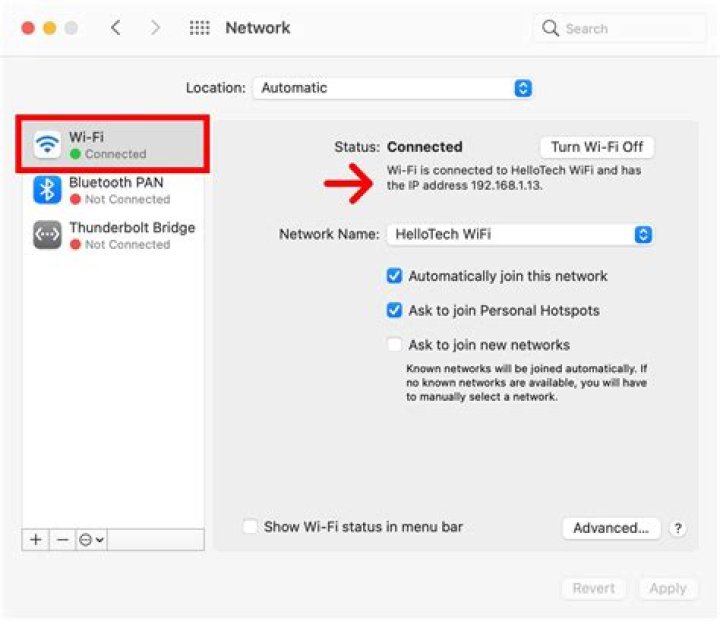
- Highlight the option in the left-hand bar that has a green dot, then check the information that appears in the pane on the right. It should say Connected at the top; in the smaller text underneath it will tell you what your IP address is.
If you are connected to a router wirelessly, this will show you the internal IP address, not the external address. We’ll look in more detail at how to find out your internal IP address below.
If you are connected to router
Assuming you are connected to a router rather than a modem – which is the most likely scenario – there are a couple of ways to find out your IP address.
We recommend using a service like What is my IP Address? but Google will also tell you if you simply type in What is my IP address into the search bar.
How to find your local internal (private/local) IP address
The IP address we discovered using the above method is the external IP address, and that will nearly always be what you need to find out. But very occasionally you’ll need to know your internal IP address instead.
As we explained above, it is possible to find this out by looking in the Network section of system preferences.
- Open System Preferences. (Either click the cogs icon in your dock, or hit the Apple logo drop-down menu at the top left of your screen, and then select System Preferences.)
- Click Network (under the Internet & Wireless section).
- Highlight the option in the left-hand bar that has a green dot, then check the information that appears in the pane on the right. It should say Connected at the top; in the smaller text underneath it will tell you what your internal IP address is.
Your IP address will appear in the format XXX.XXX.X.X, almost certainly beginning 192.168.X.X.
How to find your IP address using Terminal
If you want to be really geeky you could use Terminal to find out your (local) IP address.
If you are connected via a wireless network:
- Open Terminal (Press Command + Space and start to type Terminal)
- Type in: ipconfig getifaddr en0
Every device on your network, including the router, will be assigned an internal IP address, but the entire network will be assigned a single external IP address at the point it meets the internet.
That’s it! You now know what your IP address is. Perhaps you would now like to find out your Mac’s specs.
Note: We may earn a commission when you buy through links on our site, at no extra cost to you. This doesn’t affect our editorial independence. Learn more.
Author: David Price, Editor
David has loved the iPhone since covering the original 2007 launch; later his obsession expanded to include iPad and Apple Watch. He offers advice to owners (and prospective owners) of these devices.
- An IP address is like your digital return address; it helps create a trail for your internet-based activities and is often based on your physical location.
- Your Mac computer may have two IP addresses: An internal and an external one.
- Finding either of your Mac’s IP addresses is quick and easy to accomplish.
- Visit Business Insider’s homepage for more stories.
An IP address, short for “Internet Protocol” address, is how individual computers on the internet are identified. Every Google search, or other internet-based activity, is sent out using your IP address.
It’s sort of like the return address on your activities, and is often based on your physical, real-world location. It appears as a string of numbers — for example, “172.15.254.1.”
And although it may sound like it’s a single address, you can actually have two types of IP addresses — an internal (or local) one, and an external (or public) one — if your computer is connected to a network as well as the internet. Either way, Macs are built to make it easy to access that information.
Here are two methods for finding your Mac computer’s internal and external IP addresses:
How to find your internal IP address
For those with OS X 10.5 or newer, this is how to find your internal IP address:
1. Click the Apple icon in the top left corner of your screen.
2. Select “System Preferences.”
3. Click “Network.”
4. Select your main connection (if it isn’t already your default, which it likely will be.) Your IP address will appear on the right under the “status” section in smaller print.
How to find your external IP address
For those whose Macs are part of a network, finding the external IP address is quick and easy: All you have to do is Google “IP address” or “what’s my IP” — Google will then show you your public IP address, at the top of the results page.
Alternatively, you could also find your external IP address via your router. Here’s how:
1. Follow the above instructions for finding your internal IP address.
2. Once you’ve navigated to your networks, click “Advanced” and then toggle over to “TCP/IP.”
3. Copy the string of numbers listed next to “router,” then paste those into a new tab on your web browser.
4. If necessary, log in to your internet service provider to access your router’s configuration page, then check the “router status” and “Wide Area Network” sections of your account to find your external IP address.
Even though your IP address is usually based on your location and may tell others with access to it your general geolocation, it doesn’t include information like your name or other identifiable information. But for those who still want more online privacy, a VPN can be used to mask your IP address.
Related coverage from How To Do Everything: Tech:
How to reset a Mac computer to its factory default settings
How to uninstall apps on a Mac computer in three different ways
How to backup your Mac computer using Time Machine or iCloud
How to clear the cache on your Mac computer to make it run more efficiently
Insider Inc. receives a commission when you buy through our links.
Knowing your Mac’s IP address is important for setting up a network or sharing files, here’s two different ways to find your IP address in Mac OS X; an easy way through the GUI and a more technical approach with the command line. These methods will be the same whether you are connected via ethernet or wireless.
This works the same in all versions of Mac OS X on all Macs.
How to Find the IP Address on a Mac
You can find any Macs IP, or your IP address from the Mac System Preferences Network configuration screen:
- From the Apple menu pull down “System Preferences”
- Click on the “Network” preference pane
- Your IP address will be visible to the right, as indicated in the screenshot below
Your IP address is the number listed, in the above case it is 192.168.0.100
Now we’ll cover the more technical approaches to getting your IP address using the Mac OS X command line:
Find your IP Address via the Mac OS X Terminal
This is how to find the IP address of your Mac through the Terminal, this is often the quickest way for those that are more technically inclined.
- Launch the Terminal located in /Applications/Utilities/
- Type the following command:
ifconfig |grep inet
- You will see something that looks like this:
inet6 ::1 prefixlen 128
inet6 fe80::1%lo0 prefixlen 64 scopeid 0x1
inet 127.0.0.1 netmask 0xff000000
inet6 fe80::fa1e:dfff:feea:d544%en1 prefixlen 64 scopeid 0x5
inet 192.168.0.100 netmask 0xffffff00 broadcast 192.168.0.255
- Your IP address is usually next to the last entry of ‘inet’ and in this case is 192.168.0.100, an IP address is always in the format of x.x.x.x but it will never be 127.0.0.1 because that is your machines loopback address. Because you can always ignore 127.0.0.1, this guarantees that your IP address will be the other IP between ‘inet’ and ‘netmask’
The other command line option is to use: ipconfig getifaddr en1 which reports back only your en1 (usually wireless) IP address. You can change this to en0 for wired/ethernet too. I have heard ipconfig is not supported in all versions of Mac OS X so I did not recommend this as the first choice. However, using ipconfig you can also set your IP address from the command line.
Find your External Public IP Address in Mac OS X
Your external IP address is what is broadcast to the world rather than your local network (behind a wireless router, for instance).
You can find your external IP address easily by going to a website like Google and typing “what is my IP address” or by going to websites like “whatismyipaddress.com” and checking there.
This is easiest to find through a Terminal command a well:
curl ; echo
This will instantly report back your external IP address. We covered this command when finding your external IP address in the past.
A MAC address is a unique identifier that is assigned to each physical network interface on a computer. Different than a computers IP address, MAC addresses are frequently used for network access control and to monitor network connectivity, and they can be spoofed for virtualization needs or to circumvent some network limitations. If you need to access yours, here’s how to find one from the friendly GUI and the command line.
How to Locate a MAC Address in Mac OS X
To quickly find a MAC address on a Mac with OS X, do the following:
- Open System Preferences from the Apple menu
- Click on “Network”
- Select your currently active network connection from the left menu (Wi-Fi, Ethernet, etc) and then click on “Advanced” in the lower right corner
- Look at the bottom of the window for “Wi-Fi Address”, the hexadecimal characters next to this are the machines MAC address
The address is always in the form aa:bb:cc:dd:ee:ff, looking something like “ce:9e:8d:02:1d:e9” or a variation of.
Note that the wireless MAC address will be labeled as “Wi-Fi Address” in new versions of OS X like Yosemite, Mavericks, Mountain Lion, anything from Lion and later as well as iPhone and iOS, whereas it’s called “Airport Address” in Mac OS X 10.6 Snow Leopard and before.
List All Network Hardware MAC Addresses in Mac OS X
To quickly list all MAC addresses of network hardware on a Mac, even if they are currently inactive, launch the Terminal and type the following command:
This may return something like this, look for the string following “Ethernet Address” to find the MAC address per interface:
Hardware Port: Bluetooth DUN
Device: Bluetooth-Modem
Ethernet Address: db:26:cd:41:c3:79
Hardware Port: Ethernet
Device: en0
Ethernet Address: 21:d3:91:bb:11:bd
Hardware Port: FireWire
Device: fw0
Ethernet Address: c6:18:ed:fa:ff:15:db:51
Hardware Port: Wi-Fi
Device: en1
Ethernet Address: f2:8b:fc:ae:bb:f5
Notice that even a wi-fi cards MAC address will be referred to as “Ethernet address” using the networksetup command. You can also retrieve individual IP addresses and MAC addresses together with the ifconfig command, although the output isn’t nearly as user friendly.
If your intention is to spoof an address, generating a random MAC address is usually the best bet to avoid any network conflicts.
Your IP address is sort of like your home address: without it, the mailman wouldn’t know where to deliver your packages. Well, without an IP address, the internet wouldn’t know where to send your packets of information either. It’s important to find your computer’s IP address if you want to make changes to your WiFi username and password, or your security preferences. Here’s how to find your computer’s IP address on a Mac.
If you want to know more about what an IP address is and what it does, check out our previous article here.
- Click on the WiFi menu button in your Mac’s menu bar.
- Then select Network Preferences. You can find the WiFi button in the top right-hand corner of your computer screen.
Note: You can also access your network preferences by clicking on the Apple icon located in the top left-hand corner of your screen. Then click on System Preferences and select the Network button.
Private Vs. Public IP Address
There are two kinds of IP addresses: public and private. While your modem has a public IP address (like a building’s address), your router’s IP address is private (sort of like an apartment number). This is why your router’s IP address might be the same as someone else’s.
Think of it this way, two people can live in different apartment buildings with different addresses, but they can both have the same apartment number.
Now that you know how to find your computer’s IP address on a Mac, check out our article on how to change your WiFi password on a Mac or PC.
Many times iFolks need to know their Mac’s IP Address to connect their computer to some devices. Here we are not talking about the internet IP Address. That one may be the address of your router. Here you can see how to find your Mac’s IP address.
Method #1 Using System Preferences
The most simple way to find your Mac’s IP Address is to do the following steps.
- Click on the Apple icon in the top left corner of your screen and choose System Preferences.
- Now open Network and the network window will open up.
- If you are connected to some network you can see your IP Address next to the IP Address field. However, if you are not connected to an internet network, continue with the next step.
- Click on the Advanced button.
- Now, click on the TCP/IP tab on the top.
- You can see your Mac’s IP Address next to “IPv4 Address:” It should look similar to this one: 192.168.200.150.
Method #2 Using Terminal
- Launch the Terminal (you can find it in Applications > Utilities).
- Type the following conde in the Terminal:
ifconfig | grep “inet ” | grep -v 127.0.0.1
This command will show you your Mac’s IP Address next to the word “inet.”
Method #3 Using the Remote Login Feature
- Click on the Apple icon in the top left corner of your screen and choose System Preferences.
- Open the Sharing icon.
- While in the Sharing window, toggle on the Remote Login checkbox in the left panel (if it is not activated already) and select that field.
- Once it is turned on and selected, you can see your IP Address on the right side of the window. More precisely, at the end of the sentences that start with “To log in to this computer…”
If you are performing the steps right, you should get the same IP Address no matter which method you will use. So, feel free the one that seems easier for you.
Locate an IP address using these easy steps
- Tweet
- Share
There are a few ways to find the IP address and MAC address of a computer running Microsoft Windows. You’ll need these details when setting up software, diagnosing a network problem, configuring MAC address filtering, and other tasks.
These directions are for finding the local IP address Windows is using. See How to Find Your IP Address for directions on locating the IP address on other operating systems like macOS, or for finding your public IP address.
Use the ipconfig Command
The ipconfig utility is accessible from Command Prompt and is easy to use. It displays address information for all active network adapters.
Open Command Prompt. In Windows 10, open the Start menu and search for cmd. In Windows 8, open the Apps screen to find Command Prompt in the Windows System section.
For older versions of Windows like Windows 7, Vista, and XP, open the Start menu and go to All Programs > Accessories to open Command Prompt.
Type this command and press Enter.
Locate Physical Address to see the network adapter’s MAC address. The IPv4 address is listed beside IPv4 Address, while Link-local IPv6 Address shows the IPv6 address.
Many Windows PCs include more than one network adapter (such as separate adapters for Ethernet and Wi-Fi support) and report several active IP or MAC addresses.
Open the Network Adapter’s Properties
Another way to find the MAC address in Windows or to see the IP address, is through the network adapter’s properties window, something you can do through Control Panel.
Select Network and Internet. If you don’t see that option, go to Network and Sharing Center, then skip to Step 4. In Windows XP, select Network and Internet Connections or Network Connections, then skip to Step 5.
Choose Network and Sharing Center. In Windows XP, select Network Connections.
Select Change adapter settings on the left side. In Windows XP, skip this step. In Windows Vista, click Manage network connections.
Double-click the adapter for which you want to see the MAC address and local IP address.
Choose Details. In Windows XP, go to the Support tab.
Locate IPV4 Address or Link-local IPv6 Address for the IP address, or Physical Address to see the MAC address for that adapter.
Virtual adapters used in virtual machines and other virtualization software usually possess software-emulated MAC addresses and not the physical address of the network interface card.
Ever had to reverse lookup an IP address? Kind of like looking up a home address using a phone number? If you’re in IT, you might come across the occasional situation where you have a MAC address, but need to figure out what the IP address is.
There are a couple of ways you can go about doing this. Firstly, it’s important to understand that the MAC address might not be the address for a PC. It could also be the MAC address for a printer or some other type of device on the network.
If you suspect the MAC address is a printer, first check out this site below to see if it matches a major manufacturer:
You can also find out if the MAC address is from a switch or other networking device from HP, CISCO, etc. If you’re sure the MAC address is a computer, then try the methods below to determine the IP address.
Method 1 – DHCP Server
The simplest way to get an IP address from a MAC address is to check out the DHCP server, if possible. Whether you are in a corporate environment or at home, each computer is being assigned an IP address from a DHCP server (unless it’s a static network, which is rare).
You can either go into the DHCP console on Windows Server 2003/2008 or you can log into your wireless router at home, if that is what you are using.
Simply go to Address Leases under the Scope and you can view both the client IP address and the Unique ID, which is the MAC address.
If you have a wireless router at home, it will vary depending on the brand (Belkin, Netgear, LinkSys, etc). But basically, there should be a section to view all the current devices connected to the wireless network.
On my AT&T U-Verse box, it’s right on the home page and I simply click on Device Details to view the MAC Address.
Method 2 – Ping Broadcast Address
The second way to do this if you can’t get access to your DHCP server is to use a useful command in Windows called ARP (Address Resolution Protocol).
Basically, you ping the broadcast address on your network from any Windows machine and then check out the ARP table afterwards.
If you subnet is 192.168.1.X with a mask of 255.255.255.0, then you would ping 192.168.1.255. When you ping, you will get a Request Timed Out all four times, but don’t worry.
Next, type in the following command
You will now get a list of all the connected devices on your network along with their physical addresses! Pretty nifty trick.
Method 3 – Free Tools
Lastly, you can use a free program to get a IP address from a MAC address. It’s called CC Get MAC Address and it can be downloaded here:
Before you can use it, however, you need to scan all the IP addresses in your subnet in order for it to work. The program itself has a auto scan feature that takes in a IP range.
You can also use a free program called Advanced IP Scanner, which will do the same thing and is a program totally dedicated to scanning IP addresses:
You can also use the IP Scanner and then simply run the arp –a command to get a list of IP/MAC Addresses.
Founder of The Back Room Tech and managing editor. He began blogging in 2007 and quit his job in 2010 to blog full-time. He has over 15 years of industry experience in IT and holds several technical certifications. Read Aseem’s Full Bio
Make your Mac invincible
When your computer connects to the internet, it has a unique number assigned to it called an Internet Protocol (IP) address. Similar to a mailing address, each computer on the network has a dedicated IP address that identifies it. Without an IP address, no messages or information packets can be sent or received.
You should be wary — if someone knows your IP address, they may be able to hack your computer or find you via geolocation data. Although to actually pinpoint your location they would need information from your ISP provider that’s only accessible with a search warrant.
So if you want to fix a network access problem or set up certain types of software, sometimes you might need to search for “how to find my IP address on Mac”. Luckily, there are a few simple and quick ways to find your IP address or change IP address on Mac by using a VPN. Let’s break this down step by step.
Solve your tasks with Setapp
Get access to a curated collection of 170+ Mac apps. Just as it’s easy to find your IP address on Mac, it’s easy to solve problems with Setapp.
How To Find IP Address On Mac
Before you find your Mac IP address, it’s important to know the difference between the two kinds of IP addresses — internal and external.
An internal IP address (local or private) is only used within your home network and always for a single device. For example, if you have a group of offline computers on a network, they will communicate with one another through internal IP addresses, which always have the IPv4 format.
External (public) IP addresses are assigned by your internet service provider (ISP) when you first go online and hook to a device or network that connects to the internet. Usually, when you need to find your Mac IP address it means an external one, but you’ll learn how to check both in the explanation below.
MAC Address vs IP Address difference
A MAC (Machine Access Control) address is a serial number assigned to every network adaptor. Your computer’s network adaptor MAC address travels the network only until the next device along the way. This means that your MAC address won’t go further than your router and is less at risk of being hacked. So when you’re looking to change IP address on Mac to protect your network, you’ll need to watch for your IP address rather than your MAC one.
How to check IP address on Mac: external (public) IP address
What is the process you would follow to find your IP address on a Mac computer? The method you use to find your external IP address will depend on whether you’re connected via a router or directly to the modem.
In the rare case that you’re connected to the modem via an Ethernet cable, find IP address on Mac with these steps:
Open System Preferences by clicking the Apple logo dropdown menu
Highlight the option on the left with a green dot. On the right, it should say Connected and show you the IP address right under.
If you’re connected to a router, you can try a few other options on how to find IP address. First is to use a special service such as What’s My IP Address? Alternatively, if you type “What is my IP address” in Google, the results will show your public IP address.
How to find your local internal IP address
In case you need to know your local or private (internal) IP address or if you’re wondering how to find IPv4 address, you can also do so through the Network section in System Preferences. Actually, it’s exactly the same process as looking for your external IP for when you’re connected via an Ethernet cable:
Open your Mac’s System Preferences
Click on Network
Highlight the green-dot option and see the IP in the right pane. It’s likely to have a xxx.xx.xxx.xxx format.
How to find your IP address using Terminal
Just like on a Windows computer, you can use ipconfig on Mac with Terminal to find your local IP address. If you’re connected to the internet through a wireless network:
Hit ⌘ + Space to search and open Terminal
Type in ipconfig getifaddr en0
Every device connected to your network including the router is assigned an internal IP address. Together, the entire network is assigned a single external IP address once it’s connected to the internet.
How to hide your IP address with a VPN
Need to protect sensitive data while you’re browsing the internet with public WiFi? You may be wondering how to change IP address on Mac. In this case you need a reliable way to hide your IP address when on the internet, and using a Virtual Private Network or VPN can be a big help, since your IP address will be replaced with one from a Virtual Private Network provider.
Get a tool that hides your IP address
With Shimo, a full-featured VPN client for Mac, you’ll be able to protect your sensitive data and hide your Mac’s IP address while browsing.
Shimo, a full featured VPN client for Mac, can help you create, edit, and control VPN connections with military-grade security — meaning you can reliably obscure your IP address at any time. You don’t need to be a tech geek or have a special technical background to use VPNs. Shimo’s intuitive interface makes it quite simple and straightforward:
Click on Shimo’s icon in your menu bar
Choose Add VPN Account…
If you don’t have any VPN accounts saved, hit the plus button
Select one of the available VPN options or get a special offer with tigerVPN
Checking your WiFi network health
If you’re having trouble with your internet connection, whether you’re using a VPN or not, it’s a good idea to check on your WiFi network health with an app like NetSpot or WiFi Explorer.
NetSpot is a WiFi analyzer that helps you create a flawless wireless network and troubleshoot your internet connection problems at home or at work. The app allows you to see data like a graph with a signal strength history to check the wireless spectrum in your area. You can then use this data to improve the location of your wireless router, tweak your WiFi network settings, or switch to less crowded channels.
WiFi Explorer can similarly give you extensive details about networks in the vicinity, including their band, rand, signal strength, and security. Referring to its extensive help manual, you’ll be able to quickly troubleshoot your own internet issues without the help of a professional. You can also easily customize the colors and columns of certain networks you wish to track while ignoring irrelevant ones.
So once you know how to find your IP address Mac security or WiFi problems should bother you much less. Best of all, helpful apps like Shimo, NetSpot, and WiFi Explorer are available to you for free for seven days with a trial of Setapp, an app platform with more than 150 Mac apps that can quickly get you out of any trouble with your Mac, your productivity, and even your finances. Why not give it a try today and see how you can improve your WiFi connection in minutes!
By Michael King
Today’s Best Tech Deals
Picked by PCWorld’s Editors
Top Deals On Great Products
Picked by Techconnect’s Editors
Billions of computers are linked through the Internet. And with so many devices communicating and exchanging information, each one needs to have a unique identifier so that the right information reaches the right destination.
Much as the Postal Service uses your home address to deliver the correct mail to your mailbox, computers use Internet Protocol (IP) and Media Access Control (MAC) addresses to distinguish between different devices on your network. Finding this information about your computer is simple–and it can be very useful when your machine is on a network. Here’s how to do it.
Using Windows 7
1. Click Start, All Programs, Accessories, Command Prompt. Find your IP address using the ipconfig command.
2. In the prompt that appears, type ipconfig /all and click Return.
3. The prompt will return network information for each network adapter in your computer. Find the section for the adapter that’s connected to your network. For example, you can find the network information for your wireless adapter by looking under the ‘Ethernet Adapter Wireless Network Connection’ section.
4. To find your computer’s IP address, look for the ‘IPv4 Address’ or ‘IP Address’ entry. This line will display the IP address for your system; typically it looks like a string of numbers separated by periods, such as 192.168.1.1.
5. To find your computer’s MAC address, look for the ‘Physical Address’ entry. This line will display your adapter’s MAC address, which typically looks like a string of letters and numbers separated by dashes.
Using Mac OS X
1. Click the Apple menu on the upper left part of the screen.
2. Click System Preferences. In the resulting System Preferences menu, select Network.
3. In the Network window, select the network adapter you’re interested in. Your IP address will appear in the right-hand pane of the window.
Your MAC address is listed at the bottom of the Wi-Fi menu. 4. To find your MAC address for the adapter, click the Advanced. button. Your MAC address should appear at the bottom of the window.
The easiest way to retrieve a routers IP address from a Mac is by going through System Preferences in Mac OS X. This is much the same way that you get your Macs IP address, but the router IP is a few steps further within preference menus.
How to Find a Routers IP Address in Mac OS X
This is the same in all versions of Mac OS X, and it works with both wi-fi network routers and wired ethernet routers:
- Open System Preferences from the Apple menu
- Click on “Network” preferences under the ‘Internet & Wireless’ section
- Select “Wi-Fi” or whatever network interface you are connected through and click on the “Advanced” button in the lower right corner
- Click on the “TCP/IP” tab from the top choices
- The routers IP address is the numerical address next to “Router:” and will look something like: 192.168.1.1
Any connected routers IP address can be found that way, be it a cabled ethernet connection or a wireless connection, and whether using IPv4 or IPv6.
Finding Wi-Fi Router IP Addresses in Mac OS X via Wi-Fi Menu
New versions of Mac OS also show the router IP included in the detailed network data shown when option-clicking on the Wi-Fi menu since it fits in line with troubleshooting, but in prior releases of Mac OS X you won’t find it there, and fortunately it’s not exactly hard to click through system prefs either to uncover this information.
You can use either method to uncover the routers IP address, though obviously using the Wi-Fi menu will only work to uncover a routers IP if it’s a wireless network, whereas the System Preference method works regardless of it being a wired or wireless network router.
Note: the above method retrieves the routers IP in relation to the LAN, not in relation to the internet. If you are looking for an external IP address as seen by the internet, you can get that by typing the following into the command line:
This will report back the IP of either your Mac or your router as it would be accessible from the internet and outside world, which is different than the router IP you use to connect locally.
Share in the comments if you have another approach to finding a routers IP address from MacOS, or any other experiences, advice, or relevant information.




