It took me a long while to find a decent alternative for iTunes. First of all I wanted to get rid of Quicktime. It’s a player that really likes to hijack file associations. Still, I managed to live with that. Unfortunately the iTunes software keeps getting bigger with no benefit whatsoever. In my case I just need a mediaplayer (music player) for Windows that manages a music library and makes it easy to synchronize with my iPod Classic. I don’t need any other software stuffed down my throat containing drivers, connectors, features, ads,… for Apple hardware which I’m not planning to buy!
Moving from one player to another would be very easy if you hadn’t been upgrading like a good citizen into one of the latest iTunes releases where you followed the candytrail into the sealed fortress.
Requirements for a good alternative to iTunes
- transfer important music library data from iTunes such as artist, album, songtitle, tracknumber, play count (!), last play date (!), ratings, … (by means of the iTunes library XML-file or through a simple workaround)
- synchronize the music library with an iPod
Some tests…
Now I looked around and tested a lot of players out there. Some are really nice, but lack iPod support. For example: Songbird, which reads the XML-file very well but dropped iPod support, probably they are afraid of Steve Jobs.
Mediamonkey is another nice player with a lot of features, but can’t seem to read XML-files from iTunes. However if you look carefully you might find some scripts that can do the work for you, but still it’s a long way to go (I tried!).
I’ve tried a number of other players, but all of them lack the true basics necessary for my needs.
Winamp
I decided to give Winamp (version 5.601) another try. It supports iPod synchronisation but still has a major problem reading the last play date from the iTunes library XML-file. Now I’ve tried changing the date manually a few times doing some regular expressions with notepad++, but still Winamp couldn’t get it right. The problem lies in the way Apple handles dates (calculating seconds from January 1st 1904 (as opposed to the more familiar UNIX epoch), the first leap year in the 20th century). The problem is known to Winamp, but still hasn’t been addressed. Today however, I found a nice workaround and it’s quite simple. Don’t bother about the iTunes Library XML, we’re going to copy all data from the iPod itself!
First thing to do is to synchronize your iPod one last time with iTunes. Be sure to make a backup of your iTunes folder and iTunes library files (itl and xml) in case you still want to go back!
Now you can start Winamp. I’ve tested this with Winamp 5.601 and the procedure imports all common music ID’s, including play count and last play date information. Playlists have to be imported manually, but that shouldn’t be a problem.
Local media folder
By default all media files are copied in the user’s ‘my music’ folder.
Go to preferences (CTRL +P) and change your local media folder (if necessary) to your liking under Media Library > Portables.
Copy data from your iPod to the local media folder
You can now connect your iPod and click on the iPod device name under ‘Devices’ in the ‘Media Library Window’ (first tab). You will see all songs on your iPod. Now you can select them all (CTRL + A) and press CTRL + C (or right click and copy to local media). Now all files are being copied to your local media folder and this way keeping all interested data (such as play count, last play date, …). All data will be visible in the media library tab from now. The copy process (visible under ‘devices > transfers’) can take a while but you will be able to start listening to music right away.
2 thoughts on “Moving your music library from iTunes to Winamp.”
Cool Jan ! I used Winamp a long time ago, but i find it to commercially. It was great to recieve some special digital instrumental radio stations. Now today, i will try Winamp portable, because i don’t like that so many software is installing so much rubbish on my computer, and try constantly to connect to Internet for updates and show commercials. I prefer also Quiktime alternatieve and Media Player Classic Home Cinema. Also Realplayer (portable) is an alternative.
Succes.
Leave a Reply Cancel reply
This site uses Akismet to reduce spam. Learn how your comment data is processed.
Want to switch from iTunes to Winamp with an Android phone without losing your iTunes library? Now with the latest version of Winamp, you can easily import your iTunes library and playlists, and sync with Android phone with Winamp app for Android. See the detailed steps below. You can also transfer iTunes Library to Android directly with TunesGo.
Part 1. Winamp Fresh Installation
Step 1: Download the latest version of the Winamp Media Player, and install in minute. Note that Version 5.6 or later is required for wireless sync to Winamp for Android.
Step 2: Run Winamp and you’ll be prompted to import your iTunes library to Winamp. Select “Import from iTunes” to import all of your itunes music tracks into the Winamp Media Library.
Part 2. Already Installed Winamp
If you have already installed Winamp on your system, you need do it manually by clicking on “Library” in the bottom left-hand corner of the player and select “Import iTunes Media Library“.
Only iTunes library is not enough. You’ll want to import your iTunes Playlists, too. To do so, click “Library” in the bottom left corner and select “Import iTunes Playlist”. Therefore, you get everything in Winamp similar to iTunes, and start enjoying the speed and more features of Winamp.
If you want to sync your Winamp media library to Winamp on your library device, just use the USB connection or Wi-Fi network. I will choose Wi-Fi because it’s simple to sync Winamp media library between computer and phone wirelessly. The steps are easy: first install Winamp for Android and enable wireless sync in Menu/Settings; then pair your device with computer; in the running Winamp, mouse over the device icon and click the “Sync” button.
Part 3. iTunes Library to Android
With TunesGo, just one click “Transfer iTunes to Device” to tranfer iTunes Library to Android device. It has a trial version too. Wondershare TunesGo is a definitive phone manager that will meet your needs. Rebuild your iTunes easily. It can fix ID3 tags, covers, and delete duplicate Song & remove missing tracks.
Winamp is a terrific, customizable media player that keeps getting better with each new release. If you are tired of the default skins included with it, then join us as we show you how to make Winamp look like iTunes.
Note: You will need to have the full (standard) version of Winamp installed on your system. During our tests the skin would not display properly using the lite version.
Getting Started
You can see the default Bento Skin for Winamp on our test system. While not bad it may not be the theme that you want to use on your system either. Time for a new look…
The skin (.wal file) comes in a zip file so you will need to extract it after downloading it. Once unzipped, simply double click on the file to start the install process. To insure a smooth installation we had Winamp closed while adding the new skin.
You will need to confirm the installation, so click Yes to finish adding the new skin to Winamp.
Applying the Skin
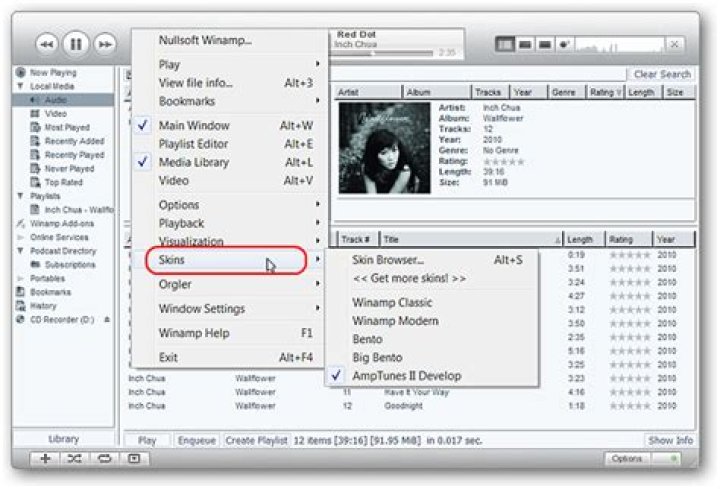
Once you restart Winamp go to Options, then Skins, and select AmpTunes II Develop.
Winamp will disappear for a moment while the new skin is being applied. As you can see here things looked quite different afterwards. The first thing that we did was close the Playlist Editor.
Then after making some small changes to the display here is how our Winamp Player turned out. Very nice.
Note: During out tests the Options Button in the lower right corner worked sporadically, so your mileage may vary.
Going back to the first post install screenshot above (second photo up), you can make your Winamp Player look exactly like the picture shown at the skin’s homepage if desired. Close the Playlist Editor, select Local Media (left menu area), and click on Hide Info (lower right corner).
Changing Back to a Different Skin
Whenever you get tired of the skin or just want a temporary change right click on the top area of the window, go to Skins, and select the new skin that you want to use.
For our test we chose to switch over to the Big Bento Skin (which we found preferable to the regular Bento Skin due to control button size, etc.). Have fun with the new iTunes look for your Winamp Player!
“Can I use winamp to transfer songs to into my iPod?”
“Is there any idea to use winamp to transfer music from iPhone to PC?”
Due to slow speed, complicated operation and frequently unrecognizable issues, many Apple users give up their use of iTunes and seek to ask third-party tool for help to transfer files on iPhone, iPad and iPod like Winamp – a powerful free media player for Windows and Android devices, to play lots of audio and video format and sync files to your iPhone and other portable devices. Now keep on reading to learn how to copy music onto your iPhone, iPad and iPod with Winamp.
Steps to Sync Music to iPhone, iPad and iPod with Winamp
If decide to use winamp to transfer music to iPhone, iPad and iPod, you have to download and install the latest iTunes first so that it will copy your music files from iTunes installation and categorize them in Winamp. Of course, if you want to totally get rid of iTunes, move to next part to import music without iTunes restriction.
Step1. Run the Winamp and click Import from iTunes to import your iTunes music tract into Winamp Media Library. Connect your device with PC and you will see your device under the head Devices on the left hand side.
Step2. Go to File and click Add media to library. Then click songs you want to add to iDevice and right click the mouse. Click Send to and select your Device.
Winamp Alternative to Transfer Music/Playlist/Library to iPhone, iPad and iPod
Apart from syncing music to iPhone, iPad and iPod with winamp, Free iPhone Care also can be the best alternative to iTunes that allows you to transfer contact, note, calendar, app, music, video, bookmark and photo easily between iDevice and Mac/Windows. It can be fully compatible with iPhone SE, iPhone 6s Plus, iPhone 6s, iPhone 6 Plus, iPhone 6, iPhone 5s, iPhone 5, iPhone 4s running iOS 9.3, iOS 9.2.1, iOS 9.1, iOS 9.0, iOS 8 and earlier.
Before copy music to iDevce, you are supposed to download and install it on your PC,depending on versions including Windows and MacBook. Then you can put music onto/off an iPod, iPhone, iPad as following steps.
Step1. Run the program and connect your iPhone, iPad or iPod touch to PC via USB cable. Click Start Now under Files Manager in the interface and click Music later.
Step2. Click Add to add songs to your iDevice. After that, click Refresh and all items will be synced to your device automatically.
Step3. This is an optional step. If you want to export music to computer/Mac, tick items, click Export to and specify a location to export music.
In addition, Free iPhone Care enables you to delete and edit items on computer. What’s more, Free Cleanup can help you remove all junk files to keep your iPhone/iPod/iPad at the peak performance always. To download music to iPod/iPhone/iPad without iTunes can be feasible as long as you choose user-friendly tool, whatever winamp or Free iPhone Care. If you have any problem, you are welcomed to leave it under the comment section. We will reply to you as soon as possible.
Updated on 2019-07-25 / Update for iOS File Transfer
Winamp: Amptunes 6.1
INSTALLATION: Extract the .wal file from the zipped archive.
Double-click the .wal file and Winamp will do the rest.
5TH AUGUST 2013
Wow, I haven’t upgraded this in quite a while. Regardless, here is the new skin as promised. I will be posting update info on our old web servers for previous versions to see. Includes gateway to our new web server, along with many new features and changes, including the all-new Ampengine Toolbox.
17TH JULY, 2011 – EDIT
Okay, I just ran a quick google of this skin for lols and HOLY SHITAKE MUSHROOMS. Sad thing is most of the websites are using an older version. I am completely refreshing this skin now with the most up-to-date version. Bottom-right is now gone as the cell area proved too buggy.
Also new, you will find 5 loads a whole lot quicker to previous versions. 1/4th of a second on my machine, whereas other versions are
1-2 seconds
Engineered for Maximum Awesomeness
Amptunes 6 has been rebuilt from the ground-up for better speeds, durability and response time. You will notice an instant improvement on library load times, media playback times and many more speed improvements. By slim-lining everything and keeping code simple, Winamp is given less orders by the skin, allowing it to be more responsive to user input. While the differences in speed may be unnoticeable in newer systems, older systems will benefit – as well as the user satisfaction that everything backstage is cleaner, the same way you would feel when you have a clear desk.
Cooked in Adobe Photoshop
A frequently asked question is how Amptunes is made. It’s simple – we design everything in Adobe Photoshop, and program with Visual Studio. Believe it or not, no single element in iTunes has been copied – every single element you see has been created to reflect the look, feel and simplicity of iTunes with the modifications and innovation of Hivemind Tech.
Take It Apart!
Tinker with it, edit parts, throw away what you don’t like and replace it with what you do – we encourage you to unleash your creativity here. Everything can be accessed by changing the file extension from .WAL to .ZIP and extracting it. Study the .xml files before you edit it, so you can get an understanding of where everything goes. If you end up wanting to publish your work, do it! Be sure to credit Hivemind Tech, and link back to either this website or my Deviantart.com account (as well as link us to your work of art so we can play with it, too!)
And, if you ever mess up, you can always re-download Amptunes at any time and start from scratch. Easy!
The Ampengine Toolbox
One of the cool new features we know you’ll love in Amptunes 6 is the integration of the all-new Amptunes Toolbox. This supplies the user with the more advanced back-end features, such as the following;
- Add media to the currently-playing playlist.
- Add Files, Folders and even stream URLs to the currently-playing playlist.
- Create, Save & Open Playlists with ease.
- Turn Equaliser Processing on & off.
- Turn Equaliser Auto-sync on & off.
- Turn AOT (Always On Top) on & off.
One of the biggest features that we’re proud to introduce inside the Ampengine Toolbox is the Fine Audio Sampling Feature, in which an easily-configurable Equaliser (Complete with Pre-amp controls) is paired with an Audio Wavelength Visualiser – this allows you to configure and optimise your sound output with perfect precision via the EQ, and see (as well as hear) changes to your music immediately via the Wavelength Visualiser.
Professional analog volume unit meter. DSP & Math algorythm to emulate a real VU meter. Logaritnic scale. Applicatiom use: to control and tune PREAMP volume in Winamp EQUALIZER. Now with option to make your own VU skin or panel!
Staff review
Classic analog style. cool VU meter readout. Pretty straightforward. New version that is skinnable. -dg
Comments
Since 2001 not updated – Since 2001 not updatedBut it’s nice vu-meter parameterizable – August 6, 2009 by accbster
Just what I needed – I was looking for a VU meter to complement Nucleo_Nlog_v102_ skin and found this. Then I made a skin for it using art from Nucleo. Have a look: – March 17, 2009 by eldino 1
very nice, now better then Aimp2 – the only bad thing is the development is freezed and so you can’t change Needlecolour, NeedleWidth, and so on. Would be nice for better self made VU-Meter skins 😉 – December 8, 2008 by ALEX Vercetti
doesn’t work – Can’t get it to display. when loading the plugin the window just flashes on and then disappears. How are you guys getting this to work? Tried multiple times uninstalling and reinstalling. – December 1, 2008 by Michael Ludwig
similar to what I am looking for – What will make it cool is to make it look like a McIntosh power amp Blue meterhttp:// – April 24, 2008 by Rick Cheng
WOW! nice – pefert – April 20, 2008 by soon peng
nice – this is verry cool. looks nice near my equalizer. still. one question: can i configurate this so it can start when i start winamp? not when i press play, not when i press start plug-in! i want it to start when i start winamp! thanksps: i made 2 compatible skins for the vu.. compatible with 2 classic winamp skins. how can i post them? – April 20, 2008 by a b
. – This plug-in just seems to be a bunch of HTML, JPG and GIF files. I can’t find a DLL file for it anywhere and so of course a bunch of pix of VU meters isn’t gonna magically turn into a viz in Winamp. What am I doing wrong. – April 7, 2008 by Daniel Rueben
vu – nice plug. – November 25, 2007 by tony argy
Nice Try but only basic – i cannot place the window anywhere else, it has to be displayed on top, left, right or bottom of the main WinAmp-Window. No support for docking on other Windows (Playlist or Equalizer). The Main function does it work good and it is the first Visual that allows me to see the parts of a mp3 that are too loud. – November 8, 2007 by Richard Wroblewski
Not bad but take care – This is not a bad little plugin with a good pleasant meter. however remember when you right click on the face of the meter, don;t mess around with “panel”, cos it crashed my winamp. – May 4, 2007 by Edmund Tan
Super – Alt und gut! – January 4, 2006 by Juergen wickert
GOOD but still have to work on it. – good job, keep up the good work and make this work along with winamp5 (current vers works only with big panels). I highly appreciate the precision and I sugest to make a modern skin (I have in mind reel to reel ZDL analog studio) to fit with the plugin or viceversa whatever you like it:) – September 27, 2005 by Firekeeper 1
VU accuracy – As an old radio guy I really appreciate these meters. Well done. GOOOD, Good good. I sit and stare at the screen watching the meters. Thank you. – March 6, 2005 by Dean Tiernan
Wow – I have always been a fan of VU meters, one of the reasons why I like Modern Skins. However, some of the Modern skins with Vu’s are just ugly, and the VU meters are not too accurate. I have always like the way that Classic skins look and I have wished that there was a VU meter on them. This plug-in fulfills that request – September 14, 2004 by the bonehead
Best help for recording – It was not until this analog VU meter that I noticed the 10 dB difference in output level between CD’s. The VU are a bit nervous compared to the real (yes, still have them) ones. But, over all, this plugin is for me the reason to go back to Winamp 2. Skins are thrilling. Hope you can make more and bigger ones.. – August 10, 2003 by Joop van Steijn
GREAT AND ACCURATE . – IT IS A GREAT PLUG IN. IT INTEGRATES PERFECTLY WITH NUCLEO_NLOG_V102 SKIN AND IT IS VERY ACCURATE TOO. A TRULLY FINE JOB. – April 22, 2003 by Lorien King
New WEB site with many skins and panels. – Here you can find more skins and panels for VU meter! Regards, Boris – February 28, 2003 by Boris Ribov
Best VU Meter I’ve ever used – Man, this is the best VU meter out there. It would be nice if it could capture the elements from the Winamp skin the user is currently using, but I kinda like it the way it is. Excellent. – February 25, 2003 by Professor Tom
Skins and Winamp 3! – May be you can do this great thing for Winamp 3! That would be great! And maybe you could make a skin, that is styled more independant, so that it doesn’t *grmpf* with any other WA Skinz – December 8, 2002 by Marcel Schroeter
Skins – Internal skin is best but want more – June 6, 2002 by Antony Smith
Not under XP – Doesn’t work under Xp – but it’s my favorite! Hope it can be made to work. Thanks! – May 16, 2002 by Dennis Hill
WOW! – What can I say. – March 7, 2002 by Ani Savage
TNX – It gave to me not only good memories, but more good feelings. TNX – November 25, 2001 by Toni Angelov
Best – Best that I ever seen, but I want more VU designs, like reversed ones, verticale ones and more. – November 25, 2001 by Marian Johnes
Hey, Great! – Gread old style. It gaves to me good memories. – November 23, 2001 by Dimo Filev
Good. – Good work my friend. I’ll be waiting for a new version. – November 23, 2001 by Danny Morati
Hey. – . it’s cool! – April 7, 2001 by Anders Strďż˝m
Great Plug-in for WinAmp! – That looks veri nice and it moves exactly with the rhythm. Very good work BoardMan. – April 5, 2001 by J T
Great, Simply The Best. – That’s fantastic plugin for my favourite mp3 player WinAmp. It looks like the old analog stereo meters and that’s why it’s so cool. I like it very much and i hope so that the author will continue to invent other plugins like that. Good Luck, BoardMan. – April 1, 2001 by Krasi Makaveev
Super realistik – I`m very surprised that there is a fans for analog (clasic) gadget – April 1, 2001 by Dimitar Kolev
Winamp setup and configuration to broadcast to your online radio station – Stream to your listeners all around the world in minutes.
by Jim Cretney in Production
Last updated 05.08.2020
Winamp is by far the most well known media player, even along side giants like iTunes and possibly VLC. It’s even been around for literally decades having been first introduced back in 1997! Let’s take a look at what makes this piece of software so special and how to get Winamp setup to broadcast to your online radio station.
Winamp – What Makes it Stand Out?
Winamp has been around since 1997 (that’s over 20 years!) and it’s still going strong. Over that time there’s been changes here and there to how it looks and functions, but the core of it has remained the same. Through thick and thin Winamp has been a media player and tool to broadcast to your online radio station.
Having stood the test of time, Winamp is definitely worth trying if you’re running Windows. It’s free, simple to use, and easy to configure with your Radio.co station. Coupled with the SHOUTcast DSP plugin, you manage your tracks into playlists, control your stream output with faders, and add effects whilst broadcasting to your station online.
Winamp Setup
What You Need
Winamp is a Windows only program, however it works with most modern versions of Windows (it even works with Windows XP!). To connect it to your radio station you need the following:
Winamp is the media player itself and the SHOUTcast DSP is the encoder to connect to your radio station online.
Setup Guide
When both Winamp and the SHOUTcast DSP plugin are installed it should look something like this:
In the Source DSP window select the Output tab. Under the Login tab in Output Configuration enter your radio station’s broadcasting details – These can be found in your Radio.co Dashboard under the Live tab.
- Server Address: Hostname, e.g. blue.radio.co. Port: e.g. 1234. UserID: Leave this blank. Password: Your unique hash, e.g. 18d484eeef23 Connect Using: v1.x mode (legacy servers).
In Output, select the Directory tab. Enter your station’s details in here.
- Name: e.g. MCR Live. URL: e.g. Genre: e.g. Indie.
Now select the Encoder tab – Under Encoder Type choose MP3 Encoder. In Encoder Settings select 128kbps, 44100Hz, Stereo (this should match your Radio.co station’s bitrate in your Radio.co Dashboard -> Settings -> Broadcast -> Audio Stream Quality).
Before broadcasting, make sure you have a live event scheduled or you can connect live anytime.
I have been a long time WinAmp user. I love WinAmp; it does just about anything that I want, including downloading album art and mostly integrating with my all my iPods, including my new 160 gig iPod Classic. As of late, though, I have wanted to get more into audio books, so I thought I would try out iTunes again to take advantage of the whole iTunes Store integration where I would be able to easily purchase and download audio books.
I have resisted moving to iTunes for a long time because WinAmp has been so incredible. But, this morning, I gave it a go, and I have to say that I am really frustrated with it. Here’s what I’m not liking about it, so someone please tell me if I can fix this:
ONE. My number one issue with iTunes, and this really feels like a deal breaker, is that the media keys on my keyboard no longer work. No pause, no play, no skip to next song. I have searched high and low through all the menus and preferences and I cannot seem to find a way to add hotkey hooks to the iTunes functionality. To be honest, if someone cannot recommend a way to do this, I simply can’t use iTunes. At work, music is a background experience and when I hear something I don’t like, I move my finger an inch up and hit the Next Track button on my keyboard. If I have to switch to iTunes to actually change the song. absolutely not.
TWO. I don’t care about Album art. But, nevertheless, I do think it looks pretty and people always boast about how iTunes will download album art for you. So, I gave it a try. When I clicked on Download Album Art, iTunes alerted me that I needed an iTunes account in order to download the artwork. Are you serious. You’re telling me, I need special permission to download album art? Are you telling me that WinAmp and Windows Media Player (and I am sure many other players) can do this hassle-free, but in iTunes, I need an account to download the artwork.
Ok fine! Let me sign up for an account. But where? To sign up, I did what I thought was the most natural thing when signing up for an account – I went to iTunes.com. Right? I mean, to sign up for a Fandango account, I go to Fandango.com; to sign up for a Blockbuster account, I go to blockbuster.com; that is the general paradigm of web site integration. Well, when I get to iTunes.com, I am redirected to apple.com. No problem, I click on iPod+iTunes.
Now what? I can’t find any links to “Login”, “Account”, or “Sign up”. I search in vain for something that has anything to do with an account. Nothing. Finally, I figure clicking on the “Redeem iTunes Gift Card” link cause I think, ok maybe that will ask me about my account information (inevitably with a “sign up” link if I don’t have one yet). Well, when I click on it, I get a friendly alert from my browser telling me that “An external application must be launched to handle this request” and that if this was not expected, “this request might be an attempt to exploit a weakness”.
My iTunes application is ALREADY opened, so I can only assume something has seriously gone wrong. After about 10 more minutes of searching in vain, I decide to go back to my iTunes app and start poking around. On the left, I come across the iTunes Store link. I figure this might offer some hope. but, again, nothing. All I see is a ton of links to albums and movies. No Create New Account. No login. Oh wait, there it is – a tiny little button OUTSIDE the content area at the way top-right of the screen (but at least its a small gray button that blends with the chrome background).
Ok, so I finally get to the Create New Account page. I start entering out the email and password information. I am already irritated that iTunes (just like the Mac’s default settings) doesn’t TAB to the drop down boxes. What is up with that? Why such a big fear of tabbing? But that’s not my biggest problem; on the next screen, I have to enter my credit card information. Are you SERIOUS. I just want to download some album art and you’re telling me that in order to do that you need to credit card information.
Needless to say, I didn’t give that info and now, apparently, I cannot download album art.
THREE. The music buttons in iTunes don’t respond unless the iTunes application is “in focus”. The way I have my computer set up is that I have two monitors – the primary one in front of me, and an auxiliary one to the side. The auxiliary one basically IS my music player. I have iTunes open there. The problem is, it’s rarely in focus since I am always in another application, like FireFox or Homesite. So, use case scenario, I hear a song I don’t like and, since my keyboard doesn’t work anymore, I mouse over to iTunes on the second monitor and click the next track button. nothing happens. I click again, and it works, now that iTunes is the “current” application. Great, so not only do my media keys NOT work, now I have to click TWICE to switch songs!!
FOUR. Network music? With WinAmp, there is a very clear and powerful separation between the “Media Library” and the “Playlist”. As such, I could add shared files to my play list without messing up my core library. For example, one of the guys at the office has a Christmas Songs folder shared from his local computer. How can I play that such that it won’t mess up my media library in iTunes? I can’t seem to figure this, out, but I assume there is a way, since this seems like such an obvious use-case.
FIVE. This is minor, but the scrolling in the media library just feels very unresponsive. There seems to be a highly noticeable lag between where my mouse is on the scroll bar and what scrolling is actually taking place.
Ok, that’s about it. I am gonna give iTunes the full day of use. I don’t want to jump to any conclusions, and if someone out there can PLEASE tell me how to get my media keys to work from the keyboard, I would gladly bear your first born. But, I have to say that my initial experience has not been a pleasant one.
Note: I am running late, so I did not proof read this.
Twenty years ago Winamp was the future. Now it’s a distant memory. What happened?
Winamp (Windows Advanced Multimedia Products) came out on April 21, 1997—back when listening to music on computers was a novel concept, and most people didn’t know what “MP3” meant. Winamp wasn’t the first PC music player, but it did make it easy to create a playlist: drag files over to the playlist window and start listening. This, combined with early file sharing networks like Napster, changed the way people discovered and listened to music. Winamp rode that wave, growing until it had 90 million users, only to become irrelevant.
Hardly anyone uses Winamp these days. Where did it go? And could you use it today, if you wanted to? Let’s dig in and see what we can find.
What Happened to Winamp?
Winamp was lightweight, customizable, and made listening to music easier than any player that came before it. It quickly became a hit, despite only having a four-person team behind it. Part of the appeal came from the community: a plugin and skin ecosystem allowed designers and developers to customize things in surprising ways, and music nerds loved having that kind of control.
Our story’s ending begins with a buyout, like many other 90s tech stories. In June of 1999, AOL acquired Nullsoft (the company behind Winamp) for $80 million. That’s quite the payout for a four-person team, but AOL never really knew what to do with what they bought. Page views to the Winamp website brought in a big chunk of ad revenue, sure, and thousands of people paid $10 for the Pro version of the software, but that was about it regarding revenue.
AOL, meanwhile, was still making ridiculous sums of money with its infamously sandboxed dial-up service. That massive revenue stream made it hard to prioritize other projects—even those for which AOL paid millions. Eventually, AOL decided software like Winamp was a promotional opportunity for the dial-up service, and soon installing Winamp meant declining offers for “free” AOL subscriptions.
This was a major turnoff for Winamp users. Here’s Cyrus Farivar, writing for Ars Technica in a very good feature about Winamp’s decline:
[Winamp’s] primary users were music fans, geeks, and people who cared about what bitrate their MP3s were encoded at—in other words, the key users of Winamp in the early 2000s were allergic to AOL as a company.
Bundling AOL software and offers with Winamp cheapened the software in users’ eyes. Then something new came along.
In 2001 Apple launched the iPod, and it caught on in a big way. By 2003 iTunes came out for the PC and that was the beginning of the end for Winamp. Everyone who bought an iPod switched to iTunes for listening to music, because iTunes was more-or-less required for loading up an iPod with music—and a lot of people bought iPods.
Even if you didn’t own an iPod, iTunes was attractive. It could identify and rip your CDs in just a couple of clicks. The search was basically instant. And while Winamp’s interface was a bit cluttered, the iTunes interface (at least at the time) was clean and easy to use. Winamp was made up of several windows; iTunes only had one. Winamp offered thousands of fan-created themes and plugins; iTunes wasn’t really customizable at all.
A lot of geeks preferred Winamp, but iTunes appealed to a much bigger audience who just wanted to rip a bunch of CDs and listen to them. Winamp tried to fight this by offering unofficial support for transferring music to an iPod, but it wasn’t enough. Apple took the music player market and ran with it (and then spent 15 years turning iTunes into the cluttered mess we all hate today.)
Winamp’s userbase declined, and by 2013 AOL decided to shut it down entirely. That plan changed at the last second when Nullsoft was sold to Radionomy. Since then the Winamp website has declared a new version is “coming soon,” but five years later and we’ve seen nothing. There are occasional developer rumblings about new builds, but nothing substantial so far.
Can You Use It Today?
So you might be wondering: can you install and use Winamp right now? The answer: sort of. The WinAMP website, unchanged for five years, points to a forum thread when you request a download. This thread points to a simplistic website where you’ll find Winamp 5.666 for Windows. This software dates back to 2013, but it works.
I installed Winamp on a modern Windows 10 machine and quickly noticed a problem: nothing here is scaled properly on high-resolution displays. You can solve this in any modern skin by adjusting the Scaling settings, like this:
If you’re using a classic skin, you can use the keyboard shortcut Ctrl+D to double the size of the main window.
Winamp once offered a vast directory of skins and plugins, but that died in 2013. Happily, Winamp heritage offers a large collection, so check that out if you want to try out anything you remember from back in the day.
I don’t think Winamp has aged well. But it does work, and if nothing else is worth firing up for the nostalgia factor. Sure, it’s a little buggy, and the UI looks pixelated on modern displays after you adjust the scaling. But it’s Winamp, and that’s worth something. Give it a spin and remember the early 2000s. Who knows? Maybe you’ll even use it full-time.




