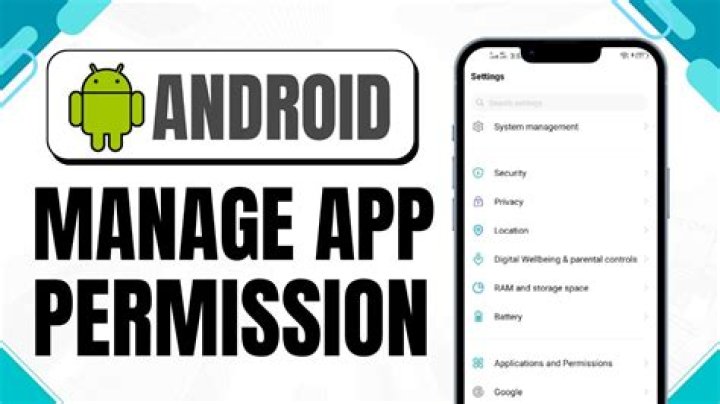
Android permissions used to be a mess, but modern versions of Android have simplified them greatly. Now, Android has an iOS-style permission system in which you grant apps access to certain features, hardware, or data as it needs them. You can also manually revoke permissions from any app—even ones designed for old versions of Android.
You don’t need to root, install a custom ROM, or switch to an iPhone to do this anymore. Android finally has the app permission system it should have had all along.
How Android’s Permission System Works
Android apps will ask for a permission when they need it. For example, instead of giving an app access to your camera when you install it, you’ll be prompted the first time the app wants to access your camera.
But you can manually manage any app’s permissions, even if it was designed for an older version of Android and doesn’t normally ask you.
Manage a Single App’s Permissions
To do this, you’ll need Android 6.0 Marshmallow or a newer version on your device. Open the Settings app and tap “Apps” under the Device heading to get started.
You’ll see a list of all the apps installed on your Android device. Tap one of the apps in the list to view more information. On the App info screen, you’ll see a “Permissions” category that lists all the permissions that individual app has access to. Tap “Permissions.”
You can also quickly access the App Info screen by long-pressing an app’s icon on your app drawer, dragging it to the “App info” shortcut that appears at the top of the screen, and releasing it. This shortcut may not be present on every Android device as different devices use different interfaces tweaked by their manufacturers and carriers.
This will take you to the new “App permissions” screen. Different categories of permissions each app has—for example, Camera, Contacts, Location, Microphone, Phone, SMS, and Storage—will be displayed here. Older Android apps automatically get these permissions when you install them, but you can revoke any permission you want from here.
This is very similar to the “App ops” permission system Google manually stripped out of Android 4.4.2 after websites like ours told users how to access it. It’s finally back!
When revoking permissions from older applications, you’ll see a warning message saying, “This app was designed for an older version of Android. Denying permission may cause it to no longer function as intended.”
Older applications weren’t designed for this feature, and they generally just assume they have access to any permissions they request. Most of the time, applications should just continue working normally if you revoke their permissions. In some rare cases, the application may crash—if it does, you’ll need to give it permission again. In other cases, an application may just not function normally. For example, if you revoke the Camera permission from an app that can normally take photos, it won’t be able to take photos anymore. You won’t receive an error message that asks you to turn the Camera permission back on—it will just appear to not work.
Either way, if you encounter a problem with an app, you can always come back to this screen and grant it these permissions again.
You can also tap the menu button on the App permissions screen and tap “All permissions” to see exactly which permissions an app is using. This can give you a better idea of what an app is actually doing with those permissions. Android now hides these more fine-grained permissions. You can’t actually manage these individual permissions—you can only choose which categories of permissions to allow.
Be aware: App updates can add new “sub-permissions” in a category without asking you again. For example, even if an app only uses the “read phone status and identity” permission in the Phone category and you choose to allow “Phone” access, a future update to the app could add the “Directly call phone numbers; this may cost you money,” and “Reroute outgoing calls” permissions. As these are part of the “Phone” category, the app would be allowed to use them without any additional prompts, as you’ve allowed that “Phone” access. Here’s a list of permission groups and more information on Google’s website.
View and Manage All App Permissions
To view and manage all app permissions at once, go to the list of apps by opening the Settings screen and tapping Apps. From the list of all your installed apps, tap the gear icon in the top-right corner of the screen and tap “App permissions.”
You’ll see a list of different categories of permissions along with the number of apps installed that have access to that permission. Categories include Body Sensors, Calendar, Camera, Contacts, Location, Microphone, Phone, SMS, Storage, and some “additional permissions.”
To view the apps that have access to each type of data or sensor and control this, tap a category. For example, to see which apps have access to your calendar information, tap Calendar. To prevent an app from accessing your calendar information, disable it on the Calendar permissions screen.
As with managing an individual app’s permissions above, you’ll see a warning message if that app was designed for a previous version of Android. Most apps should continually working fine, anyway — unless you revoke a permission that’s central to any functionality. For example, you won’t be able to take photos from within the Facebook app if you revoke the Facebook app’s Camera permission. You’ll have to grant it that permission again to take photos.
As usual with Android, some of these steps may work differently on some devices. We performed this process with Android 6.0 on Google’s own Nexus 7 (2013) tablet. Android manufacturers often modify the interface on their devices, and some options may be in different places.
Personalize app permissions according to your requirements to boost privacy.
Android is an open-source platform that gives the user a chance to tweak with its settings both as a developer and a user. The permission settings can be accessed through Android settings. The Android permissions by app, by type, and further controls the information that Google collects from you.
As a user, you can choose from the three available options i.e. you can allow permissions or deny or for some apps you can choose the third option: only while using the app.
Note: These steps further apply to Android 8 or later.
How To Manage App Permissions Settings On Android
There are several ways to navigate to the permission settings on an Android device. The first is to go to Advanced Settings under Apps & Notifications. Follow these steps:
- Open Settings.
- Locate Privacy.
- Go to Permission Manager.
Now you’ll see a list of permissions. Tap any of the permissions below to see which access is allowed and which not. The first you’ll see is Body Sensors that access your sensor data about the vital signs.
- Open it and you will see two sections Allowed or Denied. Tap on any app to allow or deny permission. You can also view all permission settings therein.
- Further, go back to the Permission Manager and look for Location. Find Google Maps or other navigation options. Herein you’ll see three options instead of two. Under this, you can choose Allow all the time, Deny or Allow only while using the app.
Permission Settings and Types
There are several permission options available for Android users to select whether to allow apps to access them or deny them. Check this list of app permissions for Android.
- Body Sensors to determine sensor information about the vital signs.
- Calendar permission permits apps to use your device Calendar.
- Call logs: See and change your call history.
- Camera allows you to use the device camera to take pictures and videos.
- Contacts to access your contacts list.
- Location asks you to get your device’s location.
- Microphone torecord audio.
- Phone permission to make and manage phone calls.
- Physical activity gives you information about activities like walking, biking, step count, and more.
- SMS permissions to see and send SMS (text) messages.
- Storagepermission to get photos and other files on your phone.
- Files and media to access photos, media, and other files on your phone.
Auto Remove Permissions For Unused Apps
While you are looking for the ways to manage app permissions, you can use Android’s feature to remove permissions for unused applications. Here’s how to do this:
- Open Settings on your Android device.
- Go to Apps & Notifications.
- Tap on the app you want to change app permissions. If you do not find your app, click on See All Apps or on an App for more info.
- Tap on Permissions.
- Now enable ‘Remove permissions if the app isn’t used’.
How To View Special App Access?
Not only this, the Apps & Notifications tab under Settings on Android phone allows you to check for special app access settings. These are the settings that are rarely touched. You can anytime check for them under Settings and it includes Tap & pay and unrestricted data. For this, follow the steps below:
- Open Settings > Apps & Notifications > Advanced.
- Scroll down until you find Special App Access.
- Here, you will see a list of apps that are lesser known including Battery Optimization, Device admin apps, Do Not Disturb access, and Picture-in-Picture.
- Now tap on any of the listed permissions to see which apps have it enabled. You can anytime toggle on or off to change the app permissions on Android.
Final Words
That’s all folks! These were some of the important and to be known points related to Android app permissions. You can anytime look out for more options under Settings > Apps & Notifications > Advanced.
Were we helpful? Do let us know your feedback in the comments section below.
Keep reading Tweak Library for more similar content.
App Permissions restrict the installed app to unwanted access to the Phone features. When we install an app on Android Phone from Google Play Store, it first asks you to allow some permissions to your Phone, if you disallow the permissions then the app won’t work properly. Therefore we need to allow the permission without any restriction.
However, if you find the app accessing unwanted phone features that are not required to run the app, It can be managed easily on Android Oreo 8.1 and Android Pie 9.0. But before making any changes in App permissions, you’ll need to understand that the permission which you’re going to disable, it is necessary for the app or not?. If you didn’t understand the disallowed the needed app permission then the app will start to crash or not work properly.
Manage app permissions on Android
Managing app permission in Android 8.1 or Android Pie 9.0 is now more easy task than the previous Android version.There are many different types of permission on Android Phone that we allow: Sensors, Calendar, Camera, Contacts, Location, Microphone, Phone, SMS, Storage, and etc. If an app is related to Camera then it will use the permission of Camera, Location, Microphone and Storage to work properly. Hence, I told you to understand the permissions before doing any change. Many times when we install an app, mistakenly disallowed the app from access permission of one features and due to this the app stops working, then also with the following steps it can be re-enabled easily.
To manage the app permission on Android 8.1 and Android Pie 9.0, you have two option but for using both you’ll need to insight the Apps & Notification option. So tap on the Smartphone Settings and find & open the Apps & notifications.
First, you can go insight the App info (in Android Pie 9.0 “App info” option has been replaced with “See all …. apps” option) and with the second simply to tap on App permission option and both options available in the Apps & Notification.
First way to manage app permission
After taping on the App info or “See all …. apps”, choose the app from the list and you’ll get the app related options from that tap on the Permissions. Now tap on the toggle button to enable or disable app permission access to the feature and if a confirmation dialog box appears, simply tap on DENY ANYWAY to disable permission. But it will not ask for any allow permission box if the permission is already disabled.
Second Way to manage app permissions
This is not easy such as previous option. To use this tap on the App Permission option, and in the App Permission, you’ll need to choose Permission name eg: Phone. Once you come in the permission name, find the app from the list and tap on the toggle button to enable or disable the app permission. If any permission confirmation dialog box appears (it will appear only when you disable any permission) then simply tap to DENY ANYWAY button.
Finally, as you know, you can decide your privacy and security with app permissions. If an app asks for more permissions than the application, then you can reset it with the help of this option. Also, if accidentally disallowed by installing a permission, it can be corrected with its help.
You May Also Like:
- How to reset default apps on Android?
- Language and Input (Keyboard) Settings on Android.
About Author
I’m Pramod Kumar Yaduvanshi, creator and editor in chief of PCMobitech. I mostly write about Computer, Smartphone, VPN, Security related articles and tips & tricks etc. Follow me on: Twitter.
1 thought on “How to Manage App Permissions In Android?”
Thanks, but.. Its manageable, have full control of data, inclusive system apps? I dont need hidden, but i havent nothing what i want share.. Apple and google have monopol, and isnt possible hqbe secure system, without root?
Here are a few simple tips to manage on an Android device.
Smartphones function on the strength of apps that they are packed with. Often, the apps require certain permissions to be enabled in order to be used effectively. While sometimes it is a little difficult for an average user to determine the permissions that it needs in order to perform its functions effectively, there are cases where it’s quite easy to see that the permission that a particular app is asking you for is completely unrelated to the functions that it performs.
So, the first thing that you will need to do is determine the permissions that the app actually needs in order to function effectively, once you have determined them, you can move on to allowing or blocking the permissions based on how relevant the apps are to the effective functioning of your device.
In earlier versions of Android, like Android Lollipop or earlier, there was no option available that allowed you to manage the specific permissions that an app needed in order to function. The only options available to you was to either accept all the permissions or to never use the app at all.
The latest Android OS updates have however resulted in Google implementing a way to manage permissions based on each app giving the users complete control over which permission is available to for each app. A user can simply disallow a certain permission and continue to use the app.
There are two ways in which you can keep an eye on the list of permissions that are available to an app. The first option is to view all the permissions that are available to you and then go through the list of apps that are using them or you select a specific app and then go through a list of its granted permissions. In order to understand how you can manage app permissions on your Android Smartphone, go through the instructions given below.
To manage the app permission based on the list of permission
a) Access the launcher on your phone and then go to the ‘Settings.’
b) Click on the ‘Apps and Notification’ settings.
c) You can go to the ‘App permission’ option to look at the complete list of permission types and manage.
d) Click on a particular permission to determine the number of apps that will have that permission.
e) If you think a particular app does not require a certain kind of permission or if something seems odd, you can slide the toggle off in order to disallow that particular app.
To manage the app permission based on the apps
a) Access the launcher on your phone and then go to ‘Settings.’
b) Click on the ‘Apps and Notification’ settings.
c) Click on ‘See all apps’ in order to expand the list of apps.
d) Click on the particular app that you wish to learn more about and then go to the option called ‘Permissions’ in order to manage the permissions for that app.
- Some of your apps can make phone calls
- Some can track your location
- Some can read your browsing history, contacts, SMS, photos, calendar
Revoking App Permissions
- Open the Google Play Store on your root Android device
- Search for App Ops
- Locate and tap Install
- Read the permissions listing, if acceptable, tap Accept
- Open App Ops
- Swipe to the right to go to the Messaging tab
- Scroll down and tap Facebook
- Within Facebook, touch the ON/OFF button for ‘Read and Modify contacts’ to place them OFF
If you have upgraded your Smartphone to Android 4.4.2, then you need first to launch a root authentication and then reboot your device.
You can also use advance tool called XPrivacy, the Swiss Army Knife of Android privacy protection.
Android apps come in all shapes and sizes and do all manner of things. As such, depending on the app, it might request for access to certain parts of your phone, whether it be your files, photos, camera, microphone, location, and so on. These are also known as “permissions” and apps, when they’re installed for the first time, usually request for permission.
This also allows users to get an idea of what kind of access an app is trying to gain, where more suspicious apps might request for things that they shouldn’t. That being said, if one day you decide that maybe you don’t want this app to access your location, how do you do that? If you want to figure out how to manage your Android app’s permissions, then check out the steps below.
How To Manage Android App Permissions
Depending on your Android phone, sometimes the layout to access your app’s permissions might be different, but generally speaking, they are in the Settings app.
- Launch the Settings app
- Go to Apps > Permissions
- Select the app you want to change the permissions on
- Choose the permissions you want it to have, whether it be access to your phone’s camera, GPS, and so on
- Repeat the process above if you want to make further changes to the app’s permissions
That being said, we should warn you that sometimes adjusting an app’s permissions can cause it to function incorrectly. For example, an app like Google Maps that does not have access to your phone’s GPS will not be able to work. Also, apps like Instagram that will need access to your photos and camera will also not function properly if you revoke those permissions.
Sometimes, these permissions can tell if an app is being suspicious. For example, if you just downloaded a calculator app, technically it shouldn’t require you to grant it permission to your location or photos, so if the app asks for that, then you have to ask yourself why does it need it?
This isn’t to say that all apps that request for the odd permissions are bad or suspect, but it could be something to keep an eye out for.
Ever since Android 6.0 Marshmallow launched, Android has granted users control over app permissions, dictating what our apps can and cannot do. This level of control seems more important now than ever so let’s dive into what app permissions do and how to use them.
As the name suggests, app permissions govern what your app is allowed to do and access. This ranges from access to data stored on your phone, like contacts and media files, through to pieces of hardware like your handset’s camera or microphone. Granting permission allows the app to use the feature. Denying access prevents it from doing so.
What are Android App permissions, and how do devs implement them?
Applications cannot automatically grant themselves permissions, they have to be confirmed by the user. Apps will ask you to accept each of their permissions the first time you launch them via a popup that asks you to “allow” or “deny” each request.
Well maintained modern apps will continue to function if you deny it a permission, although some features obviously won’t work. Often if you try to use a feature requiring a previously denied permission, you’ll see the permission popup appear again. There’s often no problems with denying app permissions you feel uncomfortable with, they always be changed later.
Related
- Best security apps for Android
- Best privacy apps for Android
Older apps that haven’t been updated might crash or fail to work correctly if you deny some permissions.
Most of Android’s app permissions are self-explanatory, but here’s a breakdown of what each one actually means.
App permissions explained
- Body Sensors – allows access to your health data and step count, from paired heart-rate monitors, fitness trackers, and other sensors.
- Calendar – allows apps to read, create, edit, or delete your calendar events.
- Camera – taking photos and recording video.
- Contacts – read, create, or edit your contact list, as well as access the list of all accounts used on your device.
- Location – access your location using GPS for high accuracy, and cellular data and Wi-Fi for approximate accuracy.
- Microphone – used for recording audio, including for video.
- Phone – access your phone number and network info. Required for making calls and VoIP, voicemail, call redirect, and editing call logs.
- SMS – read, receive, and send MMS and SMS messages.
- Storage – read and write files to your phone’s internal and external storage.
Adjusting app permissions
An App will always ask you to confirm its permissions the first time you run it, but you can always go back and readjust app permissions after installation by digging through your phone’s settings menu. There are two ways to view app permissions, either by sorting apps by permissions or by viewing each app individually.
The first place to start for either method is to head to the Apps & notifications page in the Android Settings menu.
Toggle permissions by app
If you want to see the permissions that you’ve enabled for a specific app, then head into the Apps section of the Apps & notifications. Select your desired app and scroll down until you find the option labeled Permissions.
This option will present you with a quick overview of the permissions that you’ve already granted the app (see the image above). Clicking on the option will display a list of all the possible permissions that the app has requested along with which ones you’ve allowed or denied. Clicking the toggle will allow or deny the associated permission, allowing you to make changes to apps without reinstalling them.
Toggle permissions by type
If you prefer an overview of all the apps granted a certain permission, such as those that can record from your microphone for example, then you can sort apps by this criteria too.
Head to the Apps & notifications menu in settings, and find the Permissions option. If this isn’t displayed on the main menu, it might be tucked away in the hamburger icon in the top right. From here, you can browse through all of the available permissions on your phone, as well as a quick overview of how many apps have been granted each permission.
Clicking on any of the permissions will display just the apps that have requested this particular feature. You can make changes here too, by using the toggles in this menu to allow or deny access for individual apps (see the image below).
Which permissions to allow and deny?
Denying permissions to dodgy apps is one of the best ways to keep your phone and data safe from malicious applications. The go-to case study is the plague of flashlight apps that requested contact data, microphone access, and often even more just to toggle a light on and off. No doubt many of these apps were requesting access for data collection purposes and perhaps worse.
Broadly speaking, reputable app developers usually only request the permissions their application requires, but this isn’t a green light to allow anything a popular app requests. You might not want to use certain features tied to data extraction, either for diagnostic or advertising purposes.
15 best antivirus apps and best anti-malware apps for Android
Generally, consider whether the requested permission is appropriate for the given app and be wary of those that don’t seem to make sense. Messaging apps will certainly need your contacts, SMS, and probably camera and microphone too for video calls. They probably don’t need your health information.
Remember, you can always check out all the permissions an app requests before you install it by checking out the description in the Google Play Store. A good app developer will always divulge what each permission is needed for too, which can help with peace of mind.
Upon the initial launch of a newly installed app, you might have came across with a dialog box looking like this:
By tapping on ‘YES’, you are specifically giving the app (in this case, Shazam) the permission to use your phone’s Microphone to record audio.
Well, it’s perfectly okay for Shazam to have access to your device’s microphone, denying it will make the app pretty much useless, right?
But there can be cases where a particular app requires a particular permission which the app should have nothing to do with.
Just like in this case.
UC Mini, a web browser, has been granted permission to make phone calls and I am not sure why, because a browser has got nothing to do with that.
That was just one example out of many.
Rising security and privacy concerns demand that you start paying attention before giving any kind of permission to an app on your smartphone. Prevention is better than cure, remember?
That was for all the future installations, but what about the apps which you’ve already installed on your Android device?
The Android Operating System allows you to not only view all the permissions used by an app but it also lets you manage(read change) those permissions.
So, here’s how you can do that:
How To Check And Manage App Permissions on Android
First of all, you need to find the list of App Permissions on your device. Here’s how you can do that:
1. Jump into your device’s Settings.
2. Look for ‘Apps’ and tap on it. Tap on the little ‘gear icon’ located on the top-right.
3. Finally, tap on App Permissions and you’ll be presented with the list of all the permissions. Tapping on a particular permission will reveal a list of all the app which requires that permission.
If for some reason you didn’t find the App Permissions then you can perform a search in your Settings. Search by typing App Permissions and you’ll find it for sure.
Now from here knowing which app is using which permissions is pretty much obvious. You need to tap on a particular permission, and from the app list the ones which are checked are allowed, while others are not.
So that was how you can check app permissions. As far as managing them is concerned, it is a matter of self-understanding. The Golden Rule is that an app shouldn’t be given a permission when it has got absolutely nothing to do with it.
Just like the above example. A web browser doesn’t require a ‘permission’ to make phone calls.
So scan through all the permissions and apps using them. Upon finding something suspicious, tap the toggle to turn it off. That’s about it.
But you need to remember one thing…
There might be some instances where after denying any kind of a permission to an app it may stop functioning.
Therefore, it is recommended to check whether the app is working as it should be after denying the permissions. If yes, then you are good to go. If no, there are only two things that you can do.
Either contact the developer and ask them why their app needs a particular permission. (And hope to get a reasonable response from them.) Or, you can look for alternatives of that app on the Play Store. An alternative which doesn’t requires such dubious permissions.
That’s it. This is how you can check and manage app permissions on Android. Did you scan your App Permissions? Share it in the comments section in case you find an app which requires a useless permission.
And don’t forget to share this post with your family and friends on your social networks.
More and more people are starting to pay attention to their digital privacy these days. Some are switching from apps like WhatsApp and Facebook Messenger to more secure options like Signal, while others choose to ditch services from companies like Facebook and Google entirely.
Wherever you fall on that spectrum, there’s a good chance you could benefit from even a simple privacy checkup. A great place to start is with your smartphone. Recent Android and iOS updates include tools for checking up on permissions that apps have access to, automatically disabling permissions for apps you don’t use and more.
Managing your permissions can help lock down personal data and improve privacy on your mobile phone. For example, apps often ask for permission to access photos or location, but keep accessing them after that first time, even if you don’t need it to. Cleaning up permission access can prevent apps from accessing that data over and over again.
Android
If you’ve got an Android device, the privacy checkup tools will likely look very, very different depending on what phone you have and which Android version you’re using. For this article, we will focus on Android’s newest version on Pixel and Samsung phones. Most of this should apply to other devices, but the settings may look different or be in different spots.
On both Pixel and Samsung devices running Android 11, you can view the privacy tools by opening the Settings app and tapping ‘Privacy.’
There are plenty of things worth checking out here, but we’ll focus on the ‘Permission manager.’ Opening this screen will give a list of the types of permissions your phone can grant to apps. In short, a ‘permission’ allows apps to access certain information, systems, settings and more.
The permission manager lets you quickly check which apps have access to which things. I’d recommend going through each permission on the list and updating any app permission you wish to change.
When you tap a permission, the manager lists all the apps and what level of access they have. For example, some apps may always have that permission, while others can only access that permission while in use. Others may ask for permission every time it needs the related data, and the rest of your apps will sit under the ‘Denied’ header.
To change what level of permission an app has, tap it and select a new option from the list.
It’s good to clean up these permissions once in a while. I sometimes find I grant an app permission to access something one time and then don’t use it often. However, it continues to have access to that data even though I haven’t used it. Thankfully, you can also set your phone to automatically revoke permissions from apps if you don’t use them for a long time.
To do that, open an app and tap the ‘See all permissions’ option. Then, scroll to the bottom and select the ‘Remove permissions if app isn’t used’ option.
Finally, you should check the ‘Activity controls’ option available in the Privacy menu. This opens the Activity controls menu for your entire Google account. From here, you can check and update privacy controls for things like web and app activity, location history, YouTube and more.
Apple
If you’ve got an iOS device like an iPhone or iPad, a privacy checkup looks similar but a bit different. To start, head to Settings > Privacy to view all the privacy settings. Up at the top are ‘Location Services’ and ‘Tracking.’
You can tap that to manage location access across apps on your phone. iOS handily labels the current location setting next to each app. Apps that show ‘While Using’ can only access your location information when the app is in use. Apps set to ‘Ask’ will need to check with you first, while apps set to ‘Never’ can’t access your location.
It’s also worth noting that iOS shows an arrow icon next to some apps. A legend at the bottom of the list explains that hollow, purple arrows mean an app can receive your location “under certain conditions.” A solid purple arrow marks apps that recently accessed location information, while apps with a grey arrow accessed location in the last 24 hours.
The other significant item here is ‘Tracking,’ which lets you quickly toggle a setting to allow apps to request to track you.
Beyond that, the Privacy screen shows a list of data apps can access, like Contacts, Calendars, Bluetooth, Camera, Health and more. You can tap these settings to view which apps access that data and toggle access on or off for those apps.
These privacy settings just scratch the surface of how you can better protect your data. You can use these settings to restrict the access apps have to information on your phone at a bare minimum. It’s also a great way to see what apps are trying to access and judge whether an app needs that information.
Starting with Android 10, one of the ways you allow apps is the greatest detail in Android smartphone settings. You can manage app permissions in android easily without doing much as Google allows you to do so. In most cases, you can grant or deny permission, but some permissions have a third option: only when using the app.
How to access permission settings
Here are three ways to navigate to the permission manager. The first option is by going to Advanced Settings under Apps & Notifications.
- Open Settings
- Tap Applications and notifications.
- Tap Advanced> Permission Manager. You’ll see a list of permissions along with the details below – for example, body sensor (0 out of 2 apps allowed).
- Tap any permission to see what it means. Applications which have the permission of body sensors will be able to track the activities of your body
- Underneath are two sections: Allowed and Denied. You may allow or deny permissions by tapping the app name.
- On that screen, you can tap to see all the permission settings for that app.
- Go back to the Permissions Manager. Tap Location, find Google Maps (or other navigation app), and you’ll see three options instead of two: Permitted, Unused, and Permitted.
GO TO PERMISSIONS SETTINGS BY VIEWING ALL APPS
There is another way by going to your All Apps page in Settings
- Open Settings
- Tap Applications and notifications.
- At the top of this screen are the recently used applications. Tap See All Applications to get the complete list.
- Tap an app, then tap permissions to see that information.
- Above, you will see an allowed and rejected section. Now tap on an item to change permissions. Tap View All Applications with this permission to view an overview.
- Change permissions by tapping there
GO TO PERMISSIONS SETTINGS BY PRIVACY SETTINGS
Finally, the fastest way is going to your privacy settings.
- Open Settings
- Tap Privacy> Permission Manager.
- To allow or deny applications, tap a permission such as a calendar or camera.
How to View Special App Access
Android also has special app access settings. You’ll rarely need to play with these, and some are available in the app’s settings. These include tap and pay (mobile payment) and unrestricted data.
- Open Settings
- Tap Applications and notifications.
- Tap Advanced.
- Scroll down and tap on Special App Access.
- You’ll see a list of lesser-known permissions such as battery-optimization, device admin apps, don’t disturb access, and picture-in-picture.
- To see which apps are enabled, tap a permission, then tap an app to turn the permission on or off.
How to limit activity tracking with Google
Google tracks a lot of your activities, some of these to provide you with better service or suggestions based on the places you’ve visited, the websites you’ve visited, YouTube videos you’ve watched, as well as personal ads. . It is easy to limit or close these permissions if you want.
- Open Settings> Privacy> Advanced.
- Tap Google Location History.
- Choose a Google Account.
- Turn Location History on or off.
- Scroll down to see all of Google’s activity and tap All Activity Controls.
- You can enable or disable Google’s ability to collect web and app activity, location history, and YouTube history.
- Scroll to Ad Personalization and go to Ads Settings to turn this function on or off. This screen also explains how Google personalizes ads, including the personal information you add to your Google account. You can also see which companies are advertising on the basis of visiting your websites.
- Finally, there is a list of categories ranging from athletic apparel to books and literature to fast food. You can turn each one on or off; When Google estimates your interests based on Google and YouTube searches.
That’s all from our side to manage your app permissions on an android device, we hope it was helpful, and you are not giving any free access or permissions by negligence or mistake. Do let us know in comments if you have any issues in any of the steps and here is you may also know HOW TO TURN OFF GOOGLE ASSISTANT. We are sure after looking into app permissions and privacy settings, you might want to check this out.




