If you send and receive a lot of media on WhatsApp, it can quickly make your phone’s memory full. So it’s good to periodically delete WhatsApp data storage on your iPhone to remove everything you don’t need. All the photos and videos that you receive take up space on your camera roll. The same files get stored in the WhatsApp Media section, which creates duplicate content. Here’s how to deal with this and free up space on your iPhone.
How to Delete WhatsApp Data Storage on iPhone
This first thing you can do is stop WhatsApp from saving multimedia content to your Photos app.
Secondly, you may also stop the media auto-download of photos and videos. This ensures that the vast number of rich content that you receive in WhatsApp groups is not automatically downloaded to occupy iPhone storage.
- Open WhatsApp on your iPhone and tap on Settings from the bottom right
- Tap on Data and Storage Usage.
- Next, tap on Storage Usage.
- Choose conversation that takes considerable space → Tap on Manage.
- Select Photos, GIFS, Videos, Voice Messages, Documents, Stickers accordingly
- Tap on Clear → Confirm by tapping Clear.
You can repeat this process for multiple groups and individual chats to free up more space occupied by WhatsApp on iPhone.
How to Delete All WhatsApp Chats at Once on iPhone
Following this method, you will lose all text, and media of all the chats. You may never be able to recover them unless you have a WhatsApp backup.
Here’s how to quickly clear all chats and storage taken by WhatsApp:
- Tap Settings inside WhatsApp and tap on Chats.
- Tap Clear All Chats or Delete All Chats.
- Enter your phone number
- Tap Clear All Chats.
Now, you may ask what is the difference between Clear All Chats and Delete All Chats in WhatsApp. Clear All Chats removes all messages and media, but the name of the person stays in the list under Chats. If you Delete All Chats, then your Chats tab has nothing listed there.
You may try it by going to Chats, swiping right to left on a chat and then select Clear Chat. All messages will be deleted, but the person’s name will stay there. Now do the same with a second contact and choose Delete Chat. You will see that even the name from the chat list is gone.
Remove WhatsApp Photos and Videos from iPhone’s Photos App
When you install and start using WhatsApp, it asks your permission to access the Photos app. After that, by default, it downloads and saves all incoming media to your iPhone Photos app.
Here’s how to delete pictures and videos saved from WhatsApp to iPhone Photos app:
- Open Photos app and tap on Album.
- Tap on the album named WhatsApp → Tap on See All from the upper right if you don’t see it
- Tap on Select from the upper right.
- Select the photos and videos or tap Select All → Tap the delete icon from the bottom right
- Tap Delete → Delete (number) Photos.
- Now tap from upper right to go back
- Scroll down and tap Recently Deleted → Select.
- Now, Tap on Delete All → Delete (number) Photos.
That’s all, folks.
This is how you can delete media and reclaim the space taken by WhatsApp on your iPhone.
You can also individually remove media from specific chats. Just go to a person’s or group’s WhatsApp profile by tapping on their name from the chat screen. Then tap Media, Links, and Docs to select and remove the things occupying your iPhone storage.
Hopefully, this is going to help you save some space on your iPhone now!
You may also be interested in:
Feeling doubtful? Use the comments section below to reach us.
WhatsApp is an excellent chat app, and I’m using this app instead of iOS Message for my business and personal communication. Whenever I get a painful popup “Your iPhone Storage is Full” warning, the first thing I suspect my iPhone videos and WhatsApp memory consumption will be the one after iPhone videos, using most of my iPhone memory.
Let’s have a look, how to clean up WhatsApp memory on iPhone that can free up Gigabytes on your iPhone.
Clear WhatsApp Memory on iPhone
Most of the WhatsApp users have a misconception that WhatsApp images and videos are saving on WhatsApp servers and not using iPhone memory. Unfortunately, WhatsApp is utilizing your iPhone memory for every chat, text, images, videos, and other files you transferred through this chat.
Check iPhone Current Storage
Before you start, let’s have a look at the current usage of the iPhone memory. Go to iPhone Settings > General> iPhone Storage > Wait for few seconds for IOS to collect the usage.
You can see iPhone Apps are utilizing a significant part of my 64GB iPhone memory. As you know, iPhone apps are taking memory in MBs for the App itself. The rest of the memory is using for saving the data related to that particular app.
Check WhatsApp Memory Usage
On the iPhone Storage screen, scroll down to see the app section and find out the apps using the memory. You can see the apps listed based on memory usage. Over there, on my iPhone, you can see WhatsApp Storage Usage that is more than 5GB.
You can tap on the app to check further and see the App Size is only 97MB and the rest of the iPhone storage space stolen by WhatsApp data, which is the attached WhatsApp photos, videos, and other files.
The problem here, you may have a lot of communication history and data you want to keep for your business. You may have precious family videos and photos you shared, that you can’t imagine losing them.
Don’t worry, WhatsApp is offering an excellent feature to view all your data storage in detail, and you can delete based on the group or the individual that consumed most of the iPhone memory. Let us see how much WhatsApp group and individual chat consumed the memory from the iPhone.
Open WhatsApp on iPhone and go to WhatsApp Settings > Storage Usage > See Groups& Individual usage on the next screen. You can select the group or individual chat from this WhatsApp Storage Usage screen and clean up the files from this screen itself.
Clean WhatsApp Storage Space
Just for the sake of screenshot, I used the group “ELEKTRONO” from my WhatsApp Storage Usage Screen. Tap on this Screen > Open The Group Screen > tap on Manage > Now Select the files to delete > Tap on Clear to Confirm.
Now you can see the last screenshot that is consuming Zero KB for Photos, GIFs, and Videos after cleaning WhatsApp storage.
Delete WhatsApp Data from Chat Window
Alternatively, you can clean up WhatsApp storage from the chat window itself. Open any chat Windows, tap on the header, and scroll down. Now you see an option for Clear Chat. Tap on Clear Chat, and you will get an option to Delete all except starred or Delete all messages.
If you want to keep any messages, you can Star them from the chat window and select the first option to keep all Stared chats on your WhatsApp. This option to keep Stred messages is not available when you clean WhatsApp from storage Usage Window.
Stop Save to Camera Roll
This is an additional setting we recommend to save storage space on iPhone, To see this setting, open WhatsApp > Settings > Chats > Save to Camera Roll > Turn Off. If you turn this on, WhatsApp automatically downloads a copy of all media files from WhatsApp to your iPhone Camera Roll, that uses your iPhone memory and also the internet data.
Now, it’s your turn to clean up iPhone memory. Go and check the setting and decide what groups and individual chats you want to clean up on WhatsApp storage and start working to clean up iPhone Storage. Even though this is a time-consuming job, but the result is a clean, free memory iPhone that can perform better than before.
Disclosure: Mashtips is supported by its audience. As an Amazon Associate I earn from qualifying purchases.
Khamosh Pathak is a freelance technology writer who specializes in tutorials. His work has also been published on Lifehacker, iPhoneHacks, Zapier’s blog, MakeUseOf, and Guiding Tech. Khamosh has nearly a decade of experience writing how-tos, features and technology guides on the internet. Read more.
WhatsApp groups can run amuck with memes and videos. All that media takes up valuable storage space on your iPhone or Android phone. Here’s how you can reduce WhatsApp storage space without deleting the app.
WhatsApp has a built-in storage management tool for both Android and iPhone. Using the tool, you can quickly see which conversation is taking up the most storage space and then go in and individually clear out different kinds of media. For instance, you can remove just the videos from a group chat.
Reduce WhatsApp Storage Space on Android
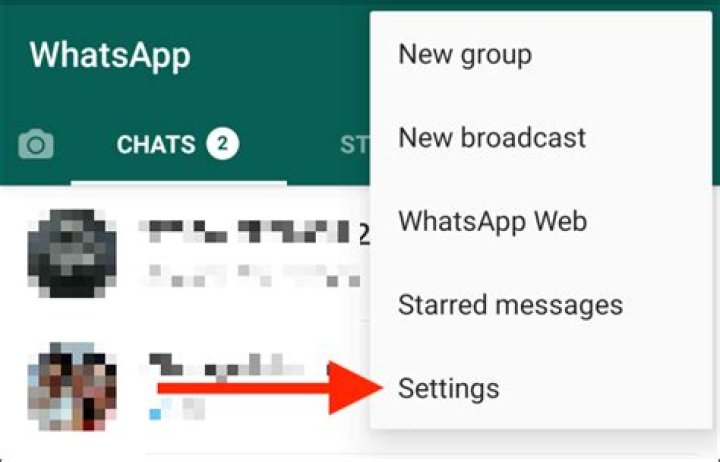
You’ll find the storage management tool in the settings section. Open the WhatsApp app on your Android smartphone and tap on the three-dot menu button.
Here, tap on the “Settings” option.
Now, choose the “Data and Storage Usage” listing.
Here, you’ll see a “Storage Usage” section. It will tell you how much storage space WhatsApp is using on your Android smartphone.
Once you tap on the “Storage Usage” section, you’ll see a list of all the conversations in WhatsApp, sorted by how much storage space they’re taking up. Tap on a conversation from the top of the list.
You’ll now see just how many text messages, images, videos, and GIFs are associated with the conversation. Tap on the “Free Up Space” button in the bottom-right corner of the screen.
Now, tap on the checkmark next to the media type you want to delete. Next, tap on the “Delete Items” button.
From the popup, tap on the “Clear Messages” option.
The messages and media will be deleted from WhatsApp storage, and you’ll get the storage space back.
Reduce WhatsApp Storage Space on iPhone
The process of reducing WhatsApp storage space on the iPhone is slightly different.
On your iPhone, open the WhatsApp app and go to the “Settings” tab. Here, tap on the “Data and Storage Usage” option.
Now, swipe down and tap on the “Storage Usage” option.
You’ll now see a list of all WhatsApp conversations, sorted by size. Tap on a conversation to see details about its storage space usage. From the bottom of the screen, tap on the “Manage” button.
Now, select the media types that you want to delete.
From there, tap on the “Clear” button.
Tap on the “Clear” button in the pop-up message once again to confirm.
Now, the relevant data will be removed from WhatsApp storage, and you’ll get the storage space back. You can go to Settings > General > iPhone Storage to check available storage on your iPhone.
If you use WhatsApp as your primary messaging service, you should know that you can turn off the auto-save feature for incoming media. Once you’ve cleared off the unnecessary conversations, we recommend that you disable the auto-save and auto-download features from settings. This way, you’ll save yourself from repeatedly clearing WhatsApp conversations.
Here’s how you can reduce Whatsapp storage space without deleting the app.
Whatsapp is an application which is used by almost every person in this world. But, sometimes using Whatsapp can make you mad in terms of various Whatsapp groups in which you have been added. WhatsApp groups can run amuck with memes and videos. All that media takes up valuable storage space on your iPhone or Android phone.
Here is a way out to reduce WhatsApp storage space without deleting the app.
How to reduce Whatsapp storage in iPhone:
Step 1: On your iPhone, open the WhatsApp app and go to the “Settings” tab. Now tap on the “Data and Storage Usage” option.
Step 2: Now, swipe down and tap on the “Storage Usage” option.
Step 3: You’ll now see a list of all WhatsApp conversations, sorted by size. From the bottom of the screen, tap on the “Manage” button.
Step 4:Now, select the media types that you want to delete.
Step 5: From there, tap on the “Clear” button.
Now, the irrelevant data will be removed from WhatsApp storage, and you’ll get the storage space back.
How to reduce Whatsapp storage in Android
Step 1: Open the WhatsApp app on your Android smartphone and tap on the three-dot menu button.
Step 2: Now tap on the “Settings” option.
Step 3: Now, choose the “Data and Storage Usage” listing.
Step 4: Now you’ll see a “Storage Usage” section.
Step 5: You’ll now see just how many text messages, images, videos, and GIFs are associated with the conversation.
Step 6: Tap on the “Free Up Space” button in the bottom-right corner of the screen.
Step 7: Now, tap on the checkmark next to the media type you want to delete. Next, tap on the “Delete Items” button.
Step 8: From the popup, tap on the “Clear Messages” option.
Many of us use WhatsApp messenger on a daily basis, receiving messages with media and other files. These files can add up over time and take space on your phone’s memory. Removing dated files that you no longer need will save space and improve device performance. Keep reading to find out how to save space on WhatsApp.
How to free up space in WhatsApp on Android and iPhone?
To get started, open WhatsApp and go to Settings, the gear located in the lower right part of the screen. Then press Storage and Data > Storage Usage > Manage Storage. Here you can see how much space is being taken up by your different chats, sorted by size. At the top, you’ll see the heaviest items that you can easily delete. Select a conversation and you will see the space taken by file type, i.e. photos, videos, GIFs, voice messages, text messages, contacts, locations, documents, and stickers. Choose the files you’d like to remove and click Delete. Repeat these steps for each conversation until you have enough space on your phone.
How to change WhatsApp automatic download setting?
WhatsApp allows you to customize the media auto-download settings and decide whether you want to auto-save all the files you receive via WhatsApp or download them selectively. You can also choose to download them using a Wi-Fi network or cellular and cut the mobile data costs when you are traveling and using the roaming. Depending on the amount of content you’re receiving daily, this could quickly use up your phone’s memory. To avoid this, deactivate this setting so that files are no longer automatically downloaded.
- To configure the auto-download settings on WhatsApp, open the app and tap on the gear icon (Settings) in the bottom right corner of the screen. Then, select Data and Storage Usage.
As hundreds of chats and group media files pile up, WhatsApp quickly starts occupying more storage than expected. And ultimately, it stops working, citing that you don’t have enough room on your device. So, what to do in this case? Well, here’s a quick guide on how to fix storage full issue on WhatsApp.
How to fix Storage Full- WhatsApp Stops Working Issue
When your phone’s storage is full or nearly full, it’s very likely to show signs of stutter and lag. Furthermore, certain apps may stop working correctly for the time being. In the case of WhatsApp, you may get constant pop-ups stating, ‘WhatsApp has stopped working’ with the app crashing in the background.
Now, you should be aware of what’s precisely eating your storage space. If they’re not files, then you must check the space occupied by apps on your device, especially WhatsApp, as it’s the primary texting app for many. Those daily doses of messages having photos and videos are enough to take a toll on the storage.
If WhatsApp is the one choking your phone, you can use its built-in granular storage feature to analyze and free up space accordingly, given below. This will likely fix storage full WhatsApp stops working issue on your phone.
Steps to fix WhatsApp Storage Full Issue on Android and iOS
1] Open the WhatsApp app on your phone. Note that the steps are more or less similar for both Android and iOS.
2] Tap the three-dot menu on the top right and select Settings.
3] Now, head to Data and Storage Usage > Storage Usage.
4] Here, you’ll see the list of chats and group conversations, classified according to the amount of storage they’re taking on your phone.
5] Click any of the contact or group to see a detailed breakdown of types of files and the space used by them.
6] Tap on Free up Storage Space and select photos, videos, audio messages, and documents that you want to delete. Once done, tap Delete Items. Confirm when prompted.
The selected videos, images, and media files will now be permanently deleted from your phone, clearing up space for normal operation for WhatsApp and other applications.
Tips to Limit WhatsApp Storage Usage
Apart from freeing up space, you can follow certain tips to limit WhatsApp storage usage on your phone, mentioned below.
1. Disable Auto-Download Feature
By default, WhatsApp automatically downloads photos and videos over WiFi and mobile data to provide you with quick access to files alongside messages. However, this not only eats your internet bandwidth but also covers a huge space over time.
Therefore, it’s advised to turn off the auto-download feature, at least for videos. To do it, open WhatsApp and head to Settings > Data and storage usage > Media auto-download. Here, change auto-download preferences to either none or only photos.
2. Regularly Clean WhatsApp Group Chats and Conversations
You should make a regular habit of cleaning old, unimportant conversations and group chats on WhatsApp. Every two weeks or so, scroll through the chats and delete the ones that you no longer require.
If you’re into multiple groups, open the group chat, tap More in the menu and press Clear Chat. Want to save important messages? Star them, and they won’t be erased even after clearing chat unless you manually select the ‘Delete starred messages’ option.
Wrapping Up
This was all about how to fix the WhatsApp stopped working issue by clearing up storage space. If it doesn’t work, you can try clearing cache and data from settings but make sure to backup your chats first. Feel free to ask any doubts or queries through comments below.
WhatsApp has its in-built storage management tool to help prevent you from keeping loads of extra data that you don’t need. The tool makes it easy for you to identify unwanted files, photos, and videos and delete them. Here’s how you can manage your WhatsApp storage.
- Deepti Ratnam
- @ratnamdeeptiDeepti Ratnam –>
- Published: October 26, 2021 3:01 PM IST
The Facebook-owned WhatsApp is the most-used messaging app right now as it offers a simple and feature-packed UI to communicate, send photos and videos. The company keeps on adding new features to improve the user experience. Not only messages, contacts, locations, documents, videos, and photos are also shared. Additionally, the app automatically saves all the images, videos, GIFs in your smartphone’s gallery. Also Read – WhatsApp scam: This scam lets hackers to hijack your account using a phone call
WhatsApp has its in-built storage management tool to help prevent you from keeping loads of extra data that you don’t need. The tool makes it easy for you to identify unwanted files, photos, and videos and delete them. Here’s how you can find the storage management tool on your WhatsApp. Also Read – WhatsApp gets Stranger Things sticker pack on Android, iOS, Desktop: How to download it
- Open the chats tab
- Tap more options
- Then click on Settings.
- Tap Storage and data
- Head to Manage storage.
- You will see the space taken up by WhatsApp media, Apps, and other items.
How to manage storage on WhatsApp (Android)
STEP1: Click on Select all if you want to delete all items at once. Also Read – WhatsApp is working on showing you more information about your Message Reactions
STEP2: Long press the file, photo, or video you want to delete.
STEP3: If you want to delete multiple items at once, select additional items
STEP4: You can also delete media by selecting the Larger than 5MB and Forwarded Many Times options for more categorical sorting.
STEP5: You can also tap on the sort icon in the top right corner to sort the media by Newest, Oldest, and Largest.
How to manage storage on WhatsApp (iOS)
STEP1: Open the WhatsApp app
STEP2: Go to the “Settings” tab
STEP3: Click on the “Data and Storage Usage” option
STEP4: You will see a list of all WhatsApp conversations
STEP5: Head to the “Manage” button from the bottom of the screen
STEP6: Select the media types that you want to delete.
STEP7: Click on the “Clear” button.
STEP8: The selected data will be removed, and you will get storage space back.
Joe Fedewa is a Staff Writer at How-To Geek. He has been covering consumer technology for over a decade and previously worked as a News Editor at XDA Developers. Joe loves all things technology and is also an avid DIYer at heart. He has written thousands of articles, hundreds of tutorials, and dozens of reviews. Read more.
Storage space on smartphones and tablets can be easy to fill up, especially if you use a phone or tablet for a long time. We’ll show you how to take back some of that space on your Android device.
It’s possible to get Android phones and tablets with 128GB or 256GB of storage, but there’s a chance that you still have a device with 64GB or even 32GB. If you don’t keep all of your files in cloud storage, it can be easy to run out of storage space.
The good news is you can clear out some extra space whenever you need it, and Android phones have tools built in to do the job. Plus, there are third-party apps that you can download to make it even easier.
Android’s Built-in Storage Tool
There is a “Storage” section in the settings on every Android device that gives you information about what is taking up storage space. This section can also be used to free up space.
On your Android phone or tablet, swipe down from the top of the screen once or twice, then tap the Gear icon to open the “Settings” menu.
Next, select “Storage” in the “Settings” menu. On a Samsung Galaxy phone, you will need to tap “Device Care” first to get to the “Storage” option.
Toward the top of the screen, you will see how much storage you have used, and how much is available. Underneath, there’s a list of storage categories. Some Android phones include a “Free Up Space” button on this screen (more on that below).
Left: Pixel | Center: LG | Right: Samsung
Select one of the categories to clean it up.
You will see a list of apps associated with the category. In this example, we see music apps as we’re cleaning up the audio files. Tap one of the apps.
Tap “Clear Storage” or “Clear Cache.” Be aware that selecting “Clear Storage” will reset the app, signing you out, and clearing all data.
Alternatively, each section will have a more generic “Files” option under the apps list. This is where you can remove files that are not directly associated with an app.
A file manager will open to the folder and allow you to select which files to delete.
As mentioned above, some phones include a “Free Up Space” button on the “Storage” screen. If your phone has this button, tap it.
If you have file manager apps installed on your phone, you might be asked which app you’d like to use to complete the action. The one we want to use is “Smart Storage.” Select it, and tap “Just Once.”
The next screen can vary, depending on the device you have. In some form or another, you will see a list of suggested areas that can be cleaned up to free up space. Here are some common areas you might see:
- Backed Up Photos & Videos: This will remove media that has already been backed up to cloud storage.
- Temporary Files: Files such as cached data and clipboard items that aren’t needed anymore.
- Downloads: Items that you have previously downloaded.
- Idle/Infrequently Used Apps: Usually, this will show apps you don’t use often and allow you to uninstall them in bulk.
“Free Up Space” on a Pixel phone
Look through the different areas and select anything you would like to remove. Tap “Free Up,” “Delete,” or “Remove” to remove the files.
You can head back to the main Storage menu and check how much space you now have available on your Android smartphone or tablet.
Files by Google
If Android’s built-in method isn’t good enough for you, there are additional tools you can install from the Google Play Store. “Files by Google,” the company’s own file manager app, includes a tool to help people keep storage space tidy.
Some Android phones come with “Filed by Google” preinstalled, but it’s available to everyone from the Play Store. The app has a handy tool that recommends things that can be removed from your phone, saving you the trouble of doing it manually. Check out our guide for freeing up storage space with “Files by Google.”
WhatsApp is one of the apps that take up the most storage space on our smartphones. If you receive a lot of photos in chats, these are often automatically downloaded to your camera, taking up valuable space. In this article we will show you how to save your storage space by stopping automatic downloads.
- iPhone
- Android
- Group chats
How to prevent saving photos from WhatsApp to your iPhone library?
For owners of smartphones or tablets with the iOS operating system, the procedure is similar to the previous one. You will need to open the WhatsApp app again, go to Settings > Data and Storage Usage and then in the Media Auto-Download section, go to each category (Photos, Audio, Videos, Documents) and select Never or choose only Wi-Fi option without Cellular.
On both iPhone and Android you will still be able to save the files you received by clicking on the photo or video you are interested in.
How to stop WhatsApp automatically saving media files on Android?
If you don’t want to automatically save your WhatsApp media files to your Android phone library, follow a few simple steps.
Firstly, open WhatsApp on your smartphone and select the three dots in the upper right corner of the screen. Go to Settings, then choose Data and storage usage. On the screen that appears, under the Media Auto-Download section, click each of the three options: When using mobile data, When connected on Wi-Fi, When roaming and in the new menu select which files to enable for automatic download. In order not to save any file, uncheck each box.
Of course, if you want some files to be saved automatically, for example, documents for work purposes, check the corresponding documents box. This also applies if you want to automatically save WhatsApp photos and videos to your phone again.
How to stop saving files received in private or group chats?
On Android
To have more control and thus prevent media files from being saved, whether they come from individual chats or groups, you can disable Media Visibility on your Android phone. For private chats, this option can be enabled or disabled by going to Settings > Chat > Media Visibility. For groups, go to Settings > Show Contact (or Group Info) > Media Visibility. Answer No to the question “Do you want to show newly downloaded media from this chat in your phone’s gallery”.
On iPhone
On iPhone you can also stop saving photos in group or private chats. To do so, you need to open the chat (group or private) and click on the Group or Contact Info. Select Save to Camera Roll section and choose Never.
WhatsApp tips and tricks: WhatsApp is known to reduce the quality of the photos that you send and receive from both iPhone and Android phones. By default, WhatsApp reduces the photo quality by 70% for faster data sharing purposes. But sometimes, this can be very frustrating, especially if you need to share a high-resolution image for an official reason or just to keep it as a memory. But there is a way to bypass this auto image compression and send high resolution images on WhatsApp whether you use an iPhone or an Android device. To send WhatsApp high-resolution images, you just need to follow a few simple steps. Read on to find what they are.
While WhatsApp is great for instant communication and sending memes, it gets a little annoying when you are trying to send a really nice high-resolution photo as it keeps reducing its quality. With WhatsApp’s auto image compression, these images often lose their soul and become hard to use. Well, do not worry. WhatsApp does have an option which lets you send high quality images very easily. There are two ways you can do it, to varying degrees of higher resolution.
How to send high-resolution images on WhatsApp – the simpler way
This is the comparatively easier method that you can use. While it will still not allow you to send a full quality image, it will improve the quality of the picture by a significant margin. You can do it on either iPhone or Android but this is not available on WhatsApp web version. Send WhatsApp high resolution images this way:
1. Open WhatsApp and go to Settings.
2. Tap on Storage and Data option.
3. Scroll down to ‘Media upload quality’.
4.Choose Best Quality.
And done. One advantage of this method is that you only have to do it once, and all your images from that point onwards will be sent in a higher resolution. However, it can be data intensive, so ideally unless you are on WiFi or have a large amount of mobile internet data, this will eat up your data balance quickly.
There is one other way, which, while a little longer, will allow you to share full quality images. This too, can be used on both iPhone and Android, as well as WhatsApp web. The only downside to this method is that you will have to repeat the steps over and over every time you want to send a high-resolution image on WhatsApp.
How to send high-resolution images on WhatsApp – the better way
Go to the chat or group where you want to send the image.
Tap on the clip icon next to the camera and WhatsApp payment icon in your text box.
Now browse through your files to find the image you want to send.
If you have any difficulties, the image should be in your camera folder.
Select the image and press ‘Send’.
And that’s it. You have successfully sent a high resolution image on WhatsApp
Follow HT Tech for the latest tech news and reviews , also keep up with us on Twitter, Facebook, and Instagram. For our latest videos, subscribe to our YouTube channel.
Multimedia messages can fill up your storage very quickly but there is a way to clear them entirely.
AS HANDY AS WhatsApp is, one thing that can easily happen is it taking up a significant amount of space. All those photos, videos and audio messages you receive can add up very quickly as it all saves onto your phone.
You could delete your photos/videos one by one but for those wanting a faster method, you can clear chats entirely.
Depending on the platform you have, you will either be able to delete all chats, individual chats or both.
iOS (individual and all chats): Go into selected person/group > Tap on name > Clear Chat.
Or
Settings > Chats > Clear all chats.
Android (all chats): Main WhatsApp screen > Tap menu button > Settings > Chats and calls > Delete all chats/Clear all chats
Delete all chats: Will delete all conversations (individual) and all messages inside of them. Groups will still be there.
Clear all chats: Will delete all messages but will leave all conversations (individual and group).
Windows Phone (individual chats): Go into selected person/group > More > Clear chat history > All/Older than 30 days/Older than six months.
It’s not a perfect solution, but if you’re in dire need of freeing up space, it could be the solution you need.
Read: The Surface Pro 4 is the best one yet, but is it a genuine laptop replacement? >
Read: You can buy this piece of computer hardware for the price of a pint >
About the author:
Contribute to this story:
Read next:
To embed this post, copy the code below on your site
COMMENTS (13)
Read Next:
Download our app
Top Features:
- 5x faster loading of articles
- In-flight/offline reading
- Swipe between articles & photos
- Live-scores from rugby and football matches
Trending Opinions
About Us
- About Us
- We’re Hiring!
- Contact Us
- Advertise With Us
- The Journal FactCheck
Follow Us
Corrections
Policies
- Terms of Use
- Cookies & Privacy
- Advertising
- Comments
- Copyright
- Competition
TheJournal.ie supports the work of the Press Council of Ireland and the Office of the Press Ombudsman, and our staff operate within the Code of Practice. You can obtain a copy of the Code, or contact the Council, at PH: (01) 6489130, Lo-Call 1890 208 080 or email: [email protected]
Please note that TheJournal.ie uses cookies to improve your experience and to provide services and advertising. For more information on cookies please refer to our cookies policy.
News images provided by Press Association and Photocall Ireland unless otherwise stated. Irish sport images provided by Inpho Photography unless otherwise stated. Wire service provided by Associated Press.
Journal Media does not control and is not responsible for user created content, posts, comments, submissions or preferences. Users are reminded that they are fully responsible for their own created content and their own posts, comments and submissions and fully and effectively warrant and indemnify Journal Media in relation to such content and their ability to make such content, posts, comments and submissions available. Journal Media does not control and is not responsible for the content of external websites.
Here’s how you can check which WhatsApp chat is consuming most storage space on your smartphone.
It is almost impossible to not find the WhatsApp app on the phones of Indians. This is one of the most popular messaging apps all over the world. Its parent company Facebook just recently revealed that the messaging service delivers 100 billion messages a day, which is huge. These chats include not just text messages, but also images, audio files, and videos. This takes a lot of storage space.
Needless to say, WhatsApp is the main culprit when it comes to high-level storage consumption. This mainly happens if you are a part of a bunch of groups, then your storage space is bound to get full in no time. If you have enabled the “Media auto-download” option, then you might be annoyed about WhatsApp filling up your storage space at a rapid pace. We believe it is better to clear unnecessary chats regularly or these will bloat the backup size. WhatsApp offers a feature that allows you to check which chat is eating most of your storage space. Read on to know more about it.
WhatsApp: How to see which chat is eating storage space
Step 1: Open the WhatsApp app and tap on the three-dotted icon, which is located on the top right corner of the screen. You then need to go to Settings.
Step 2: Tap on the “Data and Storage Usage” option. Here you will be able to find who all are using up your phone storage.
Most of the cases people are looking for a way to backup Whatsapp chats and media files but in case you won’t need the previous backup of chats and want to delete Whatsapp backup permanently on your Android smartphone then you are at right place. Initially, when the WhatsApp was launched it only backup the database in the local folder of phone’s memory that includes all our chats and its related media information and path. Now, for ensuring the security and availability of our precious and important chats you can take WhatsApp backup on Google Drive storage that associated with your Gmail ID.
On the Google Drive, the WhatsApp not only back up our all chat messages but also the images and videos too. But as we know that it only offers 15Gb space; regular auto backup of Whatsapp chats and media files may eat it and also the data pack. However, its all upon the user what is the reason to delete the Whatsapp backup, our work is just let them know how easily they can delete WhatsApp backup permanently on Android phone from the file manager and Google drive. Let’s have look…
How to Delete WhatsApp backup from phone’s File Manager
- Open the File Manager app on your phone. If you don’t have one you can install some third party app from the Google Play store.
- Now from the File Manager look for WhatsApp folder
- Open the WhatsApp folder and tap on Database folder.
- From Database folder; tap and select all database files.
- After selecting all files simply delete them all.
- In this way, the Whatsapp backup of your chats will delete permanently on your Android Phone.
Delete WhatsApp backup- Tutorial in Detail with screenshots.
Step 1: Find out the File manager app or download it from play store like EFS explorer.
Step 2: Open the File manager and scroll down at the end, you will find WhatsApp folder.
Step 3: Open the WhatsApp and then Database folder
Step 4: From inside the WhatsApp Database folder tap & hold to select the files.
Step 5: After selecting all the database files just hit the delete option and you are done!!
Delete WhatsApp backup from Google Drive Step By step (screenshots)
Steps to delete WhatsApp backup from Google Drive is same for all WhatsApp apps installed Android, iPhone or any other Mobile OS.
Step 1: Open the Google Drive app, if you have on your phone. In case you are not using the Google Drive app, you can directly visit the drive.google.com on your desktop PC.
Step 2: After opening the Google drive on the app or desktop PC, you will see a couple of options on the left side of your drive. Those using the Google Drive app need to tap on the budger icon given on the left top side to see the menu options.
Step 3: From menu option select the Backups.
Step 4: Inside the backups option, it will show all the devices and third-party apps those are using the Google drive for backups.
Step 5: Now you will see the WhatsApp backup file that includes your phone number in its name that associated with your Whatsapp account that backup chats and media files you want to delete permanently.
If you are using same Gmail ID with multiple WhatsApp accounts then backups of all accounts will show under your Google Drive.
For example, I am using same Gmail ID for my two WhatsApp accounts running on different SIM numbers. So, to identify which backup belongs to which mobile number, just identify the number given in the WhatsApp backup file name.
Step 6: Tap on the three dots given at the front of the WhatsApp back up file and you will get two options: Delete backup and Turn off backup.
Delete Backup will delete the WhatsApp backup files permanently for that particular mobile number which associated with your WhatsApp account.
Turn off backup: This turns off the backup permanently for WhatsApp unless and until you turn it ON again.
You might be interested in:
I hope this tutorial helps in some way if you have any questions and doubts, the comment box is all yours!!
by Jenefey Aaron Updated on 2020-10-23 / Update for Android Data
It becomes a headache when it comes to send large files via WhatsApp. You should know that WhatsApp has a file size limit of 16MB for videos, music and images as well. However, the files we transfer in life are sometimes far larger than 16MB. Is there a way to send large files on WhatsApp?
The answer is there is a way to help you achieve that. In this article, we are going to talk about 3 ways to send large files on WhatsApp Android/iPhone. Moreover, you will know how to transfer WhatsApp files between Android and iPhone. It also works on iPhone 12/12 Pro Max.
Part 1: How to Send Large Files on WhatsApp (Videos and Audios Included)
- Way 1: Restart Your Mobile Phones (Both iOS and Android)
- Way 2: Check Wi-Fi Connection (Both iOS and Android)
- Way 3: Turn Off “Smart Network Switch” on Android Phone
When record videos or audios, we don’t care much about the size, as external storage space is not a big concern for most smart phones. And recording an HD video on Android or iPhone using the highest available settings would mean that even a 30 second video will be easily around 15 to 20 MB in size.
Way 1: How to Send Long Videos on Whatsapp with Dropbox
To transfer or share these files you can upload your files to any cloud service you prefer to and copy the download link. One well-know cloud service is Dropbox which can be downloaded to Android, iPhone, iPad, BlackBerry, PC and more. You can use the free cloud services and its apps to share and manage your files.
If you haven’t install Dropbox, download Dropbox for your Android/iPhone with the link below or from Google Play/App Store.
Then, follow the steps below:
From your smartphone, tap the drop-down arrow on the Dropbox app, and then select Share.
Dropbox for iOS and Blackberry should also work in a similar fashion.
Pic.- Share link
Way 2: How to Send Big Video on WhatsApp through Google Drive
If you cannot send big video on WhatsApp, then it’s time to use Google Drive. Google Drive is a cloud server, it can help you save any kinds of files, like large video files, audio files and much more. You can easily send large video and audio files with it. Below are the steps:
Open Google Drive, click on the Plus icon to upload your video or audio files.
Pic.- Upload files
Way 3: How to Send File Larger Than 20MB via WhatsApp
You may know that WhatsApp cannot send a file more than 16MB, if you don’t want to use the methods we provided above, then you can have a try of video converters.
As there are many online converter can help to reduce the video size, you can simply search from Google, or try these sites we have listed below:
Useful Tips: How to Transfer WhatsApp Between iPhone and Android No Limitation
Some times, when you get a new iPhone or Android device, you may need to transfer your WhatsApp data from the old device to the new one. However, it’s not easy when you have two device with different system, that’s what we want to talk below.
iCareFone Transfer(iCareFone for WhatsApp Transfer) is a great file manage tool, you can use it to manage your iOS files easliy. And also transfer WhatsApp between Android & iOS, Android & Android, iOS & iOS. (iPhone 12 is supported now!)
Here are the detailed steps:
Download and install the tool on your PC/Mac, then connect your two devices to computer and click “Transfer”.(Connect your old device first)
Next, you need to backup your WhatsApp by clicking “Continue” button.
In the process, you need to verify your WhatsApp by entering phone number.
The whole process will take a few minutes, once you see the “Transfer Successfully” then you can check the backup.
You can check this video guide:
Conclusion
That’s all about how to send large videos/audio files on WhatsApp, you can try any one you like. Besides sharing large video, audio files on WhatsApp, you can also transfer WhatsApp messages from Android to iPhone or vice versa with Tenorshare iCareFone Transfer(iCareFone for WhatsApp Transfer).
Updated on 2020-10-23 / Update for Android Data
If you wanted to send someone a large file attachment, the only viable method was email. But these days, messaging platforms have become so fast and advanced that you can easily use them to transfer files to your contacts. But these platforms naturally have file size limitations, so what do you do when you need to send something bigger? It’s time to get creative, of course.
QUICK ANSWER
The best way to send large files on WhatsApp is to use cloud storage links. On Android, the best method is Google Drive, and on iPhone, you can either use Google Drive or iCloud. But really, any cloud storage service is good enough. Once uploaded, copy and paste the download links into WhatsApp.
JUMP TO KEY SECTIONS
How to adjust photo upload quality on WhatsApp (Android and iPhone)
Before going into more drawn-out time-consuming options, it’s always worth looking at the obvious first.
Images are the easiest thing to send — you can compress them with a zip program and reduce the picture quality slightly to drop the file size even more. WhatsApp has a built-in function where you can specify that it should send images at a lower quality.
On Android and iPhone, go to Settings—>Storage and Data—>Media Upload Quality. The option is at the bottom of the page.
Now select the quality of the media to be uploaded. Data Saver will likely give you the biggest savings.
How to send large photos, videos, and documents on WhatsApp (Android and iPhone)
Once you’ve got the file size down as far as it’ll go, the best file sending option on WhatsApp for Android is Google Drive, and either iCloud or Google Drive for the iPhone.
Google Drive (Android)
If you have a big video, a folder of files, or any other large attachment, the best bet is to upload it to Google Drive first, assuming you have the necessary space. If not, you will need to upgrade your storage limit or clean out first.
First, go into Google Files (which should be already installed on your device), and locate the file you want to send. In this case, it’s a video.
Long-press on the file, and a menu will pop up. Select Back up to Google Drive. You’ll be asked to confirm the Drive account and the destination folder. Then tap to send the file.
When you receive a notification that the file has been successfully uploaded to Google Drive, head over to the Drive app and locate the file. Tap the three vertical dots next to it for sharing options.
You need to make sure the person to whom you’re sending the file has the necessary file access permissions. Tap on Manage people and links.
Under Link settings, make sure the link is set to Anyone with the link. If not, or you want to change it for tighter control, tap Change to amend the link settings. Once it’s the way you want it, tap the chain icon to the right of Link settings to copy the download link to your clipboard.
Now paste the link into the WhatsApp window and send.
iCloud
You can also use the above Google Drive method on an iPhone, but you may also prefer to use iCloud since it’s baked into iOS. Plus, the iCloud method is much easier and faster.
Go to the location of the file (in this case, the same video in my Camera Roll) and select it. Now tap the sharing menu and choose Copy iCloud Link.
This creates a temporary unique download link to the video on iCloud. Wait ten seconds or so for the link to be generated. When the Preparing iCloud Link box disappears, the link is copied and ready to be pasted.
In this case, we want to send the link by WhatsApp, so head over to the app and paste the link into the message box. The download link is valid for one month.
If you send the file to someone who also has an iPhone, the file will open in their default iOS app (camera roll for images and videos, for instance). Android recipients will be redirected to iCloud.com, where they can download the file or view it online.
Other file transfer methods to consider
If iCloud or Google Drive are not possible for some reason to send your files on WhatsApp, other possibilities include —
- Dropbox or OneDrive links.
- Videos uploaded to YouTube as unlisted or private.
- A file transfer service such as WeTransfer.
- Uploading to your own domain.
You can then paste the resulting links from any of these methods into a WhatsApp message to your contact.
If you want to upload the file to WhatsApp and send it through their servers, the size needs to be under 100MB. Videos cannot be more than three minutes in length. Anything larger than that, you will need to use one of the suggested workarounds above.
A veteran journalist, dedicated in reporting latest smartphone technology innovations.
- 1. on iPhone
- 2. on Android
- 3. Tip
вЂMy iCloud is likely to run out of room. Can I stop WhatsApp backup on iPhone?’ – From discussions.apple.com
When there is no adequate storage in iCloud, it may be necessary to stop your WhatsApp backup. For Android users who usually back up WhatsApp via Google drive, they may turn off automatic backup for fear of data leakage.
How to Stop WhatsApp Backup on iPhone
There are 3 ways to stop WhatsApp backup on your iPhone. Let’s take a detailed look at each method.
1.1 Stop from iPhone Settings
You can easily disable an automatic WhatsApp backup from the iPhone settings. Follow these simple steps to do it.
- Open the settings on your iPhone then tap on your name at the top.
- Select “iCloud” and then scroll down to find “WhatsApp”.
- Toggle the switch next to it to turn off “WhatsApp”. This will disable the automatic backup and prevent WhatsApp from the backing up to iCloud.
1.2 Disable WhatsApp Backup from iCloud
You can disable the automatic WhatsApp backup from within WhatsApp. Here’s how to do it.
- Open WhatsApp on your device then go to the “Settings”.
- Tap Chats > Chat Backup.
- Tap on “Auto Backup” then tap “Off” and automatic backups to iCloud will stop.
You can follow the same steps above to turn on the automatic backup feature again.
1.3 Turn off Network Connection
You might also be able to turn off automatic backups by simply turning off network connections on the device. But it is worth pointing out that this method may hinder other functions, features and apps on the device, including preventing the app from updating.
How to Stop WhatsApp Backup on Android
There are 3 ways for Android device users to stop WhatsApp from automatically updating to Google Drive as well. They include the following.
2.1 From WhatsApp Settings
To stop WhatsApp backup from the setting in WhatsApp, follow these simple steps:
- Open WhatsApp on your device then tap on the “Menu” (the three dots at the top right corner of the screen”.
- Now select “Settings” then tap “Chats”.
- Tap “Chat Backup” then select “Back up to Google Drive” under “Google Drive Settings”.
- Tap on “Never” to change the backup frequency so WhatsApp will stop all automatic backups on WhatsApp to your Google Drive.
You can also use this process to enable the automatic backup process again if you want.
2.2 From Google Drive
Follow these simple steps if you want to disable automatic WhatsApp backups from Google Drive:
- Open the Google Drive app on your device and the tap on the three dots at the top right corner.
- Tap “Backups” in the options that appear.
- You should see “WhatsApp Backup”. Tap on the three dots (menu) button next to it.
- Tap “Turn off this Backup” and automatic WhatsApp backups to your Google Drive will stop.
2.3 Turn off Network Connection
You might also be able to turn off automatic backups by disabling the network connections on your device. To do that, simply open the settings on your device and then turn off both “Wi-Fi” and “Mobile Networks”.
Although this will turn off the automatic backups, it also means that you won’t be able to access features, services and apps that require a connection to function properly.
Tip: Backup WhatsApp without Storage Restriction (FREE)
You may find an iCloud or Google drive alternative to back up WhatsApp with unlimited storage. To do this however, you need a third-party tool – Mobitrix WhatsApp Transfer, allowing you to easily back up WhatsApp messages with the most exclusive technology.
- Totally free to fully or partially back up WhatsApp chats & attachments on your computer. Your private data will not be uploaded to cloud or be leaked out.
- It supports an unlimited number of iOS or Android devices.
- Large amount of WhatsApp messages can be backed up by Mobitrix without storage restriction.
Now you have a few ways to stop WhatsApp backup on your device. However we must point out that a backup is still vital to the security of the data on your account. Therefore, even as you disable the automatic backups, remember to manually backup the data on your WhatsApp account to your computer or SD card, you never know when you will need a backup and it pays to have one.
Storage shortage is really frustrating for many iPhone users. If you’re running out of iPhone storage space, that doesn’t mean you need to run out and buy a new one. There are lots of things you can do to quickly free up some space.
In this article, we’re going to share with you five tips for optimizing iPhone storage.
- Tip 1. Free Up iPhone Space with iCloud Photos Optimized Storage
- Tip 2. Delete Unused Apps to Optimize iPhone Storage
- Tip 3. Clear the Browser Cache to Optimize iPhone Storage
- Tip 4. Keep iTunes Music and Video to A Minimum
- Tip 5. Optimize iPhone Storage Using An iOS Data Eraser
Tip 1. Free Up iPhone Space with iCloud Photos Optimized Storage
iCloud Photos optimized storage works to save space by keeping the full-resolution photos and videos on iCloud and keeping smaller, more efficient sized versions on your device for easy viewing. If you have lots of free storage space, iCloud Photo Library will take advantage of that and add more photos locally.
If you want to enable iCloud Photo Library on your iPhone or iPad, just follow these steps:
Step 1 : Tap on Settings.
Step 2 : Choose Photos & Camera.
Step 3 : Turn ON the option for iCloud Photo Library.
Step 4 : Make sure the option for Optimize iPhone Storage is selected.
Tip 2. Delete Unused Apps to Optimize iPhone Storage
This seems like an obvious iPhone storage optimization tip but it’s something that often gets overlooked. We all have apps that we downloaded on a whim, then forgot to delete. These unused apps can take up a surprisingly large amount of space on your phone. If you aren’t using it and you don’t have app data inside that that you absolutely need, delete it. By deleting just a few apps, you can easily make up to 1 GB of additional space on your phone.
Tip 3. Clear the Browser Cache to Optimize iPhone Storage
Whichever web browser you use, whether it be Safari, Chrome or Firefox, etc, it stores things like browsing history, cookies, and other temporary files to make the internet experience smoother and seamless, but all of those extra files take up a lot of space – especially if you use the particular browser a lot. To clean up the cache, simply go to Settings > Safari > Clear History and Website Data. Keep in mind that clearing your cache may close all open tabs on your browser, so be sure to bookmark them or write them down first just in case.
Tip 4. Keep iTunes Music and Video to A Minimum
Music and video files can take up a giant chunk of iPhone storage and leave no space for photos or anything else. If you’re looking to free up iPhone space quickly, this is pretty much a must-do. If you purchased them from iTunes, you can always re-download them again on-demand at a later date — this is the same concept as what you can do with apps you’ve previously purchased.
Delete what you aren’t using right now, download it again later when you need it.
Tip 5. Optimize iPhone Storage Using An iOS Data Eraser
If you want a simpler and safer way to optimize your iPhone storage, ensure your iPhone running quickly. PanFone iOS Eraser should be what you need. It is a well secured and easy-to-use iPhone Optimizer tool that enables you to free up space on your iOS device by cleaning it up and in doing so, boosts your iPhone’s performance.
PanFone iOS Data Eraser
PanFone iOS Data Eraser helps you completely erase all iOS data to protect your privacy.
- 1-click to erase all data on iOS device completely with nothing recoverable.
- Selectively erase deleted files and private data with 0% recovery: messages, contacts, photos & video, etc.
- 100% Wipe 10+ social apps data: WhatsApp, LINE, WeChat, Instagram, Kik, etc.
- Clear junk files and speed up your iOS device.
Let’s check the simple steps to optimize iPhone storage.
Step 1 : Launch PanFone iOS Data Eraser and connect your iPhone to your computer.
Note: Please remember to turn off “Find My iPhone” first if you want to permanently wipe all of your iPhone data.
Step 2 : Select Free Up Space mode from its home interface and click on the Quick Scan button.
The scan will take a few seconds for the first time. Once the scan is finished, you will see a result list of the scan. It displays the spaces taken by Junk files, Temporary File, photos, large files, etc.
Step 3 : Choose one file type you want to delete from the device and click clean.
Note: Please note this action will PERMANENTLY erase all data and CANNOT be undone. Please make sure you’ve backed up the data in case of any data loss.
Running out of storage space on your iPhone is annoying. Luckily, you can follow our top five tips above-mentioned to optimize iPhone storage. To make things easier, we strongly recommend you to take PanFone into consideration.
- Top 5 Ways to Transfer Files Between iPhone and Mac
- How To Transfer Files from PC To iPhone Without iTunes?
- [OFFICIAL]How to Transfer Files With AirDroid?
- 5 Ways to Transfer Music from Computer to iPhone
- Top 5 Large File Transfer Apps
If you haven’t switched over from Android to iPhone before, you might not know that transferring your WhatsApp chat can be a hassle. Since iPhones work on an entirely different operating system, Apple does not allow you to simply transfer your chat history, even if you have them backed up on WhatsApp. So how to transfer WhatsApp from Android to iPhone?
Don’t worry, it’s not impossible to retrieve your data on your new phone. There are plenty of different apps and solutions that can help you get the job done. Let’s check out how to transfer WhatsApp chats from Android to iPhone.
- Part 1 : Why Can’t You Retrieve WhatsApp Chat History on iPhone?
- Part 2 : 3 Ways to Transfer WhatsApp Messages from Android to iPhone
- Way 1: Use AnyTrans
- Way 2: Using Google Drive
- Way 3: Email the Chat History
- Part 3 : How to Transfer WhatsApp Data from Android to iPhone using AirDroid
- Part 4 : Conclusion
- FAQs
Part 1: Why Can’t You Retrieve WhatsApp Chat History on iPhone?
Before we dive into how you can transfer WhatsApp messages from android to iPhone, let’s go over why you can’t just log in to your WhatsApp and restore the backups. WhatsApp does not store your backup chat messages on its server. On iOS devices it uses iCloud and on Android devices, it uses Google Drive. This is why you can’t access one from the other.
If you were to simply shift to a new Android phone from an Android phone or just shift between iOS devices, then simply set up your account (provided the number is still the same) would give you access to old chats.
WhatsApp routinely asks you if you want to back up your chat history if you don’t already. If you read the notification carefully, you’ll see that it saves your data to the linked Google Drive account.
So if you stay within the same operating system, and move to a new phone, the backup storage system can still work the same on both devices. So you can easily access your old messages on a new phone.
But since switching operating systems means that the storage system also changes, you can use your Google Drive backed up chat on a system that backs up its data to iCloud or iTunes. But this doesn’t mean all hope is lost. There are still ways to retrieve your chat history.
Part 2: 3 Ways to Transfer WhatsApp Messages from Android to iPhone
Since Android phones use Google drive to back up your WhatsApp data, you need to know how to transfer WhatsApp messages from android to iPhone. The different encryption methods won’t allow you to do it directly, but you can use different solutions to do this. Here are 3 different apps you can use.
Way 1: Use AnyTrans
AnyTrans is an amazing app that allows you to restore your entire WhatsApp history from your Android phone to your iPhone, provided you have it backed up regularly. This is the easiest way to transfer WhatsApp from Android to iPhone free. Here’s how.
Way 2: Using Google Drive
You can also use AnyTrans to transfer WhatsApp messages from Android to iPhone free using Google Drive. It involves decrypting the messages and then transferring the data, but if that’s what you want to do, here’s how.
Way 3: Email the Chat History
If you don’t need your entire chat history on your new phone, but just a few special ones then you can just email the chat history of a single contact to your new phone. This way you will still have the messages, but they just won’t be in the WhatsApp app. This is convenient for those of you who don’t want to waste space storing old, meaningless chat histories.
Part 3: How to Transfer WhatsApp Chat from Android to iPhone using AirDroid?
If you do not want to move all of your chat histories to your new phone and you just need the photos or files you’ve shared, then you can simply use a file-sharing app like AirDroid Personal to transfer your files to your new phone.
Whether it be pictures, videos, pdfs, or even your contacts list, you can use AirDroid to send them much more easily. Since there is a matter of encryption and decryption involved in transferring messages, it’s a bit more complicated moving over the entire chat history.
With media, however, it’s much easier. So think about it. If you don’t need to keep a record of your chats, then there’s no point in wasting storage space on your new phone. Just copy the photos and other important files with AirDroid.
Part 4: Conclusion
Retrieving your WhatsApp chat history isn’t that easy when you’re switching to a new operating system. But now you know how to transfer WhatsApp from Android to iPhone in three different ways! In case you just want to transfer the photos and media files, then using a file-sharing app like AirDroid is also a great option! Otherwise, AnyTrans works well.
WhatsApp media files, images, and videos are mostly downloaded from the native inbuilt storage space of the smartphone, which demands a lot of space. The result of this is a slow android phone, as the primary storage starts running out of space. I have seen some people deleting their WhatsApp account because of this, but in this guide, we will share how to bulk delete images and videos from WhatsApp on an Android phone, so you don’t have to delete your account.
How to bulk delete images and videos from WhatsApp
If a person is a member of at least 5 active WhatsApp groups, there is a bigger chance the WhatsApp Images folder alone could size much humongous than any other directory on your smartphone storage.
The storage space runs out because of WhatsApp media, especially the images and videos due to many reasons. In most cases, it is because of your casual approach to the downloaded media. The fix for this issue comes in many ways, depends on your type of “issue,” apparently.
- Delete all Images and videos in a Conversation
- Turn off auto-download media
- Remove all “Sent” Images from WhatsApp
- Delete Duplicate Images
- Move Data to SD Card
1] Delete all Images and videos in a Conversation
I am sure you are already in a group that sends hundreds of images every day. If you want to get rid of pictures along with the complete conversation of such groups, you should choose to delete images when clearing up the photos. WhatsApp offers this option.
- Get inside the WhatsApp group
- Tap on the three-dot menu on the top right > More
- Select Clear chat, and make sure to check the box which says delete media (images and videos) in this chat.
- Tap on clear
It also applies to individual chats.
One of the most significant advantages of taking this approach to delete all media files is that they don’t leave a trace of images which is usually left when you directly delete from the WhatsApp Folder. Make sure to favorite Messages which you want to leave behind.
2] Turn off auto-download media
The auto-download media feature of WhatsApp, on an aspect, is a curse for the users who have limited data pack and storage space. You have to turn off auto download for all the media to save some storage in the future.
- Open WhatsApp
- Tap on the ellipsis icon on the top right corner
- Choose Settings
- Chat > media auto-download
- Tap on “When using mobile data” and uncheck all the media.
3] Remove all Sent Images from WhatsApp
WhatsApp automatically saves the images and other media that you sent to your contacts. These files will not appear in the gallery or any albums, as the folder is hidden with a tricky”.nomedia” file.
You can still free up a lot of space if you were sending many images over WhatsApp images and never bothered that they are being saved separately. These files are the exact copy of the original image that we chose to send from the native storage. So, deleting them will not affect the images on your smartphone, unless you want to see the preview from the chat screen. Follow the steps to delete the Sent images on the Android smartphone.
1. Open any File Manager
2. Go to WhatsApp > Media > Whatsapp Images > Sent
3. Select all images except the “.nomedia” file and bulk delete them.
Now, you can find out your device freed up a lot of space.
4] Delete Duplicate Images
Ther can be many duplicate files present in your smartphone storage. So you need to check for all the duplicate data, which may use the storage space twice a single image. You do not have to manually check for the duplicate files on your smartphone, which merely not possible for an average individual. Several apps can help you in checking for duplicate images and remove them effectively.
Remo Duplicate Photos Remover is one of the impressive apps available for Android, directly downloadable from Google Play Store. The ad-free app has a minimal interface and scans for images fastly. The app checks every visible folder on the smartphone for the duplicate pictures, and you can remove them all in a single tap. You can see images from both the Pictures, DCIM, Camera, WhatsApp, or even any other third-party camera folder with files having an exact duplicate on the device itself.
5] Move Data to SD Card
Choosing the media destination as SD Card is one of the most demanded features by users ever since the WhatsApp started its service. Still, there is no option for moving data to the SD Automatically. You have to use third-party apps to set WhatsApp media download destination to SD Card. Ther is this app named Moveit, available in Play Store you can use it to auto-move data to the SD Card.
You can select the WhatsApp folder from phone storage to SD Card using the Moveit. After that, every data that is downloaded from the WhatsApp, including images, audio, video, documents, etc. will be moved automatically to the new destination folder. So you can save the internal storage space.
Hope this article might help you effectively manage and delete WhatsApp Media, and reduce the issues caused by the overwhelming number of WhatsApp images and space limitation issue due to it.
15 quick fixes for saving and finding WhatsApp pictures, movies, and files
:max_bytes(150000):strip_icc()/BradStephenson-a18540497ccd4321b78479c77490faa4.jpg "How to reduce whatsapp storage space on iphone and android")
:max_bytes(150000):strip_icc()/image-5e6611aebe974bb7886a24b5070c834f.jpg "How to reduce whatsapp storage space on iphone and android")
- Tweet
- Share
- Tweet
- Share
By default, pictures, movies, and other media shared in WhatsApp messages usually save to a WhatsApp folder within the Gallery or Photos app on Android and iOS. Unfortunately, sometimes these files can be hard to find, go missing, or don’t download.
Here’s what you need to know about how to save photos from WhatsApp to Gallery on Android and your Camera Roll or Photos app on iPhone and iPad.
The Desktop and web versions of the WhatsApp app don’t feature an auto-download option for media though you can still manually save files via these apps if you like.
Cause of WhatsApp Media Saving Errors
WhatsApp pictures and movies not downloading properly can often be caused by the incorrect app settings being selected, a loss of Wi-Fi or cellular connectivity, and a damaged or corrupted SD card. Simply looking in the wrong location or folder is also a common cause of missing WhatsApp media files.
How to Save Pictures From WhatsApp on Android and iOS
Here’s how to fix all of the problems you may encounter when trying to work out how to save photos, videos, and files from WhatsApp on Android and iOS smartphones and tablets.
Are you checking the correct folder in Gallery and Photos? Photos and other media downloaded from WhatsApp don’t go into the usual Downloads or Pictures folders as you might expect. Instead, they’re in a folder titled WhatsApp, located within the Internal Storage folder on Android smartphones and tablets and under the My Albums category in the Photos app on iPhone and other iOS devices.
Enable the WhatsApp default auto-save option. The easiest method for saving pictures from WhatsApp is to have all media from conversations save automatically to your device’s Camera Roll or Gallery app.
On iOS, you can enable this option by going to the WhatsApp Settings > Chats > Save to Camera Roll. On Android, click Settings > Storage and data > Media auto-download and manually check which media you want to download on the various cellular or internet connections.
Check your WhatsApp download preferences. Both the Android and iOS WhatsApp apps allow you to specify what type of media files automatically download and what internet connections will trigger each download.
For example, you may choose to allow photo uploads on cellular and Wi-Fi but restrict video to Wi-Fi only to save on data. On iOS, do this via Settings > Storage and Data. On Android, Settings > Storage and data > Media auto-download.
Enable general Media visibility on Android. To make sure pictures from WhatsApp discussions copy to Gallery in your file explorer on your Android tablet or smartphone, head to Settings > Chats and check you’ve turned on Media visibility.
Enable Media visibility for individual users on Android. If media from a specific user isn’t showing on your Android smartphone or tablet, from the chat with the user, tap their profile name and then select Media visibility > Yes > OK. If Yes is already selected, you don’t need to do anything.
Turn on specific user or group download settings on iPhone. Auto-downloading of media may have been disabled for particular users or groups. To check, tap their name and make sure that you set the Save to Camera Roll to either Default or Always.
Check your internet connection. If you’ve set your WhatsApp media download preferences to Wi-Fi-only, and you have Wi-Fi turned off or are connecting via your mobile provider’s 3G, 4G, or 5G signal, your media won’t upload.
Check your cellular connection. Likewise, if you’ve set media uploads to only happen over a cellular connection, they may not initiate when you’re connected to home or work internet.
Free up storage space. Why? WhatsApp won’t download media if there’s not enough space. You’ll need to free up space on your iPhone or free up space on your Android phone.
Check if your SD card is damaged. A damaged SD card can prevent apps from saving data to it.
Disable read-only mode on your SD card. The read-only mode will prevent any new data from being written to your SD card.
Check your device’s time zone. If the time on your tablet or smartphone doesn’t match your real-world location, WhatsApp can disable the download of pictures, videos, and other media. You can fix this by setting your iPhone or Android smartphone to detect the correct time automatically, or you can change it manually.
Save photos from WhatsApp manually. Tapping on the share icon on a file in the WhatsApp app will let you save it manually. Doing so will also provide you with the option to send it to another location on your device or send it to a connected app such as Dropbox, OneDrive, or even a social media messaging app.
Save photos in WhatsApp as a screenshot. If all of the above solutions have failed, a sneaky way to save an image from a WhatsApp conversation is to take a screenshot of it. You can do this very quickly on iOS, Android, Windows, and Mac.
Save a WhatsApp video with a screen recording.
If you need to free up space on Android device to install more applications, here you can learn to free up space on Android without deleting apps.
By Cherry / Last Updated March 17, 2022
Problem: Storage space running out
“Recently, my Android phone gives me a notification “Storage space running out” frequently (see the screenshot below), and it cannot works not smoothly at the same time. So, I want to free up space on android, but I do not want to delete any of my applications. So, here is my question, how to free up space on android without deleting apps?”
2 Quick ways to free up Space on Android without deleting apps
First of all, we would like to share two easy and quick ways to free up Android space without removing any applications.
1. Clear the cache
A large number of Android apps use the stored or cached data to ensure a better user experience. Although the cached data can save your time on running or loading relative apps, they can take much precious space on your Android device and they are not strictly necessary. So, you can delete them when there is little space left on your Android.
To clear cached data from a single or specific program, just go to Settings> Applications>Application Manager and tap on the app, of which the cached data you want to remove. In the information menu, tap on Storage and then “Clear Cache” to remove the relative cached files.
2. Store your photos online
Photos and videos can be the most space-hogging items on your phone. In this situation, you can upload your photos to online drive (one drive, google drive, etc), and then delete them from your device permanently to free up space on Android internal storage.
Better solution: get more space for the internal memory
When the Android space is running out, you can use the above methods to free up space without deleting apps, or you can also try to increase internal memory storage of Android. That is to say, add a MicroSD card to your Android device and move some apps or large files to the SD card. See more details below:
Preparations:
1. Make sure that your android device has a microSD card slot. Many android devices have SD card slot, which you can add the SD card to your android devices directly. If it doesn’t have, you need to use an SD card read adapter to connect the SD card with your android.
2. Please make sure that your android has been rooted.
3. Then, you need to prepare a SD card (class 4 or high). Some laptop or desktop has built in SD card slot, if not, you need a SD card reader.
4. Download Link2SD from Play Store. This application will help you to move applications to the SD card easily.
After you make all above preparations, you also need to create partitions on the SD card for data storage. This can be done via the free partition manager: AOMEI Partition Assistant Standard. Now, download this freeware and partition the SD card for expanding Android space.
Step1. Connect your SD card with your computer. Install and launch AOMEI Partition Assistant. It will display you all the storage devices on the main interface. Here right click the SD card unallocated space and select “Create Partition” .
Tip: If there are some partitions on the SD card, you can back up important files on it via free AOMEI Backupper first, and then delete all partitions.
Step 2. Choose FAT32 file system for SD card or memory card, adjust the partition size to the proper position and click “OK”. You can click “Advanced” to create the partition as primary partition.
Step 3. Back to the main interface, click “Apply” to submit the pending operation.
After this, you can get a FAT32 partition on the SD card. And you can also create another Ext partition with the left unallocated space.
After repartitioning SD card, you can add the SD card to your Android device to get more space on Android. To move files to the extra SD card to free up space on android without deleting apps, you need to use the application manager Link2SD since cannot move apps to SD card directly.
> Install the Link2SD in your android device, run the application, it will ask for root permission. Then, it will ask for .ext partition that you created before. Select EXT3.
> It will display “Mount Script Created”. Reboot your android device.
> Open Link2SD app, if no error message appears, it means you have successfully increased the internal memory of android device. Then, you can move your apps and large files to your SD card via Link2SD to free up space Android.
Summary
Now, you should know how to free up Space on Android without deleting apps. Or you can try to add an SD card to the Android phone to get more space. And from above description, we can find the AOMEI Partition Assistant Standard is a great partition manager. It is able to clone SD card, wipe SD card permanently, and more. To enjoy more advanced function, you can upgrade to Professional.
Authors
Associate Dean (Computing and Security), Edith Cowan University
Senior lecturer, Edith Cowan University
Disclosure statement
The authors do not work for, consult, own shares in or receive funding from any company or organisation that would benefit from this article, and have disclosed no relevant affiliations beyond their academic appointment.
Partners
Edith Cowan University provides funding as a member of The Conversation AU.
If you’re an iPhone user, check your storage now by selecting Settings, then General and then iPhone Storage.
You’ll probably see a lot of recognisable categories eating up your storage — apps, photos, and so on. But there is one, often rather large category, that may raise concerns: “Other”.
It’s shaded light grey and often represents a significant proportion of the overall storage available.
What is ‘Other’?
For more detail, scroll down and tap the “Other” category (right at the end). It doesn’t say much — just that it includes caches, logs and other resources in use by the system. Not very illuminating.
Logs are records of actions undertaken on, or by, our phones. A phone may, for example, log that it connected to a WiFi network, established a Bluetooth connection with a device, backed up some data or opened a web page. In most cases, the log files are simple records that do not occupy much space — often only a few megabytes.
Caches, however, can be a much greater problem for clogging up your “Other” storage.
When we stream media such as movies and music on an iPhone, the phone will download as much of the content as possible. One of the main reasons for this is to minimise the dreaded spinning wheel you see when content is buffering.
All this content (referred to as a “cache”) needs to be stored somewhere and it rapidly fills up your device.
This cached content extends to a wide range of applications including your web browser (such as Safari, Chrome or Firefox) and apps like Facebook, Instagram, Twitter and TikTok.
Why is it taking up so much space?
While cached data may not seem to need much space, it is surprising how large streamed media content can be – not to mention the image-rich social media apps we love so much.
Looking through the list of apps and their storage allocations will quickly show how storage is being consumed. In this screenshot above, for example, you can see Facebook is consuming 2.17 gigabytes.
However, if we look on the App store, it says the Facebook app only requires 255.4 megabytes. So somehow the app is occupying an additional 1.9GB. Where is this extra 1.9GB coming from? It’s likely caches of images, videos and other content your phone had to store in it’s own memory storage so you could scroll through Facebook without encountering the dreaded “buffering” spinning wheel.
How do I clear ‘Other’ or get rid of it?
The most effective solution is also the most radical. To truly minimise “Other” storage, you would need to backup your phone, reset it and, finally, restore your phone from the backup.
This process will remove most of the “Other” storage being used on your iPhone, but takes a bit of time and effort.
How can I stop it getting so large in the future?
Unfortunately, cached files will be recreated with most common iPhone usage. But there are some things you can do to reduce storage consumption.
If you’re not keen to reset, try exploring the apps using up cache space on your iPhone.
Social media apps are a good starting point as they often cache lots of images and videos. While most don’t provide an option to delete their cached data, removing and reinstalling the app will remove all cache files.
Another likely culprit is your web browser (typically Safari on most iPhones).
From the Settings menu, scroll down to Safari and select “Clear History and Website Data”. This will remove most cached data associated with your web browser.
If you’re using another browser, such as Chrome or Firefox, repeat the steps with that browser in Settings.
Great. Any other iPhone storage tips and tricks?
If you want to keep going, consider removing old SMS and iMessages.
Standard written text messages occupy minimal storage, but photos and videos shared between family and friends can consume significant storage over time.
Under Settings, scroll down to Messages, then to the Message History option. The default is to keep messages “forever”. Changing this to a shorter duration can reduce space requirements considerably.
A final option is to consider offloading apps. Modern iPhones let you remove infrequently used apps. While this will not necessarily reduce your use of cache storage, it can free up valuable space.
There is no simple solution to managing iPhone storage usage. Minimising photos and videos will help, but there is a lot of space allocated to apps and their cached data.
But with careful tending, we can try to keep on top of unexpected storage usage without having to wipe our devices
Millions of people use WhatsApp on a daily basis to conduct business and chat with colleagues, friends and family members via messages, voice calls and video calls every day. According to the data shared by WhatsApp, over 100 billion personal messages a day are end-to-end encrypted and shared on its platform every day. While the company didn’t share the number of calls, video or voice calls, that are made on its platform, it isn’t hard to guess that the number is significantly high. However, for the users there is a problem. While WhatsApp messenger app is free to download, the bill from the telecom company can be shocking. So, while on one hand, these WhatsApp messages make communications easy, on the other hand, they also increase data usage.
How to reduce data usage on WhatsApp video, voice calls: Thankfully, WhatsApp has a bunch of controls that enable its users to reduce their data usage even as they make video calls and voice calls to their friends and family. Notably, this feature is available in WhatsApp’s Android and iOS-based apps. Here’s a step-by-step guide that will help you save data while making voice and video calls on WhatsApp:
Also read: Looking for a smartphone? Check Mobile Finder here.
Step 1: Open WhatsApp on your Android or Apple smartphone.
Step 2: Tap on the Settings button at the bottom right corner of the app.
Step 3: Now tap on the Data and Storage option.
Step 4: Now, toggle ‘Use Less Data for Calls option’ button and you are good to go!
How to stop WhatsApp auto-download: But that’s not all. If you want to reduce your data consumption even further, you can put a halt to the auto-download of images, videos and documents. You will still be able to see all the videos, images and documents when you stop the auto-download of the media and documents. But they won’t be saved in the gallery of your smartphone. Here’s what you need to do:
Step 1: Open WhatsApp on your Android or Apple smartphone.
Step 2: Tap on the Settings button at the bottom right corner of the app.
Step 3: Now tap on the Data and Storage option.
Step 4: Go to the Media Auto-Download section.
Step 5: Tap on Photos option and then tap on Never option.
Step 6: Tap on Audio option and then tap on Never option.
Step 7: Tap on Video option and then tap on Never option.
Step 8: Tap on Documents option and then tap on Never option and you are good to go!
This may be enough to cut your data usage and allow you to save money, but you can do something else too, reduce usage. Now that is easier said than done, of course.
Follow HT Tech for the latest tech news and reviews , also keep up with us on Twitter, Facebook, and Instagram. For our latest videos, subscribe to our YouTube channel.
Source: iMore
No matter which iPhone you have, whether it has 64GB of storage or even 1TB, getting an error message saying that you are out of storage space, or getting dangerously low, just sucks. Without that storage space, it’s hard to enjoy your phone. And unfortunately, your iPhone only has so much space on it because, unlike many Android devices, you can’t expand that storage space with a micro-USB card.
While Apple has iCloud, it only gives you 5GB for free, so you need to reconsider which iCloud storage plan you should get if you haven’t already done so. But if you don’t want to move everything over to iCloud, don’t worry; you have some other options that can free up storage space on your device in a streamlined manner.
Regardless of the device that you’re using, whether that’s the iPhone SE or the iPhone 13 Pro, here is how to free up storage space on your best iPhone.
How to enable offload unused apps on your iPhone and iPad
If you haven’t used an app in a long time, it’s just sitting on your Home screen, taking up space. You can delete apps individually at any time; however, iOS gives you the option of removing all the apps you haven’t touched recently. This will free up storage space on your iPhone if you aren’t particularly good at organizing your apps.
- Launch Settings from your Home screen.
- Tap General.
- Tap iPhone Storage.
Tap Enable beside Offload Unused Apps.
Source: iMore
This will delete apps that you haven’t used in quite some time — however, it will keep all your documents and data to avoid losing anything too important. In addition, the app icon will remain on your iPhone, so you can quickly reinstall it by tapping it when you want to use it again.
How to disable offload unused apps on your iPhone and iPad
While the aforementioned enabling of offloading unused apps is supposed to help you clear out the clutter of apps you haven’t used in a long time, sometimes that can prove problematic. What happens if an offloaded app is no longer available on the App Store, for example, and you can’t redownload it? If you decide to disable this setting, it’s easy to do.
- Launch Settings from your Home screen.
- Tap App Store
Tap the Offload Unused Apps On/Off switch. When the switch goes gray, that means it’s off.
Source: iMore
How to review large attachments on iPhone and iPad
When you send and receive images, animated GIFs, or other media through messages, those create attachments that can take up a lot of storage space. So iOS gives you the option to review them all in one convenient place so you can free up storage space on your iPhone.
- Launch Settings from your Home screen.
- Tap General.
Tap iPhone Storage.
Source: iMore
Tap Review Large Attachments
Source: iMore
From here, you’ll be able to see every attachment you have in your messages and will be able to delete them. Unfortunately, there is no quick way to delete all of them, so you’ll have to do it one by one.
Any questions about how to free up storage space on iPhone?
When it comes to freeing up storage space on your iPhone, it can be done in a few taps in iOS 15 and iPadOS 15. Now, go out there and reclaim that iPhone storage space that you so rightfully deserve!
Updated March 2022: These are still the best ways to free up some storage space on your iPhone and iPad with iOS 15 and iPadOS 15.
Music MiniPlayer brings some 2007 iTunes nostalgia to your modern Mac
Fans of the classic iTunes Mini Player are in for a treat because someone came to our rescue and brought it to the Music app on modern macOS.
Apple begins notifying the winners of its WWDC22 Swift Student Challenge
Apple has begun to email winners of its WWDC22 Swift Student Challenge, with some taking to Twitter to share the news of their success.
Review: Multi-device charging has never looked so good with this power bank
Take the Excitrus Power Bank along when you have a lot of devices on-hand and not enough juice. This battery pack can charge four devices at once, including a MagSafe-compatible iPhone and a MacBook.
These USB-C hard drives for Mac can back up or beef up your storage
Here are our favorite USB-C hard drives for Mac. Grabbing an external hard drive is a great way to store backups, music, movies, files, and more!
When iOS starts barking at you that you’ve run out of iCloud or iPhone storage, a quick trip to your settings to see what the culprit is may show that Messages is one of the worst offenders. But if deleting message after message doesn’t free up your storage much, it’s likely because “Messages” doesn’t really mean messages.
That may sound confusing, but I’ll explain everything below, starting with: How could your messages possibly be taking up so much data?
Since SMS texts and text-only iMessages don’t contain any media, they take up very little space since each text-based message is of very small size. Sure, you might have a lot of text-based messages in your history, but I bet they aren’t really taking up that much space on your iPhone.
What’s likely stealing all the storage space are all the attachments you send and receive — audio, photos, stickers, videos, GIFs, and files.
With Messages on iCloud, Apple stores your entire messaging history on its servers. Every iMessage and SMS, as well as every MMS, GIF, video, picture, and other types of media files you might send and receive, are all right there in the cloud as you have available iCloud storage to fill.
Those items also remain on your iPhone, so long as you have enough internal storage to keep them. If iOS determines you don’t have enough room internally, it begins deleting that content from your device. That’s why you can end up having way more “Messages” data in iCloud than you do on your actual iPhone.
Interestingly, deleting these attachments works the same whether you’re using Messages on iCloud or not. Unfortunately, Apple doesn’t offer a smart way to manage your messages in iCloud.
Option 1: Review Large Attachments
To start, open Settings, then head to General –> iPhone Storage. If you see the “Review Large Attachments” suggestion, tap it. If not, tap “Messages,” then tap “Review Large Attachments” from there.
From this page, Apple lists all of the attachments in your messages, sorted from largest to smallest. You can review each by tapping its thumbnail, then exit the preview by tapping “Done” or swiping out. To delete individual items, swipe left on the attachment.
To delete multiple attachments, tap “Edit,” then select as many attachments as you’d like before tapping the trash can icon. Just be careful since this button deletes all selected attachments instantly.
Deleting attachments from here will delete them from your device, and if you sync your messages with iCloud, it will also remove them from the cloud.
Option 2: Choose from Documents Categories
Another way to delete attachments in your messages is to sort through them by category. You can find these by visiting the same place in Settings (General –> iPhone Storage –> Messages) under the Documents header. You’ll see:
- Top Conversations: includes messages from what iOS deems your top conversations.
- Photos: includes any photo, screenshot, etc.
- Videos: includes any movie files.
- GIFs and Stickers: includes all animated GIFs and stickers.
- Other: includes other types of attached files such as PDFs, Word documents, etc.
You’ll see the total amount of data that each category takes up so that you’ll know if it’s something you want to look into.
Let’s say you want to clear photos. Tap “Photos,” and you’ll find the same type of page we see in Option 1; your photos sent and receive in messages will appear sorted by file size, largest to smallest. Delete individual items by swiping left on the attachment. Delete multiple items by tapping “Edit,” select the items you want to delete, then tap the trash can.
Deleting attachments or conversations from here will delete them from your device, but if you sync your messages with iCloud, they will also be removed from the cloud, just as in Option 1.
Option 3: Delete Full Conversations
If you don’t care about the text-based portion of conversations in Messages, you can delete it along with everything else in the conversation. You can do that from the Messages conversation list in any of the following ways.
- Left-swipe the thread, hit the trash can, then tap “Delete.”
- Long-press the thread, hit “Delete,” then “Delete” again.
- Tap the ellipsis (•••), choose “Select Messages,” select threads, hit “Delete,” then “Delete” again.
- Swipe down the conversation list with two fingers to auto-select multiple threads at once, then hit “Delete,” and “Delete” again.
Alternatively, you can go to the “Top Conversations” list in Option 2 above, then:
- Long-swipe left on the thread.
- Short-swipe left on the thread and hit “Delete.”
- Tap “Edit,” select conversations, then hit the trash can icon.
Deleting conversations will delete them from your device, and if you sync your messages with iCloud, it will also remove them from the cloud.
You can also delete “Top Conversations” in the same way from your iCloud storage settings. Open your Apple ID (the name at the top) from the main Settings page, tap “iCloud,” then “Manage Storage.” Select “Messages,” then “Top Conversations,” and delete using the above methods.
Keep Your Connection Secure Without a Monthly Bill. Get a lifetime subscription to VPN Unlimited for all your devices with a one-time purchase from the new Gadget Hacks Shop, and watch Hulu or Netflix without regional restrictions, increase security when browsing on public networks, and more.




