Windows remote access has never been so fast, versatile and easy to use. Free for private use.
2.5+ Billion
40+ Million
> 500,000
> 200 Million
- Instantly available
- Remote IT Support
- Windows 10
Instantly Available, Versatile and Secure – Windows Remote Desktop Connection
From providing remote support and accessing remote devices to online collaboration – TeamViewer is one of the leading Windows remote desktop tools. The software allows you to quickly and easily remotely control Windows computers, share your desktop screen, and even launch programs. This makes TeamViewer equally suitable for providing managed IT services, mobile working, and coordinating team projects across different locations.
All TeamViewer features are available for Windows. These include the QuickSupport tool for remote desktop, which requires no software installation, and the TeamViewer Host for unattended remote access. What’s more, TeamViewer is not limited to Windows PCs; you can also establish remote desktop connections between Windows, macOS and Linux as well as between mobile devices running Android, iOS and Windows Mobile.
Provide Remote IT Support and Maintenance on Windows PCs with TeamViewer
When providing remote support and maintenance, TeamViewer is the leading remote desktop program for Windows, allowing you to connect to other users’ devices and make changes without setting up a VPN. This is the fastest way to provide or receive IT assistance whenever it’s needed. Device downtime is shortened, travel costs for support staff are reduced, and the duration of support processes is decreased.
Efficient IT support requires specific functions depending on the individual support recipient’s requirements. With TeamViewer’s remote desktop for Windows, you can assemble a tailor-made feature package: from customisable file release procedures when transferring files, to the integration of comprehensive service desks with ticket systems and fast support, without the need for additional software.
Remote Access in Windows 10
Windows remote access with TeamViewer enables location-independent and autonomous working. You can open individual files on your PC, run programs or initiate remote printing. Your desktop PC is always available, so you can react flexibly to enquiries and emergencies no matter where you are.
These are the key advantages of the remote access software for Windows:
- Comprehensive access to files and programs on your Windows PC
- Increased productivity thanks to fast remote connection via the global TeamViewer network
- No setup of a VPN required and therefore no speed losses
- Access your desktop PC from mobile devices running on Android, iOS or Windows Mobile
- Easy and location-independent remote printing
Private users can also download TeamViewer for free and access Windows 10 and macOS via remote desktop.
Use Remote Desktop on your Windows, Android, or iOS device to connect to a Windows 10 PC from afar. Here’s how to set up your PC to allow remote connections and then connect to the PC you set up.
Note: While a Remote Desktop server (as in, the PC that you are connecting to) needs to be running a Pro edition of Windows, a client machine (the device you are connecting from) can be running any edition of Windows (Pro or Home), or even a different operating system altogether.
Set up the PC you want to connect to so it allows remote connections:
Make sure you have Windows 11 Pro. To check this, select Start , and open Settings . Then, under System , select About , and under Windows specifications, look for Edition. For info on how to get Windows 11 Pro, go to Upgrade Windows Home to Windows Pro.
When you’re ready, select Start , and open Settings . Then, under System , select Remote Desktop, set Remote Desktop to On, and then select Confirm.
Make note of the name of this PC under PC name. You’ll need this later.
Use Remote Desktop to connect to the PC you set up:
On your local Windows PC: In the search box on the taskbar, type Remote Desktop Connection , and then select Remote Desktop Connection. In Remote Desktop Connection, type the name of the PC you want to connect to (from Step 1), and then select Connect.
On your Windows, Android, or iOS device: Open the Remote Desktop app (available for free from Microsoft Store, Google Play, and the Mac App Store), and add the name of the PC that you want to connect to (from Step 1). Select the remote PC name that you added, and then wait for the connection to complete.
Set up the PC you want to connect to so it allows remote connections:
Make sure you have Windows 10 Pro. To check this, go to Start > Settings > System > About and look for Edition. For info on how to get Windows 10 Pro, go to Upgrade Windows 10 Home to Windows 10 Pro.
When you’re ready, select Start > Settings > System > Remote Desktop, and turn on Enable Remote Desktop.
Make note of the name of this PC under How to connect to this PC. You’ll need this later.
Use Remote Desktop to connect to the PC you set up:
On your local Windows PC: In the search box on the taskbar, type Remote Desktop Connection , and then select Remote Desktop Connection. In Remote Desktop Connection, type the name of the PC you want to connect to (from Step 1), and then select Connect.
On your Windows, Android, or iOS device: Open the Remote Desktop app (available for free from Microsoft Store, Google Play, and the Mac App Store), and add the name of the PC that you want to connect to (from Step 1). Select the remote PC name that you added, and then wait for the connection to complete.
Applies to: Configuration Manager (current branch)
Configuration Manager allows you to connect to client computers using Configuration Manager Remote Control. Before you begin to use remote control, ensure that you review the information in the following articles:
Here are three ways to start the remote control viewer:
In the Configuration Manager console.
In a Windows command prompt.
From the Windows Start menu, on a computer that runs the Configuration Manager console, in the Microsoft Endpoint Manager program group.
The above Start menu path is for versions from November 2019 (version 1910) or later. In earlier versions, the folder name is Microsoft System Center.
To remotely administer a client computer from the Configuration Manager console
In the Configuration Manager console, choose Assets and Compliance > Devices or Device Collections.
Select the computer that you want to remotely administer and then, in the Home tab, in the Device group, choose Start > Remote Control.
If the client setting Prompt user for Remote Control permission is set to True, the connection does not initiate until the user at the remote computer agrees to the remote control prompt. For more information, see Configuring remote control.
After the Configuration Manager Remote Control window opens, you can remotely administer the client computer. Use the following options to configure the connection.
If the computer that you connect to has multiple monitors, the display from all the monitors is shown in the remote control window.
File
- Connect – Connect to another computer. This option is unavailable when a remote control session is active.
- Disconnect – Disconnects the active remote control session but doesn’t close the Configuration Manager Remote Control window.
- Exit – Disconnects the active remote control session and closes the Configuration Manager Remote Control window.
When you disconnect a remote control session, the contents of the Windows Clipboard on the computer that you are viewing is deleted.
View
- Color depth – Choose either 16 bits or 32 bits per pixel.
- Full Screen – Maximizes the Configuration Manager Remote Control window. To exit full screen mode, press Ctrl+Alt+Break.
- Optimize for low bandwidth connection – Choose this option if the connection is low bandwidth.
- Display:
- All Screens – If the computer that you connect to has multiple monitors, the display from all the monitors is shown in the remote control window.
- First Screen – The first screen is at the top and far left as shown in Windows display settings. You can’t select a specific screen. When you switch the configuration of the viewer, reconnect the remote session. The viewer saves your preference for future connections.
- Scale to Fit – Scales the display of the remote computer to fit the size of the Configuration Manager Remote Control window.
- Status Bar – Toggles the display of the Configuration Manager Remote Control window status bar.
The viewer saves your preference for future connections.
Action
- Send Ctrl+Alt+Del Key – Sends a Ctrl+Alt+Del key combination to the remote computer.
- Enable Clipboard Sharing – Lets you copy and paste items to and from the remote computer. If you change this value, you must restart the remote control session for the change to take effect.
- If you don’t want clipboard sharing to be enabled in the Configuration Manager console, on the computer running the console, set the value of the registry key HKEY_CURRENT_USER\Software\Microsoft\ConfigMgr10\Remote Control\Clipboard Sharing to 0.
- Enable Keyboard Translation – Translates the keyboard layout of the computer running the console to the connected device’s layout.
- Lock Remote Keyboard and Mouse – Locks the remote keyboard and mouse to prevent the user from operating the remote computer.
Help
- About Remote Control – Displays the current version of the viewer.
Users at the remote computer can view more information about the remote control session when they click the Configuration Manager Remote Control icon. The icon is in the Windows notification area or the icon on the remote control session bar.
To start the remote control viewer from the Windows command line
- At the Windows command prompt, type \AdminConsole\Bin\i386\CmRcViewer.exe
CmRcViewer.exe supports the following command-line options:
- Address – Specifies the NetBIOS name, the fully qualified domain name (FQDN), or the IP address of the client computer that you want to connect to.
- Site Server Name – Specifies the name of the Configuration Manager site server to which you want to send status messages that are related to the remote control session.
- /? – Displays the command-line options for the remote control viewer.
Example: CmRcViewer.exe
The remote control viewer is supported on all operating systems that are supported for the Configuration Manager console. For more information, see Supported configurations for Configuration Manager consoles and Prerequisites for remote control.
Automatically restart the TeamViewer Windows Service if it crashes or is accidentally shut down. Ensure that your remote PC is always accessible, with no downtime.
TeamViewer enables the access and control of remote computers. It can be installed as a Windows Service:
To keep the TeamViewer windows service running with Service Protector:
Download and install Service Protector, if necessary.
Start Service Protector.
Select Protector > Add to open the Add Protector window:
On the General tab, select the TeamViewer service from the Service to protect pull-down list. Since we have installed TeamViewer 9.0 on our machine, this is called TeamViewer 9. Your service should be named similarly, and you will notice a green circle on the left if the service is already running.
If you wish to be defensive and restart the TeamViewer service at a scheduled time – to keep it “fresh” and reduce the toll of memory leaks and other ill effects – click over to the Monitor tab where we will schedule a regular stop.
Check the At the following times box.
Click the Add button to summon the Add Time window.
Specify the day and time you wish to restart the service. We have chosen every Sunday at 2 AM, a time when no one is likely to need access to the remote machine.
Check the Reboot option if you would like to reboot the entire PC instead of just restarting the service (as we have done).
Click OK to record your settings.
We are now done configuring TeamViewer so click the Save button. In a couple of seconds, an entry for TeamViewer will show up in the Service Protector window. TeamViewer is probably already running but it is not yet being protected by Service Protector (as shown below).
To start protection, choose Protector > Start “TeamViewer 9”. The shield icon will go to green to indicate that TeamViewer is being monitored and protected by Service Protector.
Click on the green shield to bring up a popup indicating when protection started. (You can also click on the green circle to see information on the service itself.)
Select Extras > Options.
Select the Advanced item on the left.
Click the Show advanced options button on the right.
Set Check for new version to Never and Install new versions automatically to No automatic updates
That’s it! Next time your computer boots, TeamViewer will start and Service Protector will begin monitoring the service to promptly restart it if it fails, crashes or stops for any reason.
We encourage you to edit your TeamViewer entry in Service Protector and review the many other settings that could help in your environment. For example, send an email when the service fails, check for TeamViewer getting stuck starting or stopping, and much more.
At the edge of tweaking
There are several ways to enable Remote Desktop in Windows 11. In this post, we will review them. Like many older Windows versions, Windows 11 has built-in support for remote connections that allows you to control a computer from another device using an RDP (remote desktop protocol) client software. Windows 11 keeps remote access disabled by default, which means you need to change a few settings in Windows before attempting to access a computer from another device. This article will show you how to turn on Remote Desktop in Windows 11.
It is worth mentioning that Remote Desktop Protocol is universal and works with older Windows versions. That means you can control a Windows 11 PC from Windows 7, Windows 8, Windows 10, and vice versa. Note, though, that your PC should run Windows 11 Professional, Educational, or Enterprise SKU if you want to access it using RDP. While Windows 11 Home can work as a “client” (a device that connects to a remote PC), you cannot access a computer with a Home SKU. Fortunately, there are plenty of third-party free alternatives for remote control, so that should not be a problem.
Tip: You can check your Windows SKU by opening Windows Settings > System > About > Windows Specifications.
Enable Remote Desktop Protocol in Windows 11
Unlike Windows 10, where the classic Control Panel is the only way to enable remote connections, Windows 11 has two interfaces for managing RDP.
To enable Remote Desktop Protocol in Windows 11, do the following.
Enable RDP in Windows 11 in Settings
- Open Settings in Windows 11 by pressing Win + I .
- Go to System > Remote Desktop.
- Turn on the Remote Control toggle option.
- Click Confirm.
Now your computer is ready for remote connections. Leave the rest of the settings default. If you plan to connect to a Windows 11 remotely from a computer with Windows XP or Vista, uncheck the “Require devices to use Network Level Authentication” checkbox.
Otherwise, leave it on for better connection security.
Enable Remote Desktop in Windows 11 Control Panel
Here is a legacy method that also works on Windows 10, Windows 8, and Windows 7.
- Press Win + R and enter the SystemPropertiesAdvanced command in the Run box.
- You can also get to the same window in Windows Settings > System > About and click/tap any link in the Related Links section.
- Click the Remote tab and select Allow remote connections to this computer.
- Again, if you need to access your computer from Windows XP or Vista, uncheck the “Allow connections only from computers running Remote Desktop with Network Level Authentication” option.
Allow users to access Windows 11 via RDP
By default, Windows 11 allows remote access to all existing users with Administrator privileges. If you want to add another user, do the following:
- Go to Windows Settings > System > Remote Desktop.
- Click Remote Desktop Users.
- In a new window, click Add.
- Next, enter the user name, then click Check names. Note: If you want to add a user that logs in using a Microsoft Account, enter its email.
- Click OK to save changes.
Add RDP users with the classic Control Panel applet
Alternatively, you can specify user accounts that will be able to connect to your device over RDP using the classic Control Panel applet. There is a command to open it directly.
To add RDP users with the Control Panel, do the following.
- Press Win + R and type SystemPropertiesRemote , then press Enter .
- Click on the Select users. button.
- In the next dialog, click on the Add button.
- Enter the user name, then click Check names.
- If you don’t remember the user name, click on the Advanced. button.
- In the Select users. dialog, click on Find now.
- Finally, select the user account for which you want to allow connection over RDP, and click OK.
Now you can control a Windows 11 PC remotely using available accounts.
Winaero greatly relies on your support. You can help the site keep bringing you interesting and useful content and software by using these options:
If you like this article, please share it using the buttons below. It won’t take a lot from you, but it will help us grow. Thanks for your support!
About Taras Buria
Taras is here to cover stories about Microsoft and everything around, although sometimes he prefers Apple. You can stay in touch with him on Twitter.
4sysops – The online community for SysAdmins and DevOps
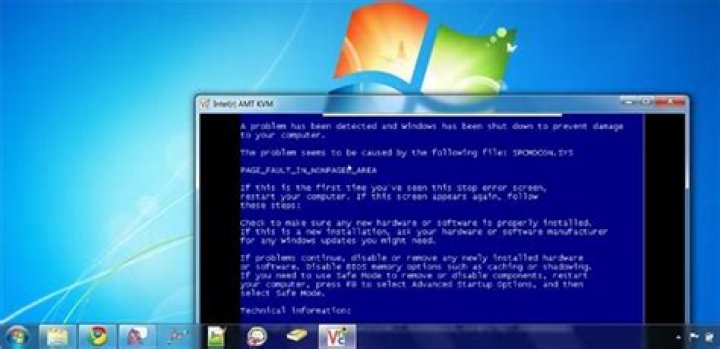
Have you ever had a system that is running a Windows operating system either freeze or hang for no apparent reason? Has it ever become so low on resources that you can barely navigate through the menus? If you have found yourself in this situation recently, then the option of forcing a system crash from the keyboard just may help you discover and diagnose the underlying source of the problem.
- Author
- Recent Posts
- If Windows hangs or freezes – How to force a system crash to create a dump file – Wed, Oct 27 2010
In recent times I had to deal with a few of my Terminal Services servers that were hanging or becoming very unresponsive. And the problem was difficult to investigate because the system was not creating a crash dump since the servers weren’t technically crashing. Once I configured my servers to allow me to force a crash and create a dump file, I was able to begin the journey of resolving the issue. For a quick overview on the different types of dump files please check out this article.
After a few days of waiting for the problem to reoccur I was able to force a crash on one of the servers. It worked just as I had planned. With the help of the software vendor whose product was responsible for the problem at hand, we were able to fix the issue and the servers have been problem free ever since that time.
As you can see from this article, configuring your Windows based system to crash upon typing a hotkey sequence is very easy. There are only two changes that need to be made. They are:
- Enable the Kernel or Complete Memory Dump option in the Startup and Recovery tab under the Advanced tab which can be accessed in the System Properties. Either of these choices will give you the greatest amount of information in the dump file.
- Add and enable one of the following registry keys depending on keyboard type:
A. USB Keyboard -KEY_LOCAL_MACHINE\System\CurrentControlSet\Services\kbdhid\Parameters, create a DWORD (32bit) value named CrashOnCtrlScroll and set the value to 1.
B. PS/2 Keyboard – HKEY_LOCAL_MACHINE\System\CurrentControlSet\Services\i8042prt\Parameters, create a DWORD (32bit) value named CrashOnCtrlScroll and set the value to 1.
Once those options are set, reboot the system for the changes to take effect and then wait for the slowness or hang to reoccur. When it does you will be able to hold down the right Control key and press the Scroll Lock key twice to force a crash of the system.
TIP – For this to work, it is best to be physically located at the console of the system on which you are performing this hotkey sequence. Running it from a local, remote or IP KVM may prevent the key sequence from being triggered correctly.
You can use Microsoft’s Debugging Tools for Windows (WinDbg) to analyze the crash dump file. Once you have the debug tool installed you will need to set up the symbols server which you can find instructions on how to set up here. From there open the application and choose to open a Crash Dump.
If you have any questions about this article or need additional help in forcing the system to crash or analyzing the crash dump please leave a comment for me and I will respond as soon as possible.
In this tutorial, we’ll go step-by-step to show you how to connect to a remote computer. We’ll discover the different addresses we can enter into the client program, to establish the remote connection. In addition, we’ll figure out how to bring up the remote connection via a Web browser.
Connecting to Your PC with the Traditional Client
Now you’re all ready to remotely connect to your PC either from another computer on your network or from any computer on the Internet. First, we’ll connect using the traditional client program (called Remote Desktop Connection) that’s installed by default on most Windows versions.
Start>All Programs>Accessories>Remote Desktop Connection
Once the program loads, you can enter the path to your Remote Desktop PC into the Computer field and hit the Connect button. It’s that simple. You have, though, a few different items you can use as a path, which include:
Connecting to Your Windows XP PC via Web Browser
If you followed the directions to set up Web access of your Remote Desktop PC, you should now be able to bring up your computer with a Web browser. Open a Web browser, enter the URL, and hit the Enter key. The URL consists of
You only have to type colon and the port number if you changed the default port 80 to something else. If you are connecting to the Remote Desktop from a computer on the local network, you can use the PC’s local IP address rather than the Internet IP address. However, if you are connecting from elsewhere, you must use your Internet IP address. Reference the bullets in the previous section for more on these addresses as well as info on domain or host names that you could use in place of an IP address when connecting via the browser.
If you’re prompted to install the Remote Desktop ActiveX control, click Yes. On the Remote Desktop Web Connection page click Connect. You don’t need to fill in the Server field. If you leave the default Size set to Full-screen, it will try to use the traditional client program if it’s installed. Otherwise you’ll see the Remote Desktop screen in your browser at the size you specify.
Wrapping It Up
Now you should be able to remote into your PC from the next room or from around the globe. If you run into problems and can’t connect using the client program or the Web access page doesn’t load, double check your firewall and router settings.
We’ll leave you with a few tips to commit to memory:
- Remember your PC must be plugged in and turned on to remotely connect to it. Remember to disable any automatic sleep, hibernation, or stand-by features on your PC.
- Keep Windows up-to-date with critical and recommended updates to make sure you’re protected from the latest known security holes.
- Make sure Windows Firewall, or another third-party solution, is always on and protecting against hackers.
- Even when connecting to a PC via the Web browser, the host computer must also have the traditional Remote Desktop feature enabled.
Eric Geier is the author of many networking and computing books, including Home Networking All-in-One Desk Reference For Dummies (Wiley 2008) and 100 Things You Need. to Know about Microsoft Windows Vista (Que 2007). He is a frequent contributor to Internet.com sites.
This article was originally published on March 19, 2009
In this tutorial I will show you how you can setup your computer in order to automatically power on after power outage. This guide can be very helpful for people that want to connect to their computer and work remotely (from a distance) when they are on a different location.
How to automatically start on (turning computer back / power on) after power outage.
Step 1. Modify Power settings inside your BIOS.
1. Power On your computer and press “DEL” or “F1” or “F2” or “F10” to enter BIOS (CMOS) setup utility.
(The way to enter into BIOS Settings depends on the computer manufacturer).
2. Inside BIOS menu, look under the following menus to find for a setting named “Restore on AC/Power Loss” or “AC Power Recovery” or “After Power Loss“.
“Advanced” or “ACPI” or “Power Management Setup“. *
* Note: The “Restore on AC/Power Loss” setting can be found under different places inside BIOS setup according to computer manufacturer.
3. Set the “Restore on AC/Power Loss” setting to “Power On”.
4. Save and exit from BIOS settings.
Step 2. Modify Windows to startup normally after power corruption,
In Windows 7 & Vista OS, after power failure Windows launches by default the “Startup Repair” settings instead of starting normally. But in repair mode, you can not control your PC unless you sit in front of it. To bypass this situation and to force Windows to start in normal mode after power outages or improperly shutdown, do the following:
1. Open an elevated command prompt window by going to:
- Start >All Programs >Accessories
- Right-click to “Command prompt” item and choose “Run as administrator”.
2. In the command window, type the following command and press Enter.
- bcdedit /set
bootstatuspolicy ignoreshutdownfailures
After pressing the “Enter” key, Windows should return an “Operation completed successfully” message.
3. Close command prompt window and you ‘re done!
Attention: Always use a UPS (Uninterruptible power supply) to protect your computer hardware from voltage outages and voltage strikes. Power outages can cause serious problems on your hardware like PSU (Power Supply Unit) destruction or HDD (Hard disk) destruction (data loss).
Alice MJ
Mar 07, 2022 • Filed to: Erase Phone Data • Proven solutions
With the digitisation and smart-phone in hands, our life has become easy, flexible, and collaborative. Not only our personal but also our work life. Android making a way for us to use thousands of applications and features has become one of the most important necessities of our life and day-to-day activities. However, when an Android phone is lost or has been stolen, it puts all our private data and documents at risk. Such a condition is most undesirable when the lost Android phone was used majorly for corporate purposes or for official work.
But, relax! You own a smart-phone. Let me introduce that how you can smartly ‘remote wipe Android’. Remote wipe Android is an approach to lock, delete or completely erase data on your Android phone. Not only you can lock or delete but also you can find the approximate location of lost or stolen Android phone. This way, before you remote wipe Android, you will not go for wrong decisions taken in haste, in order to maintain the privacy of the data on your lost or stolen the Android phone.
Let us then see that how you can remote wipe Android phone with the help of the Android Device Manager.
Part 1: How to remotely wipe Android with Android Device Manager?
As said earlier, you can not only remote wipe Android but can ring, lock, and find the accurate location, too. This method of remotely wiping Android is easy. What you need is just an account for Android Device Manager (at its official website). By creating an account here, you can SYNC your Android device with Google and its related services. So, whenever your Android phone is lost, you just sign-in to your Android Device Manager account in order to first have an approximate location or ring your Android phone. Once it is found that the phone has been stolen or lost, then to keep all the data and documents safe, you can opt to remote wipe Android. Remote wipe Android will set your lost Android phone to FACTORY RESET mode. So, all your data and documents will be deleted with this. And, safe and secured, too; as now no one will be able to access and more importantly recover data.
In a nutshell, Android Device Manager is your virtual phone. You can access or control your Android phone virtually but with limited functionalities. But as said earlier, you need to perform the below perquisite to remote wipe Android i.e. setting up Android Device Manager.
1. Open “Settings” of your Android phone.
2. Here, you will find settings for “Personal”. Go for it and click “Google”.
3. Having done that go to “Services” and click on “Security”.
4. After performing above steps, now go to “Android Device Manager,” and switch-on “Remotely locate this device” and “Allow remote lock and erase”.
Do note that to leverage Android Device Manager, your Android phone’s device location is in ON mode. Follow below steps to make location on.
1. Open your Android phone’s “Settings” and find “Personal”.
2. Here, you will find “Location”.
3. By just clicking on On/Off switch, you enable your Android phone’s location service.
Having done that it’s time to test the Android Device Manager. Here’s how you do it.
1. Visit official website: –
2. Here, just sign in with your Google Account.
3. Just see that whether your device is showing up or not.
If you can’t find your Android device, then you need to recheck for the following:
1. You are signed-in to your Google Account.
2. Location setting of your Android phone is on.
3. In Google settings (in your Android phone), make sure that Android Device Manager is in ON mode.
Now, let us see quickly how to remote wipe Android phone when it’s actually lost or stolen. Follow below steps to do it.
1. On the first basis, you need to visit Android Device Manager’s official website. Here, sign-in with your Google Account.
2. As soon as you log in, find or select your Android phone that has been stolen or lost. Note that if in earlier time you had not synced your Android phone at ADM’s website, then you are not able to find it.
3. Now, just select your Android phone. On selecting it, you will see the accurate location along with the menu at top left corner that shows location details, last time of detection, and distance from your location.
4. Having found the exact location of your Android phone, you can proceed to remote wipe Android. Just click on “Wipe your Android remotely”.A confirmation window will pop up; click on “Agree.” With this, you had remote wipe Android phone of yours and saved it from dirty brains.
Having said all the above, I just want to bring in the light that sometimes it is possible that ADM may not be able to show you the exact location of lost phone. And, sometimes an error can also occur. Let us quickly see how to fix such error.
Part 2: How To Fix Location Unavailable Error In Android Device Manager?
Do note that this procedure has to be performed along with the above steps to enable ADM and sync your Android phone with it.
Before following below steps, make sure that your Android phone is well connected to the internet. Having done that, follow below steps to fix location unavailable error in ADM.
1. Set your location to “High Accuracy Mode”. Follow this path to do it:Settings > Locations > Mode > High Accuracy.
2. Now, it’s time to go to Google Play Services. It is must to have thelatest version and clear cache memory. So, update it.
3. Having done that, reboot your phone.
4. Now, check to see that whether unavailable error still exists or not. For this, just start Android Device Manager.
Alternatively, you can also go for “Mock Locations” feature to fix location unavailable error. You can do it via Settings > Developer Options. If the problem still persists, avail a professional expertise.
Remote wipe Android is one of the latest and desired functionality. It helps us the most at the times of critical situations when it is very important to safeguard the data from wrong hands. However as we can’t safeguard it, we just completely delete it by setting it to FACTORY SETTING mode. Android Device Manager helps or to say assist you in such. The more features made available like a lock, ring, and finding accurate locations are also very helpful. So now, having the knowledge on how to remote wipe Android phone with Android Device Manager, pass it on this knowledge to others too. It will help others too in the situations of Android phone thefts.
The following types of keyboards can cause a system crash directly:
PS/2 keyboards connected on i8042prt ports
This feature is available in Windows 2000 and later versions of Windows operating system.
USB keyboards
This feature is available in Windows Vista and later versions of Windows operating system.
Hyper-V keyboards
This feature is available in Windows 10 version 1903 and later versions of Windows operating system.
Configuration
Configure the following settings to enable the a system crash using keyboard:
If you wish a crash dump file to be written, you must enable such dump files, choose the path and file name, and select the size of the dump file. For more information, see Enabling a Kernel-Mode Dump File.
With PS/2 keyboards, you must enable the keyboard-initiated crash in the registry. In the registry key HKEY_LOCAL_MACHINE\System\CurrentControlSet\Services\i8042prt\Parameters, create a value named CrashOnCtrlScroll, and set it equal to a REG_DWORD value of 0x01.
With USB keyboards, you must enable the keyboard-initiated crash in the registry. In the registry key HKEY_LOCAL_MACHINE\System\CurrentControlSet\Services\kbdhid\Parameters, create a value named CrashOnCtrlScroll, and set it equal to a REG_DWORD value of 0x01.
With Hyper-V keyboards, you must enable the keyboard-initiated crash in the registry. In the registry key HKEY_LOCAL_MACHINE\System\CurrentControlSet\Services\hyperkbd\Parameters, create a value named CrashOnCtrlScroll, and set it equal to a REG_DWORD value of 0x01.
You must restart the system for these settings to take effect.
After this is completed, the keyboard crash can be initiated by using the following hotkey sequence: Hold down the rightmost CTRL key, and press the SCROLL LOCK key twice.
The system then calls KeBugCheck and issues bug check 0xE2 (MANUALLY_INITIATED_CRASH). Unless crash dumps have been disabled, a crash dump file is written at this point.
If a kernel debugger is attached to the crashed machine, the machine will break into the kernel debugger after the crash dump file has been written.
For more information on using this feature, refer to the article Windows feature lets you generate a memory dump file by using the keyboard.
Defining Alternate Keyboard Shortcuts to Force a System Crash from the Keyboard
You can configure values under the following registry subkeys for different keyboard shortcut sequences to generate the memory dump file:
For PS/2 keyboards:
HKEY_LOCAL_MACHINE\SYSTEM\CurrentControlSet\Services\i8042prt\crashdump
For USB keyboards:
HKEY_LOCAL_MACHINE\SYSTEM\CurrentControlSet\Services\kbdhid\crashdump
For Hyper-V keyboards:
HKEY_LOCAL_MACHINE\SYSTEM\CurrentControlSet\Services\hyperkbd\crashdump
You must create the following registry REG_DWORD values under these subkeys:
Dump1Keys
The Dump1Keys registry value is a bit map of the first hot key to use. For example, instead of using the rightmost CTRL key to initiate the hot key sequence, you can set the first hot key to be the leftmost SHIFT key.
The values for the first hot key are described in the following table.
Rightmost SHIFT key
Rightmost CTRL key
Rightmost ALT key
Leftmost SHIFT key
Leftmost CTRL key
Leftmost ALT key
NoteВ В You can assign Dump1Keys a value that enables one or more keys as the first key used in the keyboard shortcut sequence. For example, assign Dump1Keys a value of 0x11 to define both the rightmost and leftmost SHIFT keys as the first key in the keyboard shortcut sequence.
Dump2Key
The Dump2Key registry value is the index into the scancode table for the keyboard layout of the target computer. The following is the actual table in the driver.
NoteВ В Index 124 (sysreq) is a special case because an 84-key keyboard has a different scan code.
If you define alternate keyboard shortcuts to force a system crash from a USB or PS/2 keyboard, you must either set the CrashOnCtrlScroll registry value to 0 or remove it from the registry.
Limitations
It is possible for a system to freeze in such a way that the keyboard shortcut sequence will not work. However, this should be a very rare occurrence. Using the keyboard shortcut sequence to initiate a crash will work even in many instances where CTRL+ALT+DELETE does not work.
This brief tutorial shows students and new users how to connect to Ubuntu 20.04 | 18.04 via Remote Desktop Protocol (RDP).
In some cases, you may want to connect to Ubuntu desktop via remote desktop using existing protocols. At this moment, it’s pretty easy. Simply install few packages and you’re ready to go.
Xrdp is an open-source implementation of the Microsoft Remote Desktop Protocol (RDP) that allows you to graphically control a remote computers.
It provides a fully functional Linux terminal server, capable of accepting connections from rdesktop, freerdp, and Microsoft’s own terminal server / remote desktop clients.
When you’re ready, follow the steps below to get it working.
Step 1: Install Xrdp
Since you already have a desktop environment with Ubuntu Desktop edition, simply run the commands below to Xrdp.
To validate that Xrdp is installed, run the commands below:
That should display similar text as below:
Step 2: Connect from Windows 10
Now that Xrdp server is installed, go and open Windows Remote Desktop Connection app and connect to the desktop hostname or IP address.
Please make to logout of your current Ubuntu desktop sessions. You can’t be logged in to Ubuntu while connecting via Xrdp.
When you have logged out of Ubuntu desktop sessions, click Connect to initiate RDP connection. You’ll be prompted for your Ubuntu login details.
Next, type in your Ubuntu machine account username and password and connect using Xorg
When your account username and password are confirmed, you should be logon to your Ubuntu machine from Windows.
Connecting to Ubuntu desktop is easy, since it already has a desktop environment.
Connecting to Ubuntu Servers
Since servers generally don’t have graphical interface, you will need to install a minimal graphical interface for this to work in a server environment.
Run the commands below to install some necessary packages.
Next, xrdp user to the sss-cert group by running the commands below:
That should get Xrdp installed and ready for connection on Ubuntu servers.
Since most Ubuntu servers don’t have firewall enabled out of the box, no need to worry about firewall blocking connections.
However, if you have Ubuntu firewall enabled, simply run the commands below to allow RDP traffic.
For example, if you’re connecting 192.168.1.0/24 network, then run the commands below:
Conclusion:
This post showed you how to connect via Remote Desktop Protocol (RDP) to Ubuntu 20.04 | 18.04 Desktop and Servers.
If you find any error above, please use the comment form below to report it.
You may also like the post below:
Published by Richard
In my spare time, I research topics that are interesting and worthwhile for users and students who want to try something new. I, too, am a student and my focus here is to help other students and new users get started with managing Ubuntu Linux, Windows, Content Management Systems (CMS) and others.
I try to do my best explaining the topics and detailing the instructions so that anyone can understand. These tutorials may not work in all situations and for all users. However, if you run into trouble, please ask your questions below and I or someone from the community may help you resolve. Thanks for reading and hope you come back.
21 Comments
Hey there, I’ve installed this on a Ubuntu 20.04 VM inside of Proxmox. It was working just fine until it seems, I rebooted the VM. I get errors now:
$ sudo systemctl status xrdp
● xrdp.service – xrdp daemon
Loaded: loaded (/lib/systemd/system/xrdp.service; enabled; vendor preset: enabled)
Active: failed (Result: exit-code) since Thu 2020-05-07 17:07:24 PDT; 25min ago
Docs: man:xrdp(8)
man:xrdp.ini(5)
May 07 17:07:24 Ubuntu-VM systemd[1]: Starting xrdp daemon…
May 07 17:07:24 Ubuntu-VM systemd[1]: xrdp.service: Control process exited, code=exited, status=1/FAILU>
May 07 17:07:24 Ubuntu-VM systemd[1]: xrdp.service: Failed with result ‘exit-code’.
May 07 17:07:24 Ubuntu-VM systemd[1]: Failed to start xrdp daemon.
lines 1-10/10 (END)
Seems my last comment did not get posted:
xRDP is not working after (i think) I rebooted my Ubuntu 20.04 VM machine inside of Proxmox. Errors:
$ sudo systemctl status xrdp
● xrdp.service – xrdp daemon
Loaded: loaded (/lib/systemd/system/xrdp.service; enabled; vendor preset: enabled)
Active: failed (Result: exit-code) since Thu 2020-05-07 17:07:24 PDT; 25min ago
Docs: man:xrdp(8)
man:xrdp.ini(5)
May 07 17:07:24 Ubuntu-VM systemd[1]: Starting xrdp daemon…
May 07 17:07:24 Ubuntu-VM systemd[1]: xrdp.service: Control process exited, code=exited, status=1/FAILU>
May 07 17:07:24 Ubuntu-VM systemd[1]: xrdp.service: Failed with result ‘exit-code’.
May 07 17:07:24 Ubuntu-VM systemd[1]: Failed to start xrdp daemon.
lines 1-10/10 (END)
i’ve 2 user, using user 1 open, if i using user 2 RDP can’t open..
please
if i install 18.04 it works immediatly,
if i install 20.04 it never works.
I tried many things
If i open Remote Desktop on the PC the login screen appears,
i log in to Xorg screen, the screen is light blue and the turns to black and 2 seconds later it disappear.
i get the same problem.
I install 18.04 and i can use Remotedesktop,
i install 20.04 on the same system it will not work at all…
Make sure that there is no user logged into the system before you use RDP.
Computing devices have come a long way over the last years. The modern family now has become mobile in the sense that now they have smartphones, tablets and various other gadgets with rich networking capabilities. Now, it’s easy for them to do home networking and remote access a computer with IP address.
Home networking could be totally possible if you know how to configure your home router and other devices for you to be able to remote access a computer with IP address. To do that, there are a few things that you need to understand, including WAN(Wide Area Network), LAN (Local Area Network), DNS(Domain Name System) and many else.
While all of this might seem overwhelming and too technical, it is quite easy if you are familiar with the router’s Web interface. Just make sure to have a good backup of the settings before making any changes.
Basic terms to successfully remote access a computer with IP address
For you to be able to successfully remote access a computer with IP address, it is great to know some of the basic concepts involving home networking.
Gateway
Most of the internet providers supply their subscribers with devices that combine the functionality of a router and modem in a single pack. The router acts as the gateway that allows you to connect multiple devices to a network, while the modern establishes a connection to the internet. This is very vital if you want to remote access a computer with IP address successfully.
Connections
There are three options when you want to setup a home network and be able to remote access a computer with IP address.
1. Wired
With a wired type of network, you are using Ethernet cables into a network adapters to establish a connection. Although it lack mobility and generally suited for desktops, they do have their advantages. Since they provide a direct type of connection, wired network are able to transfer data faster and more stable. It also provide considerably better security among others and is best when you remote access a computer with IP address.
2. Wireless
Wireless technology excels in mobility and convenience. However, it is essentially a compromise in terms of performance, security and reliability. The number of devices, obstruction-free router and proper use of security protocols are vital when deploying a wireless network. You have to make sure, you have established your security well before you remote access a computer with IP address.
3. Powerline Networking
This is more popular nowadays. With this type of connection, you need to plug a special receiver into your wall outlet, which connects to and communicates with your networked devices over an encrypted signal. It is also good if you remote access a computer with IP address. This method doesn’t add any additional costs to utility bills and offers a degree of reliability that is somewhere between wired and wireless networking.
Devices
It is possible to connect far more than desktop and laptop computers to a network. Same goes with remote access a computer with IP address. Printers, network storage devices and a host of mobile gadgets, they can all be connected to the network.
In most cases, your devices will have to be manually configured. Your configuration will depend on the operating system running on your central networking computer.
Forming the network before you remote access a computer with IP address
Establishing your network is typically a matter of connecting the devices you want to integrate to your router. It may require cables depending on the device. Wireless products come equipped with built-in Wi-Fi capabilities that eliminate the need to build any physical wires.
With all the setup you have made, the last thing you need to do before you remote access a computer with IP address is make sure you have a data and network protection like Comodo Internet Security Software that gives you complete protection against viruses and any type of attacks.
Building a network in your home has lots of challenges, but the benefits of it outweigh the negatives. You should pay attention to all essentials, and you will be reaping the perks of your own home-based network.
What is TeamViewer?
TeamViewer is a comprehensive remote access, remote control and remote support solution that works with almost every desktop and mobile platform, including Windows, macOS, Android, and iOS. TeamViewer lets you remote in to computers or mobile devices located anywhere in the world and use them as though you were there.
Up to 45 Million
online at the same time
new downloads per hour
Remote Support
Deliver Instant Remote Support to Customers and Employees
Tech mishaps happen. Computer glitches, system crashes, and device failures can bring business to a standstill. Instead of making on-site service calls that take time and increase costs, IT pros choose TeamViewer to provide instant remote support for their clients.
Top Features:
- Ad-hoc support for clients and employees
- Custom branding for support applications
- Integrated service case management and integrations for major service desk systems
- Leave sticky notes on remote computers
- Integrations for Mobile Device Management and other apps
Remote Access
Access Remote PCs, Mobiles, and Servers — or Work From Home
Working from home. Away on business trips. With TeamViewer remote access tools, you can stay productive no matter where you are. Your desktop files and applications are just a few clicks away. Even mobile devices and servers can be securely accessed — all without VPN.
Top Features:
- Permanent access for unattended devices
- Videoconferencing and collaboration with TeamViewer Meeting
- Black screen for private remote access
- Secure, flexible file sharing
- Remote Printing for Windows and macOS
Mobile Device Support
Support Mobile and Commercial-Grade Devices — Anywhere, Anytime
Need to access, manage, and support mobile devices, even when no one’s there? No problem just set up permanent unattended remote access to mobile devices, computers, and servers, or even IoT devices, point of sale (POS) machines, kiosks, or digital signage.
Top Features:
- Share Your Screen on iPhones and iPads
- Transfer files securely, and manage transfers in the Files app on iOS
- Mobile-to-mobile connections
- View system diagnostics in the TeamViewer desktop app
- Chat via text, take screenshots, or control processes on the supported device
After Remote Desktop client loses its connection to the remote desktop, the client can’t immediately reconnect. The user receives one of the following error messages:
- The client couldn’t connect to the terminal server because of a security error. Make sure you are signed in to the network, then try connecting again.
- Remote Desktop disconnected. Because of a security error, the client could not connect to the remote computer. Verify that you are logged onto the network and then try connecting again.
When the Remote Desktop client reconnects, the RDSH server reconnects the client to a new session instead of the original session. However, when you check the RDSH server, it says that the original session is still active and didn’t enter a disconnected state.
To work around this issue, you can enable the Configure keep-alive connection interval policy in the Computer Configuration\Administrative Templates\Windows Components\Remote Desktop Services\Remote Desktop Session Host\Connections group policy folder. If you enable this policy, you must enter a keep-alive interval. The keep-alive interval determines how often, in minutes, the server checks the session state.
This issue can also be fixed by reconfiguring your authentication and configuration settings. You can reconfigure these settings at either the server level or by using group policy objects (GPOs). Here’s how to reconfigure your settings: Computer Configuration\Administrative Templates\Windows Components\Remote Desktop Services\Remote Desktop Session Host\Security group policy folder.
- On the RD Session Host server, open Remote Desktop Session Host Configuration.
- Under Connections, right-click the name of the connection, then select Properties.
- In the Properties dialog box for the connection, on the General tab, in Security layer, select a security method.
- Go to Encryption level and select the level you want. You can select Low, Client Compatible, High, or FIPS Compliant.
- When communications between clients and RD Session Host servers require the highest level of encryption, use FIPS-compliant encryption.
- Any encryption level settings you configure in Group Policy override the settings you configured using the Remote Desktop Services Configuration tool. Also, if you enable the System cryptography: Use FIPS compliant algorithms for encryption, hashing, and signing policy, this setting overrides the Set client connection encryption level policy. The system cryptography policy is in the Computer Configuration\Windows Settings\Security Settings\Local Policies\Security Options folder.
- When you change the encryption level, the new encryption level takes effect the next time a user signs in. If you require multiple levels of encryption on one server, install multiple network adapters and configure each adapter separately.
- To verify your certificate has a corresponding private key, go to Remote Desktop Services Configuration, right-click the connection that you want to view the certificate for, select General, then select Edit. After that, select View certificate. When you go to the General tab, you should see the statement, “You have a private key that corresponds to this certificate” if there’s a key. You can also view this information with the Certificates snap-in.
- FIPS-compliant encryption (the System cryptography: Use FIPS compliant algorithms for encryption, hashing, and signing policy or the FIPS Compliant setting in Remote Desktop Server Configuration) encrypts and decrypts data sent between the server and client with the Federal Information Processing Standard (FIPS) 140-1 encryption algorithms that use Microsoft cryptographic modules. For more information, see FIPS 140 Validation.
- The High setting encrypts data sent between the server and client by using strong 128-bit encryption.
- The Client Compatible setting encrypts data sent between the client and the server at the maximum key strength supported by the client.
- The Low setting encrypts data sent from the client to the server using 56-bit encryption.
Control any computer from your Mac
from anywhere in the world.
Seeking a Back to My Mac alternative?
Screens does the job insanely well and offers even more features!
Screens is a powerful VNC client app that lets you control any computer
from anywhere as if you were sitting in front of it!
Ready for Monterey and Apple Silicon
Screens looks great on macOS 12 and also supports the latest Macs from Apple.
Connect to Macs, PCs and more
Screens can connect to any Mac from the latest macOS version to the venerable OS X 10.4 Tiger. It can also connect to Windows PCs (Windows XP and later) and most Linux and Raspberry Pi distributions.
Connect from anywhere
Work on that spreadsheet you left at home, perform software updates on your server on another continent, or help your dad configure his computer miles away back in your hometown.
Install Screens Connect, our free utility on your Mac or Windows PC and make it reachable from anywhere in the world.
Multiple Display Support
For Macs with several attached displays, Screens lets you select an individual one or you can show them all at once. Plus, it can remember your last selection for future sessions.
Groups
Organize your saved screens as groups to keep everything in order.
Curtain Mode
Curtain Mode obscures the display on remote Macs you connect to. Useful if you don’t want anyone to see what you’re doing.
File Transfers
Transfer files from Mac to Mac via drag and drop.
Session Selection
If there is someone logged in on a remote Mac, Screens can ask to share their screen or it can start a new session — your choice!
Touch Bar Support
Unleash the power of Touch Bar with Screens, especially in full screen mode.
Easily help family members, friends, etc.
Screens Express is a great solution to the problem of remote troubleshooting for family members, friends or clients. Simply download and run this free utility on the Mac you wish to control and connect via Screens. It’s that easy!
And so much more!
Connect to Macs running OS X 10.4 Tiger or later
Synchronize your content via iCloud or Dropbox
Access recent connections through the Dock
Synchronize your Mac clipboard with the remote computer
One-Click User Password
Improved SSH Keys Support
Observe and Control Modes
Grab a Screenshot of the remote computer
Revamped URL Schemes Support
Connect to Macs, Windows, Linux PCs and Raspberry Pi
In the Press
“What’s made Screens my favorite way to connect to a remote Mac is that it has managed to abstract away the complexity that accompanies many VNC apps.”
“Edovia’s Screens is one of my must-have utilities on both macOS and iOS.”
“Screens is a massive revamping of one of the most popular VNC clients available.”
“Screens [is] the best remote access solution for macOS and iOS.”
“Screens, arguably the finest and most attractive VNC client for Mac and iOS, is now even greater.”
Start Using Screens 4 Now
And control your computers from anywhere.
Screens is also available on the Mac App Store and Setapp
Requires macOS 10.12 Sierra or later.
If you own any previous version of Screens, you are eligible for a license upgrade.
For more details about our license usage, click here.
I’m connecting from a windows vista desktop to a server running windows server 2003. I’m using Remote Desktop and I’m running some very long running processes on the remote server. My problem is that Remote Desktop logs out my session and terminates any running processes after some amount of time without input from myself. This means I need to sit at my pc wiggling the mouse every now and then rather than head out and enjoy the glorious sunshine for a few hours.
Does anyone know how I disable this behavior? I assume it is configurable somewhere.
3 Answers 3
Using Group Policies (best practice) Open Group Policy.
In Computer Configuration, Administrative Templates, Windows Components, Terminal Services, Sessions, enable the settings you want to configure. See the policy explain text for more information.
Using Terminal Services Configuration Open Terminal Services Configuration.
In the console tree, click Connections.
In the details pane, right-click the connection for which you want to modify time-out settings, and then click Properties.
On the Sessions tab, above End a disconnected session, select the Override user settings check box. This allows you to configure time-out settings for the connection.
Configure the following time-out settings as appropriate:
In End a disconnected session, select the maximum amount of time that a disconnected session remains on the server. When the time limit is reached, the disconnected session ends. When a session ends, it is permanently deleted from the server. Select Never to allow disconnected sessions to remain on the server indefinitely.
In Active session limit, select the maximum amount of time that a user’s session can remain active on the server. When the time limit is reached, either the user is disconnected from the session or the session ends. When a session ends, it is permanently deleted from the server. Select Never to allow the session to continue indefinitely.
In Idle session limit, select the maximum amount of time that an idle session (a session without client activity) remains on the server. When the time limit is reached, either the user is disconnected from the session or the session ends. When a session ends, it is permanently deleted from the server. Select Never to allow idle sessions to remain on the server indefinitely.
By Alisa | Follow | Last Updated November 27, 2020
Summary :
To shut down Windows 10 PC, one quick way is to use Command Prompt commands. Check how to shutdown Windows 10 using command line in CMD. Also learn how to remotely shut down a Windows 10 PC with CMD. As the best Windows 10 software mate, MiniTool software also provides you data recovery, hard drive management, system backup and restore tools.
- What is the command for Windows 10 shutdown in CMD?
- How do I shut down Windows 10 from Command Prompt?
- How do I shut down a computer remotely with Command Prompt?
If you meet Windows 10 won’t shut down problem by using the usual ways, you can try the unusual way to shut down your Windows 10 PC. Learn how to shut down Windows 10 with command line in CMD (Command Prompt) below. This is helpful when computer freezes, gets stuck or crashes because of some errors and can’t shut down. (Related: How to Repair Windows 10)
How to Shut Down Windows 10 with Command Line in CMD
Step 1. You can press Windows + R, type cmd, and press Enter to open Command Prompt in Windows 10.
Step 2. In Command Prompt window, you can type shutdown /s command line, and hit Enter, then the CMD.exe will perform the Windows shutdown action.
Tip: You can also type shutdown command in CMD after you enter into Command Prompt window, and it will present a list of different options for Windows 10 shutdown. Different command lines perform different operations. You can check some of the Windows shutdown commands below.
- shutdown /s – just shut down your Windows 10 computer.
- shutdown /r – shut down and restart the computer.
- shutdown /a – abort the system shutdown before the timeout.
- shutdown /l – log off the computer.
- shutdown /f – force close running applications without forewarning users.
- shutdown /m \\computername – specify the target computer you want to shut down.
- shutdown /t xxx – set the timeout period before shutdown to xxx seconds. (Related: schedule shutdown Windows 10)
- shutdown /c “comment” – comment on the reason for the restart or shutdown.
Windows 10 Shutdown Shortcut
Some of you may also wonder how to use keyboard shortcut to shut down Windows 10. You can press Alt + F4, and it will pop up the Shutdown dialog. You can then use the arrow keys on the keyboard to select an option and press Enter to power off Windows 10 PC or laptop.
How to Remotely Shut Down or Restart a Windows 10 Computer with CMD
You can even use Command Prompt to remotely restart or shut down a Windows 10 computer over the Internet. The Windows PCs should be connected to the same network.
After you enter into Command Prompt, you can type shutdown /m \\computername /r /f command line, and hit Enter. This will remotely restart the target Windows 10 computer and force close all running programs on it.
To shut down a Windows 10 computer remotely, you can type the command line: shutdown /m \\computername /s /c “This computer will shut down, please save all work.” /t 100, and hit Enter. This command line will shut down Windows 10 computer in CMD, along with forcing all running programs to close, show the warning message, and count down 100 seconds before the remote computer shuts down.
You can also remotely shutdown PC via Shutdown dialog.
- You can type shutdown /i command in CMD, and press Enter to open Remote Shutdown Dialog.
- Click Add or Browse button to add the target computers to the list. You can type the computer network name in \\computername format or just type the computer name.
- Then you can set the shutdown options: restart or shutdown. You can also set the shutdown settings like displaying a warning.
- Then you can run the corresponding Windows shutdown commands to shut down or restart a batch of computers in the same network.
Bottom Line
This post gives some tips on how to shut down Windows 10 with command line in CMD, and how to how to restart or shut down remote computers with CMD. If you have better ideas, please do not hesitate to share with us.
ABOUT THE AUTHOR
Position: Columnist
Alisa is a professional English editor with 4-year experience. She loves writing and focuses on sharing detailed solutions and thoughts for computer problems, data recovery & backup, digital gadgets, tech news, etc. Through her articles, users can always easily get related problems solved and find what they want. In spare time, she likes basketball, badminton, tennis, cycling, running, and singing. She is very funny and energetic in life, and always brings friends lots of laughs.
Remote Desktop Protocol (RDP) is the easiest and most common method for managing a Windows server. Included in all versions of Windows server and has a built-in client on all Windows desktops. There are also free applications available forВ Macintosh and Linux based desktops.В Unfortunately, because it is so widely used, RDP is also the target of a large number of brute force attacksВ on the server. Malicious users will use compromised computers to attempt to connect to your server using RDP. Even if the attack is unsuccessful in guessing your administrator password, just the flood of attempted connections can cause instability and other performance issues on your server. Fortunately, there are some approaches you can use to minimize your exposure to these types of attacks.
Using a VPN
Using a Virtual Private Network (or VPN) is one of the best ways to protect your server from malicious attacks over RDP. Using a VPN connection means that before attempting to reach your server, a connection must first be made to the secure private network. This private network is encrypted and hosted outside your server, so the secure connection itself does not require any of your server’s resources. Once connected to the private network, your workstation is assigned a private IP address that is then used to open the RDP connection to the server. When using a VPN, the server is configured only to allow connections from the VPN address, rejecting any attempts from outside IP addresses (see Scoping Ports in Windows Firewall ). The VPN not only protects the server from malicious connections, but it also protects the data transmitted between your local workstation and the server over the VPN connection. For more information, see our article What is a VPN Tunnel?
Using a Hardware Firewall
Like using a VPN, adding a hardware firewall to your server infrastructure further protects your server from malicious attacks. You can add a Liquid Web firewall to your account to allow only RDP connection from a trusted location. Our firewalls operate in much the same way that the software Windows firewall operates, but the functions are handled on the hardware itself, keeping your server resources free to handle legitimate requests. To learn more about adding a hardware firewall to your account, contact our Solutions team. If you already have a Liquid Web firewall in place, our Support team can verify that it is correctly configured to protect RDP connections.
Identify Trusted IP Addresses
An integral part of securing your server is identifying trusted IP addresses that are not limited in scope by the firewall. This allows selected connections filtered by IP to gain access to the server. To accomplish this, we open a web browser from all the computers that are permitted to connect to the server. Then, browse to the Liquid Web IP checker tool and note the reporting IP address presented on that page. With that information, we then proceed to the next section on “Scoping” a port or adding a firewall rule. If you have issues, please see our KB article on troubleshooting RDP connections. Alternatively, if you simply need to find your public IP address, use this link.
Scoping the RDP Firewall Rule
Similar to using a VPN, you can use your Windows firewall to limit access to your RDP port (by default, port 3389). The process of restricting access to a port to a single IP address or group of IP addresses is known as “scoping” the port. When you scope the RDP port, your server will no longer accept connection attempts from any IP address not included in the scope. Scoping frees up server resources because the server doesn’t need to process malicious connection attempts, the rejected unauthorized user is denied at the firewall before ever reaching the RDP system. Here are the steps necessary to scope your RDP port:
- Log in to the server, click on the Windows icon, and type Windows Firewall into the search bar.
Changing the RDP Port
While scoping the RDP port is a great way to protect your server from malicious attempts using the Remote Desktop Protocol, sometimes it is not possible to scope the port. For instance, if you or your developer must use a dynamic IP address connection, it may not be practical to limit access based on IP address. However, there are still steps you can take to improve performance and security for RDP connections.
Most brute force attacks on RDP use the default port of 3389. If there are numerous failed attempts to log in via RDP, you can change the port that RDP uses for connections.
- Before changing the RDP port, make sure the new port you want to use is open in the firewall to prevent being locked out of your server. The best way to do this is duplicate the current firewall rule for RDP, then update the new rule with the new port number you want to use.
- Login to your server and open the Registry editor by entering regedit.exe in the search bar.
- Once in the registry navigate to the following: HKEY_LOCAL_MACHINE\SYSTEM\CurrentControlSet\Control\Terminal Server\WinStations\RDP-Tcp
- Once there scroll down the list till you find “PortNumber” .
- Double-clicking on this will bring up the editor box.
- Change it from HEX to DEC so it’s in numbers.
- Set the port number here and hit OK (you can use whatever port number you wish, but you should pick a port that already isn’t in use for another service. A list of commonly used port numbers can be found on MIT’s website .)
- Close the registry editor and reboot the server.
- Be sure to reconnect to the server with the new RDP port number.
Join Us!
Our Support Teams are filled with experienced Linux technicians and talented system administrators who have intimate knowledge of multiple web hosting technologies, especially those discussed in this article.
Should you have any questions regarding this information, we are always available to answer any inquiries with issues related to this article, 24 hours a day, 7 days a week 365 days a year.
If you are a Fully Managed VPS server, Cloud Dedicated, VMWare Private Cloud, Private Parent server, Managed Cloud Servers, or a Dedicated server owner and you are uncomfortable with performing any of the steps outlined, we can be reached via phone at @800.580.4985, a chat or support ticket to assisting you with this process.
Centralized management for users and billing
- Features
- Pricing
- Download
- Remote Desktop
Manage users, remote computers, and deployment centrally
- Features
- Pricing
- Download
- Remote Desktop
Web-based sessions with no software installation
Consumer
Secure remote access for personal use.
SAVE UP TO 50% *
SAVE UP TO 90% *
Add users within your account and organize them into groups.
Unlimited user licenses,
access 5 computers
Add users within your account and organize them into groups.
Unlimited user licenses,
access 50 computers
Enterprise
Invite users, group computers and provide remote deployment.
Unlimited user licenses
access 100 computers;
HelpDesk
Web-based remote support solution for Businesses and MSPs.
Unlimited technicians,
unlimited computers
RemotePC helps you.
Connect
Work from home or while on a business trip. Access your PC, Mac or Linux machines, from any device – anytime, anywhere!
Control
Effortlessly manage your files, transfer data and print documents remotely – even from mapped drives.
Collaborate
Invite an associate to temporarily access your computer to work on presentations, documents in real time.
Work from anywhere, anytime
Meeting
Business class online meeting with better video and low latency
Unlimited host licenses,
unlimited meetings
RDP Connector
Access RDP-based Windows computers and servers
Available as an add-on
Freedom to work from anywhere, anytime
You can never predict when important work comes your way. In a world of stringent timelines and enormous workloads, tools that let you connect to other computers or collaborate offer great help. When time is equivalent to money, such features not only help you work faster but effectively. Quick access to any computer, and the ability to host and join online meetings from anywhere, will lead to improved productivity. Introducing a strategy such as this increases efficiency and gives you the flexibility to work from home or any location.
You need to configure your computer for Always-ON Remote Access to control it over the Internet anytime by entering the unique Key known only to you. The Personal Key acts as a secondary password for your computer and helps prevent any unauthorized access. Once configured in your computer, you can connect to your computer instantly. Then you can continue working just as if you’re in the office and access other configured computers.
RemotePC also comes with an online meeting solution as a free add-on. With this secure web conferencing tool, you can communicate with your team from a conference room or any remote location. All you need to do is share a unique meeting invite with your team to start a live meeting instantly.
- Remote access to your faraway computer from any PC/Mac/Linux, iPhone, iPad, or Android device.
- Drag and drop files to your local computer from the remote computer and vice versa.
- Send and receive chat messages between your computers.
- Print documents and images that are on your remote computers from a local printer.
- Transfer files and folders effortlessly between your computers when needed.
- Collaborate with associates using the whiteboard, chat, or sticky notes.
- Record and save remote sessions at your desired location on the local computer.
- Lock the remote desktop instantly or after the session ends with the Lock function. This will prevent any unauthorized use of the computer during a session.
- Configure your Mac, PC, and Linux machines for remote desktop access by assigning them a name and a Personal Key.
- Configure or Attend Meetings – Host or join instant meetings, webinars, and video conferences from anywhere with unlimited participants instantly over the web with a unique meeting invite.
- Calendar Integration – Create meetings and schedules through Google, Yahoo, and Outlook calendars.
- Dial-in via phone – Overcome poor Internet connections and join instant meetings by dialing in through your phone for uninterrupted meeting sessions. There is support even for international numbers.
- Group and Private Messaging – Exchange messages and share file attachments with all the participants or chat with individual participants. Raise your hand when you need to communicate.
Enjoy all these benefits when you sign up for RemotePC.
There are some important programs such as a gaming servers, webservers, databases or mail servers that we’d need to keep running at all times but not every piece of software will have a feature of monitoring itself and re-starting whenever it is closed. It’s a similar situation if you constantly download via P2P software or download managers because you might want to keep downloading or seeding even while you’re not at the computer.
It can be a source of frustration if the software crashes or hangs just after you leave it unattended because it will then have to stay that way until you come back to rectify the problem. What could be even more annoying is having other users or children closing the program down not knowing or caring that it’s supposed to stay running. This is where a third part tool comes in to help because you can setup your programs that are required to stay running to relaunch automatically if they are closed or crash. That way they will keep restarting to continue their tasks or until you stop them manually.
Here’s a selection of 8 free tools that can keep an application running by automatically starting it up again when it closes or crashes.
1. Control Running Programs (CRP)
Control Running Programs is a multi functional tool to perform a number of functions on running applications. In addition to being able to monitor and relaunch closed processes, CRP can control how many instances of a program can be opened at once and also monitor the memory usage of a program, closing it down if a certain threshold is reached. An additional option can password protect the main window once it’s been minimized to the tray.
After installation, click on Instance Launching in the window and click on Add (or File menu -> Add), or alternatively drop an executable onto the window (not a shortcut). Then click the button to browse for an executable or use the arrow button to select a currently running process, and supply optional command line arguments. Once you have configured the program(s) required press the button to start the monitoring engine. You can’t launch different programs or set a monitoring interval etc, but simply dropping a file onto the window makes CRP very easy to get working quickly.
2. Application Monitor
Application monitor is quite an old utility dating back to 2005, but seems to work perfectly fine on newer operating systems. It has a couple of useful options built in you don’t find in many other tools of this type, including an option to send an email when errors occur and the ability to use different checking intervals for each application you want the program to monitor.
Adding a process to monitor is easy, click the Add button, give it a name and then browse to the executable file. Then add optional arguments and set the checking interval, the default is 2 minutes but it can be any where between 30 seconds and 3 hours in 30 second increments. As soon as you tick the box to activate the application profile, it will launch the process and begin monitoring. Application monitor is portable and requires .NET Framework 1.1 or higher.
3. Restart On Crash
Restart On Crash is slightly different because it was designed primarily as a tool to restart a program after it’s crashed or hung, but is equally at home in restarting an application that has been closed accidentally or by someone else. It’s an easy program to use and configure while being portable and quite light on memory, only using around 2.5MB of system RAM during monitoring.
When configuring Restart On Crash you can assume a program has crashed and needs restarting when it has actually crashed and not responding, and also simply if it isn’t running which covers when the the application was closed manually. Click the Add button to enter a new monitored application and either locate the executable or select a running process, this will enter the same executable in the command to execute. You can of course run scripts or other programs if you want. By default closed/crashed programs are checked every 60 seconds, this can be changed and the log file can be setup from the Settings window.
4. Restarter
According to its developer, Restarter was originally intended for monitoring and restarting Counter-Strike game servers, but can be used on other applications with no problem. The main interface is a bit more complicated looking than some of the other tools here, but still isn’t really that difficult to configure. Restarter has portable and setup installer versions available and requires .NET Framework v2 to function.
To monitor a program it first needs to be running as Restarter selects the executable from a list of opened processes, then you can choose the monitor interval (default is 60 seconds), whether to restart the process, kill an unresponsive process, play a warning sound and run an external script (reboot and send email VBS scripts are included). Supplying a working directory and startup arguments are optional extras. Restarter has a Create shortcut button which will add a desktop shortcut to allow launching the selected application and then monitor it automatically.
If you need to control a remote computer, or you’d like someone else to control your computer remotely, there are several options available. Below is a listing of some of the most popular methods of remotely connecting to another computer for remote access or assistance.
- Remote desktop software and services.
- Potential problems and additional information.
Remote desktop software and services
TeamViewer
TeamViewer is an online service that connects two networked computers running its client software. A one-time password is provided on the remote computer (the one to be controlled), which is entered on the client computer for access. The remote computer’s display is shared on your computer, and you can control its mouse and keyboard from yours. The software and service are free to use for personal use or available for a fee to corporate customers.
LogMeIn
LogMeIn is a remote login SaaS. It provides a secure web interface for accessing and controlling remote computers as a cloud service. LogMeIn does not offer a free service plan, although a free 14-day trial is available.
GoToMyPC
GoToMyPC is remote desktop software designed for “ease-of-use form over function,” that allows you to remotely view and control another computer. Acquired by LogMeIn in 2017, GoToMyPC offers a 7-day free trial. Client software is available for Windows, macOS, iOS, and Android.
RealVNC
The original VNC program that allows users to remotely connect to other computers running VNC. RealVNC has three different versions. The free version that supports a standard connection, and the Professional and Enterprise editions with encryption, One-port HTTP & VNC, file transfer, and more.
TightVNC
A free and open source VNC program that allows you to remotely connect to another computer and control it. The program permits file transfers between computers and supports multiple platforms, including Windows, macOS, Linux, and Unix.
Laplink Everywhere
Laplink is commercial remote desktop software that offers one-click access, secure file transfer, remote Outlook access, and automatic synchronization.
Windows Remote Desktop
Users of Windows Professional (Windows 10 Pro, Windows 8 Pro, etc.) can use Windows Remote Desktop to remotely access another Windows computer.
Potential problems and additional information
Below is additional information about potential problems you may encounter when using any of the solutions above.
- Firewall – Any firewall protecting your home, work, or school network must be open for many of these software programs or services to communicate with other computers. If you have a software firewall running on your computer, you must explicitly open the port required by the program.
Some schools and corporations have a hardware firewall that block outside Internet traffic, making it difficult or impossible for many of these solutions.
By Bryan Clark published 29 April 18
Computers crash, it’s part of life. Whether it’s the blue screen of death or just a frozen screen that won’t spring to life no matter how vigorously you shake your mouse, a built-in tool has you covered.
Knowing is half the battle, right? It’s important to note, however, that while this tool may point you in the right direction, it’s not all that great at actually fixing the problem. For that, you’ll have to consult the almighty Google.
1. Type Reliability into the Cortana search bar and click the first result . It should be a shortcut for View reliability history, a control panel option.
2. If Windows crashed or froze, you’ll see a red X that represents the timeframe of the failure. Yellow icons signify more of a warning, a non-critical event. Click the icon to see what happened.
3. At the bottom, you’ll see a list with the source of the failure. Click View technical details to find out more information about the issue. Alternatively, you can weed through all recent failures and near-misses by clicking the View all problem reports link at the bottom.
4. From here, you’ll see the error that caused the failure, as well as the file involved. Some problems may even include a fix, or an additional option to troubleshoot the issue, although these are typically only for problems related to some (but not all) driver issues. Click OK to close the window and return to the list of errors.
5. Since problems vary based on your configuration and hardware, this is typically where you’d copy the description and Google it for a fix.
- How to Use Microsoft Excel Like a Pro
- How to Use Microsoft Word Like a Pro
- How to Use Windows 10
Credit: Laptop Mag
The overall goal of anyRemote is to provide remote control service on Linux through Wi-Fi, Bluetooth or just TCP/IP connection.
anyRemote is console application, but in addition there are GUI front ends for Gnome and KDE.
We will be pleased for any questions, suggestions, patches and examples of configuration files!
- Post in the Forum
- Please, send e-mails to [email protected]
Project needs help! Help us to test anyRemote on any available cell phone. Send Your results to [email protected]
The overall goal of this project is to provide remote control service on Linux through Bluetooth, Wi-Fi or just TCP/IP connection.
anyRemote supports wide range of modern cell phones like Nokia, SonyEricsson, HTC, Motorola and others.
It was developed as thin communication layer between Bluetooth (or IR, Wi-Fi) capabled phone and Linux, and in principle could be configured to manage almost any software.
anyRemote is console application, but in addition there are GUI front ends for Gnome and KDE.
Plenty of connection variants
anyRemote can be used by:
- bluetooth connection with Android or J2ME (if cell phone is JSR82 compatible) clients
- Wi-Fi connection with Android or J2ME clients if phone supports Wi-Fi
- IR connection with J2ME client if java realization in phone supports access to IR port
- ordinary TCP/IP connection with Android or J2ME clients, if PC is connectable from internet
- bluetooth, infrared or cable connection using AT “modem” commands
- Web interface
- it has limited support for Bemused clients
- experimental support for iPhone/iPod Touch with Command Fusion’s iViewerinstalled
Plenty of compatible phones
anyRemote should work with the following phones:
- Android devices
- Nokia Series40 and Series60
- Sony Ericsson
- Motorola
You can find complete list of phones and other devices which were tested with anyRemote on the Devices List
Some phone-specific details described here.
Front-ends
There are KDE and Gnome GUI frontends. In addition to this it is possible to control anyRemote with a web interface.
Free as in Freedom
anyRemote is Free Software and released under the GNU GPL 3+ license.
In a report from New Scientist, Max Schuchard a computer science graduate student and his buddies claim they’ve found a way to launch DDoS attacks on Border Gateway Protocol (BGP) network routers that could crash the Internet.
BGP is an essential Internet protocol. It’s the routing protocol used to exchange routing information across the Internet. Without it ISPs couldn’t connect to each other and you couldn’t connect Web sites and services outside of your local intranet. Because network connections and routers are constantly changing, BGP routers and switches are constantly working to keep current route maps of the Internet. In short, you don’t want to mess it.
In an Association for Computing Machinery (ACM) paper, Losing control of the Internet: using the data plane to attack the control plane, Schuchard describes the theoretical assault as “the Coordinated Cross Plane Session Termination, or CXPST, attack, a distributed denial of service attack that attacks the control plane of the Internet. CXPST extends previous work that demonstrates a vulnerability in routers that allows an adversary to disconnect a pair of routers using only data plane traffic. By carefully choosing BGP sessions to terminate, CXPST generates a surge of BGP updates that are seen by nearly all core routers on the Internet. This surge of updates surpasses the computational capacity of affected routers, crippling their ability to make routing decisions”
Here’s how it would work. The CXPST attack would use approximately 250,000 PCs in a botnet to launch the attack. Does that sound unreasonably large number of computers to you? It shouldn’t. Thanks to Windows’ built-in insecurity, its easy to create huge Windows botnets. We know for a fact that the Mariposa botnet alone was made up of 12.7-Million Windows PCs. The 250,000 PCs that a CXPST-style attack would require is nothing in botnet terms.
Once a CXPST botnet was set-up, it would use what Schuchard calls, ZMW, after its authors, Zhang, Mao and Wang. This trio of researchers described their attack in the paper: A Low-Rate TCP-Targeted DoS Attack Disrupts Internet Routing (PDF Link).
They found that “BGP routing sessions on the current commercial routers are susceptible to such low-rate attacks launched remotely, leading to session resets and delayed routing convergence, seriously impacting routing stability and network reachability.” They also discovered that “low-rate TCP attacks can severely degrade TCP throughput by sending pulses of traffic leading to repeated TCP retransmission timeout.” So far, this was just a new, but rather ordinary, DDoS technique.
The researchers also found though that “Aside from the potential impact is whether such attacks are powerful enough to reset BGP’s routing session as a result of a sufficiently large number of consecutive packet drops. If the session is reset, it can have serious impact on the Internet in the form of routing in- stability, unreachable destinations, and traffic performance degradation.” OK, now we were officially into “this is bad news” territory. Such an attack would be hard to spot and if could easily knock out a corporate, school, or even a national intranet.
Breaking the Internet
Schuchard and company pointed out that with a botnet though you can take ZMW to the next level of nasty. First, the botnet would analyze the current state of BGP connections using traceroute. This is a common computer network tool that’s used for measuring routes and transit times of packets across the Internet as traffic hops from one router to another. Then, armed with this information, the botnet would simultaneously launch ZMW attacks against critical BGP routers.
This would cause what’s known in network circles as route flapping. BGP routers have several self-defense mechanisms against route flapping such as BGP Graceful Restart and Minimum Route Advertisement Intervals. To use them though has the effect of taking the BGP router briefly off-line. The CXPST attack is designed to recognize when a BGP router is resetting and move on to attack other BGP routers. By the time the first BGP routers are back others are going down, and the attack ends up crashing BGP routes faster than they can automatically reset themselves.
What all this means, if Schuchard and company’s calculations are correct. is that “in the case of the 250,000-node botnet, the median load on nearly half of the core routers increased by a factor of 20 or more. . This increased median load shows that routers will not have a chance to recover from the previous bursts of updates. “
In other words, the Internet, yes pretty much all of it, falls down and goes boom.
So, how would you fix it? It’s not like you can just reboot it. Actually, that’s pretty much exactly what you’d need to do. Schuchard told New Scientist, “Once this attack got launched, it wouldn’t be solved by technical means, but by network operators actually talking to each other.” Every BGP router would need to be re-booted manually.
Ordinary botnet owners would never launch such an attack. They’re making far too money from spam and reaping malware’s credit-card number fruits to want to kill the Internet. It is conceivable though that a rogue nation could attempt to wreck the Internet in a cyberwar.
In the long run, a CXPST attack would be stopped, but for a few hours to a day or two the Internet could conceivably be knocked out.
There are ways to defend against such an attack. Some, such as SAP (Shrew Attack Protection) (PDF Link), are designed to put an end to the low-rate TCP attack method itself. Schuchard has proposed that there be changes made to BGP itself or how BGP is managed to make it more robust. The bad news is that none of these methods are widely implemented today. So, yes, today we do face the real possibility of the entire Internet crashing. Wonderful news eh?
A common error than can be confusing
Those of you who have been using Windows for some time may have already bore witness to the “RPC Server is Unavailable” error. This is one of the more common errors you can run into while using the Windows OS and often causes confusion to more inexperienced Windows users as to why it popped up in the first place.
You needn’t worry, however, as it isn’t a serious or dangerous error, so all of your programs and data are safe. What RPC stands for is Remote Procedure Call, which is a method that some applications will use to communicate with other applications that are running on the same computer.
What this means is that RPC allows different processes to communicate with one another in order to perform a task.
It operates similarly to networking in that the RPS server will open a port, gage a response from the destination service or server, send a packet once a response is received, and then transfer the task data to the destination service or server. After the job is done, the whole process operates in reverse to send data back to the initiating program.
An RPC Server Error Has Occurred
RPC server errors aren’t exclusive to the Windows OS nor just a single computer. The RPC method is used on most current operating systems. The cause for an RPC error will usually occur on one computer, but the cause may actually be found on an entire network. Luckily, in this article, we’ll be looking into both possibilities.
So what exactly causes an “RPC Server is Unavailable” error? When one service on your computer needs to communicate with another, it will contact the RPC server on your computer to initiate the exchange.
The RPC server will open up a few ports in order to listen for a message and issue one back. If the RPC server fails to receive a response, is unable to write to memory, cannot open a port, or is simply unavailable, then the error is triggered.
Fixing RPC Server Errors
There are three ways to go about fixing one of these errors on a computer running Windows 10. The most common of the three would be that the RPC service is not even running. The other two, issues with the network or corrupted registry entries, are less likely but may still occur.
When you receive one of these errors, or any Windows error really, the first thing to try is a full reboot. A reboot will fix a temporary issue related to the RPC server. If a reboot doesn’t resolve the error, you’ll want to dive into one of the fixes below.
RPC Service Not Running
After a reboot, check to see if the RPC Service is causing the problem.
- Open the Task Manager by right-clicking on the Task Bar and selecting it from the list.
- Navigate to the Services tab and then Open Services.
- Scroll to the Remote Procedure Call service. It should be running and set to Automatic. If it’s not, change it.
- Navigate to the DCOM Server Process Launcher. This too should be running and set to Automatic. Again, if results are different, make the necessary changes.
Network Problems
Issues with TCP or your firewall can stop RPC from working. This is true even if the call is made internally on your own computer as the RPC Server still uses the network stack for communication purposes.
- Pull up the Control Panel and select Network and Internet (view by set to Categories) or Network and Sharing Center (set to either large or small icons).
- Click the Ethernet link located next to Connections: and then Properties in the popup window.
- The IPv6 and File and Printer Sharing for Microsoft Networks should both have a checkmark. If they do not, add it and click OK and retry the task that caused the error. If they are already marked, then you’ll need to check your firewall.
- Select the Windows Firewall in Control Panel.
- For third-party firewalls, you’ll have to experiment with the settings. You should give it a once over but don’t change anything if it’s a firewall you’ve been using for a while.
- Locate Remote Assistance and make sure it is enabled for Domain, Private and Public networks. Then save any changes you have made.
Registry Corruption and Complications
If everything has been fine up to this point, then the last thing you can take a look at is the registry entries that control the RCP and DCOM services for corruption. I don’t recommend tinkering with the registry, especially for beginners, so to be safe, we’re going to back up the registry before messing with anything.
- Enter regedit into the search box on the Task Bar. Click on Registry Editor when it appears.
- Click Computer from the left side window and open the File tab. Select Export from the menu.
- Choose a name and location for the saved file and hit the Save button.
Once a back up of all registry files has been created, you can check the entries for the RPC and DCOM services.
Navigate to the following key:
In the right pane, right-click Start and then Modify… Set the value to (2).
Next, you’ll need to navigate to both the keys below:
Do the same thing with Start as was done in the previous step.
Former US Army IT communications specialist who began his online blogging career in 2016. Joseph has over 10 years experience in the IT industry as both an analyst and communications expert. He’s a night owl and an avid Red Bull consumer who spends most of his downtime enthralled by online gaming and website building. Read Joseph’s Full Bio
No monthly fees, connect to unlimited end devices
- FEATURES
- PRICING
- RESOURCES
- CUSTOMER REVIEWS
- FAQ
Sometimes getting to the root of an IT issue involves going right to the source.
Remotely control Windows, Linux, and Mac OS X computers, laptops, and servers from a single console.
Don’t let non-responsive machines keep you from resolving IT issues.
Remotely connect to out-of-band computers with Intel ® vPro™ with AMT, Wake-on LAN, and KVM support.
When data security or compliance is on the line, your remote support tool shouldn’t present any vulnerabilities.
Enforce two-factor authentication in security-sensitive environments using Smart Card logon and authentication.
Security threats come in all shapes and sizes, externally and within your own ranks.
Set permissions for accessing remote computers based on user roles, or use Active Directory ® integration in centralized mode.
The faster you can connect to an end-user’s machine, the faster you can resolve his issue.
Easily create and deploy custom MSI packages for the installation of the MRC Client Agent Service.
Your business doesn’t operate in a vacuum. Neither should you.
Use remote session tools, including chat, messenger, screenshot capture, file transfer, and more.
| Technicians | End Users | Price per License |
|---|---|---|
| 1 | Unlimited | $294 |
| 2 – 3 | Unlimited | $283 |
| 4 – 5 | Unlimited | $272 |
| 6 – 9 | Unlimited | $261 |
| 10 – 14 | Unlimited | $246 |
| 15+ | Unlimited | $212 |
A Technician operates Dameware Mini Remote Control to administer diagnostic and systems troubleshooting to support an unlimited number of end users
Useful Resources
- Datasheet Datasheet
- Overview Video Overview Video
- Administrator Guide Administrator Guide
- System Requirements System Requirements
- User Guide User Guide
- What’s New in DMRC What’s New in DMRC
Dameware Mini Remote Control is an industry favorite. Hands down.
“Dameware works all the time, it allows after-hours support [to be handled] remotely, and it’s far easier to use than previous software.”
“Dameware also allows us to take care of an issue here on campus with much less disruption to what we may be working on at any given time because we don’t have to get up and walk over to someone’s desk in the next building.”
“With Dameware, we are able to remotely access user computers and troubleshoot technical issues with our domain accounts, while the user is logged in. This gives us a better picture of the issues that the user is seeing.”
“I am the primary IT support at a small rural critical access hospital which includes five satellite clinics within 45-mile radius. Dameware enables me to troubleshoot and resolve issues that previously would require a 15 to 30-minute drive in some instances.”
“As we continue to get more and more remote sites, Dameware makes our job much easier. We can connect to user PCs without any hassle. If the machine is new, the files are pushed, and boom, you’re in in a matter of moments. Just a great tool and would recommend it to IT departments of all sizes.”
“Dameware is an overall better tool than any other we’ve used. We are able to support end-users faster, and do so seamlessly.”
FAQ: Questions, meet answers.
Dameware Remote Support (DRS) gives you the same abilities as Dameware Mini Remote Control (MRC) plus the added utilities.
The Dameware Central Server is an optional centralized server component deployed with Dameware Remote Support designed for organizations with large IT departments or those that frequently need secure access to computers located outside of the firewall.
Although MRC requires the use of an agent, this does not require additional cost.
MRC is licensed per user, not per computer, and there are no additional fees for client agents installed by the program.
Each SolarWinds product comes with one-year free maintenance, meaning you have the ability to upgrade to the latest license version of the product and utilize our expert support 24/7/365.
Dameware Mini Remote Control requires an annual renewal fee for 12 months of 24/7 support and the ability to upgrade to the latest versions of the product released during your active maintenance period.




