Brady Gavin has been immersed in technology for 15 years and has written over 150 detailed tutorials and explainers. He’s covered everything from Windows 10 registry hacks to Chrome browser tips. Brady has a diploma in Computer Science from Camosun College in Victoria, BC. Read more.
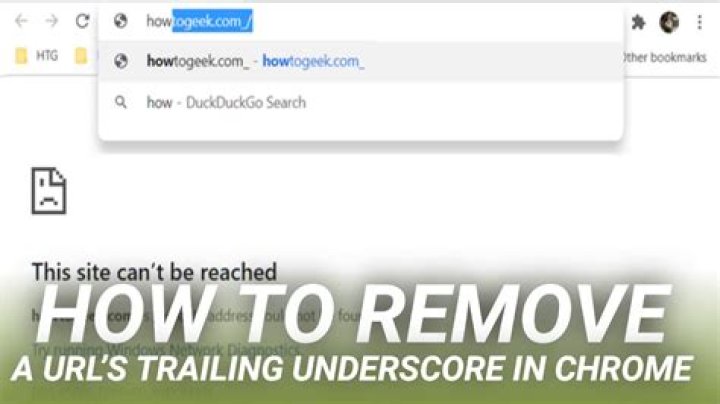
Google Chrome lets you add custom search engines to search any site with a special keyword. However, sometimes Chrome adds a trailing underscore to the URL, which can cause problems if you try to enter it in the address bar.
Why Does This Happen?
Although it’s uncertain why this happens, it seems as though Chrome adds a trailing underscore to some URLs that use a custom search or keyword to query a website.
One theory is that somewhere along the line when you add a custom search engine, it gets duplicated, and instead of throwing an error and breaking, Chrome appends the keyword with an underscore and continues as if nothing happened.
The main problem with this is the keyword looks a lot like a properly formed URL—only with an underscore at the end. When you start to type a URL in the Omnibox, Chrome suggests this underscore-containing URL, and then you could either hit Tab or Enter to complete the action.
If you chose to press Tab, you can enter a search term to query that website—great! However, if you decide to hit Enter, Chrome tries to look up that website’s IP address; when the DNS probe can’t find anything, you get an error stating, “This site can’t be reached.”
Unfortunately, there’s no rhyme or reason as to why this bug affects only certain URLs, but here’s an easy fix that only takes a minute or two.
How to Remove Trailing Underscores
While you could just use Chrome’s Shift+Delete keyboard command to remove this particular entry from the Omnibox suggestion, this method only deletes the entry in your browser’s history. You need to find the actual search engine keyword in the Search Engine settings for Chrome.
Go ahead and fire up Chrome, click the three-dot button in the top-right corner, and then choose “Settings.”
Scroll down until you see the Search Engine section and then click on “Manage Search Engines.”
If you don’t know the exact URL to search for, you can scroll through the list or type an underscore (_) in the search bar at the top of the window. As any Query URL that contains an underscore is included, pay attention to the keyword of each entry.
Next, click the three dots next to the troublesome search engine. If you want to remove it completely, click “Remove from List” to delete it. Otherwise, if you want to keep it and just remove the underscore, click “Edit.”
Now, remove the underscore from the keyword or enter a new name and then click “Save.”
If you have more than one case of a trailing underscore in a URL, repeat this process for each in the “Manage Search Engines” settings page.
Although this bug may not affect everyone, this is a quick and simple way to remove a trailing underscore and fix the custom search engine’s keyword string. Now, you’ll be able to enter the URL without being sent to an error page in Chrome.
I’ve got a rather odd situation happening, that I’m having difficulty tracking down in an existing Django application. One of the views, which inherits from APIView, returns with a file when a user makes a POST call. The endpoint works fine, but there’s something odd happening when the downloaded file reaches the client machine. By the time the browser receives the file, the file extension has been renamed with a trailing underscore. (So suppose the file was originally “test.txt”, the version that the client receives would be “test.txt_”).
As near as I can figure, just before the response object is returned in the APIView, the content-type and content-disposition headers look correct. E.g.:
That same file, when it shows up in Chrome downloads, is named “test.txt_” – with the trailing underscore. I’ve tried the same thing out in Firefox, and it seems to download correctly. Unfortunately, telling the majority of our users to switch browsers isn’t going to fly.
- Forcing a different content type (e.g.: instead of “application/octet-stream”, try “application/text”, just to see what happens). This had no effect.
- Formatting the content disposition slightly different (e.g.: space between the semicolon and filename). This also had no effect.
- Removed the double quotes around the filename in the content-disposition header. No effect.
- Dropping breakpoints within the Rest Framework itself, but Visual Studio Code doesn’t seem to trigger on these. (I’m not super-familiar with debugging through Visual Studio Code, so this may be my fault).
- Stripped out any custom middleware, so the only remaining middleware are as follows:
So far, any similar issues that other people have experienced seem to be slightly different (i.e.: Internet Explorer removing the period in the extension and replacing it with an underscore).
Any guesses on what might be happening here? I’m a bit stumped.
Chrome sometimes adds an underline to a URL, causing problems when typing it into the address bar. And here is how to fix this.
- How to remove underline hyperlinks in PowerPoint
- How to underline the broken word on Word
Google Chrome allows adding custom search engines to search websites with special keywords. However, sometimes Chrome adds an underline to a URL, causing problems when typing it into the address bar.
- Instructions on how to delete auto-suggestion URLs on Chrome browser
- How to turn off suggestion photos in the Chrome search bar
- 9 Chrome Flags you should enable for a better browsing experience
Why is this happening?
While the exact reason for this problem is unknown, it may be because Chrome adds an underline to some URLs that use custom search or keywords to query the site.
One theory is that when adding a custom search engine, it will be duplicated and instead of an error, Chrome appends the keyword with an underscore and continues as if nothing happened.
The main problem is that the keyword looks very much like a properly generated URL with an underscore at the end. When typing the URL in the address bar, Chrome suggests the URL contains the underscore, and then you can press Tab or Enter to complete the address.
If you choose to press Tab , you can enter search terms to query websites. However, if you press Enter , Chrome will search for the IP address of the site, and when DNS cannot find anything, it will say This site can’t be reached .
This error only occurs with certain ULRs and this is how to fix it.
How to remove the underscore at the end of a URL in Chrome
Although, you only need to use Chrome’s Shift + Delete keyboard command to delete a specific item from the search bar suggestion, this method only deletes the item in the browser history. You need to find specific search engine keyword in Chrome’s Search Engine settings.
Open Chrome, click the three dot button in the upper right corner and then select Settings .
Scroll down until the Search Engine section and click on Manage Search Engines .
If you don’t know the exact URL, you can scroll down the list or type an underscore (_) in the search bar at the top of the window. It will display query URLs containing underscores, pay attention to the keywords of each item.
Next, click the three dot button next to the problematic search engine. If you want to remove it completely, click Remove from List . If you want to keep it and just delete the underscore, click on Edit .
Now, delete the underscore in the keyword or enter a new name and click on Save .
If there are multiple URLs with underscores, repeat this process for each URL in the Manage Search Engines settings page.
While this error may not affect everyone, this quick and simple workaround can underscore and correct a custom search engine keyword string. You can now enter the URL without a page error in Chrome.
The following snippet renders (assuming) correctly without trailing space underlined in Firefox 59, but in Chromium 65 the bogus space in the end of the line before the explicit line break is rendered:
Screenshot from Chromium 65:
Screenshot from Firefox 59:
The obvious fix for this case is to remove the space in front of the line break, but it is unnatural.
Is not one of the rendering wrong? Is either of the behavior specified by HTML or CSS specification or is this really undefined?
Edit 1: The same behavior as in Firefox can be observed also in the IE, so it looks like the Chromium is the only one.
2 Answers 2
The problem isn’t that Chrome is underlining the trailing space while Firefox isn’t. The problem is that Chrome isn’t removing the trailing space when wrapping the line (when the wrap originates from a hard
wrap). The space is underlined because it is there, which is inconsistent with how Chrome handles trailing spaces when auto-wrapping text.
4.1.3. Phase II: Trimming and Positioning
As each line is laid out,
- A sequence of collapsible spaces at the beginning of a line is removed.
- If the tab size is zero, tabs are not rendered. Otherwise, each tab is rendered as a horizontal shift that lines up the start edge of the next glyph with the next tab stop. Tab stops occur at points that are multiples of the tab size from the block’s starting content edge. The tab size is given by the tab-size property.
- A sequence of collapsible spaces at the end of a line is removed.
- If spaces or tabs at the end of a line are non-collapsible but have white-space set to pre-wrap the UA must either hang the white space or visually collapse the character advance widths of any overflowing spaces such that they don’t take up space in the line. However, if overflow-wrap is set to break-spaces, collapsing their advance width is not allowed, as this would prevent the preserved spaces from wrapping.
The CSS Working Group has discussed the inconsistent handling of trailing white-space on their github repo, specifically mentioning that Firefox’s handling of trailing whitespace is the most ideal:
And lastly there’s the point that trailing spaces just look bad, and that having a space just inside the closing tag of an inline or before a
is a reasonably common unintentional markup pattern that shouldn’t have a bad effect on rendering. The preserved trailing space becomes noticeable both when the inline is styled, as in the example given by @palemieux, and also when we chose text alignments other than start. This gives a real-world use case indicating a preference for Firefox’s behavior.
From this discussion, the earlier mentioned CSS spec has been updated (in the github repo, but not apparently published yet) to match the Firefox (Gecko) behavior. Specifically updating points 1 and 3 from above to :
A sequence of collapsible spaces at the beginning of a line (ignoring any intervening inline box boundaries) is removed.
A sequence of collapsible spaces at the end of a line (ignoring any intervening inline box boundaries) is removed.
Many webmasters want to know whether to include a trailing slash (/) at the end of URLs.
This has potential implications for SEO because search engines like Google don’t always see different URL structures as equivalent.
Here’s what Google representative John Mu has said about trailing slashes:
The short answer is that the trailing slash does not matter for your root domain or subdomain. Google sees the two as equivalent.
But trailing slashes do matter for everything else because Google sees the two versions (one with a trailing slash and one without) as being different URLs.
The trailing slash matters for most URLs
Conventionally, a trailing slash (/) at the end of a URL meant that the URL was a folder or directory.
At the same time, a URL without a trailing slash at the end used to mean that the URL was a file.
However, this isn’t how many websites are structured today. Many sites with folders serve the same content whether the URL ends in a trailing slash or not.
In this way, the two URLs below provide the exact same content:
For example, this is usually the case with WordPress sites. They deliver the same content with and without the trailing slash.
In some cases, the non-trailing slash and trailing slash version don’t redirect to the correct version. This can cause issues with crawling and duplicate content.
In this case, Google recommends that you redirect from one to the other and use that version everywhere.
If you decide to include the trailing slash (like I do), then you should set up a 301 redirect from the non-trailing slash version to the trailing slash version.
File names should not end in a trailing slash
A trailing slash should not be added for URLs that end in a file name, such as .html, .php, .aspx, .txt, .pdf or .jpg.
If you force a trailing slash on a file name, then that will cause the browser to think it is a folder and will result in a 404 error message.
The trailing slash on the root domain does not matter
It does not matter if your root or hostname has a trailing slash or not.
Your web browser and Google see the see these two URLs as equivalent:
However, different browsers may sometimes show the URL as either having a trailing slash or not when you look at the address bar.
In some cases, the URL displays without a trailing slash in the address bar. But when you copy and paste it, then it shows with the trailing slash.
This is normal. The browser is just hiding the trailing slash from the address bar to make it look better.
Be consistent and redirect from one to the other
It can cause problems with duplicate content and crawl efficiency if your pages are accessible with and without a trailing slash.
That’s because Google sees the two different URLs as unique and may index both of them in search.
For this reason, you should redirect from one to the other using a 301 redirect.
In addition, you should always use your preferred version when doing internal linking, in your sitemap, in your rel canonical tags, etc.
Here’s another tweet from Google’s John Mu on this:
In other words, Google does not care which version you choose (trailing slash or not). But they want you to choose one version and use it consistently.
If you are in doubt whether to use a trailing slash or not, then having the trailing slash is slightly better because it is more common.
Trailing slashes in WordPress URLs
WordPress uses a directory structure, so it makes more sense to include trailing slashes at the end of page URLs.
In fact, this is the default behavior in WordPress.
If you want to change it from one to the other, then you can do that easily in the WordPress permalinks settings.
Go to your WordPress Dashboard -> Settings -> Permalinks.
If you choose a “Custom Structure” for your permalinks, then you can either include or remove the trailing slash at the end.
Your options are:
If you change it, then WordPress will automatically enforce your chosen version. It will 301 redirect to it, change internal links and rel canonical tags, update the sitemap, etc.
If you do this and the redirect doesn’t work, then you should contact your web hosting company for help. It is not recommended to mess with server configuration files like .htaccess unless you really know what you are doing.
Which is better to use? It depends
If you have a website that is already established, then you should probably use whatever your site is using today.
In other words, if your site’s URLs do or don’t use a trailing slash, then stick to that approach. There is certainly no SEO benefit to switching.
On the other hand, if you are starting a new site today, then it is probably better to include a trailing slash simply because this is more common and more likely to be expected by users.
Whichever one you choose, it makes sense to be ultra-consistent and have 301 redirects from one to the other.
If you have problems with the redirects or don’t know how to add them, then I recommend you contact your web hosting company’s technical support and ask them to set it up for you.
On my WordPress sites, I use trailing slashes at the end of URLs. I also 301 redirect to the trailing slash version and use that everywhere — in sitemaps, links and rel canonical tags.
At the end of the day, it doesn’t matter which one you choose, but it is important to be consistent.
The short answer is that the trailing slash does not matter for your root domain or subdomain. Google sees the two as equivalent.
A trailing slash should not be added for URLs that end in a file name, such as .html, .php, .aspx, .txt, .pdf or .jpg.
Go to your WordPress Dashboard -> Settings -> Permalinks. If you choose a “Custom Structure” for your permalinks, then you can either include or remove the trailing slash at the end.
It does not matter if your root or hostname has a trailing slash or not. Your web browser and Google see the see the two URLs as equivalent.
Welcome to the Q&A Forum
Browse the forum for helpful insights and fresh discussions about all things SEO.
- Home
- SEO Tactics
- Technical SEO
- Should I rename URLs to use hyphens instead of underscores?
We are about to launch a redesigned and significantly expanded site that has traditionally used underscores as separators between words in its URLs.
Would you recommend replacing all the underscores with hyphens? That would then require many 301 redirects to maintain any links that might be out there.
Thank you, Nitin.
Thank you very much, Peter!
I’d tend to agree with Nakul on proceeding with caution – while Google doesn’t necessarily treat “_” as a word separator, the URL is just one relatively small ranking factor. There are many risks in a site-wide 301-redirect, especially when you’re redesigning. If the redesign runs into SEO trouble, you’re not going to be able to separate the many changes, and that could delay fixing any problems.
The exception would be if you’re planning to change a lot of the URLs anyway, as part of the redesign. Then, I’d go ahead and do it all at once. Hyphens are a nice-to-have – I’m just not sure that, practically, the risks outweigh the rewards. It does depend a lot on how you’re currently ranking and whether the URLs are causing you any major headaches.
You should use a hyphen for your SEO URLs. Google treats a hyphen as a word separator, but does ****nottreat an underscore that way. Google treats underscore as a word joiner — so seo_moz is the same as seomoz to Google. In fact using dashes over underscores will have a (minor) ranking benefit.
Also Note that 301 redirects passes 90%-99% value to redirected link so earlier you do it the better.
Hope it makes sense.
If you are just doing a redesign that does not entail any URL changes, I would suggest keep them as is.
On a side note, how are you ranking compared to your competition ?
You could potentially test 1-2 pages on your site, change _ to – and see if it makes any difference. And yes, you would need to do 301 redirects and that would pass most (not all) of your link juice. It can and still work fine. So before you do something like this on a large scale, test it on a small scale if you can.
It also depends on how much authority your site has in Google ? Do your breadcrumbs show up in Google SERPS ? And so on.
I hope this helps you come to the right conclusion.
Got a burning SEO question?
Subscribe to Moz Pro to gain full access to Q&A, answer questions, and ask your own.
Browse Questions
Explore more categories
Moz Tools
Chat with the community about the Moz tools.
SEO Tactics
Discuss the SEO process with fellow marketers
Community
Discuss industry events, jobs, and news!
Digital Marketing
Chat about tactics outside of SEO
Research & Trends
Dive into research and trends in the search industry.
Support
Connect on product support and feature requests.
See all categories
Related Questions
Discussion around AJAX implementations and if anybody has achieved high rankings with a full AJAX website or even a partial AJAX website.
I just ran drawl diagnostics and trying to delete pages such as “oops that page can’t be found” or “404 (not found_ error response pages. Can anyone help?
Hey I have an Immigration website in South Africa
MigrationLawyers.co.za and the website used to be divided in to two categories:
1st part – South African Immigration
2nd part – United Kingdom Immigration Because of that we made all the pages include the word “South Africa” in the titles. eg.
.
.
.
. I’m sure you get the idea.
we since, removed the UK part of the website and now are left only with the SA part. Now my question is: Is it bad? will google see this as spammy, as I’m targeting “South Africa” in almost every link of the website. Should I stick to the structure for new pages, or try to avoid any more use of “South Africa”. Perhaps I can change something as it currently stands? Kind Regards
Nikita
Hello again Mozzers, I am debating what could be a fairly drastic change to the company website and I would appreciate your thoughts. The URL structure is currently as follows Product Pages
Category Pages
I am debating removing the /products/ section as i feel it doesn’t really add much and lengthens the url with a pointless word. This does mean however redirecting about 50-60 pages on the website, is this worth it? Would it do more damage than good? Am i just being a bit OCD and it wont really have an impact? As always, thanks for the input
Hi, I am working on a website which has capital urls and non capital urls which will be generating duplicate content, and I know it is better to use all lower case. The problem is that the page authority is better for the capital versions and I was wondering will it negatively impact the SEO of we 301 redirect the uppercase urls to the lowercase counterparts? Thanks.
Hello everyone! Can anyone help me understanding this url? Product.asp?PID=1236 cheers
I have setup my website to use canonical urls on each page to point to the page i wish Google to refer to. At the moment, my non-www domain name is not redirected to www domain. Is this required if i have setup the canonical urls? This is the tag i have on my index.php page rel=”canonical” href=” /> If i browse to should the link juice pass to Will this solve duplicate content problems? Thanks
It there a benefit to using and absolute url in my sitemap vs relative?
Pārlūks Chrome ļauj tam pievienot pielāgotu meklētājprogrammukas būtībā ir jebkura vietne, kurā bieži meklējat. Tas notiek automātiski, ja meklējat noteiktā vietnē pietiekami bieži. Pēc pievienošanas viss, kas jums jādara, ir ierakstīt dažus pirmos URL burtus, pieskarieties taustiņam Tab un pēc tam ievadiet meklēšanas vienumu. Vēlreiz pieskaroties Enter, meklēšanas vienums tiks nosūtīts uz vietni. Tas ir ātrs, taču dažos retos gadījumos pārlūka Chrome vietrāžu URL beigās tiek pievienoti pasvītrojumi. To var novērst.
Aizmugurējie pasvītrojumi URL beigās
Tas var aizņemt dažas minūtes, lai to labotu. Atveriet pārlūku Chrome un augšējā labajā stūrī noklikšķiniet uz papildu opciju pogas. Izvēlnē atlasiet Iestatījumi. Iestatījumu ekrānā atrodiet sadaļu Meklētājprogramma un noklikšķiniet uz opcijas Pārvaldīt meklētājprogrammas.
Jūs redzēsit, ka parādās problemātiskās meklētājprogrammas, un tas diezgan daudz reizes parādīsies “Citas meklētājprogrammas” sarakstā.
Noklikšķiniet uz pogas Vēl blakus katrampiemēram, URL ar pasvītrojumiem un izvēlnē atlasiet opciju Noņemt no saraksta. Kad esat to izdarījis, noklikšķiniet uz URL joslas un ierakstiet vietnes URL. Tiks parādīti tie paši problemātiskie URL. Iezīmējiet tos ar kursoru un pieskarieties Shift + Delete. Atkārtojiet to tik ilgi, kamēr vietrāži URL vairs neparādās, un parādīsies tikai vienkāršs, vienkāršs URL, kura beigās nav pievienots nekas īpašs. Atstājiet to vienu.
Tam vajadzētu novērst problēmu. Ja jums ir tāda pati problēma ar citiem URL, tas pats process būs jāatkārto arī viņiem.
Kāpēc tas notiek, ir kāds uzminēt. Ja jūsu Chrome dati tiek sinhronizēti ar citām sistēmām, iespējams, šie URL atgriezīsies, jo tie tiks sinhronizēti ar citiem Chrome gadījumiem. Meklētājprogrammas tiek sinhronizētas, ja sinhronizācijas opcijās izvēlaties sinhronizēt iestatījumus. Varat pārtraukt sinhronizāciju savā sistēmā un atkārtot to citās, līdz nevienam cilvēkam vēsturē un citu meklētājprogrammu sarakstā nav šo nepareizo vietrāžu URL.
Pārējo meklētājprogrammu dzēšana ir vienkāršapietiek ar lietu, bet, ja rodas jautājums, ko dara ar taustiņu kombināciju Shift + Delete, tas noņem URL no jūsu pārlūkošanas vēstures un bieži piekļūtiem URL. Tas ir noderīgs saīsne, lai uzzinātu, vai vēlaties noņemt meklēšanas vienumu, kas turpina parādīties, vai arī nevēlaties to parādīt nepareizā laikā.
My code works for IE and FF. In Chrome, the browser appends “-” hyphen to the start and end of the file name, thus making it unable to recognize the file type. On renaming the file while saving as csv makes it open in Excel in a single cell but I want a solution to handle it in the code side. It seems difficult.
Below is my code:
Note: I searched many blogs but didn’t find the solution for Chrome.
4 Answers 4
I’m seeing two things:
- You shouldn’t have a space after filename= in your Content-Disposition .
- I’ve never used quotes around the filename; I don’t think you’re meant to. I don’t see anything about using quotes in the RFC, so I’d get rid of them.
I expect you’re seeing a hyphen because Chrome is replacing either the space or (more likely) the quotes with hyphens because it considers the quotes invalid characters for the filename on your OS.
FWIW, my working Content-Disposition headers look like this:
Off-topic: Re your statement:
My code works for IE and FF. In Chrome, the browser appends “-” hypen to the start and end of the file name, thus making it unable to recognize the file type.
Browsers should (and mostly do) recognise file type by the MIME type, not the file extension. You might want to set Content-Type to text/csv rather than application/octet-stream . (Of course, if you’re talking about what the OS does with the file later, that’s another thing.)
It’s frustrating to make a typo when you’re trying to visit a website for the first time. Then, because your browser hates you, it will attempt to autocomplete to the wrong website—like netflux or faceboik—whenever you start to type the correct address into your address bar.
I used to solve this with the nuclear approach: clearing my entire browsing history, cookies and all. While that meant I’d have to go through the process of re-authenticating into all of my websites (using various two-step and two-factor codes), at least Chrome wouldn’t be autocompleting to the wrong site whenever I started typing something into the Omnibox.
Little did I know, it’s easier to correct this problem than you think—if you have the right web browser. Here’s how to delete autocomplete address bar suggestions in the “big four” browsers.
Chrome
Start typing in a website’s address. When your browser begins to auto-populate the wrong address in Chrome’s address bar, hold down Shift and Function on a Mac—or just Shift on Windows—and tap the Delete key. Once you see a website highlighted, you can also tap the up and down arrows on your keyboard to pull up any proposed result to delete it. It’s as easy as that—and a lot more convenient than clearing your entire history.
Father’s Day CBD Bundle
Send Dad flowers
Well, send him a bundle of calming CBD products made from USDA-certified organic, Kentucky-grown, whole-flower hemp oil, at least.
That said, you can also selectively delete an entire site from your browsing history. Pull up Chrome’s history, search for the site’s domain and extension (netflix.com, for example), click on the top checkbox, scroll to the very bottom of the listings, hold down Shift, and click on the last checkbox. Then, click on the “Delete” option in the upper-right corner.
Firefox
You’ll use the same trick in Firefox as you did in Chrome. To delete an autofill entry, just press the Delete key on Windows or Shift + Delete on Mac . You can move up and down to highlight other entries using the arrow keys on your keyboard. Delete anything you want. It’s fun.
To selectively remove certain sites from your browsing history, pull up your history, right-click on a domain you want to remove, and click “Forget About This Site.”
Microsoft Edge
You could use the “delete autofill entries” technique in Internet Explorer, but that doesn’t seem to be the case for Microsoft Edge. No amount of mashing the delete button is going to delete any of the browser’s suggestions in your address bar.
Instead, you’ll have to clear your browser history entirely via the triple-dot menu > Settings > Privacy & security. Click on “Choose what to clear” under “Clear Browsing Data,” select “Browsing history,” and get rid of all of it. It’s an inelegant solution to a common problem, and one that Edge users have already voiced to Microsoft . Will Microsoft make any changes? Don’t hold your breath.
Safari
Similar to Edge, you’ll need to clear your browser’s history in order to remove any errant autocomplete entries. Sorry! (And you might have to get a little more creative if deleting your history via the browser doesn’t work.)
To delete your browser history, just click on “Safari” in the upper-left corner of your screen and select “Clear History.” Pick how much history you want to eliminate—likely everything—and click on “Clear History.”
I understand that
can actually be seen as 2 different URLs and is probably best avoided for SEO purposes, but how does this affect querystring parameters. Which is better (or even ‘legal’)?
Do you need the trailing slash before the ?
2 Answers 2
All four of your URLs are different for SEO:
It doesn’t matter which one of those four you use, but you have to pick one and use it consistently. Both slashes and parameters create new URLs to search engines. Serving the same content with different URLs can cause search engine crawlers to do extra work and not crawl, index, and rank your site efficiently.
You can use several tools to combat this:
- Redirect all duplicate URLs to your preferred “canonical” URL.
- Use the link rel canonical meta tag to tell the search engines which one to use.
- Use the “URL parameters” setting in Google Webmaster Tools to tell Google that the “source” parameter doesn’t change the page content (it is only used for tracking).
Both versions of your URL with parameters are “legal”. The trailing slash can be there if you choose, or you can omit it. Use whichever is easier for you to configure on your server and use your choice consistently.
Regarding the SEO, I wouldn’t expect it to be an issue, as Google have enough common sense to realise that, if the two URLs you have shown returned the same content, that for all practical purposes the URLs the same to a human.
In fact some webmasters/developers will write brief rewrite rules to append or remove the slash because “it looks nicer”.
These rewrites may be internal HTTP server redirects (which are not visible to external user agents) and for Google to “expect” webmasters to code a dedicated redirect and corresponding round trip communication between server and user-agent which “announces” a redirect (and therefore a canonical URL) – e.g. a HTTP response with 30x and a “Location: [old URL except with a slash on it]” – and punish those who dont – doesn’t make much sense.
However I don’t work for Google so I couldnt say for sure – I just personally would bother with it, and you can always specify the canonical URL using the “rel” canonical tag.
If the URLs deviated any more and still returned the same content, e.g.
Then I would clean them up and specify canonical URL.
In my experience – with PHP – if the query string REQUEST_URI (portion of address following the HTTP_HOST which contains the REQUEST_URI and the QUERY_STRING ) has a slash or not – PHP doesnt seem to care – the slash will be captured in the $_SERVER[‘REQUEST_URI’] array key and the query string in the $_SERVER[‘QUERY_STRING’] key
Chrome מאפשר לך להוסיף לו מנוע חיפוש מותאם אישיתוזה בעצם כל אתר שאתה מחפש בתדירות גבוהה. זה קורה באופן אוטומטי אם אתה מחפש באתר מסוים לעתים קרובות מספיק. לאחר ההוספה, כל שעליכם לעשות הוא להקליד את האותיות הראשונות של כתובת האתר, להקיש על מקש Tab ואז להזין את מונח החיפוש. כשתלחץ על Enter שוב, מונח החיפוש יישלח לאתר. זה מהיר, אך במקרים נדירים מסוימים מתווספים סימני קו תחתון נגררים בסוף כתובות האתר ב- Chrome. להלן הוראות לתיקון.
נגרר תחתונים תחתונים בסוף כתובות האתרים
יתכן שיידרשו מספר דקות לתיקון. פתח את Chrome ולחץ על כפתור האפשרויות הימני למעלה. מהתפריט, בחר הגדרות. במסך ההגדרות חפש את הקטע ‘מנוע חיפוש’ ולחץ על האפשרות ‘נהל מנועי חיפוש’.
אתה הולך לראות את מנועי החיפוש הבעייתיים מופיעים וזה יופיע לא מעט פעמים ברשימה של ‘מנועי חיפוש אחרים’.
לחץ על הלחצן יותר שליד כל אחדמופע של כתובת האתר עם הקווים התחתונים ומתפריט, בחר באפשרות ‘הסר מהרשימה’. לאחר שתעשה זאת, לחץ בתוך סרגל הכתובות והקלד את כתובת האתר. אותן כתובות אתר בעייתיות יופיעו. הדגש אותם בעזרת הסמן והקש על Shift + Delete. חזור על הפעולה הזו עד שכתובות האתר יפסיקו להופיע ורק כתובת האתר הפשוטה, ללא כל תוספת שמצורפת לסופה, מופיעה. עזוב את זה.
זה אמור לתקן את הבעיה. אם יש לך אותה בעיה עם כתובות אתרים אחרות, תצטרך לחזור על אותו התהליך גם עבורן.
מדוע זה קורה זו הניחוש של מישהו. אם נתוני Chrome שלך מסונכרנים עם מערכות אחרות, יתכן שכתובות האתרים האלה יחזרו מכיוון שהם יסונכרנו למופעים אחרים של Chrome. מנועי חיפוש מסונכרנים אם תבחר לסנכרן ‘הגדרות’ באפשרויות הסנכרון. אתה יכול להשהות את הסנכרון במערכת שלך ולחזור על זה על האחרים עד שלאף אחד מהם אין כתובות URL שגויות בהיסטוריה וברשימת מנועי החיפוש האחרים.
מחיקת מנועי החיפוש האחרים היא פשוטהמספיק דבר אבל אם אתה תוהה מה קיצור המקשים Shift + Delete עושה, הוא מסיר את ה- URL מהיסטוריית הגלישה שלך וכתובות URL שגולות לעיתים קרובות. זהו קיצור דרך שימושי כדי לדעת אם אתה רוצה להסיר מונח חיפוש שממשיך לצוץ או שאתה לא רוצה לצוץ בזמן הלא נכון.
Brady Gavin has been immersed in technology for 15 years and has written over 150 detailed tutorials and explainers. He’s covered everything from Windows 10 registry hacks to Chrome browser tips. Brady has a diploma in Computer Science from Camosun College in Victoria, BC. Read more.
Whenever you copy text from the web and paste it into Google Docs, any hyperlinks it contains transfer with it. Here’s how to paste text without hyperlinks or remove links already embedded within a document.
Paste Text into Docs Using Paste without Formatting
The first option to remove hyperlinks is to prevent them from transferring in the first place. Stop the links from entering your file by using the “Paste without Formatting” feature to strip the embedded URL from all formatting as you paste it into your document.
After you select some text that contains a hyperlink or two, fire up a browser, head to your Google Docs homepage, and open a new document.
Click “Edit” from the menu bar and then select “Paste without Formatting.”
Alternatively, you can use the keyboard shortcut Ctrl+Shift+V (Windows/Chrome OS) or Cmd+Shift+V (macOS) to accomplish the same “Paste without Formatting” function.
When you select “Paste without Formatting,” Docs strips all formatting—hyperlinks included—the source text had and matches your document’s default font rules.
If you use a different format style for your document than the “Normal Text” Docs chooses, it’s easy to change the default font.
Remove Hyperlinks Already in Your Document
Unfortunately, Google Docs doesn’t natively support the ability to remove multiple hyperlinks all at once. So, you will have to manually unlink each individually. Here’s how.
Fire up a browser and open a Google Docs document that already contains some text with hyperlinks in it.
Click anywhere on the text that contains a hyperlink, and when the dialog box opens, click on the “Unlink” icon.
Repeat this process for each hyperlink you want to remove from your document.
Disable Automatic Link Detection
By default, hyperlinks automatically generate when you type or paste an email or URL into a Google Docs document. However, if you don’t want them inserted automatically, the last thing you can do is disable the automatic detection of links from your document’s preferences.
Although this doesn’t prevent hyperlinks from appearing in your document when pasting text, it will stop email addresses and URL links from showing up when you aren’t expecting them to be there.
Fire up a browser, open a Google Docs file, and on the menu bar, click Tools > Preferences.
From the list of preferences, uncheck the box next to “Automatically Detect Links” to disable this feature. Click “OK” to return to your document.
Now, when you paste email addresses or URLs into your document, they will no longer automatically appear as a link.
Method 1: Using split() and join() Method: The split() method is used to split a string into multiple sub-strings and return them in the form of an array. A separator can be specified as a parameter so that the string is split whenever that separator is found in the string. The space character (” “) is specified in this parameter to separate the string whenever a space occurs.
The join() method is used to join an array of strings using a separator. This will return a new string with the joined string using the specified separator. This method is used on the returned array and no separator (“”) is used to join the strings. This will join the strings in the array and return a new string. This will remove all the spaces in the original string.
Syntax:
Example:
Output:
- Before clicking the button:
- After clicking the button:
Method 2: Using replace() method with regex: The replace() method is used to replace a specified string with another string. It takes two parameters, first is the string to be replaced and the second parameter is the string replaced with. The second string can be given as empty string so that the empty space to be replaced.
The first parameter is given a regular expression with a space character (” “) along with the global property. This will select every occurrence of space in the string and it can then be removed by using an empty string in the second parameter. This will remove all the spaces in the original string.
A character which is not an alphabet or numeric character is called a special character. We should remove all the special characters from the string so that we can read the string clearly and fluently. Special characters are not readable, so it would be good to remove them before reading.
Java replaceAll() method
Java replaceAll() method of String class replaces each substring of this string that matches the given regular expression with the replacement.
Syntax
This method accepts two parameters:
- regex: It is the regular expression to which string is to be matched. It may be of different types.
- replacement: The string to be substituted for the match.
It returns the resultant String. It throws PatternSyntaxException if the regular expression syntax is invalid. The above method yields the same result as the expression:
Example of removing special characters using replaceAll() method
In the following example, the removeAll() method removes all the special characters from the string and puts a space in place of them.
Output
Example
In the following example, we are replacing all the special character with the space.
Output
Example of removing special characters using user defined logic
In the following example, we are defining logic to remove special characters from a string. We know that the ASCII value of capital letter alphabets starts from 65 to 90 (A-Z) and the ASCII value of small letter alphabet starts from 97 to 122 (a-z). Each character compare with their corresponding ASCII value. If both the specified condition return true it return true else return false. The for loop executes till the length of the string. When the string reaches its size, it terminates execution and we get the resultant string.
We come across PDF files almost every day. Sometimes we read them on our computers, while there are times, when we read it on our smartphones, depending upon where we are and how important the PDF file is. But sometimes we often come across PDF files that have a number of links and we can accidentally click on them, which might lead to open the link in a web browser. This might disrupt our reading process. There are even some PDF files, which are completely filled with links and we even feel frightened to scroll through the PDF file, lest an unnecessary link opens up.
Some PDF files can also come with malicious links, which can not only infect your computer but can also steal your private information at the same time. But you can easily remove all the links from a PDF file for a hassle-free reading. Well, removing all the links from a PDF doesn’t make sense at all times, but sometimes removing the links within a PDF can be very useful. However, the process to remove links from a PDF file is a subject to vary depending upon the platform and operating system that you are using.
So without any delay, let’s get started with how you can remove all the links of PDF file in the easiest possible way.
On Windows 10
Open the PDF file, whose links are to be removed with any PDF reader installed on your system.
Now click on the option to print the document, or simply use the shortcut key combination ‘ Ctrl+P ’, to open the ‘Print’ dialogue. Now, select the ‘ Microsoft Print to PDF ’ printer, and print the document.
The output file created after printing the document with the Microsoft virtual printer will be free from all links that were present within the source file.
On other Windows versions (including Windows 10)
Download CutePDF using the following link . Once the download is complete, install CutePDF the same way, you install other Windows programs.
During the installation process, CutePDF will try to download and install a PS2PDF converter . Just click on ‘Yes’ to allow the download and installation process.
The download and installation of PS2PDF converter will be automatically completed, and once the installation is complete, the installer will automatically exit, leaving behind the FAQ of CutePDF to help you on how to use it.
Now again start printing the document, but choose ‘ CutePDF Writer ’ as the printer.
Now choose the location where you want to save the PDF file without the links. The output file created will be free from the links.
*Besides CutePDF, there are even a number of other small programs that offer the same functionality, and even some PDF readers also come with its own PDF printers. You can even use them, however, CutePDF is one of the oldest, free and light-weight programs without any sort of malware.
On Linux
On any Linux system, start printing a document, and choose the ‘ Print to File ’ printer.
Now choose the location where you want to save the output file without the links. Your PDF file now is free from the links.
How to create a PDF with all the links
A lot about how you can get rid of links. But what about the opposite? What if you want to get the PDF form of a webpage with all the links in place. Yes, that is just the opposite of the subject of the article, but it is worth discussing here.
Open the website or webpage, whose links are to be kept intact, on Google Chrome, and print the document, but choose ‘ Save as PDF ’ as the printer. Now choose the location where you want to save the PDF file with all the links. The PDF file with all the links will now be created.
This is Chrome’s proprietary virtual print service, which keeps all the links intact. This should work effortlessly on all platforms.
Removing links from a PDF file will definitely help you at some point in time. Hope the information was helpful for you! Do you still have any questions in mind? Feel free to comment on the same below.
Version 14.0.0 of the Python client library introduces a new required configuration parameter called use_proto_plus that specifies whether you want the library to return proto-plus messages or protobuf messages. For details on how to set this parameter, see the configuration docs.
This section describes the performance implications of choosing which types of messages to use, therefore, we recommend that you read and understand the options in order to make an informed decision. However, if you want to upgrade to version 14.0.0 without making code changes, you can set use_proto_plus to True to avoid breaking interface changes.
Proto-plus versus protobuf messages
In version 10.0.0 the Python client library migrated to a new code generator pipeline that integrated proto-plus as a way to improve the ergonomics of the protobuf message interface through making them behave more like native Python objects. The tradeoff of this improvement is that proto-plus introduces performance overhead.
Proto-plus performance
One of the core benefits of proto-plus is that it converts protobuf messages and well-known types to native Python types through a process called type marshaling.
Marshaling occurs when a field is accessed on a proto-plus message instance, specifically when a field is either read or set, for example, in a protobuf definition:
When this definition is converted to a proto-plus class, it would look something like this:
You can then initialize the Dog class and access its name field as you would any other Python object:
When reading and setting the name field, the value is converted from a native Python str type to a string type so that the value is compatible with the protobuf runtime.
In the analysis we’ve conducted since the release of version 10.0.0 , we’ve determined that the time spent doing these type conversions has a large enough performance impact that it’s important to give users the option to use protobuf messages.
Use cases for proto-plus and protobuf messages
Dynamically changing message types
After selecting the appropriate message type for your app, you might find that you need to use the other type for a specific workflow. In this case, it’s easy to switch between the two types dynamically using utilities offered by the client library. Using the same Dog message class from above:
Protobuf message interface differences
The proto-plus interface is documented in detail, but here we’ll highlight some key differences that affect common use cases for the Google Ads client library.
Bytes serialization
JSON serialization
Field masks
The field mask helper method provided by api-core is designed to use protobuf message instances. So when using proto-plus messages, convert them to protobuf messages to utilize the helper:
Proto-plus messages Protobuf messages
Enums
Enums exposed by proto-plus messages are instances of Python’s native enum type and therefore inherit a number of convenience methods.
Enum type retrieval
When using the GoogleAdsClient.get_type method to retrieve enums, the messages that are returned are slightly different depending on whether you’re using proto-plus or protobuf messages. For example:
Proto-plus messages Protobuf messages
To make retrieving enums simpler, there’s a convenience attribute on GoogleAdsClient instances that has a consistent interface regardless of which message type you’re using:
Enum value retrieval
Sometimes it’s useful to know the value, or field ID, of a given enum, for example, PAUSED on the CampaignStatusEnum corresponds to 3 :
Proto-plus messages Protobuf messages
Enum name retrieval
Sometimes it’s useful to know the name of an enum field. For example, when reading objects from the API you might want to know which campaign status the int 3 corresponds to:
Proto-plus messages Protobuf messages
Repeated fields
As described in the proto-plus docs, repeated fields are generally equivalent to typed lists, which means that they behave almost identically to a list .
Appending to repeated scalar fields
When adding values to repeated scalar type fields, for example string or int64 fields, the interface is the same regardless of message type:
Proto-plus messages Protobuf messages
This includes all other common list methods as well, for example extend :
Proto-plus messages Protobuf messages
Appending message types to repeated fields
If the repeated field is not a scalar type, the behavior when adding them to repeated fields is slightly different:
Proto-plus messages Protobuf messages
Assigning repeated fields
For both scalar and non-scalar repeated fields, you can assign lists to the field in different ways:
Proto-plus messages Protobuf messages
Empty messages
Sometimes it’s useful to know whether a message instance contains any information, or has any of its fields set.
Proto-plus messages Protobuf messages
Message copy
For both proto-plus and protobuf messages, we recommend using the copy_from helper method on the GoogleAdsClient :
Empty message fields
The process for setting empty message fields is the same regardless of the message type you’re using. You just need to copy an empty message into the field in question. See the Message copy section as well as the Empty Message Fields guide. Here’s an example of how to set an empty message field:
Field names that are reserved words
When using proto-plus messages, field names automatically appear with a trailing underscore if the name is also a reserved word in Python. Here’s an example of working with an Asset instance:
The full list of reserved names is constructed in the gapic generator module. It can be accessed programmatically as well.
First, install the module:
Then, in a Python REPL or script:
Field presence
Because the fields on protobuf message instances have default values, it’s not always intuitive to know whether a field has been set or not.
Proto-plus messages Protobuf messages
The protobuf Message class interface has a HasField method that determines whether the field on a message has been set, even if it was set to a default value.
Protobuf message methods
The protobuf message interface includes some convenience methods that are not part of the proto-plus interface; however, it’s simple to access them by converting a proto-plus message to its protobuf counterpart:
Issue tracker
If you have any questions about these changes or any problems migrating to version 14.0.0 of the library, file an issue on our tracker.
Except as otherwise noted, the content of this page is licensed under the Creative Commons Attribution 4.0 License, and code samples are licensed under the Apache 2.0 License. For details, see the Google Developers Site Policies. Java is a registered trademark of Oracle and/or its affiliates.
If you’re using Microsoft Word, you don’t want blank pages appearing in the middle of your document, or extra pages at the end.
These extra pages could be caused by tables, hitting the ENTER key too many times, unnecessary section breaks, unintentional page breaks, extra paragraph markers, and more.
You don’t want your Word document to look unprofessional because of this quirk, so in this article I’ll show you how to delete blank and extra pages in Word.
I will be using Microsoft Office 2016 in this tutorial, but you can follow along with any version, as pretty much the same thing applies to all versions.
How to Delete a Blank Page in the Middle of a Word Document
If you are working with a large word document and you are about to present it or print it, it’s a good idea to check for blank pages and an extra final page.
To do this, press CTRL + SHIFT + 8 , or go to the Home tab and click the paragraph icon.
This key combination displays paragraph markers (¶) at the end of every paragraph and each blank line – basically, whenever you hit the ENTER key, and at the beginning of the extra blank page.
To remove these extra pages, highlight the paragraph markers with your mouse or trackpad and hit the DELETE button. If one of the markers remains there, remove it with the BACKSPACE key.
If you have the patience, you can also remove the blank page(s) by going to the blank pages and hitting the BACKSPACE key until the paragraph markers disappear.
How to Delete an Extra Blank Page in a Word Document
Step 1: To delete an extra blank page that might get added at the end of your document, click the View tab:
Step 2: Go to the Navigation Pane. This will display a sidebar containing 3 tabs – Headings , Pages , and Results . Click on Pages to display all the pages of the document in the sidebar.
Step 3: The active page will be automatically selected. Click the extra blank page to select it and hit the DELETE button on your keyboard to remove it.
You can also remove this extra blank page by simply pressing the BACKSPACE key.
Conclusion
In this article, you learned how to remove blank pages in Word, so you can make your documents appear more professional.
Thank you for reading. If you find this article helpful, please share it with your friends and family.
Web developer and technical writer focusing on frontend technologies.
If you read this far, tweet to the author to show them you care. Tweet a thanks
Learn to code for free. freeCodeCamp’s open source curriculum has helped more than 40,000 people get jobs as developers. Get started
freeCodeCamp is a donor-supported tax-exempt 501(c)(3) nonprofit organization (United States Federal Tax Identification Number: 82-0779546)
Our mission: to help people learn to code for free. We accomplish this by creating thousands of videos, articles, and interactive coding lessons – all freely available to the public. We also have thousands of freeCodeCamp study groups around the world.
Donations to freeCodeCamp go toward our education initiatives, and help pay for servers, services, and staff.
Google Chrome lets you add custom search engines to search any site with a special keyword. However, sometimes Chrome adds a trailing underscore to the URL, which can cause problems if you try to enter it in the address bar.
Google Chrome浏览器可让您添加自定义搜索引擎,以使用特殊关键字搜索任何网站。 但是,有时Chrome会在URL的末尾添加下划线,如果您尝试在地址栏中输入URL,则会引起问题。
为什么会这样? ( Why Does This Happen? )
Although it’s uncertain why this happens, it seems as though Chrome adds a trailing underscore to some URLs that use a custom search or keyword to query a website.
One theory is that somewhere along the line when you add a custom search engine, it gets duplicated, and instead of throwing an error and breaking, Chrome appends the keyword with an underscore and continues as if nothing happened.
The main problem with this is the keyword looks a lot like a properly formed URL—only with an underscore at the end. When you start to type a URL in the Omnibox, Chrome suggests this underscore-containing URL, and then you could either hit Tab or Enter to complete the action.
If you chose to press Tab, you can enter a search term to query that website—great! However, if you decide to hit Enter, Chrome tries to look up that website’s IP address; when the DNS probe can’t find anything, you get an error stating, “This site can’t be reached.”
如果您选择按Tab,则可以输入搜索词来查询该网站-太好了! 但是,如果您决定按Enter键,Chrome会尝试查找该网站的IP地址。 当DNS探针找不到任何东西时,您会收到一条错误消息,指出“无法访问此站点。”
Unfortunately, there’s no rhyme or reason as to why this bug affects only certain URLs, but here’s an easy fix that only takes a minute or two.
如何删除下划线 ( How to Remove Trailing Underscores )
While you could just use Chrome’s Shift+Delete keyboard command to remove this particular entry from the Omnibox suggestion, this method only deletes the entry in your browser’s history. You need to find the actual search engine keyword in the Search Engine settings for Chrome.
Go ahead and fire up Chrome, click the three-dot button in the top-right corner, and then choose “Settings.”
Scroll down until you see the Search Engine section and then click on “Manage Search Engines.”
If you don’t know the exact URL to search for, you can scroll through the list or type an underscore (_) in the search bar at the top of the window. As any Query URL that contains an underscore is included, pay attention to the keyword of each entry.
Next, click the three dots next to the troublesome search engine. If you want to remove it completely, click “Remove from List” to delete it. Otherwise, if you want to keep it and just remove the underscore, click “Edit.”
接下来,点击麻烦的搜索引擎旁边的三个点。 如果要完全删除它,请单击“从列表中删除”将其删除。 否则,如果要保留它并仅删除下划线,请单击“编辑”。
Now, remove the underscore from the keyword or enter a new name and then click “Save.”
If you have more than one case of a trailing underscore in a URL, repeat this process for each in the “Manage Search Engines” settings page.
Although this bug may not affect everyone, this is a quick and simple way to remove a trailing underscore and fix the custom search engine’s keyword string. Now, you’ll be able to enter the URL without being sent to an error page in Chrome.
Rewrite rules is a powerful feature in IIS. Common tasks like redirecting www to non-www (or the other way around), implementing canonical URLs, redirecting to HTTPS, and similar tasks are documented right there in your Web.config file. In this post, you will learn about the syntax of rewrite rules and how to implement the mentioned common tasks, and much more.
When needing to redirect one URL to another, a lot of different options exist. Some tasks can be implemented in the DNS. Others are done through reverse proxies like Nginx and Squid. Sometimes you just want to redirect a single URL and you can choose to modify the HTTP response from within an MVC controller.
A much more generic solution is IIS rewrite rules. With rules, you can create a common set of rules and make IIS enforce these over multiple URLs and even across applications.
Rewrite rules can be either global (in the applicationHost.config file) or local (in the web.config file). There are several ways to add both global and local rules. IIS Manager has built-in support for creating rules, but it is my impression most people don’t have IIS installed locally. Rules have been the source of lots of frustration on StackOverflow, which is why using IIS Manager for creating your first rule can be a good choice.
Creating a new rule
To create a new rule, launch IIS Manager, and click a website:
See the URL Rewrite icon below the IIS section? If not, make sure to download and install the URL Rewrite extension:
Double-click the URL Rewrite icon and click the Add Rule(s). link from the Actions menu:
There are a wide range of different templates to choose from. As a first-time rule developer, getting a bit of assistance is a nice little feature of the IIS Manager. I’m not saying you shouldn’t learn the underlying syntax (you need to), but looking at pre-generated examples is a good starting point.
Select the Append or remove the trailing slash symbol template and click the OK button. In the following step, keep the Appended if it does not exist selection and click OK. A new inbound rule is created:
Requesting the website without a trailing slash ( / ) will automatically append the slash using the newly created rule.
Since the rule was created directly on the website, the new rule is added to the web.config file of the website. You hopefully understand why this approach shouldn’t be used in your production environment. Every piece of configuration should be in either source control or deployment software like Octopus Deploy or Azure DevOps. For playing around with rules, the UI approach is excellent, though.
Get the full overview of web.config errors
Let’s take a look at the generated code inside the web.config file:
At first glance, rewrite rules can be a challenge to read. If you feel this way, I understand you. Configuring software in deeply nested XML never been my favorite either. Let’s go through the markup one element at the time.
Inbound and outbound rules
All rules must be added in the element inside . There are two types of rules available: inbound rules (defined in the element) and outbound rules (defined in the element). In the example above, the rewrite rule is added as an inbound rule. Inbound rules are executed against the incoming request. Examples of these rules are: add a trailing slash (yes, the example from previous), rewrite the request to a different URL, and blocking incoming requests based on headers. Outbound rules are executed against the response of an HTTP request. Examples of outbound rules are: add a response header and modify the response body.
Both inbound and outbound rules are defined in a element. In the example above, a new rule named AddTrailingSlashRule1 is added. The name of each rule is left for you to decide, as long as you give each rule a unique name. Also, take notice of the stopProcessing attribute specified on the rule. If set to true, IIS will stop executing additional rules if the condition specified inside the rule matches the current request. You mostly want to specify false in this attribute, unless you are redirecting the entire request to another URL.
Match, action, and conditions
All rules have a pattern, an action, and an optional set of conditions. The example above has all three.
The pattern is implemented in the element and tells the rewrite extension which URLs to execute the rule for. Patterns are written using regular expressions in the url attribute. Regular expressions is an extremely complicated language, which deserves a very long blog post on its own. I write regular expressions by using Google to find examples of how people already wrote examples of regular expressions looking like what I would like to achieve in each case.
- None : do nothing.
- Rewrite : rewrite the request to another URL.
- Redirect : redirect the request to another URL.
- CustomResponse : return a custom response to the client.
- AbortRequest : drop the HTTP connection for the request.
In the example above, the action used a Redirect type, which means that the web server will return an HTTP redirect to the client. You can specify if you want to use a permanent or temporary redirect using the redirectType attribute.
I don’t want to list every possible element and value inside this post since the official MSDN documentation is quite good. Visual Studio also provides decent IntelliSense for rewrite rules. Browse through the examples last in this post to get an overview of what is possible with rewrite rules.
Answer by Spencer Cuevas
You can simply solve this by applying a negative margin that equals the width or height of the element.,For an element of 100px width that is positioned to the right you will apply margin-left:-100px;,For an element of 100px width that is positioned to the left you will apply margin-right:-100px;,For an element of 100px height that is positioned to the top you will apply margin-bottom:-100px;
cut & paste css snippets:
Here is an example. In this case, the object was moved to the right and then up using a negative top value. Eliminating its trailing margin space required adding an equal negative-margin value.
Answer by Chana Fischer
You can simply solve this by applying a negative margin that equals the width or height of the element.,For an element of 100px height that is positioned to the bottom you will apply margin-top:-100px;,For an element of 100px height that is positioned to the top you will apply margin-bottom:-100px;,For an element of 100px width that is positioned to the right you will apply margin-left:-100px;
cut & paste css snippets:
Answer by Milan Avalos
Is there any way to get rid of that white space and still be able to accomplish the centering that I want?,It’s entirely possible that I’m over thinking it, however, I won’t know that until I go through a few iterations of these tests and find out how to remove all that empty crap at the bottom.,Go here to see a PART of what I am trying to do: Please note all of the empty space below the background image.,… is laughably bad and shows a failure to grasp the basics of the “cascading” part of CSS… even if it is common practice amongst developers like the nimrods who wrote turdpress (to the point it’s hardcoded outside their theming system)
Answer by Jayleen Copeland
The Insider Newsletter,Understand that English isn’t everyone’s first language so be lenient of bad spelling and grammar.
and here is the styles.css:
Answer by Tatum Mora
Answer by Richard Gilmore
for relatively positioned elements, the distance of the element from its normal position is based on the left property; or if left is also auto, the element is not moved horizontally at all.,for relatively positioned elements, the distance that the element is moved to the left of its normal position.,When position is set to relative, the right property specifies the distance the element’s right edge is moved to the left from its normal position.,for absolutely positioned elements, the position of the element is based on the left property, while width: auto is treated as a width based on the content; or if left is also auto, the element is positioned where it should horizontally be positioned if it were a static element.
Marshall is a writer with experience in the data storage industry. He worked at Synology, and most recently as CMO and technical staff writer at StorageReview. He’s currently an API/Software Technical Writer based in Tokyo, Japan, runs VGKAMI and ITEnterpriser, and spends what little free time he has learning Japanese. Read more.
Inserting a hyperlink in a PowerPoint presentation is great for quick access to external resources relevant to your content. However, the underline that comes with it may distract the audience from the message of the slide. Here’s how to remove it.
Removing the Underline From Hyperlink Text
While PowerPoint doesn’t have a specific option for removing the underline from hyperlink text, there’s a very simple workaround. What we’re going to do is remove the link from the text, place an invisible shape over that text, and then add the link to that shape.
Go ahead and open your presentation, move to the slide that contains the underlined hyperlink text, and locate that text.
Right-click the text and select “Remove Link” from the list of options.
Next, head over to the “Insert” tab and click the “Shapes” button.
A drop-down menu will appear, presenting several different shapes. Go ahead and select the first rectangle in the “Rectangles” group.
Click and drag to draw a rectangle, completely covering the text from which you removed the hyperlink.
A new “Format” tab will appear in the “Drawing Tools” tab group.
On this tab, click the “Shape Fill” button
On the drop-down menu, select “No fill.”
Now repeat these steps for the shape’s outline. Click the “Shape Outline” button.
Then select “No Outline.”
Next, click the edge of the shape to select it. Even though the shape has no outline or fill now, it shouldn’t be hard since we know where the shape is. Just watch for the cursor change to find it.
With the shape selected head over to the “Insert” tab and click the “Link” button.
On the drop-down, select “Insert Link.”
A new window will appear. Copy the destination URL in the address bar and then click “OK.”
It’s always a good idea to make sure everything works before stepping in front of your audience to give your presentation. Go ahead and preview the slideshow to make sure that the link is working properly.
If you are using google chrome, you can achieve more conveniency by being able to automatically copy selected text to the clipboard. This is especially important if you’ve been doing some copy pasting from the web in your day to day work.
Rather than having to stroke two or more keys everytime, what if you simply select and copy the selected text to memory. Then you can simply paste them in your editor.
Well this article explores how to do this in a step by step manner, by use of chrome extensions. Such extensions are addons by developers that allow you enhance your productivity if you are using google chrome.
Solution 1: Use Auto Copy extension
This is a chrome addon that allows you to automatically copy selected text to the clipboard.
It also has many configurable options for controlling the behavior. The auto-copying works when you select text using the mouse.
Here are it’s features:
- Notification on copy
- Remove selection on copy
- Enable / disable in text boxes
- Enable / disable in content editable elements
- Paste on middle click
- Use modifier key(s) to enable / disable auto copy
- Use modifier key(s) to copy as a link
- Always copy as a link
- Copy without formatting
- Include informational comment with optional formatting items
- Use modifier key(s) to enable / disable informational comment
- Blacklist websites to automatically disable the extension
- Works with all URL types
Step 1: Install it
Go to this page and install the plugin using the provided button. For installation to work you must be using chrome as your browser, and you must also grant the permissions that will be asked of you.
Once this extension is installed you must reload any open tabs in order for it to work.
Step 2: Use it
Now reload any open browser tabs. Then select text using your mouse. You can then paste the selected text anywhere. Check the screenshots below for demo:
Reference
Find more about this extension here.
Solution 2: Use Auto Copy Paste Text extension
This is an extension that allows you to automatically copy text and paste text without formatting.
When text is selected using the mouse, it will automatically be copied to the clipboard without formatting. It’s a simple tool that lives in the background, and It will help you work faster when copying and pasting.
Step 1: Install it
Go to this page and click the ‘Add to Chrome’ button. Grant the asked permissions and the extension will be installed.
Step 2: Use it
First reload any open tab where you wish to the auto-copy. Then simply select the desired text and paste it anywhere.
Check the demo image below:
Reference
Read more about this extension here.
Solution 3: Use autoCopyText extension
This is yet another lightweight extension that allows you to copy the text selected any webpage automatically.
Step 1: Install it
Install this extension from here. Simply head over to that page and click ‘Add to Chrome’ and grant the asked permissions.
Step 2: Use it
Before using it reload the webpage if you’ve just installed the extension now. Then simply select the text and it will be copied to memory. You can now paste the selected text.
Regular expressions, abbreviated as regex, or sometimes regexp, are one of those concepts that you probably know is really powerful and useful. But they can be daunting, especially for beginning programmers.
It doesn’t have to be this way. JavaScript includes several helpful methods that make using regular expressions much more manageable. Of the included methods, the .match() , .matchAll() , and .replace() methods are probably the ones you’ll use most often.
In this tutorial, we’ll go over the ins and outs of those methods, and look at some reasons why you might use them over the other included JS methods
A quick introduction to regular expressions
According to MDN, regular expressions are “patterns used to match character combinations in strings”.
These patterns can sometimes include special characters ( * , + ), assertions ( \W , ^ ), groups and ranges ( (abc) , [123] ), and other things that make regex so powerful but hard to grasp.
At its core, regex is all about finding patterns in strings – everything from testing a string for a single character to verifying that a telephone number is valid can be done with regular expressions.
If you’re brand new to regex and would like some practice before reading on, check out our interactive coding challenges.
How to use the .match() method
So if regex is all about finding patterns in strings, you might be asking yourself what makes the .match() method so useful?
Unlike the .test() method which just returns true or false , .match() will actually return the match against the string you’re testing. For example:
This can be really helpful for some projects, especially if you want to extract and manipulate the data that you’re matching without changing the original string.
If all you want to know is if a search pattern is found or not, use the .test() method – it’s much faster.
There are two main return values you can expect from the .match() method:
- If there’s a match, the .match() method will return an array with the match. We’ll go into more detail about this in a bit.
- If there isn’t a match, the .match() method will return null .
Some of you might have already noticed this, but if you look at the example above, .match() is only matching the first occurrence of the word “are”.
A lot of times you’ll want to know how often a pattern is matched against the string you’re testing, so let’s take a look at how to do that with .match() .
Different matching modes
If there’s a match, the array that .match() returns had two different modes, for lack of a better term.
The first mode is when the global flag ( g ) isn’t used, like in the example above:
In this case, we .match() an array with the first match along with the index of the match in the original string, the original string itself, and any matching groups that were used.
But say you want to see how many times the word “are” occurs in a string. To do that, just add the global search flag to your regular expression:
You won’t get the other information included with the non-global mode, but you’ll get an array with all the matches in the string you’re testing.
Case sensitivity
An important thing to remember is that regex is case sensitive. For example, say you wanted to see how many times the word “we” occurs in your string:
In this case, you’re matching a lowercase “w” followed by a lowercase “e”, which only occurs twice.
If you’d like all instances of the word “we” whether it’s upper or lowercase, you have a couple of options.
First, you could use the .toLowercase() method on the string before testing it with the .match() method:
Or if you want to preserve the original case, you could add the case-insensitive search flag ( i ) to your regular expression:
The new .matchAll() method
Now that you know all about the .match() method, it’s worth pointing out that the .matchAll() method was recently introduced.
Unlike the .match() method which returns an array or null , .matchAll() requires the global search flag ( g ), and returns either an iterator or an empty array:
While it seems like just a more complicated .match() method, the main advantage that .matchAll() offers is that it works better with capture groups.
Here’s a simple example:
While that just barely scratches the surface, keep in mind that it’s probably better to use .matchAll() if you’re using the g flag and want all the extra information that .match() provides for a single match (index, the original string, and so on).
How to use the .replace() method
So now that you know how to match patterns in strings, you’ll probably want to do something useful with those matches.
One of the most common things you’ll do once you find a matching pattern is replace that pattern with something else. For example, you might want to replace “paid” in “paidCodeCamp” with “free”. Regex would be a good way to do that.
Since .match() and .matchAll() return information about the index for each matching pattern, depending on how you use it, you could use that to do some fancy string manipulation. But there’s an easier way – by using the .replace() method.
With .replace() , all you need to do is pass it a string or regular expression you want to match as the first argument, and a string to replace that matched pattern with as the second argument:
The best part is that .replace() returns a new string, and the original remains the same.
Similar to the .match() method, .replace() will only replace the first matched pattern it finds unless you use regex with the g flag:
And similar to before, whether you pass a string or a regular expression as the first argument, it’s important to remember that the matching pattern is case sensitive:
How to use the .replaceAll() method
Just like how .match() has a newer .matchAll() method, .replace() has a newer .replaceAll() method.
The only real difference between .replace() and .replaceAll() is that you need to use the global search flag if you use a regular expression with .replaceAll() :
The real benefit with .replaceAll() is that it’s a bit more readable, and replaces all matched patterns when you pass it a string as the first argument.
That’s it! Now you know the basics of matching and replacing parts of strings with regex and some built-in JS methods. These were pretty simple examples, but I hope it still showed how powerful even a little bit of regex can be.
Was this helpful? How do you use the .match() , .matchAll() , .replace() , and .replaceAll() methods? Let me know over on Twitter.
This document applies to the following method: Update API (v4): fullHashes.find.
Overview
The Safe Browsing lists consist of variable length SHA256 hashes (see List Contents). To check a URL against a Safe Browsing list (either locally or on the server), clients must first compute the hash prefix of that URL.
To compute the hash prefix of a URL, follow these steps:
- Canonicalize the URL (see Canonicalization).
- Create the suffix/prefix expressions for the URL (see Suffix/Prefix Expressions).
- Compute the full-length hash for each suffix/prefix expression (see Hash Computations).
- Compute the hash prefix for each full-length hash (see Hash Prefix Computations).
Note that these steps mirror the process the Safe Browsing server uses to maintain the Safe Browsing lists.
Canonicalization
To begin, we assume that the client has parsed the URL and made it valid according to RFC 2396. If the URL uses an internationalized domain name (IDN), the client should convert the URL to the ASCII Punycode representation. The URL must include a path component; that is, it must have a trailing slash (“).
First, remove tab (0x09), CR (0x0d), and LF (0x0a) characters from the URL. Do not remove escape sequences for these characters (e.g. ‘%0a’).
Second, if the URL ends in a fragment, remove the fragment. For example, shorten “ to “
Third, repeatedly percent-unescape the URL until it has no more percent-escapes.
To canonicalize the hostname:
Extract the hostname from the URL and then:
- Remove all leading and trailing dots.
- Replace consecutive dots with a single dot.
- If the hostname can be parsed as an IP address, normalize it to 4 dot-separated decimal values. The client should handle any legal IP-address encoding, including octal, hex, and fewer than four components.
- Lowercase the whole string.
To canonicalize the path:
- Resolve the sequences “/../” and “/./” in the path by replacing “/./” with “/”, and removing “/../” along with the preceding path component.
- Replace runs of consecutive slashes with a single slash character.
Do not apply these path canonicalizations to the query parameters.
In the URL, percent-escape all characters that are = 127, “#”, or “%”. The escapes should use uppercase hex characters.
Below are tests to help validate a canonicalization implementation.
Suffix/prefix expressions
Once the URL is canonicalized, the next step is to create the suffix/prefix expressions. Each suffix/prefix expression consists of a host suffix (or full host) and a path prefix (or full path) as shown in these examples.
| Suffix/Prefix Expression | Equivalent Regular Expression |
|---|
The client will form up to 30 different possible host suffix and path prefix combinations. These combinations use only the host and path components of the URL. The scheme, username, password, and port are discarded. If the URL includes query parameters, then at least one combination will include the full path and query parameters.
For the host, the client will try at most five different strings. They are:
- The exact hostname in the URL.
- Up to four hostnames formed by starting with the last five components and successively removing the leading component. The top-level domain can be skipped. These additional hostnames should not be checked if the host is an IP address.
For the path, the client will try at most six different strings. They are:
- The exact path of the URL, including query parameters.
- The exact path of the URL, without query parameters.
- The four paths formed by starting at the root (/) and successively appending path components, including a trailing slash.
The following examples illustrate the check behavior:
For the URL , the client will try these possible strings:
For the URL , the client will try these possible strings:
For the URL , the client will try these possible strings:
Hash computations
Once the set of suffix/prefix expressions has been created, the next step is to compute the full-length SHA256 hash for each expression. A unit test (in pseudo-C) you can use to validate your hash computations is provided below.
Hash prefix computations
Finally, the client needs to compute the hash prefix for each full-length SHA256 hash. For Safe Browsing, a hash prefix consists of the most significant 4-32 bytes of a SHA256 hash.
- Example B1 from FIPS-180-2
- Input is “abc”.
- SHA256 digest is ba7816bf 8f01cfea 414140de 5dae2223 b00361a3 96177a9c b410ff61 f20015ad.
- The 32-bit hash prefix is ba7816bf.
- Example B2 from FIPS-180-2
- Input is “abcdbcdecdefdefgefghfghighijhijkijkljklmklmnlmnomnopnopq”.
- SHA256 digest is 248d6a61 d20638b8 e5c02693 0c3e6039 a33ce459 64ff2167 f6ecedd4 19db06c1.
- The 48-bit hash prefix is 248d6a61 d206.
Except as otherwise noted, the content of this page is licensed under the Creative Commons Attribution 4.0 License, and code samples are licensed under the Apache 2.0 License. For details, see the Google Developers Site Policies. Java is a registered trademark of Oracle and/or its affiliates.
Published on Tuesday, September 18, 2012 • Updated on Saturday, October 28, 2017
Host permissions and content script matching are based on a set of URLs defined by match patterns. A match pattern is essentially a URL that begins with a permitted scheme ( http , https , file , or ftp , and that can contain ‘ * ‘ characters. The special pattern matches any URL that starts with a permitted scheme. Each match pattern has 3 parts:
scheme—for example, http or file or *
host—for example, or *.google.com or * ; if the scheme is file , there is no host part
path—for example, /* , /foo* , or /foo/bar . The path must be present in a host permission, but is always treated as /* .
Here’s the basic syntax:
The meaning of ‘ * ‘ depends on whether it’s in the scheme, host, or path part. If the scheme is * , then it matches either http or https , and not file , ftp , or urn . If the host is just * , then it matches any host. If the host is *._hostname_ , then it matches the specified host or any of its subdomains. In the path section, each ‘ * ‘ matches 0 or more characters. The following table shows some valid patterns.
Note: urn scheme is available since Chrome 91.
| Pattern | What it does | Examples of matching URLs |
|---|---|---|
| Matches any URL that uses the https scheme | ||
| Matches any URL that uses the https scheme, on any host, as long as the path starts with /foo | ||
| Matches any URL that uses the https scheme, is on a google.com host (such as docs.google.com, or google.com), as long as the path starts with /foo and ends with bar | ||
| Matches the specified URL | ||
| file:///foo* | Matches any local file whose path starts with /foo | file:///foo/bar.html file:///foo |
| Matches any URL that uses the http scheme and is on the host 127.0.0.1 | ||
| *:// | Matches any URL that starts with or . | |
| urn:* | Matches any URL that starts with urn: . | urn:uuid:54723bea-c94e-480e-80c8-a69846c3f582 urn:uuid:cfa40aff-07df-45b2-9f95-e023bcf4a6da |
| Matches any URL that uses a permitted scheme. (See the beginning of this section for the list of permitted schemes.) | file:///bar/baz.html |
Here are some examples of invalid pattern matches:
| Bad pattern | Why it’s bad |
|---|---|
| No path | |
| ‘*’ in the host can be followed only by a ‘.’ or ‘/’ | |
| If ‘*’ is in the host, it must be the first character | |
| http:/bar | Missing scheme separator (“/” should be “//”) |
| foo://* | Invalid scheme |
Some schemes are not supported in all contexts.
Last updated: Saturday, October 28, 2017 Improve article
The situation is different if you are using PowerShell. You still must escape most of the characters required by Active Directory, using the backslash “\” escape character, if they appear in hard coded Distinguished Names. However, PowerShell also requires that the backtick “`” and dollar sign “$” characters be escaped if they appear in any string that is quoted with double quotes. The backtick is also called the back apostrophe. If the string is quoted with single quote characters, then the backtick is taken literally and cannot be used to escape any characters. However, in single quoted strings, the “$” character is also taken literally and does not need to be escaped. The PowerShell escape character is the backtick “`” character. This applies whether you are running PowerShell statements interactively, or running PowerShell scripts.
I have not determined why, but the pound sign character “#” does not need to escaped as part of a hard coded Distinguished Name in PowerShell. This is despite the fact that when PowerShell retrieves a Distinguished Name that includes the “#” character, it is escaped with the backslash character. Also, the dollar sign “$” need not be escaped if it is the last character in a PowerShell string. Of course, it never hurts to escape any character.
If you use the [ADSI] accelerator, (or the equivalent [System.DirectoryServices.DirectoryEntry] class) or ADO in PowerShell, the forward slash character “/” must be escaped with the backslash “\” in Distinguished Names. The [ADSI] accelerator and ADO both use ADSI. But if you use the new Active Directory cmdlets installed with Windows Server 2008 R2 (and above), like Get-ADUser, the forward slash “/” does not need to be escaped. The new AD modules use the .NET Framework instead of ADSI.
Finally, if your PowerShell strings are quoted with double quotes, then any double quote characters in the string must be escaped with the backtick “`” . Alternatively, the embedded double quote characters can be doubled (replace any embedded ” characters with “” ). Any single quote characters would not need to be escaped. Of course, the situation is reversed if the PowerShell string is quoted with single quotes. In that case, single quote characters cannot be escaped with the backtick “`” , so you must double the embedded single quotes (replace any embedded ‘ characters with ” ). Double quote characters would not need to be escaped (by PowerShell) in a single quoted string. The single quote (‘) character does not need to be escaped in Active Directory, but the double quote (“) character does. This means that if you hard code a Distinguished Name in PowerShell, and the string is enclosed in double quotes, any embedded double quotes must be escaped first by a backtick “`” , and then by a backslash “\” . A few examples should clarify the situation. Below are some Common Names as they might appear using ADSI Edit, and how they must be hard coded as part of a Distinguished Name in PowerShell.
| Name in ADUC | Escaped in PowerShell string |
| cn=James “Jim” Smith | “cn=James \`”Jim\`” Smith” |
| cn=James $ Smith | “cn=James `$ Smith” |
| cn=James $ Smith | ‘cn=James $ Smith’ |
| cn=Sally Wilson + Jones | “cn=Sally Wilson \+ Jones” |
| cn=William O’Brian | “cn=William O’Brian” |
| cn=William O’Brian | ‘cn=William O”Brian’ |
| cn=William O`Brian | “cn=William O“Brian” |
| cn=Richard #West | “cn=Richard #West” |
| cn=Roy Johnson$ | “cn=Roy Johnson$” |
Note the instances of ” are replaced with \`” , while $ and ` characters are both escaped with the backtick (because it is required in PowerShell) in strings quoted with double quotes, the $ character need not be escaped if the string is quoted with single quotes, and the + character is escaped with a backslash (because it is required in Active Directory). Also note that the # character does not need to be escaped in PowerShell, and the $ character need not be escaped if it is the trailing character in a string.
David Murphy
Chrome: As one who spends quite a bit of time browsing the news from various sites around the web, it’s frustrating to encounter paywall after paywall after paywall — especially when a site’s own social media feed was the one cajoling you to click and read an article in the first place.
Depending on what browser you use, you can usually bypass most sites’ paywalls by simply switching over to its “private” or “incognito” mode, whatever it’s called on your particular browser. However, some websites are more creative nowadays. They’ll notice your little trick and restrict you from viewing their contents.
We’ve previously talked about a special flag you can adjust in Chrome’s settings that should prevent websites from being able to tell that you’re using Incognito mode. As of Chrome 74, it didn’t work very well. (At least, the sites I frequented could still figure out my shenanigans.)
Now, if you upgrade your browser to Chrome 75 — click the triple-dot icon in the upper-right corner, click on Help, and click on “About Google Chrome” — this little trick actually seems to work again. To enable it (if you haven’t previously), type chrome://flags into your address bar, search for the phrase “filesystem,” and pick “Enabled” on the drop-down menu for the “Filesystem API in Incognito” setting.
If you want to get a little wilder, you could also go ahead and download the recently released Beta channel version of Chrome 76. This version of Google’s browser automatically enables the Filesystem API tweak by default — one of the features I’m most looking for once the final version of the browser goes live in late July.
How to test if your browser is hiding Incognito mode
You’ll probably know pretty quick if Chrome’s tweaks successfully get you past the paywalls on the websites you frequent. However, if you want a faster (or secondary) way to check this out, visit the strangely named website which will run a quick test to see if it can tell that Chrome is running in Incognito mode or not.
The goal? To make sure that this website says your browser isn’t running Incognito mode when it is. If the site correctly detects Incognito mode, something is amiss: You’re either running an older version of Chrome, you didn’t set the aforementioned flag correctly, or something is wrong about Chrome’s implementation of the Filesystem API in Incognito mode.
I don’t think Google’s developers are going to mess this implementation up, though I’m sure publishers are champing at the bit to find new ways to see if you’re using Incognito mode on their sites. The cat-and-mouse game continues.
Структура URL сайта должна быть по возможности простой. Попробуйте упорядочить контент так, чтобы она могла быть понятна человеку.
По возможности используйте в URL осмысленные слова, а не длинные цифровые идентификаторы.
Рекомендуется использовать в URL простые слова, которые описывают контент на странице:
Рекомендуется транслитерировать слова в URL, если это возможно:
Не рекомендуется использовать в URL длинные цифровые идентификаторы, которые не будут понятны пользователю:
Если ваш сайт посещают пользователи из разных регионов, используйте такую структуру URL, которая позволит легко выделить фрагменты, указывающие на регион. Другие примеры структурирования URL можно найти в инструкции Указание региона в URL.
Рекомендуется использовать домен страны:
Рекомендуется использовать подкаталог, обозначающий ту или иную страну:
Используйте в URL дефисы. Так пользователям и поисковым системам будет проще выявлять ключевые слова, содержащиеся в них.
Рекомендуется отделять дефисом ключевые слова в URL.
Не рекомендуется объединять ключевые слова в URL:
Используйте в URL дефисы ( – ), а не символы подчеркивания ( _ ).
Рекомендуется использовать в URL дефисы ( – ):
Не рекомендуется использовать для разделения символ подчеркивания ( _ ):
Если URL сайта слишком сложные, например содержат много параметров, то разные URL могут указывать на страницы с одним и тем же или похожим контентом. Это затрудняет сканирование. В результате робот Googlebot может создавать значительную нагрузку на ваш сервер. Кроме того, есть вероятность, что ему не удастся полностью просканировать весь контент сайта.
Основные причины возникновения этой проблемы
Наличие избыточного количества URL может быть связано с самыми разными факторами. Некоторые из них описаны ниже.
- Добавочная фильтрация набора элементов. На многих сайтах имеются разные представления одного и того же набора элементов или результатов поиска, с помощью которых пользователь может фильтровать его по определенным критериям (например, “показать гостиницы на побережье”). Если фильтры можно сочетать (например, “гостиницы на побережье с фитнес-центром”), на этих сайтах значительно увеличивается количество URL (представлений данных). Совсем необязательно создавать множество практически одинаковых списков гостиниц, поскольку роботу Googlebot достаточно изучить совсем небольшое количество списков, с помощью которых он сможет перейти на страницу каждой гостиницы. Пример:
- Гостиницы по выгодной цене:
- Гостиницы по выгодной цене на побережье:
- Гостиницы с фитнес-центром по выгодной цене на побережье:
- Динамически создаваемые документы. Такие документы могут незначительно отличаться друг от друга из-за добавления счетчиков, меток времени или объявлений.
- Параметры в URL, способные вызвать проблемы. Некоторые факторы, например идентификаторы сеансов, могут приводить к частому дублированию URL и значительному росту их количества.
- Упорядочивание параметров. Некоторые крупные интернет-магазины предусматривают разные способы упорядочивания одних и тех же элементов. В результате создается большое количество URL. Пример:
- Нерелевантные параметры в URL, такие как параметры источника перехода. Пример:
- Проблемы, связанные с календарем. Динамически создаваемый календарь может генерировать ссылки на последующие и предшествующие даты без ограничения по началу и окончанию периода. Пример:
- Неработающие относительные ссылки. Подобные элементы нередко приводят к появлению бесконечных пространств. Зачастую эта проблема вызвана повторяющимися элементами пути. Пример:
Решение проблемы
Чтобы избежать возможных проблем, связанных со структурой URL, следуйте рекомендациям ниже.
- Заблокируйте доступ к проблемным URL для робота Googlebot с помощью файла robots.txt. Как правило, следует блокировать динамические URL, такие как страницы результатов поиска или URL, создающие бесконечные пространства (например, календари). С помощью регулярных выражений в файле robots.txt можно без труда заблокировать большое количество URL.
- Старайтесь не использовать в URL идентификаторы сеансов. Вместо них рекомендуется применять файлы cookie. Дополнительная информация доступна в рекомендациях для веб-мастеров.
- По возможности укоротите URL, удалив из них ненужные параметры.
- Если на сайте есть бесконечный календарь, добавьте атрибут nofollow в ссылки на страницы, которые динамически создаются календарем и относятся к будущему.
- Убедитесь, что все относительные ссылки на сайте работают правильно.
Except as otherwise noted, the content of this page is licensed under the Creative Commons Attribution 4.0 License, and code samples are licensed under the Apache 2.0 License. For details, see the Google Developers Site Policies. Java is a registered trademark of Oracle and/or its affiliates.
Published on Monday, April 13, 2015 • Updated on Saturday, September 11, 2021
Technically, I’m a writer
- Open the Cookies pane
- Fields
- Filter cookies
- Edit a cookie
- Delete cookies
HTTP Cookies are mainly used to manage user sessions, store user personalization preferences, and track user behavior. They are also the cause of all of those annoying “this page uses cookies” consent forms that you see across the web. This guide teaches you how to view, edit, and delete a page’s cookies with Chrome DevTools.
# Open the Cookies pane
Click the Application tab to open the Application panel. Under Storage expand Cookies, then select an origin.
Figure 1. The Cookies pane
# Fields
The Cookies table contains the following fields:
- Name. The cookie’s name.
- Value. The cookie’s value.
- Domain. The hosts that are allowed to receive the cookie.
- Path. The URL that must exist in the requested URL in order to send the Cookie header.
- Expires / Max-Age. The cookie’s expiration date or maximum age. For session cookies this value is always Session .
- Size. The cookie’s size, in bytes.
- HTTP. If true, this field indicates that the cookie should only be used over HTTP, and JavaScript modification is not allowed.
- Secure. If true, this field indicates that the cookie can only be sent to the server over a secure, HTTPS connection.
- SameSite. Contains strict or lax if the cookie is using the experimental SameSite attribute.
- SameParty. If true, this field indicates that the cookie is allowed to be set or sent in contexts where all ancestor frames belong to the same First-Party Set.
- Priority. Contains low , medium (default), or high if using deprecated cookie Priority attribute.
# Filter cookies
Use the Filter text box to filter cookies by Name or Value. Filtering by other fields is not supported.
Figure 2. Filtering out any cookies that don’t contain the text NID
# Edit a cookie
The Name, Value, Domain, Path, and Expires / Max-Age fields are editable. Double-click a field to edit it.
Figure 3. Setting the name of a cookie to DEVTOOLS!
# Delete cookies
Select a cookie and then click Delete Selected to delete that one cookie.
Figure 4. Deleting a selected cookie
Click Clear All to delete all cookies.
Figure 5. Clearing all cookies
Last updated: Saturday, September 11, 2021 Improve article




