Whitson Gordon is How-To Geek’s former Editor in Chief and was Lifehacker’s Editor in Chief before that. He has written for The New York Times, Popular Science, Wired, iFixit, The Daily Beast, PCMag, Macworld, IGN, Medium’s OneZero, The Inventory, and Engadget. Read more.
7-Zip is a fantastic Windows program for advanced file zipping, whether you’re password-protecting your archives or just trying to compress them down even smaller. There’s just one problem: its icons are ugly as sin.
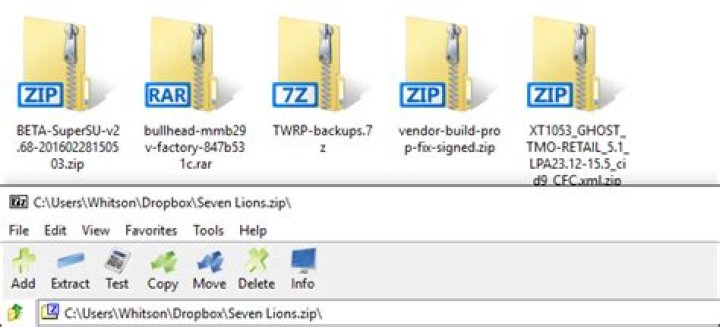
Normally, I wouldn’t mind too much that an app is ugly–especially one as mundane as a file archiver. But it’s not just 7-Zip’s in-app icons. It also changes your Windows icons for ZIP, 7Z, TGZ, and other archive file types to these horrific, blurry, pre-Vista-looking icons that permeate my hard drive. (See the screenshot above.)
Thankfully, there’s a free, portable tool called 7-Zip Theme Manager that fixes this right up in minutes. Head to the program’s download page and download both the 2.1 and 2.1.1 applications. Extract the 2.1 archive to a folder on your system (it’s portable, so there’s no installation necessary), then extract the 7zTM.exe from the 2.1.1 “hotfix” archive into that same folder, replacing the 7zTM.ext that was already there. Then double-click that EXE to start it up.
If you’re on Windows 10, you may get a warning saying that 7-Zip Theme Manager isn’t supported in your version of Windows. Just click OK–I’ve been using it on Windows 10 and haven’t experienced any issues.
Next, it will attempt to detect where 7-Zip is installed on your system. If it’s correct, click Yes.
You’ll be greeted with the main window. In the upper left-hand corner, you can choose to browse icon themes for 7-Zip’s toolbar, or browse icon themes for 7-Zip’s file types in Windows Explorer. let’s start with Toolbar Themes.
Explore the list in the left sidebar. When you click on a theme, it’ll show you a preview on the right. Find one you like and click the “Activate Theme” button.
It’ll take a minute to apply your theme. When it’s done, you can open 7-Zip to see your much more attractive set of icons.
Next, select “Filetype Themes” in the upper left-hand corner. This is where you’ll change the stuff that really matters: the icons that show up in Windows Explorer.
Again, browse the left sidebar to view the different themes available. The “Vista Azure” theme is the most similar to Windows’ default ZIP icons, so that’s what I’ve chosen. (Note that some themes, including Vista Azure, don’t include every possible icon, some more obscure formats may still have the old icons. You’ll have to experiment.)
Click “Activate Theme” to apply it.
When you’re done, both 7-Zip and Windows Explorer should look much nicer. Enjoy!
Whitson Gordon is How-To Geek’s former Editor in Chief and was Lifehacker’s Editor in Chief before that. He has written for The New York Times, Popular Science, Wired, iFixit, The Daily Beast, PCMag, Macworld, IGN, Medium’s OneZero, The Inventory, and Engadget. Read more.
7-Zip is a fantastic Windows program for advanced file zipping, whether you’re password-protecting your archives or just trying to compress them down even smaller. There’s just one problem: its icons are ugly as sin.
Normally, I wouldn’t mind too much that an app is ugly–especially one as mundane as a file archiver. But it’s not just 7-Zip’s in-app icons. It also changes your Windows icons for ZIP, 7Z, TGZ, and other archive file types to these horrific, blurry, pre-Vista-looking icons that permeate my hard drive. (See the screenshot above.)
Thankfully, there’s a free, portable tool called 7-Zip Theme Manager that fixes this right up in minutes. Head to the program’s download page and download both the 2.1 and 2.1.1 applications. Extract the 2.1 archive to a folder on your system (it’s portable, so there’s no installation necessary), then extract the 7zTM.exe from the 2.1.1 “hotfix” archive into that same folder, replacing the 7zTM.ext that was already there. Then double-click that EXE to start it up.
If you’re on Windows 10, you may get a warning saying that 7-Zip Theme Manager isn’t supported in your version of Windows. Just click OK–I’ve been using it on Windows 10 and haven’t experienced any issues.
Next, it will attempt to detect where 7-Zip is installed on your system. If it’s correct, click Yes.
You’ll be greeted with the main window. In the upper left-hand corner, you can choose to browse icon themes for 7-Zip’s toolbar, or browse icon themes for 7-Zip’s file types in Windows Explorer. let’s start with Toolbar Themes.
Explore the list in the left sidebar. When you click on a theme, it’ll show you a preview on the right. Find one you like and click the “Activate Theme” button.
It’ll take a minute to apply your theme. When it’s done, you can open 7-Zip to see your much more attractive set of icons.
Next, select “Filetype Themes” in the upper left-hand corner. This is where you’ll change the stuff that really matters: the icons that show up in Windows Explorer.
Again, browse the left sidebar to view the different themes available. The “Vista Azure” theme is the most similar to Windows’ default ZIP icons, so that’s what I’ve chosen. (Note that some themes, including Vista Azure, don’t include every possible icon, some more obscure formats may still have the old icons. You’ll have to experiment.)
Click “Activate Theme” to apply it.
When you’re done, both 7-Zip and Windows Explorer should look much nicer. Enjoy!
7-Zip is a great Windows application for enhanced file zipping, whether its password protection or just trying to compact your files even smaller. There is only one issue, its icons are horrible as hell. It also switches the Windows icons for ZIP, 7Z, TGZ and other forms of archive files to those hideous, blurred, pre-Vista icons that penetrate hard drive. In this article, we will guide you through the whole procedure to swap ugly 7-Zip icons in Windows 10 with good looking ones.
Replace 7-Zip Icons in Windows 10 with good looking ones
To swap ugly 7-Zip icons in Windows 10 with good looking ones, follow this procedure step by step.
Download 7-Zip Theme Manager. Open the .exe file as the following image is showing.
As soon as you will click the .exe file, the following dialogue box will appear.
Click the OK button as highlighted in the above image. As soon as you will click the OK button, the following dialogue box will appear.
Now click the Yes button as above image is showing. Then the following screen will display.
Choose the Toolbar Themes radio button. Then themes will display under this menu. Choose any theme of your choice and then click the Activate theme button as highlighted in the above image. As soon as you click the Activate theme button, the following screen will appear.
Once the files will be patched, the dialogue box will disappear as follows.
Now choose the Filetype Themes radio button. Some themes will appear under this menu. Choose any theme of your choice and click the Activate theme button as highlighted in the above image. When you are done with both of them, it should look like this.
Conclusion
By following this procedure you will be able to swap ugly 7-Zip icons in Windows 10 with good looking ones.
Vše, co potřebujete vědět o Zipích
Obvykle by mi nevadilo, že aplikace je ošklivá – jako archivátor souborů. Ale není to jen 7-Zip ikony v aplikaci. Také mění vaše ikony Windows pro ZIP, 7Z, TGZ a další typy archivních souborů na tyto hrůzné, rozmazané ikony, které předcházejí Vista, které pronikají do pevného disku. (Viz obrázek nahoře.) Naštěstí existuje bezplatný, přenosný nástroj nazvaný 7-Zip Theme Manager, který opravuje to v několika minutách. Vydejte se na stránku pro stahování programu a stáhněte aplikace 2.1 a 2.1.1. Extrahujte archiv 2.1 do složky ve vašem systému (je přenosný, takže není potřeba žádná instalace), pak extrahujte 7zTM.exe z archivu 2.1.1 “hotfix” do stejné složky a nahraďte 7zTM.ext, který byl již tam . Poté poklepejte na spouštěcí program EXE.
Pokud používáte Windows 10, můžete dostat varování, že správce témat 7-Zip není ve vaší verzi systému Windows podporován. Stačí kliknout na tlačítko OK – používám ho v systému Windows 10 a nemáte žádné problémy.
Dále se pokusí zjistit, kde je 7-Zip nainstalován ve vašem systému. Pokud je to správné, klikněte na tlačítko Ano.
Budete přivítáni s hlavním oknem. V levém horním rohu můžete procházet motivy ikon pro panel nástrojů 7-Zip nebo procházet témata ikon pro typy souborů 7-Zip v Průzkumníku Windows. Začneme s motivy panelu nástrojů.
Prozkoumejte seznam v levém postranním panelu. Když kliknete na motiv, zobrazí se náhled vpravo. Najděte jednu, kterou chcete, a klikněte na tlačítko Aktivovat motiv.
Trvání aplikace bude trvat asi minutu. Když je hotovo, můžete otevřít 7-Zip, abyste viděli vaši mnohem atraktivnější sadu ikon.
Dále zvolte “Typy typů souborů” v levém horním rohu. Zde můžete změnit věci, které opravdu záleží: ikony, které se zobrazují v Průzkumníku Windows.
Procházením levého postranního panelu znovu zobrazíte různé dostupné motivy. Téma “Vista Azure” je nejvíce podobné standardním ikonám ZIP systému Windows, takže jsem se rozhodl. (Uvědomte si, že některé motivy, včetně programu Vista Azure, neobsahují všechny možné ikony, některé ještě obsáhlé formáty mohou stále obsahovat staré ikony.)
Klepnutím na tlačítko “Aktivovat motiv”
Když skončíte, oba 7-Zip a Průzkumník Windows by měly vypadat mnohem hezčí. Užijte si!
Belkin má celou řadu smarthome zařízení, která procházejí názvem WeMo, včetně přepínače inteligentního osvětlení, který můžete ovládat z vašeho smartphonu , což vám umožní zapnout a vypnout osvětlení (nebo cokoli jiného, které je připojeno k tomuto přepínači) přímo z vašeho smartphonu. Upozornění : Jedná se o projekt pro sebevědomé DIYer.
Došlo k poslední aktualizaci Nianticovy velmi milované a často obtěžované mobilní hry Pokémon Go. Přední a střední je nová funkce, která slibuje, že vám umožní nastavit kamaráda Poké, abyste mohli chodit a vydělávat na bonbónech. Toto je pro ty Pokémony, které se objevují tak zřídka, že jejich vyvíjení se zdá být nepravděpodobné nebo náhodou.
Chris Hoffman is Editor-in-Chief of How-To Geek. He’s written about technology for over a decade and was a PCWorld columnist for two years. Chris has written for The New York Times and Reader’s Digest, been interviewed as a technology expert on TV stations like Miami’s NBC 6, and had his work covered by news outlets like the BBC. Since 2011, Chris has written over 2,000 articles that have been read nearly one billion times—and that’s just here at How-To Geek. Read more.
Need to extract an archive or compress some files? Avoid big-name programs like WinZip and WinRAR, which are packed with nags and advertisements. Modern versions of Windows have integrated support for ZIP files, and anything else is best managed with the free, open source 7-Zip.
For Basic ZIP Files: Windows Handles Everything
Keep it simple! There’s a good chance you don’t need to install any file archiving program at all.
You can create a ZIP file from within File Explorer without downloading anything. To do so, select one or more files or folders. Right-click them and choose Send To > Compressed (Zipped) Folder.
This doesn’t erase the original files. After you do this, you’ll end up with both your original files and a .zip file that contains a copy of those files. Want to add more files? Just drag-and-drop them onto the ZIP file you just created.
Windows can also work with .zip files you download. Just double-click a .zip file to view its contents. You can then copy and paste or drag and drop the files anywhere on your PC.
To extract an entire ZIP file, right-click it and select “Extract All”. By default, Windows selects a new folder with the name of the archive in the current folder, but you can choose another folder. Click “Extract” and Windows will extract the contents of the file for you.
For the vast majority of stuff, this is all you’ll need.
For All Other Types of Archives: 7-Zip
Every once in a while, though, you may come across a different archive format, like .rar, .7z, .tar.gz, or .tar.bz. If you need to extract (or create) archives in these formats, you’ll need another application. You’ll also need another application if you want to use advanced features like password-protecting an archive file with encryption.
If you need more than what Windows offers, we recommend 7-Zip. 7-Zip is a free, open-source, powerful archiving tool for Windows. Its own 7z format is fantastic, but it also supports other popular formats including RAR, ZIP, GZIP, BZIP2, DMG, and ISO.
After you install 7-Zip, you can simply right-click archive files in File Explorer and use options like 7-Zip > Extract Here or 7-Zip > Add to Archive to extract or create archives right from your file manager.
You can also open the 7-Zip application directly and use it to browse, extract, and create archives.
When creating an archive using the “Add” button, or from the 7-Zip menu in the file manager, you’ll find many more options–a choice of archive format, a compression level (a higher level results in a smaller files, but it takes more time and CPU resources to create and later extract the file), and an encryption password. Select AES-256 encryption and your files will be encrypted with the passphrase you choose. Anyone who gains access to the file will need the passphrase to unlock it, or they won’t be able to view your files.
7-Zip actually has the best compression out of any file archiving program, too. Select its own 7z format and you’ll see smaller files than you would with other archive formats.
It isn’t the prettiest application, of course. It’s functional and barebones, but the default icons could use some polish. if you’d like to make it look better, use the 7-Zip Theme Manager to replace its icons with better looking ones of your choice.
A Prettier Interface With a Few More Features: PeaZip
If you want an interface that looks nicer by default, try PeaZip, another completely free and open-source file archiving program for Windows.
PeaZip has a nicer looking interface and a few features 7-Zip doesn’t, such as the ability to verify file hashes (ensuring a file isn’t corrupted) and securely delete them. That doesn’t mean it’s a better option for the average user, though. PeaZip packs in more options the average person won’t need, so it can be a bit more confusing to wade through.
Expensive Applications That Will Nag You: WinZip and WinRAR
You don’t need WinZip to work with ZIP files or WinRAR to work with RAR files. In most cases, we recommend staying away from them.
Both WinZip and WinRAR are commercial applications. WinZip is $29.95 and WinRAR is $29. Now, we’re not opposed to paying for solid software that fills a need more effectively than what’s available for free–but these applications are just unnecessary. They may look a little prettier than 7-Zip, but that’s all most people will notice.
WinRAR does have one particular feature that some people will want: The ability to repair and more easily work with damaged or incomplete multi-part RAR archives. This might be convenient if you’re downloading multi-part RAR archives from Usenet, for example. We’re not aware of any particular feature that’s unique to WinZip at this point.
WinZip and WinRAR do offer free trials, so it would be easy to download and start using them. But both WinZip and WinRAR will nag you to pay with obnoxious windows that appear whenever you start the application. It’s not worth it if you just want to extract and create archive files.
7-Zip er et fantastisk Windows-program til avanceret filzipping, uanset om du er kodeordbeskytter dine arkiver eller bare prøver at komprimere dem ned endnu mindre. Der er kun et problem: dets ikoner er grimme som synd.
RELATED: Alt du behøver at vide om zip-filer
Normalt vil jeg ikke have noget imod, at en app er grim, især en som dagligdags som filarkiver. Men det er ikke kun 7-Zip’s ikoner i appen. Det ændrer også dine Windows-ikoner til ZIP, 7Z, TGZ og andre arkivfiltyper til disse forfærdelige, uklare ikoner forud for Vista, der gennemsyrer min harddisk. (Se skærmbilledet ovenfor.)
Heldigvis er der et gratis, bærbart værktøj kaldet 7-Zip Theme Manager, der løser dette lige i minutter. Gå til programmets download side og download både 2.1 og 2.1.1 applikationer. Udpak 2.1 arkivet til en mappe på dit system (det er bærbart, så der er ingen installation nødvendig), og ekstraher derefter 7zTM.exe fra 2.1.1 “hotfix” arkivet i samme mappe og erstatter den 7zTM.ext, der allerede var der . Dobbeltklik derefter på EXE for at starte det.
Hvis du er på Windows 10, kan du få en advarsel, der siger, at 7-Zip Theme Manager ikke understøttes i din version af Windows. Bare klik på OK. Jeg har brugt det på Windows 10 og har ikke oplevet nogen problemer.
Næste vil det forsøge at opdage, hvor 7-Zip er installeret på dit system. Hvis det er korrekt, skal du klikke på Ja.
Du bliver mødt med hovedvinduet. I øverste venstre hjørne kan du vælge at gennemse ikontemaer til 7-Zip-værktøjslinjen eller gennemse ikontemaer til 7-Zip-filtyper i Windows Stifinder. lad os starte med Toolbar Themes.
Udforsk listen i venstre sidepanel. Når du klikker på et tema, vil det vise dig et eksempel til højre. Find en du kan lide og klik på knappen “Aktivér tema”.
Det tager et øjeblik at anvende dit tema. Når det er færdigt, kan du åbne 7-Zip for at se dit meget mere attraktive sæt ikoner.
Vælg derefter “Filetype Temaer” øverst i venstre hjørne. Her ændrer du de ting, der virkelig betyder noget: Ikonerne der vises i Windows Stifinder.
Igen skal du gennemse venstre sidepanel for at se de forskellige tilgængelige temaer. “Vista Azure” -temaet svarer mest til Windows ‘standard ZIP-ikoner, så det er det jeg har valgt. (Bemærk, at nogle temaer, herunder Vista Azure, ikke indeholder alle mulige ikoner, nogle mere uklare formater kan stadig have de gamle ikoner. Du skal eksperimentere.)
Klik på “Aktivér tema” for at anvende det.
Når du er færdig, bør både 7-Zip og Windows Stifinder se meget pænere ud. God fornøjelse!
Du kan let ignorere eller afvise opkald på din iPhone. Men hvad hvis du i det mindste vil sende en hurtig besked for at bekræfte opkaldet? Der er tre standardtekstmeddelelser, du kan sende som svar på opkald på din iPhone. Hvis ingen af standardmeddelelsesresponserne tjener dit formål, kan du ændre dem.
Helehus lydløsninger er dyre og ofte vanskelige at oprette. I dag tager vi dig fra et ikke-lydsystem til et lydsystem til hele huset i løbet af få minutter med Google Chromecast Audio. RELATED: Sådan opretter du en ny Sonos-højttaler Højttaleropsætninger, der afspiller den samme musik i hele dit hus, spænder typisk fra sort-of-expensive til meget dyre.
7-Zip là một chương trình Windows tuyệt vời để nén tệp nâng cao, cho dù bạn bảo vệ bằng mật khẩu hay chỉ cố gắng nén chúng xuống nhỏ hơn. Chỉ có một vấn đề: các biểu tượng của nó xấu như tội lỗi.
Thông thường, tôi sẽ không bận tâm quá nhiều rằng một ứng dụng xấu, đặc biệt là một ứng dụng thông thường như một trình lưu trữ tệp. Nhưng đó không chỉ là biểu tượng trong ứng dụng của 7-Zip. Nó cũng thay đổi các biểu tượng Windows của bạn cho ZIP, 7Z, TGZ và các loại tệp lưu trữ khác thành các biểu tượng trông khủng khiếp, mờ ảo, trước Vista này thấm vào ổ cứng của tôi. (Xem ảnh chụp màn hình ở trên.)
Rất may, có một công cụ di động miễn phí có tên 7-Zip Theme Manager giúp sửa lỗi này trong vài phút. Đi đến trang tải xuống của chương trình và tải xuống cả hai ứng dụng 2.1 và 2.1.1. Trích xuất kho lưu trữ 2.1 vào một thư mục trên hệ thống của bạn (có thể mang theo được, do đó không cần cài đặt), sau đó giải nén 7zTM.exe từ kho lưu trữ hotfix hotfix 2.1.1 vào thư mục đó, thay thế 7zTM.ext đã có sẵn . Sau đó bấm đúp vào EXE đó để khởi động nó.
Nếu bạn đang dùng Windows 10, bạn có thể nhận được cảnh báo rằng Trình quản lý chủ đề 7-Zip không được hỗ trợ trong phiên bản Windows của bạn. Chỉ cần nhấp vào OK – Tôi đã sử dụng nó trên Windows 10 và không gặp phải bất kỳ sự cố nào.
Tiếp theo, nó sẽ cố gắng phát hiện nơi 7-Zip được cài đặt trên hệ thống của bạn. Nếu đúng, bấm Có.
Bạn sẽ được chào đón với cửa sổ chính. Ở góc trên bên trái, bạn có thể chọn duyệt các chủ đề biểu tượng cho thanh công cụ của 7-Zip hoặc duyệt các chủ đề biểu tượng cho các loại tệp của 7-Zip trong Windows Explorer. hãy bắt đầu với Chủ đề thanh công cụ.
Khám phá danh sách trong thanh bên trái. Khi bạn nhấp vào một chủ đề, nó sẽ hiển thị cho bạn bản xem trước ở bên phải. Tìm một cái bạn thích và nhấp vào nút Kích hoạt chủ đề của Haiti.
Sẽ mất một phút để áp dụng chủ đề của bạn. Khi hoàn tất, bạn có thể mở 7-Zip để xem bộ biểu tượng hấp dẫn hơn nhiều.
Tiếp theo, chọn Chủ đề Filetype Chủ đề ở góc trên bên trái. Đây là nơi bạn sẽ thay đổi những thứ thực sự quan trọng: các biểu tượng hiển thị trong Windows Explorer.
Một lần nữa, duyệt qua thanh bên trái để xem các chủ đề khác nhau có sẵn. Chủ đề Azure Vista của Azure Vista tương tự như các biểu tượng ZIP mặc định của Windows, vì vậy đó là những gì tôi đã chọn. (Lưu ý rằng một số chủ đề, bao gồm cả Vista Azure, không bao gồm mọi biểu tượng có thể, một số định dạng khó hiểu hơn vẫn có thể có các biểu tượng cũ. Bạn sẽ phải thử nghiệm.)
Nhấp vào Kích hoạt chủ đề Kích hoạt chủ đề để áp dụng nó.
Khi bạn hoàn thành, cả 7-Zip và Windows Explorer sẽ trông đẹp hơn nhiều. Thưởng thức!
7-Zip เป็นโปรแกรม Windows ที่ยอดเยี่ยมสำหรับการซิปไฟล์ขั้นสูงไม่ว่าคุณจะปกป้องด้วยรหัสผ่านของคุณหรือเพียงแค่พยายามบีบอัดไฟล์เหล่านั้นให้เล็กลง มีเพียงปัญหาเดียว: ไอคอนมันน่าเกลียดเหมือนบาป.
ปกติฉันจะไม่คิดมากเกินไปว่าแอปจะน่าเกลียดโดยเฉพาะอย่างยิ่งเป็นทางโลกในฐานะผู้จัดเก็บไฟล์ แต่มันไม่ใช่แค่ไอคอนในแอพ 7-Zip นอกจากนี้ยังเปลี่ยนไอคอน Windows ของคุณสำหรับ ZIP, 7Z, TGZ และประเภทไฟล์เก็บถาวรอื่น ๆ ให้เป็นไอคอนที่ดูน่ากลัวเบลอมองเห็นก่อน Vista ซึ่งซึมฮาร์ดไดรฟ์ของฉัน (ดูภาพหน้าจอด้านบน)
โชคดีที่มีเครื่องมือพกพาฟรีที่เรียกว่า 7-Zip Theme Manager ที่แก้ไขสิ่งนี้ได้ภายในไม่กี่นาที ไปที่หน้าดาวน์โหลดของโปรแกรมและดาวน์โหลดทั้งแอปพลิเคชัน 2.1 และ 2.1.1 แยกไฟล์เก็บถาวร 2.1 ไปยังโฟลเดอร์ในระบบของคุณ (เป็นแบบพกพาจึงไม่จำเป็นต้องติดตั้ง) จากนั้นแตกไฟล์ 7zTM.exe จากไฟล์ “แก้ไขด่วน” 2.1.1 ลงในโฟลเดอร์เดียวกันนั้นแทน 7zTM.ext ที่มีอยู่แล้ว . จากนั้นดับเบิลคลิกที่ EXE เพื่อเริ่มต้น.
หากคุณใช้ Windows 10 คุณอาจได้รับคำเตือนว่า Windows 7 Theme Manager ไม่รองรับ Windows เวอร์ชันของคุณ เพียงคลิกตกลง – ฉันใช้มันใน Windows 10 แล้วและยังไม่พบปัญหาใด ๆ.
ถัดไปมันจะพยายามค้นหาตำแหน่งที่ติดตั้ง 7-Zip บนระบบของคุณ หากถูกต้องให้คลิกใช่.
คุณจะได้รับการต้อนรับด้วยหน้าต่างหลัก ที่มุมซ้ายบนคุณสามารถเลือกเรียกดูธีมไอคอนสำหรับแถบเครื่องมือของ 7-Zip หรือเรียกดูธีมไอคอนสำหรับประเภทไฟล์ของ 7-Zip ใน Windows Explorer เริ่มด้วยธีมของ Toolbar.
สำรวจรายการในแถบด้านข้างซ้าย เมื่อคุณคลิกที่ธีมธีมจะแสดงตัวอย่างทางด้านขวา ค้นหาคนที่คุณชอบและคลิกปุ่ม“ เปิดใช้งานธีม”.
ใช้เวลาสักครู่ในการปรับใช้ธีมของคุณ เมื่อเสร็จแล้วคุณสามารถเปิด 7-Zip เพื่อดูชุดไอคอนที่น่าสนใจยิ่งขึ้น.
ถัดไปเลือก“ ธีมของไฟล์” ที่มุมซ้ายบน นี่คือที่ที่คุณจะเปลี่ยนสิ่งต่าง ๆ ที่สำคัญ: ไอคอนที่แสดงใน Windows Explorer.
เรียกดูแถบด้านข้างซ้ายอีกครั้งเพื่อดูชุดรูปแบบที่แตกต่างกัน ชุดรูปแบบ“ Vista Azure” นั้นคล้ายกับไอคอน ZIP เริ่มต้นของ Windows มากที่สุดนั่นคือสิ่งที่ฉันเลือก (โปรดทราบว่าบางธีมรวมถึง Vista Azure ไม่รวมทุกไอคอนที่เป็นไปได้รูปแบบที่ไม่ชัดเจนบางรูปแบบอาจยังมีไอคอนเก่าอยู่คุณจะต้องทำการทดสอบ)
คลิก“ เปิดใช้งานธีม” เพื่อใช้งาน.
เมื่อเสร็จแล้วทั้ง 7-Zip และ Windows Explorer ควรดูดีกว่า สนุก!
7-Zip is a fantastic Windows program for advanced file zipping, whether you’re password-protecting your archives or just trying to compress them down even smaller. There’s just one problem: its icons are ugly as sin.
7-Zip是一款出色的Windows程序,可用于高级文件压缩 ,无论您是用密码保护档案还是只是尝试将档案压缩得更小。 有一个问题:它的标志像罪孽一样丑陋。
Normally, I wouldn’t mind too much that an app is ugly–especially one as mundane as a file archiver. But it’s not just 7-Zip’s in-app icons. It also changes your Windows icons for ZIP, 7Z, TGZ, and other archive file types to these horrific, blurry, pre-Vista-looking icons that permeate my hard drive. (See the screenshot above.)
通常,我不太介意某个应用程序很丑陋-特别是与文件存档器一样平凡的应用程序。 但这不只是7-Zip的应用内图标。 它还会将ZIP,7Z,TGZ和其他存档文件类型的Windows图标更改为渗透到我的硬盘中的这些可怕,模糊,具有Vista之前外观的图标。 (请参见上面的屏幕截图。)
Thankfully, there’s a free, portable tool called 7-Zip Theme Manager that fixes this right up in minutes. Head to the program’s download page and download both the 2.1 and 2.1.1 applications. Extract the 2.1 archive to a folder on your system (it’s portable, so there’s no installation necessary), then extract the 7zTM.exe from the 2.1.1 “hotfix” archive into that same folder, replacing the 7zTM.ext that was already there. Then double-click that EXE to start it up.
幸运的是,有一个名为7-Zip Theme Manager的免费便携式工具,可以在数分钟内修复此问题。 转到程序的下载页面,并下载2.1和2.1.1应用程序。 将2.1存档解压缩到系统上的文件夹(可移植,因此无需安装),然后将2.1.1“ hotfix”存档中的7zTM.exe解压缩到同一文件夹中,替换已存在的7zTM.ext 。 然后双击该EXE来启动它。
If you’re on Windows 10, you may get a warning saying that 7-Zip Theme Manager isn’t supported in your version of Windows. Just click OK–I’ve been using it on Windows 10 and haven’t experienced any issues.
如果您使用的是Windows 10,则可能会收到警告,提示您的Windows版本不支持7-Zip主题管理器。 只需单击确定-我已经在Windows 10上使用它,并且没有遇到任何问题。
Next, it will attempt to detect where 7-Zip is installed on your system. If it’s correct, click Yes.
You’ll be greeted with the main window. In the upper left-hand corner, you can choose to browse icon themes for 7-Zip’s toolbar, or browse icon themes for 7-Zip’s file types in Windows Explorer. let’s start with Toolbar Themes.
您会在主窗口打招呼。 在左上角,您可以选择在Windows资源管理器中浏览7-Zip工具栏的图标主题,或浏览7-Zip文件类型的图标主题。 让我们从工具栏主题开始。
Explore the list in the left sidebar. When you click on a theme, it’ll show you a preview on the right. Find one you like and click the “Activate Theme” button.
浏览左侧边栏中的列表。 单击主题时,它将在右侧显示预览。 找到您喜欢的一个,然后单击“激活主题”按钮。
It’ll take a minute to apply your theme. When it’s done, you can open 7-Zip to see your much more attractive set of icons.
Next, select “Filetype Themes” in the upper left-hand corner. This is where you’ll change the stuff that really matters: the icons that show up in Windows Explorer.
Again, browse the left sidebar to view the different themes available. The “Vista Azure” theme is the most similar to Windows’ default ZIP icons, so that’s what I’ve chosen. (Note that some themes, including Vista Azure, don’t include every possible icon, some more obscure formats may still have the old icons. You’ll have to experiment.)
同样,浏览左侧边栏以查看可用的不同主题。 “ Vista Azure”主题与Windows的默认ZIP图标最为相似,所以这就是我选择的主题。 (请注意,某些主题(包括Vista Azure)并未包含所有可能的图标,某些更晦涩的格式可能仍带有旧图标。您必须进行试验。)
Click “Activate Theme” to apply it.
When you’re done, both 7-Zip and Windows Explorer should look much nicer. Enjoy!
How to change Windows 10’s Default Control Panel View
The Windows Control Panel defaults with the last view you have used, category, large icons or small icons. If you want, you can use a fast registry or group policy modification to make it always open to a particular view. In this article, we will guide you through the whole procedure to change Windows 10’s . Read more
How to speed up, disable or rebuild the Search Index for Windows 10
Windows Search allows file searching on your PC much quicker, but if you find things slowing down when Windows indexes files or if Search doesn’t work as assumed, there are a few steps that you can take. In this article, we will guide you through the whole procedure to speed up, disable or rebuild the . Read more
How to block or allow other users for certain Applications in Windows 10
If you want to restrict which applications a user can run on a PC, Windows 10 will give you two choices. You can block applications that a user does not want to run, or you can restrict them to operate only specific applications. Make sure you make changes to a user account that you actually . Read more
[Solved] Webcam freeze on Windows 10
Update to Windows 10 disabled millions of webcams. Microsoft released an update but if the update doesn’t work for you, there is a registry workaround that you can use. In this article, we will guide you through the whole procedure to stop freezing and crashing your webcam on Windows 10. Stop freezing and crashing of . Read more
How to stop Windows 10 telling friends which Xbox games you’re playing
Windows 10 update features new game centers in the Xbox app for PC games. Your Xbox live mates will now be able to see when you are playing a PC game, and what PC games you have played lately. You can disable this feature if you want to keep your PC gaming activity isolated so . Read more
How to customize the Title Bar theme in Microsoft Office for Windows 10
Many enhancements to the user interface are amongst the new features in Microsoft Office. They incorporated a background image to the title bar for each Office application, for example, an enhanced dark scheme. It is easy to personalize the context and style of the Office applications. In this article, we will guide you through the . Read more
How to replace Ugly 7-Zip Icons in Windows 10 with good looking ones
7-Zip is a great Windows application for enhanced file zipping, whether its password protection or just trying to compact your files even smaller. There is only one issue, its icons are horrible as hell. It also switches the Windows icons for ZIP, 7Z, TGZ and other forms of archive files to those hideous, blurred, pre-Vista . Read more
How to Activate Microsoft Print to PDF Option in Windows 10
It is possible that there will be no option of Microsoft Print to PDF option while printing images. If the Microsoft Print to PDF option is not visible on the Print Pictures dialogue box in the Printer drop-down list you can possibly add it. In this article, we will guide you through the whole procedure . Read more
How to search for files in Windows 10 from a certain date range
Assume you are looking for a file, and you realize it was last modified over a certain period of time. For Windows 10, you can restrict your requests to date ranges, but this is not immediately apparent. In Windows 10, searching for a specific date range is more difficult than it should be. Back in . Read more
How to make notes on web pages with Microsoft Edge in Windows 10
Microsoft Edge, the new replacement for Internet Explorer, allows you to take notes, compose, scribble, and mark as a note directly on Web pages. You can then save or share the web note. In this article, we’ll walk you through the entire process of creating notes on Web pages using Microsoft Edge in Windows 10. . Read more
[Solved] Webcam freeze on Windows 10
Update to Windows 10 disabled millions of webcams. Microsoft released an update but if the update doesn’t work for you, there is a registry workaround that you can use. In this article, we will guide you through the whole procedure to stop freezing and crashing your webcam on Windows 10. Stop freezing and crashing of . Read more
How to stop Windows 10 telling friends which Xbox games you’re playing
Windows 10 update features new game centers in the Xbox app for PC games. Your Xbox live mates will now be able to see when you are playing a PC game, and what PC games you have played lately. You can disable this feature if you want to keep your PC gaming activity isolated so . Read more
How to customize the Title Bar theme in Microsoft Office for Windows 10
Many enhancements to the user interface are amongst the new features in Microsoft Office. They incorporated a background image to the title bar for each Office application, for example, an enhanced dark scheme. It is easy to personalize the context and style of the Office applications. In this article, we will guide you through the . Read more
How to replace Ugly 7-Zip Icons in Windows 10 with good looking ones
7-Zip is a great Windows application for enhanced file zipping, whether its password protection or just trying to compact your files even smaller. There is only one issue, its icons are horrible as hell. It also switches the Windows icons for ZIP, 7Z, TGZ and other forms of archive files to those hideous, blurred, pre-Vista . Read more
How to Activate Microsoft Print to PDF Option in Windows 10
It is possible that there will be no option of Microsoft Print to PDF option while printing images. If the Microsoft Print to PDF option is not visible on the Print Pictures dialogue box in the Printer drop-down list you can possibly add it. In this article, we will guide you through the whole procedure . Read more
How to search for files in Windows 10 from a certain date range
Assume you are looking for a file, and you realize it was last modified over a certain period of time. For Windows 10, you can restrict your requests to date ranges, but this is not immediately apparent. In Windows 10, searching for a specific date range is more difficult than it should be. Back in . Read more
How to make notes on web pages with Microsoft Edge in Windows 10
Microsoft Edge, the new replacement for Internet Explorer, allows you to take notes, compose, scribble, and mark as a note directly on Web pages. You can then save or share the web note. In this article, we’ll walk you through the entire process of creating notes on Web pages using Microsoft Edge in Windows 10. . Read more
3 ways to open Windows 10 boot menu
Windows 10 consolidates multiple boot choices into the ‘Advanced Options’ menu on a single screen. This interface allows access to maintenance resources and ways to change the behavior of Windows startups, such as debugging, booting into safe mode, and booting into a recovery setting. The menu ‘Advanced Options’ provides a variety of activities for troubleshooting . Read more
How to use Windows 10 Search to scan for text inside any file
Many of us depend on Windows Search to find records and start programs, but by default, the search for text in files is limited to specific file types. You can also add other text-based files to your quest. In this article, we will guide you through the whole procedure to use Windows 10 search to . Read more
How to remove Annoying Focus Assist Notifications from Windows 10
The Focus Assist function of Windows 10 instantly covers alerts when playing games or other full-screen applications. Yet Cortana likes to declare the alerts are being silenced. In this article, we will guide you through the whole procedure to remove annoying focus assist notifications from Windows 10. Remove annoying Focus Assist Notifications from Windows 10 . Read more
You can tweak your new taskbar — somewhat
Share this story
- Share this on Facebook
- Share this on Twitter
Share All sharing options for: How to customize your Windows 11 taskbar
If you’ve updated your computer from Windows 10 to Windows 11, you may find that your taskbar isn’t quite as configurable — and perhaps not quite as useful — as it was before. For example, the old, familiar Start menu with its configurable Live Tiles is now gone. The search box is no longer within the taskbar but is accessed by first clicking on the Start menu — an extra step. (Although the fact that Cortana is no longer automatically part of that search box can be considered, by many at least, as a plus.)
Another thing: the taskbar is now permanently affixed to the bottom of the screen — so if you were more comfortable having it on top of the screen, or on either side, you’re out of luck.
As you might imagine, Windows users are already posting fixes for at least some of these issues — as long as you’re comfortable tweaking your Windows Registry. For example, there’s one that purportedly lets you move the taskbar to the top of the screen, and another that lets you change the size of the taskbar.
These apps let you customize Windows 11 to bring the taskbar back to life
It’s possible that Microsoft will bring back some of these abilities in future updates of the new OS. For now, let’s concentrate on how you can adjust the current Windows 11 taskbar.
Pin an app to the taskbar
Pinning an app to the taskbar at the bottom can be a little — well, weird. There are several ways to handle it:
- If an app is running, its icon will appear in the taskbar with a line underneath to indicate that it is active. If you want its icon to remain in the taskbar even after you’ve closed it, then right-click on the icon and select “Pin to taskbar.”
Right-click on an active icon and select “Pin to taskbar”
- If an app isn’t running, but its icon is on your desktop, you can pin it to the Taskbar as well. Right-click on the desktop icon and click on “Show more options.” A longer menu will open up; about two-thirds down, you’ll see “Pin to taskbar.”
- You can also click on the Start icon, select the “All apps” button, and then right-click on the app you want. If you don’t see “Pin to taskbar” in the menu that pops up, then select “More” and you’ll see “Pin to taskbar.”
You can also pin an app to your taskbar from the “All apps” menu.
Remove an app from the taskbar
Most apps are simple to remove: just right-click on the icon and select “Unpin from taskbar.”
A few of the icons take a little more effort to remove. The Start menu icon is, as might be expected, unremovable. But there are four other icons that can’t be removed but can be hidden. The easiest way to do that is:
- Right click on the taskbar.
- Select “Taskbar settings.” (You can also get there by going to “Settings” > “Personalization” > “Taskbar.”)
- Toggle off any of the four icons — “Search,” “Task view,” “Widgets,” or “Chat” — that you want to hide.
You can hide four of the standard taskbar icons.
Move your icons to the left
Those of us who having been using Windows 10 (or 7 or earlier iterations) are used to accessing the Start menu from the lower left-hand corner of the screen. If your muscle memory keeps your hand drifting to that corner, you can move the center app icons so they are to your left instead:
- Right-click on the taskbar and click on “Taskbar settings.”
- Select “Taskbar behaviors.”
- Look for “Taskbar alignment” and click on the button on the right where it says “Center.” Select “Left” instead.
- Close the settings window, and you’ll see that the app icons in the taskbar have moved to the left, with the Start menu icon in the corner.
You can move the icons from the center to the left of the taskbar.
Incidentally, the “Taskbar behaviors” section of the settings lets you do more than move your icons to the left. It also lets you automatically hide the taskbar (something that’s been a taskbar behavior for a very long time); show a badge on taskbar apps to let you know if, say, you have any unread messages; handle how the taskbar works on multiple displays; and show a clean desktop by clicking on the far right corner of the taskbar.
Taskbar behaviors include hiding the taskbar and showing unread messages.
Taskbar corner icons and overflow
While the taskbar corner icons and the overflow window aren’t new, I never actually knew what they were called before. To tell you the truth, when I first saw the phrase “Taskbar corner overflow,” I pictured a bunch of app icons flowing out of the display like Niagara Falls. Turns out the corner icons are the icons in the right corner of the taskbar — the ones that show the time and date, your battery status, your volume level, and your Wi-Fi status, among other things. The overflow is the little pop-up menu that appears when you select the arrow to the left of those corner icons.
For the most part, the icons in the overflow window are meant to notify you when there is something that needs to be done — messages that have arrived or an update that is needed. This is also handy for apps, like Discord, that tend to run in the background; you can shut them down easily from the overflow by right-clicking on the icon and looking for the “quit” selection.
While most of the corner icons that come with Windows are permanent, some — specifically, the Pen menu, the Touch keyboard, and the Virtual touchpad — can be hidden. They can be found on the same taskbar settings menu that let us move the icons to the left; just click on “Taskbar corner overflow” and toggle off the ones you don’t want to see.
The overflow menu lets you handle apps that run in the background.
The developer of the open source archiver 7-Zip, Igor Pavlov, released the first stable version of the application of 2021, 7-Zip 21.05.
The new version is already available on the official website. You can check the installed version by selecting Help > About 7-Zip in the application interface.
7-Zip 21.05
7-Zip 21.05 is the first major stable version in a while. The last release dates back to version 19.00, released in February 2019. Several alpha and beta versions have been released since then, but 21.05 is the first new stable version of the archiver. Alpha builds for Linux and Mac OS X were released.
Here is the list of important changes when compared to the last stable version, 7-Zip 19.00:
- Support for unpacking b64 files (Base64 encoding).
- 7-Zip supports new hardware instructions for SHA-1 and SHA-256 which new AMD Ryzen and Intel CPU’s support; this improves the performance of certain operations, including encrypting and decrypting ZIP AES, hash value calculations, and the speed of key derivation for encryption and decryption in 7z, ZIP and RAR archives.
- ZIP AES encryption and 7z, RAR and ZIP AES decryption improved.
- Improved compression ratio for fast and fastest compression levels.
- Default number of LZMA2 chunks per solid blocks increased in 7z archives, which improves the compression speed for large 7z archives on devices with a large number of CPU cores and threads.
- The -ssp command line switches prevents that the system modifies the “last access time” property of source files for archiving and hashing operations.
- ARM64 version speed improvements for AES, CRC-32, SHA-1 and SHA-256.
- Maximum dictionary size for LZMA/LZMA2 compression operations was increased to 4 Gigabytes.
- Decompression speed of LZMA and LZMA2 archives in ARM64 versions for Mac OS and Linux improved by 20-60%.
- 7-Zip writes an additional field for the filename in UTF-8 encoding in ZIP archives.
- The number of working CPU threads is removed for compression if the RAM size is not enough for compression operations with large LZMA2 dictionaries.
- 7-Zip may create the text file file.sha256, which contains all file names and SHA-256 checksums. The program may also check the file to verify files.
- Add to Archive window supports setting a memory usage limit.
Interested users can check out the full changelog here.
Now You: which archive software do you use, and why?
7-Zip Theme Manager is a free program for the popular 7-Zip compression program that enables you to activate custom 7-Zip themes.
If you are a user of the popular data compression software 7-Zip you might like the newly released 7-Zip Theme Manager which replaces the default interface of the software program with user created themes.
The theme manager is a portable software program for the Windows operating system. It will automatically scan the system for an installed version of 7-Zip and displays a prompt afterwards waiting for confirmation if the discovered directory is the right one.
7-Zip Theme Manager
The 7-Zip Theme Manager can then be used to change the interface of the program itself as well as the icons that are used by Windows Explorer.
Each 7-Zip theme comes with a preview image of how the interface would look like if it is applied to 7-Zip. Between 30-40 different themes are available ranging from graphically stunning themes like Vista Inspirat to playful themes like Star Wars or Futurama.
What’s good about that is that the theme manager ships with these themes so that you don’t need to download them manually first to apply them to the 7-Zip interface.
A click on the Activate Theme button will activate the selected theme. It is important that 7-Zip is closed during the procedure to avoid complications. 7-Zip will automatically use the activated theme from then on. More than 10 different filetype icons are available as well in the theme manager that can replace the original 7-Zip icons in Windows Explorer. The name of the theme or icon, the creator, license and website are listed below the theme preview window.
7-Zip Default:
7-Zip Vista Inspirat Theme:
The default 7-Zip theme and icons can be activated in the 7-Zip Theme Manager as well to undo the changes. The theme manager offers one additional button that will look for a new 7-Zip and theme versions on the Internet.
Dozens or themes are available for selection in the theme manager. It is an easy process especially since you see large previews of each theme once you select it. The theme manager is compatible with the latest version of 7-zip.
Update: The latest program version is 7-Zip Theme Manager 2.1 at the time of the update (May 2017). It supports only 7-Zip 9.23, but not newer versions of the program. Also, it does not support Windows 10 anymore, but that is not the real issue as you can run the program on Windows 10 devices without issues.
Jazz up your boring old desktop
Are you feeling a little bored with your PC’s display? When it comes to Windows, you actually have a lot of freedom with customization. You can change your background, themes, and even program icons.
Especially if you’re trying to install a Windows theme, you may want to customize your desktop icons in order to fit a certain look. There are lots of icons available on the internet you can use for free, or to purchase.
Changing your Windows 10 icons is incredibly easy, and you can always change them again if you ever wish to. Here’s how to customize icons in Windows 10.
Download Your Icons
The first thing you’ll need to do is download icons to use. You can find them on websites like Icon-Icons. You can either download single icons, or find a set of icons if you want a consistent look. Make sure the icons are in the ICO format in order to use them on Windows 10.
Once you’ve found icons and downloaded them, you’ll want to locate the file where they were saved. To do this, go into ile explorer. Files downloaded from browsers usually end up in the Downloads folder unless you set it to save somewhere else.
If you’re having trouble finding it, you can go into your browser and locate your downloads location. There’s usually an option to open a download’s file location.
If you’ve downloaded a set of icons, you’ll likely have to extract them from a zipped file. To do this, double-click the zipped file and select Extract All near the top right. Choose where to extract the files to, and make sure it’s saved in a place that’s easy for you to find, where you won’t want to move it while in use.
Create Program Shortcuts
Your next task is to create shortcuts for the programs that you wish to change the icons of. You can’t change the icon of an original application file, but you can do it with any shortcut. To do this, locate the original application file of the program. Then, right-click on it and choose Create Shortcut.
The shortcut will be placed in the same file folder as the original application file. You can then move the shortcut wherever you want it to be. This includes your desktop, if you want to create a unique environment. Once you have your shortcuts the way you want them, you can use your downloaded icons to customize them.
Change Your Icons
Right-click on a shortcut and select Properties.
At the bottom of all the options, you’ll see the Change Icon button. Select this and a Change Icon window will open. To use your downloaded icons, click on Browse to open the file explorer.
Locate the file that your icons are in. Depending on the file you downloaded, you may need to look through some folders to find where the icon images were saved. Once you find this file or single icon, select it and click Open.
The icons in the file will appear in the Change Icon window. Select the one you wish to use for this application, then select OK.
Next, in the properties window, select Apply and then OK. Your shortcut icon should now be replaced by the icon you chose.
Tips For Customizing Icons In Windows 10
If you’re having trouble getting your icons changed, there are a few things you’ll want to make sure you’re doing.
First of all, when you’re looking for icons to download, make sure you’re getting them from a reputable source. Some icons might not be the greatest quality, or the site itself might be trying to trick you into buying something. The files could also be infected with malware.
Besides the site listed above, you can also look on the site DeviantArt to directly find artists who are creating icons. You’ll want to search specifically for “Windows 10 icons”.
Also be sure you’re downloading ICO formatted files. The download page of your icons should tell you or allow you to choose what format you’re downloading. Also make sure you’re saving them to a place that’s easy to find. The best thing to do is download all your icons, then create a folder with them all inside before using them.
If you move your icon file, your computer will not be able to locate it to use on the shortcut and you’ll have to redirect it to the new file location before it’ll work again.
You also will still see the shortcut icon with the arrows at the bottom left corner of the application. If you want to get rid of these to have a cleaner look, this is possible to do through editing the registry.
If you ever want to change your icons back, you can always delete the shortcut and create a new one from the original application. Or you can use the same method above to switch out icons.
Since she was a child, Kayla has had a fascination with technology, video games, and filmmaking. Growing up she wrote on multiple personal blogs about these topics, enjoying the process of breaking down technical concepts. Most recently her focus has shifted to writing, and Kayla now reviews and writes technology, video editing, and gaming related articles. Read Kayla’s Full Bio
Colin Smith
Enjoy this Photoshop tutorial, which will make your photograph instantly look better. It’s super easy and quick. and take advantage of layer blending modes in photoshop. This works the same in any version of Photoshop.
How to Make Any Photo Look Better in a Few Seconds – Easy Photoshop Tutorial
This is a technique I call the euro glow or the euro tent just because I don’t really have a real name for it, but it’s something I’ve been doing for years. It works for people, it works for landscape, it works for all kinds of photos, and there’s basically three steps.
Duplicate the background by hitting Ctrl J, that would be Cmd J on Mac, or we could just click and drag it as that new layer icon.
There’s two different ways we can approach this effect. One is with the Overlay Blend Mode. Change the mode from Normal to Overlay in the layers panel.
Adjust the opacity, to dial in the strength of the effect. You can see it adds contrast. It darkens the shadows and it strengthens the saturations of the colors in some of the skin tones and things.
The other way of doing it is that we can go into Soft Light. Soft Light gives you a similar effect but a little bit more subtle. This works well when overlay is too much. Hard Light does exactly the same thing as Overlay, in this case.
Okay, so that’s the first step. We’ve been able to do that. Now the next step we want to do is we want to add a little bit of a blur to this. So if we go up to the Filter >Blu>Gaussian Blur, give it a little bit of a blur. Now you’ll notice there’s a sweet spot to the right amount of blur. If we do it very low, it doesn’t really do much, and then, if we go too high, it doesn’t do a lot either. It just starts to look really kind of weird. Find a sweet spot in here where there’s some kind of a glow, and I’m noticing it around at 6 pixels for this particular image. Now, this is going to change depending on the resolution you’re working on.
Notice the hair can look straw-like and stringy, and when I do this, it gives us beautiful, silky hair. And a lot of the time, I might apply this effect just to the hair, and mask it into the hair. In this case, it looks a little much in the skin because this particular image I got from Adobe Stock looks like is a little over retouched to start with. So if you do have a little bit of acne and some different things like that, the softening on the skin can really help.
Now, we’re looking pretty good, but what we want to do is we want to paint back some of these areas here like the eyes and the lip line.
Create a layer mask, and then, we’re just going to paint with black.
Grab the paint brush, make sure black is the foreground color. Make sure the Hardness is turned all the way down, so it’s a nice soft brush. Paint over the eyes. We’re starting to get some of that color back in the eyes because we didn’t want it as dark all the way in, and we’ll make it a little bit smaller, and then, just kind of follow those lines into those tear ducts. And we’re just bringing back a little sharpness where we need it.
The next place you want is the lips. We don’t want to do all the lips though, because this is a great technique to smoothen out dried chapped lips. So what we’re going to do is just follow the lip line in the middle there, and give that a nice, little bit of sharpness back there while keeping everything else nice and soft.
You can see we got a pretty awesome effect there. Now you can adjust the Opacity a little bit lower if you want to make it a little bit more natural.
Now this works on portraits. It works on landscapes. It works on any kind of photo. It’s a technique I’ve been doing for years and a lot of the time, I will apply this to certain parts of pretty much every photograph because it just makes a dramatic difference in just a few moves.
I had some requests about this technique with landscape photographs. Here is a before/after with this same technique from one of my shots in Maui, Hawaii.
There might be other techniques you want to combine with it, and, also, you know, this is just the power of using Blending Modes. Check out the free e-book on Blending Modes. It’s a lovely little e-book. It gives you a lot of information. It gives you examples of all the different Blending Modes, as well as some practical examples and how to use them.
So, anyway, I hope you enjoyed this week’s episode. It’s short and sweet. If you want to be part of the Cafe crew, join up by Subscribing at the top right of this page, and you’ll get a new tutorial every single week. Now if you enjoyed this, add a comment. Let’s get a discussion going what do you like, what don’t you like, and what would you like to learn next. Let me know.
Nice to see you here at the CAFE
7-Zip es un fantástico programa de Windows para comprimir archivos de forma avanzada, ya sea que esté protegiendo con contraseña sus archivos o simplemente intentándolo para comprimirlos aún más pequeños. Solo hay un problema: sus iconos son feos como el pecado.
RELACIONADO: Todo lo que necesitas saber sobre archivos Zip
Normalmente, no me importaría demasiado que una aplicación sea fea, especialmente una tan mundana como un archivo archivador Pero no son solo los iconos de la aplicación 7-Zip. También cambia tus íconos de Windows para ZIP, 7Z, TGZ y otros tipos de archivos a estos horribles, borrosos íconos previos a la vista que impregnan mi disco duro. (Vea la captura de pantalla de arriba.)
Afortunadamente, hay una herramienta gratuita y portátil llamada 7-Zip Theme Manager que arregla esto en minutos. Dirígete a la página de descarga del programa y descarga las aplicaciones 2.1 y 2.1.1. Extraiga el archivo 2.1 en una carpeta de su sistema (es portátil, por lo que no es necesario instalarlo), luego extraiga el 7zTM.exe del archivo de revisión 2.1.1 en esa misma carpeta, reemplazando el 7zTM.ext que ya estaba allí . Luego, haga doble clic en ese EXE para iniciarlo.
Si está en Windows 10, puede recibir una advertencia que diga que el Administrador de temas 7-Zip no es compatible con su versión de Windows. Simplemente haga clic en Aceptar: lo he estado utilizando en Windows 10 y no he tenido problemas.
A continuación, intentará detectar dónde está instalado 7-Zip en su sistema. Si es correcto, haz clic en Sí.
Serás recibido con la ventana principal. En la esquina superior izquierda, puede elegir buscar temas de icono para la barra de herramientas de 7-Zip, o explorar temas de icono para los tipos de archivos de 7-Zip en Windows Explorer. comencemos con Temas de la barra de herramientas.
Explore la lista en la barra lateral izquierda. Cuando haces clic en un tema, te mostrará una vista previa a la derecha. Encuentra uno que te guste y haz clic en el botón “Activar tema”.
Llevará un minuto aplicar tu tema. Cuando termine, puede abrir 7-Zip para ver su conjunto de iconos mucho más atractivo.
Luego, seleccione “Temas de tipo de archivo” en la esquina superior izquierda. Aquí es donde cambiarás las cosas que realmente importan: los íconos que aparecen en el Explorador de Windows.
De nuevo, navega por la barra lateral izquierda para ver los diferentes temas disponibles. El tema “Vista Azure” es el más similar a los iconos ZIP predeterminados de Windows, así que eso es lo que he elegido. (Tenga en cuenta que algunos temas, incluido Vista Azure, no incluyen todos los iconos posibles, algunos formatos más oscuros aún pueden tener los iconos antiguos. Deberá experimentar).
Haga clic en “Activar tema” para aplicarlo.
Cuando hayas terminado, tanto 7-Zip como Windows Explorer deberían verse mucho mejor. ¡Disfruta!
Cuando empiezas a buscar en todas las opciones disponibles en Windows, es posible que te sorprenda lo que puedes encontrar. Tome los comandos shutdown / r y shutdown / g , por ejemplo. ¿Cuál es la diferencia entre ellos? La publicación de preguntas y respuestas SuperUser de hoy tiene la respuesta a la pregunta de un lector curioso.
¡Prepárate para otra guerra de formatos! La próxima gran novedad en TV es HDR. Pero “HDR” no es solo una característica simple: hay dos estándares HDR incompatibles diferentes. Eso significa que no todos los videos y juegos HDR funcionarán con todos los televisores. ¿Qué es HDR? RELACIONADO: ¿Debería obtener un televisor 4K “Ultra HD”?
O 7-Zip é um programa fantástico do Windows para compactação avançada de arquivos, esteja você protegendo senhas seus arquivos ou apenas tentando para comprimir ainda mais. Há apenas um problema: seus ícones são feios como o pecado.
RELACIONADO: Tudo que você precisa saber sobre arquivos zip
Normalmente, eu não me importo muito que um aplicativo seja feio – especialmente um como mundano como um arquivador de arquivos. Mas não são apenas os ícones no aplicativo da 7-Zip. Ele também altera seus ícones do Windows para ZIP, 7Z, TGZ e outros tipos de arquivos para esses ícones horríveis, embaçados e pré-visuais que permeiam meu disco rígido. (Veja a imagem acima.)
Felizmente, há uma ferramenta gratuita e portátil chamada 7-Zip Theme Manager que corrige isso em minutos. Vá para a página de download do programa e baixe os aplicativos 2.1 e 2.1.1. Extraia o arquivo 2.1 para uma pasta no seu sistema (é portátil, para que não seja necessária a instalação), depois extraia o 7zTM.exe do arquivo “hotfix” 2.1.1 para a mesma pasta, substituindo o 7zTM.ext que já estava lá. . Em seguida, clique duas vezes nesse EXE para iniciá-lo.
Se você estiver no Windows 10, poderá receber um aviso dizendo que o 7-Zip Theme Manager não é compatível com sua versão do Windows. Apenas clique em OK. Eu o usei no Windows 10 e não tive problemas.
Em seguida, ele tentará detectar onde o 7-Zip está instalado em seu sistema. Se estiver correto, clique em Sim.
Você será saudado com a janela principal. No canto superior esquerdo, você pode optar por procurar os temas de ícones da barra de ferramentas do 7-Zip ou navegar por temas de ícones dos tipos de arquivos do 7-Zip no Windows Explorer. vamos começar com os Temas da Barra de Ferramentas
Explore a lista na barra lateral esquerda. Quando você clica em um tema, ele mostra uma pré-visualização à direita. Encontre um que você gosta e clique no botão “Ativar Tema”.
Levará um minuto para aplicar seu tema. Quando estiver pronto, você poderá abrir o 7-Zip para ver o seu conjunto de ícones muito mais atrativo.
Em seguida, selecione “Temas do tipo de arquivo” no canto superior esquerdo. É aqui que você vai mudar as coisas que realmente importam: os ícones que aparecem no Windows Explorer.
Novamente, navegue pela barra lateral esquerda para ver os diferentes temas disponíveis. O tema “Vista Azure” é o mais semelhante aos ícones ZIP padrão do Windows, e foi isso que eu escolhi. (Note que alguns temas, incluindo o Vista Azure, não incluem todos os ícones possíveis, alguns formatos mais obscuros ainda podem ter os ícones antigos. Você terá que experimentar.)
Clique em “Ativar Tema” para aplicá-lo.
Quando terminar, o 7-Zip e o Windows Explorer devem ser mais bonitos. Aproveite!
Na maioria das vezes, nossos adaptadores de CA e fontes de alimentação tendem a ser silenciosos, mas o que significa quando alguém faz uma reclamação? barulho? Você deveria estar preocupado? A postagem de perguntas e respostas do SuperUser de hoje tem as respostas para as perguntas de um leitor preocupado.
Pode criar automaticamente um backup do documento toda vez que você salvá-lo. No entanto, você também pode ter Word salvar automaticamente o documento para você em intervalos regulares usando o recurso AutoRecuperação e use esse recurso para recuperar as alterações perdidas em seus documentos Ativar o recurso de AutoRecuperação Para ativar o recurso de AutoRecuperação Clique na guia “Arquivo”.
7-Zip är ett fantastiskt Windows-program för avancerad filzipping, oavsett om du är lösenordsskydda dina arkiv eller bara försöker att komprimera dem ner ännu mindre. Det är bara ett problem: dess ikoner är fula som synd.
RELATERAT: Allt du behöver veta om zip-filer
Normalt skulle jag inte tänka mig för mycket att en app är ful – särskilt en som vardaglig som en arkivare. Men det är inte bara 7-Zips ikoner i appen. Det ändrar också dina Windows-ikoner för ZIP, 7Z, TGZ och andra arkivfiltyper till dessa hemska, suddiga ikoner för ikonen för Vista som genomtränger min hårddisk. (Se skärmdump ovan.)
Tack så mycket, det finns ett gratis, bärbart verktyg som heter 7-Zip Theme Manager som fixar det här direkt i minuter. Gå till programmets nedladdningssida och ladda ner både 2.1 och 2.1.1 applikationerna. Extrahera 2.1 arkivet till en mapp på ditt system (det är bärbart, så det behöver inte installeras), och extrahera sedan 7zTM.exe från arkivet 2.1.1 “snabbkorrigering” i samma mapp och ersätter den 7zTM.ext som redan var där . Dubbelklicka sedan på EXE för att starta det.
Om du är på Windows 10 kan du få en varning som säger att 7-Zip Theme Manager inte stöds i din version av Windows. Klicka bara på OK. Jag har använt den på Windows 10 och har inte upplevt några problem.
Nästa försöker det upptäcka var 7-Zip är installerat på ditt system. Om det är korrekt, klicka på Ja.
Du kommer att hälsas med huvudfönstret. I det övre vänstra hörnet kan du välja att bläddra i ikontema för 7-Zip-verktygsfältet, eller bläddra i ikontema för 7-Zip-filtyper i Utforskaren. låt oss börja med verktygsfältets teman.
Utforska listan i vänster sidofält. När du klickar på ett tema visas det en förhandsvisning till höger. Hitta en du gillar och klicka på “Aktivera tema” -knappen.
Det tar en minut att tillämpa ditt tema. När det är klart kan du öppna 7-Zip för att se din mycket mer attraktiva uppsättning ikoner.
Välj sedan “Filetyp Teman” i övre vänstra hörnet. Det här är där du ändrar de saker som verkligen betyder något: ikonerna som visas i Utforskaren.
Återigen, bläddra i den vänstra sidofältet för att visa de olika teman som finns tillgängliga. Teman “Vista Azure” är mest lik Windows-standard ZIP-ikoner, så det är vad jag har valt. (Observera att vissa teman, inklusive Vista Azure, inte innehåller alla möjliga ikoner, men vissa mer obskyra format kan fortfarande ha de gamla ikonerna. Du måste experimentera.)
Klicka på “Aktivera tema” för att tillämpa det.
När du är klar ska både 7-Zip och Windows Explorer se mycket trevligare ut. Njut!
Att skapa en bra säkerhetskopiering av ditt datorsystem innebär inte bara att säkerhetskopiera alla dina data utan också säkerhetskopierar alla Windows- och systemfiler när de är i ett fungerande och stabilt tillstånd. När en hårddisk kraschar eller Windows-operativsystemet blir korrupt, skulle det vara bättre att du inte bara kan ladda tillbaka dina data snabbt, utan också att ladda tillbaka hela operativsystemet med alla dina användarinställningar, bokmärken, installerade drivrutiner, installerade applikationer och mer.Ett bra sätt a
Har du någonsin undrat varför du bara kan stänga avstängda timmar på eller av i Windows 10, men ställer inte in de aktuella timmarna du vill ha? Vi har också. Men med lite register- eller grupppolicyhack visar det sig att du kan. RELATED: Konfigurera Stör inte läge i Windows 10 Windows 8 introducerade idén om Quiet Hours-Windows-versionen av Stör ej, var meddelanden inte meddelar dig under dessa timmar.
7-Zip 18.05 is a new version of the popular open source archiving software for Microsoft’s Windows operating system. The new version improves the performance of some decoding and compression operations, and includes a security patch in the RAR module.
There are no new features, however, in the new release.
Existing and new users can download the 32-bit or 64-bit version of 7-Zip 18.05 from the official project website over at Sourceforge.
The new version can be installed over the previous version to upgrade it. You can check the installed version with a click on Help > About 7-Zip in the program interface.
7-Zip 18.05
The new version of the archiving software improves the performance of some operations. Specifically, decoding performance and compression performance for LZMA and LZMA2 improved significantly.
The change notes list the following improvements:
- The speed for single-thread LZMA/LZMA2 decoding was increased by 30% in x64 version and by 3% in x86 version.
- 7-Zip now can use multi-threading for 7z/LZMA2 decoding, if there are multiple independent data chunks in LZMA2 stream.
- 7-Zip now can use multi-threading for xz decoding, if there are multiple blocks in xz stream.
- The speed for LZMA/LZMA2 compressing was increased by 8% for fastest/fast compression levels and by 3% for normal/maximum compression levels.
7-Zip 18.05 changes the large memory pages use on systems running Windows 10. The archive software won’t use large pages on Windows 10 version 1709 (the Fall Creators Update) or earlier because of “some BUG with ‘Large Pages’ in Windows 10”.
The change log highlights improvements in the zip, hfs and dmg code on top of that.
The new 7-Zip version fixes a security vulnerability in the Rar unpacking code. 7-Zip users who use the software to unpack RAR archives occasionally or regularly may want to upgrade to the latest version as soon as possible to protect the system against potential exploits targeting the vulnerability.
Closing Words
7-Zip updates seem to be released at a much faster pace recently which is a good thing. 7-Zip 18.05 is the second release this year after 7-Zip 18.01 was released in January 2018.
Now You: Which archiving software do you use, and why?
List of Best Free Icon Packs for Windows 10!
Well, Windows 10 is unique in its own way. Compared to the previous versions of Windows, Windows 10 offers better customization options. For instance, you can use Live Wallpapers, Skin Packs, etc., to change your desktop look.
If you are not satisfied with the Live Wallpapers or Skin Packs, you can also use the icon packs for customization. As of now, there are hundreds of icon packs available for Windows 10. You can use any of them to personalize your Windows experience.
Hence, in this article, we will share a list of the best Windows 10 icon packs. All of these icon packs were free to download and use. So, let’s check out.
How to Change Icons in Windows 10?
Few icon packs come with their own installer; some need third-party app installation. However, the icon packs that we have shared don’t require any third-party app installation. It would be best if you changed the icons for apps, files & folders manually.
- First of all, right-click on the File or folder and select ‘Properties.’
- Next, click on the ‘Customize’ tab.
- Under Customize, click on the ‘Change Icon‘ button.
- Now navigate to the path where you have saved the icons.
That’s it! You are done. You can use the same process to change the app and file icons.
List of 10 Best Free Icon Packs For Windows 10
1. Simplus
Well, if you are searching for the best icon pack for Windows 10 to change the look of your desktop folders, then you need to give Simplus a try. It’s by far the best and simple folder icon pack available for Windows 10. The great thing about Simplus is that it has both Ligh and Dark Icons to match your current desktop theme.
2. Aurora Folders
If you are not satisfied with the Simplus icon pack, you need to give Aurora Folders a try. Aurora Folders is for those who don’t want to settle with something that looks simple and clean. It’s a folder icon pack that brings fresh new looks to the folders.
3. Lumicons
It’s one of the best and colorful icon packs you can use on your Windows 10 computer. The great thing about Lumicons is that it brings in a wide variety of icons for apps, folders, etc. The icon pack has color icons for popular apps like Chrome, Firefox, Photoshop, Twitch, Spotify, etc.
4. OS X Minimalism IPack
If you want your Windows 10 to look like macOS, you need to use OS X Minimalism IPack. It’s an icon pack that brings the widely-praised macOS icons into Windows. Unlike every other icon pack requiring manual changing of an icon, OS X Minimalism IPack requires installation. Once installed, it automatically patches the icons of popular apps like Chrome, Firefox, RegEDit, Command Prompt, etc.
5. Kameleon Icons
Well, Kameleon Icons is one of the best and modern Windows 10 icon packs that you can download today. The icon pack brings in 120 icons for popular apps. Along with that, Kameleon Icons also brings icons for folders. All of the icons were uniquely designed and look good.
6. Numix Circle
If you want to get Android-type circular icons on Windows 10, you need to give Numix Circle a try. Numix Circle offers a wide range of circles with a unique style and great vibe. The good thing about Numix Circle is that it manages to stand out without breaking the overall aesthetics of the default system theme.
7. Shadow 135
Well, Shadow 135 brings 46 system folders and drives icons. All of the icons were available in .png format. The icons of Shadow 135 look dynamic, and it has icons for almost every purpose. Also, all of the icons have shadows, which adds more depth to the pictures.
8. Arc Icons
If you have ever used a Linux operating system, you might be well aware of Arc. Arc is one of the best themes available for Linux. A few years ago, Linux got an official Arc Icon theme that offered flat icons. So, the Arc Icons is based on the official Arc Icon theme, and it brings Linux-type flat design icons to your Windows PC.
9. Insignia Icon Theme
Well, Insignia Icon Theme is by far the best icon pack that we have ever seen. Guess what? Insignia Icon Theme brings icons for applications, web apps, folders, etc. Unlike every other icon packs which follows a flat design, the icons of Insignia have a 3D touch in them. Also, each of the icons has a subtle light shade that gives depth to the colors.
10. Animals Icons
The Animals icons by IcoJam are for those who prefer a cutesy desktop. The icon pack includes illustrations of 32 different animals. All of the icons were made by using soft colors. The icon pack is absolutely free for non-commercial use, and it’s definitely the best kid-friendly Windows 10 icon pack that you can use today.
So, these are some of the best icon packs for Windows 10 computers. I hope this article helped you! Please share it with your friends also. Also, let us know your favorite icon pack in the comment box below.
If you use Gmail.com as your primary web mail client, you likely have noticed that Gmail has a new redesigned visual interface and appearance that is larger, more spacious, a bigger sidebar, and more bold appearance all around, with a series of new cursor hover detection features as well. Many Gmail users like the change and others may not notice the difference, while some others may feel the new visual interface of Gmail is not what they’re hoping for and would prefer something a bit more simple in appearance, or a faster version of Gmail. Thus some Gmail users may want to change Gmail back to the old classic version, or at least something that looks and feels closer to the older Gmail versions.
We’ll show you a few different ways to change the Gmail interface and appearance, including switching back to Classic Gmail (though this may not be possible for everyone), some tips for adjusting the visual appearance of new Gmail to make it appear a bit more like the older version of Gmail, and even a method for how to use a much older simple version of Gmail that has a very simplified appearance without some of the newer features but in turn is lightning fast to load and interact with. Explore each of the options below to see how you can change Gmail.
How to Change Gmail Back to Classic Old Version of Gmail
Here is how you can change Gmail back to the old version, though this option is not available for all Gmail users now as the new interface is being rolled out universally and soon will be impossible to revert away from. Nonetheless you can check if this option is available for you:
- Open Gmail.com in your web browser and login if you haven’t done so already
- Click the Gear icon in the upper right corner of Gmail
- Chose “Go back to Classic Gmail” *
* The ability to use “Go back to classic Gmail” appears to be increasingly limited and appears to be in the process of being phased out entirely.
If you do not have the “Go back to classic Gmail” option then use the options below to adjust the appearance of Gmail, or much further below you can see the option to switch to Simple HTML Gmail.
How to Make New Gmail Look More Like Old Classic Gmail
You can make some visual adjustments to the new Gmail to make it appear a bit more like the older classic Gmail, here’s how to do that:
- Open Gmail.com in your web browser as usual
- Click the Gear icon then choose “Display Density” and select “Compact” or ‘Comfortable’ depending on which you prefer, then click OK – this allows you to see more emails on a single screen
- Now click the gear icon again, this time choosing “Settings”
- Under ‘General’ settings look for “Hover actions:” and choose “Disable hover actions” then scroll down and Save Changes – this disables the mouse hover buttons and hover actions that pop up as your cursor moves around on Gmail
- Now again go back to the Gear icon and this time choose “Themes” and scroll down to try out different themes, the two that most resemble old gmail are “Soft Gray” and “High Contrast”
Those adjustments will change Gmail appearance and behavior a bit so that it functions closer to the prior Gmail release. Increasing the visual density and disabling Hover Actions may be sufficient alone for many users who didn’t initially like the new Gmail, since adjusting those options allow you to see more emails immediately in a Gmail window while also preventing any of the Hover options from either obscuring email details or from being accidentally clicked.
How to Revert New Gmail to Basic HTML Old Gmail
If you really don’t like the new Gmail interface and visual overhauls and behaviors, you can revert to what is basically a very old version of Gmail in appearance and functionality by using Simple HTML Gmail, which strips out all of the fancier features and any visual styling, making it look sort of like how Gmail did a decade ago. You’ll also see more emails per page since the Basic Old Gmail view is more condensed and has a much smaller sidebar and less bolding and padding.
The other perk to using Basic HTML Gmail is that it’s very fast to load and interact with, and it uses less browser resources, since there is not any heavy javascript or other
- When you’re logged into Gmail, open this link to load Basic HTML Gmail:
- Now at the top of the screen, choose “Set basic HTML as default view” to always load Basic HTML Gmail in the browser
Using Basic HTML Gmail won’t be an option for all users if they want to continue using some of the fancier Gmail features like Hover, chat, keyboard shortcuts, and rich formatting, but if you’re mostly using Gmail as a simple email client and don’t need any bells and whistles it will work great. It also loads lightning fast, and has a very simple interface that is not intrusive even if Simple HTML Gmail may look a little dated to users who have accustomed themselves to the new Material Design appearance of new Gmail.
I personally like Basic HTML Gmail, maybe it’s the sort of retro aspect to it, but that combined with the raw speed of the simple version works well for me. Which of the options above you’ll prefer, whether it’s simply adjusting thew new Gmail interface to show more emails per screen or changing the theme, or trying to go back to classic Gmail, or using Basic HTML Gmail, is going to be entirely a matter of personal preference and how you use Gmail. Your individual choices will likely depend on what size screen you use amongst other variables.
Another helpful trick is to set the default Google account if you use multiple Gmail accounts, like many of us do for work and personal. Another very helpful Gmail trick for some users is to turn off Gmail inbox sorting and the labels for “Updates” “Promotions” “Social” and “Primary” which will instead place all emails into the same universal inbox view.
Do you know of any other methods or approaches to changing the Gmail appearance back to the old version? Do you know of any other helpful tweaks or settings for Gmail to switch back to old Gmail, or to revert back to Classic Gmail? Share with us in the comments below! And you might also be interested in checking out other Gmail tips too.
7-Zip est un programme Windows fantastique pour la gestion avancée des fichiers, que vous protégiez vos archives ou que vous essayiez simplement pour les comprimer encore plus petit. Il y a juste un problème: ses icônes sont moche comme péché.
CONNEXES: Tout ce que vous devez savoir sur les fichiers Zip
Normalement, je ne m’inquiéterais pas trop d’une application moche – surtout une aussi banale en tant qu’archiveur de fichiers. Mais ce ne sont pas seulement les icônes intégrées à l’application de 7-Zip. Il modifie également vos icônes Windows pour ZIP, 7Z, TGZ, et d’autres types de fichiers d’archives à ces horribles, floues, icônes pré-Vista qui imprègnent mon disque dur. (Voir la capture d’écran ci-dessus.)
Heureusement, il existe un outil gratuit et portable appelé 7-Zip Theme Manager qui résout ce problème en quelques minutes. Dirigez-vous vers la page de téléchargement du programme et téléchargez les applications 2.1 et 2.1.1. Extrayez l’archive 2.1 dans un dossier sur votre système (il est portable, donc il n’y a pas d’installation nécessaire), puis extrayez le 7zTM.exe de l’archive 2.1.1 “hotfix” dans ce même dossier, en remplaçant le 7zTM.ext qui était déjà là . Puis double-cliquez sur ce fichier EXE pour le démarrer.
Si vous utilisez Windows 10, vous pouvez recevoir un avertissement indiquant que le gestionnaire de thèmes 7-Zip n’est pas pris en charge dans votre version de Windows. Il suffit de cliquer sur OK – Je l’ai utilisé sous Windows 10 et je n’ai rencontré aucun problème.
Ensuite, il tentera de détecter où 7-Zip est installé sur votre système. Si c’est correct, cliquez sur Oui.
Vous serez accueilli par la fenêtre principale. Dans le coin supérieur gauche, vous pouvez choisir de parcourir les thèmes d’icônes pour la barre d’outils de 7-Zip, ou parcourir les thèmes d’icônes pour les types de fichiers de 7-Zip dans l’Explorateur Windows. Commençons par les thèmes de la barre d’outils.
Explorez la liste dans la barre latérale de gauche. Lorsque vous cliquez sur un thème, il affiche un aperçu sur la droite. Trouvez-en un que vous aimez et cliquez sur le bouton “Activer le thème”
Cela prendra une minute pour appliquer votre thème. Quand c’est fait, vous pouvez ouvrir 7-Zip pour voir votre ensemble d’icônes beaucoup plus attrayant.
Ensuite, sélectionnez “Filetype Themes” dans le coin supérieur gauche. C’est là que vous allez changer ce qui compte vraiment: les icônes qui apparaissent dans l’Explorateur Windows.
Encore une fois, parcourez la barre latérale de gauche pour voir les différents thèmes disponibles. Le thème “Vista Azure” est le plus similaire aux icônes ZIP par défaut de Windows, c’est donc ce que j’ai choisi. (Notez que certains thèmes, y compris Vista Azure, n’incluent pas toutes les icônes possibles, certains formats plus obscurs peuvent encore avoir les anciennes icônes.Vous devrez expérimenter.)
Cliquez sur “Activer le thème” pour l’appliquer.
Une fois terminé, 7-Zip et l’explorateur Windows devraient être bien plus beaux. Profitez-en!
Nous vivons dans un monde très high-tech. Nous marchons avec nos têtes inclinées vers nos téléphones tapotant sur les écrans. Mais avons-nous perdu l’art de l’écriture? Pas complètement. iOS 10 a fait un pas de plus vers l’intégration de l’écriture dans nos communications quotidiennes CONNEXES: Comment envoyer un message tactile numérique avec votre Apple Watch Vous pouvez utiliser l’application Messages dans iOS 10 pour envoyer des messages manuscrits à vos amis et votre famille.
Je me suis récemment abonné à un service VPN pour mon usage personnel afin que ma connexion Internet depuis mon domicile soit complètement cryptée. Avec toutes les révélations d’espionnage et de piratage qui se passent ces jours-ci, cela ne me dérange pas d’avoir un peu de sécurité supplémentaire de mon côté au cas où. Une fois que
7-Zip ist ein fantastisches Windows-Programm für das erweiterte Dateizippen, egal ob Sie Ihre Archive mit einem Passwort schützen oder einfach nur versuchen um sie noch kleiner zu komprimieren. Es gibt nur ein Problem: Seine Symbole sind hässlich wie Sünde.
RELATED: Alles, was Sie über Zip-Dateien wissen müssen
Normalerweise würde es mich nicht stören, dass eine App hässlich ist – vor allem eine als banal als Dateiarchivierer. Aber es sind nicht nur In-App-Symbole von 7-Zip. Es ändert auch Ihre Windows-Symbole für ZIP, 7Z, TGZ und andere Archivdateitypen zu diesen schrecklichen, verschwommenen, vor Vista aussehenden Symbolen, die meine Festplatte durchdringen. (Siehe Screenshot oben.)
Zum Glück gibt es ein kostenloses, portables Tool namens 7-Zip Theme Manager, das das in wenigen Minuten repariert. Gehen Sie zur Downloadseite des Programms und laden Sie die Anwendungen 2.1 und 2.1.1 herunter. Entpacken Sie das 2.1-Archiv in einen Ordner auf Ihrem System (es ist portabel, so dass keine Installation erforderlich ist), extrahieren Sie dann die 7zTM.exe aus dem 2.1.1 “Hotfix” -Archiv in den gleichen Ordner und ersetzen Sie die bereits vorhandene 7zTM.ext . Doppelklicken Sie dann auf diese EXE, um sie zu starten.
Unter Windows 10 erhalten Sie möglicherweise eine Warnung, dass der 7-Zip-Themen-Manager in Ihrer Windows-Version nicht unterstützt wird. Klicken Sie einfach auf OK – ich habe es unter Windows 10 verwendet und keine Probleme festgestellt.
Als nächstes wird versucht, zu erkennen, wo 7-Zip auf Ihrem System installiert ist. Wenn es korrekt ist, klicken Sie auf Ja.
Sie werden mit dem Hauptfenster begrüßt. In der oberen linken Ecke können Sie wählen, ob Sie die Symbolthemen für die 7-Zip-Symbolleiste durchsuchen oder die Symbolthemen für 7-Zip-Dateitypen in Windows Explorer durchsuchen möchten. Beginnen wir mit Toolbar-Designs.
Erkunden Sie die Liste in der linken Seitenleiste. Wenn Sie auf ein Thema klicken, wird rechts eine Vorschau angezeigt. Suchen Sie nach einem, den Sie mögen, und klicken Sie auf die Schaltfläche “Theme aktivieren”.
Es dauert eine Minute, bis Sie Ihr Theme anwenden. Wenn Sie fertig sind, können Sie 7-Zip öffnen, um Ihre viel attraktiveren Icons zu sehen.
Wählen Sie als Nächstes “Dateityp Designs” in der oberen linken Ecke. Hier werden Sie die Dinge ändern, die wirklich wichtig sind: die Symbole, die im Windows Explorer angezeigt werden.
Durchsuchen Sie erneut die linke Seitenleiste, um die verschiedenen verfügbaren Designs anzuzeigen. Das “Vista Azure” -Thema ähnelt den Standard-ZIP-Symbolen von Windows, also habe ich es gewählt. (Beachten Sie, dass einige Themen, einschließlich Vista Azure, nicht jedes mögliche Symbol enthalten, einige obskurere Formate möglicherweise noch die alten Symbole. Sie müssen experimentieren.)
Klicken Sie auf “Thema aktivieren”, um es anzuwenden.
Wenn Sie fertig sind, sollten sowohl 7-Zip als auch Windows Explorer viel schöner aussehen. Viel Spaß!
Microsoft ist in der Welt des Datenschutzes kein Unbekannter. Daher ist es nicht verwunderlich, dass seine Flaggschiff-Xbox One-Konsole mit einem so umfangreichen Angebot an anpassbare Datenschutzfunktionen. Benutzer können Dutzende von Einstellungen konfigurieren, von der Sichtbarkeit ihres Spielinhalts auf Xbox Live bis hin zu der Frage, ob ein Profil überhaupt eine Verbindung zu Live herstellen kann.
Es gibt einige Dinge, die Sie tun können, um sicherzustellen, dass Ihr Android-Smartphone so sicher wie möglich bleibt, sollte es von Ihren Händen abweichen – Ein gutes Passwort Passwort ist ein solider Start. Was Sie möglicherweise nicht erkennen, ist, dass es eine Möglichkeit gibt, diese Sicherheit noch einen Schritt weiter zu führen, indem Sie die SIM-Sperre aktivieren.
7-Zip è un fantastico programma Windows per lo zipping di file avanzato, sia che tu stia proteggendo con la password i tuoi archivi o semplicemente provi per comprimerli ancora più piccoli. C’è solo un problema: le sue icone sono brutte come il peccato.
CORRELATO: Tutto quello che c’è da sapere sui file Zip
Normalmente, non mi dispiacerebbe troppo che un’app sia brutta, specialmente se è banale come archiviatore di file. Ma non sono solo le icone in-app di 7-Zip. Cambia anche le icone di Windows per ZIP, 7Z, TGZ e altri tipi di file di archivio per queste icone orribili, sfocate, pre-Vista che permeano il mio disco rigido. (Vedi lo screenshot qui sopra).
Per fortuna, c’è uno strumento portatile gratuito chiamato 7-Zip Theme Manager che risolve questo in pochi minuti. Vai alla pagina di download del programma e scarica le applicazioni 2.1 e 2.1.1. Estrai l’archivio 2.1 in una cartella del tuo sistema (è portatile, quindi non è necessaria alcuna installazione), quindi estrai 7zTM.exe dall’archivio “hotfix” 2.1.1 nella stessa cartella, sostituendo il 7zTM.ext che era già lì . Quindi fai doppio clic su EXE per avviarlo.
Se utilizzi Windows 10, potresti ricevere un messaggio di avvertimento che indica che 7-Zip Theme Manager non è supportato nella tua versione di Windows. Basta fare clic su OK: l’ho usato su Windows 10 e non ho riscontrato alcun problema.
Successivamente, tenterà di rilevare dove 7-Zip è installato sul tuo sistema. Se è corretto, fai clic su Sì.
Sarai salutato con la finestra principale. Nell’angolo in alto a sinistra, puoi scegliere di navigare tra i temi delle icone per la barra degli strumenti di 7-Zip o sfogliare i temi delle icone per i tipi di file di 7-Zip in Windows Explorer. iniziamo con i temi della barra degli strumenti.
Esplora l’elenco nella barra laterale sinistra. Quando fai clic su un tema, verrà mostrata un’anteprima sulla destra. Trova quello che ti piace e fai clic sul pulsante “Attiva tema”.
Ci vorrà un minuto per applicare il tema. Al termine, puoi aprire 7-Zip per vedere il tuo set di icone molto più attraente.
Quindi, seleziona “Temi tipo file” nell’angolo in alto a sinistra. Qui è dove cambierai le cose che contano davvero: le icone che appaiono in Esplora risorse.
Ancora, sfoglia la barra laterale sinistra per visualizzare i diversi temi disponibili. Il tema “Vista Azure” è il più simile alle icone ZIP di default di Windows, quindi è quello che ho scelto. (Si noti che alcuni temi, tra cui Vista Azure, non includono tutte le icone possibili, alcuni formati più oscuri potrebbero avere ancora le vecchie icone. Dovrai sperimentare.)
Fai clic su “Attiva Tema” per applicarlo.
Al termine, sia 7-Zip che Windows Explorer dovrebbero apparire molto più belli. Buon divertimento!
Tutti noi conduciamo una vita impegnativa e tenere traccia degli appuntamenti e degli eventi è la chiave per mantenere la vostra sanità mentale. Molte persone usano Google Calendar per gestire i loro programmi, il che significa che è molto utile condividere alcuni dei tuoi calendari con altre persone, come colleghi di lavoro o familiari.
Microsoft Outlook has many different features that benefit its users and their workplaces. While Outlook is a preferred choice of an email client for many businesses, its workplace-focused user interface can feel tedious.
While themes can be purely cosmetic preferences, they can also help create higher contrast, easing eye strain and improving visibility while navigating your inbox. Luckily, users have options for their inbox theme, though the quantity is tied directly to which operating system you’re using and whether you’re on the browser site.
If you’re looking to personalize your inbox and make the whole experience more “you,” or want an inbox experience that’s easier on the eyes, you can change your Outlook theme through your account settings.
Here’s how to do it.
Check out the products mentioned in this article:
Apple Macbook Pro (From $1,299.00 at Apple)
Acer Chromebook 15 (From $179.99 at Walmart)
How to change your inbox theme on Outlook.com
1. With your Outlook inbox open, click on the gear icon in the upper right corner of your screen.
2. Select a theme from the “Featured” list.
3. If you don’t see anything you like, click on “View all” to see all of the library’s themes.
4. Choose the theme you want, then click “Save” to confirm your choice.
How to set your inbox theme to dark mode in Outlook on a Mac
1. Click the Apple icon in the upper left corner.
2. Select “System Preferences.”
3. Pick “General.”
4. Choose either “Dark” or “Auto” mode for your computer.
5. Launch the Outlook Macbook app.
6. Select “Outlook” from the top menu bar.
7. Choose “Preferences” from the dropdown menu.
8. Click “General.”
9. Under “Personalize,” make sure the “Turn off Dark Mode” box isn’t selected. If it is, uncheck it.
How to change your inbox theme in Outlook on Windows
1. Open your Outlook desktop app.
2. Click “File.”
3. Select “Options” from the left blue column.
4. Under the “Personalize your copy of Microsoft Office” section, click the “Office Theme” dropdown menu.
5. Choose one of the four options from the dropdown.
One of the few features I missed from macOS is Quick Look. It allows users to peek into a file content in lightning speed by just pressing the Space key. Windows, on the other hand, does not have this handy feature . until now!
I am aware that several alternatives are already available on the Internet (e.g. WinQuickLook and Seer). Despite these options, I still decided to craft another one by myself, because they are either not being actively developed, lack of variety, or ask for some 💵 .
- Tons of supported file types (full list here)
- Fluent design (new in version 0.3)
- Touchscreen friendly
- HiDPI support
- Preview from Open and Save File Dialog
- Preview from 3rd-party file managers (see a list here)
- Easily extended by plugins
- Strict GPL license to keep it free forever
Get it from one of the following sources:
- Microsoft Store (Windows 10 users only, no preview in open/save-dialogs available)
- Installer or portable archive of the stable version from GitHub Release
- Nightly builds from AppVeyor
Note: Don’t forget to check out the plugins for previewing office-files, epubs, fonts and more!
- Run QuickLook.exe (only necessary if autostart is disabled)
- Select any file or folder (on the Desktop, in a File Explorer window, in an Open or Save-File dialogue, doesn’t matter)
- Press Spacebar
- Enjoy the preview and interact with it
- Preview next file by clicking on it or using arrow-keys (arrow-keys move selection in the background if the preview window is not in focus)
- When you’re done close it by either hitting Spacebar again, pressing Esc or clicking the ⨉ button
Hotkeys and buttons
- Spacebar Show/Hide the preview window
- Esc Hide the preview window
- Enter Open/Execute current file
- Mouse ↑ ↓ ← → Preview another file
- Mouse Wheel Zoom in/out (images)
- Ctrl + Mouse Wheel Zoom in/out (PDFs)
- Wheel Increase/decrease volume
Supported file types, file manager integration, etc.
- Many open-source projects and their contributors
- Our UI designers @OiCkilL (“Fluent” user interface since v0.3), @QubitsDev (app-icon v0.3-v3.6.9) and Donno (app-icon since v3.6.10)
- Our contributers who
- teach QuickLook to speak your language
- send pull requests, report bugs or give suggestions
- . and you 😊
This project references many other open-source projects. See here for the full list.
All source codes are licensed under GPL-3.0.
If you want to make any modification on these source codes while keeping new codes not protected by GPL-3.0, please contact me for a sublicense instead.
About
Bring macOS “Quick Look” feature to Windows
12.000 files in Folder aso.
I think I’d go at it like this first:
adb shell getprop ro.boot.hardware
E60K00
Assuming it’s the same as mine, you’d edit the file fstab.E60K00 (otherwise substitute your hardware type) inside boot.img, and you’d want to (1) uncomment the entry for /dev/block/mmcblk0p4, (2) change vfat to ext4 there, then edit init.rc and disable the vold service (simply add a line saying disabled under it). Then rebuild the image and flash it (fastboot flash boot boot.img).
At some point you’d also have to format the filesystem, more or less like that:
adb shell mke2fs -t ext4 /mnt/media_rw/extsd
Maybe you also have to unmount it first or use -F -F.
Note: you’d lose all files on that partition of course, and there might be something else to do as well (most likely a permissions issue). I haven’t tried it myself so I can’t really say.
| Peripathetic |
| View Public Profile |
| Find More Posts by Peripathetic |
| Track Posts by Peripathetic via RSS |
Android devices usually come with a plethora of bundled applications nobody ever asked for that cannot be uninstalled, stuff that keeps running in the background, unnecessarily draining battery and perhaps also compromising privacy.
The Tolino is not a particularly bad offender in this aspect but there is at least one application, called System Crash Reporter, that seems to serve no benefit to the user, and it might not be a bad idea to get rid of it. These steps will also illustrate how to make any other changes to the filesystem.
Removing System Crash Reporter
All the persistent operating system files are stored on the /system partition. It is possible to modify these files while the operating system is running but even though we already have superuser access via ADB, the partition is mounted read-only, so we must remount it for reading and writing first:
- Remount the system partition read-write:
adb shell mount -o remount,rw /system
Alternatively, we can reboot to recovery mode but then we have to make sure the system partition is mounted:
- Reboot to recovery mode:
adb reboot recovery - Mount the system partition (likely to be mounted already, so an error is expected):
mount /system
At this point, the application can be deleted. It’s just a single file:
- Delete the System Crash Reporter application package (APK):
adb shell rm -f /system/app/systemcrashreporter.apk
Note that any leftover files on the /data partition are automatically removed by Android so we don’t have to deal with that. Afterwards, if you deleted the application from a live system (not rebooting into recovery mode) and want to keep using the device without rebooting, it’s a good idea to remount the /system partition read-only again (in any case, the partition will be mounted read-only again after a reboot).
- Remount the system partition read-only:
adb shell mount -o remount,ro /system
How to Know It Was There
How could you know that this particular APK was there if I haven’t told you? There are couple of ways:
- List the filesystem contents:
adb shell ls -laZ /system/app/
-rw-r–r– root root u:object_r:system_file:s0 systemcrashreporter.apk
This is good as long as you know that applications are stored in /system/app (and /system/priv-app). - List the filesystem contents recursively:
adb shell ls -laRZ /system/
Better if you have completely no idea what’s where but it’s lots of output so you can pipe it through a filter or save it to a file:
adb shell ls -laRZ /system/ | more
adb shell ls -laRZ /system/ > ls-system.txt
Note: the -l and -Z flags list permissions , ownership and security contexts . - Query all installed packages and their installation locations with Android Package Manager:
adb shell pm list packages -f
/system/app/systemcrashreporter.apk=de.inovex.android.system.c rashreporter - Look into the update.zip file as all the files that exist on the /system partition come from there.
Files can be copied to (pushed) and from (pulled) device with adb push and adb pull. Available commands for adb shell include standard UNIX shell utilities and some Android-specific commands like the pm (Package Manager) and am (Activity Manager) mentioned before.
If you are modifying or copying new files, you should make sure they have the correct metadata set: use chown, chmod, and chcon to change ownership, permissions (mode) and security contexts respectively.
Applications can be installed with adb install.
More information about these and other commands is available in the Android documentation.
7-Zip adalah program Windows yang hebat untuk zipping fail canggih, sama ada anda melindungi kata laluan arkib anda atau hanya cuba memampatkannya walaupun lebih kecil. Terdapat satu masalah: ikonnya adalah hodoh sebagai dosa.
Biasanya, saya tidak keberatan terlalu banyak bahawa aplikasi adalah hodoh-terutama sekali sebagai duniawi sebagai arkitem fail. Tetapi ia bukan hanya ikon dalam apl 7-Zip. Ia juga mengubah ikon Windows anda untuk ZIP, 7Z, TGZ, dan jenis fail arkib lain ke ikon-ikon yang kelihatan dahsyat, kabur dan pra-Vista yang menyerap cakera keras saya. (Lihat tangkapan skrin di atas.)
Syukurlah, terdapat alat percuma, mudah alih yang dipanggil Pengurus Tema 7-Zip yang membetulkan hak ini dalam beberapa minit. Kepala ke laman muat turun program dan muat turun aplikasi 2.1 dan 2.1.1. Ekstrak 2.1 arkib ke folder pada sistem anda (ia mudah alih, jadi tiada pemasangan diperlukan), kemudian keluarkan 7zTM.exe dari 2.1.1 “hotfix” arkib ke dalam folder yang sama, menggantikan 7zTM.ext yang sudah ada . Kemudian klik dua kali bahawa EXE memulakannya.
Jika anda berada di Windows 10, anda mungkin mendapat amaran yang mengatakan bahawa Pengurus Tema 7-Zip tidak disokong dalam versi Windows anda. Cuma klik OK-Saya telah menggunakannya pada Windows 10 dan tidak mengalami sebarang masalah.
Seterusnya, ia akan cuba mengesan tempat 7-Zip dipasang pada sistem anda. Jika betul, klik Ya.
Anda akan disambut dengan tetingkap utama. Di sudut kiri atas, anda boleh memilih untuk melayari tema ikon untuk bar alat 7-Zip, atau melayari tema ikon untuk jenis fail 7-Zip dalam Windows Explorer. mari bermula dengan Tema Toolbar.
Terokai senarai di bar sisi kiri. Apabila anda mengklik tema, ia akan menunjukkan kepada anda pratonton di sebelah kanan. Cari yang anda suka dan klik butang “Aktifkan Tema”.
Ia akan mengambil masa satu minit untuk memohon tema anda. Apabila selesai, anda boleh membuka 7-Zip untuk melihat set ikon anda yang lebih menarik.
Seterusnya, pilih “Tema Filetype” di sudut kiri atas. Di sinilah anda akan mengubah perkara yang benar-benar penting: ikon yang muncul dalam Windows Explorer.
Sekali lagi, semak sidebar sebelah kiri untuk melihat tema yang berbeza. Tema “Vista Azure” adalah yang paling serupa dengan ikon ZIP lalai Windows, jadi itulah yang saya pilih. (Perhatikan bahawa beberapa tema, termasuk Vista Azure, tidak termasuk setiap ikon yang mungkin, beberapa format yang lebih jelas mungkin masih mempunyai ikon lama. Anda perlu percubaan.)
Klik “Aktifkan Tema” untuk memohon.
Apabila anda selesai, kedua-dua 7-Zip dan Windows Explorer perlu kelihatan lebih baik. Nikmati!




