Resizes a virtual hard disk.
Syntax
Description
The Resize-VHD cmdlet changes the maximum physical size of a virtual hard disk. It can expand both VHD and VHDX files but can shrink only VHDX files. The shrink operation fails if it would shrink the virtual disk to less than its minimum size (available through the VHDX object’s MinimumSize property).
If the virtual disk file connects to a virtual machine’s IDE chain, you cannot resize the virtual disk while the virtual machine is online. If the virtual disk file connects to a virtual machine’s SCSI chain, you can resize the virtual disk while the virtual machine is online.
Resize-VHD does not remove empty blocks from a dynamically-expanding virtual hard disk file. Use Optimize-VHD instead.
Examples
Example 1
Expands the VHD to 1 terabyte if the previous size was less than 1 terabyte. If it was larger, the cmdlet will report an error because it cannot shrink a VHD.
Example 2
Changes the VHDX’s size to 20 gigabytes (21,474,836,480 bytes). If it was larger, the cmdlet will only succeed if it had a MinimumSize less than or equal to 20 gigabytes.
Example 3
Shrinks the VHDX to its minimum possible size as indicated in its MinimumSize property.
Parameters
Runs the cmdlet as a background job.
| Type: | SwitchParameter |
| Position: | Named |
| Default value: | None |
| Accept pipeline input: | False |
| Accept wildcard characters: | False |
Runs the cmdlet in a remote session or on a remote computer. Enter a computer name or a session object, such as the output of a New-CimSession or Get-CimSession cmdlet. The default is the current session on the local computer.
| Type: | CimSession [ ] |
| Position: | Named |
| Default value: | None |
| Accept pipeline input: | False |
| Accept wildcard characters: | False |
Specifies one or more Hyper-V hosts on which a virtual hard disk is to be resized. NetBIOS names, IP addresses, and fully qualified domain names are allowable. The default is the local computer. Use localhost or a dot (.) to specify the local computer explicitly.
| Type: | String [ ] |
| Position: | Named |
| Default value: | None |
| Accept pipeline input: | False |
| Accept wildcard characters: | False |
Prompts you for confirmation before running the cmdlet.
| Type: | SwitchParameter |
| Aliases: | cf |
| Position: | Named |
| Default value: | False |
| Accept pipeline input: | False |
| Accept wildcard characters: | False |
Specifies one or more user accounts that have permission to perform this action. The default is the current user.
| Type: | PSCredential [ ] |
| Position: | Named |
| Default value: | None |
| Accept pipeline input: | False |
| Accept wildcard characters: | False |
Specifies that an object representing the resized virtual hard disk is to be passed through to the pipeline.
| Type: | SwitchParameter |
| Position: | Named |
| Default value: | None |
| Accept pipeline input: | False |
| Accept wildcard characters: | False |
Specifies the path to the virtual hard disk that is to be resized.
| Type: | String [ ] |
| Aliases: | FullName |
| Position: | 0 |
| Default value: | None |
| Accept pipeline input: | True |
| Accept wildcard characters: | False |
Specifies the size to which the virtual hard disk is to be resized.
| Type: | UInt64 |
| Position: | 1 |
| Default value: | None |
| Accept pipeline input: | False |
| Accept wildcard characters: | False |
Specifies that the virtual hard disk is to be resized to its minimum possible size.
| Type: | SwitchParameter |
| Position: | Named |
| Default value: | None |
| Accept pipeline input: | False |
| Accept wildcard characters: | False |
Shows what would happen if the cmdlet runs. The cmdlet is not run.
When you create a Microsoft Virtual Hard Drive either through Virtual PC or Virtual Server, you have to specify the maximum size of the file up front. While you can set the VHD to be a fixed or dynamically sized file, the total size the VHD is determined at the time you create it. Over time, however, you may want to increase the total size of the VHD file as requirements for the system change to allow more space for installed programs and data files.
Increasing the Size of the VHD File
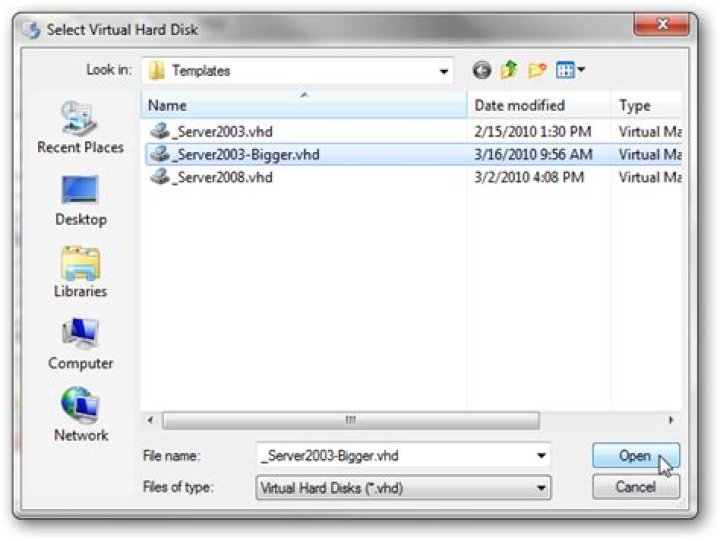
With the help of the freely available VHD Resizer tool, you can expand the size of a VHD using it’s simple wizard interface. When opening VHD Resizer the wizard prompts you for the source VHD file to resize.
After selecting the source, set a destination VHD to a new file.
This new file will be an exact copy of the source, only a larger size.
Once selected, set the new size of the destination VHD file. This will be the capacity of the new VHD. Once set, start the resizing process.
Depending on the size of the source and destination file, this can take some time.
Repeat the process for any additional VHD files.
Resizing the Partition of the VHD Drive
After resizing the VHD file, the extra space is recognized by the respective Windows installation as an unallocated partition. In order to assign this extra space to the system drive, we have to link the new VHD file to an existing VHD file and resize it within the virtual machine.
In an existing VHD file, such as the source, link the new VHD file as a second hard disk. This is done through the the properties of the virtual machine.
Once you have the new VHD linked as a secondary drive, start the respective virtual machine.
When you look at the Disk Management, you can see the additional space is unallocated.
In order to resize the system drive on the new VHD file, you use the Windows tool, Diskpart.
Within Diskpart, set the disk (usually disk 1) and respective partition (usually there is only one) and then issue the ‘extend’ command.
After the extend command of Diskpart has run, the previously unallocated space has been combined with the system drive to form a single larger drive.
Once you have resized the new drive, shut down the virtual machine you used to resize the new drive and then remove the new VHD file as the secondary drive.
The new VHD file is ready to use as it’s own virtual machine, so create a new VM based on the newly created file.
Once created, boot up the new virtual machine.
The new VHD file will now have a single drive with the new space available to use as needed.
Conclusion
The ability to resize VHD files is tremendously useful. Since you can never predict what you may need in the future, you can build your VHD files with the size you know you need and then simply expand the size as needed.
Links
Download VHD Resizer from VM Toolkit (requires registration)
Applies To: Windows 10, Windows 8.1, Windows Server 2016, Windows Server 2012 R2, Windows Server 2012
This topic describes how to create, attach, and detach virtual hard disks with Disk Management. Virtual hard disks (VHDs) are virtualized hard disk files that, once mounted, appear and operate pretty much identically to a physical hard drive. They’re most commonly used with Hyper-V virtual machines.
Viewing VHDs in Disk Management
VHDs appear just like physical disks in Disk Management. When a VHD has been attached (that is, made available to the system for use), it appears blue. If the disk is detached (that is, made unavailable), its icon reverts to gray.
Creating a VHD
You must be a member of the Backup Operators or Administrators group, at minimum, to complete these steps.
To create a VHD
On the Action menu, select Create VHD.
In the Create and Attach Virtual Hard Disk dialog box, specify both the location on the physical computer where you want the VHD file to be stored, and the size of the VHD.
In Virtual hard disk format, select Dynamically expanding or Fixed size, and then click OK.
Attaching and detaching a VHD
To make a VHD available for use (either one you have just created or another existing VHD):
On the Action menu, select Attach VHD.
Specify the location of the VHD, using a fully-qualified path.
To detach the VHD, making it unavailable: Right-click the disk, select Detach VHD, and then click OK. Detaching a VHD does not delete the VHD or any data stored in it.
Applies To: Windows Server 2012 R2
Starting in Windows ServerВ® 2012 R2, Hyper-V delivers the ability to expand or shrink the size of a virtual hard disk while the virtual machine is still running. For more information about resizing virtual hard disks, see Configure Online Virtual Hard Disk Resize.
Key benefits
Storage administrators can avoid costly downtime by performing maintenance operations on running virtual hard disks. Shutting down virtual machines is no longer required and this eliminates interruption to users accessing those virtual machines and helps reduce maintenance costs. Prior to Windows Server 2012 R2, if a virtual machine was online or a virtual hard disk was in use, it was not possible to perform maintenance on the virtual hard disk without temporarily shutting down the virtual machine.
Requirements
The following functionality is required for resizing a virtual hard disk:
A server capable of running Hyper-V. The server must have processor support for hardware virtualization. The Hyper-V role must be installed.
A user account that is a member of the local Hyper-V Administrators group or the Administrators group.
The following functionality is required for resizing a virtual hard disk:
VHDX – the ability to expand and shrink virtual hard disks is exclusive to virtual hard disks that are using the .vhdx file format. Online resizing is supported for VHDX disk types, including fixed, differencing, and dynamic disks. Virtual hard disks that use the .vhd file format are not supported for resizing operations.
SCSI controller – the ability to expand or shrink the capacity of a virtual hard disk is exclusive to .vhdx files that are attached to a SCSI controller. VHDX files that are attached to an IDE controller are not supported.
Understanding online resizing functionality
There are important concepts to understand when increasing or decreasing the capacity of a virtual hard disk.
Expanding a virtual hard disk
Expanding a virtual hard disk increases the disk capacity of the virtual hard disk. However, to make the additional disk space available to the virtual machine requires some extra configuration. From the perspective of the virtual machine, the virtual hard disk expansion is reflected under Disk Manager as an unallocated disk volume. The size of this unallocated volume is the difference between the original virtual hard disk and the nominated size of the expanded virtual hard disk.
To make the full virtual hard disk capacity available to the virtual machine, you need to use Disk Manager to expand the volume within the virtual machine. You can do this by using the Extend Volume Wizard within Disk Manager. After this is complete, you will be able to view the expanded disk capacity in the operating system of the virtual machine.
Shrinking a virtual hard disk
As expected, when you shrink a virtual hard disk, the virtual hard disk capacity is decreased. However, there is a limit to amount of disk space that can be adjusted when you shrink a virtual hard disk. That limit is defined by the size of the volume that is currently in use by the virtual machine. The Hyper-V Manager user interface shows the minimum disk size available for shrinking a virtual hard disk.
If you want to shrink the size of the virtual hard disk below the size of the currently used volume within the virtual machine, you must first use Disk Manager in the operating system of the virtual machine to shrink the volume. After that is complete, you can reduce the size of the virtual hard disk.
Performing online resizing operations
In Windows Server 2012 R2, the option to resize a virtual hard disk is available through the Edit Virtual Hard Disk Wizard. However, the user interface option to shrink a virtual hard disk is only visible for virtual hard disks that have been previously expanded.
Administrators can use the Windows PowerShell interface for online virtual hard disk resizing operations.
WSL 2 uses a Virtual Hard Disk (VHD) to store your Linux files. In WSL 2, a VHD is represented on your Windows hard drive as a .vhdx file.
The WSL 2 VHD uses the ext4 file system. This VHD automatically resizes to meet your storage needs and has an initial maximum size of 256GB. If the storage space required by your Linux files exceeds this size you may need to expand it. If your distribution grows in size to be greater than 256GB, you will see errors stating that you’ve run out of disk space. You can fix this error by expanding the VHD size.
To expand your maximum VHD size beyond 256GB:
Terminate all WSL instances using the command: wsl –shutdown
To find your distribution installation package name (‘PackageFamilyName’):
- Using PowerShell (where ‘distro’ is your distribution name) enter the command:
- Get-AppxPackage -Name “* *” | Select PackageFamilyName
- For example: Get-AppxPackage -Name “*Ubuntu*” | Select PackageFamilyName
Use the resulting PackageFamilyName to locate the VHD file fullpath used by your WSL 2 installation, this will be your pathToVHD . To find the full path:
- In your Start menu, enter: “%LOCALAPPDATA%” and select to open the %LOCALAPPDATA% file folder.
- Next, open the “Packages” folder and search for the PackageFamilyName of your distribution. Open that folder (ie. CanonicalGroupLimited.Ubuntu20.04onWindows_79xxxxx).
- Inside the PackageFamilyName folder, open the “LocalState” folder and find the .vhdx file.
- Copy the path to that file, it should look something like: %LOCALAPPDATA%\Packages\
\LocalState\ .vhdx
For example, the
for Ubuntu 20.04 should look something like: %LOCALAPPDATA%\Packages\CanonicalGroupLimited.Ubuntu20.04onWindows_79xxxx\LocalState\ext4.vhdx .
Resize your WSL 2 VHD by completing the following commands:
Open Windows Command Prompt with admin privileges and enter:
Examine the output of the detail command. The output will include a value for Virtual size. This is the current maximum. Convert this value to megabytes. For example, if the detail output shows Virtual size: 256 GB, convert this to 256000.
The new value you enter must be greater than this original value. As an example, to double the virtual size listed above, you could enter the value: 512000. Once you have determined the number you would like to set for your new size (in megabytes), enter the following command in your Windows Command Prompt diskpart prompt:
Exit diskpart
Launch your WSL distribution (Ubuntu, for example) and make sure it is running in WSL 2 (WSL 1 is not supported). You can confirm this using the command: wsl.exe -l -v .
Make WSL aware that it can expand its file system’s size by running these commands from your WSL distribution command line.
- You may see this message in response to the first mount command: “/dev: none already mounted on /dev.” This message can safely be ignored.
- Copy the name of this entry, which will look like: /dev/sdX (with the X representing any other character). In the following example the value of X is b:
- Using the example from above, we changed the vhd size to 512000, so the command would be: sudo resize2fs /dev/sdb 512000M .
You may need to install resize2fs. If so, you can use this command to install it: sudo apt install resize2fs .
The output will look similar to the following:
Resizes an existing virtual disk to be larger or smaller.
Syntax
Description
The Resize-VirtualDisk cmdlet resizes an existing virtual disk to be larger or smaller.
Note: The ability to expand or shrink is vendor specific.
Note: If there is a partition on the virtual disk, then the partition must also be resized in order for the client to have additional space on the disk surfaced to Windows.
Examples
EXAMPLE 1
This example changes the size of the VirtualDisk object. Note: Any associated Partition object must also be resized to utilize this space.
Parameters
Runs the cmdlet as a background job. Use this parameter to run commands that take a long time to complete.
| Type: | SwitchParameter |
| Position: | Named |
| Default value: | None |
| Accept pipeline input: | False |
| Accept wildcard characters: | False |
Runs the cmdlet in a remote session or on a remote computer. Enter a computer name or a session object, such as the output of a New-CimSession or Get-CimSession cmdlet. The default is the current session on the local computer.
| Type: | CimSession [ ] |
| Aliases: | Session |
| Position: | Named |
| Default value: | None |
| Accept pipeline input: | False |
| Accept wildcard characters: | False |
Prompts you for confirmation before running the cmdlet.
| Type: | SwitchParameter |
| Aliases: | cf |
| Position: | Named |
| Default value: | False |
| Accept pipeline input: | False |
| Accept wildcard characters: | False |
Specifies a friendly name for a disk. The friendly name may be defined by a user and is not guaranteed to be unique.
| Type: | String [ ] |
| Position: | 0 |
| Default value: | None |
| Accept pipeline input: | True |
| Accept wildcard characters: | False |
Specifies the input object that is used in a pipeline command.
| Type: | CimInstance [ ] |
| Position: | Named |
| Default value: | None |
| Accept pipeline input: | True |
| Accept wildcard characters: | False |
Specifies the name of an object or setting.
| Type: | String [ ] |
| Position: | Named |
| Default value: | None |
| Accept pipeline input: | True |
| Accept wildcard characters: | False |
Sends items from the interactive window down the pipeline as input to other cmdlets. By default, this cmdlet does not generate any output.
To send items from the interactive window down the pipeline, click to select the items and then click OK. Shift-click and Ctrl-click are supported.
| Type: | SwitchParameter |
| Position: | Named |
| Default value: | None |
| Accept pipeline input: | False |
| Accept wildcard characters: | False |
Specifies the size of the partition to create. If not specified, then the number will default to Bytes. The acceptable values for this parameter are: Bytes, KB, MB, GB, or TB. The size may be defined by a user.
| Type: | UInt64 |
| Position: | Named |
| Default value: | None |
| Accept pipeline input: | False |
| Accept wildcard characters: | False |
Specifies the maximum number of concurrent operations that can be established to run the cmdlet. If this parameter is omitted or a value of 0 is entered, then Windows PowerShellВ® calculates an optimum throttle limit for the cmdlet based on the number of CIM cmdlets that are running on the computer. The throttle limit applies only to the current cmdlet, not to the session or to the computer.
| Type: | Int32 |
| Position: | Named |
| Default value: | None |
| Accept pipeline input: | False |
| Accept wildcard characters: | False |
Specifies an ID used to uniquely identify a Disk object in the system. The ID persists through restarts.
| Type: | String [ ] |
| Aliases: | Id |
| Position: | Named |
| Default value: | None |
| Accept pipeline input: | True |
| Accept wildcard characters: | False |
Shows what would happen if the cmdlet runs. The cmdlet is not run.
Can’t seem to find anything on this. Only for VDI files. Is there any hope for me to resize a VHD file for VirtualBox? Currently, the VM hangs on Started Gnome Display Manager. Tried purging nvidia drivers but i think its because the hard drive is basically full. (I only gave it a small amount of space in the beginning..)
I want to resize the VHD file and make it larger now but, i can’t seem to find a way how.
The Edge is Real: Harness its Force
4 Replies
Locate your VDI you want to change and make note of the path. Default location is C:\Users\USERNAME\VirtualBox VMs
Open command prompt.
CD into C:\Program Files\Oracle\VirtualBox
From there type
VBoxManage modifyhd “C:\PATHTOVM\testvm.vdi” – – resize 81920
So that will resize my test.vdi to 80GB
Totally just f that up. did not see you put vhd sorry
Windows 10 host? resize-vhd powershell command.
Also, there’s VBoxHDTools:
This topic has been locked by an administrator and is no longer open for commenting.
To continue this discussion, please ask a new question.
It Comes Down to This.
32+ years in IT at all levels, and the job search returns this as my best matchJust wow. Way to validate my existence.
Snap! Microsoft Build, DuckDuckGo, Windows File Explorer, happy Geek Pride Day!
Your daily dose of tech news, in brief. Happy Geek Pride, Towel, & Lilac Day! Not sure what that is? Then make sure to read the last story on here! You need to hear this. Microsoft shows off Windows updates at Build dev event Microsoft Bui.
Broadcom buying Vmware?
If this happens how will it affect us users?
Spark! Pro series 25th May 2022
Today in History: 1945 Arthur C. Clark proposes relay satellites in geosynchronous orbitArthur Charles Clarke was born on 16 December 1917 in Minehead, Somerset, United Kingdom. During the Second World War he was involved in developing the new technology .
Save to My DOJO
Table of contents
I’d like to think that we plan ahead and build Hyper-V virtual machines with adequate disk space. But sometimes our best plans can quickly fly out the window. Or you might have a legacy virtual machine that you can’t get rid of yet but its disk space is becoming an issue. Fortunately, this is easily remedied with the Resize-VHD cmdlet. Let me walk you through how I fixed such an issue.
On my test Hyper-V rig I have an older Windows 7 virtual machine that is just about out of space as you can see here.
Fig 1 Drive C running out of space
Since there’s very little to be done I’ll shut it down for now. I need to do that anyway in order to resize the VHD file anyway. Using PowerShell, I can get all of the disk files associated with the virtual machine and pass each path to the Get-VHD cmdlet to return more detailed information.
My results can be seen here.
Fig 2 the current state of the VHD file
As you can see from the highlighted section, there’s no more space in the VHD file. I’ll need to resize it. I’m a “belt and suspenders” kind of IT Pro, so first I’m going to create a copy of the existing VHD file in case something goes wrong by copying it to a different location.
Once that is finished I’m ready to begin resizing. The Resize-VHD cmdlet needs the path to the VHD (or VHDX) file. But I don’t feel like copying and pasting so I’ll modify copy command, since I already know it gets the problem disk file.
I am taking advantage of the Resize-VHD –WhatIf parameter to verify I’ve selected the correct disk file. I’m going to resize it to 20GB. This looks good so I can press the up arrow in the console, delete –Whatif and let the cmdlet do its thing. This shouldn’t take too long. I used –Passthru so the cmdlet would write the new disk file object back to the pipeline. You can see the new size.
Fig 3 The expanded VHD
Excellent. Time to fire up the virtual machine.
The operating system shows the new unallocated space.
Fig 4 Unallocated space after resizing
The process of extending the disk might vary by operating system. In this case, all I need to do is right-click on the C: partition, select Extend Volume and follow the wizard to use the new 5GB of space.
Fig 5 Extension complete.
Problem solved! Extending files will work with both VHD and VHDX formats. If you are using the latter, you can also shrink the volume back to its minimum size.
Lastly, let me demonstrate how to use PowerShell to determine which files might be in need of resizing. Here’s a relatively simple one-line PowerShell command that you could put into a script file.
This command gets all hard drives for all virtual machines and then selects some key properties. The main one is something I added called Utilization which should show you a utilization percentage. This sample is send the results to Out-Gridview so I can further sort and filter. I’ve clicked on the Utilization column to sort in descending order.
Figure 6 A disk drive utilization report
But you could just as easily save the information to a CSV file, XML or even an HTML report. I could even write a PowerShell script to take this information and for drives that exceed a certain value, calculate a new size based on a percentage such as 25%, take the virtual machine offline if running, resize the file and bring the virtual machine back on line. But personally, unless I was managing hundreds of virtual machines where this might be necessary, I’m quite satisfied to use PowerShell to identify what VHD files need resizing and then handling it on my own.
Over the years, this blog has been about many different things related to software development with Microsoft technologies. Since my current role focuses on PowerApps & Flow, that’s what it’s primarily about right now.
I got into a bit of a predicament where the C drive of the VM I created here started to fill up. I needed to install some software that only gave me the option to install to the C drive. The installer was telling me there wasn’t enough disk space. Here’s what I did to increase the size of the OS disk of my Azure VM:
- Delete the VM
- Download the .vhd
- Resize the downloaded .vhd
- Delete the original .vhd from blob storage
- Upload the resized .vhd
- Recreate the VM
- Use diskpart to get access to the unallocated part of C
Delete the VM
Download the .vhd
Cloud Storage Studio is my favorite storage tool for Windows Azure. If you’d prefer a free option, then my next favorite is Azure Storage Explorer. Use one of these to download the .vhd file. This part is going to require a local hard drive with lots of disk space. You will need at least 2x the size of the original VHD + the size you want to grow it by. A fast internet connection will be a big advantage here as well.
Resize the downloaded .vhd
You can use Hyper-V Manager to resize your .vhd file:
My challenge was that the PC with the disk space necessary to store the downloaded and expanded .vhd wasn’t Hyper-V capable. Therefore, I used a tool called VHD Resizer from here. There is a nice walkthrough of how to use it here.
Delete the original .vhd from blob storage
Upload the resized .vhd
You need to upload the resized .vhd back to blob storage. I figured out how to upload it correctly after reviewing Step 5 from the Creating and Uploading a Virtual Hard Disk that Contains the Windows Server Operating System instructions. However, the command line switches for csupload.exe need to look like this:
csupload Add-Disk –Destination “ ” –Label “ ” –LiteralPath “
Recreate the VM
I created a new VM via the management portal and pointed it to the .vhd file I uploaded with csupload. In my case, I had to re-attach an additional .vhd drive since my original .vhd was configured with an F drive where my database files were stored. Once your VM boots up, log in using Remote Desktop. For me, all of my SQL Server 2012 databases were in a recovering state. Not sure why. After I rebooted my server, everything was fine.
Use diskpart to get access to the unallocated part of C
Your C drive will still report the old size in Windows Explorer. You need to claim the additional unallocated space in the expanded drive. To do this, open a command prompt and execute the following series of commands in italics:
Make sure you select the os disk. For me, it was disk 0:
Find the partition that needs extending:
Select the partition. For me, it was partition 1:
Finally, extend the partition:
Now, you have the additional space in the drive you need to install more stuff .
VHD Set files are a new shared Virtual Disk model for guest clusters in Windows Server 2016. VHD Set files support online resizing of shared virtual disks, support Hyper-V Replica, and can be included in application-consistent checkpoints.
VHD Set files use a new VHD file type, .VHDS. VHD Set files store checkpoint information about the group virtual disk used in guest clusters, in the form of metadata.
Hyper-V handles all aspects of managing the checkpoint chains and merging the shared VHD set. Management software can run disk operations like online resizing on VHD Set files in the same way it does for .VHDX files. This means that management software doesn’t need to know about the VHD Set file format.
It’s important to evaluate the impact of VHD Set files before deployment into production. Make sure that there is no performance or functional degradation in your environment, such as disk latency.
Create a VHD Set file from Hyper-V Manager
- Open Hyper-V Manager. Click Start, point to Administrative Tools, and then click Hyper-V Manager.
- In the Action pane, click New, and then click Hard Disk.
- On the Choose Disk Format page, select VHD Set as the format of the virtual hard disk.
- Continue through the pages of the wizard to customize the virtual hard disk. You can click Next to move through each page of the wizard, or you can click the name of a page in the left pane to move directly to that page.
- After you have finished configuring the virtual hard disk, click Finish.
Create a VHD Set file from Windows PowerShell
Use the New-VHD cmdlet, with the file type .VHDS in the file path. This example creates a VHD Set file named base.vhds that is 10 Gigabytes in size.
Migrate a shared VHDX file to a VHD Set file
Migrating an existing shared VHDX to a VHDS requires taking the VM offline. This is the recommended process using Windows PowerShell:
Remove the VHDX from the VM. For example, run:
Convert the VHDX to a VHDS. For example, run:
Ever run into a situation that a virtual disk drive proved to small after a period of use? You can always add extra new virtual disk drives to provide extra storage for your virtual computer, but what if you require extra free space in one particular drive?
On the other hand, you can favour fixed size VHD files, and later discover you overdimensioned the virtual disk drive. How to make the fixed size VHD file smaller without converting it to the dynamically expanding type?
VHDMount utility and Symantec Ghost saves the day one more time. Here’s the procedure:
- Create a new VHD file of new required size.
- Mount the old and the new VHD files using VHDMount utility (distributed as a part of Microsoft Virtual Server 2005 R2 SP1):
vhdmount /p /f old.vhd
vhdmount /p /f new.vhd
Note: Mounting the VHD files is possible only if the VHD files are not currently in use by any virtual machine or other program.
You should receive a “The Virtual Hard Disk is successfully plugged in as a virtual disk device.” response, followed by a series of “New hardware found” messages.
Once transfer is complete you can safely choose not to restart the computer and just exit the GHOST32.
vhdmount /u old.vhd
vhdmount /u new.vhd
One thought on “How to resize VHD file”
here is a utility that will save you some time with the vhdmount command. resizes the VHD and file system. worth a look.
Leave a Reply
This site uses Akismet to reduce spam. Learn how your comment data is processed.
I have looked all over the net for easy ways to resize VHDs. For those of you who don’t know what a VHD file is, it’s a Virtual Hard Drive. Now for years I have played with virtualization, normally with VMWare or Virtual Box (The latter being free) which has always dealt with some form of virtual hard drive, however the VHD (and now VHDX) has become a standard with virtualization, so much so that you can actually boot Windows off of a VHD without virtualization software. Both Windows 7 and 8 flavours of Windows support this feature.
So if you are like me, in charge of several systems, and you want to reimage them all, the best and easiest way is to do it via VHD. In my case we are using Dynamic VHDs, which means although you make the “Hard drive” 300GB, this is only a maximum size, the drive (file) will only be as large as the stuff you put on it… So if I have 30GB of OS and Software, my VHD File is only
30GB and not 300GB. If you use a static disk, which has a slightly better performance (not by much), the drive (file) would be 300GB, which makes it harder to transport, and time consuming to transfer over from system to system.
The Best Practice
The best practice is to know your target a head of times, by this I mean know where your VHD is going, know what the physical hard drive limitations are, know what you are putting on it. Making the VHD the right size first time round, is the best practice.
Stuff Happens
That being said, stuff happens. For example, In my schooling instead of creating a VHD and installing an OS fresh from start (Server 2012) I opted to use the pre-installed evaluation VHD directly from Microsoft. This allowed me to spend more time updating than installing. As I have already done the installation several times, I decided I really didn’t need to do it another several times. The issue then of course is that you are at the mercy of Microsoft who decided 40GB was enough hard drive space to test with. They are not wrong, however if you are testing other stuff, like for instance Exchange Server 2013, then 40GB is not enough.
What about the reverse? This is the harder of the two, if you have to shrink the drive… One of the images I am creating for work is too big for another purpose I want to transpose it over to. This is probably one of the most sought after questions on the net, I know, I looked.
Method 1: If you have upgraded to WIndows 8(.1) Use a mixture of Hyper-V and DiskPart
Method 2: If you are still running Windows 7, Use Diskpart and VHDResizer
Note: The company that made VHDResizer no longer exists, it took me forever to find a clean version of the app, so instead of making you search for it, I gave you a direct link to my copy.
Enlarging the Disk and Volume
A. Enlarging the Drive
To enlarge the drive is very simple if you have Hyper-V installed. Note: you must have ALL of Hyper-V Installed, otherwise it won’t work, so if you don’t have the ability to install Hyper-V, skip to how to use Diskpart instead.
In Powershell (Not CMD) type the following Command:
VHD disk files can be of fixed size or dynamically grown. We can specify the size of the VHD file at the time of creation. It can be done in both cases whether you are creating a virtual hard drive on a virtual PC or you are using a virtual server. The size of the file can also be changed after the creation. If you also want to expand VHD disk size then this article can help you out.
By increasing the VHD disk size you can store more applications and data on the virtual hard disk. You can resize the storage size of the VHD File by using these methods.
Expand VHD Disk File Using Command Prompt
There could be a situation when you realize that the size of the VHD file is not enough or more than the storage needed as it is specified. The solution for this could be the dynamic VHD file but you set a limitation as maximum size at the time of the VHD creation. So, to remove this issue you can use the diskpart command.
Step 1. Press Win+R and open Run tab.
Step 2. Type diskpart and enter.
Step 3. UAC will ask you for permission. Hit the Yes button.
Step 4. Select the virtual disk using the following command:
select vdisk file=”C:\path\to\vdisk.vhd”
Step 5. Now, expand the virtual hard disk using the following command:
expand vdisk maximum=15000
These commands will help you to expand VHD disk. But, the problem is the partition will remain the same.
Resize VHD Disk Partition:
you can use the following commands to resize the partition of the VHD file:
- select vdisk file=”C:\path\to\vdisk.vhd”
- attach vdisk
- list volume
- select volume=
At the place “No of volume”, enter the number of the volume (After watching the output of the “list volume” command).
- extend size=200
- Now, detach the file by the following command:
detach vdisk
In the above example, the partition will get extended by 200 MB. So, you can define it as you want to enlarge the partition size.
If still, you are not able to resize your virtual hard drive then there could be corruption in your VHD file. You can remove the corruption using the VHD Repair Utility and then you can easily resize virtual hard drive.
Sum-Up
The above-mentioned method makes it easy to expand VHD disk and make it suitable for your needs. You can easily install more applications, store more files or can shrink the file size to make it compact. I hope, it helped you out.
If you want to shrink the VHD disk size then read here: How to compact or shrink hyper-v vhd disk
So I have been digging in my old content that I scrapped for the relaunch and have been deciding which pieces of work well with my new format and which pieces. Don’t. When I do find a better option, I have been cleaning up the SEO, providing some editing and redoing less than pretty pictures. I ran into a problem that gave me another problem. That problem was the virtual hard drive was too small so how does one go about a resize of a vhd in VirtualBox? Read on to find out.
As part of the pretty picture section, I decided several of my later pictures in my Ubertooth series were not up to snuff. I tried a new screen capture program and have decided it just did not do as good of a job. Rather than leave some substandard imagery, I decide to redo some of the pictures.
I am redoing a 2019.2 VM of Kali Linux and following my own directions. I am doing this both as a test of the instructions and as a chance to grab better screen shots. Unfortuately, the versions are slightly different and I get some warnings about obsolete versions. Hopefully, it won’t break anything. Anyway, enough about that let’s dig into it.
How to resize a virtual hard drive in VirtualBox
First make sure the VM is off. I don’t know if that is actually important but it seems like a good idea. Also make a backup of the VM hard drive. It will be extension, VMI or VHD. In my case I am using a VHD. In the VirtualBox Main screen you want to opne File->Virtual Media Manager.
This will get you a new dialog, titled Virtual Media Manager.
In this screen, we have an option of which Hard Disks we want to resize, along with an attributes tab. These are the things we are looking for to resize the drive. Select the drive you want, which for me is the second drive and enter the value you want in the textbox, in this case with text of 20GB. I selected 50 GB.
Press the Apply button. Now it will not give you any dialog saying “Hi, I am done.” Just give it a second and hit the close button.
Kick on your instance you just increased and open the terminal. If you can get to the desktop, everything is probably pretty good. Except there is still a problem.
Kali does not see the space expanded in the system partition.
Don’t freak out if you get a screen like this. We will resolve it.
Just dismiss it, it is an old warning. In the terminal screen type lsblk and hit enter.
You will get a results screen that will look like this. If you are operating with only one hard drive on the VM then look for the item that has type disk and make sure the size says what you put in the textbox in the above resizing step. In my case 50g.
So now we know that the OS can see the size of the drive. We still have an issue. This is not a VirtualBox issue but a resize issue Kali has virtual drive. We need to focus on the partitions on the drive we have identified as the expanded drive. The partitions are those lined out things, sda1, sd2 and sda5.
Generally this will be the biggest partition on your drive. Now we need to expand the partition to take up the available room. We will use GParted. To get to the program click on the programs list button.
In the search bar type GPart and it should come up below. Click on it.
GParted
Now we cannot just resize. See the unallocated part. That is what we created. See the yellow section labeled /dev/sda1. That is our partition. The red square in the middle is the evil SWAP drive. Ok, it is not evil but it cannot exist if we want to merge the two other boxes. So it has to be moved.
Now if you cannot figure this out. We are about to do some bad juju to the drive. Back it up if it has anything you value on it. There is a real danger of blowing up the outside world, Dr Evil stuff happening to the drive. One misstep, one different setting and your drive will go boom.
Consider yourself warned.
Now lets play with the evil scientist’s nuclear weapons! I even know the game. We are going to play musical chairs only with sandboxes!
Bring SWAP And Unallocated Together.
Select the second partition. Right click and select the Resize/Move option.
We need to get the yellow bar, which is the partition on the other side of the dialog. Drag the arrow to the edge and select the Resize/Move button.
As the teal line around the red box and unallocated space reveals, we have brought everyone in the partition into the same sandbox. Let’s move the red part. Select it and select the Resize Move Option from the context menu. If you don’t see it, make sure to right click on /dev/sda5.
Now we need to move the arrows to the other end. I am also going to expand my swap size to about twice as big as we started. I figure that will not hurt anything since I should have the space and I like big swap files.
Now do the same thing to the other arrow. This time try to match as best you can to your new value. I just doubled 4096 to 8192.
Now you are going to get a scary ass error like the one below. Just embrace the destruction and press Apply.
So we have half the battle won at this point. The red SWAP is at the other end of the pool. I do have a single megabyte mocking me but I accept it as the devil’s cut of the new drive and move on to getting our unallocated space into the same sandbox as our system drive. So press the checkbox. Accept whatever scary error it may tell you and enjoy the show for the music has stopped.. Reboot the system.
You should come back to your login screen. Login, get to your desktop and open GParted like we did earlier. We still have work to do so the music starts up again.
We need to get the teal box removed from the unallocated space.
Right click on the partition that has the unallocated space in it and select Resize/Move. In this instance it is sda2.
We need to move the right most arrow to the yellow space.
When you have it arranged. Press the Resize/Move button.
We have everything back to the same level but this time unallocated is next to /dev/sda1. We can now merge them together. Right click on /dev/sda1 in this case and Resize/Move.
Stretch the arrow to the other side and press Resize button.
Again, the devil got his due with an extra megabyte lost. Finally enjoy the chaos you caused and press the green check mark. You will likely get a scary error. Accept it and let it do its thing for the music stops again.
After all that reboot your VM and hopefully everything comes back up. After you get logged in and back to the desktop. Select the terminal screen and type lsblk. You should now see that your drive has been expanded to its new size. For instance mine when from 16G to 42 GB and 4G to 8G respectively.
That was a crap load of steps. But most importantly, you won musical chairs and VirtualBox virtual hard drive resize was successful. Why they made it so difficult, I don’t know. 2MB lost through the transfer, not bad for a Windows guy, if I say so myself.
As usual, if you have a question or comment about VirtualBox, virtual hard drives or how to resize a virtual hard drive in other technologies, drop it below.
Dynamic resizing of virtual machine hard disks is available starting with Hyper-V in Windows Server 2012 R2. Online VHDX Resize feature allows you to increase or shrink the size of the vhdx file of a virtual machine online (without stopping the VM). In this article, we will look at how to extend or reduce (shrink) the size of a virtual machine hard disk in Hyper-V running on Windows 10 or Windows Server 2016 (instructions apply to all supported versions of Hyper-V, including free Hyper-V Server).
- Expanding VM Hard Disk in Hyper-V
- How to Shrink the Size of Hyper-V Virtual Disk (VHDX)?
- Resizing Virtual Hard Disk Files in Hyper-V with PowerShell
Key features and limitations of Online VHDX Resize in Hyper-V:
- You can resize any type of Hyper-V virtual disk: fixed, dynamic, and differential;
- You can resize the VHDX disk (including the system drive of the guest OS) on the fly. You don’t need to stop the VM;
Expanding VM Hard Disk in Hyper-V
You can increase the size of the virtual VHDX disk using the Hyper-V Manager console.
- Select the virtual machine in the Hyper-V virtual machine manager, go to VM Settings -> expand SCSI Controller;
- Choose the virtual disk and click the Edit button;
How to Shrink the Size of Hyper-V Virtual Disk (VHDX)?
Now let’s look at how to reduce the size of a virtual vhdx disk on Hyper-V.
- Before shrinking a virtual disk from the Hyper-V console, it is necessary to reduce the size of the logical partition on the disk inside the guest OS. Free up some space and convert it to the unallocated volume. To do it, open the Disk Manager in the guest OS, select a volume and click Shrink Volume;
Resizing Virtual Hard Disk Files in Hyper-V with PowerShell
You can resize the VHDX disk on Hyper-V host using PowerShell. To do this, use the Resize-VHD cmdlet (not to be confused with Resize-VirtualDisk cmdlet, which belongs to the built-in Windows disk management cmdlets).
First, you need to get the full path to the VHDX disk of the virtual machine:
Get-VM -VMName fs01 | Select-Object VMId | Get-VHD
These cmdlets also returns the actual size of the VHDX file on the storage (FileSize) and the maximum size that it can take (Size). MinimumSize is the minimum VHDX disk size to which a virtual disk file can be reduced.
In order to increase the size of the VHDX disk, you need to specify its new size:
Resize-VHD -Path ‘C:\VM\fs01\VHD\fs01.vhdx’ -SizeBytes 50Gb
You just need to resize the partition in the guest OS.
You can expand a disk on Windows remotely using PowerShell Remoting. Connect to the remote VM using the Invoke-Command or Enter-PSSession cmdlet (over the network or via Hyper-V PowerShell Direct):
Enter-PSSession -ComputerName fs01
You need to get information on how much you can expand the partition and expand it to the maximum available size:
$MaxSize = (Get-PartitionSupportedSize -DriveLetter C).SizeMax
Resize-Partition -DriveLetter L -Size $MaxSize
If you need to shrink the size of the virtual disk to the smallest possible size, run:
Resize-VHD -Path ‘C:\VM\fs01\VHD\fs01.vhdx’ -ToMinimumSize
This command will reduce the maximum VHDX file size by 6 GB.
Shrinking or Expanding the Virtual Hard Disks is a common task for the System administrator. In this article, we will expand the Virtual Disks on the running Hyper-V Virtual Machine. Resizing the Virtual Hard Disks on the Hyper-V can be done through GUI or PowerShell command.
Limitation
There are some limitations to resize the Virtual Hard Disk on the running Hyper-V VM.
- There is no virtual machine checkpoint
If there is a virtual machine checkpoint created, you need to merge or remove the VM checkpoint first. - Only VHDX files that can be expanded on the running Virtual Machine.
The VHDX disk type is Virtual Hard Disks format on the Windows 2012 and later. - The VHDX is attached to the iSCSI controller on the Virtual Machine.
If the VHD or VHDX is attached to the IDE controller, you need to turn off the Virtual Machine first.
Resize a Virtual Hard Disk with Hyper-V Manager
Hyper-V Manager allows you to resize a virtual hard disk whether or not a virtual machine owns it.
From the Hyper-V Manager, Select the Virtual Machine and click the VM Setting on the right panel
Locate the disk that you want to expand and click edit.
Edit Disk
On the Edit Virtual Hard Disk Wizard screen as below, click next.
Virtual Hard Disk Wizard
Select expand and click next.
Select Expand
Enter the value of the new size of VHDX. the new size should be greater than the current size.
Enter New Size
Review your setting and click finish.
Summary
Once the virtual hard disk has been resized, you need to login to the VM to expand the partition. To expand the disk partition, open the Disk management or you can run diskmgmt.msc from the command prompt.
Open Disk Management
On the Disk Management, make sure the unallocated size is available on for the partition.
Unallocated Space
On the volume that you want to extend, right click and select “Extend Volume”. Please note, you can’t extend the volume that isn’t in order partition.
Extend Volume
Select the available disk and size that you want to add to the existing volume.
Enter Disk Space
Review the changes.
Review
Resize a Virtual Hard Disk with PowerShell
You can also use Resize-VHD PowerShell command to expand the virtual disks. Below is the example command to expand the Virtual Hard Disks.
First, you need to get on which controller the Virtual Hard Disk that you want to expand is attached.
Get disk Controller number
After you get the “Controller Number” you can run the command below to expand the Virtual Hard Disks.
Note: you still need to login to the guest operating system to expand the volume from unallocated space.
We hope this article helped you learn How to Resize Virtual Hard Disk on the Running Virtual Machine. If you liked this article, then please share with the others. You can also find us on Twitter and Facebook.
I’m a huge fan of Windows Subsystem for Linux (WSL), especially WSL2 which uses a virtualisation layer to bring increased performance and compatibility to WSL. However, one of the few downsides of WSL2 is that it uses a virtual disk (VHDX) to store the filesystem. This means you can end up in a situation where your virtual disk is taking up 100GB, but WSL2 only needs 15GB… which is exactly what happened to me today!
Long story short, I saved a backup in the wrong directory, and my WSL2 disk expanded to use up all available space on my drive. I went looking for a way to shrink a WSL2 virtual disk, and after a few false starts, found a method which worked for me. Hopefully it’ll help you out too!
Before you begin
Before shrinking a WSL2 virtual disk, you need to ensure that WSL2 is not running.
You can check if it’s running with the command ‘ wsl.exe –list –verbose ‘ in PowerShell:
It should stop when it’s idle, or you can encourage it to stop with the ‘ wsl.exe –terminate ‘ command:
I also highly recommend you take a backup of your WSL2 installation.
These instructions worked for me, but you could have a different environment that may result in corrupted data. So please, take a backup first!
Use diskpart to Shrink a WSL2 Virtual Disk
I discovered you can use the ‘ diskpart ‘ tool to compact a VHDX. This allows you to shrink a WSL2 virtual disk file, reclaiming disk space. It appeared to work for me without any data corruption, taking the file size down from 100GB to 15GB. Your results may vary though.
You can launch the diskpart tool in PowerShell:
It will open up a new window:
Once that has opened, you need to specify the path to your VHDX file.
If you don’t know this path, you can find by first locating the package directory for your WSL2 instance, which lives in: C:\Users\valorin\AppData\Local\Packages\ . Look for the vendor name, such as WhitewaterFoundryLtd.Co for Pengwin, CanonicalGroupLimited for Ubuntu, or TheDebianProject for Debian. Once you’ve identified the folder, you’ll find the VHDX in the LocalState subdirectory.
For me, this path is:
C:\Users\valorin\AppData\Local\Packages\WhitewaterFoundryLtd.Co.16571368D6CFF_kd. \LocalState\ext4.vhdx
With the full path to the VHDX, you can select it within diskpart :
Once it’s selected, you can ask diskpart to compact it:
Once that has finished, you can close diskpart .
If you check your VHDX now, you should see it has reduced in size. It depends how much empty space was being used by WSL2 as to how big a space reduction there will be. In my case, it was quite significant:
Before
After
I hope you found this useful. ?
Please let me know if you have an alternate way to shrink a WSL2 virtual disk – especially if it’s safer than this approach.
When creating a new VM in Hyper-V, to keep things organized, I use a particular naming convention when creating the associated VHDX files. The naming convention is the VMs FQDN followed by the SCSI controller attachment point followed by what the name of the drive is called or used for inside of the VM. I encapsulate the SCSI and Name parameters inside smooth and square brackets respectively. I find this tends to make things a little bit easier from a human perspective to match the VHDX files in Hyper-V to what the VM sees internally when needing to do maintenance tasks. It has also helped with scripting in the past. An example file name would look as follows.
This has worked well for quite some time, but recently I tried to run some PowerShell commands against the VHDX files and ran across a problem. Apparently the square brackets for the internal VM name are being parsed as RegEx or something inside of the PowerShell commandlet (I’m honestly just guessing on this). When I try to use Get-VHD on a file with the above naming convention it spits out an error as follows:
If I simply rename the VHDX file to exclude the “[OS]” portion of the naming convention the command works properly. The smooth brackets for the SCSI attachment point don’t seem to bother it. I’ve tried doing a replace command to add a backtick ”`” in front of the brackets to escape them, but the same error results. I’ve also tried double backticks to see if passing in a backtick helped. that at least showed a single backtick in the error it spat out. Suspecting RegEx, I tried the backslash as an escape character too. which had the interesting effect of converting all the backslashes in the file path into double backslashes in the error message. I tried defining the path variable via single and double quotes without success. I’ve also tried a couple of different ways of obtaining it via pipeline such as this example.
And, for what it’s worth, as many VMs as I am attempting to process. I need to be able to run this via pipeline or some other automation scriptable method rather than hand coding a reference to each VHDX file.
Still thinking it may be something with RegEx, I attempted to escape the variable string with the following to no avail:
Quite frankly, I’m out of ideas.
When I first ran across this problem was when I tried to compact a VHDX file with PowerShell. But, since the single VM I was working with needed to be offline for that function to run anyway, rather than fight the error with the VHDX name, I simply renamed it, compacted it, and reset the name back. However, for the work I’m trying to do now, I can’t afford to take the VM offline as this script is going to run against a whole fleet of live VMs. So, I need to know how to properly escape those characters so the Get-VHD commandlet will accept those file names.
If you use VirtualBox to run guest operating systems within a virtual machine on the Mac, like Windows 10 or Ubuntu Linux, you may find yourself needing to resize the virtual disk size where the OS resides. This is often the case when you inadequately estimate how much space is required for properly installing in a virtual machine with dynamically allocated storage.
To resize a VDI or VHD file in Mac OS X (this may work the same in linux, let us know), you’ll use the VBoxManage tool from the Mac command line. Even if you chose to install the VirtualBox command line tools, it won’t be in your path, so you’ll be heading into the VirtualBox.app contents to use the utility instead.
Since this is modifying the virtual machine, it’s a good idea to back up the VDI or VHD file beforehand, if you’re not comfortable with the terminal at all you should probably back up the entire Mac first. Keep in mind the resize utility uses megabytes for measurement, so if you’re changing a vm file to be 30GB that would be 30000MB, 50GB as 50000, and so forth.
How to Resize a VirtualBox Virtual Disk in Mac OS
- Shutdown the VM and quit VirtualBox
- Open the Terminal app and use the following command to navigate to the VirtualBox app directory:
Now in the proper directory, you’re ready to run the resize command with the following syntax:
VBoxManage modifyhd –resize [new size in MB] [/path/to/vdi]
For example, let’s say there’s a Windows 10 VM VDI file located at /Users/Paul/Documents/VM/Windows10.vdi and we want it to grow from 15GB to 30GB, the syntax would be:
VBoxManage modifyhd –resize 30000
If desired, verify the change has taken place with the showhdinfo command:
If the path to the VM file is in a deeply rooted or complex location, use quotes or using the drag drop to print path trick which works great in Terminal app to properly point to a complex directory hierarchy.
Resizing the drive with VBoxManage is basically instantaneous from the command line, but keep in mind that once you’re back in the virtual OS (Windows, OS X, Linux, or whatever else you have running in VirtualBox) you will probably want to reallocate the partition to use the new space.
I ran this to grow a dynamical allocation minimum size, if the VDI file is a fixed size and you want to shrink it, the VBoxManage tool will still do the job but the –compact flag is what you’re looking for.
VBoxManage is a helpful tool with a lot of great uses, you can also use it to quickly clone a virtual disk and modify nearly anything within VirtualBox from the command line. If you plan on using VBoxManage often, you may want to add it to your path or create an alias for easier access.
Know of another way to resize a VirtualBox VDI? Let us know in the comments.
By common method, for example, creating VHD in Windows 7 disk management or Virtual PC, with partition assistant you can resize Windows 7 VHD to better optimize the VHD performance.
By Bryce / Last Updated March 11, 2022
What is VHD?
VHD, or Virtual Hard Disk, is a virtual disk file format, structurally identical to a physical hard disk drive. It contains what can be found on a physical hard disk drive, such as files, folders, file system and disk partitions, which is typically used as the hard disk of a virtual machine in Windows 7 or Virtual PC. A Virtual Hard Disk is able to allow multiple operating systems to reside on a single host machine. It can provide a platform that developers test software on different operating systems without the high cost of actual hardware. The ability will directly change machine’s configurations to support various applications.
In today’s world, with the call of “green environment, green business”, VHD is the best solution for IT cost-effective development. The main benefits result from the ability to boot a physical computer from a virtual hard drive:
Ease of deployment: IT organizations can deploy standardized, “pre-built” configurations on a single VHD.
Backup-and-Restore: Changes to the contents of a VHD (such as infection by a virus, or accidental deletion of critical files) are easily undone.
Multi-User Isolation: Many current operating systems support having multiple users, but offer varying degrees of protection between them. By giving each user their own version of the operating system, by creating for each of them a differencing VHD based on a base installation of the OS.
You can learn more knowledge through the line: (file_format).
How to Resize VHD Partition through Partition Assistant?
At present, only Windows 7 Enterprise Edition, Unlimited Edition and Server 2008 can allow physical computer to mount and create VHD file from its disk manager, and then you can use partition manager like Partition Assistant to manage all disk partitions in the Virtual Hard Disk, including resize, extend, shrink partition and repartition with all data protected.
1. Install Partition Manager Assistant to your computer. Here is a example, download it to Windows 7 operating system.
2. Attach the virtual hard disk VHD file. Open disk manager by right clicking “My Computer” > Manage > Storage > Disk Management, and choose the “Active” menu to Attach VHD. Of course, you also can Create VHD and create partition in it by using Partition Assistant.
VHD Manu Options
Create and Attach Virtual Hard Disk
3. Launch Partition Assistant Standard Edition, which is a freeware for Home and Business Users. In Main function interface and you will directly get the hard drive information of your working station computer, like disk model, partition file system, capacity etc.
4. Select the partition in VHD to resize it and then click “OK” to adjust the partition size.
Table of Content
- Check VHD in Disk Management
- Shrink a partition in VHD
- Extend a partition in VHD
- Partition Expert extend VHD drive
- Partition Extender increase VHD volume size
- Detach VHD
- Offline VHD
- Errors prompted when managing VHD
- This disk image isn’t initialized
- Can’t delete VHD
We already covered how to create vhd in Disk Management, we haven’t gone very deep in how to resize vhd disk partitions, extend or shrink them, we’ll do that in this page
Check VHD in Disk Management
Open Disk Management and check the disk map, if you can see the blue disk icon, then the VHD is listed, otherwise, click Active and Attach VHD
Shrink a partition in VHD
- In Disk Manager, right-click on the partition you’d like to shrink
- Click Shrink Volume and specify the target size or use the recommended number
- Click Shrink
I create a 10M VHD, it becomes 9M after initialized and turns to 7M when creating a partition, so I can’t shrink this volume, I’ll make it to 1G in the extending volume example
BTW, creating 1G VHD takes me 1 min, 10 G takes about 5 mins
Extend a partition in VHD
Virtual disks are widely used on the Server side, mostly a VHD means a single user and an individual system, so it’s likely to get some partition running out of space, extend volume in Disk Management can be a helper, do the followings to enlarge a VHD partition:
- Check if there’s contiguous unallocated space to the drive you’d like to extend
- If it’s Yes, right-click on the target drive
- Click Extend Volume and follow the extend volume wizard
Or if it’s No, or there’s no such space, we can delete the adjacent partition and make that space available, so do this instead:
- Right-click on a partition we had to delete
- Click Delete Volume and click Yes to the warning message
- Click on the target drive and Extend Volume on it
Backup the about-to-delete partition first to other partition or other external storage media before we proceed to delete, and don’t forget to create this partition again when we have left enough unallocated space after extending the other drive
Partition Expert extend VHD drive
We don’t really have to delete any partition to extend another volume, we can simply resize the small volume without data loss, I mean, without formatting or deleting.
In Partition Expert we can perform operations below:
- Right-click on the large partition
- Click on Resize/Move Volume
- Drag the header handle to the right
- Click on the smaller partition
- Repeat step 2
- Drag the footer handle to the right
- Click OK and Commit
If the large partition is not right next to the small partition, don’t worry, use the Resize/Move Volume function to move unallocated space ahead and next to the small partition
Let’s assume the small partition is C: Drive and the large partition is D: Drive, we can easily enlarge C Drive without data loss in D Drive
Partition Extender increase VHD volume size
The above-mentioned method is to create unallocated space first and then merge that space to the small partition, or C: Drive, i.e., easy to understand but a little bit troublesome, can we just make it simpler?
Sure thing, we can use Partition Extender instead.
In Partition Extender, steps are easy to follow:
- Directly click on the small-sized partition
- Click Next
- Drag the handle and click OK
Then you increased the small partition size and decrease the other partition at the same, one step for two operations
Detach VHD
Detach the VHD so that it doesn’t show in Disk Management and File Explorer
Detach won’t delete partitions and data in it
But we can still access the disk by directly navigating to the folder that contains this file, the .vhd format file, once you double-click the file, the VHD attaches itself automatically in Disk Management
Offline VHD
If you don’t want to any user to check the files on a detach VHD, you can make the disk offline
- Right-click on the VHD in Disk Management
- Click Offline
- Click Yes to confirm
Then when you try to access this .vhd file, you’ll get an error
Errors prompted when managing VHD
- The disk image isn’t initialized
- Can’t delete VHD
This disk image isn’t initialized
When you directly access this file (double-click) right after creating, you’ll get this error message
Steps to fix this issue, we’ll:
- Right-click on the disk or the red arrow in Disk Management
- In the pop up window choose MBR or GPT and click OK
Then the disk becomes unallocated space, right-click on it and choose New Simple Volume and follow the wizard to create a new partition, and finally, you can access the volume, it will auto pop up after it finishes formatting
Next time you run Disk Management, it will auto pop up the initialize window if you forget the VHD disk after creating
Can’t delete VHD
When you try to delete the VHD and you don’t detach it from Disk Management, you’ll get this message
To fix this, we try to:
- Right-click on the disk
- Click Detach VHD
- Click OK
Now you can delete the .vhd file like the way deleting other files, press the Delete button and it will go to recycle bin, press Shift + Delete and it gone, can’t be restored from recycle bin
How to Create VHD: On Windows, a Virtual Hard Disk (VHD or VHDX) is the file format that represents a Virtual Disk Drive. The VHD or VHDX files act like a Physical Hard Drive, but the difference is that this is a real file stored on a disk. VHD contains Disk Partition, File System, Partition Table, and files and folders. You can store any files in VHD or VHDX such as the document, videos, pictures, music, and entire OS.
Typically, a VHD file is used to add additional storage to use Hyper-V technology. With Virtual Drive, you can install other OSs in the existing operating system. You can use this storage virtualization technology to make a dual-boot OS machine in the existing disk partition. The difference between VHD and VHDX format is that the VHDX format supports the larger size of 64 TB disk.
In this article, we explain the process to create, attach, and detach a virtual hard disk with Windows Disk Management Utility. VHD is virtualized hard disk file, which once appears on the amount and gives a lot of identity to a physical hard drive. They are most commonly used with Hyper-V virtual machines. We will carry you through the steps to create, mount, and unmount virtual hard disks on Windows.
How to Create VHD or VHDX Files on All Windows Versions?
Create a VHD file on Windows by using the following steps: –
Step 1. Open Start, and search “Disk Management” or “Computer Management”.
Step 2. You can also open the Disk Management utility with This PC (My Computer) >> Right Click >> Open Manage option.
Step 3. Open the Disk Management option, and click on the Action button or create a VHD file.
Step 4. “Create and Attach Virtual Hard Disk” Wizard open, you can find three different sections.
- Location
- Virtual Hard Disk format
- Virtual Hard Disk Type
Step 5. Click the browse option and choose the location you want to save VHD or VHDX files.
Step 6. Use the Save as Type option such as Virtual Disk Files (*.vhd, *.vhdx), if you plan to create VHD or VHDX directly.
Step 7. Under “Virtual Hard Disk Size“, specify the size of the VHD or VHDX file in MB, GB, or TB.
Step 8. In “Virtual Hard Disk Format” choose VHD or VHDX option according to requirement.
Step 9. In “Virtual Hard Disk Type” select VHD file types such as Fixed Size and Dynamically Expanding.
Step 10. Now, click on the “Ok” option to create VHDX or VHD files.
Virtual Hard Disk Type – Fixed & Dynamic VHD files
Before creating a Virtual Disk, make sure that the necessary storage is available on your physical hard drive. Different types of Virtual Hard disks are fully dependent on virtual machine application software. But, usually, there are two types of Fixed and Dynamic VHD files.
Fixed: – Fixed virtual hard disk is a fixed size disk image whose size is determined while creating it. Even if you change the internal data files in a certain disk image, the size will be defined as before.
Dynamic Expanding: – The Dynamically Expanding file grows to its maximum size as data is written to the VHD or VHDX files size limitation.
How to Mount VHD or VHDX Files on Windows 10, 8.1, 8, 7?
Follow the below steps to mount VHD or VHDX files on Windows: –
Step 1. Open Disk Management utility and open Action >> Attach VHD file option.
Step 2. Choose the VHD file location, and click on Ok open to the load VHD file.
Step 3. Right-click on disk and open Initialize Disk option.
Step 4. Use the partition style such as MBR (Master Boot Record), or GPT (GUID Partition Table).
Step 5. Now, Right-click the unallocated space, and open “New Simple Volume” option to create Partition.
Step 6. Now, Stipulate the size of the VHD or VHDX partition.
Step 7. In the next step, assign a drive letter to your VHD or VHDX file.
Step 8. Now, choose the File System of your Virtual Disk and Format VHD Partition.
Step 9. Click Finish to complete the process.
How to detach / Unmounted VHD or VHDX files in Windows?
Save any files and applications that reside in VHDX or VHD files before detaching or dismounting them to avoid data loss. Follow the below steps to detach the VHD file from the Disk Management utility.
Step 1. Open Disk Management utility.
Step 2. Right-click on the VHD Disk drive, and choose to Detach VHD option.
Step 3. Check before detaching the correct disk or drive, and click on ok to detach VHD or VHDX file.
Step 4. Lastly, After a few seconds, the VHD or VHDX disk will no longer be displayed in the Disk Management utility.
The Final Word
Finally, in this article, you will learn the process of creating VHD or VHDX files without using Virtual Machine. With Windows Disk Management utility, also, you can easily create numbers of VHD or VHDX files to keep store your data without Physical Hard Disk.
by Jamil Parvez 11/06/2021, 10:14 am 653 Views
A VHD Virtual Hard Disk Recovery file is just like a physical hard drive that has elements like, file systems, disk partitions a boot record, saved data, etc. Loss or corruption of one such file means losing the entire data stored on the VHD. Here is everything you may want to know about how to recover or repair VHD Files.
Virtual Hard Disk Just like physical hard drives, VHD files are at risk for accidental deletion, corruption, virus attacks, and other reasons of data loss. The ability to restore data from a VHD image could be very valuable.
Step by step attach and Copy files from a VHD
I needed some important files that I had backed up as a WindowsImageBackup to the external drive. The only option I could retrieve data from my external disk was buried in system images that I had created. You might think my only way is to restore those system images.
VHD Virtual Hard Disk Recovery Mount a VHD File in Windows
Please make sure you have your VHD file accessible. Right-click on the Windows start button and then select Disk Management.
Select the Action menu and then Attach VHD.
Select browse button.
Browse the location of your VHD file. I am using a VHD file stored as a Windows System Image. Click open.
The virtual hard disk file is then mounted in Disk Management, just as a physical drive.
Browse your VHD disk volume to see your data.
When you have done using the VHD, simply right click on VHD disk and then select Detach VHD.
What to do if your VHD is not assigned a drive letter
Sometimes your VHD might not have a drive letter assigned when you attach it, especially if it is the first time you are attaching the file.
Right-click the VHD and then select change drive letter and paths.
Click Add button.
Choose the radio box Assign the following drive letter and then select in the drive letter list box. Choose an available drive letter and then click ok twice.
For more details click here
I am going to describe two possible methods to copy an entire physical disk drive to a Microsoft Virtual Hard Drive VHD file using Symantec Ghost. The method to choose depends whether you may remove source physical drive and plug it in another computer for the purpose of copying, or not.
To make an accurate snapshot copy of a source physical hard drive, the drive must be offline. That’s why you can’t just run GHOST32 and copy a running Windows disk drive to the VHD.
- The VHDMount utility, which is distributed as a part of Microsoft Virtual Server but can be installed seperately.
- The GHOST32 utility, which is a part of Symantec Ghost installation.
Any method you choose, do it at your own risk.
1. Unplug the physical drive and plug it in another computer
This method is simpler, but implies twiddling with your hardware. You’ll need a source hard drive and a destination computer where you perform the copy.
If the source hard drive was used in a computer using LBA and the destination computer uses Bit-shift sector translation (or vice versa) this method won’t work. GHOST32 on the destination computer won’t recognize the partitions on source drive if the sector translation algorithms in BIOS differ.
Plug in source drive
Plug in the source drive in the destination computer, but make sure it’s used as a secondary drive so you don’t accidentally boot from it.
Turn on the destination computer and bo0t its Windows. Not Windows on the source disk!
Prepare empty VHD file
Use Microsoft Virtual PC or Microsoft Virtual Server to create a new VHD file of desired size and form (fixed size or dynamically expanding). To get you started, I’ve prepared a 130GB dynamically expanding new VHD file, you can download here.
I wrote another post about handling the VHD files, you can read here.
Make sure you put the VHD file on a partition that is not part of the source drive you wish to copy.
Install VHDMount utility
Download Microsoft Virtual Server 2005 R2 SP1 or newer and run the setup. You can select to install the VHDMount utility only. I suggest a restart after the install.
Mount empty VHD file as local drive
Using VHDMount utility you can mount the VHD file as a local hard drive. Execute:
vhdmount /p /f image.vhd
You should receive a “The Virtual Hard Disk is successfully plugged in as a virtual disk device.” response, followed by a series of “New hardware found” messages.
Copy source drive to VHD file
Run GHOST32 utility, which can be found in the directory where you’ve installed Symantec Ghost. Using GHOST32 utility, you can copy any localy attached disk drive to any localy attached disk drive ( Local › Disk › To Disk ) . Thus, you can copy the source drive to the mounted VHD file. Make sure you choose the destination disk drive that represents the mounted VHD file, as you can easily overwrite any other local disk drive. Use GDISK32 utility to determine first which one is the source drive and which one the “MS Virtual Server” drive if uncertain.
Once transfer is complete you can safely choose not to restart the computer and just exit GHOST32. Unmouting the VHD file is sufficient.
Unmount the VHD file
Use VHDMount utility once again to unmount the VHD file. Execute:
vhdmount /u image.vhd
2. Copy over network
This method requires a bit more work, but you don’t need you to open any computer at all. I’ll assume you have a network and a DHCP server installed correctly, and two computers connected to the network. The source computer is the one with the drive to copy and the destination computer is the one to hold the VHD file.
Prepare boot media for source computer
Using Symantec Ghost Boot Wizard create a boot media with networking support for the source computer. Make sure you install the correct driver for the network adapter the source computer is using to access your network.
Boot source computer from boot media
Insert the boot media into the source computer and use it to boot the computer. The Symantec Ghost programme should start. Make sure, the Peer to peer option is not greyed out, as you’ll need it later. If it is greyed out, it means, the network drivers you installed on your boot media, are not working. Try another.
Prepare empty VHD file
Use Microsoft Virtual PC or Microsoft Virtual Server to create a new VHD file of desired size and form (fixed size or dynamically expanding). To get you started, I’ve prepared 130GB dynamically expanding new VHD file, you can download here.
I wrote another post about handling the VHD files, you can read here.
The VHD file should reside on the destination computer, if that wasn’t obvious by now.
Install VHDMount utility
Download Microsoft Virtual Server 2005 R2 SP1 or newer and run the setup on the destination computer. You can select to install the VHDMount utility only. I suggest a restart after the install.
Mount empty VHD file as local drive
Using VHDMount utility you can mount VHD file as a local hard drive on the destination computer. Execute:
vhdmount /p /f image.vhd
You should receive a “The Virtual Hard Disk is successfully plugged in as a virtual disk device.” response, followed by a series of “New hardware found” messages.
Run GHOST32 on destination computer
On the destination computer run the GHOST32 utility, which can be found in the directory where you’ve installed Symantec Ghost, and configure it as a network slave mode ( Peer to peer › TCP/IP › Slave ). Remember the IP displayed.
Copy source drive to VHD file
Go back to the source computer, where the Symantec Ghost programme is already running. Configure it as a network master ( Peer to peer › TCP/IP › Master ). Enter the IP of the slave/destination computer. Using the Symantec Ghost programme, you can copy any localy attached disk drive on the source computer to any localy attached disk drive on the destination computer. Make sure you choose the destination disk drive that represents the mounted VHD file on the destination computer, as you can easily overwrite any other disk drive on the destination computer. Use GDISK32 utility on the destination computer to determine first which one is the “MS Virtual Server” drive if uncertain.
Once transfer is complete you can safely choose not to restart the destination computer and just exit GHOST32. Unmouting the VHD file is sufficient.
Unmount the VHD file
Use VHDMount utility on destination computer once again to unmount the VHD file. Execute:
Hyper-V is previously known as Windows Server Virtualization and it is able to create virtual machines on x86-64 systems running Windows. Working with Hyper-V dynamically expanding disks is always a risk because disk grows in an uncontrolled way and in a few times reaches the maximum size. To handle this issue you can examine disk size changes on a regular basis and can reconfigure the virtual hard disk properties manually. To ensure impressive storage space allocation, user can compact or shrink virtual hard disks. In this blog, we will know how to compact and shrink Hyper-V Virtual Disk. Follow to the end.
What is Hyper-V Dynamically Expanding Disks?
Hyper-V dynamically expanding disks allow you to use physical storage space effectively. Primarily, users create dynamically expanding disks it is small in size but as well as new data is added it reaches the maximum size, thus allowing you to minimize storage costs. It works well in the development and testing environment and very much compatible with servers running non-disk intensive applications.
Main Difference Between Shrinking and Compacting Virtual Hard Disks
Reducing the Maximum size limit of Hyper-V disk is shrinking of the virtual hard disk while the physical disk space ingested by a virtual disk is reduced and unused physical disk space gets reclaimed is compacting of the virtual hard disk. Shrinking only reduces the storage capacity but compact allows the user to dense the file size of a virtual hard disk and leaving the storage capacity intact.
Now in the next part, we will know the methods to shrink and compact Hyper-V virtual disk.
Note: Before shrinking the hyper v shrink disk or compacting the hyper v compact disk, it is suggested that please empty the Recycle Bin, defragment the disk, and then create its backup to protect critical data in case of disk failure. Remember that the VM using the disk needs to be turned off for the compact operation to work.
How to Shrink Hyper-V Virtual Disk?
Mainly three types of virtual hard disk – fixed, differencing and dynamically expanding. They have the fix upper size limit which can be reduced by the shrink method. Follow the below steps to shrink the virtual hard disk:
- Open Hyper-V Manager and connect >> login to the Virtual Machine.
- After that, launch the Disk Management tool and to launch this tool type MSC in the search bar.
- Right-click the disk volume that you want to shrink, and select the Shrink Volume option from the drop-down menu.
- Now enter the amount of space you wish to shrink in MB. Click Shrink.
- After shrinking, as a result, you will have roughly 25 GB of unallocated disk space.
- Finally, shut down the Virtual Machine and again open it, and again in Hyper-V Manager, right-click the VM and select Settings.
- In the Hardware section, click Hard Drive to get access to the virtual hard disk settings.
- Choose Edit to open the Edit Virtual Hard Disk Wizard. Skip the Locate Disk step if already selected which disk you would like to shrink. Click Next.
- Select Shrink in the Choose Action section and click Next.
- The next step is to configure the new size of the virtual hard disk.
Now you will see the difference between the current disk size and the minimum size is equal to the amount of extra disk space which was previously created inside the VM.
- Here you can look at the changes that you are about to implement, in the Summary section. Click Finish to complete the action and close the wizard.
- Click Inspect to verify that the disk size has actually changed and you have successfully shrunk the virtual hard disk.
Finally, the maximum disk size has successfully reduces to 115 GB.
How to Compact Hyper-V Virtual Disk?
Hyper v shrink disk doesn’t reduce the storage capacity only reduces the file size of the virtual hard disk by removing empty blocks from the file. Now to compact hyper v virtual disk follow the steps below
- Login and open Hyper-V Manager. Right-click the Virtual Machine (VM) and select Settings.
- Click Hard Drive to get access to the virtual hard disk attached to this VM. Then click Edit to launch the Edit Virtual Hard Disk Wizard.
- Skip the Locate Disk step if already selected which disk you would like to shrink. Click Next.
- In the Choose Action select the Compact option.
- Now in the Summary, verify the changes which are made to the virtual hard disk. Click Finish to complete the action and close the wizard.
Conclusion
I have discussed how to compact and shrink Hyper-V virtual disk in detail and also describe the shrinking and compacting method step by step. But it seems like a very complicated and required technical expertise to perform the above methods. So, many times it happens that the Virtual disk data get effect during shrinking or compacting the hyper v virtual disk. So if due to whatever reason you face any issue in the Hyper v VHD file then you can use the VHDX File Recovery tool to repair and recover the corrupt VHD file. It is a high-class vhd restoration software which can easily save the VHD data without any data alteration.
Do you get stuck with VMDK files and wish to convert VMDK Files to VHD formats? To migrate from VMDK to VHD, one must learn the basics of the two file formats VMDK and VHD file in detail. There are two kinds of tools that permit users to extend the utilization of the hardware i.e, VMware and Hyper-V. Know more about both of them in this detailed guide.
Moving on to the introduction of two file extensions respectively. You can read here major difference between VHDX and VHD file format.
Table of Contents
What Do You Mean by VMDK File Virtualbox?
VMDK is also referred to as virtual machine disk, that is generated by VMware machines. A virtual machine can easily replicate a computer system and provide attributes as well. A .vmdk file can save the whole data to a hard drive and can further be utilized as a uniform hard drive or backup device for important files. With a VMDK file, one can save upto 2TB of information. However, using VMware vSphere, one can save almost 62 GB of data. Several VMware products utilize VMDK file format, such as:
- VMware Server
- VMware ESXi
- VMware Fusion
- VMware Workstation
- VMware ESX
- VMware Player
Also, there are a variety of third-party applications that utilize the same file extension. Lets read here the difference between VMWare and VirtualBox.
What Do You Understand About VHD File?
A VHD file is formerly renown as Virtual Hard Disk. It was first introduced by Connectix for virtualization, but in 2003, it was bought by Microsoft. In 2005, VHD format was available to third parties under Microsoft Open Specification Promise. A VHD can work as a traditional physical disk to download OS, generate files/folders, open applications, etc. Also, the VHD file does not have any file size restriction and can further be controlled by a virtualization manager. If anyhow your VHD file have corruption issues you can repair them easily with the help of VHD Recovery software.
Now, let’s take a look at what requirements users need to make sure before converting VMDK to VHD Virtualbox.
Prerequisites:
- Windows Server 2012 R2, Windows Server 2008 R2 SP1, Windows Server 2012 Operating Systems
- Microsoft .NET Framework 3.5 or 4 if you are running MVMC on Windows Server 2008 R2 SP1
- Validates Bits Compact server
- Visual C++ Readjustable for Visual Studio 2012 Upgrade 1.
- Microsoft .NET Framework 4.5 if you’re downloading MVMC on Windows Server 2012 or Windows 8
Effortless Ways to Convert VMDK Files using Microsoft Virtual Machine Converter 2019:
It is a self-sufficient utility built for IT professionals or solution providers who wish to update themselves using Virtual Machine Disks to Microsoft’s Hyper-V hosts and Azure. Users who feel the need to migrate physical machines/disks to Hyper-V hosts can also utilize this utility.
Moreover, it is compatible with Windows PowerShell that permits a user to automate conversions and merge them with data centre automation workflows. As one can observe, it is the brand new variant of Virtual Machine Converter, Besides, it comprises online migration of physical machines to virtual hard disks.
Now, let’s have a look at the process to convert VMDK files to VHD formats.
- First, install and run the Microsoft Virtual Machine Converter on your local PC.
- Secondly, after downloading the utility, begin the PowerShell and utilize the cmdlet to export the following module:
- Thirdly, Import-Module in to this file path “C:\Program Files\Microsoft Virtual Machine Converter\mvmcCmdlet.psd1” Once the module is forwarded, one can utilize the below cmdlet to convert VMDK to VHD PowerShell.
- Now, convert VMDK files into VHD by the following path:
VPSC:\>ConvertTo-MvmcVirtualHardDisk-SourceLiteralPathE:\SERVERNAME\SERVERNAME.vmdk -VhdType DynamicHardDisk -VhdFormat vhdx -destination E:\VHD\
- Lastly, after the VMDK file is successfully exported to VHD. Then, you can create a new VM in Hyper-V manager and select an existing disk. If you have several disks, then generate VM with lone disk and include others.
If you are performing the manual conversion of VMDK files to VHD, you may face corruption issues in VMDK Files. So, to avoid such corruption issues, use VMDK Recovery Software to quickly recover those corrupted VMDK files.
One must also know the reasons for the conversion of VMDK to VHD files.
Potential Reasons to Convert VMDK to VHD Files:
There can be various causes behind the need for VMDK to VHD conversion. Suppose you wish to migrate from VMware environment to Microsoft Hyper-V, then you must transfer VMDK file VHD format. If an individual is utilizing Azure cloud service, then to export VMware load to the cloud, he/she must try to Convert VMDK to VHD Virtualbox format.
- Users often find it manageable to work on the Windows platform, as they do not require an extra acknowledgement for such tasks.
- Microsoft Hyper-V is an inbuilt attribute attached to Windows server, so that users need not have to pay extra cost for VM.
- If some users wish to export VMDK files to VHD format for saving them from any data leak or saving it as a backup.
Wrapping It Up:
This article defined the ways to convert VMDK to VHD files. Besides, there is no alternative approach available to export VMDK files. Although, users can utilize the manual strategy to attain the VMDK backup in VHD format. Either way, the user can face issues while performing the manual approach. So, he/she can try using the automated approach to recover VMDK file data by taking the file backup.
Save to My DOJO
Table of contents
Hyper-V Manager isn’t just for working with virtual machines. It also has the ability to perform a number of operations directly on virtual hard disks (VHDs). This includes the VHDX format introduced in 2012.
One of these features is the ability to transfer data from an existing physical or virtual hard disk into an a new file. You can use this task to save the contents of a drive from a failed system, to make a clean duplicate of a virtual disk as a new dynamically expanded disk with all the empty blocks removed, or any reason that you might come up with. When used with a source virtual disk, this is the graphical equivalent of the Convert-VHD PowerShell cmdlet, as it makes a new disk file out of an existing one, potentially with a completely different configuration.
Warning : You cannot use this to convert a guest installed in UEFI mode (Generation 2) to BIOS mode (Generation 1) or vice versa.
How to copy a disk’s contents to a new VHD in Hyper-V in 7 steps:
- In Hyper-V Manager, select the host that you want to create the new disk on in the left-most pane. In the Actions pane at the right, click New, then Hard Disk.
Start the New VHD Wizard
New VHD Wizard: Version Select
New VHD Wizard: Type Select
New VHD Wizard: Select Destination
New VHD Wizard: Select Source
New VHD Wizard: Confirmation
Your new virtual disk file is filled with the contents of the source and is ready to use!
Resizing a Fixed disk
Resizing can only be done on dynamically allocated disks. So one must first convert the disk to dynamic then resize.
In reality there is no way to change between Fixed-size and dynamic disks. However one may clone the existing Virtual Machine form one format to the other. This works with VHD (Virtual Hard Disk) format
The tool one needs for the said conversion and resizing is VBoxManage.exe and this can be found in:
Dynamic to fixed Cloning
VBoxManage clonehd [Current_VHD] [New-VHD] –variant Fixed
Fixed to Dynamic Cloning
VBoxManage clonehd [Current_VHD] [New-VHD] –variant Standard
VBoxManage modifyhd [New-VHD] –resize [megabytes]
Note that resizing only works with increasing the size
Open a Command Prompt near the VHD (using Shift + Right Click)
C:\Program Files\Oracle\VirtualBox\VBoxManage clonehd Win7.vhd Win7D.vhd –variant Standard
And wait for it to finish.
“C:\Program Files\Oracle\VirtualBox\VboxManage” modifyhd Win7D.vhd –resize 40000
Importing the new Virtual Machine
Locate the new VM and Create and Power it up
Today we will see how to create and configure (initialized and formatted) a new VHD y VHDX virtual hard disk file in Windows 11/10 using Disk Management. But before we get started, let’s take a look at what a VHD and a VHDX are.
What is VHD and VHDX?
- VHD (Virtual Hard Disk) is a file format that represents a virtual hard disk drive (HDD). It can contain what is on a physical HDD, such as disk partitions and a file system, which in turn can contain files and folders. It is normally used as the hard drive of a virtual machine.
- VHDX is a Hyper-V virtual hard disk file format. VHDX has a storage capacity of 64TB, much higher than the previous 2TB limit of the VHD format. It also provides protection against data corruption during power failures and optimizes the structural alignments of dynamic and differencing disks to prevent performance degradation on new large physical disks.
You can choose to have a fixed size o dynamic expansion Archivo VHD o VHDX.
- Fixed size = This type of disc provides better performance. The virtual hard disk file is allocated to its maximum size when the virtual hard disk is created.
- Dynamic expansion = This type of disk provides better use of physical storage space. The virtual hard disk file grows to its maximum size as data is written to the virtual hard disk.
Once you have the new . Vhd o .vhdx file created and configured, you can copy or move it to any Windows 10 PC you want to mount it on.
When you mount a .vhd or .vhdx file in Windows, it will be added as a drive in this computer to open it from.
Create a new VHD or VHDX file in Windows 11/10
- Press Windows Key + R. In the Run dialog box, type diskmgmt.msc, hit Enter to open Disk Management.
- Click Action in the menu bar and click Create virtual hard drive.
- In the dialog box that appears, click the Home button.
- Browse to and select and open the location (folder or drive) where you want to create and save the .vhd or .vhdx file, type a file name you want and click Save.
- Enter the size (eg: “1 GB”) you want for the virtual hard drive.
- Select the radio button to VHD o VHDX for which virtual hard disk format you want.
- Select the radio button to Fixed size o Dynamic expansion for the type of virtual hard disk you want.
- Click OK.
You have now successfully created a VHD or VHDX file.
How to set up a new VHD or VHDX file via Disk Management
1. Open the new blank .vhd or .vhdx file that you created.
This will add the new virtual hard disk as an unknown (uninitialized) unallocated disk in Disk Management.
2. Click OK in the Could not mount file error message indicator.
3. Open Disk management (Press Win + R. Type diskmgmt.msc in the box, press Enter.)
4. Right-click the unknown disk (eg “Disk 1”) for the unallocated virtual hard disk and click initialize disk.
5. In initialize disk dialog box, select the radio button for MBR or GPT for the partition style you want for the virtual hard disk, and click OK.
6. In Disk managementright click on the not assigned disk for the virtual hard drive and click New Simple Volume.
7. In New Simple Volume Wizard dialog box, click Next.
8. Make sure single volume size is the same size as Maximum disk space (for example: 1021), and click Next.
9. Select the radio button to Assign the following drive letterselect the drive letter (ex: “E”) you want from the virtual hard drive drop-down menu and click Next.
If you only want to configure the virtual hard disk without mounting right now, you can select the radio button to Do not assign a drive letter or drive path instead of.
10 Select the radio button to Format this volume with the following settingsSelect the File System (for example: NTFS) you want for the virtual hard drive, type a volume label (for example: “Lab VHD”) you want for the mounted name of the virtual hard disk and click Next.
11 Click Finalize.
now you can go out Disk management.
You have successfully configured a VHD or VHDX file which you can now mount y disassemble on any Windows 10 system.
We hope you find this tutorial on how to create and set up a new VHD or VHDX file in Windows 10.




