Foobar2000 is a great audio player that is fully customizable, is light on system resources, and contains a lot of tools and features. Today we show you how to use it to rip an audio CD to FLAC format.
Note: For this tutorial we’re going to assume this is the first time you’re ripping a disc with Foobar2000. We’re running it on Windows 7 Ultimate 64-bit.
Install Foobar2000 and FLAC
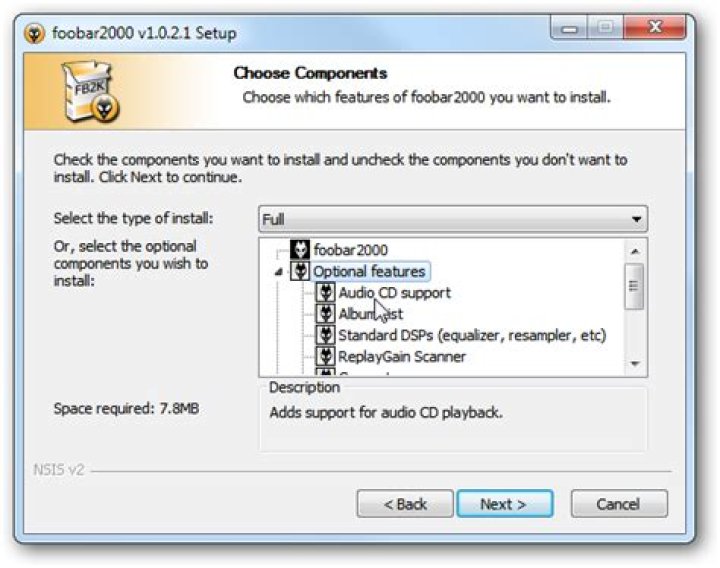
First download and install Foobar2000 (link below). The main thing you’ll want to make sure to enable during the install process is Audio CD Support…
And the freedb Tagger which are located under Optional Features, then continue through the rest of the install wizard.
Next you need to install the latest version of the FLAC codec (link below) following the defaults.
Rip Audio CD
To rip a CD, place it in your CDROM drive, launch Foobar2000 and click File \ Open Audio CD.
Select the appropriate CD drive and click the Rip button.
Next you’ll want to lookup the disc information with freedb…or you can manually enter in the track data if it’s a custom disc.
Select the proper tag information in the freedb tagger window, then click Update files.
The data will be entered in, make sure the radio button next to Go to the Converter Setup dialog is selected, and click the Rip button.
In the Converter Setup screen, here you can select the output format, where in our case we’re selecting FLAC.
In this window you can choose several other options like the output path, merging the tracks into one or individual files…etc. When you have those settings completed click OK.
Next you’ll need to find flac.exe which is located wherever you installed it. On our 64-bit Windows 7 system the default path is C:\Program Files (x86)\FLAC
Now wait while your CD is ripped and converted to FLAC.
You’ll get a Converter Status Report…after you’ve checked it over you can close out of it.
If you set the option to show the output files after conversion you can take a look, make sure all tracks were converted, and play them right away if you want. You can play the tracks in Foobar2000 or any player that supports FLAC. If you want to use WMC or WMP see our article on how to play FLAC files in Windows 7 Media Center or Player.
That’s all there is to it! If you’re a fan of Foobar2000 and enjoy your music converted to FLAC format, Foobar2000 does the job quite well. There are a lot of customizations and tools you can use in Foobar2000 that we’ll be taking a look at in future articles. For more information check out our look at this fully customizable music player.
Foobar2000 run on XP, Vista, and Windows 7
Both are encoded music recordsdata, however the vital distinction is that a FLAC file is lossless, the place no musical information is misplaced in the compression process, while an MP3 file even at the highest bitrate supported by the format (320k) is a lossy compression, where the original file data cannot be reconstructed from the MP3 file. This M4A audio converter converts from over 50 supply formats including MP3 to M4A, WAV to M4A, RAM to M4A, AC3 to M4A, AMR to M4A, OGG to M4A, FLV to M4A and extra. M4A is usually used by Apple gadgets just like the iPod or iPhone.
Burrrn is a bit software for burrrning audio CDs with CD-Text from numerous audio recordsdata. CDA to MP3 Converter helps the next codecs. The opposite program that I will use is ImgBurn however I only suggest that if in case you have a CUE Sheet file and are willing to transform your FLAC files to WAV recordsdata first. Apple fans will admire the choice so as to add converted files directly to iTunes multimedia library. You too can choose a specific playlist.
If your files are accurately ripped, any of the lossless recordsdata will present exactly the same bit stream to the SONOS analog to digital converter or the digital output of a ZP80. CDA to MP3 Converter je nбstroj, kterэ hromadnм pшevбdн vнce neћ 90 audio a video formбtщ do AAC, AIFF, ALAC, CAF, FLAC, M4A, M4B, MP3, MP4, OGG, WAV, WMA a dalљнch formбtщ. Podporuje i DTS Audio CD, a ripovбnн DVD do MP3.
5. Click on again on Rip Settings, go to Audio High quality and choose 256 Kbps or 320 Kbps. You can additionally simply use mp3, and choose VBR -v1 or -v2 for HQ mp3, or -v3, v4, or v5 for lower quality (but smaller) files. Changing CDA recordsdata into any of these forms requires specialised software program. But as you do not wish to use the Freeware software program, it’s possible you’ll use Windows Media Player 12 to tear the CDA information.
If you are used to work with command line, you’ll be able to convert CDA to FLAC immediately from the command line. All required parameters are described in the Assist menu of the program. As you see, Audio Converter presents several ways of converting audio tracks into handy codecs, so each person will discover most comfy for him. Attempt Complete Audio Converter right now and appraise all its benefits.
Keep in mind the CD format is, itself, something that has been transformed from a unique format stored on a tough disk in a studio. The data format is completely different, however the data is an identical. Now you have accomplished all of the settings. Drag your FLAC information onto the application, or click on on the massive software image so as to add files, and cda to flac converter free software full version the conversion will begin instantly.
I commonly get letters from subscribers asking why can’t they only copy these information to their PC slightly than first having to rip them toWAV, MP3 or other music recordsdata. Some music file sorts, including WAV (.wav), AIFF (.aiff), and RA (.r) can’t be uploaded to your library using Music Supervisor or Google Play Music for Chrome. Transfer on a few pages and you’re supplied your alternative of ripping formats: we might suggest FLAC versus any others, and you’ll still be able to write uncooked uncompressed WAV information should you select.
FLAC stands for Free Lossless Audio Codec. As its title suggests, it is a patent-free technique of encoding audio with out high quality losses. FLAC information are sometimes better than MP3s, however one ought to take note of that MP3 is a lossy format, which suggests that some portion of top of the range is misplaced each time you exchange any audio to MP3. With FLAC, it is not the case, and thus it convert cda to flac converter free software full version to flac is doable to encode music into FLAC and have the equal quality, in comparison with the supply Audio CD. That (and patent-freeness) is the explanation why FLAC is changing into an growing number of widespread, and even hardware devices equivalent to media gamers tend in order so as to add help for this format.
All 6 hottest audio formats in the world: MP3, AAC, M4A, OGG, WAV and WMA. Sound Converter is an audio converter app for Linux. it could process any audio (or video) file supported by GStreamer, including the ever present MP3, the more marginal M4A, in addition to movie files like MOV and MP4. Hey I tried to rip some Audio CDs into the looseness flac format.
CD, quick format of Compact Disc, is a digital optical disc data storage format. Convert your audio information to the M4A format with this free online audio converter. The converter makes use of the free Apple Lossless Audio Codec (ALAC) and guarantees high quality. Add a file or provide a URL to a music file and start changing. Optionally select further options to vary the standard of the goal audio. You ma.y also provide a URL to a video to extract the audio of a video to M4A.
Cd-da Extractor more Choose the CDA recordsdata to convert to FLAC format. Step one is to select the audio tracks you need to rip ( ). Run and insert the Audio CD into your CD-ROM drive. The principle window will refresh and display the listing of all tracks finds on the disk. For every monitor document on the checklist, you’ll be able to see its number, length and size.
The tables with software program actions are a superb pointer for what a sure program does with varied file varieties and often may give customers a good trace how one can carry out sure file conversion, for instance the above-mentioned cda to flac. However, it’s not excellent and generally can show results which are not actually usable due to how certain applications work with information and the attainable conversion is thus really not potential at all.
When customers view CD from Home windows Windows CD driver will create a collection of CDA recordsdata. Truly theses CDA files don’t include audio however is a shortcut to the CD tracks. Users will probably be confused once they discover they can not copy these CDA information to laptop, iPhone, iPad, iPod, Android, PSP, Zune, and many others for playback. The rationale for the CDA incompatibility with LAPTOP or other moveable devices is that The CD was created long before the age of PC, iPhone, iPad, Android, PSP, and so on and was created for enjoying on sure CD gamers however not on pc or different devices. So we have to convert CDA to COMPUTER or different devices supported format, comparable to WAV, MP3, etc earlier than copying CDA for taking part in on them.
as to listening purposes, psychologically i like listening to a FLAC, knowing i get each bit delivered to my DAC. but i’ve executed numerous exams between listening to something in FLAC vs 320k MP3 (or latest generation 256k VBR encoder) on what’s pretty revealing tools, converter cda para flac online free and the variations on even very well recorded albums are at greatest minimal. with common recordings utterly undetectable.
I would really recognize a quick word from Someone-Who-Knows to let me know if I’m losing my time and it is really impossble to duplicate the usability of Home windows Media Participant with one thing that may rip to FLAC. If so, then I’ll surrender and just follow MP3 till I’ve ripped my whole collection after which maybe return sooner or later in the future.
I’ve been utilizing file compression and music archiving software since the popular music fireplace sale that came along with file-sharing websites like Napster in the mid-’90s. That phenomenon taught me an essential lesson about the worth of excessive-quality music playback versus having sufficient music on a tool to last by means of retirement. I found myself shopping for CDs despite the fact that I had the identical album in a compressed digital format as a result of I knew the CD would sound better. The technology developments in audio converter software program now afford us the power to extract high-quality audio from CDs or streaming companies, and duplicate these information and convert them to lossy formats, like MP3, to make the information smaller and playable on mobile units.
It can be crucial for audio converter software to work shortly and effectively in addition to to have all kinds of file format options, including lossy and lossless formats. Each music streaming service has a preferred format for streaming and archiving music – sadly, not every service uses the identical format. WAV is an appropriate lossless format for many providers. Nevertheless, relying on the service, that file may be transformed and compressed to a distinct format. MP3 information can be uploaded to all the popular streaming providers, but there isn’t any motive to convert a lossless file format, corresponding to WAV, to MP3 if you don’t have to.
FLAC is one of the lossless audio compression formats supported by many purposes and ideally suitable for high-high quality stereo programs. It is free codec that’s the reason FLAC is rather standard among music fanciers. The issue is that it is reasonably tough to convert CDA into FLAC. The reason being that person needs each CD ripper and audio converter with FLAC help or all-in-one converter that permits to transform CDA to FLAC with out ripping.
To transform audio files that are not saved in an iTunes library, comply with the identical steps as above to set the default import format, maintain the Possibility key (Mac) or Shift key (Home windows), and click on File > Convert > Convert to MP3. Then, select the songs from a folder or drive that accommodates them – iTunes will convert all of the recordsdata and import them.
Convert Audio File To FLAC With Ffmpeg?
Convert Audio And Video To MP3
Convert MP4, MP3, WAV, MOV and m.ore to any format on-line. It also helps to transform video recordsdata like avi, mkv, mpg, wmv, rmvb, flv, vob, etc to iTunes supported mp4 or mov. PowerISO exhibits flac ripper dialog. Enter the output folder, and set the output format to FLAC. The default file name format is ” -flac”, you’ll be able to change it if wanted. Why look for other softwares when the freely accessible Windows Media Player (WMP) can do this job for you. Sure you may convert audio tracks from cda to flac converter freeware to mp3 format using Home windows Media Player which you will discover in Microsoft Windows OS. Comply with these steps talked about beneath to convert cda to mp3 utilizing windows media participant.
Choose “to MP3” and then click Convert to convert CDA files to MP3 format. We could also burn audio CDs utilizing FreeRIP. Because the identify specifies it’s very free. Other helpful features embrace mp3 tag editing, built-in audio participant, file name templates, album art work, superior ripping functions, get cd info and much more. The FLAC decoder codec may not be as much as snuff. For instance, I can hear the difference between Linux audio and Home windows audio. I believe the most important variations are because of the codecs used to decode the recordsdata.
As a result of iTunes M4P is a type of encoded audio file format which is inserted with DRM protection to limit to play M4P information on different players or units like MP3 player. So you probably have M4P recordsdata, particularly the information you bought from 2003-2009, and also you want to convert them to MP3. iTunes DRM Audio Converter is a good selection that can assist you take away the DRM from iTunes M4P recordsdata which you bought before and convert them to MP3 format you want.
With user-friendly interface, MediaHuman Audio Converter attracts many customers. It could actually allow you to to convert FLAC completely free to WMA, MP3, AAC, WAV, OGG, etc. This audio converter also support the batch audio conversion. Either you will have one file or a hundred of them it can take you seconds to set the conversion process. Select the files checking checkboxes or just press Choose All button.
It also highlights a giant failing when converting from CD to “digital”. Should you play a CD you get a steady audio sign, there are particular break factors so you can hit tracks if wanted. Freemake Audio Converter supports a number of widespread audio codecs and is extremely easy to make use of. However, it only helps audio information which might be shorter than three minutes.
Allowing the streaming service to compress and convert your audio recordsdata would not necessarily mean the standard will degrade, however some compression algorithms enhance peak indicators enough that the audio can sound distorted. Whenever you use a trusted program to transform your files to the correct format for every platform, you may hear to each one to get a good suggestion of what it can sound like once it’s revealed.
I may have used a lower bit fee than 320kbps (actually VBR: variable bit charge), and I can not reliably hear the difference between lossless and 196kbps MP3 files. However, utilizing a better bit fee ought to mean that once I buy higher gear — resembling a high-end MP3 player – it won’t expose issues that have been masked earlier than. As you may have discovered, a good quality hello-fi stack and studio monitors can reveal flaws in music files which are inaudible when utilizing a mainstream MP3 participant with headphones or earbuds. This is applicable to CDs as well.
Audio converter cell apps are a lot slower than the most effective packages we tested, and even one of the best crash often. However, if you need to convert an audio file utilizing your phone, these are the most effective options. You’ll be able to convert the tracks to flac utilizing soundconverter after the information have been copied to your pc. The CDA format is somewhat misleading, as it isn’t a file, however slightly a shortcut that Microsoft makes use of to stage to the songs encoded on an audio CD. In apply, House windows Media Participant makes use of the CDA shortcuts and creates recordsdata in your choice of format in case you copy songs to digital information, a process known as ripping.
Click “Convert” button to finish converting CDA to WAV. Can I really convert iTunes M4P files to MP3? You may need tried some ways to convert iTunes information into MP3 from the “protected” M4P recordsdata, but none of them labored effectively. 5. Click on again on Rip Settings, go to Audio High quality and cda to flac converter freeware choose 256 Kbps or 320 Kbps. The audio converter app works perfectly-i finally found a freeware to transform FLAC to Apple lossless and keep the tags.
Change is among the most steady, easy-to-use, and complete multi format audio file converters accessible. To convertcda recordsdata which can be on CD, insert your CD into your CD driver. Then click Rip CD” tab in Audio Converter Pro and click on Add CD” button to load CDA information. Highest high quality SoX Pattern Charge Converter is used to carry out the audio resampling.
Online music converter Convert your music to the Free Lossless Audio Codec (FLAC) audio format. Music on a CD is stored in an uncompressed format. This means that whereas the sound quality of a CD could be very high, a considerable amount of space for storing is required for only a few tracks. A 700MB CD can retailer solely 80 minutes of uncompressed music, and copying uncompressed music to your laptop’s laborious drive will take up an excessive amount of storage capacity.
It is crucial for audio converter software program to work shortly and efficiently in addition to to have a wide variety of file format choices, including lossy and lossless formats. Every music streaming service has a most popular format for streaming and archiving music – unfortunately, not every service makes use of the identical format. WAV is an acceptable lossless format for most companies. Nevertheless, relying on the service, that file might be converted and compressed to a special format. MP3 recordsdata will be uploaded to all the favored streaming providers, but there is no cause to convert a lossless file format, comparable to WAV, to MP3 if you don’t have to.
Whenever you use Home windows or other Mac audio playback software to listening of ripped files, you’ve many options that have no issues with metadata for WAV, FLAC, AIFF, ALAC. This part gives instructions on how you can allow support for audio formats not installed by default in Ubuntu. The process of changing CDA recordsdata is often known as “ripping.” CDA information might be converted to quite a lot of codecs, including WAV, MP3, WMA, OGG, and FLAC. Of these, the MP3 format has change into the standard in audio playback.
Convert Any Video to Over one thousand Formats. Supported Input Codecs: AC3, AAC, AMR, CAF, DTS, MP2, MP3, convert cda to flac online OPUS, RA, TTA, WAV, WV, WMA, M4B, M4A, FLAC. Download and install Leawo Music Recorder. Now let’s learn to convert CDA to WAV. A: The CDA to FLAC Converter obtain for COMPUTER works on most current Windows operating methods. You can convert one supply FLAC file into several formats simultaneously for different usage.
From Rel. three.2 FreeRIP Pro can make the most of the multi core structure of newer PCs, spawning as many parallel file conversion duties as the available CPUs. This means that converting, as an example, 20 FLAC information to MP3 on twin core machine would take roughly half the time it will be needed on a single core machine with the identical clock velocity.
Click on the “Add Recordsdata” button within the open FLAC program window (on the upper right aspect) and navigate to the folder where you saved the FLAC recordsdata. Spotlight them and click “Open.” The selected files will now seem within the Recordsdata window of this system window. Most audio converters extract just one soundtrack from movies. Nevertheless, if you want to extract multiple audio tracks from a video, it’s important to discover special software. To MP3 Converter Free is an ideal option in such case – it extracts every audio file from a film.
Convert music files to the common MP3 format for your COMPUTER, Mac, cell phone, pill, or any MP3 player. Get MP3 sound of top quality, as much as 320 KBps. The output MP3 songs will be appropriate with any machine: iPhone, iPad, Zune, Samsung Galaxy, Nokia, HTC Need, SanDisk Sansa, Walkman, Huawei, Xiaomi, Honor, and many others. After loading a number of audio information to , you just need to decide on one of the output codecs from beneath. When the file is ready to be downloaded, use the small obtain button to save it to your computer.
To transform CDA to lossless audio FLAC, WMA lossless, click Profile” drop-down button and select FLAC or WMA Lossless from General Audio” class. With this new function chances are you’ll “Load art work” and “Save paintings” for all of your mp3 recordsdata. Solely bmp, jpg and png photos are allowed to be loaded as paintings, but you can use saved artworks to your player, your smarphone or ipod.
Some newer players, can play each cd audio and mp3 information, but I don’t know of any that will play FLAC files (though I assume there are some that may). iTunes, by default, saves songs imported from CDs in the AAC format. To alter the default to MP3, open the Preferences Window (Edit->Preferences) and click the Import Settings button. Bigasoft supplies audio converter software for batch changing FLAC to OGG format and keep metadata. Play FLAC music with OGG participant simply.
I have been utilizing file compression and music archiving software program since the in style music fire sale that came together with file-sharing websites like Napster within the mid-’90s. That phenomenon taught me an essential lesson in regards to the value of excessive-high quality music playback versus having enough music on a tool to last by retirement. I found myself buying CDs regardless that I had the identical album in a compressed digital format as a result of I knew the CD would sound higher. The know-how developments in audio converter software now afford us the ability to extract high-high quality audio from CDs or streaming providers, and duplicate these recordsdata and convert them to lossy codecs, like MP3, to make the information smaller and playable on cellular gadgets.
MP3s are convenient, but no matter how high the bit rate, they’re still lossy music files. We’ll show you how to rip your music CDs to FLAC files, which are superior in sound quality.
Ed Rhee, a freelance writer based in the San Francisco Bay Area, is an IT veteran turned stay-at-home-dad of two girls. He focuses on Android devices and applications while maintaining a review blog at techdadreview.com.
MP3s are very convenient and supported by many devices from portables to car audio systems. But no matter how high the bit rate of an MP3 file, it’s still a lossy format, meaning some of the sound quality is lost during the conversion from a CD.
FLAC is a lossless audio codec that doesn’t lose any sound quality during conversion, but is much bigger in size than MP3 files. It’s also not as widely supported in devices as compared with MP3s, but there are many more of them than just a few years ago. If sound quality is your highest priority, then converting CDs to a lossless codec like FLAC might be worth considering.
FLAC is available for Linux, Mac OS X, and Windows. This tutorial will go over how to rip your music CDs to FLAC files in Windows.
Installation
Step 1: Download and install Exact Audio Copy, which includes the FLAC codec. You’ll need to have an audio CD in your optical drive in order for EAC to configure the drive for use.
Step 2: When you get to the components to install, make sure that FLAC is checked.
Screenshot by Ed Rhee/CNET
Step 3: At the encoder selection section, change the encoder from MP3 files to FLAC and click Next.
Step 4: Make sure to enter your e-mail address when you’re prompted, so you can use the freedb CD database. Once the installation completes, allow EAC to run the AccurateRip test.
Rip and encode your CD to FLAC
Step 1: After you’ve inserted an audio CD into your optical drive, look up your CD in the freedb database so you don’t have to enter the album and track details manually. Go to Database > Get CD Information From > Remote Metadata Provider, or use the shortcut Alt-G. When prompted, add the album cover and lyrics.
Step 2: Click on the CMP icon on the left-hand side to begin copying the tracks to compressed (FLAC) files.
Screenshot by Ed Rhee/CNET
Step 3: Select a destination folder, then wait for the rip to complete.
Click to enlarge. Screenshot by Ed Rhee/CNET
Listen to your FLAC files
By default, your PC won’t know how to play the FLAC files, so you’ll need a compatible media player. A few media players worth taking a look at are foobar2000, Winamp, VLC, and Songbird.
foobar2000 is an excellent media player and supports FLAC. Screenshot by Ed Rhee/CNET
As far as portable players go, many current players by Cowon, Philips, and Sandisk support FLAC files. Sadly, iPods don’t support FLAC, because Apple uses its own lossless codec. Check out CNET’s MP3 player reviews for more.
That’s it. Now you can listen to your music in the highest sound quality possible. Enjoy!
Solution 1 – Convert CDA to FLAC Using Exact Audio Copy
Exact Audio Copy (well-known as EAC) is an acclaimed Windows-based CD ripping program, which is free for non-commercial use. With this application installed, you’re able to rip an audio CD and convert all CDA files to FLAC songs directly.
Step 1. Download Exact Audio Copy from official website:
Step 2. Insert an audio CD to CD/DVD drive. Run Exact Audio Copy Setup, make sure you mark “FLAC” component before completing the installation.
Step 3. Launch Exact Audio Copy, you’ll be guided through the EAC Configuration Wizard. If not, click “EAC” button on top menu bar and select “Configuration Wizard” option.
Step 4. Follow the instructions to proceed, select “FLAC (around 6 MB/minute)” option under “Encoder Selection” window. Then finish the configuration.
Step 5. EAC will automatically get CD metadata information from FreeDB. Click “EAC” button and select “Compression Options“. Go to “External Compression” tab, all preparation work of CDA to FLAC conversion will be ready if you’ve walked through “Configuration Wizard“.
Step 6. Finally, press “CMP” button on the left sidebar, select an output folder to save the converted songs, then start the CDA to FLAC conversion.
Free Music Downloader & Editor & Converter
Free HD Video Converter Factory is a free and reliable application that allows you to download songs/albums/tracks/mixtapes/audiobooks/podcasts from YouTube, Vimeo, Soundcloud, Mixcloud and 300+ popular websites. For a large music collection in different audio formats, it even helps trim/merge music files and convert to MP3, WAV, FLAC, ALAC, OGG or other popular audio format without any difficulty.
Free Download
Compatible with Windows
100% Clean & Safe
Free Download
Compatible with Windows
100% Clean & Safe
Solution 2 – Convert CDA to FLAC Using Windows Media Player
More than a common media player, Windows Media Player can also serve as a CD ripper that allows you to convert CDA files to FLAC. Just follow the simple steps below.
Step 1. Insert an audio CD to CD-ROM. Launch Windows Media Player and switch to Library Mode.
Step 2. Select CD drive on the left side, Windows Media Player will display and mark all tracks in the audio CD.
Step 3. Click “Organize” button on the menu bar, and open “Options” window.
Step 4. Navigate to “Rip Music” tab, change the ripped music location and file name. Select “FLAC (Lossless)” option in the drop-down list of “Format“. Then click OK.
Step 5. Finally, press “Rip CD” button on the menu bar to convert CDA files to FLAC songs.
Solution 3 – Convert CDA to FLAC Using Foobar2000
Foobar2000 is an advanced freeware audio player for the Windows, which also supports ripping audio CDs as well as transcoding all supported audio formats with additional components installed.
Step 1. Download and install Foobar2000 and Free Encoder Pack respectively via the links below.
Step 2. Run Foobar2000, click “File” menu and select “Open audio CD” option. Choose your CD drive and press “Rip” button. Foobar2000 will automatically get album information from MusicBrainz or FreeDB. Then hit “Proceed to the Converter Setup dialog” button.
Step 3. Click “Output format” link and select FLAC, specify a destination to store the converted files.
Step 4. Lastly, click “Convert” button to start CDA to FLAC ripping process.
Final Words.
Let me sum it up, as mentioned, CDA files are not the real songs, and won’t play solely when you copy those files to local drive. The CD disc must be in the CD-ROM drive for the shortcuts to work correctly. And there is no so-called online CDA to FLAC converter. The entire workflow of CDA to FLAC is the same as ripping CD to FLAC, meanwhile, you’re able to convert CDA to WAV or any other audio format with the same procedure. Hope I make the steps crystal clear. Thanks for your reading.
WonderFox DVD Ripper Pro
WonderFox DVD Ripper Pro would be the best assistant that can help digitize your tons of homemade/recorded/commercial DVDs to MP3, WAV, FLAC, ALAC and other popular audio formats for convenient playback. Only 3 steps: Load DVD > select MP3 format (or other common format) > start to digitize DVD to music files.
WV to FLAC Conversion Software program converts WV info to FLAC and retains ID3 converter gives many useful options. Click on the Convert or Convert All button to start changing your audio files to another audio format. A progress bar might be proven in the course of the converting course of. When the conversion is done, you may click the foldr-like icon in the backside to fetch the transformed audio files. Converting WV information to MP3, WAV, FLAC, APE., WMA, OGG, AC3, and AIFF to play WV files on Home windows eight and Mac OS X is just that straightforward. Free obtain WV Converter to start having fun with it right now.
I used it to transform back a sound that grip transformed from wav to flac and purchased precisely the identical file as the original wav. In the Converter Setup show, here you presumably can select the output format, the place in our case we’re deciding on FLAC. Pour moi les ficher FLAC sont le seule customary valable dans mon univers musicale. The audio converter app works utterly-i lastly found a freeware to remodel FLAC to Apple lossless and preserve the tags.
I additionally feel that approach, although I’m perfectly conscious that they deliver the very same high quality. Not getting the WAV file makes me feel that something is lacking, convert wmv to wav file which the truth is is essentially untrue if in actuality, I’ll only be lacking one thing that’s not there and something that no one in this world would be capable to hear: even the bats.
iDealshare VideoGo , the ideal WV Converter, can fast and batch convert WavPackwv to almost all widespread audio format on Mac or Windows. It may possibly convert WV files to lossless audio format like convert WV to WAV, FLAC, APE, and Apple Lossless ALAC M4A. It additionally supports converting WV to lossy audio format like convert WV to MP3, AC3, WMA, AIFF, AU, RA, MP2, AAC, DTS and etc.
Wave Splitter – This tiny, extremely environment friendly and moveable program provides another way to cut wav recordsdata. Since it does not devour any RAM, WaveSplitter ought to be notably helpful on less powerful computers. The final model of this little freeware gem dates again to 2000, nevertheless it appears to work simply fantastic even on latest platforms.
To edit WV in video editing software program program House windows Film Maker, Sony Vegas, iMovie, Last Reduce, Audacity, converting WV to MP3 with WV Converter is a reasonably good method. Half 1. Most interesting 5 FLAC Converter. FLAC, brief for Free Lossless Audio Codec, is a kind of lossless audio format, which suggests it supplies the identical prime quality as the unique audio file.
Although WavePack lossless audio format is somewhat unusual, there exist loads of audio conversion packages that can decompress it back to authentic WAV from which they had been made. Some good program selections are listed under. This text will introduce an exquisite CUE Splitter and a detailed tutorial on the right way to split FLAC, MP3, APE, WAV, DTS, WMA, OGG, and so on accompanied with CUE file on Mac and Home windows.
To FLAC Converter supports full tags transfer from source recordsdata to output FLAC files. You also can enjoy better-organised music due to loading lacking FLAC tags from on-line databases or native folders and file names. How can I use VLC to convert media? as an illustration WAV to MP3. This WV to MP3 Converter can be a WV editor which may help split WV audio into a number of audio tracks; lower or increase WV audio quantity; change audio codec, sample fee and audio channel; be part of several WV audio information into one and so forth.
– Help to save lots of APE audio tag while audio conversion. Hey! The software program is superior. It took me so long to search out an audio converter that wasnt crammed stuffed with useless, superfluous options that I could not attainable care about. After that, go to the format tray then click on “Audio” possibility to select “WAV” as Output format. No, installing Winamp Plugin in MM plugins folder will permit you to play and add WV tracks to MM library like all different recordsdata however there’ll no Full Tagging assist due the dearth of MM tagging Plugin.
Additionally, Zamzar’s conversion time is slow when in comparison with different on-line audio converter providers. Softonic Editor: Complete Audio Converter is a straightforward-to-use instrument conversion software with assist for a bunch of formats and talent to rip audio CDs. Media Human Audio Converter is nothing however a easy converting instrument with out advanced choices or confusing interfaces. If you’re expecting a easy online instrument for conversion, then this program is really useful for easy conversions.
Foobar2000 là một trình phát âm thanh tuyệt vời có thể tùy chỉnh hoàn toàn, nhẹ về tài nguyên hệ thống và chứa rất nhiều công cụ và tính năng. Hôm nay chúng tôi chỉ cho bạn cách sử dụng nó để trích xuất CD âm thanh sang định dạng FLAC.
Lưu ý: Đối với hướng dẫn này, chúng tôi sẽ cho rằng đây là lần đầu tiên bạn trích xuất đĩa bằng Foobar2000. Chúng tôi đang chạy nó trên Windows 7 Ultimate 64-bit.
Cài đặt Foobar2000 và FLAC
Đầu tiên tải xuống và cài đặt Foobar2000 (đường dẫn phía dưới). Điều chính bạn sẽ muốn đảm bảo kích hoạt trong quá trình cài đặt là Hỗ trợ CD âm thanhGiáo dục
Và Tagger tự do được đặt trong Tính năng tùy chọn, sau đó tiếp tục qua phần còn lại của trình hướng dẫn cài đặt.
Tiếp theo, bạn cần cài đặt phiên bản mới nhất của codec FLAC (đường dẫn phía dưới) theo mặc định.
Rip CD
Để trích xuất CD, hãy đặt nó vào ổ đĩa CDROM của bạn, khởi chạy Foobar2000 và nhấp vào Tệp \ Mở CD Âm thanh.
Chọn ổ đĩa CD thích hợp và nhấp vào nút Rip.
Tiếp theo, bạn sẽ muốn tra cứu thông tin đĩa bằng freedb, hoặc bạn có thể nhập thủ công dữ liệu theo dõi nếu đó là đĩa tùy chỉnh.
Chọn thông tin thẻ thích hợp trong cửa sổ thẻ tự do, sau đó bấm Cập nhật tệp.
Dữ liệu sẽ được nhập vào, đảm bảo nút radio bên cạnh Chuyển đến hộp thoại Cài đặt chuyển đổi được chọn và nhấp vào nút Rip.
Trong màn hình Cài đặt chuyển đổi, tại đây bạn có thể chọn định dạng đầu ra, trong trường hợp của chúng tôi, chúng tôi đang chọn FLAC.
Trong cửa sổ này, bạn có thể chọn một số tùy chọn khác như đường dẫn đầu ra, hợp nhất các bản nhạc thành một hoặc các tệp riêng lẻ, v.v. Khi bạn đã hoàn tất các cài đặt đó, nhấp vào OK.
Tiếp theo bạn sẽ cần tìm flac.exe được đặt ở bất cứ nơi nào bạn cài đặt nó. Trên hệ thống Windows 7 64 bit của chúng tôi, đường dẫn mặc định là C: \ Program Files (x86) \ FLAC
Bây giờ hãy đợi trong khi CD của bạn được trích xuất và chuyển đổi thành FLAC.
Bạn sẽ nhận được Báo cáo trạng thái chuyển đổi, sau khi bạn kiểm tra xong, bạn có thể thoát khỏi nó.
Nếu bạn đặt tùy chọn hiển thị các tệp đầu ra sau khi chuyển đổi, bạn có thể xem, đảm bảo tất cả các bản nhạc đã được chuyển đổi và phát chúng ngay nếu bạn muốn. Bạn có thể phát các bản nhạc trong Foobar2000 hoặc bất kỳ trình phát nào hỗ trợ FLAC. Nếu bạn muốn sử dụng WMC hoặc WMP, hãy xem bài viết của chúng tôi về cách phát tệp FLAC trong Windows 7 Media Center hoặc Player.
Thats tất cả để có nó! Nếu bạn là người hâm mộ Foobar2000 và thưởng thức âm nhạc của bạn được chuyển đổi sang định dạng FLAC, Foobar2000 thực hiện công việc khá tốt. Có rất nhiều tùy chỉnh và công cụ bạn có thể sử dụng trong Foobar2000 mà chúng ta sẽ xem xét trong các bài viết trong tương lai. Để biết thêm thông tin, hãy xem cái nhìn của chúng tôi về trình phát nhạc hoàn toàn tùy biến này.
Foobar2000 chạy trên XP, Vista và Windows 7
by Vita
Updated on May 17, 2022
In this article, I will show you how to rip CD to FLAC file with the EAC FLAC ripper. So you can store the treasured tracks on hard drive and also listen to your favorite music on mobile devices.
As an audiophile, you must have a lot of CD collections, but it’s always a headache to keep the original disc content safe. Inevitably, CD discs can suffer from dust, stains and scratches in the process of usage. Even if you seldom play some CD discs, improper preservation can also cause data corruption. Similar to scratched DVDs that can cause blurred screen and even playback failure, a damaged CD disc always results in poor sound quality, jitter and so forth. So it’s advisable to convert CD to a lossless audio format for CD duplication. Among all the lossless audio formats, FLAC is highly considered for its fast encoding speed, good error robustness and good compatibility. Therefore, many people choose to rip CD to FLAC with a FLAC CD ripper.
Tool Recommended: The DVD Movies Ripper
Want to back up your DVD collections, as well? Here is the best DVD ripper – WonderFox DVD Ripper Pro. It enables you to bypass any copy protections and convert DVD movies to ISO image and digital files like MP4, AVI, MKV, MOV, etc. Clean, lightning-fast and easy to use.
Exact Audio Copy – An Excellent Solution for CD to FLAC Conversion
There is no doubt that a good FLAC CD ripper is a must-have. EAC (Exact Audio Copy), a useful CD ripper freeware, is popular with audiophiles. It’s simple and light. Different from most other audio grabbers, EAV has powerful error correction capability, which benefits from its mature technologies like multi-reading with verify and AccurateRip. What’s more, if there are uncorrectable errors the software reports the error location. Follow the guide for EAC FLAC, namely Exact Audio Copy FLAC processing.
How to Rip CD to FLAC with EAC
Step 1. Install the latest EAC:
Step 2. During setup, please tick the FLAC encoder.
Step 3. Launch EAC and insert a CD disc into the DVD-ROM drive of your computer. If the EAC Setup window pops up, click on the Cancel button.
Step 4. Click on the EAC menu on the top left corner and select “Compression Options”.
Step 5. Go to the “External Compression” section and tick the “Use external program for compression” option.
Step 6. Open the “Parameter Passing Scheme” drop-list and select “User Defined Encoder”. Then change the “Use file extension” as .flac.
Step 7. For EAC FLAC ripping, you also need to click on the Browse button and select the flac.exe under the installation directory of Exact Audio Copy.
Step 8. Copy and paste the code to the “Additional command line options” box: -T “artist=%artist%” -T “title=%title%” -T “album=%albumtitle%” -T “date=%year%” -T “tracknumber=%tracknr%” -T “genre=%genre%” -5 %source%
Step 9. Uncheck “Use CRC check” and “Add ID3 tag”. Mark “Check for external programs return code”. Then click OK.
Step 10. Step 10. Click on the CMP icon on the right and specify the output folder. Finally, click on Ok to rip CD to FLAC.
Have you got the idea of how to rip a CD with EAC? Generally, EAC is easy to operate for new users as FLAC CD ripper, but if you’re versed in audio parameters and encodings, you can check the link to adjust the settings manually for better output quality:
Since we can easily rip CD to FLAC with the EAC FLAC ripper, a high-quality media player is necessary for playing the FLAC files. Foobar2000, Winamp and VLC are good options. Especially, Foorbar 2000 supports components installation to play all kinds of files. Besides converting CD files to FLAC, many people also want to know how to copy a DVD to digital files. Therefore, You can also install the program below and follow the tutorial to learn how to digitize DVD movies>> Back Up DVD Collection and Play DVD Movies on Mobile Devices Easily.
WonderFox DVD Ripper Pro
A professional DVD ripper offers the quick and easy method to digitize your DVD movies. It supports DVD disc, ISO image as well as DVD folder inputs and 1:1 quick copy DVD to ISO flawlessly. Moreover, you can use it to convert DVD to video files, extract audio from DVD and rip DVD with forced subtitles only.
Rip your CDs with these free programs
:max_bytes(150000):strip_icc()/WorkBadgePhoto-61c0b98ef5a74e4a85851a8f706dbd65.jpg "How to rip an audio cd to flac with foobar2000")
- Tweet
- Share
- Tweet
- Share
Stand-alone CD rippers are useful when you have a large collection of CDs that you want to rip. They’re also helpful when the media player you use doesn’t come with a built-in CD ripper.
These dedicated audio CD extraction programs typically have more features than the options built into popular media players such as Windows Media Player.
Extreme Accuracy and Stability: Exact Audio Copy
Tests CD drive for accuracy and reliability.
Adds song lyrics.
Feature-rich in CD ripping options.
Website to download program is cluttered and confusing.
Enter email address to get song and album information.
EAC—Exact Audio Copy—is valued for its accuracy. The free Windows program reads every CD sector at least two times to verify correct data copying. Then it compares the copy to the original CD until at least eight of 16 tries produce identical results. After that, it reads troublesome sections of the CD, such as scratched areas, repeatedly up to 80 times.
EAC’s accuracy comes at the cost of speed, but if accuracy is important to you, a minute or more extra time isn’t a problem. On the other hand, EAC isn’t the most user-friendly CD ripping software program, and it doesn’t apply its own codec. It also doesn’t pull the album metadata from the database until you tell it to do so.
Despite these shortcomings, free EAC is probably the best and most powerful ripping tool available.
How To Use Foobar2000 To Convert Audio Information
Convert WMA To MP3 On A Mac For Free
Convert MP4, MP3, WAV, MOV and extra to any format on-line. CUETools can learn of a data track’s existe.nce on the unique CD by info in thecue sheet orlog file. Thecue sheet probably won’t have the needed length information as a result of the info monitor is the final monitor and doubtless is not within the rip (audio CD rippers typically do not rip knowledge tracks at all). Nonetheless, you probably have an EAC log made by a latest version of EAC, CUETools can get the information track size from it. For this to work, thelog file should have the identical title as thecue file, however ending inlog as an alternative ofcue, of course. Or, if you don’t have alog file, but yourcue sheet contains the disc’s unique freedb DISCID (like allcue sheets made by current EAC variations), CUETools can decide a attainable vary for the info monitor length. You’ll be able to try to enter 75 different values in that range manually to search out an exact length.
WavPack-Software (wav wv) (version 1.zero.1) is obtainable for download from our website. Just click on the green Download button above to start. Until now this system was downloaded 5 instances. We already checked that the download link to be protected, nevertheless in your own safety we recommend that you just scan the downloaded software with your antivirus.
Here you instruct fmedia to convert your WAVE file into each of those audio formats with their particular encoding settings. In fact, you may change these settings or wv wav converter free download full version attempt different audio formats. Choose a number of WV files you need to convert after which click Open. Navigate to your WAV file that you want to convert to MP3 and press the Open button.
Stephen Sales space’s free Max 0.8.1 ( Max 0.7.1 , ), goes a bit further, converting information immediately into any QuickTime-supported file format (AAC, MP3, or Apple Lossless, for example), saving you the additional step. It might probably convert to and from many codecs, letting you deal with almost any audio information you encounter. You may as well use it to rip CDs, to tag information, and extra.
audio-convert is a bash script that calls Zenity to interact with the consumer through GTK dialogs. The script is a bit chatty by default, opening up many windows in succession to ask questions. Some of these home windows both don’t have default options (like the audio format to encode into) or have defaults that are the other of what you probably want. You possibly can handle each of those issues fairly easily as shown under.
WV to FLAC Converter supports most typically used popular enter and output audio formats. The Best aac to wav acquire continue learning this: convert aac to wav doable design aac to wav converter embrace Most definitely you may be utilizing a compressed or uncompressed lossless format like PCM Audio, WAV, AIFF, FLAC, ALAC, or APE. For many who care the usual of the output audio, converting FLAC to Apple Lossless audio is really useful.
Finally, it is best to select the output format and audio quality. Within the WAV dialog box, choose the format settings for the final WAV recordsdata. Relying on quality you want, select the bitrate of the file, pattern rate and the variety of channels. You will probably lose some audio content should you choose the mono option. You’ll be able to choose what sample price you want to use. 44.1 kHz (or 44100 Hz) is the sample price used by audio CDs. Less than that and you’ll start to hear the loss in high quality.
Simply load up the audio recordsdata you wish to convert (both by file or folder), or enter the URL for an internet file, select the Formats tab to pick out an output format, and click Begin conversion to convert the information. Merge MP3 – A strong contender for best free joiner primarily based on its capability to merge mp3 information very rapidly without the need to re-encode.
Finally, if you happen to own the aforementioned Toast 9, you should utilize it to convert the FLAC or Ogg Vorbis files it supports. Launch Toast and click on on the Convert button in the toolbar (the last of the 5 buttons). Then click on on Audio Files choice underneath the Convert heading, then drag the files you want to convert into the primary window. Click on on the large purple button at the bottom of the window, and then select a file format within the dialog field that appears. Click on on Choices to select bit rate and different settings, then select a folder where you need to save the transformed files and click on Select (Toast will save these preferences for the next time you convert recordsdata).
Convert your audio like music to the WAV format with this free online WAV converter. Add your audio file and the conversion will start instantly. It’s also doable to extract the audio observe of a file to WAV in case you upload a video. It’s simple to transform to Mp3, wav, wma, flac, ogg and further with this #1 rated audio file converter. Convert a single audio file, a playlist or a large batch of information.
Hi-res is a gimmick. The only thing that matters is the recording and master. Different formats and higher resolution of files have no audible benefit whatsoever.
Read this:
CDs are 16-bit / 44.1 kHz. Ripping them to higher res only fills the files up with empty space, making them bigger, but not sounding any different. Just rip normally and don’t worry about it. I use dBpoweramp. Exact Audio Copy is good as well. Or you could just use whatever, like foobar2000, iTunes, etc.
Oh wait. Your CDs are already ripped to lossless? Then you don’t need to rip them again.
Also, 256 kbps AAC is indistinguishable from lossless. You could convert your files to that for portable use.
GarySeven
New Head-Fier
I was going to state up front that I didn’t want any arguments about formats. I probably should have. I’ve done all the research, read all papers and will be ripping at 96/24. I could argue the point, but I’m not interested.
I’m not trying to be difficult. I’m just looking for recommendations about which software is best to get me where I’ve chosen to go.
All due respect, of course.
Music Alchemist
Pokémon trainer of headphones
bgentry
100+ Head-Fier
“Format” is ok to not argue about. You want to use FLAC. Awesome. You want lossless files, which is also awesome.
But you say you want to rip CDs to 24/96. That’s a problem. Why? Because there are only 16 bits per sample, sampled at 44.1kHz on a CD! There is no other data there. You can’t create data from nothing. So all you would be doing is inserting a bunch of ZEROS into the bottom 8 bits. Then you’d be resampling all of the 44100 samples per second into 96000 samples per second. That’s a bigger problem. Because resampling can introduce problems of it’s own because THERE IS NO DATA to put in those other samples. It has to be interpolated.
Stick to 16/44.1, lossless as FLAC. You’ll be a really happy guy with that setup. Then if you really want to, you can experiment with a player that upsamples to 96kHz. If you really want to.
m-i-c-k-e-y
Headphoneus Supremus
I prefer EZ CD Audio Converter to EAC. It has more or less the same error correction capabilities (drive offsets, crc check etc.) with more options (drive pre spin-up, cover/metadata search) and ease.
Using it for more than a decade now.
GarySeven
New Head-Fier
Funny, I didn’t find EZ CD during my searches. Very nice. The layout, options and interface are well done. Whoa, the rip of a 17 song CD was the fastest I’ve seen. Thank you!
To the other points about 24 bit rips, I will also be ripping in source formats, to preserve the original audio. I get the point about 16 to 24 bit ripping, but I have songs where the dynamic range sounds better to my ears at 24-bit, such as some of the live recordings I’ve tested with. Whether it’s due to the introduction of noise, or spreading the audio across a larger word length and dynamic range is beyond me, but they sound different.
One question I forgot to ask was about compression.
Is there any reason to rip loss-less files uncompressed, or is the final quality the same at compression levels of 5-6?
Music Alchemist
Pokémon trainer of headphones
To the other points about 24 bit rips, I will also be ripping in source formats, to preserve the original audio. I get the point about 16 to 24 bit ripping, but I have songs where the dynamic range sounds better to my ears at 24-bit, such as some of the live recordings I’ve tested with. Whether it’s due to the introduction of noise, or spreading the audio across a larger word length and dynamic range is beyond me, but they sound different.
One question I forgot to ask was about compression.
Is there any reason to rip loss-less files uncompressed, or is the final quality the same at compression levels of 5-6?
Describe this test with 24-bit in more detail. Because if you just downloaded a 24-bit file, chances are it was just a different master. To compare the formats, you have to isolate the variables. In this case, you would need to simply convert the 24-bit to 16-bit. I have done every test you can imagine. There is absolutely no audible difference, I can assure you. 16-bit is capable of more than all the dynamic range human ears can hear. 24-bit just adds more dynamic range, but there’s nothing more to add in terms of anything we can hear.
Lossless is lossless. It works like a Zip archive. There is no loss of data no matter how many times you compress or uncompress it. (As long as you don’t convert to lossy.)
Roseval
1000+ Head-Fier
It is. FLAC’s “compression” level is a permanent source of confusion.
All it says is the amount of resources the PC might spend on finding the best possible lossless compression.
In the past an issue. Today any decent CPU can do the job.
Others already pointed out that ripping to 96/24 is not a good idea.
Hi-res is about recordings made with a bit depth of 24 and a sample rate > 44.1
If you rip a CD to 96/24 you don’t get hi-res, you do get up-sampling.
Ripping a CD to 96/24 is a bit like converting MP3 to FLAC.
People read on the forums that FLAC is better than MP3 hence they start to convert.
What they don’t realize is that what is lost in the lossy compression to MP3 won’t be recovered when you convert it to a lossless format.
GarySeven
New Head-Fier
Describe this test with 24-bit in more detail. Because if you just downloaded a 24-bit file, chances are it was just a different master. To compare the formats, you have to isolate the variables. In this case, you would need to simply convert the 24-bit to 16-bit. I have done every test you can imagine. There is absolutely no audible difference, I can assure you. 16-bit is capable of more than all the dynamic range human ears can hear. 24-bit just adds more dynamic range, but there’s nothing more to add in terms of anything we can hear.
Lossless is lossless. It works like a Zip archive. There is no loss of data no matter how many times you compress or uncompress it. (As long as you don’t convert to lossy.)
I ripped J. Geils Blow Your Face Out at both 44/16 and 96/24 with dBpoweramp and EZ CD. Didn’t notice any difference in sound between the rippers, but in both 96/24 files I can hear Pete’s voice more prominently on Where Did Our Love Go at the 40-60 second mark. For grins I compared wave forms and there were subtle differences between them. I don’t disagree that there should be no difference, so I think it’s just an artifact of up-sampling.
Doesn’t matter. I’m going to follow everyone’s advice and rip my whole collection using the original source rates. I came hear for advice, so after listening and researching further I’m not going to ignore good direction.
Recently, I started ripping my CD Collection to WAV files using Foobar2000. So far I have ripped more than 10 CDs. You can go to the following link to download Forbar2000 for free:
You can rip your CD to FLAC which occupies less storage space, but I choose WAV which is an exact digital form of your CD. The site will tell you what to do to rip a CD. If you want to rip into FLAC, you can also download the necessary FLAC codecs from the site.
You can lookup the disc information with freedb by clicking the Lookup button in the “Rip Audio CD” display and click Update files. If, however, no disc information is available from internet, you can manually enter the track data. Highlight the track you want to enter data, right click and then enter your manual data.
After updating the files with the track information, click Convert button to “Go to the Converter Setup” dialog. There, you can select the WAV or other format, and the output path (where you want to store the ripped files). Click OK after you have completed those settings. You will get a Converter Status Report telling you how many files have been ripped, and any minor problems. Now the ripping is complete.
Normally, after ripping each CD, I will set up a playlist that contain all the tracks on the CD and name the playlist as the CD album name. In this way, I have a duplicate CD in WAV (or FLAC, if that is your option) format. You can always set up another playlist later consisting of different tracks from different albums.
To create a playlist, go to File, select New Playlist. To change the playlist name, Right click and key in the name you want (you can even enter Chinese characters if you select Chinese language at the Windows option bar). Then you go to Library, select Album List, and a list of albums with the converted folders/files will be displayed. You can open up each album to see what files or tracks are inside. If you want the whole album, click, drag and drop it in the window. If you want only a track, open up the folder, select and drag the track. After you are satisfied, go to File and select Save Playlist. Key in the playlist name and save. You can play the playlist by going to Play if the playlist is displayed. If not, you can go to File and select Load Playlist. Then your playlists will be displayed, and you can select and open the particular playlist.
The default player will be your computer speaker. If you have Bluetooth speakers or Bluetooth receiver connected to your amplifier, go to Windows Setting, select Devices and make sure the Bluetooth device is paired to the PC. Then you need to connect the device by going to Control Panel, select Hardware and Sound, go to Sound and click Manage Audio Devices. A list of Audio Devices will be displayed, select the device you want, Right click and select Connect. Now go back to Foobar2000 and select Play to play the playlist.
For those who want better sound and don’t want to use the Windows built-in Realtek DAC, you may want to buy an asynchronous USB DAC Decoder to connect through the USB port to the computer and the RCA Input of your amplifier. In this way, you will have better audio sound. I bought a Breeze Audio SU1 USB DAC Decoder from a China supplier through Alibaba. I found the sound of the music playing through the USB DAC Decoder to be as good if not better than playing the original CDs on the CD player. One point to note when buying DAC or audio products from internet website, you must really know the specification of what you want. For people who are not knowledgeable on audio product terminology, please try to communicate and make known what you really want to the supplier. For instance, Coaxial cable is not the same as RCA cable although they could look alike.
- Tipy
- Blog
- Jak
- Okna
- Telefon
- Hlavní
- Jak
- Jak rozdělit audio CD na FLAC s Foobar2000
Foobar2000 je skvělý zvukový přehrávač, který je plně přizpůsobitelný, je světlo na systémových zdrojích a obsahuje spoustu nástrojů a funkcí. Dnes vám ukážeme, jak jej použít k přetahování audio CD do formátu FLAC.
Poznámka: Pro tento tutoriál předpokládáme, že je to poprvé, kdy vykopáváte disk Foobar2000. Spouštíme jej v systému Windows 7 Ultimate 64-bit.
Nainstalujte Foobar2000 a FLAC
Nejprve stáhněte a nainstalujte Foobar2000 (odkaz níže). Hlavní věc, kterou budete chtít zajistit během instalace, je Podpora zvukových CD…
A freedb Tagger které se nacházejí pod volitelnými funkcemi, a pak pokračujte přes zbytek průvodce instalací.
Dále musíte nainstalovat nejnovější verzi kodéru FLAC (odkaz níže) po výchozích nastaveních.
Rip Audio CD
Chcete-li kopírovat disk CD, vložte jej do jednotky CDROM, spusťte aplikaci Foobar2000 a klepněte na položku File Open Audio CD.
Vyberte příslušnou jednotku CD a klikněte na tlačítko Kopírovat.
Dále budete chtít vyhledávat informace o disku pomocí programu freedb . nebo můžete ručně zadat data stopy, pokud je to vlastní disk.
Vyberte správnou značku v okně freedb tagger a klepněte na tlačítko Aktualizovat soubory.
Data budou zadána, ujistěte se, že vedle tlačítka se nachází další tlačítko Přejděte do dialogového okna Nastavení převaděče a klepněte na tlačítko Kopírovat.
Na obrazovce Nastavení převaděče můžete vybrat výstupní formát, kde v našem případě zvolíme FLAC.
V tomto okně můžete vybrat několik dalších možností, jako je cesta výstupu, sloučení skladeb do jednoho nebo jednotlivých souborů . atd. Po dokončení těchto nastavení klikněte na tlačítko OK.
Dále budete muset najít flac.exe který se nachází kdekoli jste jej nainstalovali. Na našem 64bitovém systému Windows 7 je výchozí cesta C: Program Files (x86) FLAC
Teď počkejte, dokud se vaše CD roztrhne a převede se na FLAC.
Získáte zprávu o stavu konvertoru . poté, co jste ji zkontrolovali, můžete z ní zavřít.
Pokud nastavíte možnost zobrazovat výstupní soubory po konverzi, můžete se podívat, ujistěte se, že byly převedeny všechny stopy a okamžitě je přehrajte, pokud chcete. Můžete přehrávat skladby v Foobar2000 nebo libovolném přehrávači, který podporuje FLAC. Chcete-li použít WMC nebo WMP, podívejte se na náš článek o tom, jak přehrávat soubory FLAC v prostředí Windows Media Center nebo přehrávači.
To je vše! Pokud jste fanouškem fóra Foobar2000 a vychutnejte si hudbu převedenou na formát FLAC, Foobar2000 dělá svou práci docela dobře. Existuje mnoho úprav a nástrojů, které můžete použít ve Foobar2000, které se budeme zabývat v budoucích článcích. Pro více informací si prohlédněte náš vzhled tohoto plně přizpůsobitelného hudebního přehrávače.
Foobar2000 běží na platformách XP, Vista a Windows 7
Rip CD to flac files
A FLAC file is a Free Lossless Audio Codec file. It can compress the file size to around half of its original size, but wont bring any sound quality loss. Today, flac files are the most popular lossless audio files, and supported by lots of media players.
With AnyBurn, you can rip Audio CD to flac files, store them on your computer, thus you can listen your favorite songs without the real CD. Most of media players can play flac files. You can also burn the flac files to create a new copy if the original disc is scratched. To rip CD to flac files, please follow the steps,
1. Run AnyBurn, and click “Rip Audio CD to mp3/flac/ape. “.
2. AnyBurn shows the “Rip Audio CD” page. Please select the correct drive from the source drive list. All tracks in the disc will be listed. It will also try to read the CD-Text information from the disc or Internet. Please select the tracks you want to rip from the tracks list, and click “Next”.
3. AnyBurn shows the Rip settings page. Currently, AnyBurn can rip CD to the mp3, flac, ape, wav, and wma formats. Please select flac as the output formats.
The output mode can be “Multiple files” or “Single file”. For “Multiple files” mode, anyburn will rip each track to a separate flac file. For “Single file” mode, all tracks will be ripped to a single flac file, and a cue file will be created to describe the tracks information.
You can click browse button to change the ripping destination folder. By default, the output file name looks like 01-track title.flac. You can change it if necessary.
Click “Config” button to change flac encoder settings. You can change compression level for FLAC encoder. A higher compression level can create smaller file size, but will take more time to compress.
Click “Rip Now” to start ripping cd to flac files.
4. AnyBurn will now start ripping Audio CD to FLAC files. It will show the progress information during ripping. You should see the message, “Ripping Audio CD finished successfully” after the ripping completes.
As Wes Phillips just lately reported on this web site , CD gross sales are down and authorized downloads of audio information are up. Stereophile has been criticized greater than as soon as for not paying enough attention to the topics of MP3 and other compressed fil.e codecs, reminiscent of AAC , and for providing no guidance at all to readers about the best way to get one of the best sound quality from compressed downloads. This is true almost the entire time. The only time it’d make sense is when you have a lower bitrate audio file in a high quality format like WAV. For instance, it would make sense to transform a ninety six kbps WAV file to MP3, but provided that you choose a bitrate of 192 kbps or larger. The upper bitrate on the MP3 file will permit it to maintain the identical quality because the WAV file, although it is a decrease bitrate.
For those who’ve spent each spare musical minute inside the confines of the iTunes window you would possibly imagine there are solely five audio formats-MP3, AAC, WAV, AIFF, and Apple Lossless. It turns out, nevertheless, that when you waltz across the Web you come across a wide range of other audio codecs, not all of which play properly with your pc, iPhone, or iPod.
There are two fundamental methods to get your FLAC recordsdata legally: ripping from CD or buying from a digital retailer. Ripping is simple to do but you will want the best software program for your computer. Nevertheless, there are some units that allow you to rip and store FLAC files on a networked exhausting drive with out having to ever touch a PC; the Bluesound Vault is considered one of these.
Audacity , the free open source digital audio editor and recording pc software program software, accessible for Windows, OS X, Linux and other working systems. This file is legendary for its powerful enhancing functions for audio file. Also, it helps audio changing between WAV, AIFF, MP3, OGG, M4A, AC3, WMA and many others. It could also allow you to play the audio file earlier than converting them.
This converter is very customizable with versatile settings. There’s a preset editor supplied for every format to help you customize it to your model. You can edit, create new presets, or delete olds ones. Free Studio helps 28 enter audio formats including MP3, FLAC, WAV, and WMA. Output codecs supported embrace MP3, WAV, M4R, M4B, OGG, FLAC, AMR, ALAC, AAC, and WMA. It additionally allows you to extract audio from CDs, YouTube, and most video codecs.
Home windows Integration: Property, Thumbnail Handlers and Shell Integration lengthen home windows to supply tag editing inside Windows explorer. Particularly helpful is the ability for dBpoweramp to add assist for file varieties Home windows does not natively support, or prolong support comparable to mp3 IDv2.4 tags. Album art show and in depth popup information suggestions are additionally supplied, dBpoweramp is a lot more than a simple mp3 converter.
With the announcement of the Control4 Wireless Music Bridge, folks dwelling the home automation lifestyle noticed their music-listening choices broaden considerably. A whole universe of streaming music, talk, sports, podcasts and audio books is now available straight by means of your sensible residence audio system. However what in case you just need to listen to your music? Whether you are putting your music on a community drive or on a mobile device, it’s easy to get lost within the weeds in relation to choosing the right format for digital audio files.
Apple’s restricted and strictly-managed media support is probably a misplaced trigger. As Microsoft becomes IBM (in a great way, I imply), Apple is busy becoming Microsoft (abusively and belligerently proprietary). Maybe when EVERYBODY else (including Microsoft) supportsopus, Apple MAY drag themselves into the 21st century on the net.
ALAC and FLAC art two lossless audio formats and make no audible difference for most of non-professionals. ALAC is developed by Apple for iTunes while FLAC is an open supply. Now many customers are searching for a ALAC to FLAC converter to convert their ALAC files to FLAC probably for using FLAC open supply on many non-iTunes functions. No matter for what cause you want to convert ALAC to FLAC, Avdshare Audio Converter, as the very best ALAC to FLAC converter, might help you to convert any ALAC to FLAC.
Audacity makes use of a variety of different third occasion “importers” for importing audio. If Audacity is about to use 32-bit float by default and the importer helps 32-bit float, then you’re going to get 32-bit float. If the importer send the audio information in a lower format, then Audacity makes no try to convert it to 32-bit unless you explicitly (manually) change the track format to 32-bit float.
If you are sick of iTunes or Windows Media Player because they’re bulky and won’t play certain formats, then it’s time to look for another player. Today we take a look at Foobar2000 which is light on system resources, extremely configurable, and plays several types of music format.
foobar2000
Foobar2000 is a great music player for the geek who wants a light player that they can tweak the heck out of to their liking. The installer is only a 1.6 MB download but packs a lot of power. Features include gapless playback, ReplayGain support, ripping CDs, customizable interface, open component architecture and a lot more. It supports FLAC, MP3, MP4, OGG, WAV, WMA, AIFF, and other music formats.
Installation is straight-forward following the install wizard and you can go for the standard or portable version.
When you initially set it up or at anytime after you can go through the quick appearance setup feature to change the look and feel how you like it.
The player is easy to navigate and with a component plugin like Columns UI has all of the features you would expect from most players out there today.
You can find a bunch of different plugin components that have been created by different developers over the years as the project has grown. There are plugins for appearance, tagging, CD burning, and even an iPod manager. Virtually any function you might want, someone has created a plugin. To use the plugin components, download the zip file and extract the DLL file into the Foobar2000 components folder.
One of the must have components is Columns UI that lets you customize the interface in several ways.
Depending on the layout you can get tabbed or dropdown playlist features.
It also includes the ability to convert your music files to different formats. Just right click on a song and select Convert.
Now you can go through and choose the format you want to convert it to and add select between several settings and effects options.
An EQ is included for you to tweak the sound how you like it, and you can save your own presets.
If you are a Keyboard Ninja you’ll like the customizable shortcuts.
Going through your library is easy with the search feature.
Foobar2000 is a cool player for a music loving computer geek who wants to tweak every aspect of their player. If you’re a fan of foobar2000 or just started using it, leave us a comment and let us about it.
Geoffrey_Carr
Foobar2000 е чудесен аудио плейър, който е напълно персонализиран, осветява системните ресурси и съдържа много инструменти и функции. Днес ви показваме как да го използвате, за да извлечете аудио компактдиск във формат FLAC.
Забележка: За този урок ще предположим, че това е първият път, когато извличате диск с Foobar2000. Ние го изпълняваме на Windows 7 Ultimate 64-bit.
Инсталирайте Foobar2000 и FLAC
Първо изтегляйте и инсталирайте Foobar2000 (по-долу). Основното нещо, което ще искате да сте сигурни, че ще активирате по време на инсталационния процес, е Поддръжка на аудио CD…
И свободен Tagger които се намират под опционалните функции, след това продължете през останалата част от съветника за инсталиране.
След това трябва да инсталирате най-новата версия на FLAC кодека (по-долу) следвайки стандартните стойности.
Rip аудио компактдиск
За да извлечете компактдиск, поставете го на CDROM устройството, стартирайте Foobar2000 и кликнете върху File Open Audio CD.
Изберете подходящото CD устройство и щракнете върху бутона Rip.
След това ще искате да търсите информация за диска с freedb . или можете да въведете ръчно в данните за песента, ако става дума за персонализиран диск.
Изберете подходящата информация за маркерите в прозореца на freedb tagger, след което кликнете върху Update files.
Данните ще бъдат въведени, уверете се, че бутонът за избор до Отворете диалога за конвертиране на конвертора е избрано и кликнете върху бутона “Издърпайте”.
В екрана “Конвертор на конвертора” тук можете да изберете изходния формат, където в нашия случай избираме FLAC.
В този прозорец можете да избирате няколко други опции като изходния път, сливането на песните в един или отделни файлове . и т.н. Когато завършите тези настройки, кликнете върху OK.
След това ще трябва да намерите flac.exe който се намира навсякъде, където сте го инсталирали. На нашата 64-битова система Windows 7 пътът по подразбиране е C: Program Files (x86) FLAC
Сега изчакайте докато дискът ви бъде извлечен и преобразуван в FLAC.
Ще получите доклад за състоянието на преобразувателя . след като сте го проверили, можете да го затворите.
Ако зададете опцията за показване на изходните файлове след реализация, можете да погледнете, да сте сигурни, че всички песни са били конвертирани и да ги пуснете веднага, ако искате. Можете да пуснете песните в Foobar2000 или всеки плейър, който поддържа FLAC. Ако искате да използвате WMC или WMP вижте нашата статия за това как да възпроизвеждате FLAC файлове в Windows 7 Media Center или Player.
Това е всичко, което има! Ако сте фен на Foobar2000 и се наслаждавате на музиката си, превърната във формат FLAC, Foobar2000 върши работата доста добре. Има много персонализации и инструменти, които можете да използвате във Foobar2000, които ще разгледаме в бъдещите статии. За повече информация разгледайте нашия поглед към напълно персонализирания музикален плейър.
Foobar2000 работи на XP, Vista и Windows 7
by Vlad Tiganasu 7 years ago
How to Rip Audio CD to FLAC Files with FairStars CD Ripper
If you are not an audiophile or a professional sound editor, then you might want to find out what FLAC files are. To explain it in a simple manner, FLAC (short for Free Lossless Audio Codec) is an open audio format that is used for storing audio data in high quality. FLAC files are larger than, let’s say, the popular MP3, as this format uses a lossless compression method that prevents any quality loss when encoding audio data. This is why FLAC audio files are, often, a popular choice for professional sound editors or music enthusiasts who want to listen to their favorite songs on a computer just as if they were listening to it from their original CD.
Ripping the tracks from an audio CD and storing them as FLAC files on your computer not only ensures that your music will be safely stored in case something happens to your music CD, but also gives you the possibility to store digital music on your hard drives with CD-quality. However, the downside of using this format is the fact that it is not supported by as many media players and editors as other audio formats are (like MP3 or WMA).
Now, I will show you how easy it is to rip your audio CD to FLAC files using FairStars CD Ripper 1.8 (Freeware) by FairStars Soft, because it is an efficient and free application that will help you save your music as FLAC files with just a few clicks of a mouse. It is also highly rated on various websites.
Tutorial assets
You will need to download the following software to follow along with this tutorial.
The following step-by-step guide will show you how to rip the content of an audio CD to FLAC files
Step 1
Select the device (CD-Rom, DVD-Rom, etc.) from the drop-down list in the menu bar. Once you have done that, the application will instantly find the tracks and display them as a list
Step 2
Choose FLAC as the output type (see image)
Choose the output type
Step 3
Provide the desired output folder (“My Music” by default) and the filename creation format (the right side of the interface)
Step 4
Click the “Extract” button and wait for the process to finish
a. Listen to your CD tracks by using the built-in audio player
b. Perform a query to get information about the audio CD from the Freedb website (click on the “Query” button, use the CTRL+Q key combination or pick “Query CD Info” from the “Actions” tab)
c. Change several parameters for the FLAC output file by accessing the “Option” menu from the “Tools” tab in the menu bar
Options menu
Conclusion
Congratulations! You have successfully ripped the tracks from your audio CD to FLAC files. As you can see, ripping the tracks using FairStars CD Ripper 1.8 is not complicated at all and the presented guide will help you make sure that you won’t encounter any problems during the process. If you are looking for a replacement, then check the related programs list.
Convert MP4, MP3, WAV, MOV and extra to any format online. Music makes the life higher, a wonderful m.usic is consisted of the audio codec whic is widespread in our life, there are numerous audio codecs obtainable, some are supported by speical devices, some are supported by most units. FLAC is a audio format like MP3 which is a Open source audio codec, despite the fact that FLAC take up smaller audio measurement, most LAPTOP users are still serching for a good FLAC Converter and convert FLAC to other video codecs. as a result of Windows10 users can play FLAC information natively through the onboard Groove player. For older Windows variations, you should download a Windows Media Player plug-in, then you’ll be able to play the FLAC audio recordsdata. Following will recommend you prime 5 greatest and free FLAC Converter on COMPUTER, hope it’s helpful for you.
Supported Input Codecs: 3GA, AMR, APE, CDA, GSM, FLAC, PLS, VOX, RAW, VOX, WAV, WMA, OGG, MP3, M4A, AIFF, cda to flac converter free download for windows 7 CAF. MediaHuman Audio Converter là ứng dụng chạy trên các thiết bị sử dụng hệ điều hành Mac OS X và Home windows, hỗ trợ người dùng chuyển đổi các tập tin âm nhạc hoàn toàn miễn phí sang các định dạng MP3, AAC, WMA, FLAC, WAV, OGG hay AIFF hay Apple Lossless, cùng nhiều định dạng khác.
This audio converter cell app is only accessible for Android units , but it’s free and has a formidable toolbox to convert and manipulate audio information. It helps all the favored audio formats, together with MP3, WAV and AAC, and has an intensive list of options for editing and merging audio information once they’re converted. The audio modifying device is straightforward to use and permits you to zoom in on a portion of the audio file, trim the clip and set it as a ringtone or notification tone. This app also has a characteristic that merges a number of songs together to make a custom remix.
The output file mode could be multiples files or single file. If multiple information mode is selected, every observe shall be ripped to a separate flac file. For single file mode, a single flac and cue file can be created. The cue file accommodates information about all tracks, whereas flac file incorporates actual compressed audio data. The audio converter can course of to and from files in AAC, AIFF, ALAC, FLAC, MP3, OGG, WAV, and WMA file formats. If you must convert recordsdata and want something easy to use, give this a try. It is a free obtain for Windows and Mac OS X from the supply hyperlink below..1.jpg "How to rip an audio cd to flac with foobar2000")
Switch is without doubt one of the most steady, easy-to-use, and comprehensive multi format audio file converters obtainable. To convertcda files which might be on CD, insert your CD into your CD driver. Then click Rip CD” tab in Audio Converter Professional and click on Add CD” button to load CDA information. Highest quality SoX Sample Rate Converter is used to carry out the audio resampling.
On the progress window of CDA to FLAC Ripper, you may choose what the computer should do after the conversion. The default setting is to Do nothing. M4B file is an audiobook format that can be “bookmarked” by supporting audio players similar to iTunes and iPod. If your CD is an audiobook, the CDA to MP3 Converter can convert your CD to M4B audiobooks.
Format Factory is a really great CDA to the mp3 converter. It is free and multi-functional multimedia converter. It helps a lot of the audio, video and image formats. It’s equipped with the flexibility to converts all video formats to mp3. It could actually additionally rip DVD to video file, Audio CD or Music CD by changing CDA to MP3 format. As you can see the above description, you can perceive the ability of Format Factory.
Convert flac to mp3 so it can be put on an mp3 player or burned to an audio CD. Step 1: Open Foobar2000, add source WAV file to the interface of the converter by dragging and dropping files to the playlist or going to File>Open and enter the files from the computer. And then right-click on the file on the playlist and transfer your mouse over to Convert” and click the choice marked on the image.
You can arrange FreeRIP MP3 Converter to forge the appropriate filename and path. A CDA file is a shortcut file that’s put in on an audio CD. Step 5From the column of Rip settings”, choose MP3″ from the Format” guidelines. MP3 is a popular compression format used for audio recordsdata on pc techniques and conveyable devices. Infact I stumbled across your software program while on the lookout for a DSF to PCM converter for Dwelling windows earlier than the RD model ever received here out.
Whereas bodily discs are still popular, their usefulness will ultimately be eclipsed by the convenience of purely digital information: whether which means streaming or software program information saved in your community or in the cloud. As a format FLAC will probably by no means be as standard a format as CD and DVD were of their heydays, however it’s quickly turn out to be the format of selection for people who care about sound high quality.
Well, I have very noob questions : how can one know whether a retail CD features music @ 24 bit which could be called a ‘HD CD’ ? Is is simply possible to extract WAV and check or can it be known ‘in advance’ without extracting anything ? Then my question is simply to konw which tool can indicate me whether contain on my CD is @ 24 bit ?
Can EAC rip accurately such CD in FLAC @ 24 bit ? I had some readings and it seems EAC only rips @ 16 bit (and also 44,1 kHz). Actually, it seems a ‘tag’ has to be recognized to take 24 bit in account.
Else, what free tool can be used to rip accurately CD in FLAC @ 24 bit (when applicable of course, I don’t want to ‘force’ 24 bit if CD doesn’t actually feature that) ?
Of course one can find out HDCD CDs. which BTW are not 24b, IIRC only 18b.
One can extract them with EAC as normal CDs, since they are compatible and play like they are, preferably with an HDCD decoder.
Or can be converted into 24b files.
About HDCD topics and related you should check hydrogenaudio or google. It’s easy to find all you wanna know there.
| Ghitulescu |
| View Public Profile |
| Find More Posts by Ghitulescu |
foobar2000
Converters
HDCD Decoder (foo_dsp_hdcd) This DSP component will decode HDCD data in any 16-bit PCM stream passed through it, resulting in 20-bit PCM.
CUETools
Advanced Settings: HDCD
HDCD tab
Detect HDCD encoding
Check to enable HDCD encoding detection.
Decode HDCD to 20 bit
HDCD decoding is irreversible. Resulting files cannot be burned to the CD. 24-bit audio files are created, but the actual resolution is 20 bit.
Store as 24 bit “lossless”
When not using lossyWAV, extend to 24 bit for compatibility.
eac3to
Command line option:
-decodeHdcd decodes HDCD source track (usually 16 -> 20 bit)
FFmpeg 3.1 has a HDCD data decoder.
As far as I know EAC can only rip HDCD as 16 bit, but the HDCD data is still there and it can be decoded as HDCD later on. You might need to do it that way anyway to verify the rip with AccurateRip. I’m not sure if it can be verified if it’s ripped as 24 bit. The standard procedure for those married to EAC would probably be to rip with EAC and then convert to 24 bit with CueTools.
| hello_hello |
| View Public Profile |
| Find More Posts by hello_hello |
Well actually I tried that CUEtools. I’m not sure how to proceed. I ticked the following :
In main menu I choose ‘convert’ as mode.
Then I load a flac in main menu and say Go : sometimes I get ‘Audio format is not Red Book PCM..’, sometimes ‘HDCD not detected..’. Actually, as I said I have no idea whether these CD are supposed to be @ 24 bit natively.
Regarding eac3to, with same flac :
The disc needs to be an HDCD release rather than any old retail CD.
If it doesn’t have the HDCD logo (or any other logo; SACD, etc), then it’s just a regular 16-bit CD so no setting will rip at 24-bit.
If you want to do any extra processing or editing in Audacity or something similar, you can process it and then export as 24-bit.
But that’s just for safety measures to protect your editing.
Realistically, 16-bit would sound the same if dithered.
There are no 24b CDs.
HDCD uses a trick to reallocate the last 2b so that the signal would appear to be 18-20b “equivalent”.
The storage of HDCD in an universal manner would be to store the resulted WAV as 24b, or as normal in 16b but you need then a HDCD decoder.
| Ghitulescu |
| View Public Profile |
| Find More Posts by Ghitulescu |
I’d never really paid any attention to HDCD before, so I had a bit of a play.
CUETools does my head in a little. It seems to require a cue sheet or what it considers to be an album to look for HDCD data and if it finds any it converts every file to 24 bit lossless, even if they don’t all contain no HDCD info. If none of them do it stops with an error. Best as I can tell anyway.
I couldn’t get foobar2000 to convert the couple of test files I downloaded to 24 bit, despite the fact they were supposed to be HDCD. It just converted to 16 bit as usual. With the help of the HDCD plugin though, I could add HDCD info to my “what am I listening to” tab.
Without HDCD Info:
With HDCD Info:
I’m assuming the foobar2000 plugin wasn’t decoding the file in the second pic as 24 bit because there’d be no point. The transient filter constantly alternated between yes and no while the file played, but the peak extend and gain variables didn’t change. I’ll have to try to find some more samples to play with at some stage.
| hello_hello |
| View Public Profile |
| Find More Posts by hello_hello |
Indeed, my CD don’t have any logo or anything else.
Ghitulescu, honestly I didn’t understand what you said or I am not sure of what you explain. On the one hand, It seems you explain what HDCD does. Then, on the other hand, you also say there are no 24b CDs. I assume you wanted to say there are no 24b CDs but HD information can be, somehow, be stored in 16 bits/44.1 kHz but tracks and decoded afterwards.
I also understood it won’t be possible to copy 24bit on a CD. Well, to start with, I need a HD CD. I am not sure to find that easely.
I found a sample labelled HDCD that hadn’t already been converted to 24 bit, just to have something to test. The way I configured foobar2000 it doesn’t display anything relating to HDCD unless the file contains HDCD data. If it doesn’t it looks like the fist pic.
Yes the second one is 16 bit but it contains the HDCD info. After I managed to convince CueTools to convert it, it saw the HDCD info and converted to 24 bit flac. The foobar2000 plugin wouldn’t convert it to 24 bit at all. I think that’s because the the peak extension and gain options aren’t enabled, and they’re what effectively make it more than 16 bit when decoded as a HDCD. Without them I assume it’s still just 16 bit, even though the transient filter option appears to be active.
The foobar2000 HDCD plugin has an option to “always halve the volume” when decoding HDCD files, or to halve it “only when peak extension is enabled”. I assume halving the volume when decoding would prevent the extended peaks from being clipped when peak extension is enabled.
As best as I can tell, when CueTools detects a HDCD source it always halves the volume, which is probably why it always converts to 24 bit even when peak extension is not enabled. That makes sense though as it’s geared towards processing whole CDs, so you wouldn’t want it to halve the volume for some tracks and not others, and by converting to 24 bit you wouldn’t lose any “resolution” compared to the 16 bit source, even if the volume is reduced.
the best is yet to come
I wrote a pretty simple shell script that rips an audio CD as a single FLAC file with embedded cuesheet for Linux. It ensures secure rip by ripping a disc three times with cdparanoia and comparing their checksums. It has been tested on Ubuntu 12.04 Precise, but it should work for any Linux system such as Fedora.
Usage
Just run the script in your shell prompt, it will retrieve the ID of the disc and generate a .flac
Required packages
Install the following packages first:
Install the ripper script
Put the following script into your path (e.g. /usr/local/bin ). You might want to change the DEVICE variable (e.g. /dev/cdrom ). If you want even more secure rip, you can set the COPIES variable to a greater value (e.g. 5 ).
Fill metadata
Unfortunately, the script does not fill the metadata such as track information and cover art. I usually rip a bunch of discs first using this script and then fill their metadata in Windows. Here’s the steps I take:
- Load the FLAC file into foobar2000
- Fill the track information.
- Select all tracks, right-click them, and choose ‘Tagging -> Get tags from freedb’.
- If not found from freedb, you can always fill manually by choosing ‘Properties’.
- Update ReplayGain information.
- Select all tracks, right-click them, and choose ‘ReplayGain -> Scan selection as a single album’.
- Download album arts (front cover, back cover, disc) using Album Art Downloader XUI
- Attach the downloaded album arts into the FLAC file using foobar2000.
- Select all tracks, right-click then, and then choose ‘Tagging -> Attach pictures’.
Leave a Reply Cancel reply
This site uses Akismet to reduce spam. Learn how your comment data is processed.
I have started the ball rolling on ripping cd’s to flac. Slow but steady using EAC (Exact Audio Copy) to try and make it ‘perfect’ one and done. Catch is, EAC doesn’t get album art. Ok, surely it can’t be tough.
For instance, Clementine player/manager will fetch missing ones but I don’t know where it puts those files and some are wrong.
MusicBee seems to have two ways – ‘auto-tag update missing artwork’ which seems to do it but I am not sure ‘how’ as I don’t see the file anywhere; there is also ‘search internet for picture’ but that then drives a ’embed picture in the music file’ or ‘link the picture to this music track’ type options which has me wondering if either compromise the pristine rips.
Before I get too far along, any tips/hints on this? I have already borked myself a bit and had a few attached in a way I can’t recall that resulted in a small file being in the destination folder so I might redo those. Its definitely a doable job, I just want to get a good system down that doesn’t have something like album art be my downfall.
I’ve had pretty good luck with Musicbrainz Picard. It uses a community maintained database for matching, and is pretty extensive. The only problem I’ve had with it is false positives, where I have to hand select the actual recording that I’ve ripped. Other than that, it tags with metadata, grabs cover art, and has the ability to use plugins.
Cover art can be embedded into the FLAC file as tag data the same as Artist/Album/Year etc., so the image isn’t a separate file. It doesn’t do anything to the audio data, because tags are handled separately inside the blahblah.flac you see in your file browser. That’s actually a “container,” which has the audio stream encoded in FLAC as well as metadata like tags (including cover art). So the tags and audio data never touch, and you can manipulate the tags without doing anything to the audio data. If you were to burn two regular audio CDs, one from the source .flac before it had a cover and one after a cover was added, the resulting discs should be identical.
MusicBee is probably searching a few online databases of album art to get the cover image, then putting that into the blahblah.flac container as tag data. This is what most tagging software does, either as a standalone application like MP3tag or as part of a media player/manager like MusicBee, Foobar2000, WMP, etc. If you don’t trust the automated cover fetch-and-tag tool, you can also manually add the cover image yourself.
Good to know on the flac ‘container’ – makes sense then and doesn’t seem to be risky as a format. Not sure if its going to be better to do one at a time in MusicBee (autotag or search). I am going to try Foobar for ripping (in the works right now) and see if it can get album art – it can display it, but I didn’t see any option to ‘get’ it while ripping. The ‘information source’ field is not selectable; visible but not actually selectable. As such my test resulted in a single track that AccurateRip called not accurate either with a ‘partial match with offset’. Hmmmm, Foobar, powerful maybe, user friendly, not so much.
Time for a bit more fiddling.
EAC definitely call pull down album art, I have had it setup that way here for over a year now as I have been re-ripping my CD collection to FLAC. In the metadata options there is a “freedb Metadata Plugin” selection for the metadata provider that shows a dialog to search for album art. It is a little confusing though as there is also a “Built-in freedb engine” provider that does not to album artwork.
For the stuff you’ve already ripped, MP3tag is excellent for managing metadata. It can also look up album art. It’s pretty easy to handle a ton of tracks at the same time.
I paid the 8 bucks for the ‘3’ version as the other two were simply not getting hits on enough cd’s to make me know that over my thousand++ of upcoming rips that I don’t want to be typing stuff in. It looks like doing that also gets me covers and I will check in a bit to see in something like Musicbee/Clementine/Foobar but I believe its working.
Its a HUGE job though – so big I am almost wondering if I bought another drive if I could at least line up two cd’s at once; the max rip speed on EAC is far from the 32x of th drive (currently its hitting 9x). Whatever, just gonna keep plugging and not even ponder the stack of not dones.
Use a lossless audio format to preserve your CD music collection.
- Tweet
- Share
Paul Bradbury / Getty Images
- Tweet
- Share
Although downloadable music files and streaming music have made CDs less popular than they once were, they are still around and provide an excellent medium for backing up your music collection. If you don’t back up your music, you could lose it all in a hard drive crash. Even if all your music is on CDs, you should make copies of them, because CDs can be scratched.
You want perfect copies of all your originals in case disaster strikes, so stay away from lossy formats like MP3 that can affect the quality of the recordings. Use lossless audio formats when burning your digital music library to CDs.
Lossless audio formats encode audio and compress it in a without sacrificing any data, ensuring that your music is perfectly preserved in a high-quality digital form.
FLAC (Free Lossless Audio Codec)
The Free Lossless Audio Codec (FLAC) is the most popular lossless encoding format. It is becoming more widely supported on hardware devices like MP3 players, smartphones, tablets, and home entertainment systems. FLAC is the creation of the nonprofit Xiph.Org Foundation and is also open source. Music stored in this format is typically reduced between 30 to 50 percent of its original size without a loss in quality.
Common routes to rip audio CDs to FLAC include software media players like Winamp for Windows or dedicated utilities like Max for Mac computers.
All major operating systems support FLAC, including Windows 10, macOS High Sierra and above, Android 3.1 and newer, iOS 11 and newer, and most Linux distributions.
ALAC (Apple Lossless Audio Codec)
Apple initially developed its ALAC format as a proprietary project but made it open source in 2011. Audio is encoded using a lossless algorithm that is stored in an MP4 container. Incidentally, ALAC files have the same .m4a file extension as AAC, a naming convention that can lead to confusion.
ALAC isn’t as popular as FLAC, but it could be the better choice if your preferred software media player is iTunes or if you use Apple hardware like iPhone, iPod, or iPad.
There’s no loss of quality when you rip CDs with music in the ALAC format, so it’s a good choice when you want to preserve your original audio CDs. If you need to change from ALAC to another format at some point, there’s still no loss of quality.
WMA Lossless (Windows Media Audio Lossless)
WMA Lossless format, developed by Microsoft, is a proprietary format that can be used to rip original music CDs without any loss of audio definition. Depending on various factors, a typical audio CD is compressed between 206MB and 411MB. The resulting file confusingly has a WMA extension, which is identical to files that are in the standard (lossy) WMA format.
WMA Lossless is probably the least well supported of the formats in this list, but it could still be the one you choose, particularly if you use Windows Media Player and have a hardware device that supports it.
Monkey’s Audio
The Monkey’s Audio format isn’t as well supported as other competing lossless systems such as FLAC and ALAC, but on average, it delivers better compression, which results in smaller file sizes. It isn’t an open source project, but it is free to use. Files that are encoded in the Monkey’s Audio format have the humorously dubbed APE extension.
Methods used to rip CDs to APE files include downloading the Windows program from the official Monkey’s Audio website or using stand-alone CD-ripping software that outputs to this format.
Even though most software media players don’t have out-of-the-box support for playing files in the Monkey’s Audio format, a decent selection of plug-ins is available for Windows Media Player, Foobar2000, Winamp, Media Player Classic, and others.
WAV (WAVeform Audio Format)
The WAV format isn’t thought of as the ideal choice when choosing a digital audio system for preserving your audio CDs, but it is a lossless option. The downside of this approach is that the files produced in the WAV format are larger than in the other lossless formats because there’s no compression involved.
If storage space isn’t an issue, then the WAV format has some clear advantages: It has widespread support with both hardware and software platforms. A lot less CPU processing is needed when converting to other formats because WAV files are already uncompressed, and they don’t need to be uncompressed before conversion. You can also directly manipulate WAV files using audio-editing software without having to wait for decompression and recompression cycles to update your changes.




