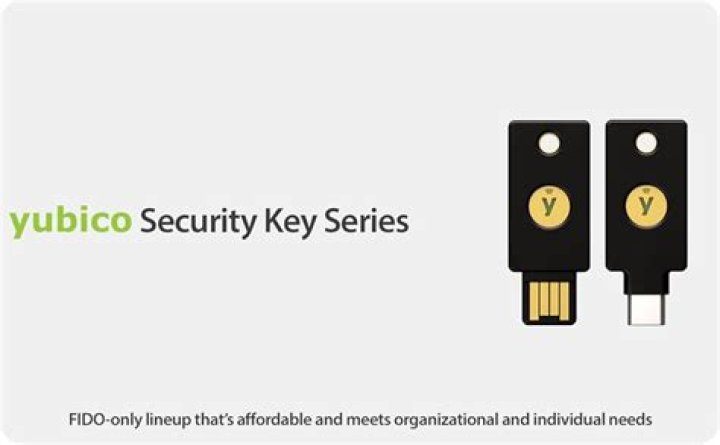
Our two-factor authentication platform supports security keys, offering secure login approvals resistant to phishing attacks combined with the one-tap convenience you’re already used to with Duo Push.
What are Security Keys?
A security key plugs into your USB port and when tapped or when the button is pressed it sends a signed response back to Duo to validate your login. Duo uses the U2F and WebAuthn authentication standards to interact with your security keys. You may also see WebAuthn referred to as “FIDO2”.
Security Key Requirements
In order to use a security key with Duo, make sure you have the following:
- A supported browser (Chrome 70, Firefox 60, Safari 13 or later), or Microsoft Edge 79 or later. Support for authentication is limited to web applications that show Duo’s inline browser prompt.
- An available USB port.
- A supported USB security key. WebAuthn/FIDO2 security keys from Yubico or Feitian are good options. U2F-only security keys (like the Yubikey NEO-n) can’t be used with Firefox.
Additionally, your administrator must enable the use of security keys in Duo. Check with your organization’s support team or help desk to verify that security keys are allowed if you are uncertain.
You can enroll your security key during the initial self-enrollment process or, if you have already enrolled in Duo using a different device (like your mobile phone), you can add your security key as an additional authentication device from the device management portal.
Initial Enrollment with a Security Key
Access the Duo enrollment page via a link emailed by your administrator, or when you log in for the first time to a Duo protected resource. Select Security Key from the list of devices and then click Continue.
Make sure that you’re not blocking pop-up windows for the enrollment site before continuing.
If you’re using Safari 14.1 or later, click the Initiate enrollment button to proceed. Other browsers do not require this step.
The security key enrollment window automatically tries to locate your connected security key for approval.
Depending on your security key model, you’ll need to tap, insert, or press a button on your device to proceed.
When enrolling your security key, you’ll be prompted to tap to enroll your security key (possibly more than once). You may also be asked if you want to allow Duo to access information about your security key (click Allow or Proceed as applicable).
You’ll see whether the security key identification was successful or not.
Congratulations! You have enrolled your security key.
Adding a Security Key From the Duo Prompt
If you previously enrolled other devices in Duo, you can easily add your new security key as an additional authenticator as long as your administrator has enabled Duo’s self-service portal.
Navigate to your Duo-protected service and log in. At the Duo Prompt you’ll see an Add a new device link on the left. Click it and approve the Duo login request using your already enrolled phone or other device.
Proceed with the security key enrollment process as shown above in Initial Enrollment with a Security Key.
You’ve added your security key (in this example, a security key from Yubico)! It is listed with your other enrolled devices.
The next time you log on using Duo, you can simply tap or insert your security key to log in. Some types of keys flash as a prompt for you to authenticate.
You do not need to explicitly select the security key from the drop-down list of available devices to use it for authentication in Chrome or Edge if you also enrolled it in one of those browsers.
In other browsers, you may need to select your security key from the drop-down list of your authentication devices.
Once you select your security key from the list, click Use Security Key.
If you’re using Safari 14.1 or later, click the Initiate authentication button to proceed. Other browsers do not require this step.
Tap your security key when prompted.
Existing U2F Users: Security Key Update
If you’re a user who enrolled a U2F token for Duo authentication before the security key update, you’ll be prompted to update your security key registration for that device the next time you log in with Chrome or Edge using that U2F authenticator.
Simply click Continue and tap the security key.
Once the security key registration is updated via Chrome or Edge, you can use that security key in all supported browsers.
Set up your security key
Before you can use your security key as a second factor for your 1Password account, you’ll need to turn on two-factor authentication for your 1Password account. Then follow these steps:
- Sign in to your account on 1Password.com on your computer.
- Click your name in the top right and choose My Profile.
- Click More Actions > Manage Two-Factor Authentication.
- Click Add a Security Key.
If Windows Security asks you to create a PIN, enter one and click OK. Your PIN is stored locally on your security key.
From now on, you can use your security key instead of a six-digit authentication code to sign in to your 1Password account.
View and manage your security keys
To view your security keys:
- Sign in to your account on 1Password.com.
- Click your name in the top right and choose My Profile.
- Click More Actions > Manage Two-Factor Authentication.
To prevent a security key from being used as a second factor, click Remove next to it.
To allow another security key to be used as a second factor, click Add a Security Key and follow the onscreen instructions.
Get help
Using your security key as a second factor requires:
To sign in to your account in a browser without support for security keys, enter a six-digit authentication code from your authenticator app.
If you lose access to your security key
If you lose access to your security key, you can still sign in to your 1Password account:
On 1Password.com
When you’re asked for your security key, click Cancel. Then click “Use your authenticator app instead” and enter a six-digit authentication code from your authenticator app.
In the apps
When you see “Do you want to sign in to 1Password using a security key?”, click cancel and enter a six-digit authentication code from your authenticator app.
When you see Two-Factor Authentication Required, choose Authentication Code, then enter a six-digit authentication code from your authenticator app.
When you see “How do you want to authenticate?”, choose Authentication Code, then enter a six-digit authentication code from your authenticator app.
When you see “Use your security key with 1Password”, tap the back button on your device and enter a six-digit authentication code from your authenticator app.
When you see “How do you want to authenticate?”, choose Authentication Code, then enter a six-digit authentication code from your authenticator app.
Still need help?
If this article didn’t answer your question, contact 1Password Support.
What is a security key?
A security key is a small physical device that looks like a USB thumb drive, and works in addition to your password on sites that support it. You can carry it on a keychain like a regular key. Here’s a photo:
Why should I have one?
Security keys protect you against impostor websites that try to steal login credentials to sensitive accounts like your email. Other forms of two-factor authentication (including text messages, authenticator apps, and push notifications) do not give you the same level of protection as a security key.
How do I use it?
The key is a ‘second factor’, which means you use it in addition to your password. After logging in normally, sites that support it will ask you to briefly insert the key into a USB port and tap the button with your finger.
What happens if I lose it?
When you set up your security key, you also set up backup methods you can use in case you lose your key. These include an authenticator app that lives on your phone, and a set of printed one-time recovery codes.
You can also add more than one security key to your account, and keep the backup in a safe place.
What happens if I lose both my security key and my phone?
You’ll have a set of printed recovery codes, which you should store on paper in a safe place.
What happens if I lose my security key, my phone, and don’t have recovery codes?
You’ll need to prove your identity to the site’s satisfaction. What this means will be different for each site. Expect to spend a lot of time on the phone.
What if my key gets stolen?
The key works in addition to your password, not as a replacement for it. If someone steals the key, they still can’t get into your email without knowing your password. You can log in with a backup method, and remove the stolen key from your account.
Do I need a separate key for every computer I use?
No, your key will work on any computer that has a USB drive. Carry it with you like a car key.
Do I need a separate key for every account?
You can use a single key for as many accounts as you like.
Can I use multiple keys on my account?
Yes, you can add multiple security keys. We also encourage people to cross-validate security keys with their spouse, friends or co-workers. That way if you lose your key, you can borrow one from another person. Adding someone’s key to your account won’t give them access unless they also know the password.
Can I use it both on a Mac and a PC?
Yes, as long the computer runs the Google Chrome browser (which you should be using anyway).
Can I use it on my phone or tablet?
Not yet. You’ll need to use a backup method like an authenticator app, or generate a special one-time login for the device.
Why do you say it’s bad to have a phone number on my account?
Many sites encourage you to add your phone number to secure your account. But there are at least three reasons why you should avoid using text messages for two-factor authentication.
- Your phone number can be easily hijacked by someone who calls the phone company and pretends to be you.
- The text message can be viewed or redirected while en route to your phone.
- Many phones are configured to display text messages on the lock screen.
If text messages are the only way to add two-factor authentication to your account, they are better than nothing. But if you can use an alternative method, like an authenticator app or a security key, use that instead.
Why is a security key more secure than an authenticator app?
An authenticator app lives on your phone and generates a time-based numerical code. It is a better second factor than text messaging, but not as good as a security key. An attacker who tricks you into entering your password and an authenticator code into a website they control can get into your email account. This is not the case if you log in using a security key.
Do I still need a password if I use a security key?
Yes, the security key is a second factor that you use in addition to your password.
How often will I need to use my security key?
You’ll need it every time you log in to a new machine. You can decide whether to make sites to ask you for the security key every time you log in to a known machine, or to trust it after first use.
Can I just keep the key plugged in to my USB port?
Yes. Yubikey makes a special low-profile key for this purpose.
I’m a nerd. How does it work?
The key uses a standard called U2F. It cryptographically signs a challenge from the browser that includes the actual domain name, which is what makes it such an effective protection against phishing. An attacker would need to control the domain name, or the browser, to get a usable signature from the key.
How do I set it up for Gmail? How do I set it up for Facebook or Twitter?
Which security key should I buy?
We recommend the blue yubikey, which costs $20 on the Yubico site. Any security key that supports “U2F” will do.
Yubico github. Enter the GPG command: gpg –expert –edit-key 1234ABC (where 1234ABC is the key ID of your key) Enter the passphrase for the key. This Security Key NFC is FIDO and FIDO2 certified and works with Google Chrome or any other FIDO-compliant application on Windows, Mac OS or Linux. Close. 15 YubiKey … yubico . For help, see Support. xml: build files for mvn. Yubico is the the principal inventor of the U2F authentication standard adopted by the FIDO alliance and was the first company to produce the U2F security key. stars. e. Works out of the box with Google, Microsoft, Twitter, Facebook, and hundreds of other services. com/YubicoLabs/yubikey-ksm. test/: self-tests. Yubico is dedicated to providing a long-term two-factor authentication solution, we want your YubiKey to remain useful for the full extent of its lifetime. A YubiKey SDK for . And other users can expect a 20% discount on the product, which can cost Yubico, the leading provider of simple and open online identity protection, today announced GitHub has added FIDO Universal 2nd Factor support for … Configure Yubikey and generate PKCS #11 keys. This server talks to a KSM service for decrypting the OTPs, to avoid storing any AES keys on the validation server. Sorry to reopen this, The patch works except that for builds with CMAKE_BUILD_TYPE=Debug due to the main CMakeLists. yubico. Let’s see if these emails are To set up your Linux system for U2F: Verify that libu2f-udev is installed on your system. 49 x 1. I do not want to quote the private conversation that followed but basically Yubico claims parallel research, and that when we had the call they already had a PoC and just wanted to confirm what we had. . Users currently can only enroll a single U2F device in Authelia. Once installed the app does not need to be started. No connectivity needed! Features include: Touch or NFC Authentication – Touch the YubiKey 5Ci or simply tap a YubiKey with NFC with a mobile phone that is NFC-enabled to store your credential on the YubiKey. Go to: 1 YubiKey 4 – Yubico. save. 1password Yubico. For Businesses Yubico’s latest physical security keys have another layer of security: fingerprint readers. Sentry’s organization list also displays who has 2FA enabled so users can vet their own organization’s security. Easy to use, the YubiKey simply plugs into a USB port to begin the process of securely authenticating the user. Lastpass’s integration with Yubico using Yubico OTP and not U2F. Now I want to setup my yubico on the laptop. When we do release new firmware, we ensure the new YubiKey will function the same as older versions, so there is no need to purchase new YubiKeys to ensure compatibility. The ‘Security Key by Yubico’ supports FIDO2 according the product page, however this page says that it is unsupported. 350. Thu Dec 07, 2017 9:34 am. src/: source code of YubiKey package. The verify_multi method will return True if all of the provided OTPs are valid (STATUS=OK). To review, open the file in an editor that reveals hidden Unicode characters. Building After downloading and unpacking the package tarball, you build it as follows. Making your 2FA work. At Yubico, people come first. share. USB Interface: CCID PIV (Smart Card) This application provides a PIV compatible smart card. When two-factor authentication is configured via a mobile app or via SMS, you can add your YubiKey to use for 2FA on GitHub. , set a AES key) YubiKeys. This package make up the low-level Java software development kit for the Yubico authentication device, the YubiKey. What’s this? Here you can generate a shared symmetric key for use with the Yubico Web Services. Perform batch programming of YubiKeys, extended settings, such as fast triggering, which prevents the accidental triggering of the nano-sized YubiKeys when only slot 1 is configured. ; If you have a YubiKey NEO or YubiKey NEO-n ensure you have unlocked the U2F … The Yubico legacy client libraries in PHP, C, . Has it since been updated to include the ‘Security Key by Yubico’ or will I need to buy a yubikey 5 for windows hello? 7 comments. Add that to
Для обеспечения максимальной безопасности аккаунта настройте аппаратный ключ безопасности для двухэтапной аутентификации (2SV). Мы поддерживаем ключи USB или Bluetooth, соответствующие стандарту FIDO U2F, такие как многие YubiKeys или Google Titan.
Примечание. Если вы используете ключ безопасности, вам понадобится резервный способ. наши руководства GoDaddy может подтвердить вашу личность. Мы расскажем, как настроить приложение для аутентификации, так как оно более безопасно, чем обмен SMS-сообщениями.
- Откройте страницу GoDaddy Войти & PIN-код Страница . Вам может быть предложено войти в систему.
- В разделе Двухэтапная проверка выберите Добавить проверку .
- Выберите Ключ безопасности, а затем нажмите Далее . Держите под рукой электронный ключ, но пока не подключайте его.
- Выберите Далее и следуйте инструкциям на экране. Как только мы проверим ваш ключ, вы увидите сообщение об успешном завершении.
- Выберите Добавить резервную копию .
- Выберите Приложение Authenticator и нажмите Далее .
- Следуйте инструкциям, чтобы установить приложение на телефон и отсканировать штрих-код. Нажмите Next (Далее) .
- Введите 6-значный код и имя аутентификатора . Нажмите Next (Далее) . Как только мы проверим ваше приложение для аутентификации, вы увидите сообщение об успешном завершении.
Связанный шаг
- Выйдите из аккаунта, а затем войдите в него с помощью аппаратного ключа, чтобы проверить его настройки.
Дополнительная информация
Примечание для гидов:
Все функции по устранению неполадок с двухэтапной аутентификацией находятся в.
Two-step Login using FIDO2 WebAuthn authenticators is available for Premium users, including members of Paid Organizations (Families, Teams, or Enterprise).
Any FIDO2 WebAuthn Certified authenticator can be used, including Security Keys like YubiKeys, SoloKeys, and Nitrokeys, as well as native biometrics options like Windows Hello and Touch ID.
Existing FIDO U2F security keys will still be usable and will be marked (Migrated from FIDO) on the Two-step Login → Manage FIDO2 WebAuthn dialog.
FIDO2 WebAuthn cannot be used on all Bitwarden applications. Enable another Two-step Login method in order to access your vault on unsupported applications. Supported applications include:
Web Vault on a device with a FIDO2-supported Browser.
Browser Extensions for a FIDO2-supported Browser.
Desktop Application on Windows 10 and above.
Mobile Apps for Android and iOS 13.3+ with a FIDO2-supported Browser.
Setup FIDO2 WebAuthn
Complete the following steps to enable Two-step Login using FIDO2 WebAuthn:
warning
Losing access to your authenticator can permanently lock you out of your Vault, unless you write down and keep your Two-step Login Recovery Code in a safe place or have an alternate Two-step Login method enabled and available.
Get Your Recovery Code from the Two-step Login screen immediately after enabling any method.
Select Settings from the top navigation bar.
Select Two-step Login from the left-side menu.
Locate the FIDO2 WebAuthn option and select the Manage button.
You will be prompted to enter your Master Password to continue.
Give your security key a friendly Name.
Plug the security key into your device’s USB port and select Read Key. If your security key has a button, touch it.
Windows Hello is natively a FIDO2 authenticator. If you’re using Windows Hello but want to register a key or other device, you may need to dismiss the native Windows Hello prompt by selecting Cancel on the following screen:
Select Save. A green Enabled message will indicate that Two-step Login using FIDO2 WebAuthn has been successfully enabled and your key will appear with a green checkbox ( ).
Select the Close button and confirm that the FIDO2 WebAuthn option is now enabled, as indicated by a green checkbox ( ).
Repeat this process to add up to 5 FIDO2 WebAuthn security keys to your account.
When you setup Two-step Login, you should logout of all your Bitwarden apps to immediately activate Two-step Login for each app. You will eventually be logged out automatically.
Use FIDO2 WebAuthn
The following assumes that FIDO2 WebAuthn is your highest-priority enabled method. Complete the following steps to access your Vault using Two-step Login:
Log in to your Bitwarden Vault and enter your Email Address and Master Password.
You will be prompted to insert your security key into your device’s USB port. If it has a button, touch it.
Check the Remember Me box to remember your device for 30 days. Remembering your device will mean you won’t be required to complete your Two-step Login step.
You will not be required to complete your secondary Two-step Login setup to Unlock your Vault once logged in. For help configuring Log Out vs. Lock behavior, see Vault Timeout Options.
NFC Troubleshooting
If you’re using a FIDO2 authenticator with NFC functionality like a YubiKey or other hardware security key, you may need to practice finding the NFC Reader in your device as different devices have NFC readers in different physical locations (e.g. top of phone vs. bottom of phone, or front vs. back).
Hardware security keys typically have a physical plug, which will work more reliably in cases where NFC is difficult.
Troubleshooting YubiKey NFC
On mobile devices, you may encounter a scenario where your YubiKey is read twice consecutively. You will know this has occurred when your device’s browser opens the YubiKey OTP website ( ) and if your device vibrates multiple times to signal multiple NFC reads.
To solve this, use the YubiKey Manager application to disable the NFC → OTP interface for your key:
warning
Disabling NFC → OTP will prevent you from being able to use Two-step Login via YubiKey (OTP) over NFC with this key. In this scenario, OTP via USB will still function as expected.
The U2F security key was created in order to provide increased security for connecting to user accounts. Google, Facebook, WordPress, etc., are services containing various types of personal data, such as photos or private discussions that are not intended for public disclosure.
Using a U2F key is undoubtedly the best way to protect your online accounts: in addition to having your login and password, you need to have the key with you…
A single password may be sufficient for people who occasionally use these services, along with double authentication (i.e. 2FA, also known as Two Factor Authentication, as popularized by Google Authenticator) whose use has expanded across various platforms. But the most experienced should start using a U2F key in order to ensure total protection of their computer accounts, whether they are social media, online file storage or otherwise.
How does a U2F key work?
Its shape is identical to a traditional USB flash drive, except the device contains no data. It actually contains a single secure chip that allows the person using it to access their account. In a certain sense, it’s like the key to a safe that there’s only one of in existence – no duplication is possible.
The proper functioning of this USB drive is based on the Universal Second Factor protocol, also abbreviated as FIDO U2F. This IT standard was developed by three companies: Google (with Google Titan), Yubico (with Yubikey NEO) and NXP. NXP also invented NFC chips. The U2F standard has been since handed over to the FIDO Alliance, which encompasses several IT companies.
We advise you to buy at least 2 copies of the key and associate both of them to your accounts. One that you keep with you at all times, and one for back-up at home.
Titan Security Key vs. YubiKey — which is more secure? Security expert Scott McDonald breaks down why Google’s Titan Keys are the better option for toughening up your online security.
With so much of our personal information stored online nowadays, we need more than a password to fully protect our online accounts. While digital two-factor authentication apps and biometric login features have helped fight against phishing, experts say physical security keys offer the highest level of security available.
With several physical security keys to choose from, the choice often comes down to Google’s Titan Security Key vs. YubiKey . The question is, which one is better for securing your online information?
Ultimately, we think Titan Keys are the best physical authenticators based on usability and security features.
Physical Security Keys: The Best Defense Against Phishing
First, let’s look at how physical authenticators work and why you should use them.
While you can make passwords strong — and digital authenticator apps are much more secure than using SMS — these security measures alone aren’t always enough to safeguard your data. Your account password could still be at risk of being stolen.
A physical, hardware-based key — often in the form of a USB dongle — serves as an extra security measure for verifying your identity when logging into an online account with your password. You just plug the key into your device, and it grants you access to your account. It’s the most effective defense against phishing. Even if someone were to discover your password, they wouldn’t be able to access your account without the physical key.
By adding an extra level of authentication with a physical key, you increase the security of your account with a verification method that’s nearly impossible for bad actors to obtain. Your online information is safe as long as your physical key is.
Titan Security Key vs. YubiKey
While many physical authenticators are out there, YubiKeys and Google’s Titan Security Key are the two most popular physical security keys available today.
YubiKey , launched by Yubico in 2007, was made to protect access to computers, networks, and online services and eliminate account takeovers. They support FIDO2/WebAuthn and U2F. YubiKey is currently in its fifth generation.
Google introduced Titan Keys in 2018. They’re designed to help users prevent Google account takeover attempts using credentials stolen in data breaches or following phishing attacks. Titan Keys work with the most common devices, browsers, and an increasing number of apps and services that come with FIDO standard support, like the 1Password manager.
Titan Security Key Advantages
As far as their differences, YubiKey may have been first-to-market, but Google’s Titan Security Key edges out its competitor with a couple of key features.
NFC Support
For starters, Google’s Titan Keys make everyday individual security easier and more accessible. In August 2021, Google added NFC support to its Titan Security Key offerings, which means users can now securely log into their accounts on smartphones and other smart devices using Titan Keys. It’s a big move that will allow users to ensure security across all of their devices.
Titan Keys support both USB A and USB C ports and have wireless authentication, and so does YubiKey.
Titan Keys Are Secure at the Firmware Level
All of Google’s Titan Keys come with the built-in Titan Chip. Many authenticators are FIDO-compliant, but the Titan Chip is an extra security measure unlike any other that ensures the firmware hasn’t been modified. Whenever a Titan Key is used, the chip checks that the tiny bit of code that runs the key is the right code. It makes sure it’s running the firmware it should be when it’s electrically activated before it authenticates the keyholder’s identity.
YubiKeys lack this level of technology. When comparing the shipping packaging between Titan Keys and YubiKeys, YubiKeys come in a thin package that could allow bad actors to interact with the NFC through the packaging. If you recall the 2012 Black Hat hack where hackers found they could take complete control of a phone via NFC, this could open up the opportunity for supply chain attacks that could alter the firmware on YubiKeys and compromise them.
Google, on the other hand, went as far as to design the Google Titan Key packaging with a box so thick that it’d prevent anyone from interacting with the NFC through the packaging the security keys ship in. Bad actors wouldn’t be able to attack Titan Keys without opening the original manufacturer’s package as they could with YubiKeys.
While these might seem like minor differences, it’s the little things that make a big difference in security.
Downsides
Unfortunately, LastPass doesn’t currently support U2F for two-factor authentication, so it isn’t compatible with Titan Keys. (Although there’s always a chance they’ll add U2F support in the future.)
On the other hand, YubiKey is supported by LastPass. Since the Titan Security Key is manufactured in China, they might also be less readily available in the US and other countries, while YubiKey is US-made.
What About Side-Channel Attacks on Titan Keys?
You might’ve seen the news story about the hackers who cloned Google Titan 2FA keys using a side-channel in NXP chips.
Is it possible for a bad actor to hack and clone a Titan Key? Yes. Is there a plausible scenario where they’d be able to clear several complicated obstacles and do it successfully? Probably not. Even if someone somehow got a hold of your Titan Key and managed to clone it, Google already has a built-in feature to prevent them from using it.
Google offers key-based 2FA to use a feature baked into the U2F standard that counts the number of interactions a key has had with their servers. If a key reports a number that doesn’t match what’s stored on the server, Google will suspect it’s a clone. The original Titan Key and its clone could only be used once before Google detected the clone and disabled both keys.
Security Starts with All of Us
When you stop and think about all of the services and information encompassed by your Google account — email, browsing data, and so on — getting extra protection is a no-brainer. And the best way to secure your account is with a physical security key like Google’s Titan Security Key.
Using two Titan Keys to ensure you always have an account recovery path is also a good idea in case one Titan Key gets lost, stolen, or breaks.
You can purchase a Titan key to protect your Google account and other third-party accounts that support it online in the Google Store.
USB – Extra security for
higher-value transfers
USB – Extra security for
higher-value transfers
What is a USB security key?
A USB security key plugs into your computer’s USB port and functions as an extra layer of security that’s used in Online Banking to increase limits for certain transfer types.
Why do I need a USB security key?
USB security keys are an optional alternative to SMS-based one-time security codes if you do not have access to a U.S. mobile phone number or can’t receive texts to your phone.
Where can I get a USB security key?
USB security keys can be purchased at many online and trusted tech retailers and typically cost between $18-$50. Just search for ‘USB security key’ and make sure the key you choose is FIDO-2 certified.
How do I register my USB security key?
It’s easy and just takes a minute or two. Register your USB security key.
How do I use my USB security key when making a transfer?
When prompted for your USB security key, all you need to do is tap the button on the key already inserted into your USB port, allow the browser to read your device and continue with your transfer.
Once your USB security key is set up, it serves as an extra layer of security for adding transfer recipients to your account and for extra security at sign-in.
Make sure you are using a supported browser such as Chrome, Edge, Safari, or Firefox. Internet Explorer does not support USB security keys.
After you set up USB, it’s also used as an extra layer of security for adding transfer recipients to your account.
If you are reading this article, you are probably wondering what the best online security key is. In this article, we do a review of the Yubikey 4 and the general FIDO U2F security keys, and get some insights on the two.
When it comes to online security, you cannot afford to compromise on your levels of safety. There have been numerous cases of hacking and other instances of cybercrimes, and you may have been an unfortunate victim of these occurrences, just like so many of us.
However, you might not realize that a major part of the problem is due to the use of passwords, especially when you use them alone to authenticate your identity on the internet. If a malicious person decides they want to access your account, they only need to take a few guesses, then gain access to all your information – confidential or otherwise.
In order to prevent this, U2F and 2FA (two factor authentication) has developed to heighten the security of your accounts. In this article, we will focus on U2F security, mainly Yubikey 4 and FIDO U2F.
What are the differences between Yubikeyvs.FIDO U2F? How do they compare?
| Model | FIDO U2F | Yubikey 4 |
| Dimensions | 3.4 x 2.1 x 0.04 | 0.71 x 0.12 x 1.77 |
| Compatible browsers | Chrome 38+ (all desktop OS) | Chrome |
| Open source | Yes | Yes |
| Check here | Check here |
Yubikey 4 vs. FIDO U2F – what are the differences?
How they work
These are both U2F keys, although the Yubikey also includes USB for the desktop experience and NFC for the mobile users, making it easy for you to use it regardless of the device you prefer.
On the other hand, the FIDO U2F key functions like a 2FA and U2F system combined. It allows you to store all your sensitive information in it, such as your bank account details, physical spaces, apps, and other data that you wish to input. The other advantage is that you do not need external power supplies to access your data when you need it, neither do you require extra software to install the protocols online as it is driverless.
Security mechanism
One of the features that we noticed in Yubikey 4 security key review was that it requires no extra connectivity or internet to function properly once you finish installing it, which allows you to use it to access your data even when you are offline. The only issue is setting it up, which is not an easy process.
The FIDO U2F has the availability of open source software, which developers can use it other browsers and OS systems.Among the unique features that we noticed is that both the software and hardware are open source, and, they allow for independent reviews regarding their security.That means you do not get cases of hidden issues with the security of your data, and there is also no vendor lock-ins or obfuscation.
Protocol access
The Yubikey has a major advantage in terms of access, at it can get through a variety of browsers without forcing you to install extra protocols. These include Yubico OTP, PIV (smart card), FIDO2, FIDO U2F, Challenge-Response, OATH-HOTP, OATH-TOTP, and even social media platforms like Twitter.
The FIDO U2F key is more limited, although it does try in some access protocols. The major advantage would be if you are a Chrome 38+ user, regardless of the OS platform you are using – Windows, Mac, or Linux.
Yubikey 4
You might have heard of Yubikey security keys, which are quite famous in the realm of online security. A major advantage is its flexibility to different protocols, making it a multi-purpose security key – which is why you can access a wide range of internet services through it.
Pros
- Supports multiple protocols
- Through the app, you can generate multiple one-time passwords
Cons
- Not very easy to set up
FIDO U2F
The FIDO U2F is easy to use – all you need is a connection to your computer, then a secure form of authentication is created. Note that when you are using it with Linux, it will require you to install a few extensions if you seek to integrate your emails and passwords. The good thing is that the process is not overly complicated.
Pros
- It works very well with Google services, and you can use it in place of two-factor authentication
- Very affordable, compared to other U2F security keys
Cons
- It does not have a durable build
Final thoughts
It is easily noticeable that the Yubikey 4vs.FIDO U2F security keys are very similar in their structure and working mechanism. However, they do have their differences, and basing on that, the Yubikey 4 is the winner of this round. Not only is it highly reputable, but also has a durable build and allows you to generate many OTP (one time passwords) to protect your account in multiple situations.
What is the advantage of using U2F keys over 2FA authentication methods?
While 2FA proves be to a more useful security method than a password, it does have its own inherent issues. U2F is the most reliable, as it allows you to access multiple accounts without the need of a password or exposure risks, all through the use of one device.
On the other hand, is there an advantage of using U2F keys like Yubikey?
U2F is the most reliable mode of accessing your online accounts safely, as it allows you to enter multiple accounts without the need of a password or exposure risks, all through the use of one device.
How do you use both?
The use of the U2F key is not as difficult as it may seem on the surface, regardless of whether you deal in Yubikey or Nitrokey Pro. The key will basically work as a second factor authentication.
Additionally, when it comes to the wallet, simply plug in the device to an internet-enabled device or computer, and enter your PIN and confirm your transactions.
What if they get stolen?
The person who steals the key or wallet cannot access your account unless they know your password, which they do not store.
Do you need a separate key for each account?
No, you can use one key for multiple accounts, just like the 2FA system that allows you to use one app for multiple accounts, but different codes. This is because the key stores your digital information in a chip.
Universal 2nd Factor (U2F) is an open standard for strengthening two-factor authentication. It involves the use of a physical key to reinforce 2FA, hardening your online accounts from attack. In this guide, we’ll explain how to use a Yubikey to lock down your exchange account, email account, and other valuable online accounts.
U2F Is Physical 2FA for the Security Conscious
If you’re at heightened risk of online attack, say, cos you’re a sysadmin or cryptocurrency trader, you should take steps to secure your accounts. Most bitcoiners already use 2FA, such as the Google Authenticator app, to secure their crypto accounts. U2F takes that to another level by mandating use of a physical key that is inserted into the USB port of your device, or held in proximity to your smartphone if it’s an NFC key. Even in the event of malware being installed on your computer, or your 2FA recovery codes being stolen, a U2F key should keep attackers at bay.
For the purposes of this guide, we’ll be using a Yubikey, one of the most popular devices on the market. (Google, for its part, also recommends the Feitian keys.) Manufacturer Yubico boasts “Zero recorded account takeovers in 11 years” because “the physical key requires a human touch and cannot be remotely hacked.” Lose your key, however, and things get a little complicated, since unlike Google Authenticator, Yubikeys don’t come with recovery codes. We’ll troubleshoot that problem shortly, once we’ve covered the basics.
Feitian’s Multipass FIDO key works with Bluetooth, USB-C and NFC
One Key to Secure Them All
Yubikeys retail for around $50 apiece and, like hardware wallets, are best ordered direct from the manufacturer to prevent tampering. Yubico supplies a range of keys including a Nano version whose compactness makes it suitable for leaving permanently plugged in to the USB slot of a trusted desktop computer. The 5 series is the range that most consumers will opt for. They’re designed to secure Google, Microsoft, Github, Dropbox, Facebook, Twitter, and Lastpass accounts, as well as various crypto related platforms.
Yubico works with Binance, Bitfinex, Bitmex, Kraken, and hundreds more companies across dozens of industries. Attend any developer-oriented crypto conference and you’ll see U2F keys plugged into laptops and dangling from keychains worn by delegates. You don’t have to be in charge of your team’s Github repo to warrant a Yubikey, however – simply holding crypto on a centralized exchange can be cause enough. Plus, in an era of NFC, biometrics, QR codes, and contactless payments, it feels badass to be carrying a physical key with magical powers.
Using Your U2F Key
If you’re intent on locking down your accounts with the aid of a Yubikey or similar U2F device, the first place to start is your email. If you’re a Google user, the Advanced Protection portal will guide you through the process. Other email providers including Protonmail also support the U2F protocol.
Pairing a Yubikey with Google.
Next, you should secure your cryptocurrency accounts, including any exchanges you trade on, in the same manner. Add a Yubikey to your Binance account, for instance, and you’ll be prompted to plug it into your computer every time you log in or withdraw. It effectively replaces the 2FA you will have been using up until now.
Pairing a Yubikey with Binance
If you’re wondering what happens if your U2F key is lost, broken, or stolen, many sites will let you pair multiple keys, providing redundancy in the event of key loss. Unfortunately, Binance is not one of them. Lose your key and you’ll need to initiate Binance’s account recovery process, which may take a few days to complete and will require alternate verification.
Every time you log in to Binance you’ll see this message
U2F keys aren’t perfect, then, or to be more accurate, there are situations where their security model comes at the expense of convenience. If you’re intent on using one, though, that’s a sacrifice you’ll be willing to make in the quest of greater security. Where possible, pair two U2F keys with each of your online accounts, and keep your master key securely stored on a chain at all times. Once implemented, using a U2F key every time you log in will become second nature.
What’s your experience of using U2F keys? Would you recommend them? Let us know in the comments section below.
Disclaimer: This article is for informational purposes only. It is not an offer or solicitation of an offer to buy or sell, or a recommendation, endorsement, or sponsorship of any products, services, or companies. Neither the company nor the author is responsible, directly or indirectly, for any damage or loss caused or alleged to be caused by or in connection with the use of or reliance on any content, goods or services mentioned in this article.
Images courtesy of Shutterstock.
Did you know you can verify any unconfirmed Bitcoin transaction with our Bitcoin Block Explorer tool? Simply complete a Bitcoin address search to view it on the blockchain. Plus, visit our Bitcoin Charts to see what’s happening in the industry.
You can use a personal USB U2F (FIDO capable) device to complete MFA. However, you must complete an initial MFA setup using the Okta Verify or Google Authenticator apps on your smartphone, or order a Monash Yubikey. After this initial setup, you can transition to use your own personal USB U2F device.
What’s required
- a U2F security key
- a laptop or computer with a USB port.
Register for MFA
- Go to
- Under the Security Key (U2F) option, click on Setup.
- Click Register Security Key
- Insert your U2F Security Key into a USB port on your computer. Once inserted, tap the gold disc on your device.
- Click Finish. Your U2F Security Key has been configured and is ready for use.
- Click Go to my.monash.
You’ll receive an email confirming your successful MFA registration.
Log in using U2F (FIDO capable device)
Follow these instructions on how to log in using your U2F device.
- When prompted by the login screen, enter your Monash email address and password, then click Sign In.
When you see the following screen, insert your U2F Security Key. Once inserted, tap the gold disc on your device.
TIP: On your computer or the device you regularly use, tick Do not challenge me on this device again. When using that same device and web browser, you’ll no longer have to complete an MFA challenge.
Related articles
Multi-factor authentication (MFA)
When you log in, you’ll need multi-factor authentication (MFA) to keep your information private and secure. Learn about your options and how to set it up.
YubiKey for multi-factor authentication (MFA)
If you don’t have a smartphone or you’re unable to install the Okta Verify or Google Authenticator apps on your smartphone, you can request a USB hardware device to register for MFA.
Multi-factor authentication backup codes
Get backup codes so you can reset your MFA without having to call the Service Desk.
September 13, 2021 By Rublon Authors
Last updated on October 7th, 2021
Rublon supports FIDO U2F and FIDO2/WebAuthn security keys such as YubiKey to allow seamless login experience with top security. Refer to the instructions below to learn how to enroll your WebAuthn/U2F Security Key and use this key to sign in to your applications.
Enroll your WebAuthn/U2F Security Key
To sign in using your WebAuthn/U2F Security Key, you must enroll your key using the Self-Enrollment wizard. Refer to the following steps.
1. Initiate login to your application.
To check if your application integrated with Rublon supports WebAuthn/U2F Security Keys, refer to the list of supported applications.
2. Provide your username and password.
4. Click Manage Devices.
5. To confirm your identity before proceeding, choose one of the available authentication methods.
6. After you confirm your identity with one of the available methods (e.g., Mobile Push), the Rublon Prompt will display the Manage Devices view.
7. Click Add New Device.
8. Select WebAuthn/U2F Security Key as your device type and click Next.
9. Insert your WebAuthn/U2F Security Key into the USB port of your computer.
10. Touch your WebAuthn/U2F Security Key.
11. Enter a name for your WebAuthn/U2F Security Key and click Save.
12. You will be redirected to the Rublon Prompt.
13. Congratulations! You have successfully enrolled your WebAuthn/U2F Security Key.
You can now sign in using your WebAuthn/U2F Security Key.
Sign In With Your WebAuthn/U2F Security Key
1. To sign in using your security key, choose the WebAuthn/U2F Security Key authentication method from the Rublon Prompt.
2. Plug in your key if you have not already and then touch your WebAuthn/U2F Security Key.
3. You will be successfully signed in to your application.
Binance has added a new security feature: two-factor authentication (2FA) through hardware security keys. Incorporated into the newly-redesigned Binance website, this new feature allows Binance customers to use a more secure method of verification for your actions on your Binance account. This is in addition to the SMS and Google Authenticator options supported on the website and apps.
The Binance website, both on desktop/laptop and mobile, now supports the FIDO2 open authentication standard. This means that 2FA devices that support this standard, like YubiKey, Trezor, and others, can be used as security keys for your Binance accounts. This means that for as long as you have security keys that you can use on your device, you can take advantage of this feature.
Note: As of now, the Binance apps do not support security key 2FA. We’re working on enabling support on the app soon. In case you activate the security key option, you’ll only be able to withdraw using the Binance.com website, but you’ll still be able to log in through the other 2FA methods.
What Are Hardware Security Keys and What Do They Do?
To understand how hardware security keys work, let’s first discuss 2FA briefly.
At Binance, we encourage users to enable 2FA, through which when you log in or withdraw, you’re asked to verify as a second layer of security that it is indeed you who is accessing your account.
Previously, the options available on Binance.com for 2FA are SMS Authentication and Google Authentication, which are both useful methods for securing your account. For both options, you are sent a six-digit passcode that is usable for a limited time to verify your access. For SMS, you receive the code via a text message, while for Google Authenticator, the app generates a code that changes every few seconds.
Doing 2FA via hardware security keys works a bit differently. With hardware security keys like YubiKeys, you just plug in your hardware key to the USB or Type-C port of your desktop/laptop or phone, and the key completes the verification for you. In the case of your Binance account, when you’re prompted to attach your key and you do so, it confirms that your withdrawal transaction is legitimate.
What Are the Benefits of Using Hardware Security Keys?
Enabling 2FA on Binance is always a good security practice. Authentication via SMS and Google Authenticator carry some security and convenience advantages since you can verify your access using your phone, which is something you have with you constantly. However, these solutions are software-based, and on their own, they can be compromised when, say, a sophisticated hacker gets access to your SMS messages or the code from your Google Authenticator app.
Hence, hardware keys offer stronger security than the software methods of 2FA. With hardware keys, you get the following benefits:
1. Better, more tangible security. Enabling 2FA via security keys is more secure and tangible than 2FA options associated with a phone number or an app-generated code, which can be susceptible to attacks. Through security key 2FA, users are required to plug in their keys physically into USB or Type-C ports. A user then touches or clicks the button on the security key to generate a random security code, thus substantially enhancing security.
2. Anti-phishing. By default, the security key is bound with the real Binance.com when the user registers it with Binance account. With security key 2FA, the security key will verify the website address as well. Thus, phishing attacks will be mitigated.
3. Exclusivity. An account can only be registered with one security key. With this being done, it will only authenticate the registered device. Plus, the security key will generate a unique security key for each verification, bringing an extra level of security to your account and digital assets.
How to Use Security Keys on Binance?
Now that we discussed how security keys work, we now show you how to use Yubikey for your Binance account. Please note that security key 2FA only works on the desktop/laptop and mobile web versions of Binance.com at the moment, and not on the Binance apps
1. On your account’s user center, click the Security tab. Under 2FA, click the “Setup” button for Security Key. Tip: YubiKey is the name displayed next to Security Key, but any key that supports the FIDO2 standard can be used here.
2. Insert your security into an available USB or Type-C port (depending on your device) and press the button within 60 seconds. Once that’s done, you can label your hardware keys if you want.
3. Check the email you use for your Binance account to verify that you have enabled YubiKey.
And just like that, you have enabled better protection for your account. In case you need to deactivate your security key 2FA, follow the steps on this guide .
Note: By activating YubiKey verification, you will only be able to validate withdrawal requests through your hardware key. Binance apps do not support YubiKey at the moment. YubiKey verification is only supported in the following browsers: Chrome v49.0 or later, Opera v42 or later.
Last week we discussed the basics of two-factor authentication (2FA) and why it’s a good idea to take advantage of it. If you haven’t read the article, I recommend you do, after which you’ll likely get used to the idea of having 2FA on some of your accounts.
Just yesterday I had to go into Google Authenticator for a code and when I logged into my GitHub account from my husband’s laptop, I needed to enter the code I got by text. But there is another way, and it’s a tiny FIDO U2F security key that I’ve now put on my keychain.
The FIDO U2F Key is less than $20 on Amazon. The key came in a tiny envelope that at first I didn’t even see in the Amazon box (it can’t be more than 2 x 2 inches.) The key is ready as soon as you unbox it, but if you want to test it out you can use Yubico’s website.
The key I bought is the one on the far right. Next I plugged the key into my PC, it blinked a few times. I entered password/username and clicked next. Registration, done.
Then I had to log out, log in on a different page and then touch the button/touchpad on the security key to complete authentication.
Here’s a little more about the FIDO U2F standard:
U2F was created by Google and Yubico, with contribution from NXP, and is today hosted by the open-authentication industry consortium FIDO Alliance. U2F security keys are supported by Google Chrome since version 38 and Opera since version 40. U2F security keys can be used as an additional method of two-step verification for Google accounts, Dropbox, GitHub, GitLab, Bitbucket, Dashlane, Lastpass and the UK’s Government Digital Service.
Dropbox
Set up Two-Step Verification for your Dropbox account, if you haven’t already. This is also where you will set up your mobile device as a backup in cases where you can’t use the key.
Here are the requirements to secure your Dropbox account with the Yubico key:
- Latest version of Google Chrome browser (or at least version 38)
- A YubiKey 4, YubiKey Nano, FIDO U2F Security Key, YubiKey NEO, or YubiKey NEO-n
- One finger (the YubiKey button is a capacitive sensor, not a biometric)
- A Dropbox account
Once at Dropbox, navigate to your account settings and then Security. Click Security Keys, and then click Add. Enter your password, and click Next. Click Begin setup.
Insert the key, wait a few seconds, and then click Key Inserted. When you see the message “Scanning for security key,” your key should start to flash. Wait for it to blink, and tap the button.
All done! Hit Finish and move on with your day feeling a little more secure.
Go to the Add a Security Key page section of My Account. Remove the key if it’s already inserted. Click on the Register button. Insert your Security Key into a USB port on your computer.
Completing registration varies slightly depending on the type of security key you have:
Key with a button: After inserting, you should see a blinking light. Lightly tap the blinking circle. You’ll see a green checkmark to confirm registration.
Key without a button: This Security Key turns off after each use. Please remove and reinsert the Security Key each time you need to use it. You’ll see a green checkmark to confirm registration.
When logging in from a new PC, you’ll be prompted to authenticate with the USB security key. Insert the key and press the button when you’re asked (if there is a button.)
Some devices and browsers (any browser but Chrome, actually) don’t support security keys, so in those cases you can still use SMS verification or another two-step verification method you’ve configured in your Google account security settings.
Github
Login to Github, click your photo in the top right and go to Settings and then Security. Or just click this link to be taken to the security page. Enable 2FA if it isn’t already. Once 2FA is already enabled, click edit.
Next scroll down to the bottom of the page where it says Security Keys and click Register New Device.
Fill in a nickname, click Add, and insert the key into the USB port and tap its button.
Then you’ll have the option of adding another key or deleting existing keys.
U2F for Everyone
Physical security keys, such as the Yubico FIDO U2F one I’m using, are still somewhat unknown and not yet a universal solution. For example, my key only works in connection with Google Chrome and requires a fully fledged PC (a device with a USB port), but don’t underestimate FIDO U2F keys.
The FIDO alliance is composed of several industry heavyweights, from financial institutions to technology and chip makers including the Alibaba Group, ARM, Bank of America, Discover, Google, Intel, ING, Lenovo, MasterCard, Microsoft, NTT DoCoMo, NXP Semiconductors, PayPal, Qualcomm, RSA, Samsung, Synaptics, USAA and Visa.
It might be impossible to use your U2F key on a lot of websites today, but that’s bound to change. As the industry moves forward FIDO (or FIDO 2.0 which includes Bluetooth and NFC implementations) along with mobile-style payments (Apple/Android pay using biometric authentication) will be shaping the future of e-commerce and online authentication.
Update: Some of our readers have showed concern if you were to lose your Yubikey. One valid recommendation is to buy two Yubikeys, keeping the second as backup on a safe place. Note however that services that offer two-factor authentication using Yubikey also have recovery mechanisms so that you shouldn’t be locked out completely if this were to happen.
Your online accounts should be protected with more than just a password. And using a cheap device called YubiKey can help keep you from being hacked.
By now you’ve probably heard you should be using two-factor authentication, often called 2FA, to log in to your accounts. If you’re using 2FA, you need an additional code to access your email, Facebook or other accounts. This is often sent via SMS, which may not be the most secure.
For instance, if you request a texted code, it could be intercepted by someone snooping on your mobile network or a hacker who has convinced a mobile operator to redirect your phone number. Further, when you don’t have cell service, you can’t get the text.
YubiKey, created by Yubico, is one solution. The $18 key connects to a USB port on your computer and tells a service, like Gmail, that you are you.
You simply plug it into your computer, touch it and your identity is authenticated. It automatically creates a one-time-use password to log in to an account, and because it’s a physical key, data can’t be intercepted in transit.
Security researchers say Yubikey is the best method to protect yourself from phishing, a common tactic that tricks a person into thinking a malicious message was sent by someone they trust. Usually phishing attacks are used to gain access to your personal information, like emails or bank accounts.
Facebook added support for the security key in January.
“We added support for U2F Security Keys because they offer the best possible account protection against the potential risk of phishing,” Facebook security engineer Brad Hill said in a statement to CNN Tech.
It takes just minutes to set it up with services like Facebook and Gmail, which let you add it under Security Settings.
“Security is the biggest issue on the internet,” Yubico CEO Stina Ehrensvard said. “For the internet to be secure . it should be the users who own and monitor and control what data they want to provide.”
YubiKey doesn’t work for all accounts that support 2FA. But Gmail, Facebook ( FB ) , and Dropbox are hugely popular consumer products that support this key.
Yubico has a list of accounts that support its method of authentication.
According to Ehrensvard, the firm has seen a major increase in Yubikey adoption recently. During the 2016 holiday season, some security researchers suggested it as a stocking stuffer, and the company said there’s been a “huge spike” in orders over the last year.
Yubico, alongside Google ( GOOG ) , helped create U2F, or Universal 2nd Factor, a security standard to let users access their accounts with a physical key, like Yubikey.
Ehrensvard said Yubikey has protected journalists, students, and corporations from hackers.
“We got an email from a journalist who said, ‘Thank you for saving my life,'” Ehrensvard said. “Because he had set up a security key with Gmail and some of his coworkers had not. And they’re no longer there.”
By Shilpa Dhar, VP of Product Management, Coinbase
At Coinbase, every customer is opted into two-factor authentication (2FA) automatically. This higher level of security is not the default for many traditional financial institutions and other technology platforms. But at Coinbase, we believe this extra step helps us keep our customers and their funds secure, including by providing protection against account takeovers (ATOs), which are usually caused by phishing campaigns, SIM swaps, or support scams.
We want to ensure that all our users can leverage secure 2FA methods to access their accounts on Coinbase. That is why we are rolling out hardware security key support for 2FA when logging into Coinbase through your mobile device (support for desktop is already available).
Have you ever signed into an account and been asked to take a second step to verify your identity? That’s 2FA. Activating 2FA is critical in keeping your online accounts secure, but not all 2FA methods are created equal. Hardware security keys are arguably the most secure 2FA method (with SMS verification being the least secure). This is because security keys don’t require you to type out a code that attackers can find ways to intercept.
Hardware security keys are encrypted USB devices that you can register with your Coinbase account as a strong form of physical 2FA. Once registered, you’ll be prompted for your security key when logging in. You then plug in the key, or tap via near field communication (NFC), to your mobile device to securely access your account.
It’s small enough to carry on your keychain, so you have access to it all the time. You can also set up multiple keys (which is best practice), so you can keep a backup in case one is lost. They will cost extra, starting around $45, but hardware security keys enable phishing-resistant security against bad actors, as evidenced by the fact that we have observed the strongest defense against ATOs for users that use security keys as their 2FA method.
How to get started
- First, you’ll need a security key that works on both your mobile device and desktop. YubiKey is a trusted brand that works on desktop and mobile devices, and provides different products depending on the type of device you have, including the YubiKey 5C NFC (Android + iOS NFC), YubiKey 5Ci (iOS + Android), YubiKey 5C (Android)
- Then, sign into Coinbase on desktop and go to your settings page
- Click on the security tab and scroll down to the 2-step verification section
- Select the option that says ‘Security Key’ and follow instructions to set it up
- Once you’ve completed set-up, you can use that security key as your 2FA on both the Coinbase website and mobile app (see how to use a YubiKey device here)
Now our customers anywhere around the world can secure their Coinbase accounts with a security key on both desktop and mobile. We started rolling out security key support for 2FA on mobile last month, and all eligible customers will have access by the end of year. Security keys for 2FA are not currently supported on Coinbase Pro or Coinbase Wallet.
GitHub has been at the forefront of security key adoption for many years. We were an early adopter of Universal 2nd Factor (“U2F”) and were also one of the first sites to transition to Webauthn. We’re always on the lookout for new standards that both increase security and usability. Today we’re taking the next step by shipping support for security keys when using Git over SSH.
What are security keys and how do they work?
Security keys, such as the YubiKey, are portable and transferable between machines in a convenient form factor. Most security keys connect via USB, NFC, or Bluetooth. When used in a web browser with two-factor authentication enabled, security keys provide a strong, convenient, and phishing-proof alternative to one-time passwords provided by applications or SMS. Much of the data on the key is protected from external access and modification, ensuring the secrets cannot be taken from the security key. Security keys should be protected as a credential, so keep track of them and you can be confident that you have usable, strong authentication. As long as you retain access to the security key, you can be confident that it can’t be used by anyone else for any other purpose.
Use your existing security key for Git operations
When used for SSH operations, security keys move the sensitive part of your SSH key from your computer to a secure external security key. SSH keys that are bound to security keys protect you from accidental private key exposure and malware. You perform a gesture, such as a tap on the security key, to indicate when you intend to use the security key to authenticate. This action provides the notion of “user presence.”
Security keys are not limited to a single application, so the same individual security key is available for both web and SSH authentication. You don’t need to acquire a separate security key for each use case. And unlike web authentication, two-factor authentication is not a requirement when using security keys to authenticate to Git. As always, we recommend using a strong password, enrolling in two-factor authentication, and setting up account recovery mechanisms. Conveniently, security keys themselves happen to be a great recovery option for securely retaining access to your two-factor-enabled account if you lose access to your phone and backup codes.
The same SSH keys you already know and love, just a little different
Generating and using security keys for SSH is quite similar to how you generated and used SSH keys in the past. You can password-protect your key and require a security key! According to our data, you likely either use an RSA or ed25519 key. Now you can use two additional key types: ecdsa-sk and ed25519-sk, where the “sk” suffix is short for “security key.”
Once generated, you add these new keys to your account just like any other SSH key. You’ll still create a public and private key pair, but secret bits are generated and stored in the security key, with the public part stored on your machine like any other SSH public key. There is a private key file stored on your machine, but your private SSH key is a reference to the security key device itself. If your private key file on your computer is stolen, it would be useless without the security key. When using SSH with a security key, none of the sensitive information ever leaves the physical security key device. If you’re the only person with physical access to your security key, it’s safe to leave plugged in at all times.
Safer Git access and key management
With security keys, you can achieve a higher level of account security and protection from account takeover. You can take things a step further by removing your previously registered SSH keys, using only SSH keys backed by security keys. Using only SSH keys backed by security keys gives you strong assurance that you are the only person pulling your Git data via SSH as long as you keep the security key safe like any other private key.
Security keys provide meaningful safety assurances even if you only access Git on trusted, consistent systems. At the other end of the spectrum, you might find yourself working in numerous unfamiliar environments where you need to perform Git operations. Security keys dramatically reduce the impact of inadvertent exposure without the need to manage each SSH key on your account carefully. You can confidently generate and leave SSH keys on any system for any length of time and not have to worry about removing access later. We’ll remove unused keys from your account, making key management even easier. Remember to periodically use keys you want to retain over time so we don’t delete them for you.
Protecting against unintended operations
Every remote Git operation will require an additional key tap to ensure that malware cannot initiate requests without your approval. You can still perform local operations, such as checkout, branch, and merge, without interruption. When you’re happy with your code or ready to receive updates, remote operations like push, fetch, and pull will require that you tap your security key before continuing. As always, SSH keys must be present and optionally unlocked with a password for all Git operations. Unlike password-protected SSH keys, clients do not cache security key taps for multiple operations.
Already familiar with using SSH keys backed by security keys? In that case, you might wonder why we require verification (via the security key “tap”) when you can configure your security key to allow operations to proceed as long as the security key is present. While we understand the appeal of removing the need for the taps, we determined our current approach to require presence and intention is the best balance between usability and security.
Towards a future with fewer passwords
Today, you can use a password, a personal access token (PAT), or an SSH key to access Git at GitHub. Later this year, as we continue to iterate toward more secure authentication patterns, passwords will no longer be supported for Git operations. We recognize that passwords are convenient, but they are a consistent source of account security challenges. We believe passwords represent the present and past, but not the future. We would rather invest in alternatives, like our Personal Access Tokens, by adding features such as fine-grained access and more control over expiration. It’s a long journey, but every effort to reduce the use of passwords has improved the security of the entire GitHub ecosystem.
By removing password support for Git, as we already successfully did for our API, we will raise the baseline security hygiene for every user and organization, and for the resulting software supply chain. By adding SSH security key support, we have provided a new, more secure, and easy-to-use way to strongly authenticate with Git while preventing unintended and potentially malicious access. If you are ready to make the switch, log in to your account and follow the instructions in our documentation to create a new key and add it to your account.
We wanted to extend our gratitude to Yubico, with whom we’ve partnered several times over the years, for being an early collaborator with us on this feature and providing us valuable feedback to ensure we continue to improve developer security.
The benefits of two-factor authentication (2FA) are clear: A person trying to get into your accounts will need something else besides your username and password, which makes it more difficult to hack you . That something else is often a code sent via SMS or through an app, but there’s another option: a physical security key.
These keys take the form of USB dongles that you can plug into your computer or just bring close to your phone (with NFC replacing USB to make the connection), which then verify your identity and allow you into your accounts. And while using an authenticator app for 2FA is a lot more secure than using SMS, using a physical security key is even better from a security standpoint.
That’s primarily because you’re using a physical object rather than a code: There’s no chance of you typing the code into a fraudulent website, or having it stolen by another app or by someone reading your screen. Authenticator apps are very secure, but they can be compromised remotely. W ith a security key, someone needs physical access to you.
It’s more convenient, too: Just plug it in and your identity is confirmed. There’s no need to unlock your phone, open an app, or type out a code. If you’re upgrading your phone or laptop, no problem—the security key stays the same.
Apple AirPods (2nd Generation)
Turn up the volume
These are your standard AirPods—you control them with taps or summon Siri, and their H1 chip allows you to do fancy automatic device switching.
You can assign multiple keys to your accounts too: Maybe keep one on your keyring and keep another in a safe place (like. inside a safe). There is, of course, the danger that you’ll lose your key or have it stolen, but it’s the same as a set of keys or with your smartphone. Backup options will be available if you lose access to your USB dongle.
There are a few specs and standards to know about, with FIDO2 the most recent and the most secure to date. It builds on earlier technology, like Universal 2nd Factor (U2F), and it’s encrypted, private, and anonymous (as far as the USB dongle itself is concerned). As for the keys themselves, they work offline and don’t need to be charged up.
You can buy keys from the likes of Yubico , Google , SoloKeys , Thetis and others—just look for FIDO2 compatibility to make sure they’ll work with services and accounts that support the standard. Obviously you need a key that’s the right sort of USB for whatever your laptop or desktop computer uses as well, which is probably the main consideration when you’re weighing which key to buy.
While you’re not going to be able to use these unlocking devices for all of your accounts on all of your devices, quite a few of the major apps and services will now accept hardware as a form of authentication. They include Microsoft, Google, Dropbox, Twitter, Nintendo, Twitch, ProtonMail , eBay, Trello, Instagram, Facebook, and Kickstarter, for example. Password managers like LastPass, Dashlane, Bitwarden and 1Password support these keys too.
Here’s how it’s done on Dropbox, for example, with a YubiKey 5C NFC sent to us by Yubico: Open your account security page and enable two-factor authentication, if you haven’t done so already. You get a choice of how to get your 2FA codes, either via SMS or through an authenticator app.
One of these options must be enabled, so they can be used on devices where physical security keys aren’t supported, or as a backup method if your physical security key isn’t available for whatever reason. At the moment, Dropbox supports the tech for logging into the website through either Chrome or Firefox.
To add your physical key, click Add next to Security keys, then Begin setup. You’ll need to enter your account password, then when prompted, plug the key into a spare USB port and click Key inserted. You then need to tap the key itself to confirm the connection, and you’re done. Y ou also have the option to give the key a unique name so you can recognize it again in the future.
The next time you’re signing in on a new device, all you need to do is plug the key in when prompted and then touch the button on top: The account in question will recognize the USB dongle as the one you’ve previously verified. Your other 2FA option (either SMS or an authenticator app) will still be available if needed.
Adding a physical security key to other accounts is just as straightforward. In the case of Google accounts, you need to go to the security page for your account and click 2-Step Verification—there are a host of options to pick from for 2FA, from prompts on your trusted devices to codes generated by an authenticator app. As with Dropbox, a physical key doesn’t remove these options, but adds another alternative.
Click Add security key and follow the prompts on screen. You might see one or more of your phones or tablets listed, as they can be used as security keys too. If you’re using a USB key like our YubiKey 5C NFC, click USB or Bluetooth. You’ll be told when to insert your USB key, and when it’s been recognized you can give it a specific name.
The next time you log into your Google account on a new device, a security key will appear as the default option (where supported by the hardware and software). Plug it in, tap the button on the key, and you’re into your account, with the other 2FA measures you’ve configured there as a safety net if needed.
Copy to Clipboard
In order to use a YubiKey with Duo, you must have the following:
- A supported browser (Chrome 70, Firefox 60, Safari 13 or Microsoft Edge 79 or later)
- An available USB port the same type as your key (USB-A or USB-C)
- Any YubiKey (EXCEPT YubiKey’s U2F-only key!)
Enrolling your YubiKey
If you previously enrolled other devices in Duo, you can easily add your new security key as an additional authenticator.
Note: It is suggested that your perform these steps in Google Chrome or Edge, as doing so will make the key automatically usable in all other supported browsers.
- Visit a Duo-protected webpage, such as If you are already logged in you must logout and reload the page.
- At the Duo Prompt do not approve the login. Instead, click the Add a new device link in the left column and approve the new Duo login request using your already enrolled phone or other device.
(Optional) you can click the device options button next to the security key to give it a more descriptive name.
Authenticating with your YubiKey
The next time you log on using Duo, you can simply tap or insert your security key to log in. Some types of keys flash as a prompt for you to authenticate.
You do not need to explicitly select the security key from the drop-down list of available devices to use it for authentication in Chrome or Edge if you also enrolled it in one of those browsers.
In other browsers, you may need to select your security key from the drop-down list of your authentication devices.
Once you select your security key from the list, click Use Security Key and tap your security key when prompted.
Last week, we released support for FIDO Universal 2nd Factor in Bitbucket Cloud. FIDO U2F is an emerging standard for two-step verification that uses a physical USB key to digitally sign a challenge from a trusted website. It’s a new authentication standard designed to enable small USB tokens, mobile phones, and other devices to act as a secure second factor for 2FA without requiring any additional overhead of installing drivers or client-side software applications.
What does this mean for you?
You may have heard about some high profile breaches and subsequent unauthorized publication of stolen user credentials in the past few weeks. Two-step verification on your Bitbucket Cloud account ensures that your data will continue to be protected even if someone else gets your password.
With U2F, instead of having to enter a TOTP (Time-based One-time Password) every time you want to log in to Bitbucket Cloud, you can simply press a button on a small USB device plugged into your computer. You are also less vulnerable to phishing attacks since security keys will only sign challenges that match the proper domain for the website.
Visit two-step verification settings to add your key. If you do not already have two-step verification enabled, you’ll need to enable it before you can use your U2F key with Bitbucket Cloud.
Special Yubikey promotion for Bitbucket users
You’ll need to purchase a security key that supports U2F in order to take advantage of this feature. We’re collaborating with Yubico, co-creator of the U2F protocol, and offering discounts for a limited time through a special offer: Bitbucket teams can purchase up to 10 keys at a 25% discount, (while supplies last). You can find more information about the offer here.
We are proud to be among the first few websites to support this standard. “We applaud Atlassian for their support for the FIDO U2F protocol, by introducing this forward thinking strong public key cryptography two-factor authentication option to their user base,” said Jerrod Chong, VP Solutions Engineering, Yubico. Earning and keeping your trust is part of our customer commitment. Learn more about 2FA and U2F.
Two-factor authentication refers to the security practice of requiring two different types of verification to prove your identity. When you activate two-factor authentication on your Gandi account you will provide both your regular password and an additional code generated either from an app–usually on your mobile device (TOTP), or from a USB device you plug into your computer (U2F).
This page focuses on security keys. You can read more about TOTP here .
You can activate both security keys and TOTP at the same time to have the option of using either method. We recommend using both so that you can log in using a TOTP code if your security device is broken or lost. When you log in you will be asked for your security key first. If you don’t have your security key available you will then be asked to provide a TOTP code. You will only need to provide one of the authentication methods to enter your account.
How Security Keys Work
“Security key” refers to a collection of physical devices which you connect to your computer to act as a secondary authentication of identity on an account. To use a security key you need to have purchased a physical device which you will then need to have with you every time you log in to your Gandi account. You will plug the key into your computer to verify your identity each time you log in to Gandi.
Gandi supports both U2F and WebAuthn compliant software devices. This includes, but is not limited to FIDO U2F security keys (such as Yubico keys), Ledger and other security wallets, and Apple Touch ID.
Activating Your Security Key
In order to use a security key the browser you use must support the appropriate software for the key you have purchased. Please check with your security key manufacturer to make sure that you are using a browser that supports your device. If you are using Apple Touch ID on a laptop, make sure that you have activated Touch ID and provided a fingerprint before attempting to add it to your account.
If you are using a device which uses the WebAuthn standard, you can visit this page to make sure your broswer supports it.
Activate your security key for your Gandi account by following these steps:
Own or have permanent access to a hardware security device and verify that you have done any necessary set-up.
Log in to your Gandi account.
In the top right corner of the page click the arrow next to your username.
Click “User Settings”.
Click “Change password & configure access restrictions”.
Click “Manage your security key authentication”.
Carefully read the instructions, then click “Add a new key” when you are ready.
Provide a name for your key then click “Continue”.
Plug in your security key. Or, if using Apple Touch ID select it when prompted by your browser.
If the security key has a button press it.
You may see a dialog box asking you to give permission to interact with the key. If you see this box, confirm it.
The key should now appear in the list of installed keys on the page for your use next time you log in to your account.
Blocked Account
If you have lost access to your security key and are locked out of your account, please contact our support team. You will then need to send them a copy of this form to regain access to your account.
– Here’s everything you need to know
(Pocket-lint) – With everything moving online and being accessible – even our most private and sensitive accounts and data – two-factor authentication (also known as 2FA) is more important than ever. If you’ve never used one, it may also be prudent to invest in a hardware security key to add further protection.
When 2FA is enabled and you attempt to log into an account, like Twitter or Facebook, a temporary code will be sent to your phone. You need to enter this code to sign in to your account.
Since only you should have access to both your phone/code (one factor) and your login credentials (the second factor), two factor essentially verifies your identity and ensures only you are logging into your account.
There are downsides to two-factor authentication though. If you lose your phone, or if it’s breached by a hacker who’s swapped your SIM or somehow gained access to your device, they’ll obviously be able to retrieve your code and potentially use it to hack into your account (especially if they also know your login credentials). Luckily, that’s where hardware keys come in handy.
What is a hardware security key?
Hardware security keys (also called security keys, U2F keys, or physical security keys) add an extra layer of security to your online accounts. They protect against automated bots and targeted attacks by leveraging cryptography to verify your identity and the URL of a login page. They’re therefore phishing-resistant, too, as they can ascertain whether you’re trying to log into a legitimate service.
Security keys connect to your device via USB-A, USB-C, Lightning, NFC, and Bluetooth, and they’re portable enough to be carried on a keychain. Most of them use an open authentication standard, called FIDO U2F (or the improved FIDO2 standard), and some even feature hardware that’s designed to resist physical attacks aimed at extracting firmware and material from the key itself.
Hardware security keys are made by various manufacturers and work with the most popular web browsers, as well as hundreds of apps and online services. They can even help you log in to your workstation. Overall, they’re not hard to use and are relatively inexpensive. And all other forms of two-factor authentication (texts, authenticator apps, and notifications) don’t offer the same level of protection.
How do security keys work?
You can use a single hardware security key for as many accounts as you like. Typically, you insert the security key into your device (or wirelessly connect it) and press a button on the key itself. The security key will then be presented with a challenge by your web browser or app. It will cryptographically sign this challenge, verifying your identity and whatever it is you’re trying to access.
The technical explanation
- Your hardware security key will randomly generate a public and private key pair.
- The private key never leaves your hardware security key.
- But the public key will be sent to a server.
- Your hardware security key will also send a random number (called nonce), which is used to generate your keys, as well as another number (called a checksum), which serves to identify your specific hardware security key.
- When you enter your login credentials into an online account, the server will send that nonce and checksum back to your hardware security key along with a different number.
- The hardware physical key will use the nonce and checksum to regenerate its private key, and then it’ll sign the number that was sent to it by the server, which ultimately verifies and unlocks your online account with your public key.
All this sounds complicated. But it happens in the background without any input from you, other than you inserting the hardware security key into your device. Hardware security keys also use original domains of sites to generate its keys, which means it can’t be tricked by phishing sites.
Supported apps and devices
Many online accounts, apps, services, and websites support hardware security keys, including Twitter, Facebook, Google, Instagram, GitHub, Dropbox, Electronic Arts, Epic Games, Microsoft account services, Nintendo, Okta, and Reddit. Most web browsers do too, like Google Chrome.
Be sure to do your research – look into whether your most-used online accounts and even whether your devices support security keys before you invest in one. You can use hardware security keys to log in to many computers and mobile devices, including Macs, Chromebooks, Windows 10 PCs, and Android and iOS devices. The FIDO2 standard on some security keys can work with Windows Hello and Microsoft’s Edge browser, too.
Lost or stolen security keys
Your hardware security key works in addition to your account login credentials. So, if someone steals your key, they can’t get into your accounts without knowing your logins. Also, if you’ve lost your security key, you can always resort to a backup method of two-factor authentication. You can then gain access to your online account, remove your lost or stolen security key, and either add another or continue using a backup method.
How to set up a security key
All hardware security keys tend to work the same, as we’ve detailed above, but setting them up varies by app and device. To give you an idea of how one works with an online account, we’ve detailed the exact steps for pairing a security key with Facebook and signing into your account.
Using a hardware security key with Facebook
- Log into your Facebook account.
- Click on the drop-down menu icon in the corner and select Settings.
- Now you’re at General Account Settings.
- Select the “Security and Login” link from the left sidebar.
- Scroll down until you see the section called Two-Factor Authentication.
- Click Edit on the Use two-factor authentication option.
- Click on Get Started to set up a text message or an authentication app.
- Go back to Two-Factor Authentication and scroll down to Add a Backup.
- Select Setup for the Security Key option.
- Enter your Facebook password and click Submit.
- Connect your security key (usually by inserting it in the USB port).
- Tap the key’s button.
- You should get a confirmation pop-up.
Which hardware security key is the best?
There are several choices to choose from. Yubico, which helps develop is the FIDO U2F authentication standard, is one of the more popular options and has different models available. Google sells its own key, called the Titan, and it includes a spare key with Bluetooth functionality. Other security key manufacturers include Kensington and Thetis.
Here’s our pick of the best ones you can buy:
- Yubikey 5 NFC (USB-A connector with wireless NFC) – View offer at Amazon
- Yubikey 5C (USB-C) – View offer at Amazon
- Yubikey 5 Nano (USB-A) – View offer at Amazon
- Google Titan (one USB-A and one Bluetooth) – View offer at Google
- Yubikey 5C Nano (USB-C, compatible with Android) – View offer at Amazon
- Kensington Verimark (scanner for Windows Hello) – View offer at Amazon
Secure Your Cloud Apps with USB key Authentication
Yubikey is actually a hardware device about the size of an USB stick that allows users to implement the two-factor authentication by simply touching a button. This type of authentication is more secure than the simple password and can be used to protect anything from emails to Dropbox accounts and financial apps (PayPal for example).
The interesting part about Yubikeys is the fact that they can be used by both high-end enterprises and individuals. They are simple to implement and extremely easy to use. For a better use, they come in two versions: with contact (the USB device) or contactless (using NFC or MIFARE).
I have a good password and I don’t need extra protection
Here is where you’re wrong. Passwords chosen by humans are weak and easy to break by an insistent hacker. Because we can’t remember random numbers and letters, we need to attribute meaning to the password and this is why the world’s most common passwords are pet names or dates of birth.
The world evolves quickly and right now we can use apps on our phones to withdraw money from financial accounts. Also, the phone is slowly becoming our wallet and, in case of lost or theft, we have a lot to lose.
The main danger: password recycling
We usually have a small group of passwords we use on various accounts and this is where the danger may be lurking. If you use the same password for your email and for your Facebook account, a hacker may take advantage of this. The world is filled with examples where a two-factor authentication could have saved the day and the hard earned money of a person.
Our recommendation is to increase your important accounts security by implementing the 2-factor (or 2-step) authentication as quickly as possible. It will take a bit longer to log in to the accounts, but your money and personal data will be safer than ever.
Yubico and the Yubikeys
In the past 12 months we have seen a large increase in hacking of cloud services like Google Apps, Office 365, Dropbox, and PayPal. Also, the prediction for 2016 is a further increase in hacking. Well, the Yubikey was created to provide enhanced security for these cloud services and keep your information safe.
As usernames & passwords are not enough to keep out the hackers anymore, a device like the Yubikey can make your cloud services close to 100% protected. Onsite Helper, in partnership with Yubico, will help you obtain that extra layer of security by helping you implement the Yubikeys. Our customers will receive the following:
- A shorter login time – the Yubikey is actually a device that will be attached to your computer. You simply have to press it in order to be authenticated. This allows you to get rid of apps that provide an additional security code, making the process quite long.
- Clear instructions on how to setup the Yubikey on your computer on Gmail or Google (this is mostly used for work).
We recommend all our clients to wear the Yubikey device on the keychain, for more availability. Still, if you want to keep it connected to the computer all the time, you can still use the 2-factor authentication. You can use the Google authenticator app (as explained at the link above) or have a unique, onetime SMS sent to your phone.
How does it actually work?
When you first sign into Gmail or Google Apps using the Google Chrome browser, you will be asked for your email address and password (as usual). Once the credentials are offered, the following page will ask for your USB security key to be inserted into the computer. You will have to insert the key and press the yellow key button. This authenticates you and you can now access your Google Apps.
You can choose to allow the account to remember you for 30 days so you don’t have to enter the key every time. But beware, only do this on your office computer, personal laptop or home computer.
How to setup?
Please follow the instructions below for securing your Google Apps. The process shouldn’t take more than 5 minutes.
Setting Up Your Google Account
- Insert the Yubikey USB in the computer and wait for the drivers to install. Make sure the USB device is introduced correctly if nothing happens.
- Open the Chrome browser and sign in to your Gmail account.
- To set up the 2-Step authentication for your Google account, click your image icon in top right corner next to your name. Next, click My Account.
- Click Sign-in & Security.
- In the section under Password & sign-in method , click on 2-Step Verification.
- If it is not already selected, select Verification Codes .
- Under Backup Options , click Add a phone number . This is where you set up the backup option, in case you lose the Yubikey or you don’t have it on you.
- In the Add backup phone number dialog box, enter your phone number and specify how you want to receive codes (usually by SMS text message).
- If you want to verify that your backup method works, click Send Code .
- Click Save .
- Now you are ready to register your Yubikey as your 2-Step Verification device. Click Security Keys , and then click Manage .
- This is the really cool part! If your Yubikey is inserted, remove it. Now click Register , insert your U2F Yubikey, wait for it to blink, and tap the Yubikey button. Your Yubikey is now registered to your account as your default 2-Step Verification device!
At the end of the process, the screen will display all devices that are registered to your account, so you can easily add another Security Key or remove registered keys. If you accidentally lose a Yubikey, come here and remove it from your account.
Logging In To Your Google Account
The login process is fairly simple as it will start normally, with your password and username. The second step will ask you to confirm the Yubikey and you will do so by inserting it in your computer. Wait for it to blink and tap on it when it does.
If you do not have the Yubikey with you, click Use a verification code instead. You can then use either a SMS text message with a backup code, or one of the eight backup codes you previously saved.
Where else can I use Yubikey?
The device is versatile enough to allow users to implement it on various accounts. This definitely simplifies the process of adding an extra layer of security to the most important accounts a user has.
Setting up for your Dropbox account
As an individual, you will use a Yubico U2F-compliant key with your Dropbox account. As you already imagine, once the 2-factor authentication is implemented, no hacker will be able to break your account without having access to the entire process.
To use the Yubikey you will need the following:
- An updated Google Chrome browser (starting with the version 38)
- One Yubikey device (you will have the possibility to choose the version)
- One of your fingers (this is a capacitive sensor)
- A Dropbox Account
Setting up a Security Key for 2 factor authentication
A FIDO U2F Security Key is typically a USB or other device you can connect to your computer to be used as a second step in 2 factor authentication. Security keys are currently only compatible with the Chrome web browser. FIDO U2F Security Keys can be purchased from: and .
We recommend you set up 2-factor authentication Backup Codes first so you have more than one method of 2-factor authentication to use prior to setting up a Security Key.
- Have a FIDO U2F Security Key available prior to starting this process.
- Use the Chrome web browser for setting up and using a FIDO security key. If you do not already have the Chrome web browser installed you can download it from
- Using the Chrome web browser, go to , click “Manage Account” and login with your NMU ID and password.
- Click on the “Security” tab and then the “Display TFA” button under “2-Step Verification”.
- Click the “Add Security Key” button.
- The following instructions will be displayed to add the security key. Follow the instructions:
- Once you tap the button or gold disc on the security key you will briefly see the message: “Your security key has been registered.” Then the web page will go back to the “2-Step Verification” screen and you will receive a confirmation via email. You can now remove the FIDO security key.
- Log out of




