Use Kindle for more than reading books
Amazon, one of the biggest e-commerce giants, and the company behind the popular eReader, Kindle, has managed to convince people that one of the best ways to read books is using a Kindle, with advantages that are quite apparent and reasonable. The company even has an app for the same with a huge collection of books across different genres to cater to the needs of almost every individual. While the biggest strength of Kindle (the eReader) is its simple prowess to make reading books simple and the whole experience more immersive, most people are unaware of some of its basic features [Kindle tips and tricks] to take their experience up a notch. Not to mention, the ability to read articles saved on Instapaper or Pocket feed directly on your Kindle. So, in this article, we guide you through the steps to integrate Instapaper and Pocket with your Kindle to send articles to it and read them on the eReader. Let’s begin.
For the uninitiated, Instapaper and Pocket are two bookmarking apps that allow you to save articles that come across as interesting to you on the internet. Basically, with these apps installed on your smartphones or computers, you can save things that you would like to read/revisit at a later time. And by integrating your accounts on these services with Kindle, you can essentially leverage your Kindle to read the articles from Instapaper and Pocket, in much the same way as you do with eBooks.
Send Instapaper Articles to Kindle
If you are new to Instapaper, go to their website and sign up for the service. However, if you are already a member, you can proceed right away. Here’s how.
1. Go to Instapaper and log in to your account.
2. Scroll down to the bottom of the page, hit the More button, and select How to Save.
3. Drag the Save to Instapaper bookmarklet to your bookmarks bar.
4. Next, go to Settings and scroll down to the Kindle section.
5. In the Send-to-Kindle Email input box, enter your Send-to-Kindle email, and hit Save Kindle Preferences. If you are doing this for your Kindle device, it is usually your email username followed by [at kindle dot com]. If, however, you want to do it for the Kindle app installed on a device, you can check your Kindle email address from the link here.
6. You should now see the Kindle Automatic Delivery option pop up.
7. Here, tap on the checkbox that says Send my Unread articles to my Kindle automatically. Further, you can also customize other settings to your liking.
8. Hit the Save Kindle Preferences button again and tap on Get Kindle Bookmarklet.
9. Drag the Send to Kindle bookmarklet to your bookmarks bar.
10. Finally, you need to whitelist your Instapaper address on Kindle’s Personal Document Settings under Approved Personal Document E-mail List. To do this, copy the address ending in [at instapaper dot com] and add it to the list of approved addresses.
Now, when you want to add something to your Instapaper feed, open it and tap on the Save to Instapaper bookmarklet that you just added. The article will automatically be added to your list. And based on your set preferences, it will be pushed to your Kindle. However, if you want to see it immediately, hit the Send to Kindle bookmarklet.
Send Pocket Articles to Kindle
Unlike Instapaper, where the process is quite seamless and does not require the dependence of third-party software, Pocket takes a few more extra steps to get set up. Here’ how.
1. First, you need to go to Pocket2Kindle and log in to your Pocket account.
2. Once done, you will be prompted to authorize the service to connect to your account and access the information. Click Authorise.
3. You will now be asked to choose a plan between Standard and Premium. Choose the one that fits your needs. For this tutorial, we will be using the Standard plan, and it should suffice most of our needs.
4. Now, click on Create Delivery to set up your article delivery schedule.
5. From here, customize the settings to your liking and hit Start Delivery.
6. Similar to Instapaper, you will be required to enter your Kindle email address here. Enter the same and copy the Pocket2Kindle’s email address to add it to your list of approved addresses under Personal Document Settings.
7. Finally, hit Start Delivering Now to finish the process.
That’s all!
You can now enjoy articles that you add to your bookmark app of choice, be it Instapaper or Pocket, and read them on your Kindle.
One of the reasons I purchased my Kindle for was reading articles, and well, I couldn’t find a good way of doing that yet.
Most of the articles I read are from Medium, and I do have a subscription to it. Other sources would be cool too, but Medium is what I use the most.
And I mostly read articles about programming, so they often have code blocks in their body, like so:
And sometimes even embedded GitHub Gists.
I wanted to be able to send articles to my Kindle from my browser/computer and from my phone.
I have the Medium app on my Android smartphone, and it’d be awesome to send articles directly from the app to my Kindle.
Here are some things I tested:
- Send to Kindle(for Google Chrome) by Amazon
- Instapaper + its Chrome extension
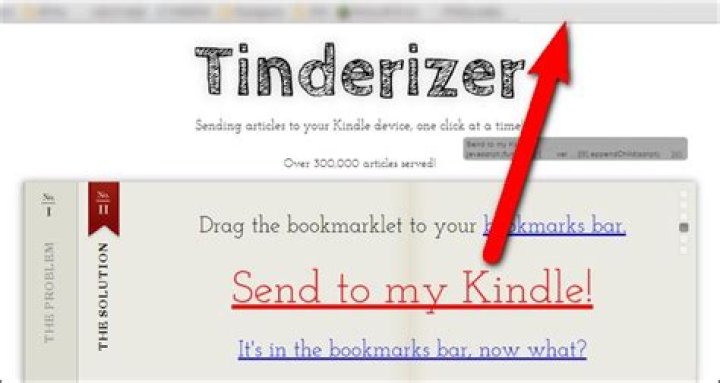
- Tinderizer bookmarklet
- Push to Kindle and its Android app by FiveFilters
- SENDtoREADER
And from my experimenting, they all have their drawbacks.
Send to Kindle (Amazon)
On Send to Kindle, the second item from “Requirements” disappears, as well as the entire second half of the article.
Instapaper
On Instapaper, if I first visit the article and then click on the extension, it does seem to grab the article correctly, with only the last paragraph missing, but that’s kinda the “thanks for reading” part, so it doesn’t matter as much.
However, if I add the link directly to Instapaper, only parts of the first paragraph show up, so it seems like I do have to manually visit every article I want to add.
Another “problem” I have with Instapaper is that it’s a “read it later” app, and, well, the name says it, it’s usually for reading things later. If I want to send something on the spot, to read it now, I either have to go through the settings and manually tell it to “send articles now”, or have their premium plan that includes the “Send to Kindle” bookmarklet, whatever that might be. I haven’t tested that one yet.
Tinderizer
Tinderizer heavily messes up the formatting, the code blocks, totally gets rid of the “Requirements” section, and also gets rid of the second half of the article.
Push to Kindle (FiveFilters)
Push to Kindle does a nearly perfect job, missing only the indentation inside the code block, but that’ll likely be fixed soon!
It also has an Android app that can be used to send an article directly from the Medium app, and it works very well.
SENDtoREADER
Pretty much the same as Tinderizer too.
So far, Instapaper through the Chrome extension was the best one, but not quite ideal yet.
I’ve heard an alternative to Instapaper could be Pocket, but I don’t think it has the Kindle support Instapaper has. From my research, it seems that to integrate (“integrate”) Pocket with the Kindle, one would have to use a third-party app, like IFTTT, to fetch articles saved in Pocket, then beam them to the Kindle, or something like P2K, that’s also a third-party service, but I haven’t tested that yet.
The ideal scenario would be as follows:
- Micael is browsing articles, either on his phone or on his computer
- Micael sees an article he’d like to read
- Micael presses a button (be it the “share” button, or an extension in the browser)
- Micael pulls out his Kindle and the article is there, ready to be read
I’m willing to subscribe to a paid service, if that’s the only way, but I can’t pay much. I’m already subscribing to Medium, and I don’t have much left to spend after purchasing my Kindle.
So I wanted to know which services you use, which ones you’ve tested, how is your article reading workflow, and so on.
Edits:
- 2020-08-25
- My Kindle is jailbroken, so if there’s a method that requires it, I’m already set!
- Added SENDtoREADER
- 2020-08-26
- Push to Kindle just informed me they’ve updated their service, and it now does a much better job!
- 2020-08-27
- I just purchased the Push to Kindle app, and it works pretty well for sending from the Medium app on Android.
—
Your Kindle or Kobo isn’t just for reading e-books or listening to audiobooks. Rather, those can serve as an excellent medium for reading news articles as well. Read on to find out how.
Now, reading news articles via Kindle or Kobo isn’t a default feature with either of the devices. Rather, you do that with read-later extensions such as Pocket or Instapaper that will let you save articles on the devices easily. The process starts with creating an account with either Pocket or Instapaper – we will help you decide later – and setting up the share extensions in your browser which can be on your phone, your laptop, or whatever. With all of that done, you can easily save articles for reading later on your Kindle or Kobo device.
Comparing Pocket with Instapaper
Once we have got the basic idea of the read-later service, now is the time to have all that you need to know with both Pocket and Instapaper to help decide on either. The basic functioning of both Instapaper and Pocket remains the same in that both will let you save articles for viewing later on your e-reader. Both have free and paid subscription plans but also differ in their free and premium offerings.
Instapaper
For instance, with the Instapaper free plan, you can have an unlimited number of saves while there is folder support available too for organizing the saved articles. Another huge advantage of Instapaper is that it is cross-platform compatible and allows for third-party API integration.
The paid plan requires shelling out $2.99 a month which will let you do a full-text search or create text-to-speech playlists. There will also be the option for unlimited highlights or creating your own Kindle Digest, which is a compilation of several articles but with the appearance of an e-book.
The Pocket read-later service also allows you to save an unlimited number of articles as well as cross-platform compatibility. However, unlike Instapaper, there is no folder support. Instead, there is the tagging feature for clubbing together related articles.
The Pocket paid plan is however costlier at $4.99 per month. For that amount, what you get is unlimited highlights, custom fonts, and auto-suggestive tags for better user convenience. Plus, there is also the option to save an article permanently on your device. So even if the original article is removed or changed, you will still have your saved article at hand.
Pocket vs Instapaper: Which one to opt for
To decide from a device’s point of view, those with the Kindle e-reader will do better with Instapaper. That is because Instapaper allows digests to be sent directly from your account. Further, your digests on Instapaper look a whole lot better on the Kindle too. That’s not to say Kindle owners can’t subscribe to Pocket. It’s just that you will need to have a P2K or Pocket2Kindle account.
The Kobo e-reader meanwhile is a better fit with Pocket since with the Kobo, you can sync directly with your Pocket account. You can reach all of your saved articles from the My Articles section under More from the Kobo Home screen. The Pocket text-to-speech feature available under the paid tier is also more natural-sounding too while allowing you to store more than 500 articles in offline mode. With Instapaper, it’s precisely 500 articles that you can store in offline mode.
Worth mentioning
The thing to keep in mind is that both Pocket and Instapaper should suffice those who have a lot of articles to read on a regular basis, and they’d rather do that on a proper e-reader than on other devices such as the laptop, smartphone, tablet, and such. Reading via an e-reader has its own advantages, which include easy readability thanks to the E-Paper display. Also, e-readers allow for a pure reading pleasure with none of the distractions usually associated with other devices.
However, for those who need to read news articles just once in a while, the Amazon Send to Kindle option might be a better choice. There is the Send to Kindle extension available on Google Chrome which can be used to send articles to the Kindle just by the click of a button. The feature is also completely free and should be enough for occasional reading. For dedicated reading, there is always Pocket or Instapaper to fall back on. You just have to select the one that suits you best.
With a keen interest in tech, I make it a point to keep myself updated on the latest developments in the world of technology and gadgets. That includes smartphones or tablet devices but stretches to even AI and self-driven automobiles as well, the latter being my latest fad. Besides writing, I like watching videos, reading, listening to music, or experimenting with different recipes. Motion picture is another aspect that interests me a lot and maybe I’ll make a film sometime in the future.
Follow MUO
The Amazon Kindle isn’t just limited to reading ebooks. Here’s how to send and read web articles on your Kindle.
The Amazon Kindle is the best device for reading. It has a special screen that doesn’t strain your eyes and has a range of handy features for readers such as the ability to highlight passages and offline dictionaries.
So why would you limit it to just books? Here’s how to send and read web articles to your Kindle.
1. Send to Kindle
Amazon offers an official browser extension for adding online stories to your Kindle library. Whenever you come across an article you’d like to send, all you need to do is click the Send to Kindle button and your Kindle will immediately begin downloading the file.
The tool also lets you edit the document’s content and how it should appear by default on your device. You can customize the title, author, font size and face, margin heights, color mode, and more. Instead of the entire web page, you have the option to only send the selected text as well.
It’s not restricted to Kindle readers either. You can push the article to any device such as your phone or tablet if it has the Kindle app installed. The extension comes with a bunch of keyboard shortcuts you can use to instantly dispatch the article.
Download: Send to Kindle for Google Chrome (Free)
2. Push to Kindle
Amazon hasn’t updated its Send to Kindle extension in ages. Therefore, it often struggles to render articles that have modern web design elements such as interactive slideshows. Thankfully, there is a slew of alternative third-party tools you can rely on.
Push to Kindle is one of them. It’s a straightforward utility for forwarding online content to your Kindle. But since it’s not owned by Amazon, you have to supply your personal Kindle address and approved email ID. You’ll find these details on Amazon’s Manage Your Content & Devices page.
Push to Kindle has a few more useful options. You can download the article as a document in EPUB, MOBI, or PDF format. You can alter the article’s title and then transfer them to up to five devices at once. Apart from Chrome, it’s available on Firefox, Opera, and Safari.
Download: Push to Kindle for Google Chrome | Mozilla Firefox | Opera | Safari (Free)
3. Send to Reader
This is for those who find Push to Kindle’s feature set limiting. Send to Reader is a more exhaustive solution for reading articles on your Kindle.
Send to Reader’s biggest highlight is its RSS feed integration. You can configure a publication of your choice and the service will automatically forward every new post to your e-reader.
Send to Reader can also send you bundles once every day which will include a bunch of recent articles from the sites you’ve subscribed to. In addition, there’s an e-book creator that you can employ to manually bundle the articles you’ve been meaning to read. Like the rest, you can send individual pieces and text directly to your device through the personal Kindle email address.
The majority of Send to Reader’s abilities, however, are not free. The free tier allows you to merely dispatch documents to your Kindle one at a time. The $6 monthly plan—which you can try for 15 days—gives you access to premium features like RSS subscriptions and the e-book editor.
Visit: Send to Reader (free, $6/month)
4. Connect Read-for-Later Services With Your Kindle
Most of us already have an endless pile of articles we want to get through on one of the many read-for-later services like Pocket and Instapaper. You can easily connect this feed to the Kindle too so that the articles you bookmark are instantly available on your e-reader.
Connect Instapaper With Your Kindle
Instapaper has a built-in facility for integrating your Kindle account. To set it up, go into the Settings and under the Kindle section, enter your Kindle email address. Next, you will need to append Instapaper’s sender ID to your Approved Personal Document E-mail List on Amazon. Hit Save Kindle Preferences and you’re done.
Once you’ve configured these options, there will be a few more functions available in the Kindle section. You can ask Instapaper to automatically forward your saved articles by enabling the Kindle Automatic Delivery switch. Alternatively, Instapaper can deliver a handful of your pending stories daily or once every week.
Connect Pocket With Your Kindle
Pocket has a long list of features but unfortunately, you will have to depend on a third-party service like P2K for Kindle integration. It works like Instapaper’s native solution. You have to submit your Kindle address and whitelist P2K in your Amazon content settings.
P2K can migrate some articles automatically to your Kindle on a daily or weekly basis. Instead of a routine, it lets you manually pick and transfer pieces. P2K has a couple of more perks that require a premium account such as the ability to mail articles with a specific tag and create multiple delivery systems.
In case you don’t want to pay for accessing your Pocket entries on a Kindle, you can also look into IFTTT applets.
Visit: P2K (Free, $2.99/month for Premium, $4.99 for Platinum subscription)
Mr. Reader is a RSS News Reader for your iPad that synchronizes with your Feedly, BazQux Reader, Feedbin, FeedHQ, Feed Wrangler, Fever, InoReader, Aol Reader, Feedja and SubReader account.
Features:
• Multiple accounts with separate settings
• Supports starred and tagged items (*)
• Mark items as read (single, all, older than n-days/weeks, above/below the current position)
• Mark as read while scrolling
• Search and add new feeds (*)
• Folder management (create, rename, delete) (*)
• Feed management (rename, delete, assign to folders) (*)
• Tag management (create, rename, delete, assign tags to feed items) (*)
• Reorder your folders, feeds and tags (*)
• Toggle to show only folders and feeds with unread items
• List items chronological or grouped by feeds
• Search for articles with the option to save searches
• Load more articles on request (*)
• Reading; Switch between RSS, Web, Instapaper Mobilizer, Readability Mobilizer, Pocket Mobilizer
• Customizable articles table: thumbnail size, thumbnails left/right, row height, font size, multiline titles
• Reading; Thumbpad to navigate between articles and to close the article viewer
• Automatic background synchronization (disabled by default)
• Image caching for offline reading (this applies only to the RSS view)
• 4 themes are included; additional themes can be installed from the website
• Web based theme editor, you will see every change immediately in Mr. Reader. Be creative!
• VoiceOver: To make Mr. Reader accessible for blind or nearly blind people. Suggestions are always welcome.
and some more!
(*) depends on the used service
Supported Services:
• iOS Share Sheet
• Open with Safari and every browser app that can be opened by a URL scheme.
• Included: Apollo Browser, Atomic Web, Coast by Opera, Dolphin Browser, Google Chrome, Grazing, iCab Mobile, Maven Web Browser+, Mercury, Opera Mini, Sleipnir
• Add to Safari Reading List
• Post to Twitter, Google+, LinkedIn, App.net, StockTwits
• Add to Buffer
• Save to Delicious, Diigo, Kippt, Pinboard
• Send to Instapaper, Pocket, Readability
• Send articles to your Kindle by using Tinderizer or SENDtoREADER
• Create note in Evernote, Toodledo, Microsoft OneNote
• Post to Tumblr
• Collect YouTube and Vimeo videos by using ToWatchList
• Open articles in “any” browser by using the SendTab service
• Generic solution to open other apps by using their URL scheme
• Included: Articles, Blogsy, Drafts, HootSuite, OmniFocus, Papers, Poster, Search Google, Search Wikipedia, Terminology, Things
• Browser bookmarklets can be added and used in the web view
• Print article
• Send link by ‘Message’ (text message)
• Send article by mail
• Send link by mail
• Copy link
• Copy short URL to clipboard
• URL shortener: goo.gl, TinyURL, is.gd, bitly, CloudApp, YOURLS, custom
If you have any features requests, problems or questions, please contact me by mail ([email protected]). I’m unable to respond to feedback posted in the App Store. Thank you!
Video/Screenshots
What’s New
• Adjusted for the higher screen size of the iPad Pro
• Article View: Image popup menu was not always shown
• Fixed some crashes
If you like Mr. Reader, please rate it in the App Store every time an update comes out. That helps me a lot, thank you very much!
If you want to know how to read Instapaper and Pocket articles on Kindle, this article will help you. With so many interesting articles on the Internet these days, there is not enough time for you to read all of them in one day.
That is why, bookmarking apps are useful when it comes to saving articles for future reading. Two of the popular bookmarking apps are Instapaper and Pocket. You can easily install them on your smartphones or computer browsers so anytime you come across a good article to read for later, these apps will save it for you.
Now, you can read your bookmarked articles directly to your Amazon Kindle device. What you need to do first is to create a bookmark button that will send these articles to your Kindle. Once you have a bookmark, sending is easy and fast.
How to Send Instapaper Articles to Kindle
How to Send Pocket Articles to Kindle
So, there you have it. That’s how to read your bookmarked articles in your Amazon Kindle. Just out of curiosity, which one do you prefer, Instapaper or Pocket? Do you have other bookmarking apps that you’d love for us to feature? Let us know your preferences and why in the comments below.




