@HarryGuinness
Dec 20, 2018, 8:00 am EST | 3 min read
If you want to send high quality original photos to your friends and family, then there’s really only one good way to do it: with a cloud storage provider. Social networks like Facebook and Instagram don’t store the original files; they reduce the quality, so pages load faster. Even good, dedicated photo services like 500px do it.
This isn’t an issue if you’re just posting photos so people can view them on their smartphones or computers, but if you want them to be able to print the images, you need to give them high-quality files.
What Counts as “High-Quality” Files?
The photos your smartphone camera—or any proper camera—can take are far bigger and of higher quality than social media sites can handle. If every image on your Instagram feed were 2 MBs and 12 megapixels, you’d burn through your data cap in no time. The thing is, these, high-resolution, 2 MB files are exactly what you want if you’re going to print them, set them as your desktop background, or do anything except view them in the correct size box on social media.
Here’s a photo of mine I uploaded to Facebook—it was 2.7 MB and 5166×3444 pixels. When I downloaded it from my Timeline, it was 74 KB and 860×640 pixels. You could barely print that on a postage stamp!
In general, when we talk about high-quality files, what we mean are the original photos straight from your phone or camera or, if you’ve made any edits, a saved copy in full resolution. If you shoot RAW, you can send exported full-resolution JPEGs; full-size RAW files can be a bit unwieldy, especially if the other person doesn’t have the apps to deal with them. These are the kind of files from which they’ll be able to print nice prints.
Don’t just download the photos you want to share with people from your Facebook page. Get them from your computer or smartphone.
Cloud Sharing: The Best, Simplest, and Cheapest Solution
A few years ago, cloud storage was a competitive marketplace. Now it’s a commodity: there are heaps of services willing to offer you gigabytes of free storage space. The three we generally recommend are Dropbox, Google Drive, and Microsoft OneDrive.
Which of the three you use doesn’t matter. They’re all pretty similar, and they all have desktop and mobile apps.
- Dropbox has the worst free tier at 2 GB. Unless you already use Dropbox, it’s probably not the one to go with.
- You probably already have Google Drive; you get 15GB of free storage with a Gmail account. If you’re not sure which to use, it’s a safe choice.
- If you use a PC, you also have Microsoft OneDrive. Like Google Drive, you get 5 GB for free. The best thing about it is that for $100/year (the same price Dropbox and Google charge for 1 TB of storage) Office 365 gives you 1 TB of storage each for six Microsoft accounts and access to Microsoft Office. If you’re going to pay, it’s the best option.
Put all the high-quality files you want to send in a single folder in your cloud storage app of choice and let it upload. Unless you’re sharing thousands of DSLR photos, you won’t come anywhere close to hitting the limits of your free storage. Right click on the folder and choose the relevant share option. Check out our full guide to sharing files and folders with cloud storage apps for more.
Share the link and now anyone who has it will be able to go in and download the high quality images.
No more going around to your friends’ house and seeing a very blurry version of a photo you took on their fridge.
A Note for Professionals
If you’re a professional photographer looking to share photos with clients, the cloud storage method above will work but can be a bit awkward to manage. Instead, you should check out dedicated online client galleries and proofing services like PhotoProofPro and PixieSet. The extra features they offer, however, are far beyond the needs of regular people.
If you want to send high quality original photos to your friends and family, then there’s really only one good way to do it: with a cloud storage provider. Social networks like Facebook and Instagram don’t store the original files; they reduce the quality, so pages load faster. Even good, dedicated photo services like 500px do it.
This isn’t an issue if you’re just posting photos so people can view them on their smartphones or computers, but if you want them to be able to print the images, you need to give them high-quality files.
What Counts as “High-Quality” Files?
The photos your smartphone camera—or any proper camera—can take are far bigger and of higher quality than social media sites can handle. If every image on your Instagram feed were 2 MBs and 12 megapixels, you’d burn through your data cap in no time. The thing is, these, high-resolution, 2 MB files are exactly what you want if you’re going to print them, set them as your desktop background, or do anything except view them in the correct size box on social media.
Here’s a photo of mine I uploaded to Facebook—it was 2.7 MB and 5166×3444 pixels. When I downloaded it from my Timeline, it was 74 KB and 860×640 pixels. You could barely print that on a postage stamp!
In general, when we talk about high-quality files, what we mean are the original photos straight from your phone or camera or, if you’ve made any edits, a saved copy in full resolution. If you shoot RAW, you can send exported full-resolution JPEGs; full-size RAW files can be a bit unwieldy, especially if the other person doesn’t have the apps to deal with them. These are the kind of files from which they’ll be able to print nice prints.
Don’t just download the photos you want to share with people from your Facebook page. Get them from your computer or smartphone.
Cloud Sharing: The Best, Simplest, and Cheapest Solution
A few years ago, cloud storage was a competitive marketplace. Now it’s a commodity: there are heaps of services willing to offer you gigabytes of free storage space. The three we generally recommend are Dropbox, Google Drive, and Microsoft OneDrive.
Which of the three you use doesn’t matter. They’re all pretty similar, and they all have desktop and mobile apps.
Put all the high-quality files you want to send in a single folder in your cloud storage app of choice and let it upload. Unless you’re sharing thousands of DSLR photos, you won’t come anywhere close to hitting the limits of your free storage. Right click on the folder and choose the relevant share option. Check out our full guide to sharing files and folders with cloud storage apps for more.
Share the link and now anyone who has it will be able to go in and download the high quality images.
No more going around to your friends’ house and seeing a very blurry version of a photo you took on their fridge.
A Note for Professionals
If you’re a professional photographer looking to share photos with clients, the cloud storage method above will work but can be a bit awkward to manage. Instead, you should check out dedicated online client galleries and proofing services like PhotoProofPro and PixieSet. The extra features they offer, however, are far beyond the needs of regular people.
If there is anything that has helped us communicate better within the last decade or so, it has been the use of pictures. Right from being able to send an MMS via cellphone to uploading social media accounts with picture stories, it’s been quite a tremendous improvement. Even professional spaces have become fully aware of the use of pictures in reports and task specifications. The ability to send multiple photos without adding bulky email attachments is a skill most of us would like to learn.
As online photo sharing increases, people are becoming more interested in learning how to send a lot of photos. Just sending a lot of pictures is not really an issue. The concern is mostly on how to share all the pictures without reducing the quality and size. And the struggle remains on finding the best platform for sharing that doesn’t require everyone to sign up or have a particular OS.
Photography keeps on improving and changing, and by so doing, brings a lot of great features to the way we interact. Coupled with the convenience of mobile web browsing, it’s now easy to snap and upload online. Smartphones can be synced to trusted cloud storage services where photos are automatically hosted and can be shared with as many recipients as the owner wants.
If you’re looking for how to share high-quality photos for free without having to individually select pictures, we have the information for you. Read this ‘how to’ article to find five easy ways of sending tons of photos privately and securely without the stress of selecting one picture after the other.
1. Facebook’s Moments App
Facebook is one of those rare apps that encompass both the young and older generations. If you would like to share photos with great picture quality, then consider using Facebook’s Moments App. The app enables friends to share pictures privately, and there is a facial recognition feature you can use when creating shared albums – this adds security. Instead of constantly having to ask your friend to share pictures you are in, they can simply upload them via this app and sync up albums to enable you easy access. The picture quality and integrity are as great as seen on Facebook, and even large files are maintained. Any issues with this app? Well, in most cases, you will have to download the app to view the pictures. Does that count?
2. Google Photos
Google Photos is found under Google Drive. In fact, Google Photos is one of the most used platforms and appears almost on every list that is related to sharing pictures. This photo sharing feature is the answer to how to send high-resolution photos for free to everyone regardless of the platform the recipient uses. As long as they have the correct link, they will be able to open the pictures shared. You get up to 15 GB of free storage to use in Google Drive, so you might have to delete other files or upgrade to a paid membership level which has a yearly subscription. The only downside of Google Photos is that it collects all metadata and can end up sending links to photos instead of the actual photos.
3. Dropbox
The service is quite similar to Google Photos, but it offers smaller free storage of just 2GB. Dropbox provides you with reliable syncing, and it is fast and super easy to use. Since it is widely popular, most people will feel safer opening shared picture links that are from Dropbox. To increase your space, you must invite new users to the platform. This also opens limited storage space, and should you wish to share bigger, you need to pay for more storage, which can prove somewhat expensive. Read more articles to discover the pros and cons of using Dropbox to share your big photo files.
4. AirDrop
This is another great app for sharing high-quality images of large volumes, and it is most likely to come up in a search for how to send multiple photos for free on an Apple device. AirDrop is a great option for those using Macs or iOS devices. The app provides an easy, seamless method of sharing with other Apple users. Most iCloud users are concerned about privacy, and AirDrop provides a secure platform. However, everyone from the sender to the recipients must be Apple users to access AirDrop and its services. Where there is a need to send pictures instantly and the sender and receiver(s) have Apple IDs, AirDrop is the best way to share images. It uses Bluetooth to create a peer-to-peer Wi-Fi network between devices, thus enabling each device to create firewalls around the connection and encrypt the files being shared. The main disadvantage of using AirDrop is that if your settings for discoverability are not limited to Contacts Only, then you might end up receiving any stray photo from nearby devices. Also, this app is only available for Apple devices.
5. FileWhopper
While the other four methods may prove to be more popular, they present minor problems that make them unsuitable for many users. If you’re interested in how to share photos without losing quality over a secure portal, then FileWhopper is your answer. And it’s pretty easy to use. The process requires you to:
- Select your file or folder with all the photos that you would like to share.
- Get a price quote based on the file/folder size.
- The tiny FileWhopper app will help you upload your file/folder in record time.
- Once the file or folder has been uploaded, you get a unique link to share it with whoever you would like to have access to the photos in the file/folder.
- FileWhopper provides you with a password to secure your encrypted file.
With the FileWhopper app, there is no data loss, so feel free to upload and share as many photos as you want. Since the service comes with file encryption, you’re guaranteed that only the right people will have access to your photos.
There are a lot of benefits that come with using FileWhopper, the most obvious being the absence of subscription fees. You pay a one-off fee depending on the file size. Use FileWhopper as you want and send files without data limits.
If you want to send high quality original photos to your friends and family, there is only one way to do this: with a cloud storage provider. Social networks like Facebook and Instagram do not store the original files; they reduce qualityso the pages load faster. Even good dedicated photo services like 500px do it.
It’s not a problem if you just post photos so that people can see them on their smartphone or computer, but if you want them to print the images, you have to give them high quality files..
What counts as “high quality” files?
The photos that your smart camera (or any other appropriate camera) can take are much larger and of better quality than social media sites can handle. If every image in your Instagram feed was 2 megabytes and 12 megapixels, you would quickly burn your data limit. The fact is that these high resolution 2 MB files are exactly what you want if you want to print them, set them as the desktop background or do anything else except display them in the right format on social media.
Here is a photo of mine that I downloaded on Facebook: 2.7 MB and 5166 × 3444 pixels. When I downloaded it from my timeline, the size was 74 KB and 860 × 640 pixels. You can hardly print this on a postage stamp!
In general, when we talk about high quality files, we mean by the original photos directly from your phone or from your camera or, if you made changes, a copy saved in full resolution. If you shoot RAW, you can send exported JPEG files at full resolution; Full-size RAW files can be a bit difficult to handle, especially if the other person does not have the applications to process them. This is the kind of files from which they can print beautiful impressions.
Do not just upload the photos you want to share with people on your Facebook page. Get them from your computer or smartphone.
Cloud Sharing: The Best, Simplest, and Cheapest Solution
A few years ago, cloud storage was a competitive market. Now it’s a commodity: are lots of services willing to offer you gigabytes of free storage space. The three we usually recommend are Dropbox, Google Drive and Microsoft OneDrive.
Which of the three you use does not matter?. They are all pretty similar and they all have desktop and mobile applications.
Place all the high quality files you want to send in a single folder in the cloud storage application of your choice and let it download. If you do not share thousands of photos with a digital SLR, you will not reach the limits of your free storage space. Right-click the folder and choose the appropriate sharing option. Check-out our comprehensive guide to sharing files and folders with cloud storage applications for more information.
Share the link and now anyone who has it will be able to download it and download the high quality images.
No need to go to your friends’ home to see a very fuzzy version of a picture you took on their fridge.
A note for professionals
If you are a professional photographer looking to share photos with customers, the above cloud storage method will work, but can be a bit difficult to manage. Instead, you should visit online client galleries and proofing services such as PhotoProofPro and PixieSet. The extra features that they offer, however, go far beyond the needs of ordinary people.
If you want to send high quality original photos to your friends and family, then there’s really only one good way to do it: with a cloud storage provider. Social networks like Facebook and Instagram don’t store the original files; they reduce the quality, so pages load faster. Even good, dedicated photo services like 500px do it.
This isn’t an issue if you’re just posting photos so people can view them on their smartphones or computers, but if you want them to be able to print the images, you need to give them high-quality files.
What Counts as “High-Quality” Files?
The photos your smartphone camera—or any proper camera—can take are far bigger and of higher quality than social media sites can handle. If every image on your Instagram feed were 2 MBs and 12 megapixels, you’d burn through your data cap in no time. The thing is, these, high-resolution, 2 MB files are exactly what you want if you’re going to print them, set them as your desktop background, or do anything except view them in the correct size box on social media.
Here’s a photo of mine I uploaded to Facebook—it was 2.7 MB and 5166×3444 pixels. When I downloaded it from my Timeline, it was 74 KB and 860×640 pixels. You could barely print that on a postage stamp!
In general, when we talk about high-quality files, what we mean are the original photos straight from your phone or camera or, if you’ve made any edits, a saved copy in full resolution. If you shoot RAW, you can send exported full-resolution JPEGs; full-size RAW files can be a bit unwieldy, especially if the other person doesn’t have the apps to deal with them. These are the kind of files from which they’ll be able to print nice prints.
Don’t just download the photos you want to share with people from your Facebook page. Get them from your computer or smartphone.
Cloud Sharing: The Best, Simplest, and Cheapest Solution
A few years ago, cloud storage was a competitive marketplace. Now it’s a commodity: there are heaps of services willing to offer you gigabytes of free storage space. The three we generally recommend are Dropbox, Google Drive, and Microsoft OneDrive.
Which of the three you use doesn’t matter. They’re all pretty similar, and they all have desktop and mobile apps.
Put all the high-quality files you want to send in a single folder in your cloud storage app of choice and let it upload. Unless you’re sharing thousands of DSLR photos, you won’t come anywhere close to hitting the limits of your free storage. Right click on the folder and choose the relevant share option. Check out our full guide to sharing files and folders with cloud storage apps for more.
Share the link and now anyone who has it will be able to go in and download the high quality images.
No more going around to your friends’ house and seeing a very blurry version of a photo you took on their fridge.
A Note for Professionals
If you’re a professional photographer looking to share photos with clients, the cloud storage method above will work but can be a bit awkward to manage. Instead, you should check out dedicated online client galleries and proofing services like PhotoProofPro and PixieSet. The extra features they offer, however, are far beyond the needs of regular people.
WeChat is the best chat app right now. You can find a bunch of useful features, such as free unlimited texting, voice calls, video calls, stickers, voice recordings, group chats, sight videos, photo sharing, video sharing, documents and files transfer, and many more. This app makes communication so much easier! Even Skype can’t compare to it! It’s way better than WhatsApp. Today we will discuss one of its useful features, the video sharing through WeChat. You can easily send videos through WeChat. To help save your bandwidth or data usage, WeChat can automatically shrink large videos or photos before sending. This can make the file sending much faster. However it will reduce the file size and image quality. Sometimes if you need to send photos in original size through WeChat or send videos in original size through WeChat, you can compress the photos or videos using a file manager on iPhone, Android or other phones before sending the file through WeChat. The one who received your media files can then decompress the zipped file to get the original photos or videos without any data loss or quality loss. Check out details below to see how you can transfer photos and videos through WeChat without compression.
How to Send Photos Videos in Original Size through WeChat?
If you are using WeChat for mobile, you can only transfer files less than 20M each. You can’t exceed the maximum file size limit. So you can’t send very large videos bigger than 20M in original resolution or quality. For most HD photos, short video clips, you can follow below tips to transfer them in full size via Wechat.
Note that you will need to use a file manager on iPhone or Android to compress the videos and photos first. You can’t reduce down the photo size or video size significantly without losing image quality. Here we compress or zip photos or videos before sending them to WeChat, not to shrink photo or video size, but to avoid compression by WeChat. If your video is way bigger than 20M and you still want to send them in full resolution or size, you may consider to trim videos and send them in segments. You can refer to this article to trim videos on Android phone, and this tutorial to trim videos on iPhone. This will split lengthy videos into short clips, thus you get much smaller file size for easier transfer via WeChat or other tools on mobile phones and the video quality does not suffer after editing, you can do it without losing any quality.
Send full images through WeChat on Android & iPhone
This method applies to only photos, not videos. WeChat allows users to transfer or share photos in full size on both Android and iPhone. Go to choose the images or photos in WeChat chat window, do not send the selected photos away directly, find and tap the Preview button, see below figure.
The image preview window opens in WeChat like below.
There will be a Full Image option at the bottom left corner if you use WeChat for iPhone. Tap on it to enable full image of the photos or pictures, then preview and send the photos in full size through WeChat. You can also send pictures in full size without compression from Android phone using this method. However if you use WeChat on an Android phone, you may see it differs in appearance.
Send Photos Videos in Original Size through WeChat on Android
If you are using Android phone, such as Samsung, HTC, LG, Motorola, Lenovo, Xiaomi, Huawei, ZTE, Sony, Nexus, you can refer to this guide to zip files on Android phones. After that you will be able to share the zipped photos or videos via WeChat, then pick up someone in WeChat Chats or contacts list and send the compressed photos or videos. If you are using a Samsung Galaxy phone, you can find the file in ES file manager or the stock file manager called My Files, then long press the zipped photos or videos, you will find the Share via option to select and send file to WeChat.
Then recipient who has received your zipped photos or videos can’t open these files directly using WeChat. If they are using WeChat for Android, they will be prompted with an ‘Unable to open this file on WeChat’ error and the option to choose and open with the third party app. If they have the compatible file manager installed on Android phone, such as the above mentioned ES file manager, they can read or unzip the files using it.
Send Photos Videos in Original Size through WeChat on iPhone
Apple users can check out this steps-by-step tutorial to zip files on iPhone. This guide provides a free iPhone file manager which you can use to compress and decompress files on iPhone. You can long press the file you want to send via Wechat in the file manager, then choose Open with option, and select WeChat, after that you will be able to select anyone in WeChat and send the selected file to him/her.
Then recipient who has received your zipped photos or videos can’t open these files directly using WeChat. If they are using WeChat for iPhone, they will be prompted with a ‘File type not supported’ error and the option to Open in Other App, then choose the compatible file manager on iPhone to open the zip file or unzip it. FileMaster is a good file manager, you can download it for free from above linked article.
Send high quality uncompressed photos via WhatsApp
We explain how to send high quality photos and images without compression in WhatsApp to maintain the resolution and quality same as the original image.
Without any doubt, WhatsApp messaging application mostly used today and what we could call the queen of all social networks, which covers a wide range of features. Not only WhatsApp application allows us to share real-time location but also allows us to send photos, videos, GIFs, audio files, contacts, voice notes and more to our entire list of contacts. Instead, you can also use various third-party apps to enhance the usage of WhatsApp.
For example, you can schedule WhatsApp message to be sent later, when you are busy you can set automatic reply to convince your friends, you can read WhatsApp voice notes without anyone knowing and more. Thus, allowing the user to have a much wider reach and makes it used by millions of users around the world on a daily basis.
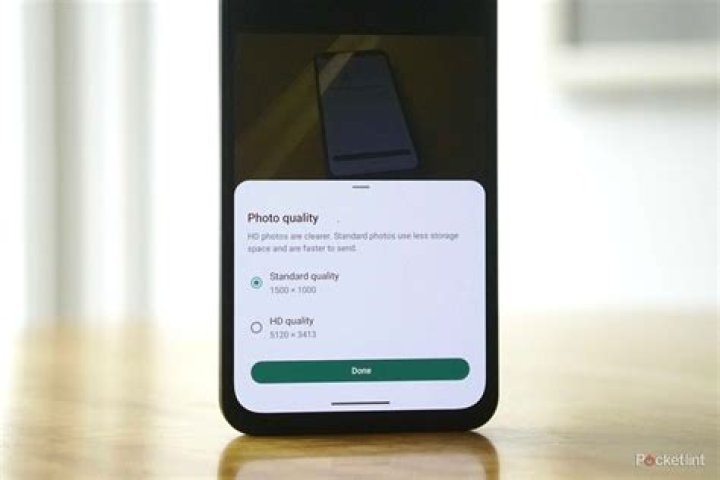
One of the issues that have been questioned most WhatsApp is that at the time of sending images to another contact, the application compresses images automatically by default. In this way, it saves space but also affects the quality and resolution of the selected image. As a result, many users are annoying since they may need an uncompressed high-resolution image for different reasons.
To overcome this situation, MsnTechBlog will explain how to send high quality photos and images to a contact via WhatsApp with all the features of quality, format, and resolution.
Tutorial on how to send high-resolution uncompressed photos on WhatsApp :
Sending uncompressed images on WhatsApp is a very easy task to do. You can simply follow below-mentioned steps to send high-resolution photos without hampering image quality:
Step 1
For this process, we first select the user to whom the image has to be sent and click on the Clip icon located at the bottom right.
Step 2
When clicking on this option, the following window will be displayed. There we click on the option Document.
Step 3
We will see like the following image. Click on the “Browse other docs…” option
Step 4
Go to the route where the image located and find it.
Step 5
Now click on the desired image to select it.
Step 6
Finally, click on the “Send” button and the image will immediately send to your WhatsApp contact without any king of compressing which may cause poor image quality.
That’s all dear friends, you only need 6 steps to proceed and the image will send with all its attributes to the selected contact.
MsnTechBlog already wrote many articles based on WhatsApp messaging application usage, problems and solution which will help it’s users. So, it is recommended to check our articles filed over WhatsApp category.
People often question like “How to send high quality photos?” So, this article is specifically written to tell you how to send high quality photos.
So, from the last decade, social media apps have evolved the world. All social applications continue to enhance their features. They aim to increase the feasibility of their users. WhatsApp is one of those applications. So, it has been the most popular social media app that serves billions of people across the globe. And due to the fact, it always comes up with new features every time.
4-5 years back, you could only send a single picture at a time. But now, you can send multiple pictures at a time. But, for the better transfer of media WhatsApp reduces its resolution. This reduction is about one-third of the original resolution. One can’t feel the difference between mobile phones. But when you view them on the computer screen, you’d see the huge difference in its resolution. So, at the end of this article, you’d know how to send high quality photos and videos, etc.
Table of Contents
How to Send High Quality Photos through WhatsApp?
This method is quite easy to follow. So, let’s just get started.
Method # 01 Sending through document option
When it comes to sending pictures and videos, what we all do is that we send them through the gallery. We tap “Attachment”, go to “Gallery” and send the desired image. So, here WhatsApp actually reduces its resolution to one third. Stop sending media through the gallery. Now what you can do is start sending photos, videos, etc through documents. Let us tell you how.
- Tap attachment.
- There you’ll see an option “Browse other docs”. Tap it.
- Select the images you want to send. Tap “Send”.
So, this is all about how to send high quality photos and with an original resolution of images. WhatsApp wouldn’t reduce its resolution. Thus maintains the original one. It is one of the easiest way to send full resolution media through WhatsApp.
Method # 02 Zip the pictures
It’s another easy method to maintain the resolution of your pictures. So, if you have a couple of pictures to send, it’d be time taking. But the wait is worth. You’d be maintaining the resolution of pictures in the end. So, let’s just get started.
- Firstly, go to your phone’s gallery.
- Select all the pictures you’d like to send.
- Tap the three dots on the right corner of the screen.
- Click on “Archive”.
- Create the Archive folder of the pictures. It will then require you to select the format “ZIP” or “7ZIP”.
- Tap on “Create”. It will then take some time that depends on the number of pictures.
- When it completes, Zip files will be available in your documents.
- Repeat the method one.
So, this is all about how to send high quality photos. And it’s all about how zipping up works! It is as easy as method number one. You can opt for any method that suits you. Any of these can help you to send high quality photos, videos, etc.
How to Send High Quality Photos by Compressing the Images
This is another best way to send high quality photos through WhatsApp. If any of the above-mentioned ways don’t work for you, it’d always work! So, let’s just get started with this one as well.
So, compression actually shields your images into a folder that WhatsApp would be unable to read. Most of the androids have compression tool built-in.
- Open the picture in the app.
- Tap and hold it unless it shows you a dialogue box.
- Select “Compress”.
- Select more and compress.
Here you have already done your part. And the application will do the rest of it. It is also used to send multiple images at a time that depends on their size. So, this is how you can maintain the resolution of pictures and not let WhatsApp degrading its quality.
Uploading to Google Drive or iCloud
So, it’s another method that can help you to maintain the resolution of your images.
What you can do is that simply upload all your pictures to Google drive. And when you’ve to send those pictures, simply share Google drive’s link. The same goes for iCloud as well. If you’ve sync setup, Apple will upload your pictures automatically. Thus, you won’t need to upload it yourself.
So, let’s just see the steps required for this process.
- Open Google drive if you’ve an android. And open iCloud if you’ve iPhone.
- The select picture you’d like to share.
- Right-click and tap “Get sharable link”.
- Copy the link and share it with recipients of pictures.
Let me tell you that these instructions are for android users. But the same goes for Apple users as well. The process is somehow similar. So, this is how it helps with sending high quality and full resolution pictures. You can find also How to Recover Deleted WhatsApp Messages
How to Send High Quality videos on WhatsApp
Besides pictures, WhatsApp has many other features. It lets you send music, GIFs, stickers, and videos as well. But when you share media including photos and videos, the recipient gets a lower quality of it. This is because WhatsApp uses a compression technique to reduce the size of media files. But you can still send full resolution videos like pictures. Let’s understand how to send high quality photos and videos etc.
Alike photos, if videos are shared from the gallery, WhatsApp would reduce its quality. So, first of all, don’t share it from your gallery. If we somehow send videos through the document, WhatsApp won’t compress it. And for this purpose, you must have an app named “Document Extension Provider”.
So, after installing it, follow the steps one by one;
- Run the app in your phone.
- Copy the videos you’d like to share into Documents app with share option.
- Open WhatsApp recipient’s chat. Tap “Attachments”.
- Select “Document”.
- If “Document Extension Provider” isn’t there, tap “More”.
- Once you see it, tap on it. And it will open the app.
- And from there, you’ll be able to send videos to WhatsApp recipients.
So, this is how you can share full resolution videos to WhatsApp. It’s another easy method that would help you with sharing high quality media files.
I hope that this article has resolved all your problems. And it has given an answer to the most asked question i.e “How to send high quality photos, videos, etc?”
Have you recently received a video or photo texted to you that looked like an old-school Atari pixelated mess? Most smartphone users have had that happen from time to time.
Your picture or video might look amazing when you take it. And it looks fantastic when you play it back on your device. But for some reason, when you send it, it turns into a grainy horror show.
Fortunately, there are ways to send videos and photos so that our friends and family members can enjoy the crystal-clear quality that our phone manufacturers intended.
In this article, we’re going to talk about how to fix blurry photos by exploring a number of image transmission options.
How to Fix Blurry Photos and Videos
First, this isn’t about megapixels. Your phone is not the problem.
The blurry image problem stems from your cellular network. When you send a text or video through your MMS (multimedia messaging service) app, your images and videos are likely to be greatly compressed. Different cell phone carriers have different standards as to what is allowed to be sent without being compressed.
Those amounts range from 0.3MB to 1.2MB. To make it worse, if you are sending a file to someone who has a different phone carrier, the limit is often at the lower end of that spectrum.
Why Is Picture Quality Worse When Receiving a Pic From an iPhone?
That’s a good question. Apple’s proprietary app, iMessage, does allow for sending and receiving larger files over the internet. If one iPhone user sends a video or picture to another iPhone user, they are likely to receive the message without major compression issues.
That’s because iMessage runs on your internet signal. You can send iMessages through Wi-Fi, LTE or 4G. Many other messaging apps run on this same premise of communicating via the internet as opposed to running on your cellular network. A few examples are Facebook Messenger, Google Hangouts and WhatsApp.
Because iPhone users most often send messages through iMessage, their photos and videos usually look great to other iPhone users. But if you are using a different platform, like Windows or Android, you are likely to get a degraded image.
Here Are 3 Steps for Sending High-Quality Videos and Texts
1. If You Have an iPhone, Keep iMessage Turned On
That will ensure that you are sending high-quality videos and photos to other iPhone users.
2. Sending a File to an Android Device? Use Email
If you are sending a file to someone who uses Android, consider sending the file via email instead of text. For instance, Gmail has a 25MB limit for attachments, and that’s much higher than the limit for most MMS services. If you send your photos or video through Gmail, your recipient is going to get a much better image than if you send via your MMS app.
If you have an Android phone, you’ll want to consider sending all of your photos and videos through an internet-based messaging service (like the ones noted above) as opposed to your stock MMS app. You could also send the images via email as noted above.
3. Use a Cloud-Based Service
Another option (which also deals with the issue of sending really large files) is using a cloud-based service like Dropbox or Google Drive. If you are a Gmail user, you’ll find it’s pretty easy to attach an image or video as a Google Drive file. After you upload the file, you can also text the link to your recipient.
Google Drive will give you 15GB of storage to use for free just for signing up. You can also have your pictures and videos automatically uploaded to Google Drive by enabling the Auto Backup feature on the app (you’ll need an internet signal for that to work).
It takes a bit more work to send a file through Dropbox, but hey, you’ll be getting the file there in its original and glorious state.
4. Download and Use the Send Anywhere App
And one more great option, for the sake of being thorough, is the app Send Anywhere. This app allows you to share photos, videos and contacts very easily and without degrading the quality. There are zero limitations on file type, size or amount — and it’s free!
One Final Option
Now that you know how to send images while preserving their quality, you may also be interested in fixing photos with a little magic.
You can manually fix blurry photos by using photo-editing software. You can sign up for a trial version of Photoshop, but there are some free options as well. Check these out:
- Fotor is a highly-rated photo editor
- Gimp is an open-source image editor
- Paint is a free graphics editor which comes with Microsoft Windows
- Photoshop Expressis like a free and stripped-down version of Photoshop
- Pixlis a free program with more than two million effects
Do you have tips for sending crystal clear photos and videos? Let us know in the comments below!




