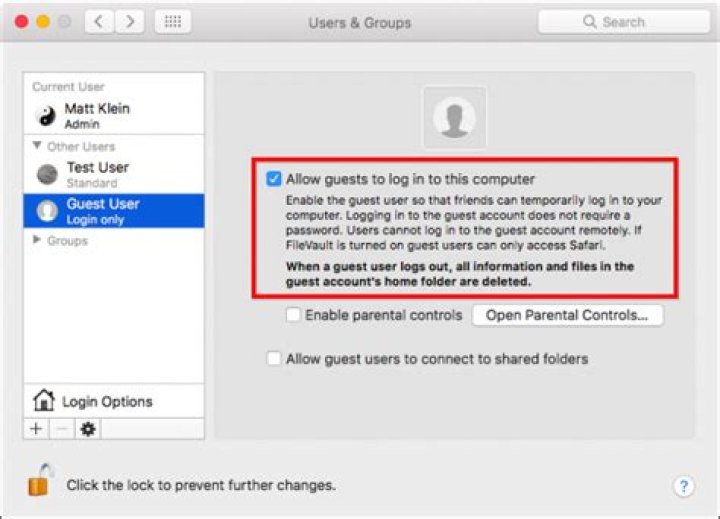
It’s been hard to extend hospitality since early 2020, but Apple still lets macOS offer your guests plenty of privileges. In macOS, there are two ways for people without user accounts to make use of your Mac, so long as you give them permission.
Guest account
The guest account in macOS is a great way to hand over your computer to someone without giving them any access whatsoever to any of your files, passwords, or other information.
First, make sure it’s enabled in the Users & Groups preference pane:
- Open the Users & Groups preference pane.
- Click the lock icon in the lower-left corner and authenticate yourself with Touch ID on equipped Macs or by entering an administrator password.
- Click the Guest Users in the users list.
- Make sure that “Allow guests to log in to this computer” is checked. You can optionally check Limit Adult Websites, which seems like an option only useful when someone you really don’t know is using the Mac, as in a public or institutional setting.
Restart the Mac, and on the login window the Guest option will appear. Someone selecting that option will be able to use Safari. If FileVault is enabled, that user won’t be able to open any local files via Safari or save files even temporarily.
Guest sharing
You might want to let people over a local network have access to certain files on your Mac. Enabling guest access to file sharing lets you accomplish that without exposing anything else.
You follow the steps above to access the Guest User in the Users & Groups preference pane. Make sure “Allow guest users to connect to shared folders” is checked.
Control which volumes and folders are made available to network guests via the Sharing preference pane. The guest user is part of the macOS group named Everyone, which includes all other users on the same Mac and all account-free access via the network.
Here’s how to modify what’s available:
- Open the Sharing preference pane.
- Select File Sharing in the Service list.
- Select an existing shared item, like a folder or a volume, in the Shared Folders list.
- With that selected, you can modify permissions for Everyone, setting options to Read Only, Read & Write, No Access (which leaves the entry in place), or Write Only (Drop Box), which provides a sort of mail slot—a folder location that accepts added files but which can’t be viewed.
Here’s how to connect as a guest from elsewhere on the network:
- In the Finder, click on the desired Mac in the Locations list in a Finder sidebar, or select Go > Network and double-click that Mac in a list that appears.
- Click Connect As in the upper-right corner of the Finder window.
- You may be prompted to continue by clicking Connect to agree that you know you’re trying to connect to a file server. Do so.
- Select Guest and click Connect.
- Double-click a shared volume or folder that appears and it’s mounted on your Mac, and available for access within the limits of permissions set by the sharing Mac.
If you don’t see the volumes on the Desktop, you can change settings in the Finder via Finder > Preferences > General: check Connected Servers to have them appear.
Setting up a guest account on your Mac provides a simple and convenient way for other people to use your computer without handing them access to your private data and digital workspace.
Essentially, a guest account allows a friend, family member or co-worker to perform basic computing tasks on your Mac while ensuring that your personal data and account settings remain private and secure. Anyone using a guest account with full privileges has access to your Public and Desktop folders (located in Users/[Username]/), where they can save files, but everything else on the system remains inaccessible.
Moreover, a guest account is temporary, meaning once the user logs out, all their information and files are deleted, thereby preserving their privacy and your storage space. With that in mind, here’s how to set up a guest account in macOS.
How to Create a Guest Account
- Click the Apple () symbol in the top left corner of your Mac’s screen and select System Preferences. .
Click Users & Groups.
Click the lock in the lower left corner of the window.
Using Parental Controls for a Guest Account
Following the above steps, you may have noticed that you can optionally set up a guest account with parental controls by ticking the associated checkbox.
While many of these settings are aimed at restricting what children can do, there are a few options that may come in handy for limiting guest users of any age.
For example, you can create a whitelist of allowed apps and websites, set time limits based on a schedule, and even prevent users from changing the settings of peripherals like printers and scanners. For more information, check out our separate guide on managing restrictions in Parental Controls.
Before we start
Having spent some years coding applications for macOS we’ve created a tool that everybody can use. The all-round problem fixer for Mac.
So here’s a tip for you: Download CleanMyMac to quickly solve some of the issues mentioned in this article. But to help you do it all by yourself, we’ve gathered our best ideas and solutions below.
Features described in this article refer to the MacPaw site version of CleanMyMac X.
If you occasionally need to allow access to other people to use your Mac but don’t want to create a permanent user account for them – the guest user account is your top choice. In this article, we’ll show you how to set one up and use it, or what to do if it’s not showing up.
What is a guest user account on Mac?
A guest user account is a special type of account in macOS that allows anyone to log into your Mac without a password. They won’t have access to any of the data stored in other user accounts and can’t change anything, since the guest user is not an administrator.
Any files and folders created by a guest user are deleted when they log out. Guest user accounts also help Find My locate your Mac if it is lost or stolen. With a guest account enabled, the person who steals or finds your Mac can log in and use Safari. This will allow Find My to trace your Mac using the WiFi network it’s connected to.
How to set up a guest account
- Click on the Apple menu and choose System Preferences.
- Select Users & Groups.
- Click the padlock and type in your Admin password.
- Choose Guest User.
- Check the box next to Allow guests to log in to this computer.
- If you want to restrict access to adult websites, check that box.
- If you want to allow guests to access shared folders, check Allow guest users to connect to shared folders.
- Quit System Preferences.
That’s it. That’s all you need to do to set up a guest account on your Mac. To disable the guest account, just uncheck Allow guests to log in to this computer. If the guest account option isn’t available after you’ve set it up, try disabling it and then re-enabling it. If that doesn’t work, restart your Mac.
Other ways to protect your privacy on your Mac
Setting up a guest account isn’t the only way to protect your privacy on your Mac. There are a number of other things you can do, like regularly delete items in your Recent Item list or delete your browser history and downloads folder. If you don’t want anyone to know what WiFi networks you’ve connected to, you can delete those too.
The easiest way to remove all of that data is to use a tool like CleanMyMac X. CleanMyMac X has a Privacy module that makes it so easy to clear out your recent items, browser history, and WiFi networks. It can also revoke permission for applications to use your FaceTime camera or microphone. You can download it for free here.
Creating a guest account on your Mac is a secure way to allow others to use it. Also, it helps Find My track your Mac if it gets lost or stolen. Follow the steps above to set one up.
Matt Klein has nearly two decades of technical writing experience. He’s covered Windows, Android, macOS, Microsoft Office, and everything in between. He’s even written a book, The How-To Geek Guide to Windows 8. Read more.
If you loan your Mac to a friend or family member, even for a short time, you may not want to trust them with your account. You could create a new account, or you could just have them use macOS’ built-in guest account.
The guest account allows someone to use your computer without needing to create an individual account for them. Any files created by the guest are stored temporarily, then deleted when they log off. You can further restrict how guests use your computer by assigning parental restrictions.
One Guest Account, Two Possibilities
There’s one important thing to understand about the guest user account, however. What a guest sees and how they can use it depends on whether you have FileVault disk encryption enabled or not.
If FileVault is enabled, the guest user account is similar to a very basic kiosk account. Each time you want to log in to the guest account, you have to completely restart your Mac. The only application available is Safari, and all you can change is the user language, connect to a Wi-Fi hotspot, and restart or shut down the computer.
If FileVault is disabled, though, the guest account is much more useful. For one, guests can log in with fast user switching, meaning no one has to log out of their account to restart the computer.
Furthermore, guests can use the full range of applications installed on the Mac, access shared folders on your network, and you can fine-tune the guest user account with parental controls. It’s almost like a full account, though making any changes to it still requires administrator privileges, and everything is deleted when the guest user logs out.
Unfortunately, you have to disable FileVault to get these features—which we don’t recommend doing. Full-disk encryption is a very important security feature we believe everyone should use. It keeps thieves from being able to access the data on your laptop should it get stolen.
If you need to disable FileVault in order to enable the full guest user account, do so only when necessary, and when no longer needed, we recommend disabling the guest account and re-enabling FileVault as soon as possible.
How to Enable the Guest User Account
To enable the guest user account, access the System Preferences by clicking on its Dock icon, then open the Users & Groups preferences.
In Users & Groups, the left pane will display the current user (you) and, under Other Users, you should see the Guest User account.
Click on the lock icon in the lower-left corner.
Enter your system password to unlock the Users & Groups preferences.
Once unlocked, click on “Guest User” and then check the box next to “Allow guests to log in to this computer”. When you no longer need the guest user account, follow these steps again and uncheck this box.
There are two other options to consider as well.
When you enable the guest account, you can also enable parental controls and allow guest users to connect to shared folders on your network (though again, you can only do this if FileVault is disabled). Parental controls are useful for restricting guest user access to apps, certain websites, when they can use the computer, and more.
Finally, once the guest user account is enabled, it will be available from the login screen.
You may also access it via fast user switching, if FileVault is disabled.
Enabling the guest account isn’t something you want to do on a full time basis. Rather, you should employ it only as needed, especially if you have to disable FileVault.
And, because the guest account isn’t protected by a password, it is inherently insecure. You don’t want to allow unmonitored access to your computer when it is enabled, especially if there are children present.
That said, if you have family or friends visiting for the weekend, and you’re not keen on giving them unfettered access to your computer or creating a special user account for them, then the guest user account can be perfect in such a situation.
If you share your Mac with someone else on a regular basis, then you’ll typically want to create an account for that person. This gives them the freedom to customize their settings and preferences, and gives you more privacy and security, compared to both of you sharing the same account.
But what if someone only requires temporary access to your Mac? Or only needs to use it from time to time? For example maybe a family member has a computer of their own, but it’s an older model and they only occasionally require access to apps and features that are only available on your shiny new computer.
In scenarios where creating a dedicated user account feels like overkill, you can use macOS’ guest account feature.
Letting someone access your Mac via a guest account means you don’t have to go to the trouble of creating a new account. And since a guest account isn’t password-protected, that person won’t find themselves struggling to remember a password that they may go weeks, possibly even months between using.
You can also customize your Mac’s guest account by placing restrictions on the tasks that a guest can perform, right down to the specific applications they can launch, the websites they can visit, and the settings they can modify.
Even if you don’t share your Mac with another user, you may still want to setup a guest account so that you’re prepared for scenarios where a friend, family or co-worker unexpectedly needs to borrow your Mac. You’re going to feel a lot more comfortable letting someone use your computer, if you already have a guest account setup with all the necessary restrictions in place.
Create a guest account
- Select ‘Apple’ from your Mac’s toolbar, followed by ‘System preferences…’
- Select ‘Users & Groups.’
- Click the little padlock icon in the bottom-left corner, and enter your username and password when prompted.
- Make sure the ‘Automatic login’ dropdown is set to ‘Off.’
- Select ‘Guest user’ from the left-hand menu.
- Select the ‘Allow guests to log in to this computer’ checkbox.
You can then add some restrictions to this guest account, by selecting the ‘Enable parental controls’ checkbox and clicking the accompanying ‘Open Parental Controls’ button.
Make sure that ‘Guest user’ is selected in the left-hand menu, and you’ll have access to the following tabs:
- Apps. The ‘Apps’ tab contains a number of options that are geared towards helping keep children safe online, such as restricting access to your Mac’s built-in camera. However you can also use this section to specify the applications that a guest user can access, for example you may want to prevent guests from accessing the App Store, or using system utilities such as the Terminal. Select ‘Limit applications on this Mac,’ then open the ‘Other Apps’ and ‘Utilities’ sections and select which items guests should, and shouldn’t be able to access.
- Web. This is where you’ll find checkboxes that you can use to restrict access to adult websites. If you have a specific website that you don’t want guests to be able to visit on your Mac, then click the ‘Customize…’ button and enter the website’s URL.
- Stores. Here, you can prevent the user from accessing the iTunes and iBooks stores, and also block them from using your Mac to purchase movies, TV shows, apps or music featuring explicit or adult content.
- Time. In this section you can limit the days of the week and the times when a guest account can be accessed, and place a limit on the total number of hours this guest account can be used, on any given day.
- Privacy. By default, guests will be able to modify the contents of system applications such as Contacts, Calendars and Reminders. You can prevent guests from accessing and editing this information, by deselecting the various ‘Privacy’ checkboxes.
- Other. Many of the settings in this tab are geared towards protecting younger users, but it does contain a few options that you may want to use for guest accounts, including preventing guests from being able to modify your Dock.
Disabling the Guest Account
Since guest accounts give people a way to access your Mac without having to enter a password, you may want to disable this feature from time to time, for example if you suspect that someone is using your Mac without your permission.
To disable a guest account:
- Navigate to ‘System preferences > Users & Groups.’
- Click the padlock icon and enter your admin details.
- Select ‘Guest user’ from the left-hand menu.
- Deselect the ‘Allow guest to log in to this computer’ checkbox.
Enable Fast User Switching Menu
If the person you’re sharing your Mac with needs to use their guest account at multiple time throughout the day, then you may find yourself regularly switching between your Mac’s guest account and your own user account. If this is the case, then you can make your life easier by enabling ‘Fast User Switching.’ This adds an icon to your Mac’s toolbar that, when clicked, displays a dropdown containing all the user accounts registered on your Mac.
If you select the guest account from this dropdown, then your Mac will immediately switch to this account, without closing any of the apps or programs you’re currently running. Then, as soon as the guest hands your Mac back to you, simply select your account from the dropdown menu, enter your password, and you’ll be back in your normal account, which will be in exactly the same state you left it.
To add the fast switching menu:
- Navigate to ‘System preferences > Users & Groups.’
- Select ‘Login options.’
- Select the ‘Show fast user switching menu as’ checkbox, then open the accompanying dropdown and select either ‘Account Name’ or ‘Icon.’
Before you go
After spending over 20 years working with Macs, both old and new, theres a tool I think would be useful to every Mac owner who is experiencing performance issues.
CleanMyMac is highest rated all-round cleaning app for the Mac, it can quickly diagnose and solve a whole plethora of common (but sometimes tedious to fix) issues at the click of a button. It also just happens to resolve many of the issues covered in the speed up section of this site, so Download CleanMyMac to get your Mac back up to speed today.
We all have those kinds of friend or family members that usually drop-in without prior notice; either to complete an assignment or send an important E-mail. A personal computer is called personal for a reason and letting our Mac operated by someone else is something against the concept.
To tackle this, it is highly recommended to create a guest user account on Mac for that irritating human being.
Enabling a guest user on Mac has its benefits. Just like an actual guest that don’t get access to your entire house, similarly, a guest account on Mac does not give full access to the user. It protects your privacy. To learn how to create one, follow the tutorial provided below.
How to Enable Guest User Account on Mac
Step #1. Click on “Apple Menu” and then choose “System Preferences.”
Step #2. Now, click on “Users & Groups.”
Step #3. If you have a Mac password setup, click on the “lock” icon at the bottom of the screen.
Step #4. Enter your Mac password. This will unlock the settings.
Step #5. Click on Guest User from the sidebar showing the user list.
Step #6. On the right side, you can see three checkboxes.
- Allow guests to log in to this computer
- Enable parental controls (You can enable it (tick the checkbox) and then configure the parental controls by clicking on that button labeled “Open Parental Controls”)
- Allow guest users to connect to shared folders. (If you want to the guest user to be able to access just your shared folder (/User/Shared), check the “Allow guests to connect to shared folders” This will let the guest user access shared folders.)
Check “Allow guest to log to the computer” to Enable it.
To confirm you have created guest account successfully, shut down all the windows on your Mac and restart your computer. When your Mac restarts, you can see that Guest User icon on the screen. The “guest” can use Safari and a few other apps but won’t be able to view your files/folders.
Signing off
Remember, creating a new user takes a different method. When you create a guest user, no password is required to log in.
You may also like to explore:
Would you like to create a guest account on your Mac? Share your feedback with us in comment section.
Table of Contents
- Click the Apple () symbol in the top left corner of your Mac’s screen and select System Preferences.
- Click Users & Groups.
- Click the lock in the lower left corner of the window.
- Type in your admin password if prompted.
- Click Unlock.
- Click Guest User.
Also, how do I setup a guest account on my Mac without a password?
Correspondingly, how do you add a new User to a Mac?
- On your Mac, choose Apple menu > System Preferences, then click Users & Groups.
- Click the Add button below the list of users.
- Click the New Account pop-up menu, then choose a type of user.
- Enter a full name for the new user.
- Enter a password for the user, then enter it again to verify.
- Click Create User.
Subsequently, how do I allow guest Users to use programs on Mac?
- From the Apple menu, go to System Preferences then choose “Users & Groups”
- Select “Guest User” from the sidebar listing.
- Be sure the checkbox next to “Allow guests to log in to this computer” is checked.
You asked, how do I login as a different User on Mac?
- Click “Users & Groups.” Marissa Perino/Business Insider.
- Click the lock.
- Check the box and choose an option.
- Click to see other users.
- Lock or log out of your current profile.
- Click the “Switch User” icon.
- Log in to another user profile.
You can’t merge Apple IDs. Look into using Family Sharing to continue to be able to use items purchased with one Apple ID with other Apple IDs. Sometimes different features have their own sign-in.
What do I do if I don’t know my administrator password Mac?
- Restart your Mac.
- While it is restarting, press and hold the Command + R keys until you see the Apple logo.
- Go to the Apple Menu at the top and click Utilities.
- Then click Terminal.
- Type “resetpassword” in the terminal window.
- Then hit Enter.
- Type your password and a hint.
Can a Mac be used by multiple Users at same time?
Yes, but only one user can use the GUI at a time. You can have several people connected with SSH. See also Server Fault, “Mac OS X multi-user thin client server (terminal server)?” at and “Something like “Terminal Services” for Mac OS X?” at
How do you change your account name on a Mac?
- Open System Preferences.
- Users & Groups.
- Click unlock and enter your password.
- Now Control-click or right-click the user that you want to rename.
- Choose Advanced.
- Change the name in the full name field.
- Restart the computer for the changes to take effect.
How do I create a new user?
- Choose Start→Control Panel and in the resulting window, click the Add or Remove User Accounts link.
- Click Create a New Account.
- Enter an account name and then select the type of account you want to create.
- Click the Create Account button and then close the Control Panel.
Why is my Mac showing a guest user?
Answer: A: Answer: A: Guest User appears as a consequence of enabling Find My Mac.
What is guest account on Mac?
The guest account is a separate account accessible through the Mac’s log-in screen, alongside other existing accounts. When selected, the guest account automatically access the account without a password, saving Mac owners from having to remember yet another account credential to pass onto guests.
Why is there a guest user on my Mac now?
A guest user account on a Mac computer functions in two ways — the first being that it allows friends, family, and colleagues quick access to your personal computer so that they can easily sign in to their email or check the news, and the second is that it is a safe way to share your personal laptop with others without …
How do you switch Users on a Mac when its locked?
- Lock your Mac by going to Apple menu -> Lock Screen. Or use the keyboard shortcut ‘command+control+Q’ to lock it quickly.
- Click on ‘Switch User’
How do I switch Users on a locked computer?
- Press the Windows key + L simultaneously (i.e. hold down the Windows key and tap L) on your keyboard and it will lock your computer.
- Click the lock screen and you’ll be back on the sign-in screen. Select and log in to the account you want to switch to.
How do I switch back from guest user on Mac?
- Go to Apple menu > System Preferences.
- Select Users & Groups.
- Click the lock icon in the bottom left corner to unlock all settings.
- From the sidebar select Guest User. In the right pane, uncheck Allow guests to log in to this computer check box.
How many Apple IDs can you have on a Mac?
Answer: A: You can create up to 3 different Apple IDs on 1 device. So if you have an iPhone, an iPad and a Mac then you can make 9 different Appe IDs. But it is only the number of units that sets a limit.
AppleInsider is supported by its audience and may earn commission as an Amazon Associate and affiliate partner on qualifying purchases. These affiliate partnerships do not influence our editorial content.
In situations where a visitor wants to use your Mac for a task, providing them access via your personal account may be an unwise move, especially if it isn’t someone you completely trust. AppleInsider explains how to set up a guest account in macOS that provides access without endangering your personal data.
Over time, the need to provide a houseguest or visitor access to a computer has reduced, in part because of the prevalence of smartphones and tablets being carried around, ones which are capable of doing the majority of things guests may want to do. There are, however, some things that are simply better to do on a desktop, like writing out a lengthy document, that would be best done with a physical keyboard instead of an iPad’s display or an iPhone’s small software keyboard.
The immediate solution is to log into a Mac using an existing account and letting the visitor do what they need to accomplish. While this may be suitable for situations where the account owner is monitoring the guest’s usage, it isn’t a secure option if the account’s user has to leave the Mac unattended, as this effectively gives the visitor free reign to alter and delete data, install unwanted apps, and other potentially harmful tasks to the account.
To save users from having to set up a second dedicated account for visitors to use and abuse, Apple has included the ability to set up a guest account.
What is a Guest Account?
The guest account is a separate account accessible through the Mac’s log-in screen, alongside other existing accounts. When selected, the guest account automatically access the account without a password, saving Mac owners from having to remember yet another account credential to pass onto guests.
When accessed, the guest account effectively loads up the Mac as if it is a new user, complete with the default background and apps in the dock. Guest users can access apps installed on the Mac, including browsers for Internet access, but crucially it does not provide access to any files stored on the Mac in other user
The guest account provides access to installed apps and the Internet, but importantly the way it is configured means it cannot be used to affect the files created by other account users registered to the Mac. As well as protecting documents from prying eyes, this protection even applies to apps, like iTunes not showing any music stored on the Mac by other accounts.
Even better, at the time the guest account logs out, all files created using the account that are stored on the Mac are deleted, leaving the account clear for the next guest, as well as preventing any storage from being used up for the other normal accounts.
Setting up the guest account
When logged into an administrator account, select the Apple icon in the main menu, and select System Preferences. Select Users & Groups, which will be on the fourth row down, first icon from the left.
In the Users & Groups window, click the lock in the lower left to make changes, enter the account password, and click Unlock. Select the Guest User account in the left-hand column, and click Allow guests to log into this computer.
This tickbox can also be unticked to deactivate the guest account in the future.
Click the lock again to prevent further changes.
At this point, you can check the guest account is available by saving any work on the current account and logging out or rebooting the Mac. At the login screen, there should be a new option marked as Guest User.
Using the guest account
At the login screen, click the Guest User listing. This will bring up a familiar default new account view of the macOS desktop, complete with a selection of apps on the Dock.
If you look in Finder, the list of areas accessible to the guest account are relatively blank or not immediately usable, with no access to existing files on the internal storage at all. Installed apps do appear in the Applications folder, though again without allowing access to accounts or sessions used by other registered users.
While it won’t provide access to internal storage, it will still allow guest users to access files located on external storage devices. Keep this in mind if there are any items on these drives you do not wish others to access, as you may need to reconsider creating a guest account in the first place, or disconnect the drives in question before the guest logs in.
At the point of logging out, a window will appear advising the user is logged in as a guest, reminding any created files will be deleted and unrecoverable, and giving an opportunity to retain the files. To delete and exit the account, click Delete Files & Log Out.
Restricting abilities
While this guide does cover the basics of setting up a guest account, there are more options available to those wanting to restrict a guest’s abilities while using the account. An option in the Users & Groups window for the guest account gives the option to enable parental controls, along with a button to set the changes.
Just as with parental controls for specific accounts, this can be used to allow or deny access to specific applications, connected cameras, Apple’s media stores, and adult web content, among other elements. This will be discussed in detail in a future tip.
It is also possible to include the Guest User within specific user groups, allowing for the mass management of permissions for multiple accounts. This could be handy if you have multiple accounts for children that have specific restrictions, as including Guest User in this group would give it the same permissions and restrictions as the other accounts.
Enable fast user switching
If you are using a normal account but quickly want to change to the guest account, the fastest way to do it is to enable fast user switching. This will allow users to click their account name or icon in the menu to bring up other accounts, then a click of the guest account will lock the existing one while opening up the guest version.
To enable this, go to the Users & Groups window as described above, and click Login Options. Tick the checkbox for Show fast user switching menu.
A dropdown box next to the option changes how it appears in the menu, including selections for the full name of the user, the account name, and an icon.
- ‘)” data-event=”social share” data-info=”Pinterest” aria-label=”Share on Pinterest”>
- ‘)” data-event=”social share” data-info=”Reddit” aria-label=”Share on Reddit”>
- ‘)” data-event=”social share” data-info=”Flipboard” aria-label=”Share on Flipboard”>
Related
- How to Give Remote Desktop Users Administrator Rights
- How to Let Contributors Upload Photos in WordPress
- How to Delete an Administrator Account on an Apple
- How to Leave a Message on a Facebook Wall
- How to Delete a Computer Administrator Account in Windows XP
Leaving guest user accounts open on your Mac computer when the user no longer needs access can leave your business and personal files at risk. Remove unnecessary accounts using the Users & Groups section, located in System Preferences. If the guest has read and write permissions, you need to decide what to do with the user’s home folder — either keep the folder or compress it into a disk image.
Removing the Guest User Account
Click the “Apple” menu in the upper left corner of the desktop and select “System Preferences.” Click the “Users & Groups” icon in the System section.
Click the “Lock” icon in the bottom right corner and then enter your administrator name and password as prompted. This unlocks the settings to allow you to make changes.
Select the “Guest User” account in the left column. Deselect the “Allow Guests to Log in to This Computer” option. The Guest User account is disabled.
Click the “Lock” icon to prevent others from changing the settings.
Removing Other Users
Open “System Preferences” from the Apple menu and click the “Users & Groups” icon. Click the “Lock” icon and enter your administrator name and password.
Click the name of a user you want to remove in the left column. Click the “-” button below the column. If the account is for sharing only, a dialog box opens asking you to confirm that you want to delete the account. Click “Ok.”
Save the guest user’s home folder if desired by selecting “Save the Home Folder in a Disk Image” option. The image is saved in the Users folder, inside the Deleted Users sub-folder. If you don’t select this option, the user’s home folder remains where it is in the Users folder. Click “Delete User.”
Click the “Lock” icon to prevent anyone from changing the settings without administrative permissions.
Have you ever wondered what you should do when someone (any of your family member or friend or relatives) ask to use your Mac to check their email? While the
Have you ever wondered what you should do when someone (any of your family member or friend or relatives) ask to use your Mac to check their email? While the Mac can be lent for a couple of hours to your family members but the situation becomes really confused if this is a guest as you use to store valuable information on the Mac which you do not want to be accessed by others. Well, Guest login is the solution to this. Just create a Guest login on a Mac and you can be fully relaxed. You can enable numerous restrictions for guest login and they won’t be able to access anything on your Mac. Here we have discussed how to create a guest login on a Mac in details. But, before that know here what this Guest User account is and the benefits of it.
Guest User Account
The Mac let users log in as various types of users such an administrator, sharing only user, managed users while Guest users are one such user. When you let some of your friends to log in as Guest, they can have access to all those apps that you have permitted (this can be configured) and as soon as they log out, all the information they stored gets deleted. The benefits of creating this account on your Mac are as follows:
Benefits of Guest Login
- The Guest user account helps you easily track the stolen or misplaced Mac using the Find My Mac app. The reason is when this Mac goes at someone else’s hand, they will try to login through user account as it does not require any password. And this will automatically help you track the device on the map.
- Guest login does not require any password.
- It does not take up any extra space on the memory to save any temporary data or password as everything is stored on a temporary file and gets deleted as soon as the guest log out.
- The users won’t be able to change the computer settings.
- The guest user account can be accessed even when your normal account is active thus it eliminates the need to log off and log in again and again.
How to create Guest login on a Mac
- First, go to the Apple menu that is located at the top left corner of the screen.
- Click on it to tap on the ‘System preference’ option.
- Now click on User & Groups. Next tap on the lock icon to enter the administrator and password if required.
- Select the Guest user option in the side left bar from various options available.
- Ensure to tick the checkbox ‘Allow guests to log in to this computer’. That’s it. You have now successfully enabled Guest login on your Mac.
However, just creating the Guest login is not enough rather also go for configuring it for safe use by the friends and family. Here is how to configure the Guest account.
Restrictions to make for the Guest user account:
Even though you do not want to limit the usage but there are certain things that are suggested to follow for good reasons.
- Again go to the Apple menu> System Preference> User & Groups> Guest User. Here as you enable the guest user, also tick the box ‘Enable parental controls’ after which tap on the right button that will take you to the restrictions panel.
- The restriction panel will contain numerous options starting from apps, webs, people etc. So, you can set a limitation on all by clicking each of them.
- First tap on ‘apps’ that will let you set a limitation on the app usage by the guest users. First, check the box ‘limit application’ and then select all that apps which can be accessed by your guest user.
- Next option is web. Click on that and select the box that says ‘try to limit access to the adult websites automatically’. This is advised to select so that the guest users can’t do anything wrong on your Mac.
- The people and time limits can be checked by you to see if anything is to limit here.
- And then go for the ‘others’ tab that too has numerous options such as ‘Disable use of dictation’ ‘Hide profanity in dictionary’, ‘Limit printer administration’ option and many other. Among all those you can limit the printer usage by ticking the checkbox next to ‘Limit printer administration’.
That’s it. Your Mac is now ready to use by the guest users.
Mac is allowed to add a new user to Access personal Mac Computer. So why we don’t use it. Most of the macOS is supporting to add new Mac Users as an Administrator, Standard, Sharing Only, and Group. Moreover, Apple Unveiled Screen Time for Mac from macOS Catalina or Later. Using this feature we can set restrictions for App use and Other Activity running on the screen. Before that people only allow restrictions on guest/ Child login like Disable apps, Block website URLs and Disable or enable game center access. Get the Brief guide on how to create and delete a user in Mac OS. Here is the step-by-step guide for your Mac, MacBook, MacBook Pro, MacMini, and iMac.
we are happy to help you, submit this Form, if your solution is not covered in this article.
Note: Before removing an account, please verify the Account name and contact user before removing data by deleting an account.
Guide to Create and delete a user On Your Apple Mac
Create – Make New Guest/ User Account Under the Administrator in Mac
- Step 1: Go to the Apple Menu from the top menu bar, then click on System Preference,
- Step 2: Then open Users & Groups.
- Step 3: Unlock for change Setting by entering a valid Mac password.
- Step 4: For add new user as a guest or Child Click on the + icon from the left pane on window
- Step 5: Enter account name and Password that you want to be set as the login password.
Next, click on Create account. Wait for few seconds, Now, your Mac screen shows Multiple Accounts on the login screen with Guest users.
Disable the Guest User Account at Mac
This action will remove a guest user from login screen mac with any MacOS,
We can apply Restrictions for Guest users by disabling unused or unsecured accounts temporarily or permanently without delete accounts and Data or Stop guest user mac appeared on login screen. that’s the smart way to manage Multiple logging from an administrator account on mac. Follow the below steps,
- Go to the Apple Logo From Top mac Menu >System Preferences.
- Click on “Users & Groups“.
- Click on the Lock icon to Unlock the screen and Change.
- Select Standard “Guest user” >Uncheck “Allow user to administer this computer”.
- That’s it.
Now, your Guest account is disabled and won’t see on the Mac login screen.
Remove or Delete account on Mac
- Step 1: Remove or Delete another account’s System Folders, Settings and more Go to the Users & Groups > Choose user’s account name from the right pane.
- Step 2: From the below click on – symbol.
- Step 3: Next click on the Delete button. (Before that you can see an option for what types of data you want to delete from the system like the home folder, Use for future reference you have to choose the Second option, Not for the show but saved in deleted user choose the first option).
Disable Guest User Mac Greyed Out
On Restart your Mac or Login screen is showing Guest user enabled but greyed out. That Means Guest User is disabled by the Administrator. and Re-Activate your Login on Mac. Follow the below steps. if you are Guest User and are you here then contact your admin.
- Go to the Apple Logo From Top mac Menu >System Preferences.
- Click on “Users & Groups“.
- Click on the Lock icon to Unlock the screen to access the items from window. Select Standard “Guest user” > Uncheck “Allow user to administer this computer“.
- That’s it.
How do I turn off the Password for Guest Users on My Mac?
As an Administrator, we can give permission for access to Guest account on mac to anyone without a password if you set previously. Or Change in the same way. Let’s follow the below steps for Turn off Password for Guest Login on Mac.
- Click on the Apple Logo from the top Mac menu >System Preferences.
- Next, click on the Users & Groups option.
- Click on the lock icon to access the Guest account.
- Now, Click on Reset Password Button to turn off Password or change the old password.
- Attention, Don’t Enter any password in any field, keep all the fields blank and click on Change password.
- That’s it.
Now you are done, having any confusion on Create and delete user on Mac. More valuable tips for your Mac in future-friendly touch with us on social pages.
jaysukh patel
Jaysukh Patel is the founder of howtoisolve. Also self Professional Developer, Techno lover mainly for iPhone, iPad, iPod Touch and iOS, Jaysukh is one of responsible person in his family. Contact On: [email protected] [OR] [email protected]
Extending hospitality has been difficult since the beginning of 2020, but Apple still gives macOS a lot of privileges for its guests. On macOS, there are two ways to use a Mac, as long as someone without a user account gives you permission.
Guest account
A macOS guest account is a great way to give your computer to someone without granting access to files, passwords, or other information.
First,[ユーザーとグループ]Make sure it is enabled in the settings pane.
- Open Users and groups Settings pane.
- Click the lock icon in the lower left corner and use Touch ID on your equipped Mac or enter your admin password to authenticate yourself.
- click Guest user It is in the user list.
- Make sure that “Allow guests to log in to this computer” is checked.Can be confirmed as an option Restrict adult sites, This seems to be an option that is only useful when someone is doing you Really I don’t know if I’m using a Mac, like a public or institutional setting.
When you restart your Mac, you will see the login window[ゲスト]The options are displayed. Those who choose that option will be able to use Safari. When FileVault is enabled, the user cannot open local files or temporarily save files via Safari.
Guest sharing
We recommend that you allow users over your local network to access certain files on your Mac. You can do this without exposing anything else by enabling guest access to the file share.
Follow the steps above[ユーザーとグループ]Access the guest user in the settings pane. Make sure that “Allow guest users to connect to shared folders” is checked.
[共有]Use the settings pane to control the volumes and folders available to network guests. Guest users are part of a macOS group named Everyone. This group includes all other users on the same Mac and all account-free access over the network.
Here’s how to change what’s available:
- Open share Settings pane.
- select File sharing It’s on the service list.
- [共有フォルダー]In the list, select an existing shared item, such as a folder or volume.
- Select this to change Everyone’s permissions and set options[読み取り専用],[読み取りと書き込み],[アクセスなし](Leave the entry as it is) or[書き込み専用]You can set it to (Dropbox) to provide a kind of mailslot (folder). A location that accepts added files but cannot display them.
Here’s how to connect as a guest from anywhere else on your network:
- In Finder, in the Finder sidebar[場所]Click the desired Mac in the list, or click[Go> Network Double-click on the Mac in the list that appears.
- click Connect as Located in the upper right corner of the Finder window.
- You may be prompted to click to continue Connecting I agree that I know I’m trying to connect to a file server. Do so.
- select The guests Click Connecting..
- Double-clicking on a shared volume or folder that appears will mount it on your Mac and allow you to access it within the permissions limits set by your shared Mac.
If you don’t see the volume on your desktop, you can change your Finder settings in the following ways: Finder> Settings> General: Check and display the connection server.
Ask Mac911
We’ve put together a list of the most frequently asked questions, along with answers and links to columns. Read Super FAQ Check if your question is covered. If not, we are always looking for new problems to solve!Your email [email protected] Whether to use the full name, including screen captures if needed. Not all questions can be answered, we cannot reply to emails or provide direct troubleshooting advice.
How to set up guest accounts and guest sharing on macOS
Source link How to set up guest accounts and guest sharing on macOS
Last year Apple launched macOS Mojave for Mac computers, and it is indeed an excellent operating system that can be used by any person in the world. Irrespective of the job, you can utilize this platform for getting maximum benefits. Although it comes with so many features, not all of them available by default. That said, you need to turn some features on if you need them and off if you do not want to use them. For example, the guest user login. By default, it is activated on macOS Mojave. However, if you do not like this feature, you can turn it off.
What is guest user login in macOS Mojave?
If you have got a MacBook and you have set it up for the first time, you might have noticed that you entered some personal details including a username, password to create an account. This user account helps you access your Mac computer. Like Windows, you can customize your user profile. If someone has the password of your user account, he/she can access your computer. However, if you do not want to share your password since your laptop has some confidential information yet you want to allow the person to access your computer, you can let him/her use the guest user account. The guest user account holders cannot find any file that is saved in your standard account.
Advantage of guest user account
There are some advantages of the guest user account on macOS Mojave. Some of them are mentioned below.
- You can allow your kid or other family members to use your computer without sharing the password or when you are away from home.
- As guest user account holders cannot find your files, you can safely share the computer with other people.
- You can test an app freely.
Disadvantage of guest user account
Not only just advantages but also the guest user account option comes with some drawbacks as well. The primary problem with the guest user account is it shows the direct option on the login screen. That means, if someone has got your Mac computer and turned it on, he/she can start using that machine without admin permission. He/she just needs to click the corresponding guest user account option to get started with your computer.
Therefore, if you do not use the guest user account functionality and you want to hide the guest user login option from the lock screen of macOS Mojave, here is what you can do. There is no need to install any third-party software since it can be done with the help of in-built options provided by Apple itself.
How To Enable Or Disable Guest User Login On macOS Mojave
As by default, the guest user option is enabled, there is no need to do anything to turn it on. In case you want to use it, you can restart your computer and click the respective guest user account option on the lock screen to boot your MacBook into that state. To disable it on your computer, you can follow the following steps.
Step 1: Open System Preferences. For that, go to Desktop >> click the Apple logo in the top menu bar >> select System Preferences.
Step 2: Go to Users & Groups.
Step 3: This window should show a lock icon. If it is showing as locked, you need to click that icon first. After that, it will ask you to enter the user account password. Do enter that to make any change on that window.
Step 4: After that, click the Guest User option.
Step 5: Allow guests to log in to this computer option should be enabled by default. You need to remove the tick from the corresponding checkbox.
That’s it! Now you should not find the Guest User option on your lock screen of macOS Mojave.
If you want to use guest user account on Mojave, one crucial thing you should keep in mind. All the files, browser history, etc. will be deleted if you logged out from the guest user account.
Create an guest user on Mac and let other’s to use your system without accessing the private data.
Like Windows, Mac also supports Guest User account. It allows other people an easy way to use your computer without having access to your private data, password, digital workspace, social media account, and more. It is considered a great way to protect your privacy. Creating a guest account on your Mac is very simple and useful for those who share their computer. Moreover, any files created by the guest are stored temporarily and deleted when they log off. You can also set restrictions for App usage and other activity running on the screen. The article below guides you to add a Guest User account on Mac in simple steps.
How to Enable Guest User Account in Mac
[1] Tap the Apple logo in the top left corner of the screen.
[2] Select System Preferences.
[3] Now, click on Users & Groups.
[4] If you have set an password for mac, tap the Lock button in the lower-left corner of the screen.
[5] Enter your Mac account password.
[6] Click Unlock.
[7] Select Guest User from the sidebar showing the user list.
[8] You can view three checkboxes on the right side. Click the checkbox next to Allow guests to log into the computer.
[9] Shut down your Mac and restart it to confirm that you have created a guest account successfully.
[10] The Guest User icon will appear on the login screen.
How to Disable Guest User Account in Mac
Follow the below steps to remove a guest user from the login screen Mac with any macOS.
[1] Click the Apple Logo on the top and select System Preferences.
[2] Click on Users & Groups.
[3] Tap on the Unlock icon to make further changes
[4] Select the Guest User you want to disable.
[5] Uncheck the box, which implies Allow user to administer this computer.
Tips – You can switch between the users on Mac whenever you want.
These are the steps required to add Guest user accounts on Mac. You can also enable parental controls for the guest user account that you enabled. It will be useful for restricting the guest user from accessing certain apps, certain websites, and more.
Have you found the right direction to add a guest user account? Use the comments section to mention the errors that you encountered. For more tutorials, follow Techowns’ Facebook and Twitter profiles.
In macOS, just like most desktop operating systems, you can have more than one computer user. For instances where you may need to share your computer with someone else, it can be convenient for you to create a guest user rather than risk your security from your own administrator account.
In this tutorial, we’ll show you how you can enable the guest user account on your Mac.
About the guest user
The guest user on a Mac has fewer privileges than an administrator such as yourself does.
The guest user account is designed for letting your friends and family use your computer temporarily, and as a result, information and settings that are created or accessed by the guest account is deleted and/or reset every time the user logs out. This makes it feel like you’re logging into a factory-restored Mac each time you use it.
This means that if your friend uses it to write a paper for school, they will need to save it on some kind of USB flash drive, Dropbox, or another storage medium before they log out; if they don’t, they’re going to lose it.
Please keep in mind that changes made inside of the guest account do not affect files and settings of other accounts on the computer, including your own.
Enabling the guest account on your Mac
If another person will be using your computer besides you, it’s a good idea to enable the guest account on your Mac. This way, they’re not logging into your personal macOS account and tampering with your own files and settings.
The guest account is easily enabled from the System Preferences app on your Mac, and can be done via these simple steps:
1) Launch the System Preferences app on your Mac and open the Users & Groups preferences pane.
2) Now, make sure you’re in the Password tab, and click on the lock icon at the bottom of the preferences pane to unlock the settings.
3) You will be asked to enter your admin password, so go ahead and authorize the action by entering it, then click on the blue Unlock button.
4) If you entered your password correctly, then the Users & Groups preferences pane will now be unlocked to you.
5) Click on the Guest User option on the left side of the preferences pane:
6) Now put a check mark under the Allow guests to log in to this computer option, and this will enable the guest login for your Mac.
And now that the guest account is enabled, you can start using it immediately after you log out of your Mac or restart it.
Wrapping up
Enabling the guest user on your Mac is a good idea if someone else is going to be using your computer, and it’s not hard to do at all.
Anything is better, in terms of security, than letting someone just log into your administrator account and do whatever they darn well please, and that’s why the guest account exists in macOS.
Will you be enabling the guest account on your Mac? Share in the comments!
Your Mac can have multiple user accounts. If you want, you can let users log in as guests. However, if nobody is using the guest account, you may want to disable or delete it and remove the Guest User from the login screen. This article explains how you can do this if you no longer need the guest account.
Guest users can use your Mac but they won’t gain access to your items such as your passwords, emails, files or folders, and more. They won’t be able to change your Mac’s settings or install apps. Guests users will not have full access but limited access. Guest users can use your Mac without a password.
When a guest user logs out, all their information and files will be deleted.
Delete a guest user account on your Mac
1. Open System Preferences from the Dock or the Apple menu and click Users & Groups.
2. Click the Lock icon to unlock this section so that you can make changes. The lock icon is located at the bottom-left-hand corner of the screen.
3. Enter your password and click Unlock.
4. Under the “Other Users” section, select Guest User. Then deselect these boxes (make sure all options are off):
- “Allow guests to log in to this computer”
- “Allow guest users to connect to shared folders” (if it is selected)
5. Close System Preferences and you are done. You won’t see the Guest User login on boot.
There is no way for you to completely remove the Guest User account. Selecting Guest User and then clicking the Remove button (-) below the list of users does not work.
Serhat Kurt
Dr. Serhat Kurt worked as a Senior Technology Director. He holds a doctoral degree (or doctorate) from the University of Illinois at Urbana / Champaign and a master’s degree from Purdue University. Here is his LinkedIn profile.
Thank you for choosing to leave a comment.
Please note the following:
- All comments are moderated.
- Your email will NOT be published nor shared.
- All SPAM comments will be deleted.
- Please see our comment policy page for more info.
How to Enable Guest User Account on Your Mac or MacBook — Sometimes your family or your friends need to borrow your MacBook just to browse or to do something. But the problem is you are afraid that they will unintentionally change something on your in-progress works as you do not close the app of your works. So, what is the best solution of this? The solution is activating the Guest User account on your MacBook. By activating this Guest User account you don’t need to worry that anybody will change anything unintentionally, and also your privacy will be saved too.
Then, here are the steps of How to Enable Guest User Account on Your Mac or MacBook:
- Find Apple logo button on the left corner of your Mac or MacBook screen, then click it.
- Choose SystemPreferences.
- After SystemPreferences window appeared, find UserGroups and click it.
- See the padlock on the left bottom corner of the window, then click it.
- Enter your Mac or MacBook credential then click the Unlock button to unlock it.
- Once the padlock is unlocked, the Guest User choice on the Other User section will be enabled.
- When the Guest User is already enabled, click it then tick the Allow guest to log in to this computer checkbox.
- Last, to activate this GuestUser you have to log out or switch to the login window of your Mac or MacBook.
For the additional information, once the Guest User account has enabled on your MacBook, each time you want to log in, there are two accounts appeared on your screen. Here is the look of the screen.
I hope you don’t find any difficulties in activating or enabling Guest User account. From now on, you don’t have to worry about all the files or your works on your MacBook.
- If your MacBook is stuck on the Guest user, this will stop you from being able to modify any settings on your device.
- To fix this problem, simply reset the SMC, use Safe Mode, and disable the guest account completely.
- If you don’t want to worry about not being able to fix Mac problems, check out our Mac Fix Hub.
- If you want to keep up to date with the latest Mac information, visit our useful Mac page.
A guest user account can be useful if you need to share your MacBook with others, but sometimes your MacBook can get stuck in the Guest user account. This can be an annoying issue, but there’s a way to fix it.
What to do if MacBook is stuck in the Guest user account?
1. Reset the SMC
Sometimes you can fix the problem with the Guest user account simply by resetting the SMC. To do that on T2 models, follow these steps:
- Turn off your MacBook and hold left Control, left Option, and right Shift.
- Hold the keys pressed for 7 seconds, then hold the Power button alongside these three keys.
- Keep all four keys pressed for an additional 7 seconds.
- Release the keys and start your MacBook again.
The process is slightly different on older models without the T2 chip:
- Shut down your MacBook and hold left Shift, left Control, and left Option.
- Without releasing these keys, press and hold the Power
- Hold all four keys for 10 seconds. After you release them, start your MacBook.
Several users claim that resetting their SMC helped, so be sure to try that.
2. Use the Safe Mode
According to users, if your MacBook is struck in the Guest user account, you can fix the problem simply by entering the Safe Mode. To do that, follow these steps:
- Restart your MacBook.
- While your laptop boots press and hold the Shift key.
- After you see the login window, release the Shift key and enter your credentials.
After you log in to Safe Mode, your cache should be cleared, so you can just restart your MacBook and you’ll be able to log in without issues.
3. Disable Guest account completely
If you’re having problems with a guest account, you can disable it completely. To do that, you might have to enter Safe Mode by following the instructions from the previous solution. As for disabling the Guest account, you just need to do the following:
- Go to Apple menu > System Preferences.
- Select Users & Groups.
- Click the lock icon in the bottom left corner to unlock all settings.
- From the sidebar select Guest User. In the right pane, uncheck Allow guests to log in to this computer check box.
After disabling the Guest user account completely, check if the problem is still there.
In this guide, we discussed some easy solutions that should help you if your MacBook is stuck in the Guest user account.
FAQ: Learn more about Guest users on MacBook
- How do I turn off the password for guest users on my Mac?
To turn off the password for guest users on Mac, you should open System Preferences, click Users and Groups, click the lock found at the right side of your screen, enter the password, and click Remove password for the guest account.
- What is a guest account on Mac?
A guest account on Mac allows you to share your Mac usage with other users. A guest account doesn’t allow performing any changes to your system, thus keeping your information and data secure.
- How do I restore factory settings on my MacBook Air?
To restore your MacBook Air to its factory settings, you need to restart your laptop, press and hold the Command + R keys once the white screen appears until you see the Apple logo. Inside the Disk Utility window, select the Container Disk, and choose Erase.
Table of Contents
On your Mac, choose Apple menu > System Preferences, then click Users & Groups . If the lock at the bottom left is locked , click it to unlock the preference pane. Select Guest User in the list of users. Select “Allow guests to log in to this computer.”.
How does guest User work on Mac?
When Guest User is enabled, you can let anyone use your Mac, and they won’t leave a trace behind. They’ll be able to login in without a password, and when they log out, the Mac will delete any data they’ve left behind.
Can I have 2 Apple IDs on my Mac?
You can’t merge Apple IDs. Look into using Family Sharing to continue to be able to use items purchased with one Apple ID with other Apple IDs. Sometimes different features have their own sign-in.
How do I enable guest account?
Enable Guest Mode Swipe down at the top of your screen to open your notifications. At the top right, tap on your avatar. Tap Add guest and you’ll switch to Guest Mode.
Can a Mac be used by multiple users at same time?
Yes, but only one user can use the GUI at a time. You can have several people connected with SSH. See also Server Fault, “Mac OS X multi-user thin client server (terminal server)?” at and “Something like “Terminal Services” for Mac OS X?” at
How do I set up a second user on my Mac?
Add a user On your Mac, choose Apple menu > System Preferences, then click Users & Groups . Click the Add button below the list of users. Click the New Account pop-up menu, then choose a type of user. Enter a full name for the new user. Enter a password for the user, then enter it again to verify. Click Create User.
Should my wife and I have separate Apple IDs?
Apple recommends that you do not share your Apple ID. Instead, set up Family Sharing so that each person uses their own Apple ID. This way, your family can share purchases, subscriptions, and more without sharing personal information like email, text messages, or passwords.
How do you switch between users on a Mac?
How to switch users on your Mac computer with fast user switching Click “Users & Groups.” Marissa Perino/Business Insider. Click the lock. Check the box and choose an option. Click to see other users. Lock or log out of your current profile. Click the “Switch User” icon. Log in to another user profile.
Can guest account access my files Mac?
Allow guest users to log in to your Mac without entering a password. To turn on guest access, select Guest User in the list on the left. Guest users can’t log in remotely. If FileVault is turned on, guest users can access Safari, but can’t access your encrypted disk or create files.
What is the guest password on Mac?
Guest accounts require no passwords. System preferences > users and groups > click the lock and type in admin info > disable guest user account.
Why has guest user appeared on Mac?
Answer: A: Answer: A: Guest User appears as a consequence of enabling Find My Mac.
How do you save a guest account on a Mac?
1: Enable Guest Login From the Apple menu, go to System Preferences then choose “Users & Groups” Select “Guest User” from the sidebar listing. Be sure the checkbox next to “Allow guests to log in to this computer” is checked.
What is a Sharing Only account Mac?
If you want to give someone limited access to your computer, you can create a sharing-only user account to enable the person to access only the files and folders you specify. On your Mac, choose Apple menu > System Preferences, then click Users & Groups . Click the New Account pop-up menu, then choose Sharing Only.
How do I separate my Apple joint account?
The easiest way to run 2 Apple IDs on one computer is to go to System Preferences/Users & Groups and create a new user account so that you each have your own account. That will keep, your data separate.
How do I separate two devices with the same Apple ID?
Sign in with a different Apple ID to create your new account. Choose Merge to upload your data. Once you are on separate accounts, you can each go to icloud.com and delete the other person’s data from your account.
What happens if two devices have the same Apple ID?
If you use all the same information, same Apple ID and don’t use the cloud, you will have all of each other’s information on both phones. The phones will mirror any information synced with Apple ID. You can use your phone number to use FaceTime on the iPhone. IMessage is also the texting application.
Can you switch users on Mac without logging off?
To switch from one user to another without logging out, users choose their name from the menu bar, and then enter a password or use Touch ID. Choose Apple menu > System Preferences, click Users & Groups, then click Login Options.
How do you switch users on a Mac when its locked?
Switch Users from Lock Screen Lock your Mac by going to Apple menu -> Lock Screen. Or use the keyboard shortcut ‘command+control+Q’ to lock it quickly. Click on ‘Switch User’.
How do you switch users on a Mac without a mouse?
Ctrl + Option + Shift + Down Arrow simultaneously followed by left/right to choose user, You don’t need to activate voice over for this to work.
What does allow guest users to connect to shared folders mean?
When a Workplace owner shares a folder with a guest user, they have the option to provision that guest user with editor permissions. With editor permissions, a guest user can view, download, upload and delete files in the shared folder. Navigate to login.os33.com and sign in with valid credentials.
What is a guest account?
Guest-account meaning A default set of permissions and privileges given to non-registered users of a system or service.
There are times when you need to hand over your Mac to your friends or relatives. The first thing that strikes is you don’t want them to access your private files. Like other Operating Systems, MacOS also allows an administrator to create a guest account.
Sign in Screen for a Guest User
Benefits of a Guest Account
With the help of a guest account, you can:
- Allow someone to use your Mac while at the same time prevent him from accessing your private files,
- Limit the things one can do on a guest account,
- Any file created or downloaded while using guest mode remains in the system temporarily. It gets deleted as soon as one signs out of a guest account.
Setting up a Guest User Account on MacOS
- Open System Preferences by clicking on the Apple logo.
2. Go to Users & Groups option.
3. After you click on Users & Groups, you will see a new window. In this window, you can see the list of all existing user accounts on your system.
Existing User Accounts
4. Click on the lock icon to make changes. Then the system will prompt you to enter your password.
Enter your password
5. After this, a new window will appear. Click on the checkbox that says “Allow guests to log into this computer.”
Allow guests to log into this computer
6. You can also put restrictions on a Guest Account. For this, click on the checkbox that says “Enable Parental Controls.”
7. After this, Click on the lock icon to save your changes.
That’s it. You are all set to go. This is how you can create a guest account on your Mac. Please note that if you have FileVault on your Mac and it is switched on, then a guest user will only be able to access Safari Web Browser.
If you encountered any problem while doing this, feel free to drop us a text. We will be happy to help you out. And yes, don’t forget to share this post with your friends over social media.
“Guest User“There is nothing abnormal about an operating system macOS. This user of “guests” / “guests” is very little used, especially on Macwhere only one person has access. If you still want to leave someone at Mac, account usage “Guest User”Is very indicated. Logged in to this account, the visitor will not have access to your files. to applications and in addition, all data stored in a “guest” session will be automatically deleted after authentication.
However, this account can also give some headaches to users who want to deactivate it. “Guest User” does not want to be easily removed from the login screen.
Normally, the “Guest User” can active, disable si administers from “System Preferences”→“Users & Groups“→ click on”Guest User“.
From this screen you can change (theoretically) the password for “Guest User”, it can be activated and deactivated.
Unpleasant surprise occurs when this account / user is disabled, it still appears in login screen when we start Mac.
How to disable “Guest User”, if this is not possible in “Users & Groups”
First of all, let’s see the characteristics of this “Guest User”:
– belongs to the user group “_guest”
– account name is “Guest“Guest User” is just the full name.
– has User ID 201, which means that the files under this ID do not belong to a specific person, but to a visitor.
– UUID: FFFFEEEE-DDDD-CCCC-BBBB-AAAA000000C9
By default, the authentication password for the “Guest User” should not be required. However, I encountered situations in which this account appeared suddenly activated, with the password and everything. Unknown.
Before we can completely disable “Guest User”, we need to set a new password.
How to change the “Guest User” password on Mac
1. Open the utility Port and execute the command line:
2. Enter the password of the administrator user on macOS
3. Enter and re-enter the new password for the “Guest” user.
In this way, the password for the “Guest User” account on macOS will be changed to the one you chose.
Furthermore, for those who already have “Guest User” disabled, but it does not disappear from the “login screen”, the solution is the following:
1. go to System Preferences”→“Users & Groups”→ activate “Guest User“.
2. ‘Log Out“From the administrator user and we log in to the account”Guest User“.
As I said above, on the user’s “Guest” session, the data will not be saved until misidentification. This user will create a “Guest” folder in “/ Users”.
3. “Log Out” from the “Guest” user and log in to the administrator account.
4. Go to “/ Users /” and delete the “Guest” folder.
5. Go to “System Preferences” → “Users & Groups” and disable “Guest User”.
After this step, at the next restart of Mac, the “Guest User” account will no longer be present on the login screen.
It seems that the impossibility of disabling “Guest User” is a bug present on both older versions of macOS, as well as Big Sur.
When creating multiple accounts on a Mac, users can secure the data, preventing your data from being looked at by others when using the same computer. However, creating a Guest account on Mac OS X is not as simple and available as on Windows. So how to do it?
- How to use the command to create a Guest account on Windows 10
- 3 simple ways to activate Guest account on Windows 10
If computers are generally shared by many users, the best way to secure the data is to create different accounts. Creating guest accounts on Windows operating systems is quite simple and easy to implement.
Similarly, when we create a Guest account on OS X will also help ensure data security, preventing data from being grouped. Guest accounts on the Mac after use will be deleted with all data, settings and no access to the admin account data. However, with Mac OS X, setting up Guest accounts is not as simple as on a Windows computer, making it difficult for many people to use the same computer with others. In this article, we will show you the steps to create a Guest account on a Mac.
Step 1:
Access the System Prerences and open the User & Group section .
Step 2:
Next, we access the Password tab. Then click on the lock icon on the bottom left corner to unlock the change.
Step 3:
Next, we will login to the admin account and press Unlock .
Step 4:
As soon as you press Unclock, you will see the Guest User section is off if the user has never opened a Guest account on the machine ever.
Step 5:
You select Allow guests to log in to this computer and so we can create a Guest account.
Creating a Guest account on OS X will help us to secure the data, if there are many people who perform the operation on the same machine. You won’t have to worry about your data being stolen, especially to prevent viruses from getting into your computer.
Essentially, a guest account allows a friend, family member or co-worker to perform basic computing tasks on your Mac while ensuring that your personal data and account settings remain private and secure. Anyone using a guest account with full privileges has access to your Public and Desktop folders (located in Users/[Username]/), where they can save files, but everything else on the system remains inaccessible.
Moreover, a guest account is temporary, meaning once the user logs out, all their information and files are deleted, thereby preserving their privacy and your storage space. With that in mind, here’s how to set up a guest account in macOS.
How to Create a Guest Account
- Click the Apple () symbol in the top left corner of your Mac’s screen and select System Preferences….
Click Users & Groups.
Click the lock in the lower left corner of the window.
Using Parental Controls for a Guest Account
Following the above steps, you may have noticed that you can optionally set up a guest account with parental controls by ticking the associated checkbox.
For example, you can create a whitelist of allowed apps and websites, set time limits based on a schedule, and even prevent users from changing the settings of peripherals like printers and scanners. For more information, check out our separate guide on managing restrictions in Parental Controls.
If you wish, you can rename your macOS user account and your home folder, both of which were named when you created the account.
Before you proceed…
The name of your user account and home folder have to be the same for technical reasons. However, the good news is that renaming your user account and home folder doesn’t require a resetting of the password for said account.
Before renaming either of them, back up your data in case anything goes wrong. It shouldn’t, but there’s always the possibility of user error, so it’s better to be safe than sorry.
First, you should log out of the account you’re renaming, then log in to a different administrator account.
As Apple explains it: “Your Mac can have multiple administrators. You can create new ones and convert standard users to administrators. Don’t set up automatic login for an administrator. If you do, someone could simply restart your Mac and gain access with administrator privileges. To keep your Mac secure, don’t share administrator names and passwords.”
How to create a new administrator account
If you don’t have another administrator account, you can create one in Users & Groups preferences. Here’s how:
- Go to Apple menu > System Preferences.
- Click Users & Groups.
- If the lock icon at the bottom left is locked, click it to unlock the preference pane.
- Click the add button below the list of users.
- Click the New Account pop-up menu, then choose a type of user. In this case, you’ll want to choose “Administrator” because an administrator can add and manage other users, install apps, and change settings. The new user you create when you first set up your Mac is an administrator.
- Enter a full name for the new user. An account name is generated automatically. To use a different account name, enter it now because you can’t change it later.
- Enter a password for the user, then enter it again to verify. Enter a password hint to help the user remember their password.
- Click Create User.
- Since we’re adding an administrator, select “Allow user to administer this computer” and “Allow user to reset a password using Apple ID.”
Proceed to rename the home folder
Now you’re ready to rename the home folder.
- Open the Users folder on the startup disk, which contains the home folder for each user. To get there, you can choose “Go > Go to Folder” from the menu bar, then enter: /Users
- Rename the user’s home folder without any spaces in the new moniker. You’ll be prompted to enter the administrator name and password that you used to log in. If you’re using file sharing to share the home folder, you won’t be able to rename it until you stop sharing the folder.
Now you can rename the account.
- Choose “Apple () menu > System Preferences,” then click “Users & Groups.”
- Click the lock icon, then enter the administrator name and password that you used to log in.
- From the list of users on the left, control-click the user you’re renaming.
- Choose Advanced Options.
- Change the “Account name” field to match the new name of the home folder. It should have no spaces.
Note: You’ll see a warning message to make sure you want to proceed — which is why Apple strongly recommends backing up your data before continuing down this path.
Every fresh install of macOS brings up a new “Guest User” account on the login screen. The guest user account is only meant for temporary users, ultimately preventing the person using your machine from doing any damage to your software. It also protects your privacy, as there is no need to share your account password, which means the guest won’t have access to any of your files and folders. Guest users also remove the hassle of adding new accounts for individual users, which would require space on your limited storage.
Guest User Account Permissions
Since they are temporary accounts, guest users don’t require a password to log in and can’t change any user or computer settings, and nor can guest users log in remotely when this feature has been activated in Sharing preferences. Computer administrators can set further restrictions tweaking the parental control options in System Preferences > User & Groups.
Download CleanMyMac X from MacPaw’s website and clean up to 500MB of junk data from your computer while enjoying all the features of the software without major limitations.
Apparently, the guest user account is part of setting up iCloud in macOS, specifically the “Find My Mac” feature. This helps you locate your Mac if lost, because the person who finds it can still log in as a guest and use Safari to access the internet; hence the Mac can send this location data to you, the rightful owner, so you can track it down.
What Happens to the Files Created by the Guest User?
Since the guest account is just temporary, files created by this user will only exist while the user is active. Files downloaded from the internet or created by a guest are stored in a temporary folder. However, once the guest user logs out, the temporary folder and its contents are deleted.
How to Disable the Guest User Account
While we don’t recommend doing this because you never know when you will need to share your Mac with someone or when the account might be helpful in locating a stolen machine, it is possible to disable the guest user account.
Prevent the Guest User From Appearing on the Login Screen (OS X El Capitan or Later)
- Launch System Preferences.
- Click on “Users & Groups”.
- Click on the lock located in the lower-left corner to enter the administrator password.
- Select the “Guest User”.
- Uncheck the “Allow guests to log in to this computer”.
Disable the Guest User Account on OS X Lion, Mountain Lion or Earlier
- Launch System Preferences.
- Click on “Security & Privacy”.
- Click on the lock to enter the admin password.
- Check the “Disable restarting to Safari when screen is locked” box.
By doing so, the guest user account will no longer appear on the login screen after a reboot.
Dealing with guest users is much simpler than with individual users, because this account is much more storage-friendly than the latter. While creating individual users is super-easy – and highly recommended if you share the Mac with someone in the office or family – the account will occupy precious space on your Mac.
Individual users will have their own home folder containing their files and settings, which can be deleted if that user no longer needs to log into your Mac. Removing the user is seamless, but it is recommended that you then run a Mac optimization app such as CleanMyMac afterwards to delete any unnecessary remains of the account that you don’t want to keep on your machine. With the guest user account enabled this hassle can be completely forgotten, although it is recommended that you run a Mac optimization app from time to time to clean up the cache and junk data that apps leave behind.




