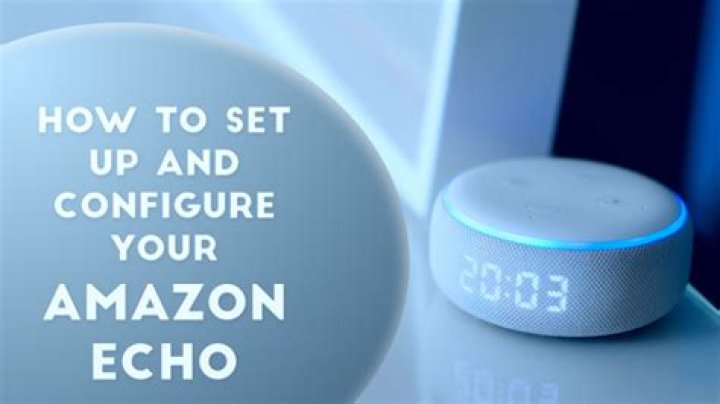
Amazon’s Echo smart speakers are only smart once you set them up properly. If you just bought an Echo device or received one as a gift, you’re going to have to set up Alexa on your device first. Here’s how to set up Alexa on your Echo speaker, so you can take control of your smart home.

What Is Alexa?

Alexa is Amazon’s cloud-based virtual assistant that is built-into Echo smart speakers and other voice-capable devices. Once you set up Alexa, you can ask questions about the weather, traffic, news, and more. You can also use Alexa to stream music, set alarms, and control your smart home devices.

Before You Set Up Alexa:

Before you set up Alexa on your device, you will need a smartphone or tablet to download the free Alexa app. You will also need an Amazon account, but you can set one up in the app. Finally, you will need a power source and a reliable WiFi connection.

If you want to find out how reliable your WiFi connection is at the location where you will install your device, check out our guide on how to test your WiFi speed.

Note: It is best to use the same WiFi network on your Echo device and smartphone. So, you might want to change the WiFi network on your smartphone before you start.

How to set up and configure your amazon echo

How to Set Up Alexa on Your Echo Devices

To set up your Echo devices, open the Alexa app and log in to your account. Then plug your Echo into a power source. In the app, go to More > Add Device > Amazon Echo > Echo, Echo Dot, Echo Plus and more. Next, follow the on-screen instructions to set up Alexa.

  1. Open the Alexa app. If you don’t already have it, you can download the Alexa app from the Apple App Store or the Google Play Store. If you already have the app installed, make sure you have the latest version.
  2. Then sign in to your Amazon account. If you don’t have an Amazon account, tap Create a New Amazon Account and follow the on-screen instructions. If you already have the app set up, you can skip to the next step. How to set up and configure your amazon echo
  3. Then plug your Alexa device into a power source. It will take a minute, but your device will light up orange, and Alexa will announce when your device is ready to set up in the app. How to set up and configure your amazon echo

Note: If you already have an Amazon account and you bought your device from Amazon, your device might be shipped pre-configured. If you see a pop-up message once you plug in your device, you can tap Continue to skip to step 10.

How to set up and configure your amazon echo

  • In the Alexa app, tap More. You will see this in the bottom-right corner of your screen.
  • Then select Add a Device. This will be the first option at the top of your screen. How to set up and configure your amazon echo
  • Next, tap Amazon Echo. If you are trying to set up Alexa on a different kind of device, scroll down and select Speaker.
  • Then select Echo, Echo Dot, Echo Plus and more.How to set up and configure your amazon echo
  • Next, confirm that the light ring on your Echo device is glowing orange. If your ring light isn’t orange, tap No. The app will ask you to press and hold the “Action button until the light turns orange. This is the button on top of your Echo device with the dot icon.
  • Then select your device. Make sure the first part of the name listed in the app matches your Echo model. You can ignore the string of letters and numbers that come after. How to set up and configure your amazon echo
  • Next, select your WiFi network and enter your password. If you don’t see your WiFi network listed after a minute, tap Rescan Network. If you have already set up an Alexa device before, it might try to connect to your saved WiFi network automatically.
  • Then tap Continue. If your Echo device connected to the wrong WiFi network automatically, you can select Tap to Change WiFi at the bottom of your screen to choose it manually. How to set up and configure your amazon echo

    Note: If you’re having problems connecting Alexa to your WiFi network, try to set up your Echo device within 30 feet of your router. If that doesn’t work, check out our step-by-step guide on how to reset your Echo device and try to set it up from scratch.

  • Next, choose a language. Then tap Continue.
  • Then choose which room your Echo device will be in. This will help you group your Alexa devices later.

    Note: If you want to skip these steps, you can tap the “x” in the top-right corner of your screen.

    How to set up and configure your amazon echo

  • Next, choose whether you want to set up a voice ID. This will allow Alexa to learn the sound of your voice, so each member of your household will get personalized results. For example, you can add an event to your calendar, listen to your saved playlists on Amazon Music, and more.
  • Then enter your address. This will allow Alexa to give you personalized results for weather, traffic, and more. If you don’t see your address listed, tap Enter New Address and fill out your information. Then select Continue. How to set up and configure your amazon echo
  • Next, choose whether you want to enable Amazon Sidewalk. This feature will help your devices stay connected, but it will also share your WiFi signal with your neighbor’s devices. You can always change this setting later.
  • Then watch the video or tap Skip. How to set up and configure your amazon echo
  • Finally, tap Let’s Go to finish setting up your Echo device. Alexa will start talking you through some options, but you can say, “Alexa, stop” if you want to skip this as well. How to set up and configure your amazon echo
  • Now that you know how to set up Alexa on your Echo speaker, check out our list of the best Alexa commands to find out what you can say to Alexa.



