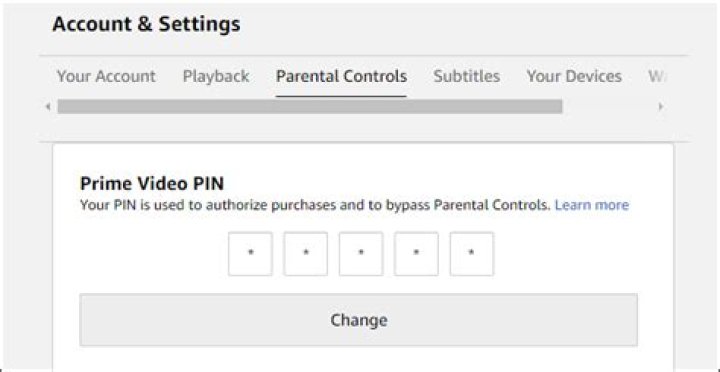
Prime Video restrictions allow you to limit playback of content on Prime Video devices.
The following devices have their own Parental Control settings:
- Fire TV devices
- Fire Tablets running FireOS 5.0 or older
To set up restrictions:
- On a PC or Mac, go to Account & Settings then select Parental Controls .
- Select an age restriction and the Devices you want them to apply to, then click Save .
Related Help Topics
- Parental Controls on Prime Video
- Set up a Prime Video PIN on Android
- Set up a Prime Video PIN on iOS
- Set up a Prime Video PIN on Web
- Set up Restrictions on Prime Video on Android
- Set up Restrictions on Prime Video on iOS
The following devices have their own Parental Control settings:
\n \t\t\n
- \n
- Fire TV devices \n
- Fire Tablets running FireOS 5.0 or older \n \t\t
\n \t \n \t \n \n
To set up restrictions:
\n \t \n \t \n
- \n \t\t\n
- On a PC or Mac, go to Account & Settings then select Parental Controls . \n \t\t \n \t\t\n
- Select an age restriction and the Devices you want them to apply to, then click Save . \n \t\t \n
Related Help Topics
Prime Video restrictions allow you to limit playback of content on Prime Video devices.
The following devices have their own Parental Control settings:
\n \t\t\n
- \n
- Fire TV devices \n
- Fire Tablets running FireOS 5.0 or older \n \t\t
\n \t \n \t \n \n
To set up restrictions:
\n \t \n \t \n
- \n \t\t\n
- On a PC or Mac, go to Account & Settings then select Parental Controls . \n \t\t \n \t\t\n
- Select an age restriction and the Devices you want them to apply to, then click Save . \n \t\t \n
A Prime Video PIN restricts the ability to purchase or watch content on an individual device.
The Prime Video PIN applies across all devices once set up. But the following devices have their own Parental Control settings:
- Fire TV devices
- Fire Tablets running FireOS 5.0 or older
To set up a Prime Video PIN:
- On a PC or Mac, go to Account & Settings then select Parental Controls.
- Enter a PIN, then click Save .
The Prime Video PIN applies across all devices once set up. But the following devices\n have their own Parental Control settings:
\n \t\t\n
- \n
- Fire TV devices \n
- Fire Tablets running FireOS 5.0 or older \n \t\t
\n \t \n \t \n \n
To set up a Prime Video PIN:
\n \t \n \t \n
- \n \t\t\n
- On a PC or Mac, go to Account & Settings then select Parental Controls. \n \t\t \n \t\t\n
- Enter a PIN, then click Save . \n \t\t \n
A Prime Video PIN restricts the ability to purchase or watch content on an individual\n device.
The Prime Video PIN applies across all devices once set up. But the following devices\n have their own Parental Control settings:
\n \t\t\n
- \n
- Fire TV devices \n
- Fire Tablets running FireOS 5.0 or older \n \t\t
\n \t \n \t \n \n
To set up a Prime Video PIN:
\n \t \n \t \n
- \n \t\t\n
- On a PC or Mac, go to Account & Settings then select Parental Controls. \n \t\t \n \t\t\n
- Enter a PIN, then click Save . \n \t\t \n
Prime Video parental controls work by requiring entry of your PIN to access all the content. To set up Prime Video parental controls and restrictions follow the step-by-step guide for the users given below.
Amazon Prime video offers you unlimited streaming of movies and TV episodes for paid or free subscriptions. Prime Video parental controls give you the ability to set restrictions for the video content that can be viewed or purchased on your device. Prime Video allows you to set up multiple profiles within your account with content personalized separately to each profile.
Prime Video parental controls work by requiring entry of your PIN to bypass any purchase or viewing restrictions you’ve enabled. You can enjoy watching all the content on your phones and computers. The Amazon Prime app allows you to add and switch between multiple Amazon accounts in a single browser without having to sign out and in.
A few of the devices have their own parental controls settings but Prime Video restrictions allow you to limit playback of content on Prime Video devices.
To set up Prime Video parental controls and restrictions, follow the step-by-step guide for the users given below.
Here is how to set up restrictions on Prime Video:
- Open the Prime Video app on your phone.
- Now go to Account & Settings.
- On the Prime Video app for Android or iOS, select My Stuff from the bottom menu.
- Then tap on the Settings icon. From there, select Parental Controls, then Viewing Restrictions.
- Select an age restriction and the Devices you want them to apply to.
- Finally, then click on Save.
Some of the devices like Fire TV devices, Fire Tablets, Fire Phones, and Microsoft Xbox 360 consoles have their own Parental Control settings to restrict access to content and purchasing. You can manage these settings directly on the device.
Each Amazon Prime video profile will have separate recommendations, season progress, and watch list based on individual profile activity. You can have up to six user profiles within Prime Video on a single Amazon account.
Note:
Restrictions only apply to the device they were set up for.
If you’re not the only person who uses your Amazon Prime Video account, you might want to create a PIN, which stands for “personal identification number.”
A PIN can help safeguard children from watching content you don’t want them to see and prevent other people from renting or buying video on your account without your permission. In fact, you might want to enable your Prime Video PIN even if you’re the only user – it can prevent accidental purchases.
When you apply a PIN and parental control settings on your desktop or mobile device, those settings apply to most devices running Prime Video, such as browsers, mobile devices, Roku, and smart TVs. You need to configure parental controls separately in Fire TV devices.
And good news: Don’t worry about forgetting your PIN. While Prime Video will never reveal your current PIN, it’s easy to change if you forget it. You don’t need to know the current PIN to set a new PIN – you only need to know your Amazon password to be able to log into Prime Video in a web browser or on the mobile app.
Check out the products mentioned in this article:
Amazon Prime (From $99.99 a year at Amazon)
Roku Streaming Stick (From $49.99 at Best Buy)
Amazon Fire Stick 4K (From $49.99 at Amazon)
How to set up or change your Prime Video PIN on a desktop
1. Open Prime Video in a web browser.
2. Click “Settings” on the right, near the top of the web page.
3. Under “Account & Settings,” click “Parental Controls.”
4. To the right of the PIN field, click “Change” if you already have a PIN set up. If you don’t, type in your desired PIN and hit “Save.”
5. Enter the PIN you want to use – it needs to be five digits – and then click “Save.”
6. After you enter a PIN, you can customize how it will work using the other options on the page.
7. To require PIN entry for each video purchase, click “On” in the “Pin on purchase” section.
8. You can require PIN entry on certain kinds of content in the “Viewing restrictions” section.
9. To make this apply to specific devices (or to all devices), click the appropriate checkbox in the section called “Apply viewing restrictions to.”
How to set up or change your Prime Video PIN on a mobile app
1. Start the Prime Video app and tap “My Stuff” at the bottom right of the screen.
2. Tap the settings icon (it’s shaped like a gear) in the upper right.
3. Tap “Parental Controls.”
4. Tap “Change Prime Video PIN.” You might need to enter your password. After that, you can enter the new PIN and save your changes.
5. You can also adjust your viewing restrictions on the mobile app by tapping “Viewing Restrictions” under “Parental Controls.”
When you change the PIN on your mobile app, it applies to most of your devices running Prime Video.
If you want to limit access to movies and television programs that have mature or adult content you will want to set up a Prime Video Pin Number. This number can be used to restrict purchases and limit access to programming on each device that is set up using your Amazon account. One thing to be aware of is even if you set up this pin number you will still need to set up parental controls on your Amazon Fire device or XBox One individually.
- Go to Amazon Prime Video Settings
- After you have logged in set up a “Prime Video” PIN number. ( Use a unique number that is easy for you to remember but difficult to guess)
- Change the “Pin On Purchase” settings to “ON” if you want to require a pin number before purchases are made on Amazon Prime.
- Set “Viewing Restriction” level to whatever you feel is best for you and those who use your Prime account. Whatever limit you place will lock the content with that rating and will require a pin number to view.
Instructions Provided By Amazon
Turn On Parental Controls
To turn on parental controls for your Fire TV device:
- Select Settings from the Fire TV menu and open Preferences.
- Select Parental Controls, then press the Selectbutton on your remote to turn parental controls ON.
- Enter or set your PIN if prompted. Use the Menubutton on your remote to change between sets of numbers, and select Next when you’re done.
Note: When entering your PIN, you need to use a Fire TV remote or the Fire TV App.
Manage Parental Controls
After you set or enter your PIN, you can manage the following parental controls preferences:
- PIN Protect Purchases – Require your PIN to authorize purchases from Amazon.
PIN Protect App Launches – Require your PIN to open installed apps on your device. You can still browse Apps from the Fire TV menu, but will be prompted to enter your PIN before you can access any apps or games installed on your device.
Note: With this setting turned on, your PIN is required to launch the Amazon Music app. However Alexa will still be to play Amazon Music content on your Fire TV device.
PIN Protect Prime Photos App – Require your PIN to open the Prime Photos app, which you can use to view your photos and personal videos from Amazon Drive on your Fire TV.
- Open the music app.
- Tap the Settings icon.
- Toggle explicit filter on or off.
Keep in mind that when you turn parental controls on for the first time, PIN Protect Purchases is enabled by default, and Viewing Restrictions are automatically set to block content from the Teen and Mature ratings categories. If you exit the menu right after setting parental controls to ON, these are the only preferences that will be saved for your device. However, you can manage your preferences at any time by returning to the parental controls menu and entering your PIN.
Note: For Fire TV Stick Basic Edition, you can set viewing restrictions to block playback of movies and TV shows from Prime Video, based on their ratings category from Account & Settings on the Prime Video website.
Keep it secret, keep it safe – and this certainly applies to setting a Prime Video PIN to your account.
If you are sharing your Amazon Prime Video account or even if you aren’t, it is always a wise choice to set a PIN (Personal Identification Number) for your Amazon Prime Video account.
Amazon Prime Video PIN is a five-digit PIN that shoulders the job of configuring parental control functions in itself. Your Prime Video PIN is not a part of your Prime account setup, thereby it needs to be set up separately.
If you want to limit access to mature or adult content, then your Prime Video PIN will help you to monitor safe streaming for children or with whoever you are sharing your Prime Video with. It will only allow streaming that you deem fitting for their age and such.
With this PIN, dear parents, you can take it easy now. Once the PIN is set, you can choose the ratings of content that one can access without having to enter the PIN and shoo away age-restricted playback content.
This will also prevent accidental purchases. Setting up a Prime Video PIN will not allow anyone to rent or buy any videos under your account without your permission- so you can rest assured that your Amazon Prime Video account is well protected and that only those who have your Prime Video PIN can purchase content.
In this simple guide i will help you with setting a PIN, setting Purchase restrictions, or viewing restrictions for your Prime Video account, you will find it easy-peasy to set these Parental control settings and security PIN by the end of it.
Moreover, applying or adjusting the parental control settings and a PIN to our Amazon Prime Video account through our desktop browser or our mobile device will also be accordingly applied to the desired devices that run Amazon Prime Video.
This includes your mobile devices, desktop browsers, Smart TVs, Roku, and such, except for Fire TV devices, Fire phones, and Microsoft Xbox 360 consoles. When it comes to Fire TV devices and such, parental control settings need to be set up separately.
So, read on as we discuss how to give that extra touch of security to your account through Prime Video PIN.
Table of Contents
How to set up, change and manage Amazon Prime Video Pin?
For Desktop Browser:
- Sign in to your Prime Video account in your web browser.
- Click on the Settings icon (it will appear as a gear-shaped icon), located at the top right of the web page.
- Go to “Account & Settings“
- Click Parental Controls
- Enter your desired PIN in the Prime Video PIN field to set up a PIN for your account and click on Save. Your PIN must have at least 5 digits. If you have a PIN set up already, then click on Change to change it and hit Save.
- You can customize and manage your Prime PIN-enabled account restrictions by choosing the preferred options available on that very page.
- To enable PIN entry for streaming purchases and prevent any accidental charges, click ‘On’ under the ‘PIN on Purchase‘ section.
- To require PIN entry on certain streaming content, click on ‘Viewing restrictions‘ to set your preferences.
- To apply the Viewing restrictions to your desired devices, go under the ‘Apply viewing restrictions to‘ section, click on the checkbox as it shall be displayed for the devices you wish the restrictions to be applied to. To set the Viewing restrictions for all devices, select the checkbox for ‘All supported devices‘
For mobile Apps (Ios, Android)
- Launch your Amazon Prime Video app
- Tap on ‘My Stuff‘ at the bottom right of the screen
- Tap the Settings icon
- Tap ‘Parental Controls‘
- Tap on ‘Change Prime Video PIN‘. Now in order to change your password, enter your current password and then enter your new desired PIN to save it.
- To require PIN entry on certain streaming content, tap on ‘Viewing restrictions‘ to set your preferences and adjust your viewing restrictions as you desire
FAQ’s | Frequently Asked Questions
If you have forgotten your Amazon Prime Video PIN, then don’t worry. Instead, you can simply change the current PIN. You only need your Amazon Password to log into your Prime Video, and in order to change your current password, you may set a new PIN which will be applied to all the selected devices running Prime Video.
While it is not mandatory to set an Amazon Prime Video PIN, it does come with many benefits under viewing restrictions, preventing accidental content purchases, etc. So it is a good choice to set a PIN for your Prime Video.
Once you’ve set up a Prime Video PIN, there is currently no way to remove or disable your Prime Video PIN. However, in order to lift parental restrictions from your content, you can go to the ‘Viewing restrictions’ section and simply select the 18+ option. Then under the ‘Apply viewing restrictions to’ section, select ‘All supported devices’ and hit Save. With this, all viewing restrictions that you had set will be lifted.
If your Amazon Prime Video PIN is not working, then you’d want to wait for a few minutes and then try again.
You may be able to filter content, though not across certain popular apps and services
With many of us still locked down at home, it’s no surprise that interest in streaming video services is surging. In fact, according to the market research firm Nielsen, Americans streamed 85 percent more minutes of video in March 2020 than they did in March 2019.
Our kids are home too, and spending a lot more times on screens—and not just doing homework. So you may be a bit concerned about this unsupervised screen time.
Three of the four major streaming device platforms—Amazon Fire TV, Apple TV, and Roku—provide ways to limit childrens’ access to inappropriate content. You can see how to use those controls below.
Google’s Chromecast streaming player is the exception; because it uses your mobile device to access content, there are no parental controls for Chromecast devices themselves. But the apps you can access using Chromecast usually have their own parental controls, so you can set restrictions on the individual services.
And that brings up an important point. While Amazon, Apple, and Roku provide some parental controls, you’ll probably also want to set limitations for whichever streaming services you use on these devices. You can find details for the three biggest services at Amazon Prime Video’s Help & Customer Service section, Hulu’s Help Center, and the Netflix Help Center.
Amazon Fire TV
Fire TV is Amazon’s Alexa-enabled streaming platform that’s found on its streaming players and on Amazon Fire Edition televisions from brands such as Insignia and Toshiba.
Like other streaming devices, Fire TV’s viewing restrictions apply to its own Amazon video content; it doesn’t restrict content within third-party apps you might use, such as Netflix. You can, however, restrict access to those apps.
To use the parental controls directly from your Fire TV device, you’ll first need a 5-digit Amazon PIN. To set this up, log in to your Amazon account through a web browser or use the Amazon Video app on a mobile device.
Once you’ve set a PIN, turn on the Fire TV player and look for Settings on the navigation bar at the top of the screen. Within the Settings menu, look for Preferences, and then select Parental Controls.
In this area, you’ll be prompted to enter the PIN, a somewhat quirky process using a few buttons and the circular navigation control on the remote control. (Hint: Push the fast-forward button to show the PIN digits as you enter them to make sure they’re the correct numbers.) When you’re done, you can enable Parental Controls.
Within the Viewing Restrictions section, you can set the type of content that can be viewed. By default, General and Family content can be viewed without any restrictions. But to access Teen, Young Adults, and Mature content, which have lock icons next to them, you have to enter the PIN.
You can also require that the PIN be used to authorize purchases from Amazon, to open installed apps on your device, or to open the Prime Photos app to view personal photos and videos stored on the Amazon Drive on your Fire TV.
In addition, you can set restrictions within Amazon Prime video itself. To do this on a computer, go to Prime Video Settings, and then Parental Controls. If you’re using the Prime Video app, select My Stuff from the bottom menu, then the Settings icon. From there, choose Parental Controls, then Viewing Restrictions. You can then select an age restriction and the specific devices you want it to apply to, and then click Save.
Apple TV
Apple TV requires you to set a PIN before you can use the Apple TV parental controls, which are called Restrictions. Here’s how to do it right from the Apple TV device.
Using the Apple TV remote control, scroll down until you see the Settings icon at the bottom of the home screen. Then go to General and choose Restrictions from among the several options. If you haven’t already set a four-digit PIN, you’ll be prompted to do so. Enter the number again to confirm, and select OK to continue.
This will turn on Restrictions, where you can customize the parental control settings. (To turn off Restrictions, you’ll have to re-enter your PIN.)
Apple lets you control access to a pretty wide range of options, including limiting or blocking block in-app purchases; banning access to apps, movies, and TV shows based on content rating; or blocking explicit music and podcasts. You can also hide apps so they don’t show up in the menu, and prohibit Siri, Apple’s voice-powered digital assistant, from saying or writing explicit language when responding.
Here are a few examples of how it works. For movies, TV shows, and apps, you first select your country, then you can filter or block content based on film or age ratings. For purchases, rentals, or in-app purchases from the iTunes Store, you can allow them, restrict them, or outright block them. With music and podcasts, choose the Clean option to filter out explicit language.
Earlier this year, Apple launched its first streaming service, called Apple TV+. If you’re using it using an Apple TV, the restrictions you’ve set on that device will automatically apply to the Apple TV+ service.
But you can also set restrictions separately for Apple TV+ for each type of device you use to access it.
A big appeal of Roku streaming players (and Roku TVs from the dozen or so companies that now use that smart platform) is their access to lots of content, more than 5,000 apps or channels, according to the company.
But Roku’s parental controls restrict access only to shows and movies on the Roku Channel, Roku’s own free streaming service. If you have a Roku TV, you can also block or filter over-the-air broadcasts you get when using an antenna.
You can also use the parental controls to remove channels you might feel are inappropriate or hide Roku’s TV and Movie stores from the Roku player home page.
To get started, go to Roku.com using a computer or mobile device and sign in to your Roku account; you can’t access the parental controls from the Roku player. But you can add and delete channels right from it.
Once you’re signed in, look for PIN Preference on the My Account page, and select the Update button. You can then require users to enter a PIN to make purchases or add new services from the Channel Store.
Scroll down and you’ll see Parental Controls, with four choices for limiting access to content based on ratings: Off, Little Kids, Young Kids, and Teens. If you select Off, there are no restrictions on content; for the others, you’ll need to enter a PIN to view any shows or movies above the selected age range. Once you’ve made a selection, click Save Changes.
Roku TVs also include ratings-based controls on the TV itself that let you restrict or block access to programs you get when using an antenna. You’ll need to create a 4-digit PIN the first time you use this feature. To access Parental Controls, press the Home button on the Roku TV remote, then scroll up or down to select Settings.
To set controls for over-the-air channels, select the TV tuner. If it’s the first time you’re doing this, you’ll be prompted to scan for available channels. Enable Parental Controls by turning them on. You can also set age limitations or block unrated content.
Under Parental Controls, you can also show or hide the Movie Store, TV Store, and Featured Free options from the home screen. To change any of these selections, you’ll need to enter the PIN.
Your Helix TV entertainment platform gives you direct access to the Prime Video app.
Prime Video app on Helix TV gives you easy access to a wide selection of exciting content, such as Amazon Originals, popular movies, and series available on Prime Video.
IMPORTANT: Prime Video is included in Amazon Prime Membership.* Not a member? Visit the Prime Video website to start your free trial.
How to access the Prime Video app
To launch the Prime Video app on your TV, you can:
- Use the voice command and say “Prime Video”
- Press the HELIX button on your remote and select Prime Video from the App section in the menu, under Entertainment
The Prime Video home screen will open with a “You’re entering a third-party app” notification to let you know that this is not a Videotron product.
How to sign in to Prime Video
The Prime Video app has a Guest mode, allowing non-subscribers to browse the content catalogue. Launch Prime Video and select Browse Videos on-screen.
The first time you use the app on Helix TV, you must sign in to start Prime Video.
- Launch the Prime Video app.
- On the screen that appears, select Sign in.
- Scan the QR code on the screen with your mobile device.
- Once you are logged in, the Prime Video profiles screen will automatically appear on your TV.
You can also sign in on the web using a computer or mobile device.
- Go to
- Log in or create an account.
- Enter the code that appears on your TV screen.
- Once you are logged in, the Prime Video profiles screen will automatically be displayed on your TV.
Prime Video features
The Prime Video app on Helix TV offers all the features you’re used to and more:
- Profile creation
- Watchlist by profile
- Multi-language captions and audio options
- Parental control
- Autoplay
- Multi-platform resume play
- Ultra HD 4K content
To view Prime Video content in Ultra HD, you must have a 4K TV and a 4K HDMI cable, and also configure your Helix TV terminal’s resolution in your settings. See how to change the resolution.
How to create and manage Prime Video profiles
You can have up to six Prime Video user profiles. Each profile has individual recommendations, season progress, and a Watchlist based on each user’s activity.
- Launch the Prime Video app.
- From the Prime Video app menu at the top of the screen, select the profile icon.
- To create a new profile, select New, then enter a name and choose a profile picture.
- To edit an existing profile, select the profile you want to edit, then select Edit below it. You can then change the profile name and picture.
In the Kids profile, only age-appropriate movies and series (12 and under) are visible; search results and suggestions are filtered by age, and purchases are disabled.
However, all downloads, including those from an adult’s profile, will still be available and can be accessed through the Kids profiles.
How to search for Prime Video content
With the voice command
You can search for specific content by naming the title in question, followed by the app. For example, “The Wheel of Time on Prime Video.”
You can also do a general search by genre, actor, director, or other. Prime Video content related to your query will appear in the search results.
From the Prime Video app
In the Prime Video app menu at the top of the screen, you can search for specific content using the magnifying glass icon. Depending on the specificity of the keywords entered, several search results and various content that best match your query will appear.
To find Prime Video content to watch, you can also select Categories from the menu at the top of the screen to browse Prime Video suggestions and apply the Series, Movies, Amazon Originals, or Kids filters to narrow your search.
How to manage your Watchlist on Prime Video
To create your list of favourite content:
- Select the content you want to add to your list.
- On the content page, select + Add to Watchlist.
To access your Watchlist:
- From the Prime Video app menu at the top of the screen, select My Stuff.
- Your favourite content is sorted according to their respective category.
Returning to Helix TV from Prime Video
To leave the Prime Video app, you can:
- Press Exit on your remote to return to the TV
- Press Guide or HELIX on your remote to return to the Guide
FAQ about using Prime Video
If you’re having issues or need more information on using Prime Video, visit Prime Video Support.
How to change language on Prime Video
- Launch the Prime Video app.
- From the Prime Video app menu at the top of the screen, select (Settings).
- Select Language, then choose your desired language.
This language will be used for the user interface and, if available, for the audio and subtitles of the videos.
You can also change a content language while viewing. Press the centre button on the remote to bring up the menu at the bottom of the screen and select Audio and Languages.
How to turn on subtitles on Prime Video
When viewing content, press the centre button on the remote control to bring up the menu at the bottom of the screen and select Subtitles to enable subtitles.




