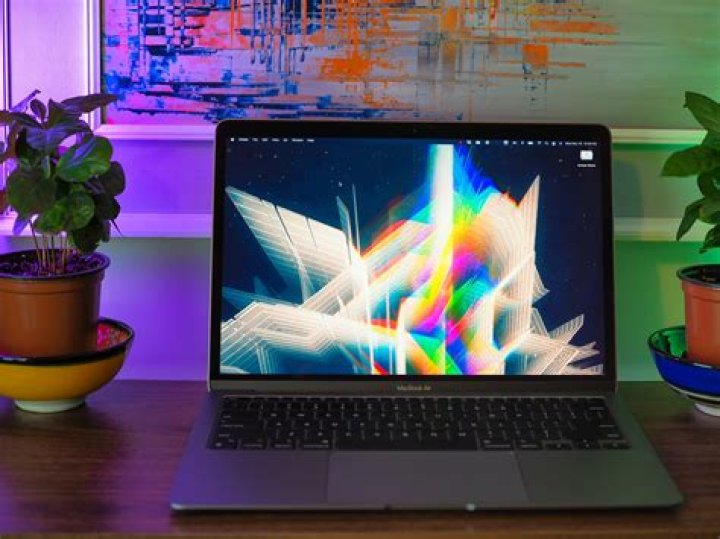
It might take you a little bit longer, but this is the right way to set up your Mac. Trust me, it’s worth it.
New Mac? Don’t hit that power button just yet!
Apple’s newest computers — MacBook Air, MacBook Pro and Mac Mini — are fast, have impressive battery life and can even run iPhone apps . The difference between this crop and previous models? These are powered by the Apple Silicon M1 processor . It’s the same kind of processor the company uses in the iPhone and iPad. If you spoiled yourself and picked up a new Mac this holiday season, or were lucky enough to get one as a gift, don’t rush through the setup process.
Whether you’re replacing a worn-down MacBook or getting rid of a tired PC , it’s only natural to want to tear open the box, hit the power button and cruise through the setup prompts. But before you do that, take a deep breath and a step back. There are some things you need to know about setting up a Mac.
Everything Apple
For starters, the process can take several hours if you plan on transferring your data from another computer. Then there are other things to consider: Do you need FileVault? How can you get information off of your old Mac or PC and onto the new one? Those questions are exactly why we’re here.
There’s something special about getting a new computer.
What you’ll need
Make sure to set aside around an hour to get your Mac set up. The process will take longer if you plan on restoring your Mac from a Time Machine backup of another Mac.
In addition to a reliable internet connection, you’ll need your Wi-Fi network information, your Apple ID username and password, and the Mac’s charger or power cord.
Having a piece of paper and a pen nearby is helpful. During the setup process, you’ll be asked to create a user account, which includes a username and password. We don’t recommend storing passwords on paper — it’s much safer to use a password manager — but a piece of paper is helpful for temporarily storing this kind of information until you can enter it into your password manager. Just make sure to destroy the piece of paper when you’re done.
Once you have everything in order, connect the charger or power cord to your Mac and turn it on.
Setting up a new Mac isn’t hard, but it can take some time.
Apple’s Setup Assistant walks you through most of the process
The first time your Mac turns on, a setup assistant will greet you. The assistant will walk you through selecting your country and language, and connecting the Mac to the internet. You’ll also be tasked with creating a user account on the Mac and signing into your Apple ID.
Throughout the process you’ll be asked if you want to enable services like FileVault, iCloud Keychain or Find My Mac. You’ll also be asked if you want to enable Siri or provide any logs to developers when issues are detected. Here’s what some of those features mean for you.
FileVault encrypts your Mac’s hard drive to prevent unauthorized access to the information you store on it. If you aren’t sure, you can always enable or disable it in the future.
iCloud Keychain is Apple’s password manager that’s built into all of its devices. If you use iCloud Keychain on an iPhone ($599 at Apple) or iPad ($263 at Back Market) , those usernames and passwords will also be available on your Mac. iCloud Keychain also stores your Wi-Fi network credentials, meaning you won’t have to log into a Wi-Fi network on your Mac if you’ve previously connected to it on your iPhone. It’s a good idea to turn on iCloud Keychain.
Find My Mac works with the Find My app to help you track down a lost Apple device. I recommend turning on Find My Mac, even for a rig as large as an iMac ($1,800 at Best Buy) that’s less likely to disappear, because you never know when you might end up with a lost or stolen MacBook. There’s no drawback to turning it on.
If you have a MacBook, you’ll also be tasked with setting up Touch ID, the fingerprint reader that unlocks your computer, lets you sign into apps or approve Apple Pay purchases. All of it is pretty straight-forward, just continue to follow the prompts, entering any required information such as your Apple ID or creating a user name, to finish the core of the setup process.
Migration Assistant makes it easy to transfer all of your information.
Restore from a Time Machine Backup
During setup, you’ll be asked if you want to restore your new Mac from a Time Machine backup of another Mac through Migration Assistant. If so, you’ll need the storage device your Time Machine backup is stored on.
If you haven’t backed up your old Mac through Time Machine, it’s not too late. We have a guide that walks you through the process . Or if you’d rather directly transfer your files and settings from one Mac to another, Migration Assistant can do that, too .
Follow the prompts in the Migration Assistant tool, selecting that you want to transfer your information from a Time Machine backup. Select the Time Machine drive that’s connected to your new Mac, and select the most recent backup.
При первом включении MacBook Pro запускается приложение «Ассистент настройки», которое поможет Вам начать пользоваться новым компьютером Mac.
Совет. Чтобы прослушать инструкции по настройке компьютера Mac в VoiceOver, нажмите клавишу Escape. Чтобы просмотреть параметры Универсального доступа, нажмите сочетание клавиш Command-Option-F5. Подробные сведения приведены в разделе Средства универсального доступа на компьютере Mac.
Выберите страну или регион, чтобы задать язык и часовой пояс для компьютера Mac. Вы можете ответить на все запросы или пропустить некоторые, выбрав параметр «Настроить позже», если он доступен. Например, после первичной настройки можно настроить функцию Apple Pay, для которой требуется подтвержденная кредитная карта, и ограничения Экранного времени для различных пользователей. Дополнительная информация о настройке приведена далее.
Подключение к сети Wi-Fi. Выберите сеть и при необходимости введите пароль. (Если Вы используете Ethernet, также можно выбрать «Другие параметры сети».) Чтобы изменить настройки сети позже, нажмите значок Wi‑Fi в строке меню или Пункте управления, нажмите «Другие сети», затем выберите сеть Wi‑Fi и введите пароль. Здесь Вы также можете включать или выключать Wi-Fi.
Совет. Если после настройки в строке меню не отображается значок Wi-Fi , его можно добавить. Откройте Системные настройки, затем нажмите «Сеть». В списке слева нажмите «Wi-Fi», затем выберите «Показывать статус Wi-Fi в строке меню».
Перенос информации. Если Вы настраиваете новый компьютер и никогда ранее не настраивали Mac, нажмите «Не переносить информацию». Если Вы хотите перенести данные с другого компьютера сейчас или позже, см. раздел Перенос данных на новый MacBook Pro ().
Вход с Apple ID. Apple ID состоит из адреса электронной почты и пароля. Это учетная запись, которая используется практически для всего, что связано с Apple, включая App Store, приложение Apple TV, Магазин книг Apple, iCloud, Сообщения и многое другое. Для доступа к любой службе Apple достаточно выполнить вход с Apple ID на устройстве, например компьютере, устройстве iOS, iPadOS или Apple Watch. Лучше всего завести собственный Apple ID, которым будете пользоваться только Вы. Если у Вас еще нет Apple ID, Вы можете создать его в ходе первоначальной настройки (это бесплатно). См. Учетная запись Apple на Mac.
Экранное время. Узнайте, сколько времени Вы проводите за компьютером, и получайте отчеты. Сведения о параметрах и дополнительная информация приведены в разделе Экранное время на Mac.
Включение Siri и функции «Привет, Siri». Включить Siri и функцию «Привет, Siri», чтобы обращаться к Siri, можно во время первоначальной настройки. Чтобы включить функцию «Привет, Siri», при появлении запроса произнесите несколько команд для Siri. Сведения о возможностях Siri на компьютере Mac и о том, как включить Siri и функцию «Привет, Siri» позже, приведены в разделе Функция Siri на Mac.
Хранение файлов в iCloud. iCloud дает возможность хранить любые документы, фильмы, музыку, фотографии и другие материалы в облаке и получать к ним доступ отовсюду. Убедитесь, что на всех Ваших устройствах выполнен вход с одним Apple ID. Чтобы изменить параметр позже, откройте Системные настройки и выполните вход со своим Apple ID, если Вы этого еще не сделали. Нажмите «Apple ID», в боковом меню нажмите «iCloud» и выберите функции, которые хотите использовать. Процедуру см. в разделе Доступ к содержимому iCloud на Mac.
Изменение темы. Выберите вариант оформления: «Светлое», «Темное» или «Автоматически». Чтобы изменить выбор, сделанный во время первоначальной настройки, откройте Системные настройки, нажмите «Основные», затем выберите вариант оформления. Здесь также можно настроить другие параметры.
Настройка Touch ID. Во время первоначальной настройки можно добавить отпечаток пальца для использования Touch ID. Чтобы настроить Touch ID позже или добавить дополнительные отпечатки пальцев, откройте Системные настройки, затем нажмите «Touch ID». Чтобы добавить отпечаток пальца, нажмите и следуйте инструкциям на экране.
Также можно настроить параметры использования Touch ID на Вашем MacBook Pro: разблокировка Mac, использование Apple Pay (см. раздел Использование Apple Pay на Mac), совершение покупок в App Store, приложении Apple TV, Магазине книг Apple и на веб‑сайтах, а также автозаполнение паролей.
Совет. Если MacBook Pro используется несколькими людьми, каждый из них может добавить свой отпечаток пальца для Touch ID для быстрой разблокировки компьютера, аутентификации и входа в систему MacBook Pro. Для каждой учетной записи можно добавить до трех отпечатков пальцев (до пяти отпечатков пальцев для всех учетных записей MacBook Pro).
Настройка Apple Pay. В процессе настройки можно настроить Apple Pay для учетной записи одного из пользователей MacBook Pro. Другие пользователи также смогут совершать покупки с помощью Apple Pay, однако для этого им потребуется воспользоваться iPhone или Apple Watch с настроенной функцией Apple Pay (см. раздел Использование Apple Pay на Mac). Следуйте инструкциям на экране, чтобы добавить и подтвердить данные своей платежной карты. Если Вы уже использовали карту для оплаты мультимедийного контента, Вам, возможно, будет предложено сначала подтвердить данные этой карты.
Чтобы настроить Apple Pay или добавить дополнительные карты позже, откройте Системные настройки, затем нажмите «Wallet и Apple Pay». Для настройки Apple Pay следуйте инструкциям на экране.
Примечание. Эмитент карты определит, можете ли Вы использовать свою карту совместно с Apple Pay, и, возможно, запросит дополнительную информацию для завершения процесса подтверждения. Apple Pay поддерживается многими кредитными и платежными картами. Информацию о доступности Apple Pay и текущих эмитентах кредитных карт см. в статье на сайте поддержки Apple Европейские банки, включенные в систему Apple Pay.
Совет. Если Вы ранее не пользовались компьютером Mac, прочитайте статьи службы поддержки Apple Советы по работе на компьютерах Mac для пользователей Windows и Как это называется в Mac?. Вы также можете просмотреть Обзорный тур по основам Mac.
If you are new to Mac and are about to set up your new MacBook, MacBook Pro, iMac, or Mac Pro, you might want a little preparation before you begin. It is easy to set up your new Mac if you follow the on-screen instructions, but you may not understand what those instructions mean. I’m here to help walk you through each step so you don’t worry that you might be doing something wrong.
Looking for how to migrate your old Mac’s data to your new Mac? We’ve got you covered right here!
How to set up your new Mac
- Press the Power button on your Mac to turn it on.
- Select a language.
- This is the language that your computer will be written in across the system.
Click Continue.
Click Continue.
Click Continue.
This may take a few minutes. You may see a spinning wheel and “Looking for networks”. This is normal.
Click Continue.
Click Continue.
Click Continue.
Click Agree to confirm.
Enter an Account name. If you signed in with your Apple ID, this will populate automatically.
Tick the box for Set time zone based on current location.
- This will only work if you enabled Location Services in step 11.
When enabled, your date and time will change when you visit new locations across time zones.
Click Continue.
Click Continue.
Click Continue.
At this point, your Mac will finalize all settings and iCloud syncing for setting up your Mac. This may take a while. You may see a spinning wheel and “Setting up.” This is normal.
After your Mac has finished setting up, you may receive pop up notifications to sign into various mail and social networking accounts. Click Allow, Continue, or turn on for each notification to sign in.
Any questions?
Do you have any questions about the setup process on your new Mac? Let me know in the comments and I’ll help you out.
Updated July 2018: Updated to reflect changes to macOS.
After your iMac is running and you’ve given it the once-over for obvious shipping damage, your next chore is to set up your iMac. This isn’t a process that can easily be covered step by step, because Apple “tweaks” the questions that you see during setup on a regular basis, and the questions are really very easy to answer. Everything is explained onscreen, complete with onscreen Help if you need it.
However, whatever the questions, you’ll need to have the same information at hand. You should also know about support opportunities, such as the AppleCare Protection Plan and Apple’s iCloud Internet services. Consider this article a study guide for whatever your iMac’s setup procedure has to throw at you.
How to set up OS X Mavericks
After you start your iMac for the first time — or if you just upgraded from an earlier version of OS X — your iMac will likely automatically launch the Mavericks setup procedure. (Note that some custom install options, like the Archive and Install option, might not launch the Setup procedure.) The setup process takes care of a number of different tasks:
Setup provides Mavericks with your personal information.
Your iMac ships with a bathtub full of applications, and many of those use your personal data (like your address and telephone number) to automatically fill out your documents.
Common sense dictates that in today’s world, all that personal stored information should starts worrying you about identity theft. However, Apple doesn’t disseminate this information anywhere else, and the applications that use your personal data won’t send it anywhere, either. And the Safari web browser fills out forms on a web page automatically only if you give your permission.
Setup configures your language and keyboard choices.
OS X Mavericks is a truly international operating system, so Setup offers you a chance to configure your iMac to use a specific language and keyboard layout.
Setup configures your e-mail accounts within Apple Mail.
If you already have an e-mail account set up with your Internet service provider (ISP), keep that e-mail account information handy to answer these questions. (The list should include the incoming POP3/IMAP and outgoing SMTP mail servers you’ll be using, your e-mail address, and your login name and password. Don’t worry about those crazy acronyms, though, because your ISP will know exactly what you mean when you ask for this information.) Mavericks can even automatically configure many e-mail accounts for you — including web-based services such as Google Mail, Yahoo! Mail, and AOL Mail — if you supply your account ID and password. Sweet.
Setup allows you to sign up for an Apple ID and Apple’s iCloud service.
iCloud makes it easy to share data automatically between your iMac and iOS 5 (or later) devices (like an iPhone, iPad, or iPod touch), along with Apple e-mail accounts (through both web mail and the Apple Mail application). For now, just create your Apple ID, sign up for iCloud, and take the opportunity to feel smug about owning an Apple computer.
Setup sends your registration information to Apple.
As a proud owner of an iMac, take advantage of the year of hardware warranty support and the free 90 days of telephone support. You have to register to use them, but rest assured that all this info is confidential.
Setup launches Migration Assistant.
This assistant guides you through the process of migrating (an engineer’s term for copying) your existing user data from your old Mac or PC to your new iMac. Naturally, if your iMac is your first computer, you can skip this step with a song in your heart!
Registering your iMac
Many people don’t register every piece of computer hardware they buy. However, your iMac is a different kettle of fish altogether, and it’s strongly recommended that you register your purchase with Apple during the setup process. You spent a fair amount of money on your iMac, and it’s an investment with a significant number of moving parts.
Even the hardiest of techno-wizards would agree with this:
If you don’t register your iMac, you can’t receive support.
Rest assured that Apple is not one of those companies that constantly pesters you with e-mail advertisements and near-spam. Most long-term Apple computer customers register every computer they’ve owned, and they claim they’ve never felt pestered. However, just in case your tolerance is that much lower than most, Apple’s registration process allows you to disable this e-mail communication.
Have you just bought a new iMac or any laptop from the MacBook series? You must be very excited! It would be great if you could just turn it on and use it right away. Unfortunately, you have to set it up first. How to set up a new Mac? Is it difficult? Will I be able to do it on my own? Don’t worry, it’s not as complicated as you think. We are going to share the step by step easy-to-follow guide. Whether you are an old user or never used a Mac before, you can follow the steps without any hassle.
How To Set Up A New Mac
1. Turn On The Mac
Before we start the process, attach the external keyboard, mouse, and trackpad to your iMac. Then, plug in the iMac and turn it on. If it doesn’t turn on automatically after you plug the power cable to the wall, press the power button. For MacBook series, make sure the battery is fully charged or plug it into the power source.
2. Setup Language And Keyboard
Once your Mac is On, the Welcome window will appear and will ask you to select the country you live in (the language you want to use on Mac). So, choose a language and click Continue. After that, choose a Keyboard layout based on the language you are going to use, then click Continue.
3. Select WiFi Network
The next steps require the Internet connection. Therefore, you have to select a WiFi network or Ethernet if you are using a wired Internet connection.
4. Transfer Information
If you are going to use the Mac as a new computer, select “Don’t transfer any information now”. You can also choose this option if you want to do the basic setup only. You can always transfer the data from your old Mac or Windows PC at any time.
5. Sign In With Apple ID
You need to enable the Location Services before you sign in with Apple ID. Tick the “Enable Location Services on this Mac” option and confirm it by clicking Continue. Next, sign in with your Apple ID. It would be better if you sign in with the same Apple ID you are using on your iPhone or iPad so you can sync services across Apple devices. If you don’t have one, click “Create new Apple ID” option.
After entering Apple ID, click Continue to confirm. The Terms and Conditions window will appear. If you want to read it further, click More. Then, click Agree to continue the setup process.
6. Set Up A Computer Account
Fill the information to create a computer account, such as Full name, Account name, and the password. You can also create a hint of your password, just in case you forget it. Make sure to tick the “Allow my Apple ID to reset this password” and “Set time zone based on current location”. Click Continue to confirm.
7. Finishing Set Up
The process of setting up is almost done. After creating an account for your new Mac, the next window will appear. Checkmark on “Turn on FileVault disk encryption” and “Allow my iCloud account to unlock my disk” to secure your data.
In the iCloud window, tick “Store files from documents in iCloud drive” if you have enough iCloud storage. If you are not sure, just leave it as it is and click Continue. Next, tick “Enable Siri on this Mac” and click Continue. Setting up your Mac will take a few minutes. So, be patient and don’t worry. Once it’s done, you will see the pop-up notifications. You can click Allow or Don’t Allow, Not Now or Continue, and Turn On, etc. Now, your Mac is ready to use.
So you just unboxed your new aluminum and glass Apple MacBook Pro. We walk you through the best way to set it up.
The new Apple MacBook Pro ( at Amazon) comes with a speedy Intel Core i5 or i7 processor, brilliant Retina display, a Touch Bar (if you’re lucky), and enough juice to last a coast-to-coast flight with power to spare. Now that you’ve brought it home, what do you need to do to get it up and running? Here’s a quick primer.
1. Plug it in
Even though the system comes with a bit of juice in the battery from its post-assembly testing, you’ll still need to plug the system in “just in case.”
There’s no way of knowing how long the system has been sitting around since it left the factory thousands of miles away, and it would be unfortunate if it lost power during the setup process, because you’d likely have to start over. Plug the USB-C charger in, and you’re ready to move on to the next step.
2. Press the power button
The power button is the top-most right key above the delete key. If you’ve upgraded from an older pre-2012 MacBook or MacBook Pro, you’ll notice this is where the DVD eject button used to reside.
3. Choose your country
The MacBook Pro will ask you what country you’re in. This will guide which language you’re using, as well as determining the format for things like dates, time, and the language in in macOS.
Choose correctly for your habits, since most people are picky about things like day-month-year sequence and whether to use 24-hour time or AM/PM. You can change or correct this setting later in the Language & Text control panel.
4. Choose your keyboard
Right off the bat, it should suggest the US QWERTY keyboard as standard.
Choose Show All if you need to plug in a foreign keyboard or if you’re setting up a MacBook Pro that you’ve bought overseas.
5. Connect to Wi-Fi
The system will ask you to connect to a Wi-Fi network. Choose your router from the list of SSIDs presented, or click on the “use another network” button if you’re using an Ethernet adapter or don’t wish to connect to a network at this time.
The MacBook Pro has an 802.11ac Wi-Fi adapter in it, so it should connect to any Wi-Fi router. (For more, check out How to Set Up and Optimize Your Wireless Router.)
6. Migrate your stuff
The MacBook Pro will give you the option to migrate your accounts, password, apps, documents, and environment from another Mac. If you have a Thunderbolt cable and adapter, you can connect your old Mac at this time.
If you’re using a Time Machine backup from an older Mac, you can connect the drive now. Once you connect the drive and click next, you can choose a backup or account to move over to your new MacBook Pro.
7. Set up iCloud
The MacBook Pro will ask you to log in to your iCloud account by entering your Apple ID and password. This is equivalent to your .Mac or Me.com account if you’re a veteran Apple user. If this is your first Mac, it would behoove you to create an iCloud account now.
This way you can take advantage of iCloud’s free features, like email, find my Mac, and Keychain password sync with iOS devices. If you have a separate Apple ID for your iTunes account, you can enter this info here too. Otherwise, your Apple ID will work for both iTunes and iCloud.
We recommend that you enable Location Services and use “Find My Mac,” as it will help you recover a lost MacBook Pro if you leave it in a coffee shop or even if it is stolen.
8. Agree to terms and conditions
You’ll have to agree to the terms and conditions next; they’re pretty standard legalese that almost no one reads.
9. Choose a username and password
You can just let macOS make up one based on your full name, but you can change that on this screen. You’re also required to select a password at this time. If you want to disable your password later (though you shouldn’t), you can do that in the Security or the Users & Groups control panel.
10. Select or opt out of Diagnostics & Usage
It is an egalitarian idea, but allowing bug reports will help developers fix and update problems with macOS programs and the operating system itself. Uncheck these boxes if you’d rather keep a larger semblance of privacy.
11. Enable Siri
Siri is the automated assistant introduced with iOS. Since this is a brand-new MacBook Pro, you should have more than enough power to run Siri with very little slowdown to your multitasking.
12. Set up Touch ID
Another crossover from the iPhone is Touch ID, which lets you log in without typing your password. You’ll still need to remember it for the first time logging on after a reboot, but it can shave precious seconds when you wake the system from sleep mode.
13. Enter your fingerprint to enable Touch ID
Start with the index finger on your dominant hand. You can always add others later. Just like on the iPhone, you’ll need to tap and lift your finger several times to register all the arches, loops, and whorls.
14. That’s it!
The next screen you see should be of the Mac filing all of this info away, and then you should see the majestic peaks of the Sierra desktop.
If you have a Touch Bar-enabled MacBook Pro, check out 15 Cool Things You Can Do With the Apple Touch Bar and the video below.
So you just cracked the white box containing your new aluminum and glass Apple MacBook Pro. We walk you through the best way to set it up.
The new Apple MacBook Pro comes with a blazing Intel Core i7 processor with Iris Pro graphics, brilliant Retina display, and enough juice to last a coast-to-coast flight with power to spare. Now that you’ve brought it home, what do you need to do to get it up and running? Here’s a quick primer.
1. Plug it in. Even though the system comes with a bit of juice in the battery from its post-assembly testing, you’ll still need to plug the system in “just in case.”
There’s no knowing how long the system has been sitting around since it left the factory thousands of miles away, and it would be unfortunate if the system lost power during the setup process, because you’d likely have to start over. The LED on the MagSafe 2 plug should light up orange, which shows you that the system has started to charge the internal battery.
2. Press the power button. The power button is the topmost right key above the delete key. If you’ve upgraded from an older pre-2012 MacBook or MacBook Pro, you’ll notice this is where the DVD eject button used to reside.
3. Choose Your Country.The MacBook Pro will ask you what country you’re in. This will guide which language you’re using, as well as determining the format for things like dates, time, and the language in the OS X UI.
Choose correctly for your habits, since most people are picky about things like day-month-year sequence and whether to use 24-hour time or AM/PM. You can change or correct this setting later in the Language & Text control panel.
Steps 4-6
4. Choose your Keyboard. Right off the bat, it should suggest the U.S. QWERTY keyboard as standard.
Choose Show All if you need to plug in a foreign keyboard or if you’re setting up a MacBook Pro that you’ve bought overseas.
5. Connect to Wi-Fi. The system will ask you to connect to a Wi-Fi network. Choose your router from the list of SSIDs presented, or click on the “use another network” button if you’re using an Ethernet adapter or don’t wish to connect to a network at this time.
The MacBook Pro has an 802.11ac Wi-Fi adapter in it, so it should connect to any Wi-Fi router, from the Linksys WRT11B [[chk]] 802.11b router you bought in 200x to the Apple Airport Extreme with 802.11ac you bought last month.
6. Migrate Your Stuff. The MacBook Pro will give you the option to migrate your accounts, password, apps, documents, and environment from another Mac. If you have a Thunderbolt cable, you can connect your old Mac at this time.
If you’re using a Time Machine backup from an older Mac, you can connect the drive now. Once you connect the drive and click next, you can choose a backup or account to move over to your new MacBook Pro.
Steps 7-9
7. Set up iCloud: The MacBook Pro will ask you to login to your iCloud account by entering your Apple ID and password. This is equivalent to your .Mac or Me.com account if you’re a veteran Apple user. If this is your first Mac, it would behoove you to create an iCloud account now.
This way you can take advantage of iCloud’s free features, like email, find my Mac, and Keychain password sync with iOS devices. If you have a separate Apple ID for your iTunes account, you can enter this info here too. Otherwise, your Apple ID will work for both iTunes and iCloud.
We recommend that you use “Find My Mac,” as it will help you recover a lost MacBook Pro if you leave it in a coffee shop or even if it is stolen.
8. Agree to Terms and Conditions. You’ll have to agree to the terms and conditions next; they’re pretty standard legalese that almost no one reads.
9.Choose a username and password. You can just let OS X make up one based on your full name, but you can change that on this screen.
Annoyingly, OS X now makes you create a password for your account. There aren’t any complexity rules, so you can even use a single tap of the space bar. Just make sure you remember it or keep your password secure somewhere. If you don’t want to use a password at all, you can change that in the Security or the Users & Groups control panel later.
Steps 10-11
10. Register your Mac. This is a totally optional step, but we recommend you register your Mac so all of your info is available to Apple in the unlikely event that you need to use the Genius Bar at the Apple store.
It basically registers your MacBook Pro with your iCloud ID so you don’t have to worry about saving warranty cards and the like.
11. That’s it! The next screen you see should be of the Mac filing all of this info away, and then you should see the Mavericks desktop with its picture of a tasty wave.
Did you just buy your first Mac mini? Wondering how the heck this thing even works? It’s easier than you think. It’s like a tiny stand-alone computer that you get to bring your own monitor and mouse to. Here’s how to set it up.
What you’ll need
The new Mac mini is Apple’s version of a barebones computer. The entry model starts at $799 and only comes with the Mac mini, a power cable, and documentation. You’ll need to provide your own monitor, keyboard, and mouse or trackpad. Since the new Mac mini has a number of I/O ports, your choices of monitor connectivity can be in the form of a Thunderbolt 3 connector or an HDMI connector. Whether you use your 5K Thunderbolt Display or your spare 1080p television with HDMI, the new Mac mini will be good to go. The new Mac mini also has two USB 3.1 ports so if you have older wired keyboards or mice, you’ll be all set as well.
Setting up the hardware
Ensure that your desk or table has access to two power plugs, one for your monitor and one for your new Mac mini. Plug them in.
Attach your monitor cable to both the monitor and the new Mac mini.
If you have a new wireless Apple keyboard and trackpad, you’ll need to attach them via a Lightning to USB cable so that they both charge and pair via Bluetooth to the new Mac mini. These can be removed once pairing and charging are complete.
After you’ve verified all cables are properly connected you can press the power button. You’ll know the new Mac mini is powered on with the illumination of a silver LED on the front.
Setting up the software
- Once powered on, you’ll be greeted with a Welcome screen.
- Select your country.
- Click Continue.
- Select your keyboard.
Click Continue.
Click Continue.
Click Continue.
Click Continue.
“The new Mac mini is Apple’s version of a barebones computer. The entry model starts at $799 and only comes with the Mac mini, a power cable, and documentation,” Anthony Casella writes for iMore. “You’ll need to provide your own monitor, keyboard, and mouse or trackpad.”
“Since the new Mac mini has a number of I/O ports, your choices of monitor connectivity can be in the form of a Thunderbolt 3 connector or an HDMI connector,” Casella writes.
“Whether you use your 5K Thunderbolt Display or your spare 1080p television with HDMI, the new Mac mini will be good to go,” Casella writes. “The new Mac mini also has two USB 2.0 ports [sic] [recte USB 3.1 Gen 2 (up to 10 Gbps)] so if you have older wired keyboards or mice, you’ll be all set as well.”
Mac mini now features the Apple T2 Security Chip, enabling on-the-fly data encryption, secure boot and up to 30 times faster HEVC video transcoding.
Mac mini now offers faster and expanded I/O to allow it to connect to almost anything, including four Thunderbolt 3 ports, an HMDI 2.0, two USB-A ports, an audio jack and Gigabit Ethernet, as well as a 10Gb Ethernet option.
Setting up the hardware and the software are covered in the full article here.
MacDailyNews Note: If you’re in the market for a monitor for your new Mac mini, you can get the same monitor that Apple sets for $699, LG 27-inch 4K UHD IPS Monitor with HDR10 with USB Type-C Connectivity and FreeSync, for $639.95 via Amazon currently.




