Chris Stobing is a writer and blogger from the heart of Silicon Valley. His work has appeared in PCMag and Digital Trends, and he’s served as Managing Editor of Gadget Review. Read more.
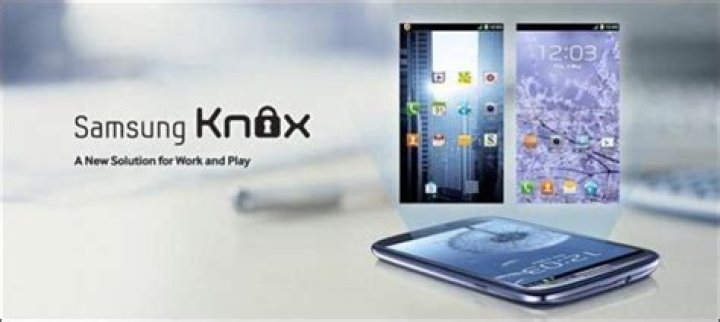
If you haven’t already heard of it, Samsung’s Knox is a security environment supported by some of Samsung’s highest-tier smartphones, including the Note 3, Note 4, and Galaxy S5 and S6. The service is only available on devices that have a special encryption chip installed in the factory, and as long as that’s onboard, you can keep the most important details of your daily worklife protected and under wraps.
The system was designed to take even more market share away from BlackBerry who, despite tanking almost completely in the consumer market over the past several years, still maintains a strong grip in the government section providing wholesale secure phone contracts for the likes of the US Department of Defense, the CIA, and the FBI.
So when it comes to keeping your phone as safe as some of the top military agencies in the world, the process of setting up Knox is a breeze.
Initial Setup
As an individual, most of the setup you do will happen through Samsung’s own “My Knox” app, which can be found in the Google Play store here. In My Knox, you’ll find most of what you’ll need to set up secure, encrypted channels of communication for everything you use from email, to messaging, Internet searches and even secure pictures taken through the camera.
Once the default Knox apps are loaded, everything you do from within Knox will be untraceable in your outside apps. As such, it’s recommended that you create an independent email (generally tied to your work or @Samsung.com account) that will be for use only within Knox. Otherwise, you’ll be forced to constantly switch in and out of the app to manage your communications, which is an extra hassle that no one needs to deal with.
Segregating Apps
After that, you can select the apps that you want to run specifically within Knox’s secure container. This can be anything from productivity programs like your Google Drive folder to Angry Birds, if you’re especially concerned that a hacker might try and use your high score against you.
All apps and utilities contained within the Knox sandbox run in a unique environment, separated from everything that happens on the default phone to maintain a firewall that information can’t pass between unless you specifically ask it to beforehand.
Once the firewall is raised, no data or information is allowed to transmit between the two environments. This is how Knox maintains the core structure of its encryption, and you’ll always know which sandbox you’re working within thanks to a handy icon that will appear in the top right section of your notification bar.
Switching Out
But, in case you’re jumping between work and pleasure regularly, wIth the Knox app icon you can easily snap between your regular phone and the Knox secure environment, and never have to mix up the two when you’re at the office or on a night out in the town with friends or family.
You can also keep independent copies of your apps installed both in the stock phone and within Knox, meaning that if you want two messaging feeds, two Twitter accounts, or two emails (as described above) attached to a single device, Knox is a great way to multitask between them, while simultaneously remaining secure.
Once My Knox is fully configured to your particular settings and up and running, you’re all set to go! Whether it’s your company’s next big IP, an invention you’re cooking up in the garage without a patent, or high-level confidential documents for the government, Knox is the best way for Samsung users to be sure that their data stays protected and away from the eyes of any prying hackers or the general public.
Если вы еще не слышали об этом, Samsung Knox – это среда безопасности, поддерживаемая некоторыми смартфонами Samsung самого высокого уровня, включая Note 3, Note 4, Galaxy S5 и S6. Услуга доступна только на устройствах, на которых на заводе установлен специальный чип шифрования, и пока он установлен на борту, вы можете хранить самые важные детали своей повседневной работы в секрете.
Система была разработана, чтобы отнять еще большую долю рынка у BlackBerry, которая, несмотря на почти полное падение на потребительском рынке за последние несколько лет, все еще сохраняет сильную власть в правительственном отделе, предоставляя оптовые контракты на безопасные телефонные переговоры для таких компаний, как Министерство США. Министерства обороны, ЦРУ и ФБР.
Поэтому, когда дело доходит до того, чтобы ваш телефон оставался таким же безопасным, как в некоторых из ведущих военных агентств в мире, процесс настройки Knox очень прост.
Начальная настройка
Как частное лицо, вы будете выполнять большую часть настройки с помощью собственного приложения Samsung My Knox, которое можно найти в магазине Google Play здесь. В My Knox вы найдете большую часть того, что вам нужно для настройки безопасных зашифрованных каналов связи для всего, что вы используете, от электронной почты до обмена сообщениями, поиска в Интернете и даже защищенных снимков, сделанных с помощью камеры.
После загрузки приложений Knox по умолчанию все, что вы делаете из Knox, будет невозможно отследить в ваших внешних приложениях. Таким образом, рекомендуется создать независимое электронное письмо (обычно связанное с вашей работой или учетной записью @ Samsung.com), которое будет использоваться только в Knox. В противном случае вам придется постоянно включать и выключать приложение, чтобы управлять своими коммуникациями, а это лишняя проблема, с которой никому не нужно иметь дело.
Разделение приложений
После этого вы можете выбрать приложения, которые хотите запускать именно в безопасном контейнере Knox. Это может быть что угодно, от программ повышения производительности, таких как папка Google Диска, до Angry Birds, если вы особенно обеспокоены тем, что хакер может попытаться использовать ваш рекорд против вас.
Все приложения и служебные программы, содержащиеся в песочнице Knox, работают в уникальной среде, отделенной от всего, что происходит на телефоне по умолчанию, чтобы поддерживать брандмауэр, между которым информация не может передаваться, если вы не попросите об этом заранее.
Как только брандмауэр активирован, никакие данные или информация не могут передаваться между двумя средами. Таким образом Knox поддерживает основную структуру своего шифрования, и вы всегда будете знать, в какой песочнице вы работаете, благодаря удобному значку, который появится в правом верхнем углу панели уведомлений.
Отключение
Но если вы регулярно переключаетесь между работой и отдыхом, с помощью значка приложения Knox вы можете легко переключаться между своим обычным телефоном и безопасной средой Knox, и вам никогда не придется смешивать их, когда вы в офисе или в офисе. ночь в городе с друзьями или семьей.
Вы также можете хранить независимые копии своих приложений, установленных как в стандартном телефоне, так и в Knox, а это означает, что если вы хотите, чтобы к одному устройству были подключены два канала обмена сообщениями, две учетные записи Twitter или два электронных письма (как описано выше), Knox – отличный вариант. способ многозадачности между ними, при этом оставаясь безопасным.
После того, как My Knox будет полностью настроен для ваших конкретных настроек и запущен, вы готовы к работе! Будь то следующая крупная интеллектуальная собственность вашей компании, изобретение, которое вы готовите в гараже без патента, или высокоуровневые конфиденциальные документы для правительства, Knox – лучший способ для пользователей Samsung быть уверенными в том, что их данные будут защищены и хранятся вдали от глаз любопытных хакеров или широкой публики.
What Is Samsung Knox Security And How It Works And Features 🔐
Featured posts in
Device Management
Knox Asset Intelligence opens window into mobile device and app performance
6 common pitfalls of mobile deployments, and how to avoid them
Samsung Knox Suite is the end-to-end solution to complex mobility needs
Published Mar 12, 2021 By: Shane Schick
For IT managers and administrators, mobile device deployment and configuration can be an involved, time-consuming process. Ensuring that employee smartphones and tablets are secure out-of-the-box is critical, but it’s equally important that users have the right apps at their fingertips and don’t have to spend a lot of time setting up their devices.
A one-to-one device deployment is a time sink for IT, and it leaves more room for error if devices and workers are dealt with inconsistently. But with a management tool like Samsung Knox Configure, devices can be set up automatically, giving employees a uniform, secure experience and immediately boosting their productivity.
Automatic device provisioning
Knox Configure is a cloud-based service that enables IT administrators to remotely configure and provision their organization’s mobile devices right out of the box. After setting up device policies and profiles, IT can bulk-enroll hundreds or thousands of devices instantly.
Knox Configure isn’t intended to replace your mobile device management (MDM), but rather automate all the deployment steps you’re used to handling manually.
Get your ultimate guide to Knox Configure
Learn how to optimize mobile devices for your unique business needs using Samsung Knox Configure. Download Now
During initial device setup, IT can adjust all kinds of settings, from app permissions to connectivity. Knox Configure identifies each device by its IMEI or serial number, giving admins granular control over device configuration, and ensuring workers have the appropriate level of access to company files and systems. The process is similar to creating a gold standard image for a PC before issuing it to an employee.
Customized for your business needs
By taking full control of the configuration process for smartphones, tablets and wearables, you can customize what each employee sees when they first turn on their new device. You can skip the setup screens from Google, Samsung and your phone carrier and replace them with a fully customized sign-on process. This means that IT admins have a unique option to remove unwanted setup steps.
Knox Configure lets you offer a personal touch by featuring your brand on your devices’ startup screen and the phone wallpaper. As you preinstall business apps over-the-air, you can also add shortcuts on the home screen, such as a shortcut to your business’ online homepage.
For an even more tailored UX, Knox Configure allows you to transform devices into dedicated business tools, like a customer kiosk, that run a single app with locked settings like the volume and power buttons.
Optional factory reset, mandatory enrollment
With Samsung Knox Configure, IT has granular control over device settings and startup, including an option to disable Android’s factory reset option. Knox Configure can set devices to automatically re-enroll after factory reset in the custom configuration created by the IT admin. You can also create a customized startup configuration using predefined profiles and policies for Wi-FI access, near-field communications (NFC) and Bluetooth. This streamlined process removes many of the common pain points for both employees and administrators.
As admins configure your business devices, there’s no more need to access hidden menus and systems. You can rest assured that with each device’s profile predefined, onboard information is always secure, as are your corporate networks. Nothing is left to chance.
Knox Configure makes device customization as easy as eight simple steps. If you’re interested in mobile device management but not sure where to start, check out Samsung’s free guide.
If you haven’t heard of it yet, Samsung Knox is a security environment supported by some of the most premium Samsung smartphones, including Note 3, Note 4, and Galaxy S5 and S6. The service is only available on devices with a special factory-installed encryption chip, and as long as it’s on board, you can keep the most important details of your daily working life protected and secret.
The system was designed to take even more market share from BlackBerry which, despite having virtually all of the consumer market in recent years, still maintains a strong grip on the government section providing wholesale secure phone contracts for the US Department. Defense, CIA and FBI.
So when it comes to keeping your phone as secure as some of the best military agencies out there, Knox’s setup process is a snap.
The initial setup
As an individual, most of the setup you do will be done through Samsung’s own “My Knox” app, which can be found in the Google Play store here. In My Knox, you’ll find most of what you’ll need to set up secure, encrypted communication channels for everything you use, from emails to messaging, internet searches, and even secure photos taken with it. ‘camera.
After you load the default Knox apps, anything you do from within Knox will not be found in your external apps. As such, it is recommended that you create a standalone email (usually related to your work or your @ Samsung.com account) that will only be used in Knox. Otherwise, you will have to constantly go in and out of the app to manage your communications, which is an additional problem that no one needs to deal with.
Separation of applications
After that, you can select the apps you want to run specifically in the Knox Secure Container. It can be anything from productivity programs like your Google Drive folder to Angry Birds if you’re especially worried that a hacker is trying to use your high score against you.
All applications and utilities in the Knox sandbox run in a single environment, separate from everything that happens on the phone by default to maintain a firewall that information cannot pass through, to unless you specifically request it beforehand.
Once the firewall is activated, no data or information can be transmitted between the two environments. This is how Knox maintains the basic structure of its encryption, and you’ll always know which sandbox you’re working in with a handy icon that will appear in the top right section of your notification bar.
To exchange
But, if you regularly switch between work and play, with the Knox app icon you can easily switch from your regular phone to the secure Knox environment, never having to mix the two when you’re in the office or on the go. shift. an evening in town with friends or family.
RELATED: Everything you need to know about printing from your Android phone or tablet
You can also keep independent copies of your installed apps both in the original phone and in Knox, which means if you want two mail streams, two Twitter accounts, or two emails (as described above ) attached to a single device, Knox is a great way to multitask between them, while staying safe.
Once My Knox is fully configured to your particular settings and operational, you are good to go! Whether it’s your company’s next big intellectual property, an invention you’re brewing in the garage without a patent, or high-level government confidential documents, Knox is the best way for Samsung users to ensure that their data remains protected and remote. out of the eyes of any prying hacker or the general public.
To use a KNOX container on the user’s mobile device, you must activate Samsung KNOX. The procedure of activating Samsung KNOX depends on the Kaspersky Endpoint Security for Android version installed on your users’ devices:
- If the current version of Kaspersky Endpoint Security for Android is installed on the devices, you do not need any keys to activate Samsung KNOX.
- If an old version Kaspersky Endpoint Security for Android (10.8.3.174 or earlier) is installed on the devices, you need to obtain a KNOX License Manager key (hereinafter referred to as a KLM key) from Samsung. A KNOX License Manager key is a unique code that is used by the Samsung KNOX licensing system. For detailed information about a KLM key, please refer to the Samsung KNOX Technical Support website.
Use of KNOX containers is possible only on Samsung devices.
To activate Samsung KNOX:
- In the console tree, in the Managed devices folder, select the administration group to which the Android devices belong.
- In the workspace of the group, select the Policies tab.
- Open the policy properties window by double-clicking any column.
- In the policy Properties window, select the Manage Samsung KNOX → KNOX containers section.
- In the KNOX License Manager key field, specify the following:
- If the current version of Kaspersky Endpoint Security for Android is installed on the devices, type any character.
- If an old version Kaspersky Endpoint Security for Android (10.8.3.174 or earlier) is installed on the devices, enter the KLM key received from Samsung.
- Set the Lock attribute in the locked position .
- Click the Apply button to save the changes you have made.
Samsung KNOX will be activated after the next device synchronization with Kaspersky Security Center. The user will be prompted to accept the terms of the End User License Agreement from Samsung and install the KNOX container.
To deactivate Samsung KNOX:
- In the console tree, in the Managed devices folder, select the administration group to which the Android devices belong.
- In the workspace of the group, select the Policies tab.
- Open the policy properties window by double-clicking any column.
- In the policy Properties window, select the Manage Samsung KNOX → KNOX containers section.
- Clear the KNOX License Manager key field value.
- Click the Apply button to save the changes you have made.
Samsung KNOX will be deactivated after the next device synchronization with Kaspersky Security Center. Access to the KNOX container will be blocked.
Samsung KNOX limitations
- Use of KNOX containers is available only on Samsung devices.
- On Samsung devices that support KNOX 2.6, 2.7 and 2.7.1, Web Protection and App Control do not work in a KNOX container. This issue is related to the lack of required permissions in the KNOX container (Accessibility service). On devices that support KNOX 2.8 or later, all components of the app operate without limitations.
- Kaspersky Endpoint Security for Android versions prior to Service Pack 4 Maintenance Release 3 Update 2 may work unstable on Samsung Android 10 devices due to Samsung KNOX updates. It is recommended to update Kaspersky Endpoint Security for Android to Service Pack 4 Maintenance Release 3 Update 2 version.
Page top
Samsung Knox is platform available for compatible Samsung Android devices that can be used to enhance device security when combined with a Mobile Device Management (MDM) platform, such as Systems Manager Enterprise. This article will discuss features available in Systems Manager Enterprise as part of this platform.
Note: While profiles containing Samsung KNOX settings can be applied to any device, they will only be effective on compatible Samsung devices.
Systems Manager Security Policies can also be used to control deployment of profiles to devices based on their compliance status.
We recommend enrolling Android devices into Systems Manager through Android Enterprise whenever possible. To see a comparison of features available through Android Enterprise vs KNOX, see the Android Enrollment article.
Kiosk Mode
Kiosk mode can be used to force a device to always run a single app full screen, with no access to other apps, device settings, etc. This is ideal for point-of-sale (POS) terminals, interactive displays, or similar applications.
- Navigate to Systems Manager > Manage > Settings.
- Select the desired Profile, or create a new one.
- Go to the Samsung Knox tab.
- Click the checkbox next to Enable Kiosk Mode.
- Select the desired managed Application from the list. Only managed apps can be used, and must be added on the Systems Manager > Manage > Apps page.
- Click Save Changes.
To use the profile, ensure that both it and the desired app have been applied to the device. Read the article on Pushing custom apps and profiles to devices or the article on deploying store apps to devices for more information. Once the app and profile are installed, the device will run the app in full-screen mode whenever it is online.
App Allow List and Block List
The block list functionality can be used to control which apps are allowed to be installed on devices. To enable:
- Navigate to Systems Manager > Manage > Settings.
- Select the desired Profile, or create a new one.
- Go to the Samsung Knox tab.
- Click the checkbox to Enable App Allow List/Block List.
- Configure as desired, based on the options discussed below.
- Click Save Changes.
Note: Managed apps (MDM > Apps) are NOT exempt from these restrictions. Managed apps will fail to deploy if on the block list. Ensure these apps are either not on the block list, or covered in the allow list.
App Block List
The App Block List is used to indicate any apps (or patterns) that users are not allowed to install on the device. The app is listed by its package name (ex. “com.meraki.sm” for the Systems Manager app), and can use wildcards to block list groups of apps (ex. “com.meraki.*” would block all Meraki apps).
Apps can easily be added by using the Select apps bar to search by display name, and then clicking the icon to add the app to the list.
Apps can also be manually entered by typing the desired package name, or pattern, in the textbox. Once the desired pattern has been entered, click Add option.
Once the packages are added, they’ll appear as individual bubbles in the field. To remove a package, click the X.
After the profile is pushed to the device, any user attempting to install apps that violate the block list will receive a message similar to the one shown below.
App Allow List
The App Allow List is used to indicate any apps that should be explicitly allowed, overriding the block list. Package names are entered in the same way as block list apps above.
Apps that were installed prior to the allow list being created will remain on the device. Only future app installations will be subject to the allow list.
Permissions Block List
The permissions block list will not allow users to install apps that require any of the permissions selected. Information about what is provided by each of these permissions is available in the Android Developer Documentation.
As an example, the ability to send or receive text messages (SMS/MMS) over cellular could be blocked by selecting the following permissions.
Overriding Block Lists with Allow List Profiles
Block List and Allow List settings will be combined across profiles on a device, with Allow List settings taking priority. Thus, a general profile could be deployed to all devices with more restrictive settings, and then more apps allowed through a second profile with Allow List options.
Samsung is discontinuing My Knox in favor of the newer Secure Folder app. In an email sent to users, the company announced that My Knox will no longer be available on new Samsung devices this year. You can still use it until its end-of-service date, which will be announced soon. However, the tech giant did say that it won’t be actively maintaining the service or adding new features to it anymore.
My Knox made its debut back in 2014. For those of you who don’t know, it’s basically a useful security solution that creates a separate, secure space on your device for all your work-related data, so that it doesn’t mix with your personal data.
The company is now urging My Knox users to switch to Secure Folder, which you can download from Galaxy Apps. The app is compatible with all Samsung smartphones with Android 7.0 Nougat or higher. The Secure Folder is based on “defence-grade” Samsung Knox security platform and creates a private, encrypted space on your smartphone that you can use to store apps and data that are for your eyes only.
Samsung has made it easy for you to transfer your content from one service to the other. Just open up the settings in My Knox and then backup the data by tapping on Backup and restore. The next step is to head into the Secure Folder’s settings, select Backup and restore, and then tap on Restore to import the files.
Will you be making the switch from My Knox to Secure Folder? Let us know in the comment section below.
Samsung Knox® Manage helps take the complexity out of securing the phones and other devices your employees use every day.
Gain an integrated approach to managing mobility.
Mobile security doesn’t have to be complicated. This robust, cloud-based, cross-platform solution, available directly from Verizon through technology partner Samsung, has the flexible management and granular control of mobile devices across different operating systems that you need to help secure your business.
Samsung Knox Manage is best for:
Enterprises that need both simple deployment and robust manageability at scale
Organizations that want to track device location and quickly turn managed devices into a kiosk
Small and medium-sized businesses that want a simple and effective cybersecurity solution for their mobile devices
What is it?
It allows IT admins to remotely manage employee apps, data storage, device lock and wipe, and more from a cloud-based command center. Integrated with the Samsung Knox platform, Samsung Knox Manage offers the highest level of security on Samsung Galaxy® devices. But it can manage any Google® Android®, Apple® iOS or Microsoft® Windows® 10 device.
How does it help you?
Samsung Knox Manage delivers across the many dimensions you need, from simple and quick deployment to robust manageability and comprehensive control. And that drives business efficiency and strong data security—and more peace of mind.
Features and benefits
See how Samsung Knox Manage stands out with these features.
Cloud-based device and app management
Take advantage of a rich set of IT policies to easily deploy, manage and control access to any application.
Separate containers for your data
Keep sensitive company data encrypted and separate from personal data, such as photos, contacts and messages.
Cross-platform flexibility
Address security requirements without compromising employee privacy for corporate devices.
Cost-effective
Take advantage of low-cost license fees and simple deployment to help secure devices without breaking the budget.
Simple deployment
Enroll bulk users automatically. With Kiosk Wizard, create diverse kiosks using drag-and-drop components.
Robust management
Apply a set of policies in particular circumstances, set up policies and distribute apps for business use.
Samsung offers several solutions that are compatible with XenMobile Server.
- XenMobile supports and extends Samsung Knox policies on compatible Samsung devices.
- The Knox Service plug-in (KSP) is an app that supports a subset of Knox Platform for Enterprise (KPE) features. For information from Samsung about KPE, see Configure Knox Platform for Enterprise and Overview.
You can configure XenMobile to query the Samsung Knox attestation server REST APIs.
Samsung Knox uses hardware security capabilities that provide multiple levels of protection for the operating system and applications. One level of this security resides at the platform through attestation. An attestation server provides verification of the mobile device core system software (for example, the boot loaders and kernel). The verification occurs at runtime based on data collected during trusted boot.
In the XenMobile web console, click the gear icon in the upper-right corner. The Settings page appears.
Under Platforms, click Samsung KNOX. The Samsung KNOX page appears.
In Enable Samsung KNOX attestation, select whether to enable Samsung Knox attestation. The default is NO.
When you set Enable Samsung KNOX attestation, to YES, the Web service URL option is enabled. Then, in the list, do one of the following:
Click the appropriate attestation server.
Click Add new and then enter the Web service URL.
Click Test Connection to verify the connection. A success or failure message appears.
Click Save.
You can use Samsung Knox Mobile Enrollment to enroll multiple Samsung Knox devices into XenMobile (or any mobile device manager) without manually configuring each device. For information, see Samsung Knox bulk enrollment.
Add the Knox service plug-in app
If you plan on using Android Enterprise with Knox, add the Knox service plug-in (KSP) to XenMobile. The KSP app uses AndroidOEMConfig to support features such as security policies, flexible VPN configuration, and biometric authentication controls. AndroidOEMConfig enables OEMs and endpoint mobility managers (EMM) to support custom OEM APIs. Those APIs cover use cases not supported through Android Enterprise.
For more information on KSP, see the Knox Service Plug-in Admin Guide.
- Sign in to your Google account and navigate to . Approve the Knox Service Plug-in app.
- Sign in to your XenMobile console and add the Knox service plug-in as a public app store app. For more information on adding public app store apps, see Add a public app store app.
- In your XenMobile console, navigate to Configure > Device policies. Click Add.
- Click Android Enterprise Managed Configuration. In the dialog that comes up, select Knox Service Plugin from the menu. For more information on the Android Enterprise managed configuration policy, see Android Enterprise managed configurations policy.
- Type a name for the policy then continue to the platform page.
- On the platform page, type a Profile name for your Knox profile and input the KPE Premium License key from Samsung. The policies that appear below these fields come from your Knox deployment. For more information on Knox policies, see the Knox Service Admin Plug-in Guide referenced earlier in this section.
- Click Next and configure deployment rules for the policy.
- Click Save.
We have exciting news to share from our valued partner, Samsung. As of July 1, 2021, Knox Platform for Enterprise (KPE) is available for free to Samsung and VMware customers!
KPE is Samsung’s premium suite of features that offers advanced security and management capabilities for Samsung mobile devices in the enterprise. KPE is fully integrated with Workspace ONE and can be managed directly in the Workspace ONE UEM console. Even better, with Knox Service Plugin integration, new features are available through Workspace ONE on the day they release. All you need to do is enable these powerful features with a free KPE license key, which is available from SamsungKnox.com.
Prior to July, KPE was offered as a premium, paid offering for organizations with Samsung mobile deployments. With Samsung’s recent pricing update, these powerful capabilities can be accessed at no added cost.
A huge array of features at your fingertips
The joint capabilities of Workspace ONE with Samsung KPE offer the flexibility to support modern enterprises and their wide varieties of workstyles ranging from essential frontline staff to hybrid knowledge workers. Here are just a few of those capabilities in detail:
Deep configuration: Flexible control of device settings
As an IT admin adhering to stringent enterprise policies, you may feel the need for granular hardware-level controls. With KPE, almost every tab in each device’s ‘Settings’ menu is configurable from the Workspace ONE UEM console — including display, location, language, notification, accessibility and much more. Now, each device can be tuned and adapted to the task at hand — all deployed over the air across any number of devices. You can also change your preferred network by only allowing connection to pre-defined Wi-Fi, disabling user changes to Settings, or hide the menu entirely.
Management and control aside, you might also want to make your teams’ lives easier by providing fewer steps to complete regular tasks. Whether that means enabling Wi-Fi in the office or turning on blue light filtering at night — no matter how detailed the function, IT admins can apply settings from a central platform and reduce the number of steps on behalf of their users.
DeX mode for the anywhere workforce
Samsung DeX allows your workforce to use their Galaxy smartphones as if they were laptops or desktop computers, simply by connecting to a monitor. They can open files quickly from their mobile email apps, write documents, edit spreadsheets and create presentations on a conventional large screen. With KPE and Workspace ONE, IT admins can configure DeX session policies, so colleagues can work remotely on their phones in a customized and secure environment.
- For security – Set control screen timeout, or allow only secure Ethernet data connections (for docked use).
- For productivity – The DeX launcher screen can be configured to load with preset apps and URL shortcuts. Alternatively, specific apps can be disabled in DeX mode.
- For custom UI – Apply your company logo and a custom wallpaper when launching DeX.
- Or simply disable DeX mode for added enterprise security.
Separated Apps
Increased mobility brings increased vulnerability to security issues, but KPE has you covered. For employees that use their work devices outside of work, it’s simple to separate business and personal apps on a single device. Built on top of the Android Enterprise platform, Knox Separated Apps defines an area where users are permitted to install pre-approved, third-party apps, you can ensure that sensitive, professional data is fully protected from any personal app usage with government-grade Knox security. This way, confidential information can be prevented from inadvertently ending up on third-party servers.
Hardware key re-mapping: one-click access to your app
For frontline teams looking to replace legacy hardware with user-friendly smartphones and apps, Samsung’s ruggedized XCover and Tab Active devices are built to withstand the physical demands of field workers. These devices provide users with a familiar user interface plus the convenience of a physical button that can be configured for one-click access to a selectable application.
This capability maximizes the productivity of frontline workers by putting critical apps and functions at their fingertips. Inventory managers or delivery workers might need to open the barcode scanner app multiple times in an hour, or retail sales teams might want to access a push-to-talk app throughout the working day. With KPE and Workspace ONE, you can make these actions easy by configuring the physical key on the device. No need to take off work gloves and shuffle through a catalog of apps, and no time lost.
Extensive security options
Samsung devices are built with security in mind, which is especially important for today’s distributed workforce. Employees work from anywhere on a mix of personal and corporate devices, making it harder for organizations to ensure the security of devices and sensitive resources. With KPE, Samsung developed a suite of defense-grade security features for organizations requiring the highest security standards. Now features such as non-bypassable VPN, VPN chaining, firewall policy enhancements and biometric controls are accessible for all Samsung devices and can be managed through the Workspace ONE UEM console.
What to do next
VMware and Samsung are here to deliver the best experiences for your workforce through the combined features of Workspace ONE and KPE. Sign in to SamsungKnox.com to get your free KPE license today.
For more on joint solutions from Samsung and VMware, check out What’s New with Samsung Knox & VMware Workspace ONE? (Session EUS3184S) at VMworld!
Kenny Takahashi
Kenny Takahashi is a product marketing manager for VMware End-User Computing (EUC), focusing on Android and Chrome platforms.
Updated on May 28th, 2021
Categories
- Getting Started & Miradore Features
- Getting Started
- Device Enrollment (Adding Devices)
- Dashboards & Reports
- Managing Device Users & Attributes
- Device Configurations & Restrictions
- App & File Management
- Remote Assistance
- Business Policies & Automation
- Security Actions
- Account & Plans
- Account
- Plans & Billing
- Security & Privacy
- Android
- Device Enrollment (Adding Devices)
- Device Data & Configuration
- App Management
- Remote Actions
- Troubleshooting
- Apple
- Administration
- iOS
- Device Enrollment (Adding Devices)
- Device Data & Configuration
- App Management
- Troubleshooting
- macOS
- Device Enrollment (Adding Devices)
- Device Data & Configuration
- App Management
- Remote Actions
- Windows
- Device Enrollment (Adding Devices)
- Device Data & Configuration
- App Management
- Patch Management
- Troubleshooting
- Integrations
- API
- Partners
- MSP Portal
- Release Notes & Announcements
- What’s New in Miradore
- Announcements
- Issues and Fixes
- Maintenance Breaks
Restriction configuration profiles are described thoroughly in the About restrictions article. It explains how to configure and deploy restrictions for managed devices, and also how the restrictions can be lifted.
This article focuses on introducing what restrictions are supported for Android devices and whether there are any platform-specific requirements for the use of restrictions.
Requirements
Generally, restriction configuration profiles can be applied to Samsung SAFE enabled devices running Android version 4.2 or newer, but this requires Miradore Online Android client version 2.2.10 or newer and the device end-user must also accept the Samsung For Enterprise Privacy Policy from the client. Any further restriction-specific requirements are mentioned in the descriptions below.
Restriction configuration profiles are available in the Miradore paid plan. The restriction configuration profiles are not included in the Free plan of Miradore.
Available restrictions
Below you can find a list of all restrictions supported on the Android platform. Tab names are underlined.
Data and connectivity
Wi-Fi
Defines whether the use of Wi-Fi is allowed or denied.
Bluetooth
Defines whether the use of Bluetooth is allowed or denied.
Cellular data
Defines whether the use of cellular data is allowed or denied.
Data roaming
Defines whether the use of cellular data is allowed or denied while the device is roaming.
Administration
Application uninstall
Defines whether the device end-users are allowed or denied to uninstall applications.
Camera
Defines whether the use of camera is allowed or denied. User or third-party applications cannot enable the camera once it is disabled.
Factory reset
Defines whether the user is allowed or denied to reset his/her device to its factory settings.
- Important: Make sure you always remember the possible passcode of your Samsung device because denying the factory reset will also prevent the device from being hard reset. There is no way to reset, restore or keep using the device without a password if the factory reset has been prevented with Miradore.
Safe mode restart
Defines whether restarting the device to Samsung Safe mode is allowed or denied.
Firmware flashing
Defines whether firmware flashing via Download mode, Over-the-Air (OTA) or via computer using Samsung Kies is allowed. This requires a device that supports Samsung KNOX Standard 5 or later (Android version 4.4.2) and has Miradore Online Client version 2.3.12 or later installed.
Google Play store
Defines whether the use of Google Play store is allowed or denied.
Install from unknown sources
Defines whether installing applications from unknown sources, i.e. other than Google Play, is allowed or denied. Note: Denying installation of applications from sources other than Google Play Store effectively blocks application installations from other app markets and manual installations of APK packages, but it does not disable APK installations via ADB. So although this blocks most end-users from installing unwanted applications, end-users with proper knowledge can work their way around this.
Device administration removal
Defines whether the user is allowed or denied to remove device administration rights from the Miradore Online Android client application. Note: Denying removal of administration rights from Miradore Online Client also blocks the uninstallation of client, since uninstallation of applications with administration rights is not possible.
Setting changes
Defines whether accessing or modifying device settings is allowed or denied.
Force GPS state
Forces the GPS state to enabled or disabled. When this restriction is set, the end-user can’t change GPS state.
Over-the-Air system upgrades
Defines whether the Over-the-Air operating system upgrades are allowed or denied.
Deny force stop applications
Defines a list of applications (package names) that cannot be force stopped by the user. Requires Miradore client version 2.3.12 or newer.
Defines a list of applications (package names) whose device administration rights the user can’t remove. If the specified application is installed after this has already been deployed, the rule will be enforced when the device syncs with Miradore for the first time after installation. Requires client version 2.3.14 or newer.
Samsung Knox Mobile Enrollment was originally created to address Bring Your Own Devices (BYOD) use cases for IT departments. It does a fine job at it, but it does beg the question: is it useful for companies running Samsung-based dedicated device fleets? ICYMI Samsung Knox is a Samsung-specific mobile security platform spanning device to cloud. It ships built into most, but not all, of Samsung’s Android-based smartphones and tablets.
In the previous blog, A Tour of the Many Android Provisioning Options Available on Esper, we discussed the various device enrollment methods. Along with the traditional GMS-based provisioning methods, we also support Google Zero-touch Enrollment (ZTE) and Samsung Knox Mobile Enrollment (KME). This blog will discuss KME and the use case to provision a group of devices using Knox Mobile Enrollment.
What is Samsung Knox?
Samsung Knox, part of the Knox suite, is a combination of a security platform and cloud solution. Knox is an infrastructure for device management built into the operating system on qualified devices, along with a secure environment to manage corporate-owned devices. Knox provides control and monitoring of only Samsung devices.
Samsung Knox platform exposes a set of APIs that allows the end-user to manipulate their devices more granularly — turn off the power button so it does not function, changing how the volume controls, etc. Knox provides its own enrolling method Knox Mobile Enrollment (KME).
What is Samsung Knox Mobile Enrollment?
Similar to Google Zero-touch Enrollment, Knox Mobile Enrollment is a provisioning method offered by Samsung for its devices. Upon first boot or factory reset, KME forces Samsung devices to enroll into Esper. Once you have registered for the Knox Mobile Enrollment, you can access the Knox Mobile Enrollment console through your Knox Portal dashboard.
According to the Samsung documentation, the following are the prerequisites for using KME:
- Have a Samsung account and a Samsung Knox account.
- Devices run Knox version 2.6 or higher.
- MDM solution provider that supports KME — Esper does!
- KME Console supported browser and some firewall exemptions to securely connect to the Knox Mobile Enrollment server.
To enable Knox Mobile Enrollment on a Samsung device, you need to upload the serial numbers or IMEIs (International Mobile Equipment Identity) of the devices you wish to provision using KME.
Supporting the key features of Google Zero-touch Enrollment, KME also has the capability to set up a profile type— an Android Enterprise or a Device Admin. We recommend using the Android Enterprise permissions since the Esper agent takes care of establishing device admin permissions. Following are the two KME methods:
- KME QR method — allows users to skip having to enter Wi-Fi credentials. After accepting a few license agreements, the provisioning process will begin.
- Standard KME — users must manually enter WiFi credentials and agree to a few license agreements for the device to retrieve the profile to start provisioning.
Why use Samsung KME for Dedicated Device Fleets?
KME ensures the device can’t somehow be factory reset and used for another purpose. It can be helpful when devices are drop-shipped to their deployment location – it is simple enough that most local personnel can quickly get the device through the provisioning process and the provisioning configuration is determined and controlled through the Esper Cloud. For some staging situations, it may be more time-efficient compared to other provisioning methods, but it’s always advised to time study the Android Enterprise methods for your onboarding – including 6-tap QR code – to see which is best for your situation. There’s no extra cost to use KME if you have supported Samsung devices, but the drawback – it’s Samsung specific.
How to enroll Samsung devices on Esper using Knox Mobile Enrollment?
Provisioning a device to the Esper platform using KME is a 2-step process — uploading the device IMEI/Serial numbers to Knox and then configuring Knox using a downloaded file from Esper for the appropriate Esper Provisioning Template.
- Open your Knox console and enter the IMEI/Serial number for all devices that need to be provisioned. You can write a CSV file to upload the device information. Once the devices are verified, they will be available to use for the Samsung Knox configuration.
Note: The devices can be used only in one Samsung Knox portal at a time. You will get an error if the serial number is already assigned to a different Knox account.
- In the Knox Mobile Enrollment portal, you can view the devices added in step 1. Then, you can configure the devices to use on the Esper platform by creating a profile. To create a profile — under the MDM Profile, you can use Android Enterprise permissions to create a profile based on the Esper endpoint. Please contact us for the Google Play store MDM link. Next, you need to provide the Esper Provisioning Template information for the device to use to provision when it turns ON. This code for the custom JSON data is available on the Esper Console – go to your desired Provisioning Template tile, select the ellipsis drop-down, and click on Download Config. Open the file and copy the JSON code block under ADMIN_EXTRA_BUNDLE.
Assign the created profile to the devices you want to provision — under the Devices tab in the KME portal, check the devices you wish to migrate, and select “Configure Devices” under Actions. Select the MDM Profile created in the previous steps and click Save.
And that’s it! Now when the device boots after factory reset, it checks for updates and recognizes Knox Mobile enrollment, and locks the device with the specified MDM/EMM — in this case, Esper. No QR-code scan is needed unless you need an easier way to enter Wi-Fi credentials.
As an automated enrollment process, Samsung Knox Mobile Enrollment allows for bulk provisioning and pre-configuring the device fleet. The profile remains on the device even after a factory reset. So if the device is stolen, it cannot be repurposed and is locked to the Esper profile. It’s also a great way to efficiently move from other device management systems, including Knox, to Esper. With success stories from Esper customers onboarding thousands of devices using Samsung Knox Mobile Enrollment, get in touch with us today to onboard your large number of devices.
Hi all fellow Samsung users,
we are happy to share the exciting news with you that we’ve entirely revamped our mobile apps, and with that: We are now fully compatible with the Samsung Knox security platform!
What does that mean for you?
- Direct connection through Knox: No additional AddOn for Samsung devices must be downloaded and installed!
- Better connection performance!
- Support for even more devices likes Galaxy A and M series!
- New, fast, secure architecture!
Please allow me to invite you to update your TeamViewer QuickSupport and Host Apps on all Samsung Android Devices to ensure seamless remote connections to devices with Samsung Knox.
How to get the great new TeamViewer Apps?
- Install or update your QuickSupport and/or Host Android mobile apps to the newest version:
- You can do this easily through the Google Play Store app on your mobile.
- Or, by downloading the QuickSupport or Host app directly from TeamViewer’s website:
That´s it! Now you can connect easily from your PC or mobile device using TeamViewer.
Note: Corporate and Enterprise customers can update their mobile devices directly through their Mobile Device Management or Enterprise Mobility Management solutions.
Note: After mid-January 2020, the Add-On: Samsung will be discontinued
We hope you are enjoying the new and updated apps and the seamless TeamViewer experience.
Frontu powered by Samsung Knox is the ultimate FSM combination for more productive front line workers
Enhanced Customer Service
Frontu clients often expressed concern that despite having one system to manage field technicians, they still lack control when it comes to supervising devices or installing system updates. The issue inspired us to look for ways to improve user experience, and as a result, we came across Samsung Knox.
Samsung Knox is a system that secures a device and allows it to monitor it remotely via the admins’ platform. Now, Frontu clients can install operating system updates, run troubleshooting, or adjust configuration settings regardless of the device’s location. The platform has several security features to protect the system and equipment from malicious attacks. The software can be customized with computers, mobile phones, tablets, and other devices.
Samsung Knox Benefits to Frontu Clients
At Frontu, we use Samsung Knox to optimize our customers’ work and enable efficient workflow with no interference. How does it work? A designated employee can track devices and assist in the case of a system’s failure or any other occurring issues. Other team members that have connected devices don’t have to worry if there’s a bug or something is missing, because the central system can spot and solve these troubles remotely.
Frontu powered by Samsung Knox enhances our customers’ task management procedures by saving time and allowing them to solve interferences and continue with a task instantly.
Despite impeccable security monitoring and the time-saving remote solution, the platform also has the advantage of applying custom policies and regulations depending on a user and company.
Main Features of Samsung Knox
Samsung developed a versatile platform to meet different demands. The system has various versions integrated and can operate depending on specific business needs.
Samsung Knox Manage is a cloud-based EMM (enterprise mobility management) feature that enables a system admin to control the deployment process remotely. The functionality allows the central system manager to regulate Wi-Fi, VPN, APN, exchange, firewall settings. It also authorizes to configure employees’ email accounts or install apps on employees’ devices.
Samsung Knox Manage has application black/whitelist, app store restrictions, Wi-Fi, Bluetooth, microphone force, and GPS on/off functionalities.
The software has functional restrictions implemented: camera, screen capture, external SD card, data usage, which guarantees better protection to its users.
Despite numerous features, Samsung Knox has a Configure element that supports setting up connected devices automatically. It’s a practical feature that saves time for your team and your clients.
Configure feature:
Supports one-time deployment of settings, content, and apps.
Customizes the appearance of the Home screen and Locked screen.
Deploys company-branded booting and shutdown animation files.
Allows turning off or on: Wi-Fi, Bluetooth, GPS, NFC, Airplane mode, apps.
Many issues with a set of devices come after a new operating system update. Knox E-FOTA (Enterprise Firmware-Over-The-Air) feature refreshes Samsung devices with the latest OS updates. These updates can be installed remotely ensuring higher security levels and eliminating software bugs.
If you run a large enterprise, then you know the struggle of managing a large number of devices. Samsung developed the Knox Mobile Enrollment feature that enrolls multiple devices automatically. So, you don’t have to spend hours looking at a computer screen and trying to type numbers correctly. An admin enters data, and the system automatically links devices.
Samsung Knox for Enterprise
Samsung Knox is integrated with different consumer needs and has several versions to meet the growing demand for data privacy.
Samsung Knox for Enterprise edition delivers significant levels of security and data privacy. It was developed to benefit highly regulated enterprises and governmental organizations where every piece of information is sensitive to external threats. The platform protects the company’s privacy, regardless of how many devices the team uses.
Samsung Knox for Frontu Clients
We developed a Frontu field service management system to help our clients reach their highest potential. Therefore, we have to progress along and find new methods to boost their business efficiency. Samsung Knox helps to save tons of time. Instead of dealing with system updates and numerous devices, you can optimize your business and focus on what matters the most. On top of that, you get the highest data protection to cut out any external perils.
Samsung Knox is a security system that was included in the official update to Android 4.3 on Samsung devices. It’s a discontinued service these days, and came disabled by default ever since the Galaxy S6 and S6 Edge, so if you have a newer phone, there’s nothing to worry about. However, some older devices still have Knox installed and activated by default. Here’s how to uninstall Knox from Galaxy devices.
Jump to:
What is the current state of Samsung Knox?
Samsung launched Knox in September 2013, but officially stopped supporting it in December 2017. The purpose of this security system, initially launched with the Galaxy Note 3 and the Galaxy Note 10.1 2014 edition, was to bring full protection for devices and make it easier to use devices for both work and play in Bring Your Own Device (BYOD) environments.
Samsung discontinued My Knox in favor of the newer Secure Folder app, and as of December 2017, Knox no longer appears on the Play Store. Newer phones, such as the Galaxy S7, S8, or S9, as well as recent Note and A series devices, don’t use My Knox.
If your device has Knox, you can continue to use it. Similarly, once uninstalled, My Knox can no longer be recovered from the Play Store.
The My Knox portal still has some functionality. You can still unlock My Knox or reset your password to My Knox, for example. Nonetheless, users are encouraged to migrate to Samsung’s new solution, Secure Folder.
How to transfer your data from My Knox to Secure Folder
A Samsung account is required to use the My Knox backup and restore feature. At the moment, Secure Folder is compatible with devices on Android 7.0 and up.
- Go to My Knox Settings > Backup and restore > Back up My Knox data.
- Head to the Play Store and install Secure Folder. After the setup, you can restore your data you backed up from My Knox.
Secure Folder The idea behind BYOD is to use the same phone for work and private use. / © NextPit
What were the problems with Knox?
Applications that run outside of the realm of Knox have limited access to stored data. While many people wouldn’t bat an eyelid at this information, a number of developers would, including the likes of Chainfire, which created the popular TriangleAway app, designed for resetting the flash counter to zero on your device, and SuperSU.
The problem is that the Knox security system prevents access to multiple applications when you root your device, and can cause problems with your warranty because modifications to your phone will trip the flash counter (and prevent it from being reset).
- Best root apps for Android
- Best custom ROMs for the Galaxy S6
Apps found outside of the Knox container have less access to stored data. © Samsung
The reason this is controversial is because Knox works with an eFUSE (autoconfiguration technology), used to keep track of when a device has been altered. This means that Samsung can use Knox data to reject requests for user support during the warranty period, because it would deem that the device had been damaged by the user.
Samsung had already incorporated a counter in the bootloader, which keeps track of the number of times you have modified to the OS. The problem is that, as I mentioned, applications that run outside of the Knox container have limited access to the stored data, and consequently, apps developed by the modding community are negatively affected.
How to disable Knox
There are several methods for disabling Knox, which will also permit you to use applications such as SuperSU or RootChecker again.
However, you cannot return the flash counter to zero because the “set bit warranty” included in the official Android 4.3 update prevents you from conducting a bootloader downgrade.
The Samsung support page provides the following explanation, which is only valid for devices running Android 4.3, such as the Galaxy S3:
- Find the Knox app, launch it and tap on Settings.
- Choose Knox Settings.
- Select Uninstall Knox.
- When uninstalling Knox, you will be asked if you want to back up your Knox data. If you say yes, it will be saved in your device’s Knox folder during the uninstall process. To back up this data, select Backup Now, and then OK.
Pressing the soft key to bring up the menu, in which the Knox settings are found. © Samsung
Note: Personal data, such as photos, music files, contacts and calendar events are copied during de-installation. However, email and application data are not.
- Enter your Knox password and hit Continue.
- Choose Next. Your data will be saved before the uninstallation process is complete.
- Select OK to uninstall Knox.
- Tap on Menu > My Files > All > Knox. There will be a zip file with your personal content from Knox. If you have a microSD card, select All > Storage Device > Knox instead.
If the option provided by Samsung doesn’t leave you convinced, you can perform the following steps (which require root access):
- Install Root Explorer.
- Run Root Explorer and in the magnifying glass search function, type Knox.
- Select all files with the name Knox.
- Remove them and reboot your Samsung device.
Root Explorer In Root Explorer, simply search for and delete all files associated with Knox. / © NextPit
If these methods don’t work or you still aren’t satisfied, the XDA Developers forum also provides a file to delete Knox via recovery:
- Perform a backup of all the data from your device.
- Flash the following file provided by XDA Developers: KNOX removerV2.1.zip. (Go to page: XDA-Developers).
- Delete all files labeled Knox.
- Restart.
What are your thoughts on Knox? A positive security solution or an annoyance? Share your views in the comments.
Back in 2012 Apple was synonymous with device and data security and Android was considered insecure, so Samsung decided to change things and introduced SAFE (Samsung for Enterprise) to secure business data and promote the use of Samsung Android phones for the enterprise. SAFE later developed to a much secure platform supporting tablets and wearables along with phones called Samsung Knox. This embarked the beginning of an era of secure android phones which were on par with Apple in terms of data security
Samsung Knox Overview:
Samsung Knox is a special security solution built into hardware and software of most Samsung devices. Offers defense-grade security with multiple encryption, boot security, kernel protection and much more.
This helps prevent data leak of sensitive company information. About 200+ Samsung devices support Knox including smartphones, tablets, and wearables. Here is a complete list of Samsung devices built on Knox.
Knox Workspace
Knox ensures that the devices used by the employees have isolated business and personal profiles. A special container called Knox container is made available for users to store work apps and data. Knox container later became Knox workspace.
The special feature of Knox workspace is a one-tap switch between personal and work profiles. A simple tap on the Samsung Knox icon on a compatible Samsung Android device will automatically switch between personal and business profiles and allows user to seamlessly navigate between the encrypted content without the need to restart the device
Knox workspace can be activated in Samsung Knox devices enrolled in Android enterprise in either work profile or as a fully managed device with a work profile (Kiosk mode). It can easily be done by activating a Knox license.
Knox Mobile Enrollment (KME)
Samsung Knox mobile enrollment(KME) via the Samsung Knox portal is by far the fastest and most efficient way to enroll Knox supported devices in the enterprise for corporate use.
With Out-of-the-box enrollment, a newly purchased device can be directly enrolled in the enterprise and all the user must do is power on the device and it can be used for work.
For big companies with thousands of devices, it is difficult to enroll them all one by one. Knox makes things easier by providing the option to upload device info and enroll them all at once with a single click. This is a hands-free enrollment method that requires zero effort from the user.
KME also supports multiple MDM configurations per account. A single Samsung account can host different MDM profiles and provide them to different users.
Knox in Android Enterprise
Knox was launched as a more secure platform for Android Enterprise. But over the years, As Android Enterprise grew, it started to incorporate many features that were unique to Samsung Knox devices. This became a challenge for users.
Organizations found it difficult to differentiate between the features of Knox and Android Enterprise. Switching from one platform to another was a painful process of deleting and replacing all data. Organizations also liked both platforms, Knox offered a lot of unique security features which Android enterprise was lacking.
Samsung was not a stranger to these issues, so they decided to collaborate with Google to find a solution. By the release of Android Oreo, they came with a solution called Knox Platform for Enterprise (KPE).
To solve the existing issues, KPE was introduced as an extension of Android Enterprise so that the users could get the best of both worlds. Samsung retained its unique features while older Knox features became a part of Android Enterprise.
Here is a brief on the unique features of KPE.
- Enhanced hardware-backed integrity.
- Knox verified boot.
- Sensitive Data Protection with data encryption while the device is on.
- Real-time kernel protection.
- Enhanced VPN controls.
- Enhanced certificate management
Checkout detailed features of KPE here
Similar features like Android Zero Touch and Knox mobile enrollment (KME) became more simplified. Earlier Samsung devices could only be enrolled out of the box using KME. Whereas Android devices used Zero Touch. The collaboration bought forth a solution, a common library with single integration.
Moreover, existing Android Enterprise users with Samsung Knox devices running on Knox 3.0+ could easily integrate Knox policies with their existing EMM providers, given they have purchased a Knox license.
OEMconfig and KSP
OEMconfig is an Android standard that makes app configuration a breeze. An OEM provided app is made such a way that it can configure all other custom OEM-specific features on the device, instead of having an EMM build support for each of them.
That is, to provide managed app configurations to OEM apps, no more need to upload separate XML files. Upload configuration to OEMconfig app and it will handle app configurations as per requirement. This makes things a lot easier for EMM developers as they can offer day-one support without much hassle.
KPE (Knox Platform for Enterprise) was a pretty neat approach, however, it was a bit costly and required a premium to access special features of Knox. By offering support for OEM config Samsung decided to make things easier for EMM developers and introduced Knox Service Plugin (KSP).
KSP is Samsung’s OEM app for EMM providers to provide Knox Platform for Enterprise (KPE) features to their users from the first day it becomes available. This ensures that IT admins can use the latest Knox features from the day it launches. It eliminates the need for EMMs to provide day-one support. Check out KSP for the detailed list of features.
Samsung Knox integration with MDM
Samsung Knox, in association with a Mobile Device Management solution, can improve security and isolation of business data. Knox helps in streamlining bulk enrollment and provides out-of-the-box enrollment with the help of the KME portal. This makes the user experience hassle-free.Knox integration also provides a wide range of extra features and improved support in application management, kiosk management, web filtering, security management, and remote view and control.
Here is a detailed video tutorial on Samsung Knox integration with MDM solution.
Knox integration also helps to maximize productivity and offer flexibility beyond the native capabilities of smartphones. Along with that Knox services are supported across 85 countries, This makes Samsung Knox integrated devices ideal for enterprise deployment.
Samsung KNOX is a set of enterprise mobility management services that offers mobile device and data protection and management.
The two main services in the KNOX suite are Samsung KNOX EMM and KNOX Workspace.
KNOX Workspace offers device management through containerization, which separates corporate applications and data from personal apps and data via secure profiles. Containerization makes it safe for IT to remote wipe corporate information from devices. IT can whitelist and blacklist specific applications in a user’s work profile, plus control what data is allowed to move between the personal and work profiles.
KNOX EMM is a cloud-based enterprise mobility management console that includes management for mobile and Web apps, plus a self-service portal for IT and users. It is compatible with both the Google Android and Apple iOS mobile operating systems. However, iOS does not support KNOX Workspace.
Other security features available in Samsung KNOX include FIPS-compliant VPN, on-device encryption and enterprise-grade single sign-on.
There are three versions of Samsung KNOX:
- My KNOX, which is free, is designed for individual users.
- KNOX Express is also free and caters to small and mid-sized businesses with 250 users or fewer. It combines a basic version of the KNOX Workspace security suite with KNOX EMM for device and application management.
- KNOX Premium is geared toward larger organizations and costs one dollar per month, per user. It comes with Microsoft Active Directory integration, app whitelisting and blacklisting, secure containerization and secure boot.
Companies can upgrade to the full KNOX Workspace at an additional cost. Similarly, Samsung offers a paid upgrade for advanced identity access management capabilities.
- A breakdown of Samsung KNOX EMM options
- The official Samsung KNOX blog
- Key security features in Samsung KNOX
- Is Samsung KNOX EMM ready for the enterprise?
- BlackBerry 10 and Samsung Knox gain U.S. military approval
- Samsung unveils KNOX security software
Related Terms
Cohesity beefs up ransomware and disaster recovery offer
How can the Samsung Knox Service Plugin help mobile admins?
Navigate Android encryption software from OEMs, EMM vendors
Mobile World Congress 2019 shows the value of a good unified endpoint management strategy
- The Next-Generation Workspace: Removing Barriers and Frustration –Citrix
- Deploying a Digital Workspace? Three Critical Capabilities to Look For –Citrix
- See More
- Focus: Enterprise Mobility Management –ComputerWeekly.com
The IE9300 uses Cisco’s Cyber Vision to improve visibility and security. The latest hardware bolsters Cisco’s portfolio of .
Network managers can configure, deploy and manage Juniper’s Session Smart Routers through the Mist cloud, which monitors the .
Geographically remote locations, large public venues and manufacturing sites are a few of the key areas in which business 5G .
Cisco aims the latest features at making Webex friendlier to disabled people, an essential step as digital accessibility lawsuits.
As the hybrid work model continues, discover the unified communications and collaboration trends anticipated to transform the .
Microsoft’s acquisition of Activision Blizzard would provide the technology for building virtual worlds that could provide the .
Everyone is tired of passwords, but a truly passwordless world isn’t quite there yet. Learn what options companies currently have.
If the predictions are correct, 2022 will be another groundbreaking year for information security. Have a look at the security .
Cloud security standards and frameworks are key to securing systems and maintaining privacy. Read up on available options and .
- About Us
- Editorial Ethics Policy
- Meet The Editors
- Contact Us
- Advertisers
- Business Partners
- Media Kit
- Corporate Site
- Contributors
- Reprints
- Answers
- Definitions
- E-Products
- Events
- Features
- Guides
- Opinions
- Photo Stories
- Quizzes
- Tips
- Tutorials
- Videos
Knox is a new security feature that is being offered with certain Samsung handsets. It helps you to securely separate your personal and professional data. Essentially, you can have the benefits of using a ‘work phone’ without the need to carry, and secure, a separate device. All in all we have found Knox to work nicely. It can be configured so that it’s easy to use and access, yet barely noticeable. It’s a nice security addition and free with new Samsung handsets such as the Galaxy Note 3 , Galaxy Note 4 and Galaxy Note 10.1 2014 edition. Samsung has put together this short video about what Knox offers, but we explain its functionality in greater detail below. You can also view the official Knox user manual here .
What is Samsung Knox?
In layman’s terms, Samsung Knox is an app that creates a new ‘layer’ on your Samsung phone so that you can securely separate your personal and professional activities.
This layer is essentially a second version of your phone that requires a password to be accessed and restricts the way in which the handset is used.
When in Knox mode, there are only certain apps that you can use. If Knox is installed by an administrator at your place of work, they will be able to specify which apps you can use. By default, the apps included are Camera, Gallery, Downloads, Email, S Planner, My files, Phone, Contacts and Internet (Samsung browser only, not 3rd party). You do not have access to the Play Store, but there are an additional 75 ‘Samsung Knox’ apps that are available for download.
Certain functions are disabled within Knox, such as capturing a screen shot. Device administrators can also specify which apps can be used as sharing intents from within Knox.
Some of the apps that are available to download from the Samsung Knox Apps Store include:
- Evernote
- Dropbox
- Box
- Harmon.ie
- iAnnotatePDF
- OfficeSuite 7 Pro
- OfficeSuite Viewer
- qPDF Notes
- QuickSpell
- TouchDown
- Podio
- Jorte Calendar
- GoFormz
You can view the full list of apps here
There are also special offers available for Box, Lookout, ShareFile, Dropbox and CloudOn. These give you a nice discount on the paid tariffs for some of these apps. You can view the deals here
Using Knox
You can switch between Knox mode and personal mode using shortcuts in the app tray and notification tray. A password timeout is set so that you do not need to re-enter it each time you switch from one mode to another. The password time out period can be changed by entering Knox mode, pressing the capacitive settings button, selecting Knox Settings and then selecting Password Timeout.
You can, however, override the password timeout and lock Knox by pressing the padlock icon within the notification tray shortcut.
When in Knox mode, there is a shortcut on the home screen named ‘Personal’ that will take you back to your normal device. There is also a shortcut to switch modes placed within the notification tray, which also contains within it a padlock button so that you can lock and unlock knox. Keeping Knox unlocked enables you to use the shortcuts to switch between the two different modes without having to enter your password.
The switch between personal and Knox is almost seamless. There is a very short lag while the home screen is rendered, but this is negligible. This is using a Galaxy Note 3 mind you, which is very powerful, but for the time being Knox is only offered on Samsung’s high-end devices and it’s not clear as to whether or not it will be offered on those low-end devices that would potentially suffer from lag.
Any data captured or entered when in Knox mode is not accessible from within your personal account and vice versa. For example, if you take a photo whilst in Knox, it cannot be accessed from your personal gallery.
You can also place shortcuts to Knox apps on your personal home screens. For example, if you place a shortcut to Knox camera on your personal home screen, you can then take a quick photo, which is saved in only the Knox gallery, without having to make the switch to Knox mode. If you are only using Knox for one or two activities, this saves you from having to switch modes too often.
Another nice touch is that if you have a work email account setup in Knox using Microsoft Exchange, the management policies that are applied to the account (e.g remote device wipe) only apply to the Knox container. This means that if for any reason your place of work feels the need to remotely delete your data, it will only be applied to the Knox container and will not delete files in your personal account.
Even if you are not required for security reasons to use Knox, it could be worth using it anyway in order to keep your personal and work life/data separate.
How to transfer existing files to Knox
Normally, the easiest way to transfer a large file or a large group of files to a device is by connecting the handset to your computer and using a file manager. Due to its security restrictions, this option is not available when using Knox.
If you do need to transfer some existing files to Knox, the easiest option is to download one of the cloud storage apps that are available for Knox, such as Dropbox, Box or even Evernote. Each of these apps have free tariffs, so if you don’t have an account already it won’t cost you money to get the files transferred. Simply upload your files to the service that you choose, download the Knox version of its app from the Knox app store, and then login and download the files that you need.
How to install Samsung Knox
Knox does not come pre-installed on your Samsung handset, but there is a shortcut within the app tray so that you can download it (for free) if you wish to use it. Once you have installed Knox, you will be asked to set a password. Make sure you don’t forget this as you will need it to access Knox or if you wish to uninstall it. You are also asked to set a backup PIN in case you do misplace the password. Once installed, To access Knox, click the shortcut within the app tray or in your notification bar.
How to uninstall Knox
If you don’t use Knox, you may wish to uninstall it. It’s worth noting that you do not need to uninstall Knox in order to remove the shortcut from the notification tray as there is an option to turn this off if you go into the Knox Settings. To uninstall Knox, press the menu button whilst on the Knox home screen, then choose Knox Settings. From here, select About Knox and there is then the option to uninstall. You are given the opportunity to back up your Knox data before proceeding with the uninstall. Should you make the backup, you are given the option to restore your Knox data if you reinstall the app at a later date. Once you have uninstalled Knox, the shortcut will still appear in the app tray so you can easily reinstall again later.
This week a blog post about the capabilities to block apps from starting and to allow apps to install on Samsung KNOX devices. I thought it would be good to mention these capabilities, as many are only familiar with the capability to work with compliant or noncompliant apps on Android. That capability can only be used for reporting functionalities. These capabilities are specifically for Samsung KNOX devices and can truly, and literally, block apps from starting. During this post I’ll go through the high-level steps to configure a blocked app and the end-user experience for both capabilities.
Information
Let’s start with some information about what can be achieved by using the block apps from starting and the allow apps to install capabilities. When using the block apps from starting capability, a list must be created of apps that are blocked from running on the device. Apps in this list are blocked from being run, even if they were already installed when the policy was applied. This list doesn’t prevent users from installing the apps. When using the the allow apps to install capability, a list must be created of apps that users of the device are allowed to install from the Google Play store. Only the apps in this list can be installed. No other apps can be installed from the store. This list doesn’t prevent users from starting the apps.
Configuration
Now let’s have a look at the high-level steps for these configuration. However, before I’m going to look at these steps, it’s good to mention that the configurations can be achieved by using OMA-URI settings. The following OMA-URI settings are available for these configurations:
- To create a block apps from starting list, use the following OMA-URI: ./Vendor/MSFT/PolicyManager/My/ApplicationManagement/PreventStartPackages
- To create an allow apps to install list, use the following OMA-URI: ./Vendor/MSFT/PolicyManager/My/ApplicationManagement/AllowInstallPackages
To find the value for these OMA-URI settings, the Google Play Store can be used. The app identifier that is used within the store, is what is needed to add a value to the block or allow lists. For example, when I’m looking at the OWA for Android app, in the store, the bold section, in the following URL, represents the required value: com.microsoft.exchange.mowa&hl=en.
Now let’s have a look at how these two come together in the configurations for Microsoft Intune hybrid and Microsoft Intune standalone.
The configuration in Microsoft Intune hybrid can be performed by starting the Create Configuration Item Wizard in the Configuration Manager administration console. Make sure to select Android and Samsung KNOW (below Settings for devices managed without the Configuration Manager client) on the General page and to select Android KNOX Samsung Standard 4.0 and higher on the Supported Platforms page. Now select Configure additional settings that are not in the default setting groups on the Device Settings page and the configuration can begin by using the earlier mentioned OMA-URI settings.
The configuration in Microsoft Intune standalone can be performed by starting the Create Policy for Custom Configuration (Android 4.0 and later, Samsung KNOX Standard 4.0 and later) in the Microsoft Intune administration console. Navigate to the OMA-URI Settings section and the custom settings can be added.
Once the configuration is finished the policy can be saved and can be deployed to Samsung KNOX.
Note: When the block or allow lists must contain multiple apps, one of the following four characters ; : , | can be used as a delimiter.
End-user experience
Let’s end this blog post by having a look at the end-user experience. Below, on the left, is the end-user experience when the end-user starts an app that is blocked from starting. It’s indeed correct that it doesn’t show a screenshot. Reason behind that is because it actually lacks a real end-user experience. When the end-user tries to start a blocked app, the app won’t start and the end-user won’t get any notifications. Below, on the right, is the end-user experience when the end-user tries to install an app that is not allowed to install. The end-user will receive an error message accompanied by the message “Security policy prevents installation of this application”, which is a clear end-user experience.
| Block app from starting | Allow app to install |
| The app won’t start and the end-user won’t get a notification about what’s happening. |
More information
Fore more information about blocking and allowing apps on Android devices, please refer to:
A mobile security startup has found seven security flaws in Samsung’s pre-installed mobile apps, which it says if abused could have allowed attackers broad access to a victim’s personal data.
Oversecured said the vulnerabilities were found in several apps and components bundled with Samsung phones and tablets. Oversecured founder Sergey Toshin told TechCrunch that the vulnerabilities were verified on a Samsung Galaxy S10+ but that all Samsung devices could be potentially affected because the baked-in apps are responsible for system functionality.
Toshin said the vulnerabilities could have allowed a malicious app on the same device to steal a victim’s photos, videos, contacts, call records and messages, and change settings “without any user consent or notice” by hijacking the permissions from Samsung’s stock apps.
One of the flaws could have allowed the theft of data by exploiting a vulnerability in Samsung’s Secure Folder app, which has a “large set” of rights across the device. In a proof-of-concept, Toshin showed the bug could be used to steal contacts data. Another bug in Samsung’s Knox security software could have been abused to install other malicious apps, while a bug in Samsung Dex could have been used to scrape data from user notifications from apps, email inboxes and messages.
Oversecured published technical details of the vulnerabilities in a blog post, and said it reported the bugs to Samsung, which fixed the flaws.
Samsung confirmed the flaws affected “selected” Galaxy devices but would not provide a list of specific devices. “There have been no known reported issues globally and users should be assured that their sensitive information was not at risk,” but provided no evidence for this claim. “We addressed the potential vulnerability by developing and issuing security patches via software update in April and May, 2021 as soon as we identified this issue.”
The startup, which launched earlier this year after self-funding $1 million in bug bounty payouts, uses automation to search for vulnerabilities in Android code. Toshin has found similar security flaws in TikTok and Android’s Google Play app.
To enjoy the service, you need to connect your devices.
For Vodafone Data Control APN licenses, you will need to change the device Access Point Name (APN).
There are different Deployment options depending on the device type you want to connect.
You need to connect your device to the service to enjoy Vodafone Data Control functionalities. If you do not connect your devices, policies and data allowance set in your Group Plans will not apply to your devices.
Choose your Deployment
With device user interaction choose one of the following:
- Install the Mobile App
The Vodafone Data Control app will guide the user step by step to setup the APN configuration automatically, Wi-Fi Protect (optional ) and Android Device Security (optional).
- Configure the APN Manually
On most Android devices, you can enter the APN settings on the device manually.
Without device user interaction:
- Deploy Automatically via UEM
Suitable for Samsung Knox devices under Mobile Device Management with a UEM platform such as IBM MaaS360 or VMware Workspace ONE UEM.
Install the Mobile App
The Vodafone Data Control app supports Android 6 and above and Knox v2.0 and above.
To invite your users, you can send an invitation to the device via Bulk Actions:
- Invite Device via SMSUsers receive a link to download the App and you can customise the SMS content.
- Invite Device via EmailSuitable for non-SMS enabled devices that can receive emails.
You can also download the mobile app directly from Google Play Store.
Once installed, open the Vodafone Data Control app.
- In the Welcome screen, press Install.
- Under Device Verification:
- Tap I’m ready
Activate device admin
- SMS-enabled devices as an SMS
- Non-SMS-enabled devices as an email invitation.
Once complete, your mobile device will have connected to Vodafone Data Control .
The DEVICE SETUP field should now show Controlled in Devices Overview.
Tip: If the device does not show a status of Controlled:
- Make sure the device is not currently connected to Wi-Fi
- Select the refresh icon in top right-hand corner refresh .
Configure the APN Manually
- Navigate to:
- Applications
- Settings
- Mobile Networks (tap More if necessary)
- Access Point Names.
- Tap ADD add_circle_outline / or more_vert button normally located at the top right of the screen.
- Locate the following fields and enter:
- APN : asavie.net
- Username : data
- Password : data
- Authentication Type : PAP.
- Save the new APN configuration.
Once complete, your mobile device will have connected to Vodafone Data Control .
The device DEVICE SETUP field should now show Controlled when viewing the device in Devices Overview.
Tip : If the device does not show a status of Controlled :
Make sure the device is not currently connected to Wi-Fi
Select the refresh icon in top right-hand corner refresh .
Deploy Automatically via UEM
Suitable for Samsung Knox devices under Mobile Device Management (MDM) with a Unified Endpoint Management (UEM) platform. The APN settings will be pushed automatically to the device.
Follow our dedicated guides for IBM MaaS360 or VMware Workspace ONE UEM.
As bring your own device (BYOD) policies become more and more popular with enterprises and their employees, issues related to data security and confidentiality become more and more important. In the past, Android has generally been seen as a less secure platform than either iOS or Blackberry, but this might just be about to change if Samsung has its way with its new security service, KNOX.
Samsung KNOX is a high-level security system that aims to make Samsung smartphones as enterprise-ready as competing offerings from Apple and Blackberry. What KNOX does is it creates a separate instance of Android on your phone that is protected via a multitude of security features.
This instance, the KNOX Container, is completely separate from your personal space, and the two never come into contact. Your business data and apps will thus be protected from leaks, as well as in the case of phone loss or theft.
Getting Started
KNOX isn’t available as an .APK or a download from the Play Store. So, if your device doesn’t come pre-installed with KNOX, you’ll have to download and install Samsung’s Android 4.3 Samsung Premium Suite, which will add KNOX support.
If you haven’t gotten this update yet, you can check for it by going to Settings > More > About Phone > System Update > Check for Updates.
Once you have downloaded and installed the Android 4.3 update, you will find a KNOX icon in your app tray. Tap on it and you’ll be asked to download and install the KNOX app itself.
With KNOX downloaded and installed from the app tray icon, you will be asked to set a password and PIN number for your container.
KNOX’s Security Features
As a separate Android installation, the KNOX Container has its own homescreen, apps, widgets and data. It also has security-related limitations – you can’t take screenshots while in KNOX – and there is support for mobile device management (MDM) suites such as AirWatch and Fiberlink. This support will allow device administrators to determine the apps and functions that can be used within the KNOX Container.
All the data within the KNOX Container is encrypted using the Advanced Encryption System (AES) algorithm with a 256-bit key. In addition to this encryption, KNOX also has three additional security features:
- Customizable Secure Boot – manages the apps that start on boot,
- Security Enhancements for Android – isolates data and apps
- TrustZone-based Integrity Measurement Architecture (TIMA) – secures the device’s kernel.
Using KNOX
There are 2 ways to access the KNOX Container from your personal Android space. You can either tap the KNOX icon in your app tray or swipe down the Notifications Bar and access it via the notification bar icon – Tap to start.
The first time you log in, you’ll be prompted to enter the password you set when you installed KNOX. KNOX has a password timeout feature (customizable in the Settings menu) which lets you skip re-entering your password if you have to switch between KNOX and your personal space in quick succession.
To log out, you can tap the Personal icon in the lower left corner of the KNOX homescreen, or you can swipe down the Notifications Bar and tap on the KNOX icon, which will say Tap to exit.
KNOX Apps
The KNOX Container comes with some pre-installed apps such as Camera, Email, Internet and S-Planner. Samsung also has a special KNOX-specific app store, “Samsung KNOX apps”. Here, you can find KNOX-compatible versions of popular apps such as Dropbox, OfficeSuite Viewer 7, Evernote, Box and others. See the full list of apps here.
All of these apps will only function in the KNOX Container, and will stay separate from the apps in your personal space. This means that any data entered into or captured with any of these apps will only be accessible within KNOX.
You can also add shortcuts for any of these KNOX apps onto your personal homescreen, for quick access without first switching over to the KNOX Container.
Limitations
There are a few limitations to KNOX:
- KNOX is only available for Samsung devices that get the Android 4.3 Samsung Premium Suite Upgrade.
- If you have rooted your Samsung device, it’s best to skip using KNOX. It will detect if your phone has been rooted, and if it has, KNOX will void your warranty. It is part of the design to protect your sensitive business data.
- The applications available in the Knox app store are also somewhat limited.
Conclusion
Overall, Samsung’s KNOX is an interesting and useful security solution that will appeal to enterprise owners as well as their employees, particularly those operating in a BYOD environment. Its KNOX Container will ensure that work and personal data do not mix, and the various security features will help ensure that the data remains secure in any eventuality.
If the features and functionality of KNOX are anything to go by, it looks like there’s now a new player in the enterprise-ready mobile device market.
Samsung devices do not support Android Enterprise Zero Touch, but many want the same feature to automatic enroll Samsung devices into Intune with out touching the devices. This is possible for Samsung devices if you are using Samsung KNOX enrollment, that is a free service from Samsung, you just need to set it up and configure automatic enrollment into Intune. Samsung devices do not support Android Enterprise Zero Touch and in a Enterprise that is not always a good thing, but with Samsung KNOX Mobile Enrollment (KME) we can create a similarly experience for the IT admin and the end user. In this blog post I show how the IT admin can get a existent device into KME – I will highly recommend to let your device reseller to the the heavy work on getting the devices in to KME.
In this blog post I will cover how to get Samsung KNOX and configure automatic enrollment into Intune and Android Enterprise. You can also use KNOX enrollment with Device Admin – i will not cover that in this blogpost.
Start by going to Samsung KNOX portal – if you are not signed up then create a Samsung account, like any other service in your IT infrastructure create a service account and do not use a personal account so the the service belongs to the company and not a named user that can leave the company at some point in time.
- Enter Email
- Enter Password
- Click Sign in
Fill out any required information in the register for Samsung Knox web portal
There is a lot of solutions in the Samsung KNOX universe, but we only need the Knox Mobile Enrollment (KME) to get the devices silent into Intune.
- Click Apply now
- Click “I have read and agree to the …”
- Click Summit application
Now you just have to wait until you application has been approved, in my case I got a call from Samsung after 2 days where they was asking what I needed the KME for and who my reseller was. When that was sorted out I had access to KME the next day.
- Click Launch console
The firm time accessing KME you need to do some setup, it takes about 5 minutes and then you are ready to go.
The integration with Intune do require a MDM server URI.
- Click Server URI not required for my MDM
- Click continue
Now you need to create your first MDM profile – this profile allows you to configure how your devices is getting into Intune
- Enter name : Intune Enrollment
- Click add support contact
When you are filling out the support contact details you can see it as preview on the right side
- Enter Company Name
- Enter Company Address
- Enter Support Phone Number
- Enter support Email Address
- Click Save
- Click Add MDM application
Here you have to choose between Android Enterprise or Android (Device Admin)
When you have entered the MDM agent APK you get more options:
- MDM APK
- Click Enable this app as a Google Device Owner
- Select Microsoft Intune as supported MDM
After you have saved the profile you get the option to enter your reseller so the reseller can automatic upload new devices that you a purchasing and assign a default profile.
To enter the reseller is optional but I will highly recommend it so you can automated the hole process and allowing you to send the devices directly to the end user.
Then you are all set and ready to get your Samsung devices into the KME service
And you are ready with your Samsung KNOX setup.
You have to possibility to add your own devices to Samsung KNOX for existent devices.
Prerequisite for IT Admins:
- You need to have applied for and set up a username and password for Knox Mobile Enrollment or Knox Configure before they can use the Knox Deployment App.
- Your devices must support NFC or Bluetooth. Please check your device specification.
- You must have at least one profile configured in the Knox Mobile Enrollment or Knox Configure portal.
Start KNOX Deployment Application
- Enter Email address
- Enter Password
- Click Sign In
Then you can move forward to and get your devices in Samsung KNOX
- Select a profile you have created in Samsung KNOX
- Select deployment mode – in my example I use NFC (You can also be Bluetooth)
After the profile deployment to the device you can see the device in your Samsung KNOX portal.
Samsung mdm removal tool download. Samsung Galaxy phones are very popular with this tool. This allows Knox security to separate, encrypt, and protect enterprise data within a managed container. Recuerde que este tipo de archivos son de pagas en la Unofficially you may consider looking at Samsung’s ODIN tool, which may allow you to flash them yourself. 0153 PACK 3. 🔨 Herramienta: odin y z3x. After we perform our services you device will be permanently removed from Rent-A-Center locks (any pin codes or screen displaying Rent-A-Center message), providing you full access and Download GSM Flasher ADB Bypass FRP Tool version for windows. How To Unlock FRP ? On Samsung A125F. Software for a Modern Workforce. Headwind MDM is a “corporate shell” for your company’s Android devices, a useful and necessary tool for an IT managers or system administrators. Apr 24, 2019 24 1. Apple Device Enrollment Program (DEP) using Codeproof. In just a few seconds, the MDM lock screen on your device will be removed successfully. With the dr. This requires a bypass tool. MDM. Step 2: Launch the app on your PC. $ 29. Mobile Tools. Samsung Galaxy Y 2. We provide complete removal of Rent-A-Center pin lock on the screen and displaying the message by Rent-A-Center. gsm-solution. 0 Hash : e131a5962151a5c500f918d398f1c95b Update on : Dec. Mobile Device Management. Samsung Remove MDM G-Series. 33. Xdarom. 3. Simple user interface without the need to account activation. As the name suggests it manages your device by sending commands from the central server to the iOS device through the network. Mobile Device Management Settings for IT has been combined with the Deployment Reference for iPhone and iPad and the Deployment Reference for Mac to form a new, inclusive guide, called Apple Platform Deployment. ; Download unpack and turn on with admin right MDM_bypass_tool_ikey_[HardReset. It is so simple to use MDMBypass tool to remove mobile device management lock. Schematic & Service Manual & Test Point. Software Management. Kindly connect the device to the computer and choose the device name along with the firmware which your iPhone is running. The next step is … App-based enrollment using Deep Freeze MDM app. MDM A102U Binario 1. com/watch?v=3OHqZ1vNdKM —
i encara no n’heu entit a parlar, Knox de amung é un entorn de eguretat compatible amb algun del telèfon intel·ligent de mé alt nivell de amung, incloo el Note 3, Note 4 i Galaxy 5
Contingut:
- Configuració inicial
- Segregació d’aplicacions
- S’està canviant
Si encara no n’heu sentit a parlar, Knox de Samsung és un entorn de seguretat compatible amb alguns dels telèfons intel·ligents de més alt nivell de Samsung, inclosos els Note 3, Note 4 i Galaxy S5 i S6. El servei només està disponible en dispositius que tinguin instal·lat un xip de xifratge especial a la fàbrica i, sempre que estigui a bord, podeu mantenir protegits i protegits els detalls més importants de la vostra vida diària.
El sistema va ser dissenyat per treure encara més quota de mercat a BlackBerry, que, tot i caure gairebé completament al mercat de consum durant els darrers anys, encara manté un fort control a la secció governamental que proporciona contractes de telefonia mòbil segura a l’engròs per a departaments dels Estats Units. de Defensa, la CIA i l’FBI.
Per tant, a l’hora de mantenir el telèfon tan segur com algunes de les millors agències militars del món, el procés de configuració de Knox és molt ràpid.
Configuració inicial
Com a persona, la major part de la configuració que feu es farà a través de l’aplicació Samsung “My Knox”, que es pot trobar a la botiga de Google Play aquí. A My Knox, trobareu la major part del que necessiteu per configurar canals de comunicació xifrats i segurs per a tot allò que utilitzeu, des del correu electrònic fins a la missatgeria, cerques a Internet i fins i tot imatges segures preses a través de la càmera.
Quan es carreguin les aplicacions predeterminades de Knox, tot el que feu des de Knox no es podrà localitzar a les aplicacions externes. Per tant, es recomana que creeu un correu electrònic independent (generalment vinculat al vostre treball o al vostre compte @ Samsung.com) que només es podrà utilitzar a Knox. En cas contrari, se us veurà obligat a canviar i entrar constantment de l’aplicació per gestionar les vostres comunicacions, cosa que suposa una molèstia addicional que ningú no ha d’afrontar.
Segregació d’aplicacions
Després, podeu seleccionar les aplicacions que vulgueu executar específicament al contenidor segur de Knox. Això pot ser des de programes de productivitat com la carpeta de Google Drive fins a Angry Birds, si us preocupa especialment que un pirata informàtic pugui provar d’utilitzar la vostra puntuació més alta.
Totes les aplicacions i utilitats que conté el sandbox de Knox s’executen en un entorn únic, separat de tot el que passa al telèfon predeterminat per mantenir un tallafoc que no pot transmetre la informació a menys que ho demaneu prèviament.
Un cop aixecat el tallafoc, no es permet transmetre dades ni informació entre els dos entorns. D’aquesta manera, Knox manté l’estructura bàsica del seu xifratge i sempre sabreu en quina caixa de sorra treballeu gràcies a una útil icona que apareixerà a la part superior dreta de la barra de notificacions.
S’està canviant
Però, en cas que salteu regularment entre la feina i el plaer, amb la icona de l’aplicació Knox podeu connectar-vos fàcilment entre el telèfon normal i l’entorn segur de Knox i no haver de barrejar-los mai a l’oficina o a l’interior. una nit a la ciutat amb amics o familiars.
També podeu mantenir còpies independents de les vostres aplicacions instal·lades tant al telèfon mòbil com a Knox, és a dir, que si voleu dos feeds de missatgeria, dos comptes de Twitter o dos correus electrònics (com es descriu anteriorment) connectats a un sol dispositiu, Knox és manera de fer diverses tasques entre ells, alhora que es mantenen segurs.
Un cop My Knox estigui completament configurat a la vostra configuració particular i estigui en funcionament, ja estareu a punt. Ja sigui la propera gran IP de la vostra empresa, un invent que cuineu al garatge sense patent o documents confidencials d’alt nivell per al govern, Knox és la millor manera perquè els usuaris de Samsung estiguin segurs que les seves dades es mantenen protegides i allunyades als ulls de qualsevol pirata informàtic o del públic en general.




