Joe FedewaJoe Fedewa
Writer
Joe Fedewa is a Staff Writer at How-To Geek. He has close to a decade of experience covering consumer technology and previously worked as a News Editor at XDA Developers. Joe loves all things technology and is also an avid DIYer at heart. He has written thousands of articles, hundreds of tutorials, and dozens of reviews. Read more.
Google Duo is an easy-to-use video calling app, but that doesn’t mean it lacks powerful features. If you’d like to show the other people in the call what’s happening on your phone, the Screen Share feature makes it simple.
Screen sharing is typically thought of as a feature for work-related conference calls, but it can come in handy for personal calls too. Google Duo’s screen share feature is available on phones and tablets running Android 8.0 and above. We’ll show you how it works.
First, open the Google Duo app on your Android device and then select the person you want to video call.
Tap the “Video Call” button to begin the call.
After the call is answered, you’ll see a few buttons across the bottom of the screen—tap the screen if they disappear. Select the button with three stars to bring up more options.
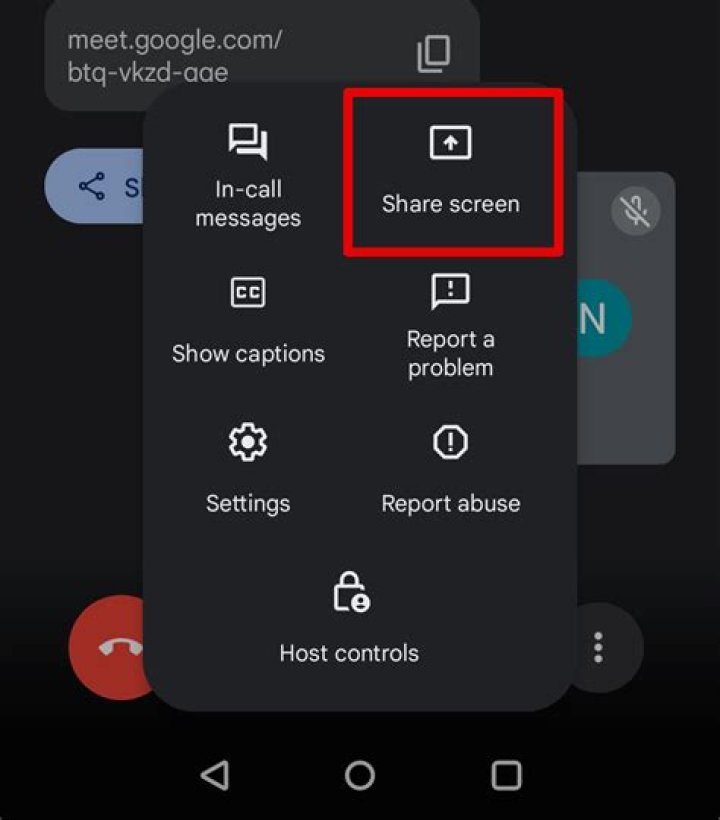
Next, tap the “Screen Share” option.
A message will appear and explain that screen sharing will give Google Duo access to the information shown on your display. Tap “Start Now” to begin if you’re okay with that.
Lastly, you can choose if you also want to share the audio from videos or apps on your screen. Tap “Don’t Share” or “Share Audio.”
Your screen will now be shared. You can leave the Google Duo app and go show off anything on your phone or tablet. The red cast icon in the status bar indicates when you are sharing your screen.
If you see this, your screen is being shared
To stop screen sharing, go back to the Duo video call screen and tap the “Screen Share” option again. This will not end the video call.
That’s it! You can easily toggle screen sharing on and off whenever you want to show something from your screen.
- › The Best Gaming Keyboards of 2021: Be on Top of Your Game
- › Why Sublime Text Is Great For Writers, Not Just Programmers
- › What Is a ULED TV, and How Is It Different?
- › Why Professionals Will Actually Want a 2021 MacBook Pro
- › How to Add Images to Questions in Google Forms
Joe Fedewa
Joe Fedewa is a Staff Writer at How-To Geek. He has close to a decade of experience covering consumer technology and previously worked as a News Editor at XDA Developers. Joe loves all things technology and is also an avid DIYer at heart. He has written thousands of articles, hundreds of tutorials, and dozens of reviews.
Read Full Bio »
You can continue your Google Duo video call in a small window with picture-in-picture (PIP) while you use your phone. You can also share your screen to show photos and videos when you’re on a call.
Important: These features are only available on Android 8 and up. Learn how to check your Android version.
Use picture-in-picture
- Open Duo.
- Start a video call.
- Tap your Home button.
- For Android 8.0 and up, the Duo call will continue.
- If your device doesn’t support PIP, your video will pause but you’ll still hear audio.
Remove picture-in-picture
Picture-in-picture turns off for a call when you:
- Double-tap the PIP window and the call becomes full screen.
- End the call.
- Tap Close to close the PIP window.
- Open another app in full screen. The video call will continue in the background.
Turn off picture-in-picture for Duo
- Open your device’s Settings.
- Tap Apps & notificationsAdvancedSpecial app accessPicture-in-picture.
- Tap Duo.
- Turn off Allow picture-in-picture.
Share your screen
Important: You won’t be on camera while you share your screen. You can only share your screen on one-to-one calls.
- Open Google Duo .
- Start a video call.
- At the bottom, tap More options Screen share Start now.
- The other caller can accept or cancel your request to share your screen.
- To end your screen share, tap Screen share .
Tip: If you can’t find Screen share , tap More and swipe left to find more controls.
Image: 9to5Google
If you’ve ever been called on to do tech support, either for work or as the family’s resident tech expert, you know how handy a decent screen sharing tool can be. Google Duo has been around for a while as a video calling tool but Google has added the ability to share your screen during a call. That should make life easier for tech support and people wanting to do product demos and presentations over Duo.
9to5Google found the new feature when reviewing the latest build of Google Duo. In order to use the new screen sharing feature, you’ll need to install version 34 of the software – this is currently being rolled out.
When you’re in a video call, an icon appears above the microphone mute and front/rear camera toggle. When you tap the icon the software warns you that “Duo will start capturing everything that’s displayed on your screen”. Once you hit “Start now” the contents of your display will be broadcast to the other callers you’re chatting with.
While this will be really useful for many people, it’s worth noting that remote access apps are part of the toolbox used by scammers. The infamous “Windows support” call scam dupes people into installing remote access software that’s used by thieves to take over your system and install malware or steal data.
If you’re planning to use this new feature, make sure you let folks know to only use it with people they actually know and not random support calls.
Google’s highly known video calling application Google Duo needs no introduction. Even though it is a less used video calling application compared to other popular video calling apps like Messenger, WhatsApp, it doesn’t lack powerful features. In fact, it is embedded with every feature that you would look for in a video calling application. It is not just a video calling app, it even allows you to share your screen to the people over the call to let them know what is happening on your phone. One thing to be noted is that the app’s screen share feature is available on all smartphones that are run on Android 8 or above.
Steps To Share Android Screen With Others
- As a first step, you just need to head to the Google Play Store and update the Google Duo app to the latest version
- Once you are done with updating the application, now it is time to open the app on your device
- Now, you need to choose the person to whom you wish to video call
- Then tap on the video call option to start the call
- Once the call started, you will find a few options on the bottom of the screen. Tap on the button that has three stars in it
- Now, you will get a list of options popped up, there you can find ‘Screen Share’, select it
- A confirmation message will now pop-up, now simply tap on Start Now button to begin the screen casting
- On the next screen, you can set and choose to share the audio from the apps on your device. So, as per your wish, either choose Don’t Share or Share Audio
- You will see a red cast button on the status bar as you begin casting your screen
- To stop screen sharing, open the video call screen and tap on Screen Share button again
That is it, now you are done with the setup. This is how you can share your screen using Google Duo.
Keeping in touch through video calling is the new norm in 2020. As a result, users have been steadily flocking towards apps that offer these services for both personal and professional use. Google Duo is one of the many options users can choose right now.
The app, which was originally meant to be a no-frills Facetime competitor, is one of the best in the bunch and is available to use on mobile devices as well as desktop. Here we show you how you can share your screen with others in Google Duo on Android.
The Differences Between Google Duo and Google Meet
Before going down to the nitty-gritty of how you can share your screen with Google Duo, let’s take a small detour and talk a bit about Google’s current assortment of apps for video calling.
The company’s approach to video and chatting solutions has been confusing at best over the years with Google launching a jumble of apps that share many functionalities. The Android maker’s current (free) selection is a little more straightforward and includes just Google Meet, Google Duo and Google Hangouts.
The biggest distinction between Meet and Duo is that the former is geared toward the professional crowd, and it can host large-scale meetings. The service was originally intended for Google’s G Suite business customers, but ever since the pandemic, the tech giant has made the app available for all, although meetings are limited to 60 minutes each and up to 250 people.
In contrast, Google Duo allows users to engage in one-on-one conversations using their mobile phones (or PCs). Even so, the service offers a group chat option, with up to 32 participants being allowed to join the discussions. This makes the app perfect to use during these “social distancing” times so that you can easily keep in touch with your friends and family.
The two services have a few things in common. For instance, they both encrypt your data and can run on both mobile and PC. Duo comes preinstalled on most Android devices, while Meet is easily accessible through the Gmail app or its standalone app. Both apps require users to have a functional Google account.
What About Google Hangouts?
Hangouts is Google’s longest-running messaging and video chat app. The service still exists and remains pretty popular with some users. It can be accessed at hangouts.google.com, directly through Gmail or via the mobile app.
However, in October 2020 Google issued a press statement in which it revealed its intention to commence the migration of Hangouts users to Chat (which is part of Google Workspace) in the first half of 2021. As per the company, Chat will become free to use for anyone. Right now, users need a paid G Suite/Workspace account in order to access Chat.
Furthermore, Google says it with automatically migrate all Hangouts data (conversations, contacts, as well as history) to Chat, although the exact date has not been finalized yet. As a sign of things already heading in that direction, Google has updated the group video-calling experience in Hangouts with Meet to provide better quality meetings. A one-on-one video chat option is still available through Hangouts.
For the time being, you can still rely on Hangouts to fulfil (most of) your video calling needs, as the aging chat app will hang on a bit longer.
How to Share Your Screen Using Google Duo on Mobile
The feature is still pretty new, as Google started rolling it out in late September. You’ll need a device running Android 9 Pie or higher to take advantage of screen-sharing in Duo.
1. Open the Google Duo app on your phone.
2. Select the person you want to call.
3. Tap the blue Video call button to get started.
4. Once the other person you called answers, you’ll notice a few buttons have appeared at the bottom.
5. Tap on the last one – the one with three little stars on it.
6. Select Screen Share.
7. A message will pop up alerting you that you’re about to give Google Duo access to information shown on your display. This includes sensitive data such as passwords, payment details and more.
8. Knowing this, if you feel comfortable to continue, then press Start now.
The screen sharing will start. While this is going on, you’ll notice a little red cast icon in the status bar in the upper-right corner, which indicates you’re sharing your screen. You are free to leave the Duo app to do something else, such as opening your image gallery to show your friends the latest photos of your fluffy cat.
Quickly Turn the Feature Off
Once you’ve accomplished what you wanted to do, simply tap again on the Screen Share button (that looks like a phone) and the sharing will immediately stop. Or you can, swipe down the notification panel and tap on “End screenshare.”
From the same menu in the app, Google Duo also makes it easy to add Effects or enable Portrait mode which, will blur your background.
Video calling (and screen sharing) will require a good Internet connection, so you may want to get up to speed regarding the amount of bandwidth used by video calling or the top Zoom features you should be using for better remote meetings.
Alexandra is passionate about mobile tech and can be often found fiddling with a smartphone from some obscure company. She kick-started her career in tech journalism in 2013, after working a few years as a middle-school teacher. Constantly driven by curiosity, Alexandra likes to know how things work and to share that knowledge with everyone.
Google Duo has a video calling app for Android known as Google Duo. The app is straightforward to use, and it works across mobile devices, smart devices, and the web. Although Google Duo is less popular than other video call apps on the market like Messenger, Zoom, etc., it doesn’t mean it lacks powerful features.
Google Duo has every feature that you look for in a video calling app. It’s a dedicated video calling app from Google that focuses only on video calls. You can even use the Google Duo app to show the other people in the call what’s happening on your phone. For that, you need to use the Screen Share feature of the app.
What’s more interesting is that you can use the Screen Share feature of the app during the calls also. However, the app’s screen share feature is available only on smartphones running on Android 8.0 and above. So, if your phone is running on Android 8.0 or above, then you can use Google Duo’s screen share feature.
Steps to Share Your Android Screen with Others using Google Duo App
In this article, we are about to share a detailed guide on sharing your Android screen using Google Duo App. Let’s check out.
Step 1. First of all, head to the Google Play Store and update the Google Duo app.
Step 2. Once done, open the app on your device.
Step 3. Now select the person you want to video call.
Step 4. Now tap on the ‘Video call’ option to begin the call.
Step 5. Once connected, you will see a few buttons at the bottom of the screen. You need to tap on the button with three stars.
Step 6. From the list of options, select the ‘Screen Share’ option.
Step 7. You will now see a confirmation message. Simply tap on the ‘Start Now’ button to start the screencasting.
Step 8. On the next popup, choose if you want to share the audio from videos or apps. Simply, tap on either the ‘Don’t share’ or ‘Share audio’ option.
Step 9. The screen will now be shared, and you will see a red cast button in the status bar.
Step 10. To stop the screen sharing, open the video call screen, and tap on the ‘Screen Share’ button again.
That’s it! You are done. This is how you can share your screen using Google Duo on Android.
So, this article is all about how to share the Android screen with the Google Duo app. I hope this article helped you! Please share it with your friends also. If you have any doubts related to this, let us know in the comment box below.
Google Duo is one of the easiest, most popular chat apps available. It’s perfect for keeping in touch with your friends and family, and it comes with some fun features to make video chats more interesting. Two of those features are Google Duo’s Filters and Effects. Here is what Effects and Filters are capable of and everything you need to know about how to use them.
Want to learn more about Google Duo? Check out our guide explaining what it is and how to use it.
What are Google Duo Effects and Filters?
Google Duo’s Effects and Filters are two video modifying features that add a little bit of pizzazz to any video recording or video chat. Filters let users add simple color overlays on top of their video recordings, including several different colored options and a black and white filter.
On the other hand, Effects work more like Samsung’s AR Emoji or Apple’s Animoji. They allow the user to turn themselves into a fish, flower, astronaut, or a plethora of other fun options. Effects are easily the more interesting of the two, and they are available when sending a video message and during live video chats. Filters are only available when sending video messages.
Google also adds new Filters and Effects to Duo during holidays, special events, and different seasons, so you can expect new additions as the year goes on.
How to use Effects and Filters when sending a video message
Effects and Filters are super easy to use when sending a Google Duo video message to someone. Here’s how to do it:
- Open the Google Duo app and permit it to access your microphone, camera, and contacts if you haven’t already.
- Swipe down on the middle of the screen to record a message.
- On the right-hand side of the UI, you’ll see the Filters and Effects buttons.
- Tap on the Filters button to check out the different color overlays you can record your video with.
- Tap on the Effects button to see which visual effects you can apply to yourself and your environment.
How to use Google Duo Effects during a video chat
Unfortunately, Filters aren’t available to users during live video chats. Effects, on the other hand, are available in this case. Here’s how to use them:
- Open the Google Duo app.
- Start a video chat with someone.
- At the bottom right of the UI, tap the three vertical dots.
- Navigate to Effects on the far right of the pop-up menu.
- Have fun jumping between the different Effects.
There you have it. That’s everything you need to know about Google Duo Filters and Effects.
Are you still looking for more video chat related content, tips, and tricks? We’ve got you covered:
Source: Chris Wedel/Android Central
Google Duo is a fantastic video calling service that works on many devices. Because of Duo’s simplicity and flexibility in its ability to make both voice-only and video calls, the service has become one of the best teleconferencing apps for Android. There are many tips and tricks for using Duo, but perhaps one of the most useful may be screen sharing. This feature is helpful in many ways; from helping someone with a problem on their device to showing a funny video to your friend, knowing how to share your phone screen on a Google Duo call can come in handy on your next chat.
How to share your phone screen on your next Google Duo call
Currently, you can only initialize the screen share feature from an Android device, but regardless of what device the person on the other end of the call is using, they’ll be able to see what you’re sharing.
- Open Google Duo on your phone.
- Find the contact you want to call and start your call.
- Tap on the screen to bring up the controls.
- Select the effects icon that looks like three stars or tap on the more button with three dots.
- Tap on Screen share.
- Choose Start now on the pop-up to begin sharing your phone’s screen.
Source: Chris Wedel/Android Central
Once you have screen share up and running on your Google Duo call, you can then use your phone as you usually would to navigate to whatever you want the person on the other end of your call to see. Keep in mind that you won’t see the person you are talking with on your screen while navigating away from the call while using your phone. Something to remember is that no matter what is on your phone’s screen if you can see it, they will too.
Google Duo can be everything from a basic video calling app to a group call with fun effects and filter to liven up the chat. One of the things that helps Duo work on so many devices, from the best cheap Android phone to the top-of-the-line Chromebook is Duo’s ability to perform on the slowest of networks. So next time you want to show off something on your phone to the person you’re calling on Google Duo, you’ll be ready.
Check out this awesome Microsoft Surface Duo 2 review from Windows Central
The Microsoft Surface Duo 2 is now available for purchase and our friends at Windows Central share why you should consider picking one up.
Here are the best shows on Peacock right now
NBC’s Peacock streaming service offers subscribers access to a ton of free and premium content. With so much to choose from, we’ve rounded up a list of the best Peacock shows available for your viewing pleasure this weekend!
Every country and carrier that supports Google RCS
RCS has modernized messaging on Android with chat features reminiscent of standalone chat apps and the iPhone-only iMessage app.
Get the most out of these smart devices and services with Google Assistant
Google Assistant is the most useful smart voice assistant for getting your questions answered and keeping track of your digital life, but it’s also great at helping you control your smart home devices and services.
Google Duo, the popular video calling app by Google, has been continuously evolving with new features. The app has lately received an update with a new ‘Screen Share’ feature, which lets you share what’s going on your screen during a video call with others. Here’s a step-by-step guide on how you can share your screen using Google Duo on Android.
Share Your Screen using Google Duo on Android
Google rolled out the Screen Share feature on Duo earlier this October. Using the same, you can show the other person whatever is on your Android phone’s screen, similar to the screen share feature on Zoom and Google Meet.
For now, Screen Share is available only on Google Duo for Android- it works on all phones and tablets running Android 8.0 and above. Yes, it isn’t available on iOS yet.
To Share Screen on Google Duo Video Call:
- Open Google Duo on your Android phone. Make sure you’re using the latest version.
- Video call the contact you want to share your screen with.
That’s it. The other person will now start seeing your phone’s screen. You can minimize Duo and continue with whatever you want to show the other people on the video call.
While you share your screen, Duo will show a persistent notification with options to return to the call, End Call and End Screen Share. So you can end the call or stop screen share directly from your homescreen without opening Duo.
Wrapping Up
This was a quick guide using Google Duo’s screen share feature. Using it, you can seamlessly share your screen content or offer tutorials to other people. Plus, the enhanced limit of 32 people makes it even more convenient to connect with more people at a time. Do try it and let me know if you like the feature.




