One of the most noticeable and interesting feature of Windows 8 is “Metro App” also known as “Modern App” or “Windows Store App”. Microsoft introduced Google Play style “Windows Store” feature in Windows 8 which allows you to download free as well as paid apps on your Windows 8 computer.
These apps run in full screen mode and don’t provide caption buttons such as minimize, maximize, restore or close buttons. That’s why almost all Windows 8 users have following 3 main complaints with Windows 8 apps:
- Users can’t resize Metro apps
- Users can’t run these apps from Desktop
- New users can’t find how to close these apps?
When you launch an app in Windows 8, it takes whole screen space. Although you can take help of Snap feature to divide screen area between 2 apps but its not sufficient. It would have been great if you could run these apps in small windows having titlebar similar to other program windows so that you can resize those apps according to your requirements as well as move them to anywhere on screen.
Also these apps only run from Start Screen, you can’t launch them from Desktop. It would have been really great if you could pin these apps on Taskbar and if you could launch them from your Windows 8 Desktop instead of first going to Start Screen.
The 3rd problem which many Windows 8 users face is the missing close button. New users can’t rectify how to close running app in Windows 8? Actually you can drag-n-drop the app from top to bottom to close it or you can use the good old “Alt+F4” keyboard shortcut to close these apps as mentioned here but its not known to everyone.
If you also feel the same about these apps, this topic will definitely help you. Today in this topic we are going to share a new software which makes your Windows 8 app experience easier.
“ModernMix” is a new software released by StarDock which has released 2 other useful software for Windows 8 in past which are “ Start8 ” to bring Start button and Start Menu back to Windows 8 and “ Decor8 ” to customize Start Screen appearance and functionality.
ModernMix tries to fix all the issues which are present in Windows 8 apps. It allows you to run Metro apps on Windows 8 Desktop. It runs those apps in windows having titlebar and caption buttons so that you can easily minimize, maximize or close them. In also helps you in moving those apps windows anywhere on your screen as well as changing their size.
Features List:
- Allows you to run Metro apps from Windows 8 Desktop
- Runs Metro apps in windows having titlebar and caption buttons
- Adds minimize, maximize, restore and close buttons to apps windows
- Allows you to resize apps windows
- Can remember your preferences for each Metro app
- Provides “F10” hotkey to easily switch between full screen and windowed mode
- Shows running app button in Windows 8 Taskbar
Its really a useful and impressive utility for Windows 8 users. But its not free, it’ll cost you $4.99. Although you can download a fully functional free trial version of ModernMix to give it a try.
Interested people can download it using following link:
BONUS TIP: You can create a direct shortcut of a hidden “Applications” folder in Windows 8 to launch Metro apps directly from Desktop. Check out point 5 in following exclusive topic:
What do you think about this new software for Windows 8? Liked the idea of running apps from Desktop? Feel free to share your comments…
About the author: Vishal Gupta (also known as VG) has been awarded with Microsoft MVP (Most Valuable Professional) award. He holds Masters degree in Computer Applications (MCA). He has written several tech articles for popular newspapers and magazines and has also appeared in tech shows on various TV channels.
Comments
NOTE: Older comments have been removed to reduce database overhead.
Yet another reason to hate and not use Start screen 😀
People have to pay if they want to customize their “Windows”… Great idea, Microsoft!
AWESOME! FINALLY NOW I’M GETTING WIN8! AND I WILL INSTALL CLASSIC-SHELL AND THIS UPON FIRST BOOTUP. GREAT JOB STARDOCK. VICTORY SHALL BE UPON THE CITIZENS OF EARTH, NOT YOU MICROF**KS ARISTOCRATS!!
wow, stardock team is so creative. .
Amazing share vg.
Windows Blue is next Windows 8 big update 😉
Hey VG , final version of ModernMix available
hello VG.
i installed windows 8 enterprise..when l klick on the mail app ,it shows as if loading,afer a while it remains blank with a grey lin and white space… help me to rectify the problem
^^ Try to uninstall and then reinstall the app using Store.
Why was this listed under freeware? And you didn’t say it was a pay program until the end of your article.
Stup[|||]t thing: It’s paid. Windows 10 does the job for free.
I wish there could be some kind of registry trick to make the metro apps run in windowed instead of using a 3rd app to run the built-in apps.
A metro app runs in one of three possible states, active, suspend, or performing some defined background activity like the Mail app. When an app is not on the screen, it’s either off or suspended in the background waiting to be waken up but will be forced to shut down if the system determines that more resources are needed.
So basically, you don’t need to worry about closing down the running Metro app. Simply press the Windows button to switch to Start Screen or go to the Switch menu to switch to another running app.
But if you insist, here are the easiest ways to completely shut down the full screen running app.
Using Keyboard
The easiest way is to use the old fashion Alt+F4. Once pressed, the current running app will be terminated immediately.
Use Mouse
Hold the top edge of the app and drag down to the bottom edge. It’s more like throwing the app to the bottom ground.
You can use your mouse to close the background app from the Switch Menu. Simply right click the app and click Close.
Use Touch Screen
Swipe your finger from the top bar to the bottom, much like using the Mouse, but be patient and swipe a bit slowly than usual.
Use Task Manager
It’s not the most efficient but certainly most powerful way to shut down an app. It’s guaranteed that an app will be closed completely.
Press Alt+Shift+Esc to bring up the Task Manager, find and select the app, and click End Task.
Windows 8, as you probably know by now, is dominated by the brand-new Metro interface. It appears when you first log in, and there’s no official way to disable it. Microsoft has tried very hard to convince us that the Metro interface is designed for mouse-and-keyboard desktop PC use, but that’s simply a barefaced lie: It’s a touch interface that’s primarily designed for small-screen devices — tablets, or touchscreen laptops at a stretch. In fact, Windows 8’s love of full-screen apps has led some of us here in the ExtremeTech bunker to affectionately refer to Microsoft’s new OS as Window 8.
What if you like the design or features of Metro apps, though? What if you want to use a specific Metro app, but don’t want to be forced into the full-screen, keyboard-and-mouse-hating, alt-tab-abhoring Metro interface? Well, thanks to Stardock’s ModernMix, you now can!
With ModernMix installed, you can run Metro (Modern, Windows 8-style UI) apps on the Windows 8 Desktop. With ModernMix, Metro apps essentially behave exactly like Desktop apps: They can be resized, minimized, maximized, and moved around your Desktop like any other window. They can even be pinned to the taskbar, or snapped to the side of your desktop with Aero Snap.
In practice, using Metro apps in windowed mode is… interesting. You lose some functionality, such as Metro’s built-in split-screen function and drag-down-to-close. Otherwise, though, the apps react as normal: The mouse scroll wheel is still your friend, and don’t forget that right click brings up the app’s settings and menus. Some Metro apps, of course, such as Internet Explorer and Mail, benefit greatly from being run in windowed mode (copy/paste!)
There are a few configuration options, most notably the option to force all Metro apps to start in a window on the Desktop. Beyond that, there isn’t much (but Stardock does say that it’s beta software, to be fair). There’s a curious option to run apps as full-screen Desktop apps — as in, like Metro apps, but without Metro’s drag-down-to-close.
Now, with Metro apps running on the Desktop, the final step to eradicate all traces of the Windows 8 interface is to install a Start menu replacement. If you’ve already done that, check out our huge archive of Windows 8 tips instead.
Thank you so much for posting your query on Microsoft Community Forums.
I understand that you have already installed Windows 8.1 on the computer from the Windows Store and now you are again unable to access the Store on Windows 8.1.
It would be great if you can provide a detailed information on the troubleshooting methods that you have already tried on the computer so that we can assist you further in a better way and can avoid performing the steps that you have already tried.
For the time being, I would suggest you to follow the methods given below and let’s know the results.
Method 1: Clear the Store Cache
You may try these steps to clear the Store cache and check if that helps:
a) Press the “Windows Logo” + “R” keys on the keyboard.
b) Type “wsreset.exe” and press “Enter ”.
c) Reboot the computer and then check if you are able to open the Windows Store and all the other apps on the computer.
If that doesn’t help, then you may try re-registering the Windows Store App by following the instructions given below and check if you are able to open the Store.
Method 2: Re-register the Windows Store App
To re-register, please try these steps:
a) Press “Windows Logo” + “Q” keys on the keyboard and type “cmd ” in the search box.
b) Right click on the “Command Prompt” icon from the search results and select “Run as administrator ”
c) On the command prompt window, copy and paste the following command, and then press “Enter ”
powershell -ExecutionPolicy Unrestricted Add-AppxPackage -DisableDevelopmentMode -Register $Env:SystemRoot\WinStore\AppxManifest.xml
d) Check the result displayed on the command prompt window.
e) If it was successfully processed, then type “Exit” and press “Enter ”.
Closing an app may be quite difficult for a Windows 8 beginner
As you probably know by now, Windows 8 comes with what is being called Modern Apps, that are completely different from the third-party programs you install and run on your desktop.
Previously baptized Metro Apps, this special type of programs does not come with the standard “x” button that allows users to close them, so an early adopter may have quite a hard time to quit such an app. In fact, it’s a matter of time until you discover all Windows 8’s secrets, but that’s actually the purpose of this tutorial.
There are four different ways to close a Modern App, but they also depend on the platform you’re running Windows 8 on.
First of all, the Alt + F4 keyboard shortcut still works. Obviously, this is only available if you’ve installed Windows 8 on a desktop computer or on a laptop because it requires a keyboard.
The only problem is that this hotkey works exclusively if the target app is currently active on the screen, just like in the traditional “desktop” mode. So open the Modern App you want to close, press Alt + F4 and you’re done.
Another way to quickly quit a Modern App is to launch the Task Manager. That’s right, the Windows 8 Task Manager displays all running Modern Apps and give you the power to close them individually. Again, you need a keyboard to quickly launch the Task Manager (the hotkey is Ctrl + Shift + Esc). Simply select the app you wish to close, hit the “End Task” option and that’s it.
The last and the most used Modern App closing method is the one that requires a mouse action. In case you have already switched to desktop mode and you’re not working with the Modern App anymore, move your mouse to the top left corner and wait for a second. A taskbar showing all running Modern Apps shall appear, so you need to right click its thumbnail and hit the “Close” option.
Last week we looked at how to shut down Windows 8 and how to boot directly to the Desktop — two of the most irksome Windows 8 quirks — and today, in our continuing series of Windows 8 tips and tricks, we’re going to look at two more. Namely: How to close Windows 8 Metro apps, and how to work with SmartScreen — a new feature in Windows 8 that prevents you from installing malicious or untrusted software.
How to close Windows 8 Metro apps
When Microsoft first debuted Windows 8 last year, you couldn’t actually close Metro apps. In theory, because of the way Metro apps automatically suspend their CPU and RAM usage when they lose focus, Microsoft claimed that you simply didn’t have to close apps. As you can imagine, this resulted in some fairly “fun” instances of flicking through 200 suspended apps to find the one you actually want to use.
The final version of Windows 8, though — the one that you’re using — has no less than four ways of closing Metro apps. The simplest method is by hitting Alt-F4 on your keyboard, which, like with Desktop apps, immediately terminates the app.
The other option is pushing your mouse all the way to the top of the screen until your pointer becomes a hand, clicking, and then dragging the Metro app to the bottom of your screen. This is quite tiresome with a mouse, but it’s the easiest way of closing Metro apps on a touchscreen. You can also do the same thing from the Metro task switcher. Swipe in from the left (or use the hot corner), move your finger back towards the edge, and the task switcher pops up. From here, you can drag the thumbnails to the bottom of the screen to close them. The one exception is if you’re on the Metro Start screen; you can’t close apps from there, for some reason (probably a bug). If you are using a mouse, you can right click a thumbnail and select Close — and this works from the Start screen, too.
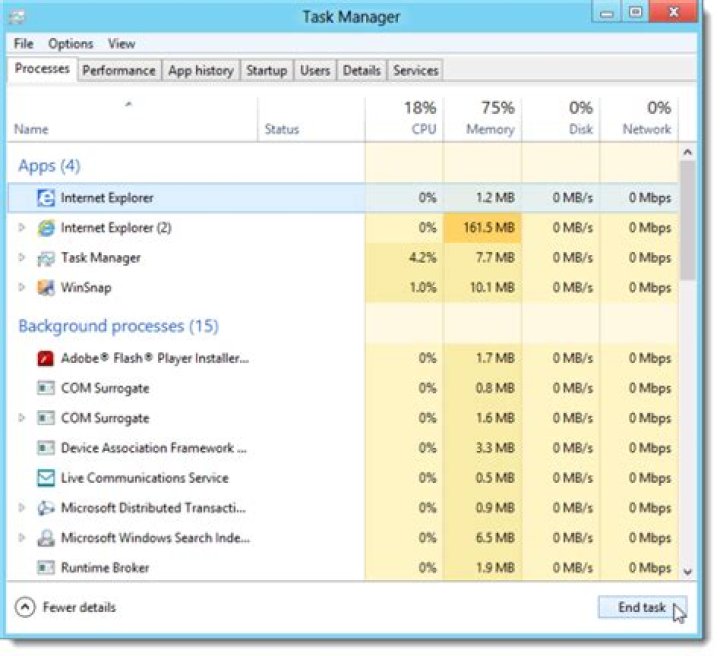
Finally, you can close Metro apps from the Task Manager — both from the new, simplified view (pictured), and from the Processes tab in the full, expanded Task Manager.
Understanding and configuring SmartScreen
Internet Explorer has long had a feature called SmartScreen, which was first implemented in Internet Explorer 8, and has since been a part of IE9, IE10, Hotmail, and now Windows 8. When you visit a website, or open a file, SmartScreen communicates with Microsoft and checks if that website/file are whitelisted or not.
In both cases, SmartScreen pops up a warning if you try to visit a site or open a file that isn’t confirmed to be safe. As a defense against malware, SmartScreen is actually rather effective — and, really, no other browser or OS offers the same kind of protection. SmartScreen can be a little irritating, though, especially if you regularly download third-party EXEs from the internet.
For a start, when you see your first SmartScreen warning (pictured above), don’t be alarmed. It may look like Windows is completely blocking you from running an app, but in actuality you just have to click “More info” to reveal the “Run anyway” button.
To disable SmartScreen entirely, though, hit the Windows key, type SmartScreen, change to the Settings tab, and then click “Change SmartScreen settings.” From there, click “Change Windows SmartScreen settings” from the left-hand menu, then select the “Don’t do anything” radio button.
Check out more of our Windows 8 tips and tricks — or, if you have your own tip to share, leave a comment!
Hard to ignore one aspect of OS Windows 8 are modern applications, Which besides metro interface quite attractive and will be seen by some shortcomings such as unable to be run in window mode or being rolled on Desktop (Which runs only full screen), The absence Close buttons, minimize si maximizing (To be closed, applications must be drawn to the bottom of the screen), and in addition, they can not be installed than in Windows Store.
Well, at least some of these problems can now be solved through the application ModernMix.
ModernMix offers users Windows 8 able to run modern applications window modeRight on desktop, And also add buttons to minimize, maximize and close so that they can be closed or can simply be minimized in Taskbar.
ModernMix Other features are:
- the possibility to fixed (pin) modern applications in Taskbar
- display in Taskbar modern applications running in full screen
- able to switch application in full screen mode and back window with a hotkey (key F10)
- the possibility to save favorite settings for applications (You can set certain applications to open window mode only, while others will only open full screen)
ModernMix is free app (But its price is reasonable, just 4.99 $), But those who want to test it can Download Trial of 30 days (Full options).
Note: To download the trial must enter a valid e-mail.
STEALTH SETTINGS – How to add Close, Minimize and Maximize buttons to Windows NEVER modern apps
Once I have entered into windows mode when using a Metro App, how do I exit Window mode and return to full screen and still be in the app?
Using Stardocks Modern Mix they have this ability, does Windows 8 not have this?
My Computer
System One
Edwin
Well-Known Member
- Jun 25, 2014
- #2
I believe you can only ‘snap’ apps half screen in Windows 8.
My Computers
System One System Two
Member
- Jun 25, 2014
- #3
My Computer
System One
Brink
Administrator
- Jun 25, 2014
- #4
Do you mean when you minimize the modern app to the taskbar, and able to view it in the taskbar thumbnail preview of it’s icon?? Clicking on the app’s icon on the taskbar will maximize it again.
Otherwise, I’m not sure what you mean since there’s not a feature included in Windows 8/8.1 to view modern apps in a window on the desktop.
My Computer
System One
Member
- Jun 25, 2014
- #5
Never mind, it was part of my modern mix (was still installed), but the bar at top was new with upgrade.
So, uninstalled and the feature no longer existed. Unfortunately, when I re-installed Modern Mix, the behavior was altered, should have left it alone. I liked it better befotre I uninstalled. LOL, now I am even less impressed with windows 8.1.
How to make Apps not to open full screen
I am wondering if there is any way to set the app open not in full screen? When I open any App form the Start they all open in full screen.
Re: How to make Apps not to open full screen
Re: How to make Apps not to open full screen
Hi Archa, Welcome to our forum.
I dont think there is a way that can open an app not in full screen. But there is a way that snap 2 Apps or 1 app and 1 Desktop program, side by side on the screen.
1. Start the first app.
Place the cursor at the top of the screen anduse the left mouse button to drag the app down and to one side until it snaps in place.
2. Start the second app or desktop program and it will automatically snap to the opposite side of the screen.
Please note that you need to have a sreen resolution of at least 1366×768.
Re: How to make Apps not to open full screen
Make a shortcut to an application (Program) and then look at the "Properties" for that shortcut.
You can then set the way you want the program to open. Normal Window, Minimized or Maximized.
Good Luck,
TechnoMage
Re: How to make Apps not to open full screen
Re: How to make Apps not to open full screen
I do not know what they are smoking at Microsoft but this is not the first time they screwed up with their OS. This Full Screen which pops open when it wants sucks. Pressing F11 does not close it, you have to grab the slide on the left side of the screen in order to do it. But you only have seconds to use the slide before it disappears and you have to do it all over again. Where is the convenience?
If you want a new computer, for whatever reason, with WIN7 you cannot get one once WIN8 came out. It seems, all the stores I contacted told me the same thing; In order to get the new computers with the newer OS, all companies are required to return the computers they have leftover in order to get the new ones thus forcing those of us who do not want the new OS to take it. If the WIN7s were not returned, the companies could not get the WIN8’s.
I paid good money for my new computer and then had to spend another $200.00 to get 8 removed, the hard drive cleaned and then have 7 installed. As much as I do not like Apple, the next time I buy a new system, it will be Apple.
Re: How to make Apps not to open full screen
Short answer, NO. However. and this was enhanced in 8.1
Once opened there is (size) flexibility. Ted is right as it applies to windows 8 but, the ability is more so in 8.1
For this discussion we will presume we are on Desktop:
(I can do this w/out changing screens but, I’ll assume you are changing screens)
1. > Start OR ALL Applications screen
2. Let’s say we open the Weather APP. Initially, yes, it will be Full Screen.
3. Immediately > the Switcher Bar (Top-Left Corner) and Clk Desktop.
4. Go grab another APP & again via the Switcher Bar go back to Desktop.
Now, it gets interesting and maneuverable!
You control from the Switcher Bar.
1. An (individual) APP can be put Left or Right of the Desktop. Further, the amount of space each uses of the screen is adjustable.
That was, as Ted mentioned, 1 APP & Desktop, same time, same screen.
2. Now, in 8.1, one can have THREE (3) things together. 2 APPs & Desktop. Location & size, of all three, variable.
Point being, yes, APPs will only open Full Screen but, after, there is lots of potential tweaking available. And one can have multiple things happening and fitting as desired.
Cheers,
Drew
PS: There is a way, which I describe in Tutorials, to open APPs whilst on Desktop w/out changing screens. Myself, I always open APPS from Desktop. Start & ALL APPs I sometimes use for a Search (instead of Charms or Win+something).




