Sometimes the big social networks roll out features (or forget to roll them out) that work for the majority of the users, but just don’t make sense to some of us. For example, I’m still trying to figure out why Instagram doesn’t have a good way to upload photos from the desktop or why Twitter makes it so hard to switch to desktop view on an iPad or tablet.
Another strange one is the fact that Facebook loves to show you the “Top Stories” that it thinks are important in your life. And while that works for some, there are those of us who prefer to see our feeds in chronological order.
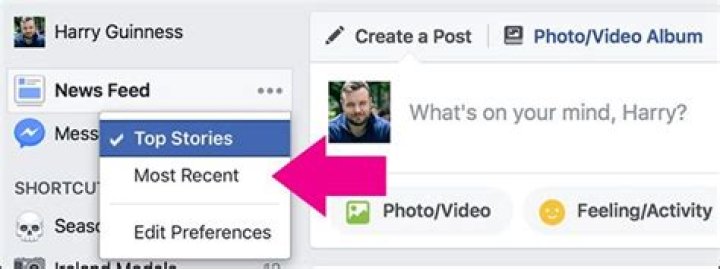
In the desktop view of Facebook, there’s an option to change from “Top Stories” to “Most Recent”, but Facebook only maintains that setting for about 24 hours and then it automatically reverts back to Top Stories.
Unfortunately, there isn’t any way to permanently change this setting in your profile, an option that I feel Facebook has mistakenly overlooked. I’m sure that “Top Stories” probably garner Facebook more opportunities to learn about what’s popular or what topics you’re more likely to respond to, which can also lead to increased revenue opportunities for them. It also gives them more control over your feed, as opposed to “Most Recent”, which simply dictates that the posts will be shown in chronological order.
The good news is that there is an easy way to adjust Facebook so that it ALWAYS shows you the most recent stories.
Instead of using the standard “ URL to access the site, try clicking this link instead:
The “?sk” parameter at the end of the URL tells the system to always display the most recent stories – there’ll even be a notification at the top of your feed to indicate that you’re viewing the most recent posts.
Simply bookmark this URL or add it to your Favorites and you can see your Facebook posts come through in order of posting time.
Unfortunately, I still haven’t found a great way to switch Facebook mobile apps over to “Most Recent”, but for those of you on Android, if you click the menu icon, you can always select “Most Recent” from your list of available feeds.
In iOS, you can do the same thing by selecting the menu icon at the bottom of the app then choosing More > See More> Feeds > Most Recent.
I know. it’s a lot of steps, but it’s worth it if you really want to see your feeds in chronological order.
Hopefully that helps those of you who like to see the most recent posts from your friends and family. If you have another or a better way to make this change permanent, definitely share it in the comments.
Everytime you open Facebook your Newsfeed is displayed sorted by Top Stories.
Did you know you can change this to Most Recent?
According to Facebook here is the difference between the two views:
- Top Stories (Default): Shows the most popular posts from friends, Pages and groups at the top of your News Feed.
- Most Recent: Shows posts from friends, Pages and groups in the order that they were posted.
You can change it by clicking the three dots . here:
When you click the following menu will be displayed and notice that Top Stories is ticked
Click on Most Recent to change it.
If you have the new Facebook layout here is how to change it.
- Click the Home icon at the top – looks like this.
- Click the See More pull down
- Select Most Recent
Now wouldn’t it be great if Facebook would allow you to change this permanently?
You would expect this option to be available when you click Edit preferences but alas Facebook do not allow the default Top Stories view to be changed.
However, here is a workaround.
Go to (you can click this link if you want)
This will open up Facebook and sort your Newsfeed by Most Recent
You could bookmark this URL or even save it as one of your default opening pages when you launch your browser.
Over the next few days, Facebook will roll out a “Sort” option at the top of the news feed that lets users select to see Recent Stories First instead of the default Highlighted Stories. The new feature should appease users miffed by Facebook’s move to combine the old Most Recent and Top Stories news feed tabs into a single stream. Until now, the hybrid news feed launched in September forced users to first see what Facebook considered the most relevant content. Some users found these decisions inaccurate even though they have the option to teach the algorithm.
The Sort feature lets users prioritize real-time updates over older content that’s been deemed compelling because of Likes, comments, clicks, and the viewer’s relationship to a story’s author. However, it doesn’t split the feed in two. Facebook tells me “The intent behind these updates is to make News Feed easier to navigate while still showing all the news in one place.”
Facebook did away with the two-tabbed news feed because a significant portion of the user base never switched to the Most Recent feed from the default Top Stories. This led to a poor experience where they might see the same story multiple times, and miss out on urgent updates like invites to get together with friends or real-time conversations.
With Sort, if you constantly visit the site and want to make your own decisions about what’s important, or want to know what friends are up to at that moment, you can set it to Recent Stories First. If you visit infrequently, you can leave it on Highlighted Stories first so you don’t miss popular content even if it was published hours or days ago.
One’s Sort setting will presumably persist across sessions so you won’t have to reset it each time you log in. Update: Facebook has informed me that the Sort button will reset after users have been away for awhile. This means those who don’t prefer Facebook’s Highlighted Stories will still have to see them first on occasion, so there will still be opportunities for discontent.
Sort will empower Facebook’s more savvy and critical users to curate their own feed while maintaining a simple experience for those less adept at navigating the social network.
By creating a list, you can bring back your Most Recent news feed.
You can access your Lists from the left sidebar of your news feed. Matt Elliott
Do you count yourself among the multitudes who dislike Facebook’s latest revision, mainly because it took away the ability to toggle between Top Stories and Most Recent in your news feed? Regarding the new news feed, Facebook explains, “If you haven’t visited Facebook for a while, the first things you’ll see are top photos and statuses posted while you’ve been away. If you check Facebook more frequently, you’ll see the most recent stories first.”
If you don’t trust Facebook to sort your news for you, you can manually create a Most Recent news feed. Ironically, you must turn to one of Facebook’s new features–Lists–to resurrect the old Most Recent feed. Just create a custom list and add all of your friends and pages to it; the resulting list appears to be sorted by chronological order. Disclaimer: If you have hundreds upon hundreds of Facebook friends, the process will be laborious because there isn’t a way to select all, at least that I have found. Instead, you must click one by one to add each friend or page to the list.
Hover over your Lists in the left-hand column and click the More link to get to this page, which shows your lists and provides a button to create a new list. Matt Elliott
To create a list, click the Home button in the upper-right corner of Facebook to open the news feed. Then, from the left-hand column, under Favorites, you should see your Lists. Hover over the Lists header and click the More link that appears. It will show you your existing lists, and above them is gray button labeled Create a List. Click the button, name the list Most Recent (or whatever you want), and click Create List.
After creating a list and naming it, you’ll need to start adding friends to it, which can take a while. Matt Elliott
Next, click the Add Friends link from the middle of where it says, “Add Friends to this list to see their updates.” A window will pop up, showing you thumbnails of all of your friends. You’ll need to click on each of your friends individually to add them to the list. A blue check mark and border appears when a friend is added.
You need to click one by one to add your friends and pages to a List. Matt Elliott
In the upper-left corner of the window is a pull-down menu, showing you other items to add to the list. For my profile, it lists both Friends and Pages. I added pages as well, so I’ll get updates from any pages I’ve liked. Once you have your list set up, click Done and you’ll see your Most Recent list under Lists in the left-hand column.
If you really enjoy your new creation, you can bump it up to the Favorites section above by hovering over it, clicking the pencil icon, and clicking Add to Favorites.
For more on Facebook’s new Lists feature, check out Rob Lightner’s Lists tutorial here . You can also read my post on how to kill the new ticker .
În mod implicit, Facebook nu vă arată totul. În schimb, decide ce crede că doriți să vedeți în funcție de lucrurile pe care le doriți, de comentariile și de ce fel de media vrea Facebook să promoveze. Dacă preferați să vedeți totul, în ordine cronologică, modul în care a fost folosit Facebook, iată cum să faceți acest lucru.
Pe site-ul Facebook
Deschideți Facebook în browserul dvs. și faceți clic pe cele trei puncte mici de lângă unde se afișează News Feed.
Din meniu, faceți clic pe Cele mai recente.
Facebook va reîmprospăta și acum veți vedea totul în ordine cronologică.
Dezavantajul este acela că va trebui să faceți acest lucru de fiecare dată când vă conectați la Facebook. Pentru a obține acest lucru, marcați adresa URL în bara de marcaje. Bitul de la capăt spune Facebook să redirecționeze la feed-ul cel mai recent, deci asta te va duce chiar acolo.
În aplicația Facebook pentru mobil
Dacă încercați să vizualizați feedul dvs. Facebook pe aplicația iPhone sau Android, puteți face acest lucru. Deschideți aplicația Facebook și accesați panoul Meniu.
În iOS, selectați Fluxuri.
Apoi selectați Cele mai recente și veți vedea totul în ordine cronologică.
Pe Android, puteți selecta Cele mai recente din fluxuri din panoul Meniu.
Ve výchozím nastavení vám Facebook neukazuje vše. Místo toho se rozhoduje, co si myslí, že chcete vidět na základě věcí, které se vám líbí, komentovat a jakých médií chce společnost Facebook propagovat. Pokud byste raději viděli všechno, v chronologickém pořádku, jak to bývalo Facebook, tak je to možné.
Na webové stránce Facebook
Otevřete Facebook ve vašem prohlížeči a klikněte na tři malé tečky vedle místa, kde se nachází News Feed.
V nabídce klikněte na Nejnovější.
Facebook bude obnoven a nyní uvidíte všechno v chronologickém pořadí.
Jedinou nevýhodou je, že to budete muset udělat při každém přihlášení do Facebooku. Chcete-li ji obejít, zaškrtněte adresu URL na panelu záložek. Bit na konci informuje Facebook o přesměrování na nejčastější zdroj, takže to bude mít pravdu.
Na mobilní aplikaci Facebook
Pokud se pokoušíte zobrazit svůj zdroj Facebook ve verzi iPhone nebo Android, můžete to také udělat. Otevřete aplikaci Facebook a přejděte do podokna nabídky.
V aplikaci iOS vyberte položky Feeds (Zdroje).
Pak vyberte Nejnovější a uvidíte vše v Chronologickém pořadí.
V systému Android můžete v podokně nabídky vybrat možnost Nejčastější z webových kanálů.
Štandardne vám Facebook neukáže všetko. Namiesto toho sa rozhoduje, čo si myslí, že chcete vidieť na základe vecí, ktoré sa vám páčia, komentovať a aké médiá Facebook chce podporovať. Ak by ste radšej videli všetko, v chronologickom poradí, ako to bývalo Facebook, tu je to ako to urobiť.
Na webových stránkach Facebook
Otvorte Facebook vo svojom prehliadači a kliknite na tri malé bodky vedľa miesta, kde sa nachádza News Feed.
V ponuke kliknite na položku Najnovšie.
Facebook sa obnoví a teraz uvidíte všetko v chronologickom poradí.
Jedna nevýhoda je, že budete musieť to urobiť zakaždým, keď sa prihlásite na Facebook. Ak ho chcete obísť, záložku URL na paneli so záložkami. Bit na konci povedal Facebooku presmerovať na najnovšie informačné kanály, takže to bude mať priamo tu.
Na Facebook Mobile App
Ak sa pokúšate zobraziť svoj informačný kanál Facebook v aplikácii iPhone alebo Android, môžete tak urobiť. Otvorte aplikáciu Facebook a prejdite na panel s ponukou.
V systéme iOS vyberte položku Feeds.
Potom vyberte položku Najnovšie a uvidíte všetko v chronologickom poradí.
V systéme Android môžete v podokne ponuky vybrať položku Najnovšie z informačných kanálov.
Facebook is introducing a handful of new features that will give users greater control over their News Feed, including an easier way to turn off the feed’s algorithmic ranking and display content in the order it was posted instead.
The changes build on previous tweaks to News Feed functionality. Last October, Facebook introduced a “Favorites” tool that allows users to select up to thirty friends and pages, prioritizing their content or displaying it in a separate feed. The company also offers users the option to sort their feeds by “most recent,” but buries these options in obscure menus.
Facebook is now making these “Favorites” and “Recent” filters much more prominent, putting them right at the top of the News Feed as separate tabs that users can switch between. You can see what that looks like in the screenshots below:
The News Feed filter bar will let users swap between algorithmic, chronological, and “favorites” filters. Image: Facebook
This filter bar is launching globally on Facebook’s Android app today and coming to iOS “in the coming weeks.” It’s not clear if it will be available on the web version of Facebook.
The filter bar will appear for all Facebook users when it rolls out, but if you don’t access it over the course of seven days (by swiping either to the Favorites or Recent tab) it’ll disappear from view. To find it again you’ll just need to swipe up and it’ll reappear.
Nick Clegg doesn’t think Facebook is polarizing
In addition to the filter bar, Facebook is introducing a new tool that lets users limit who can comment on their posts (this can be restricted to friends or just to tagged people and pages) and expanding the content covered by its “Why am I seeing this?” feature.
This latter tool was introduced last April and lets users click on posts suggested by Facebook’s algorithms to see why it was recommended to them. These explanations will now cover suggested posts from pages or people that users don’t follow, showing how posts’ related topics, interactions, and location led to them being suggested.
“Why am I seeing this?” will offer more information about why posts were suggested to users. Image: Facebook
These changes are relatively minor, but overall give people more control over Facebook’s often opaque algorithms. The changes suggest that the world’s largest social network is keen to deflect criticism over choices made by its algorithmic systems. This is not surprising considering that the company has repeatedly come under fire over studies that show these automated systems amplify misinformation and extremist content in an apparent bid to drive up user engagement — a metric that rules Facebook’s design choices.
Such criticisms have been levied against the site for years, but have become increasingly sharp in recent months as legislators and the company’s own Oversight Board mull more intrusive regulation of Facebook’s algorithms. With this in mind, it’s makes sense for the company to give its users the ability to opt-out of algorithmic sorting altogether.
But as is often the case with Facebook, the company seems hesitant to commit to changes that might undermine its own engagement stats. If the filter bar is hidden from view after seven days of inactivity, it invites an obvious question: is Facebook serious about letting users choose what they see on the site, or does it just want to give the appearance of control?
Correction, March 31, 3:14PM ET: The story has been corrected to note that the filter bar doesn’t disappear entirely if unused for seven days, but can be accessed again by swiping up.
Privzeto vas Facebook ne prikaže vse. Namesto tega odloča, kaj misli, da si želite ogledati na podlagi stvari, ki jih želite, komentirati in kakšne vrste medijev želi oglaševati. Če bi raje videli vse, v kronološkem vrstnem redu, na kakšen način je bil Facebook, je to, kako to storiti.
Na spletnem mestu Facebook
Odprite Facebook v svojem brskalniku in kliknite tri majhne pike, poleg tega, kjer piše News Feed.
V meniju kliknite Najnovejši.
Facebook bo osvežil, zdaj pa boste videli vse v kronološkem vrstnem redu.
Edina slaba stran je, da boste to morali storiti vsakič, ko se prijavite v Facebook. Če želite okoli, zaznamek URL-ja v vrstici z zaznamki. Biti na koncu pove Facebooku, da se preusmeri na najnovejši vir, zato vas bo to vzelo tam.
Na Facebook Mobile App
Če poskušate ogledati vir vašega Facebooka v aplikaciji iPhone ali Android, to lahko storite tudi. Odprite aplikacijo Facebook in pojdite v podokno menija.




