Instagram stories are a fun way to keep everyone in loop with your personal life without always posting a permanent photo. Though Instagram users tend to have far more followers than on Snapchat, which means your story is exposed to even more people. While that may be good for exposure, you may not want all of those prying eyes seeing what you’re up to.
Fortunately, Instagram includes several settings that let you limit or completely restrict access to your stories. This also includes blocking certain people from sending you replies. Here is how to adjust these settings for your own privacy preferences.
Hide Your Instagram Story from Certain People
Instagram lets you hide specific people from ever seeing your Story. You just need to go into Instagram’s settings to make this adjustment.
Tap the Profile icon on the bottom right, then the Settings icon (gear) at the top. Under Account, tap Story Settings. Here, you can adjust the privacy.
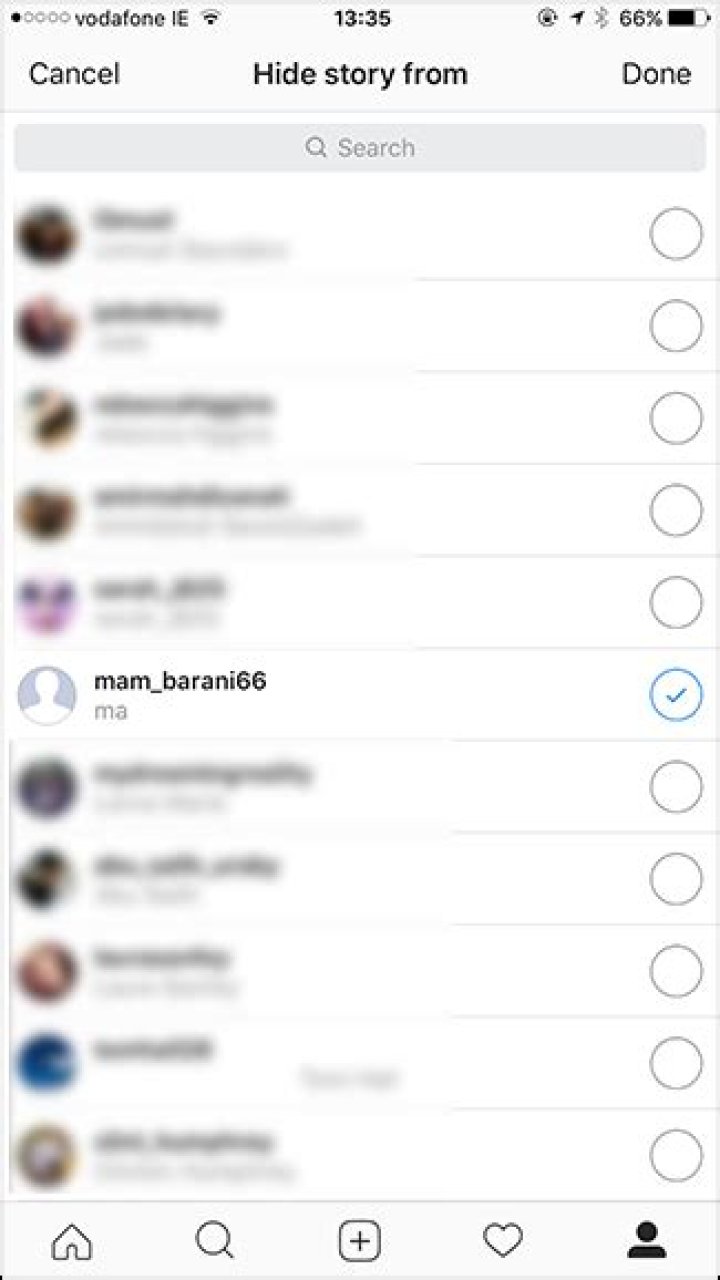
Tap Hide Story From to begin your restricted access list. This shows you a list of all your followers (not people you follow). Just tap the names of anyone you want hidden or start typing their username find them. Keep tapping names until you’re satisfied and tap Done.
Henceforth, everyone you select here will never be able to see your Instagram story or your live videos. You can edit the list by coming back here at any time.
Note that these aren’t as nearly in depth as Facebook’s privacy settings. Instagram still grants no ability to adjust the visibility of individual posts and story entries. Restrictions can only apply to all story entries or none.
Restrict Message Replies from Your Story
Back in Story Settings, you can also adjust which people can interact with your story.
The setting Everyone is on by default, which means anyone who follows you can reply to your Instagram story. If you change this to People You Follow, only people you also follow back see the option to reply. Lastly, select Off to disable message replies for everyone.
One last option at the bottom irrelevant to privacy is the ability to save shared photos. If you turn this on, every photo or video you add to your story gets saved to your camera roll. This isn’t recommended (and is off by default) since stories are meant to have temporary content, but you can turn this on if you prefer to keep an archive.
In case you missed it, check out our guide on how to use Snapchat:
When Instagram first dropped its stories feature, no one really knew what to make of it. Now that we’ve all come to know and love Instagram stories, it might just be time to break out the secret features that you probably never knew about.
1) First things first, here’s how you can control exactly who sees your stories.
So, insta stories has a few different privacy options. You can customize who can see, comment or DM you through your stories. Click on the little settings tab to choose who to “hide story from” and “allow message replies from”.
2) Turn your run of the mill emojis into impromptu filters.
3) If you want to pause mid-story (for extra sleuthing capabilities) just do a long press and hold down on your screen.
Don’t just tap it though! That will automatically switch the story over to the next video or picture. When you long press the video will automatically stop playing, but removing your finger will resume the video.
4) Pulling down on the stories screen brings up your recent pictures
Swipe down on the stories screen and photos from the last 24 hours in your camera roll will come up. Hit select and you can upload without navigating away from the screen.
via YouTube/Hannah Ashton
5) *Bonus: This also works for Boomarang videos saved in the last 24 hours.
6) If you don’t want your Instagram video story to disappear, go ahead and “share as post” and re-upload as a regular post.
The three dots in the corner of your story will give you the option to delete, share as post, save to your device, and view story settings. Hit “share as post” if you think your story is too good to say goodbye to.
7) Just swipe up to see who has viewed your story.
If you’re dying to know who is keeping tabs on you, just navigate to your story, swipe up, and view the list of people who watched your story. This is good if you’re a blogger keeping tabs on your reach or if you’re cuddled up with your new bae and you’re hoping your ex is watching.
8) *Bonus: Unlike Snapchat, Instagram stories doesn’t notify you who screenshotted you.
So it’s best to assume any one of your admirers is keeping receipts on you. On the flip side, you can sneakily keep tabs on everyone you follow and they’ll never know.
9) Think it sucks that there are only 8 pen colours? Yeah, us too.
Hold down on the pen colour of your choice and a rainbow scale to choose from will appear. Slide your finger around the rainbow until you land on the perfect colour for your story. Yaaas.
Harry GuinnessHarry Guinness
Writer
Harry Guinness is a photography expert and writer with nearly a decade of experience. His work has been published in newspapers like The New York Times and on a variety of other websites, from Lifehacker to Popular Science and Medium’s OneZero. Read more.
Instagram’s Story feature is incredibly popular; it now has more daily users than Snapchat, the app it’s copying. The problem is, unless you have a private Instagram account, anyone, including your mother, can follow you. If you want to post photos from your wild parties to your Instagram Story, but also want to avoid an awkward family dinner, here’s how to block specific people from viewing it.
Open Instagram and head to your profile page and tap the Settings icon in the top right.
Next, tap “Story Settings” and then “Hide Story From”.
You’ll see a list of all your current followers. Find the follower you want to hide your Story from and tap the check box next to their name. Tap Done, and they’ll no longer be able to see your Story.
- › Why Sublime Text Is Great For Writers, Not Just Programmers
- › What Is a ULED TV, and How Is It Different?
- › Why Professionals Will Actually Want a 2021 MacBook Pro
- › How to Add Images to Questions in Google Forms
- › How to Delete Your Photos on Facebook
Harry Guinness
Harry Guinness is a photography expert and writer with nearly a decade of experience. His work has been published in newspapers like The New York Times and on a variety of other websites, from Lifehacker to Popular Science and Medium’s OneZero.
Read Full Bio »
This is a guide on how to block someone from viewing your Instagram story. This feature can be useful if you want to “hide” your stories from certain people. For example, your boss, your work mates or even certain family members.
Step 1 – Go to your Instagram settings.
Firstly, you will need to click on the settings icon in the top right-hand corner. This icon is located above your Instagram profile.
Click on the “three lines”, aka the “hamburger menu”.
Once you have done that, a menu will appear on the right. At the bottom of this menu, you will find an option called “Settings”.
Click on the “Settings” option at the bottom.
Step 2 – Go into the Privacy section.
Once your Instagram “Settings” page has loaded, you will need to click on the “Privacy” option.
At the time of writing, the “Privacy” option was located underneath “Notifications”.
After that, you will need to click on the “Story” option. This can be found in the “Interactions” section.
The “Interactions” section contains an option called “Story”, which allows you to control who sees your Instagram stories.
At this stage, the “Story” screen will appear. This section allows you to hide your story from certain people and select “Close Friends”. In addition, it also allows you to control who can reply to your stories and whether they can be shared or not.
However, in our case, we want to prevent someone from being able to see our stories. Therefore, we will need to click on the “Hide Story From” option.
“Hide your story and live videos from specific people.”
Step 3 – Select the person you want to hide your story from.
At this stage, you will be able to select which followers you want to hide your stories from.
Select the follower or followers in question. A blue tick will appear beside their name once you have selected them.
As you can see in the screenshot above, I selected one of my followers by clicking on the checkbox beside their name.
Finally, in order to apply this change, we will need to click on the arrow in the top left-hand corner.
Click on the arrow beside “Hide Story From” in order to save your changes. Pressing the back button on your phone will discard your changes.
Once you have selected the person in question and saved your changes, you will notice that Instagram displays how many people are blocked from seeing your story.
In this case, only 1 person is blocked from seeing my story.
And that’s it! From now on, these people will no longer be able to view your stories. In fact, they won’t even know that you have uploaded one.
Will someone find out if I have hidden my Instagram stories from them?
No. Instagram will not notify other people if you block them from seeing your stories. However, they could potentially figure it out if someone else mentions it.
“Did you see Lisa’s story?”
“What? No.”
“Yea, she uploaded a photo of her new car.”
“It’s not showing anything for me?”
“OMG, she must have blocked you from her story!”
If you are going to hide your stories from someone, then you will need to make sure that their close friends or relatives are also blocked. That way, there is less of a possibility that they will find out.
Instagram stories are made up entirely of photos you take with you camera. You cannot select photos from your camera roll and add them to your Instagram story. The feature is a clone of Snapchat that encourages you share moments as they happen. The only alternative is to go live on Instagram and broadcast everything as it happens. The feature being what it is, it’s sometimes not a great idea to share a story with all your Instagram followers. The good news is, you can block a follower from viewing an Instagram Story without blocking them from your feed. Here’s what you need to do.
There are two ways to block someone from viewing an Instagram story. They are basically different steps that all lead you to the same settings screen.
From An Instagram Story
If you currently have a story on your Instagram account, go to it. Tap your own profile picture at the top of the Home feed tap. You can view your story here. Tap the overflow button at the bottom of the screen. A menu will open with a ‘Story Settings’ option. Tap it.
On the Story Settings screen, tap the ‘Hide Story From’ option. You will switch to a screen listing every single follower you have on Instagram. Select the ones you want to hide your story from and you’re done.
From Account Settings
If you do not have a story on Instagram, you can still block someone from viewing your story when you share one. The setting will of course take affect when you next share a story.
Open Instagram and go to your profile tab. Tap the cog wheel button at the very top to go to your Account and app settings. Under the Account section, tap Story Settings.
You will see the same Story Settings screen as before. Tap the Hide story from option and select which of your followers you want to hide the story from.
With stories, it’s a good idea to be a bit more cautious about who you share it with. The images might give away places you frequent which, in this crazy world, can be dangerous. With other photos, ones that involve food or your coffee cup, it’s not that great a risk.
Story settings are separate from your feed settings. People you hide your story from can still view your Instagram feed. They can also like and comment on it. If you want to stop someone from viewing your feed, you should block them.
Stay on top of the biggest social media marketing trends!
If you’ve ever wondered how to mute stories on Instagram (or how to hide Instagram Stories from other people), we’ve got you covered!
Instagram’s mute feature lets you silence stories from accounts you follow without having to actually unfollow those accounts — which is perfect if you’ve ever had a friend who posts * way * too many Instagram Stories!
But did you know that you can hide your stories from other users as well?
In this post, we cover everything you need to know about how to mute stories on Instagram + how to hide Instagram Stories from other people:
How to Hide Instagram Stories From Other People
You have a few different options when it comes to hiding your Instagram Stories from other people.
If you want to prevent someone from seeing anything you post to your story in the future, simply head to your profile and open your account settings.
Next, tap Privacy.
And then Story.
Tap the number of people next to Hide Story From.
Select the people you’d like to hide your story from, then tap Done.
You can also choose to hide your story from specific users from as you’re looking at who’s seen your story.
Just tap the ellipsis button to the right of their name and select Hide Story From [Username].
If your story is appearing on a location or hashtag page, you’ll see it at the top of the list of people who have seen your story. You can tap “x” to the right of a location or hashtag page to hide your story from it.
Note: When you hide Instagram Stories from certain people, they won’t be able to see anything you post to your story in the future.
Hiding Instagram Stories from someone is also different from blocking them and doesn’t prevent them from seeing your profile and posts.
How to Mute Other People’s Instagram Stories
To mute an account’s Instagram Stories, all you have to do is tap the ellipsis button (“…”) in the top-right corner of any post and tap Mute.
From there, you can choose whether to mute posts or mute posts and stories from an account.
You can also mute posts and stories by pressing and holding on a story in your tray or from a profile.
This moves the account’s story to the end of your queue and prevents it from auto-playing.
Note: The accounts you mute will not be aware that you’ve muted them — and you can always unmute an account to get their stories back in your tray! Just re-follow the steps above and select Unmute.
Why You May Want to Mute or Hide Instagram Stories
We all have one… an irritating Instagram account that clogs your stories with photos and videos you have no intention of engaging with.
It could be an old friend or recent ex, but whatever the social dynamic, the ability to hide an accounts’ Instagram Stories from appearing in your tray without actually unfollowing them gives you way more control over the content you see!
It’s also a lot less drastic than unfollowing someone.
With the ability to mute stories on Instagram, you can avoid seeing the content you dislike (or prefer not to see) without affecting your real-life relationships with those users.
There’s also a possibility that Instagram algorithm takes this information into consideration when deciding what kind of content to serve up in your feed and Explore page.
Finally, it can also be helpful for mental health. Muting other people’s Instagram Stories gives you a greater ability to personalize your feed — so you can focus on engaging with content that has a positive impact on your mental health.
Have you muted anyone one Instagram? Let us know what you think of this feature in the comments!
Always stay up-to-date with Instagram! Join over 1 million Instagram marketers and subscribe to the Later newsletter to keep up with all the latest Instagram trends:
This Instagram tutorial was prompted by a question from a friend asking me if you can stop seeing someone in your Instagram feed without unfollowing them. They were seeing a ton of updates in their feed from this one person but didn’t want to unfollow them because there would be the inevitable fallout from doing such a thing. So is there a solution?
Most of us have been in the same or similar situation on one social network or other. We friend someone and they turn into a prolific poster that fills up our timeline or feed. We otherwise like the person and don’t want to block or unfollow them as it would be noticed and then turn into a whole drama that nobody wants to have to contend with. So how can we manage situations like these?
Instagram apparently uses an algorithm that eventually quietens someone if you don’t interact with them for a while. Nobody quite knows how, or how effectively it works so you cannot depend on it to help you here. If you turn off notifications for the person and don’t interact with them in any way, in theory at least, you should see less of them over time.
If you’re setting up a new Instagram account the best thing is to make it private so you can manually control who gets to follow you and who doesn’t. If you have an existing account or the person you want to block was fine at first, you will need to try one of the following.
Stop seeing someone in your Instagram feed
You can sort of stop seeing someone in your Instagram feed but it takes a little effort. If you don’t want to block them you will have to manually mute their story in your feed each time one arrives. It isn’t ideal but is the only way I know of to stop their stories.
- Select one of their stories that you want to get rid of within your Instagram feed.
- Tap and hold the image until a menu appears.
- Select ‘Mute USERNAME’s story’.
This will only remove that individual story and you will have to repeat this for every one that comes up. Far from ideal but aside from using a third party app, this is the only way I know of controlling things.
Stop someone seeing your stories in their Instagram feed
If you don’t want to encourage the person to include you in their Instagram life story, you can elect to not have your own stories appear in their Instagram feed.
- Go to the person’s profile and select the three dot menu icon.
- Select Hide Your Story.
- Confirm if required.
This should stop your story appearing in that person’s feed. Like muting stories above, you would have to do this for each story you publish on the network.
The case for the block or unfollow
Somehow, social media has become so ingrained in our psyche that to be unfollowed is considered as serious as telling a real life friend that you never want to see them again. This could actually be a best friend but it could also be someone halfway across the country that you have never met and are never likely to.
Social media isn’t real life. It’s a pretend life where everyone tries desperately to make themselves seem cool and try to convince followers that their lives are much more interesting than they actually are.
While it has undoubtedly changed the way we live for the better, it has also skewed how we view relationships and the world around us. Rather than valuing our real friends, we count followers or retweets. Rather than spending time with those people that mean something to us, we sit beside them in a coffee shop in silence staring at our phones in our own little world. How is that a good way to maintain a relationship?
I would say that culling social media followers is a good thing. As long as you are as selective on your social network as you are likely to be in real life, it will benefit you massively. You will have more time for those who matter, have more energy to engage meaningfully with those you choose to and can use social media with the same kind of freedom it was initially envisaged to provide.
Spread yourself too thin and you don’t have enough value to give those who matter. Be selective with who you’re friends with on social media as well as in real life and you will have more time and energy for those people who are most likely to enrich your life.
I have culled all my social media accounts and feel so much better for it. Have you tried it? Would you try it? Tell us about your experience below!
Instagram Highlights are a great way of getting closer to your followers. You can share your special moments with them, thus making your profile more attractive. However, there is a way you can save a video to your highlights without anyone seeing it.
It could be a video that’s special to you that you don’t want to share with other people, and that’s fine. We will now explain how you can add a video from your camera roll to your Instagram Highlights.
What Are Instagram Highlights
To understand why you would want to add an Instagram highlight without posting an Instagram Story, you must know why this feature is so incredibly useful. The main benefit of adding a highlight is that it will remain on your profile indefinitely, whereas stories disappear after 24-hours.
Your Instagram highlight should be well thought out and it can be used for advertising, connecting with your followers, or showing others what you’re most proud of. Whatever your reasons for adding a highlight, there are quite a few options for you with this feature.
Highlights are similar to files and house your most valuable content. You can create a folder and customize the name, background photo, and more. You can view your stories by tapping the profile icon in the lower left-hand corner and tapping on the highlights under the ‘Edit Profile’ option.
How to Add a Story to Highlights Without Adding It to Story
Typically, Instagram stories have to be published and left for everyone to see for at least 24 hours before you can move them to the Highlights section. But there’s a little hack you can use to add a story to your Highlights without publishing it. The process is simple and easy to follow… Here is how you add stories to Highlights without anyone seeing them.
- Switch your Profile to Private
- Block Everyone So They Can’t See Your Story
- Upload the story you want
- Add the story to your highlights
- After 24 hours, unblock people so they can see your stories again.
After waiting for 24 hours for the video to transfer to your Highlights, it’s time you unblock everyone the same way you blocked them. The next time they view your profile, the story will be added to your highlights already, and that’s about it.
What If Your Story Can’t be Added to Instagram Highlights?
The only reason why you couldn’t add a story to your Instagram Highlights is if you don’t wait the 24 hours you needed after posting the video. If you deleted the video before the 24-hour mark, you wouldn’t be able to add the story to your Highlights section.
If you can’t see the Highlight feature, try re-uploading the story and look for the button once you’ve published it. If that’s not working either, wait for the feature to pop-up on your home page after 24 hours.
Benefits of Using Instagram Highlights
Instagram Highlights provide an excellent way of letting people know what you are about. The option works great for self-promotion, but the most significant benefit of Highlights on Instagram is for promoting your brand and products. The Highlights section can help your brand draw attention to whatever product you are selling. That way, everyone can take a look at your offer.
You can also add a link to your website to drive traffic from Instagram to your brand’s site. Highlights look great and are easy to organize. You can also fine-tune your offers, according to the feedback of your followers and customers. Make sure you update your brand’s highlights regularly.
The Highlights present a great way of getting your message to the right people. You can inform your followers about an event or promotion, giving them all the details about your offer and potential discounts, giveaways, and bundles…
Choose Your Highlights Carefully
Posting Highlights is one thing, but knowing what to post is completely different. Pick your moments and make sure that your posts represent who you are and what you are about. If you do things right, success is soon to follow.
Deleting Highlights
You may want to remove highlight and it’s easy to do that once you know how to. If you have a highlight displayed for an upcoming event you may want to take it down or change it once the event is over. To delete an Instagram highlight follow these steps:
- Navigate to your profile on Instagram by tapping on the person icon in the lower left-hand corner.
- Locate the Instagram story you’d like to delete which is located under the Edit Profile option.
- Long-press the Highlight preview (this is the round icon the contains the highlight).
- Tap ‘Delete Highlight’ to remove it. You can also tap the ‘Edit’ option to add more to this highlight.
Instagram doesn’t offer a lot of post-production editing options for users so having the ability to go back and add more to an Instagram Highlight is a welcome addition to the social media platform.
Taking it’s cue from Snapchat, Facebook is adding new ways to share photos and videos through its mobile app — including the addition of Facebook Stories. But before testing out this new post format, you may be wondering can you block people from seeing your Facebook Story? Those of us with a wide ranging Facebook network of friends know there are just certain things you just don’t want to share with your extended family, boss, and all those high school buddies you haven’t spoken to for ten years. Facebook Stories’ privacy settings are limited, so even though the posts only last 24 hours and are separated from the main News Feed, users should think twice before sharing something that was not intended for all their friends.
The ephemeral feature pioneered by Snapchat, and adopted by Instagram in August of 2016, has been wildly successful across social media platforms. Insta’s daily Story users hit 150 million this year (though Snapchat’s Story views have declined in general), so it’s no wonder Facebook is eager to jump on the bandwagon and incorporate the visual feature for its 1.65 billion users. With the new update, announce on March 28, Facebook is adding two features that auto-delete when they time-out: Stories, the visual slideshows that are only available for 24-hours, and a personal messaging feature called "Direct." With Direct, users can share individual photos or videos privately with specific friends. Like Snapchat’s messages, once the content is played, it automatically disappears without a trace (unless you take a screenshot, that is).
Facebook’s Stories feature works much the same way as those run by Snapchat and Instagram, so the social media savvy will feel right at home when trying out the new way to post. To create a Story on Facebook, tap the "Your Story" icon in the Story bar located above the main News Feed, or open the redesigned in-app camera with a swipe to the right. Scroll through different filters (including animated ones, like you might find in Snapchat) by swiping up and down, and create your perfect image or video. When you tap to share the image or video, you have the option to send it "Direct," post it to the News Feed, or add it to your Story (or a combination of all three).
So who exactly can see your Stories? Similar to how Instagram Stories are only accessible to your followers, the default setting for your Facebook Story is "friends." The Story will be unavailable to those you have blocked on Facebook. Unlike with Instagram, where you can hide stories from specific users, the only way to hide your story on Facebook is to block the person. You can, however, keep track of exactly who has viewed each entry to your story.
As The Verge points out, this broad viewer base, may end up being a problem for Facebook Stories. "Ultimately, Facebook stories face the same basic challenge that the larger News Feed does — context collapse, or the idea that sharing something with everyone you know discourages sharing generally," warns The Verge. "It’s the reason that original sharing on Facebook is said to have declined: when you know that anything you post might be seen by your boss and your mom and your ex, you often choose not to share at all." The update is steadily rolling out globally over the next few weeks, so users will get a chance to try out the new feature, and only time will tell if users see Stories as a value add.




