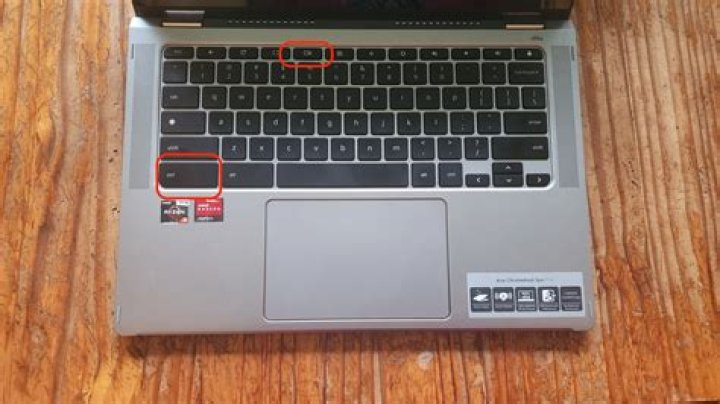
Almost every day here at 9to5Google, we try to uncover the latest developments happening in Google Chrome and Chrome OS. The frustrating thing is that it’s often weeks or months before the things we report on make it to our devices. If you’re brave enough to use less-than-stable software to try out these latest features, then Chrome OS’s Canary update channel is for you—here’s how to make the switch.
How to switch to Chrome OS Canary
- Switch to Developer Mode
- Switch to the Chrome OS Canary channel
- Update your Chromebook
Before we get started, I should warn you that Chrome OS Canary is considered by Google to be fairly unstable, because it’s always on the bleeding edge of the newest Chromium code. Being this “unstable,” you should almost certainly expect there to be issues on your device while on Canary.
When your Chromebook does, inevitably, run into an issue, there are a few options for how to get back to work. If your device still mostly works, you can usually just wait for the next update, as Canary updates almost every day. If a few days and updates have passed and you’re still having issues, there are instructions down below on how to switch back to Chrome OS Stable.
Should things ever go very, very wrong you can also completely reset your device using the Chromebook Recovery Utility on another computer.
1. Switch to Developer Mode
It’s important to know that Developer Mode is different from just being on the Developer update channel. If you’re sure you’re already in Developer Mode, you can skip to Step 2.
By default, all Chromebooks have safeguards in place to ensure that devices remain stable and secure. Unfortunately, switching to Chrome OS Canary requires that these safeguards be disabled by switching to Developer Mode.
Please note: switching to Developer Mode will wipe your device. Back up your files first.
First, turn your Chromebook off. Next, hold the Escape and Refresh keys and power your device back on. This will put your device into Recovery Mode. Once in Recovery, press Ctrl-D to enter Developer Mode.
You’ll be prompted to confirm, because this, again, will wipe your device. Now every time it starts, you’ll be reminded for a number of seconds that your device is in Developer Mode. You can press Ctrl-D to bypass this message.
Because your device has now been wiped, you will need to set up your account again.
2. Switch to the Chrome OS Canary channel
Once your device is in Developer Mode, we can actually make the big switch to Chrome OS Canary. Open the “crosh” terminal by pressing Ctrl-Alt-T. From here, enter the following command:
This will ask you to confirm that you really want to switch to Chrome OS Canary. Press Y, then Enter to confirm.
3. Update your Chromebook
Your device will now use the latest updates to Chrome OS from the Canary channel. To get your device to begin updating, open the Settings app, open the left-hand menu, and click About Chrome OS. From this page, click Check for Updates to manually begin the process of updating to Canary.
With that, you’re all set! Your Chromebook is now on the Canary channel, and you can check out many of the latest features, months ahead of everyone else.
How to switch back to Chrome OS Stable
- Switch update channel back to Stable
- “Update” your Chromebook
Thankfully, the process of switching from Chrome OS Canary back to Stable is not a complicated one. Unfortunately, however, it involves wiping your device. So if at all possible, back up your files first. This process also requires that your device still be in Developer Mode.
1. Switch update channel back to Stable
Open up the “crosh” terminal once again by pressing Ctrl-Alt-T. From this terminal, enter the following two commands:
shell
update_engine_client –channel=stable-channel -update
The “shell” command switches you to Chrome OS’s internal shell, while the second command to “update_engine_client” actually does the job of switching you back to Stable.
2. “Update” your Chromebook
Just as before, while your Chromebook now knows to use Stable updates, you need to “update” it to actually be on Stable again. Open the Settings app, open the left-hand menu, and click About Chrome OS. From here, simply click Check for Updates, and you’ll be back on Stable in no time.
FTC: We use income earning auto affiliate links. More.
One of the greatest strengths of Chrome OS is its stability. Whenever I hand someone a shiny new Chromebook, I know they’re not going to run into any problems. However, for those that like to tinker — like me — there is the option to test new features for Chrome at the possible expense of stability. You can switch between the different software channels on a Chromebook if you want to. Here’s what each one is and what to know before you switch.
What are the Chrome channels?
Each Chrome browser and Chrome OS device can be on one of four software channels: the stable channel, the beta channel, the developer channel, and Canary.
- Stable channel is the default channel everyone uses. If you didn’t know what a Chrome channel was before you started reading this article, your device is on Stable. Stable is what rolls out after software changes have been fully tested, and this software is the most — wait for it — stable.
- Beta channel is the transition between Developer’s Wild West and Stable’s sweet normalcy. This is where you can try new things before most users will get it, without having to deal with as many bugs. Don’t get me wrong; Beta is still buggy, just less so, because the most critical bugs are worked through before it gets here.
- Developer channel is where new features and software changes are added to Chrome builds. This is the channel that lets you test the newest tweaks, but also the channel that has the most bugs. If you’re using a Chromebook for critical work or it’s your only computer, Dev channel is not for you. If your Chromebook is a secondary machine, you might enjoy playing around with it.
- Canary channel is highly experimental, updates frequently, and should not be used on your only computer if stability or reliability is required, because things are untested and break easily. On Chromebooks, Canary requires you to enable Developer Mode, wipe your Chromebook and then enter a special command in the Chrome OS Developer shell, so I don’t recommend it unless you like submitting bug reports and digging through changelogs on a daily basis.
What you need to know before moving between channels on a Chromebook
Moving from Stable to Beta or Developer channels is simple, but going the other way is something that takes a little more effort. When switching up to the more unstable levels, Chrome OS treats it like any other system update because they are a higher version number. Reverting back to the Stable requires a full system wipe — it Powerwashes the Chromebook and erases all local data from the device.
Even if setting up a Chromebook only takes 5 minutes, it’s not something anyone wants to be unprepared for, so if you’re going to start dabbling with the Beta and Developer channels, back up your local data and make sure you keep things backed up. Google Drive is built right into the Files app for a reason!
How to try Chrome Beta, Dev or Canary on a Windows, Mac, or Phone
The desktop and app versions of the Google Chrome browser make each channel its own separate app, so you can have both stable Chrome and Chrome Beta installed on the same laptop so long as you have room and have enough RAM for both.
- is available for Windows, Mac, Linux, Android via Google Play, and iOS, but the iOS beta is currently full and not accepting new users. is available for Windows, Mac, and Android via Google Play. is available for Windows, Mac, and Android via Google Play. (Sorry, Linux!)
These versions install in the exact same 4-click way that stable Google Chrome installed when you first got your computer, but they have different icons so you can distinguish between them. They also update automatically, just like the stable version — they just update more frequently to address the latest bugs and push out new features for testing.
While trying new channels isn’t quite as hard on other platforms as on Chrome OS, keep in mind that Chrome Canary can encounter some pretty impressive bugs since it’s untested and unstable, so I highly recommend regularly backing up your computer if you’re going to leave it installed.
How to move between Stable, Beta, or Developer Chrome OS channels
- Click or tap the time and status pill in the bottom left corner of the screen.
If you’re updating to Beta or Developer, your Chromebook will switch channels and ping Google’s servers for the latest build of your new channel. When that update is downloaded, Chrome will notify you once it’s ready to reboot and finish processing the update.
If you’re downgrading to Stable, your Chromebook will warn you about the fact that downgrading requires a Powerwash, and then once you agree it will prepare to execute the Powerwash and system restore.
You can test the latest features of the Chrome operating system (OS) by switching to a more experimental software channel. Chrome OS has three different software channels:
- Stable channel: This channel is fully tested by the Chrome OS team, and is the best choice to avoid crashes and other problems. It’s updated roughly every 2–3 weeks for minor changes, and every 6 weeks for major changes.
- Beta channel: To view upcoming changes and improvements with low risk, use the Beta channel. It’s updated roughly every week, with major updates coming every 6 weeks, more than a month before the Stable channel gets them.
- Dev channel: To view the latest Chrome OS features, use the Dev channel. The Dev channel gets updated once or twice weekly. While this build is tested, it might have bugs, as we want people to see what’s new as soon as possible.
Important: To switch channels, you must be the Chromebook owner. If you use your Chromebook at work or school, you might not be able to switch channels. Before you switch channels, back up your data.
Check which channel you’re in
- If you haven’t yet, sign into your Chromebook.
- At the bottom right, select the time.
- Select Settings .
- In the bottom left, select About Chrome OS.
- Select Additional details.
- Under “Channel,” check the channel your Chromebook is on.
Change channel
Warning: Switching from an experimental channel to a more stable channel will delete everything from your Chromebook like downloaded files, photos, owner permissions, and saved networks for all accounts. You’ll have to sign in with your Google Account again.
- Sign in to your Chromebook with the owner account.
- At the bottom right, select the time.
- Select Settings .
- In the bottom left, select About Chrome OS.
- Select Additional details.
- Next to “Channel,” select Change channel.
- Select a channel.
- Select Change channel.
- If you switch to Beta or Dev, your Chromebook downloads an update and then asks to restart.
- To switch to Stable or Beta, select Change channel and Powerwash. When the update installs, select Relaunch and Powerwash. Everything will be deleted from your Chromebook, and you’ll need to sign in with your Google Account again.
Important: If you use your Chromebook at work or school and you switch from Dev to Beta or Beta to Stable through a powerwash, your Chromebook won’t update right away. Your software will update when your new, more stable software version matches the version that’s already installed on your Chromebook. Your apps, data, and settings won’t be deleted.
Kenny Strawn has dug up an interesting Chrome OS feature that we have only heard of. Chrome OS has a canary channel , and we can switch our Chromebooks to it with just two commands.
First, a word on Canary channel.
Google introduced Canary channel for Chrome to let users play with experimental features without leaving the comfort of the stable channel. Canary for Chrome works just like a different browser. You can continue using Chrome with stable channel as your daily browser and try canary only for the fun of tasting upcoming Chrome features.
And this Canary channel is now in Chrome OS too. But I do not know how useful it is going to be, for users. The USP of Canary channel is the fact that it can stay independent without interfering your stable Chrome installation. On a Chromebook, this is not the case, unless you dual boot Chrome OS and Chrome OS canary on the same Chromebook, or may be keep two separate Chromebooks. One for Canary and one for stable.
We will have to wait for the official announcement to figure out what they have planned. If there is a plan at all, to release Canary channel officially.
How to Switch tour Chromebook to Canary Channel
You will need to put your Chromebook in developer mode to do this. Once that is done,
- Pres Ctrl + Alt + T to get a command prompt.
- Type shell to get to shell prompt
- Enter sudo su to get root access
- Use the following command to change to Canary and update Chrome OS:
Once the update is completed, reboot your Chromebook to enter Canary build.
Going Back To The Stable Channel
Follow the steps from 1 to 3 from the previous section and use the following command at step 4 to go back to stable channel:
update_engine_client –channel=stable-channel -update
If you want to disable the Developer mode, on the prompt where it tells you OS verification is turned off, press SPACE and follow the instructions.
Please note that your Chromebook will be reset and all the local data will be erased.
About Dinsan Francis
Content Strategist and Digital Minimalist. Loves testing new Chromebook features and writing about them. Favorite Chrome OS Channel is Canary. | Twitter | YouTube.
Share this post!
I’m going to show you how to use Playstore on Poin2 Chromebook 11.
Step 1
you need to change your chromebook to Developer mode. All local data will be wiped so please back up on Google Drive or SD card before you proceed. To change to Developer mode press ESC + F3 + Power then Ctrl + D, enter, once rebooted, press Ctrl + D. It should take about 10 mins to enter. When you see “OS Verification is turned off” screen you could either wait on or press Ctrl + D to skip the wait.
Step 2
Next is changing channel. Go to Settings > About Chrome OS > More info > Change Channel > Developer and press update. Chrome OS will update to R55.
Step 2 is done. As you can see below Platform number, ARC version. Now let’s find the hidden Android!
We are going to add Google Playstore. Follow Step 3 instructions below.
Step 3
1. Press Ctrl + Alt + T to run Crosh
2. Type in shell commands on Crosh
3. Type below commands in following order. (Note: there are two dashes in front of bind and enable-arc. ––bind / ––enable-arc)
sudo su
cp /etc/chrome_dev.conf /usr/local
mount ––bind /usr/local/chrome_dev.conf /etc/chrome_dev.conf
echo “––enable-arc” >> /etc/chrome_dev.conf
restart ui
4. You will be logged out so once you log back in you’ll see Playstore. If you reboot your chromebook you will have to redo this process again.
Shall we try it now?
Woohoo
Let’s install something.
Unfortunately this is unoptimized beta version so error pops up when you try to run Clash Royal. But I’m sure it will be updated soon.
I also tried installing Microsoft Word.
Works perfectly. Unlike using ARC Welder, storage gets synced and so you can save files straight in your download folder.
There still are numerous compatibility issues but we are so excited to see Android on our Poin2 Chromebook 11! We will be sure to keep you updated after more tests. 😀
Google Chrome’s coolest new features are available only to those who want to live a little closer to the edge. Want a 64-bit version of Chrome? How about DRM support in HTML5? You’re not going to find those in vanilla Chrome just yet.
Switching Chrome’s release channels lets you try new features while they’re still in development. Just remember, this early access comes at a cost: stability.
It takes only a few steps (albeit careful ones) to switch channels. And if the result is too unreliable for your liking, you can always revert to the stable version.
What are these channels you speak of?
In all, there are four separate versions (called channels) of Chrome: Stable, Beta, Dev, and Canary. If you installed Chrome from Google’s website, the stable channel is probably what you’re running.
You can find out what version of Chrome you are running from the settings menu.
The Beta channel is typically pretty stable as well, but it gets more frequent updates and new features before they hit the public version.
The Dev channel is more experimental than Beta. This channel is where Google tests out newer Chrome features before they’re ready for general use. It’s a great way to check out what’s new, though don’t be surprised if the browser crashes.
Canary is for those living on the digital blood-soaked edge. Google warns that Canary may break entirely at times.
Finding out which channel you’re on is rather straightforward. Click the settings menu (the icon with three horizontal bars, or hamburger) and select About Google Chrome. This will tell you if you’re running the Beta, Dev, or Canary channel next to the version number.
Switching Chrome channels
At any time you can download the channel of choice or switch to a new one. However, doing so requires a few steps to ensure the smoothest possible transition.
To choose your Chrome channel, go to the Chrome Release Channels page on the Chromium project site. (Chromium is the open-source project that the Chrome browser and OS are based on.)
On the Chromium project’s website, you can chose what Chrome channel you want to install.
Before changing channels, back up your profile by making a copy of the User Data/Default directory. You want to be able to locate it later in case Chrome doesn’t recognize your profile data on its own.
The location of your profile will vary by operating system; the different iterations are all listed on the Chromium website. For example, on Windows 7 the stable, beta, and dev channels will be found in this folder:
If you’re using Windows Explorer, make sure you can see hidden files. In Windows 7, click Tools > Folder Options… > View and check Show Hidden Files. In Windows 8’s File Explorer, click View, and check Hidden items.
When backing up your Chrome data, make sure you are copying the hidden files too.
Once you’ve backed up your data, click the channel you’d like to use and click the Download button to get the setup program. The channel page has all four channels separated by platform and version.
If you have a newer computer, consider trying the 64-bit version of Chrome in the Beta channel.
Download the Beta or other versions of Chrome from the official site.
You’ll have fewer issues if you uninstall your current version of Chrome and download the new channel with a different browser.
Switching channels is far easier on a Chromebook. Open Settings, then click Help > More Info. Click the Change Channel button and select the channel you’d like to use.
Switching channels is a much simpler process on Chrome OS.
Switching back to a more stable channel
After walking on the wilder side of the Beta or Dev channel, you can always return to the safety of the Stable channel.
The best way to do this is to delete your profile data, because going back to the Stable channel means you’re installing an earlier version of Chrome. That means you won’t get automatic updates until the channel catches up.
It may be easier to completely uninstall Chrome. Before doing this, make sure you’re signed into Chrome with your Google account. This ensures your bookmarks, apps, and extension data will reappear when you download the browser again.
When you’re ready, head back to the Chromium site and choose to download the Stable channel.
There’s no indication if Google is planning to make such switches more convenient on Windows or Mac at this time, but it certainly be easier for users who want to try out the different channels.
Dual-wield Stable and Canary side-by-side
You can even have it both ways—enjoy a stable browser and have the option to experiment with the latest features. Chrome Canary, the least-stable channel, is also the only channel that can exist in harmony with the Stable channel.
Be sure you are running the Stable version of Chrome and download Canary. It will be easy to identify which version of Chrome is which: Canary features the Chrome logo in bright gold.
Get the best of both worlds by using the stable and Canary builds of Chrome on your desktop.
Features in Canary usually don’t make it to the stable build for several weeks, if at all. But it can be fun to see what Google’s working on.
Living a little more dangerously with Chrome doesn’t have to be scary, or difficult. If you choose to take the step into the world of testing new software, you’ll be the first to experience the newest features coming to Chrome.
The Chromebook canary channel is getting a Material Design lock screen, as well as a Material Design login screen. This will add a nice little refresh to the visuals for Chrome OS for users even though Material Design is already present in some areas of the operating system. That said, Material Design does not always mean that the visuals will be extremely bright and colorful like you see in many of the Android apps for your smartphones or tablets. With the Chromebook lock screen and login screen, things are much more minimalist than you might expect but it’s still Material Design, at least the latest iteration of how these design elements are to be implemented.
Worth noting is that since this is showing up in the canary channel right now, this isn’t something that users should expect to see on their Chromebooks natively for a little while. The canary channel is the most experimental version of Chrome OS, just like the Chrome browser, and after this it will still have to make its way through the developer channel and the beta channel before finally transitioning to stable, so it’s entirely possible, and also likely, that this won’t become a part of Chrome OS for a month or two, or perhaps longer.
Though this is showing up in the canary channel for some, it may not be showing up for everyone. It’s noted that it’s showing up in build 61.0.3125, though again it’s entirely possible that some users on this build of the canary channel might not see the new lock and login screens that feature the material design style that you can see in the screenshots below. With that being the case this may be limited to certain Chromebook models at the moment and if so then Google may be continuing to roll it out to other models in the days and weeks ahead, so if you have a Chromebook, are on the canary channel, and don’t see these screens, keep checking as they may pop up at a moment’s notice. If you’re not on the canary channel and you want to check the screens out for yourself on your own Chromebook, you can switch over to the canary channel fairly quickly, though it’s not recommended to be used as a daily build.
Chromebooks receive a new version of Chrome OS once every six weeks. To update a Chromebook all you have to do is to keep it connected to WiFi, let the update download and install and then restart the Chromebook to apply the changes. This article explains this process in detail.
Downloading Chromebook Update
Chrome OS, the operating system that powers your Chromebook gets a new version once every six weeks. If you keep your Chromebook connected to WiFi, this will be downloaded automatically in the background.
To trigger the download or to check if there is a download waiting for you:
Time needed: 3 minutes.
Check Chromebook download.
- Open the Settings app
Open the Chrome OS Settings app.
Click About Chrome OS from the left pane.
If a new version of Chrome OS is available it will start downloading automatically. Click Check for updates to check again.
When the download is complete, click “Restart” to reboot the Chromebook and apply the changes. You might also see this notification in your notification area.
What is the Latest Version of Chrome OS?
To find out the latest Chrome OS version, check “cros – Stable” here.
Common Issues with Chromebook Update
If your Chromebook is not updating to the latest version, here are a few things that you can try:
- Ensure that your Chromebook isn’t End of Life.
- Make sure that you are connected to WiFi. If you are using a mobile LTE connection, Chrome OS may not download the update.
- Restart your Chromebook and check for the update again.
- Check the official community forum for any known issues with your Chromebook model. your Chromebook.
How Often Do You Get Chrome OS Updates?
Google updates Chrome OS very regularly. You will get a new version every six weeks. This is for the Stable channel.
Stable Channel – Every Six Weeks
Stable Channel, as the name suggests is the stable version of Chrome OS that is intended for regular use. Your Chromebook will a new version of Chrome OS every six weeks.
According to the official Google documentation, the Stable channel is updated every 2–3 weeks for minor changes, and every 6 weeks for major changes.
Beta Channel – Every Two Weeks
The beta version of Chrome OS is called the Beta channel. You can switch to the Beta channel from the Settings app. This version updates roughly every two weeks.
You will get new and upcoming features one month ahead of the Stable channel.
Dev Channel – Once or Twice Weekly
The Dev channel is less stable compared to the Beta channel. This version is not recommended for daily use or on your primary device.
The Dev channel updates once or twice weekly. This version is intended for developers to test their extensions and applications against the upcoming versions and features of Chrome OS.
Canary Channel – Daily
This is the most bleeding edge version of Chrome OS. This is highly unstable and might even break your Chromebook. This is where we at Chrome Story spend most of our time because new features show up on the Canary channel first.
If you are a Chromebook fan or enjoy experimenting with the latest versions of software, this is worth exploring. However, do not use your primary device for testing.
Chromebooks in the Canary channel receive updates almost every day.
Hope you find this guide useful. Share your questions in the comments section.
About Dinsan Francis
Content Strategist and Digital Minimalist. Loves testing new Chromebook features and writing about them. Favorite Chrome OS Channel is Canary. | Twitter | YouTube.
The most modern and cool new features of Google Chrome are available to those users that are not afraid to test new things that are still in development and far from being officially released. The new features are available to users who are not afraid to risk the stability of their computers. The process of switching channels requires just a few careful steps and the user can easily go back to the stable version if one is not happy with the new one.
Chrome channels
Chrome, as experts say, has four separate versions – the so called channels which are Beta, Stable, Dev and Canary. When the user installs Chrome from the official website of Google, then most probably one is running the stable channel. The user can easily check which Chrome version one is running by checking the settings menu. Along with the Stable channel, the Beta channel is considered stable too. It gets more updates and new features on a frequent basis before they are released on the public version.
Compared to the Beta channel, the Dev channel is more experimental. On this channel Google tests the new features of Chrome before offering them to the general public. This channel should be checked if you want to see what is new, yet through this channel the browser often crushes. The channel for those who live closest to the edge is Canary one, which may break completely and often. If the user wants to find out on which channel one is, the user should click on the settings menu with the icon of three horizontal bars and select “About Google Chrome”, then one will find out whether one is using Stable, Beta, Dev or Canary channel and will see the version number.
How to switch the channels
The Chrome channels can be downloaded at any time or could be switched to new ones. In order to do so, the user should follow a few steps in order to get a smooth transition. One has to go to the Chrome channel and to the Chrome Release Channels page that is set on the Chromium project site. The Chromium is a project with an open source on which OS and Chrome browser are based on. The user should back up one’s profile through a copy of the Default directory. This is done in case Chrome does not recognize and accept the user’s profile on its own.
In general, the profile location varies by the operating system with the various iterations being listed on the website of Chromium. On Windows 7 the location of the beta, stable and dev channels go like that:
\Users\username\AppData\Local\Google\Chrome\User Data\Default
On Windows Explorer, the user should be able to see the hidden files, which can be done through Tools – Folder Options – View the Hidden Files. This is important as when one is backing up the Chrome data, one should copy the hidden files as well. When the data is backed up, the user should click on the channel that one wants to use and the click on the Download button in order to start the setup program. The channel page will come with the four channels where they will be separated by version and platform.
The Beta and the other Chrome versions should be downloaded from the official website. The user will be better off if one uninstalls the current Chrome version and download the new channel through a different browser. In case the user has Chromebook, then the switching of channels will be easier and could be done in the following path – Settings – Help – More Info – Change Channel and then select the channel that one wants to use. The switching of channels is even simpler on Chrome OS.
How to switch back to the stable channel
Some users decide to check the different channels like Dev and Beta channels, but then they want to go back to the Stable channel. The easiest and fastest way to do this is to delete their profile data. This is necessary as going back to the Stable channel means using an earlier version of Chrome with no automatic updates until the Stable channel officially accepts them. Before uninstalling Chrome however, the user has to be signed into Chrome through one’s Google account. This will save the apps, the bookmarks, the extension data that will be present when the user downloads one’s browser again.
Once this is done the user can head back to the Chromium site and download the Stable channel. This is the way in which the user can try the new things on the different channels, and then go back to the tested and official version.
Stable and experimental browser
The user further has another option and this is to have a stable browser with the option to experiment on the latest features. The least stable channel is Chrome Canary and it is also the only channel that can exist in harmony with the Stable channel. The user should run the Stable version of Chrome and then should download the Canary version. The user will easily identify the Canary features as they come in bright gold.
By doing so the user can get the best of both, using the Stable and the Canary new features on the desktop. It is a good way in which to see what Google is working on. The careful testing of new software could be fun and is not necessarily difficult and the user be one of the first people to experience the newest features that are to be established on the Chrome browser.
Berta Bilbao
Berta is a dedicated malware researcher, dreaming for a more secure cyber space. Her fascination with IT security began a few years ago when a malware locked her out of her own computer.




