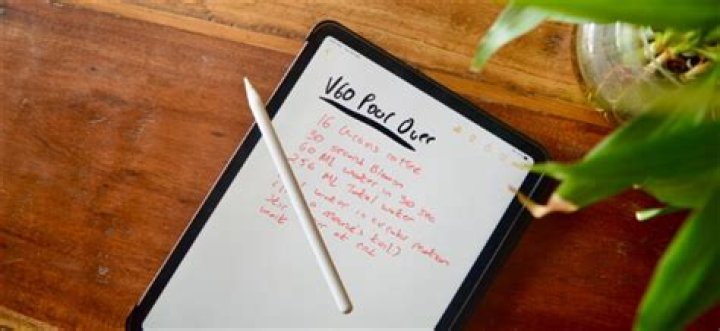
You can use Apple Pencil to write, mark up, and draw.
Before you begin
- Make sure that your Apple Pencil is compatible with your iPad.
- If needed, charge your Apple Pencil. before you try to use it.
Draw with Apple Pencil
Open an app, like the Notes app. With iPadOS, move the tool palette around the screen or minimize it so you have more space to draw and sketch. The tool palette has different tools, depending on the app you’re using. Use the ruler tool to create straight lines, then rotate them with your fingers. Made a mistake? You can erase by object or even by pixel.
To draw in the Notes app:
- Open Notes.
- Tap to start a new note.
- Start drawing with your Apple Pencil.
You can also start by tapping to open the tool palette. Choose from several drawing tools and colors, and switch to the eraser if you make a mistake. Double-tap the eraser to view erasing options on your iPad. When you draw, you can tilt your Apple Pencil to shade a line and press more firmly to darken the line. You can drag the tool palette to a different edge of the screen. Tap to auto-minimize the tool palette and see more options.
Drawing near the edge of the screen with your Apple Pencil won’t activate Control Center, Notification Center, or Multitasking. You can draw anywhere on the screen without getting interrupted.
Write with Apple Pencil
You can write a note with your Apple Pencil in Notes and other apps. With iOS 14, you can write with your Apple Pencil in any text field.* You can convert your handwriting to text. And you can use a handwritten phone number, date, or address as if you had typed it.
Write in any text field with Scribble
You can use your iPad and Apple Pencil to write by hand in any text field, like the search field in Safari or a text field in Mail.* All handwriting and conversion to text happens on your iPad, keeping your writing private and secure.
You can learn how to delete, select, insert, and join words using Scribble by going to Settings > Apple Pencil and tapping Try Scribble.
Convert your handwritten notes to text
You can convert your handwriting* in two ways:
- You can write with the pen farthest from the ruler, which has an "A" on it. Your handwriting will convert automatically to text as you write.
- If you already have some handwritten notes, you can select the notes and convert them to text:
- Double-tap or touch and hold a word you want to select. Select more words by sweeping your finger over them. You can triple-tap to select an entire line of words.
- Tap the selected words.
- In the menu that appears, tap Copy as Text.
- Paste the text elsewhere in the same document or in another app.
Use handwritten phone numbers, dates, addresses, and more
- Tap a number, date, address, or other recognized data that you’ve written. It will have an underline.*
- Choose what you want to do, like call the number or create an event.
Draw perfect shapes
You can perfect a lopsided circle or leaning square. Here’s how:
- Draw a shape by hand, like a circle, square, or star, using a single stroke.
- When you finish the shape, pause with the tip of your Apple Pencil on the screen. The shape you drew will be replaced by a perfect one.
Double-tap Apple Pencil (2nd generation)
On an Apple Pencil (2nd generation), you can double-tap near the tip of your Apple Pencil to quickly switch back to the tool you used last. To change your settings for double-tap, go to Settings > Apple Pencil, then choose:
Pair your Apple Pencil (2nd generation) with your iPad
Attach your Apple Pencil to the magnetic connector on the side of your iPad, like this:
Pair your Apple Pencil (1st generation) with your iPad
Remove the cap and plug your Apple Pencil into the Lightning connector on your iPad.
When you see the Pair button, tap it.
After you pair your Apple Pencil, it will stay paired until you restart your iPad, turn on Airplane Mode, or pair with another iPad. Just pair your Apple Pencil again when you’re ready to use it.
If your Apple Pencil won’t pair with your iPad
- Make sure to center your Apple Pencil (2nd generation) on the magnetic connector on the right edge of the iPad. For an Apple Pencil (1st generation), remove the cap and plug your Apple Pencil into the Lightning connector on your iPad. , then try to pair again.
- Go to Settings > Bluetooth and make sure that Bluetooth is turned on.
- On the same screen, look under My Devices for your Apple Pencil. If you see it, tap . Then tap Forget this Device.
- Connect your Apple Pencil in to your iPad and tap the Pair button when it appears after a few seconds.
- If you don’t see the Pair button, wait for one minute while your Apple Pencil charges. Then try connecting your Apple Pencil again and wait until you see the Pair button.
- If you still don’t see the Pair button, contact Apple Support.
There are times when our brains flock with ideas when we go about our lives. An idea can hit you anytime and you can almost certainly forget about it. Jotting down those sporadic ideas on a paper is time-consuming if you don’t know where you’ve kept your notepad. But who needs a notepad anyway! Thanks to Apple’s iPads, people are able to multitask being productive. iPads are seen as perfect notepad replacements but where’s the fun in typing a long list of to-dos or a checklist you’ve got to finish by the end of the day. You can easily draw a sketch or write notes on your iPad in tandem with the Apple Pencil, which has been refined plenty this year.
The default Notes app is quite okay to get work done but since there aren’t many options on the market that puts the features of the Apple Pencil to good use, we will guide you on how to take handwritten notes on iPad.
How to Take Handwritten Notes on iPad using the Apple Pencil
Among the list, some apps are premium, requiring you to purchase the app wholly while some are free.
1. Notability app – $9.99
Notability tops this list and there’s a reason to it. While all the other apps are all-rounders, juggle the ‘cross-platform’ tag, Notability by GingerLabs is tailor-made to be used on an Apple iPad and the Pencil, to an extent. You can annotate, doodle, draw, write or do just about anything on this stupendous app. The app earns some brownie points by letting users annotate on PDFs. Creators will enjoy this to the core as you get functionalities like adding media, web clips, importing or exporting the notes. You can even select the color of the paper, which is dead-white on the other apps. You can also download the Mac version of Notability which can be accessed wherever you go. To jot down notes on what feels like a real notepad, the steep $9.99 is worth every penny.
2. Microsoft OneNote
This freebie should be your next stop if, for some reason, you don’t like Notability. Microsoft OneNote lets you open all your doors of creativity by unleashing a bunch of features, which we consider a fusion of the best features from all the apps. Got a checklist? Check. Organized notebooks? Check. Media uploads? Check. Handwritten notes in tandem typed notes? Heck yes. What more could you wish for? And did I mention it’s free? Probably I did, but I want to stress enough that the features you get on the other apps charge you basically for all the free ones OneNote offers. Additional features include web clipping and organizing notes into folders. Go for this app if you have a lot of ideas to jot down.
3. GoodNotes
GoodNotes is an excellent app that aims for your handwriting. The app feels veteran in managing your handwritten notes, which can be converted to text in no time. This is an ideal app for mathematicians to jot down complex math formulas. You can annotate PDFs, sync with iCloud, Google Drive, Dropbox, Box, etc. You get a huge collection of paper types and if you aren’t content with the repository, GoodNotes lets you upload some custom templates. Of course, the app supports handwritten notes so Apple Pencil is a great tool for the app. It does support third-party styluses. If you are the one who takes tonnes of notes which aren’t organized, the built-in handwriting search recognition is on point so you don’t have to worry about not finding a random note.
4. MyScript Nebo – $7.99

This app is dedicated to all the messy people out there. If scribbling left and right is your thing, then you will feel right at home using MyScript Nebo. The app gives you a solid handwriting-to-text conversion. This is an exclusively designed app for iPad Pro and of course, the Apple Pencil and boy does it do the job well. The conversion feels so smooth that your notion of apps that convert handwriting to text takes longer is shattered (for good, we hope!) You can use the pens in multiple colors which has great precision. Other features like adding media, equations, diagrams in tandem handwritten notes, is just fabulous. The ‘doodled’ notebooks can be exported in the form of text, HTML, PDF, or even a Word document. And yes, MyScript Nebo syncs perfectly well with iCloud, Google Drive, and Dropbox.
5. Evernote

Evernote is the jack of all trades in the world of note-taking apps. Although a free version would suffice most of the users, those looking for extra features like offline and live chat support, and a generous 10GB monthly media upload limit, or annotating PDFs, you can opt for the premium version ($7.99/$14.99 per month). Evernote, like OneNote, is available on large platforms, which can be accessed anywhere, anytime. You can sketch, make a to-do list, make a proper report or just write down notes – the app is ready to handle whatever you throw at it. Do all of this and still get the notes you are looking for, thanks to its adept search option. The free version is a bit dross compared to the competition so we say if you can afford it, go for the premium version.
6. Paper

All thanks to Apple Pencil, Papers have flourished since its genesis. Don’t think of it as a sketching app, it’s more than meets the eye. You can create eye-pleasing designs as well as indulge in handwritten notes. There are a lot of tools to explore and the Pen segment boasts of an enormous collection. You can use a lined and a graph paper for deep and serious articles. It feels like the Apple Pencil was just curated for Paper or vice versa. People looking for a basic app that eludes all the advanced features that OneNote or Notability offers, your search ends here, Columbus!
7. Penultimate

Penultimate – A twist in the name which amalgamates ‘Pen’ and ‘Ultimate’ is a sign that the app is more than a note-taking medium. Created by Evernote, it’s the best app for taking handwritten notes with an Apple Pencil. All the standard Evernote features take a jump here with some supplementary features that will make the wonky nerd inside you cheer with joy. You get the usual graph paper, dotted paper format alongside to-do and shopping lists which are preformatted. You can take handwritten notes using the Apple Pencil but keep in mind that it won’t convert it to text.
Put your new and shiny iPad and Apple Pencil to use and experiment with the outlined apps mentioned above. We suggest trying the free ones first so if aren’t happy with them, you get a reason to buy the premium apps. Which app made your list? What are the features you settled for? Tell us your opinions in the comments section below.
Using an Apple Pencil to type on the iPad is incredibly slow. Convert your handwriting to text with Scribble instead.
Scribble is an incredible Apple Pencil feature that transcribes handwriting on your iPad into typed text in real-time. It allows for an immersive experience on the iPad since you can write anywhere instead of having to type.
Below, you’ll learn everything you need to know about using Scribble with your Apple Pencil on the iPad.
How to Set Up Scribble on the iPad
Scribble is active on your iPad by default. But if you have trouble using it, head over to Settings > Apple Pencil and turn on the switch next to Scribble.
You can also test how Scribble works by tapping the Try Scribble option on the same screen.
Scribble works on every iPad model that supports the Apple Pencil (both the first and second generations), so you don’t need to worry about compatibility issues.
Just install the latest version of iPadOS to make sure that you don’t run into any snags while using the feature.
How to Use Scribble on iPad
With Scribble active, you can start using your Apple Pencil to scribble in any text input area that you come across on your iPad—search fields, web forms, chat boxes, and so on. Your iPad will kick into gear automatically and convert your scrawls into typed text within a couple of seconds.
If you’re searching for something in the Universal Search bar or Safari, for example, you can simply write out your query. It beats having to peck away at that gigantic keyboard with your Apple Pencil, right?
You don’t have to constrain your handwriting within the confines of a text area, either. Feel free to go over the edges slightly, and Scribble should still detect your writing without issues.
Scribble also brings up a floating toolbar containing various useful options that change depending on the app you’re using.
If you start writing out a task in Reminders, for example, it’ll allow you to add dates, flag items, add images, and so on with a quick tap from the Apple Pencil. This really ramps the immersion factor up another notch.
How to Edit Text With Scribble
When you use Scribble, you may run into instances that require you to correct or edit text. That’s where the Scribble-specific Apple Pencil gestures come into the picture. They are both intuitive and fun to use.
- Scratch: Scratch out letters and words to delete them.
- Touch and Hold: Touch and hold to insert text between letters and words.
- Slice: Draw a vertical line between letters and words to separate or join them.
- Circle: Draw a circle around the text to select words and paragraphs.
- Double-tap: Double-tap a word to select it.
- Triple-tap: Triple-tap a word to choose a whole section.
You’ll probably end up using the Scratch gesture a lot to delete mistakes. But you can also select a word or phrase—by drawing a circle—and start writing again to replace it. Feel free to try out combinations of these gestures to figure out what works best for you.
How to Use Scribble on the iPad’s Notes App
If you use your Apple Pencil to jot down a lot of notes, you probably prefer to keep your scribbled text as handwriting, rather than converting it to text. That’s why Scribble doesn’t work by default in the iPad’s Notes app.
But you can still choose to use Scribble whenever you do want to convert your handwriting to typed text.
Just pick the Handwriting tool—the pencil with the A symbol on it—on the Apple Pencil toolbar to enable Scribble for the Notes app.
If you want to switch back to regular handwriting, simply switch to another pencil. The same applies to native apps such as Pages and Numbers on iPad.
Take Advantage of Scribble
Unless you write insanely fast, Scribble definitely won’t replace a keyboard on the iPad. But if you hate having to put down your Apple Pencil during casual work, it’s probably going to blow your mind.
An iPad keyboard case can help you work more efficiently. Here are the best iPad Pro keyboard cases for your Apple tablet.

Dilum Senevirathne is a freelance tech writer and blogger with over three years of experience contributing to online technology publications. He specializes in topics related to iOS, iPadOS, macOS, Windows, and Google web apps. Dilum holds an Advanced Diploma in Management Accounting from CIMA and AICPA.
Subscribe to our newsletter
Join our newsletter for tech tips, reviews, free ebooks, and exclusive deals!
The Apple Pencil is undoubtedly the best tablet stylus you can buy today. It’s an amazing tool for doing markup work on documents, especially PDFs. Unfortunately, it’s not always clear how to use your Apple Pencil to annotate a PDF.
In this article, we’re going to show you how to turn your Apple Pencil into a PDF markup powerhouse, leaving your coworkers and friends in awe of your quality note-making ability.

Important Things To Know About The Apple Pencil
If you’re still in the market for an Apple Pencil, keep in mind that there are two versions of the Pencil. Also, they aren’t compatible with the same iPad models. The first generation Apple Pencil works with current iPad models that still use the Lightning connector as well as all iPad Pro models that use the lightning connector.
The second generation Apple Pencil works with iPad Pro devices that have a USB-C port. These new models recharge wirelessly after being magnetically attached to the side of the tablet.

Do You Need An Apple Pencil To Annotate a PDF?
No! You don’t need an Apple Pencil to annotate a PDF. Depending on the application, any stylus should work, such as this inexpensive “dumb” stylus.
There are other pressure-sensitive products that work in some applications and simple styluses that are not pressure sensitive, but which offer a better handwriting or drawing experience compared to using your fingers.

The Apple Pencil will undoubtedly provide a more accurate and comfortable experience in every case, but often a simple “dumb” stylus will be good enough to get the job done.
If the Apple Pencil isn’t quite your jam, have a look at our article on Apple Pencil Alternatives. There are four great choices which might better suit your needs and budget, showing that Apple’s own in-house product is far from the only game in town.
Advantages Of Apple Pencil Annotation
For applications that natively support the Apple Pencil, you get to take advantage of its pressure sensitivity, tilt function and all the other technologies Apple has packed into it for a realistic and nuanced writing experience.

How much this matters to you will differ from one person to the next. Also, individual app developers can choose which of the Pencil’s features are important to them.
Apps That Take Advantage Of Apple Pencil
While many apps will have a mode where you can simply write on a PDF using any stylus, a few apps have specific support for the unique features that make the Apple Pencil great. The following three applications aren’t just apps that work well with the Apple Pencil, they are also apps we think stand on their own as excellent tools to annotate a PDF document.
Adobe Acrobat

Adobe Acrobat is of course the most obvious choice for working with PDFs. After all, Adobe is the company that invented PDF in the first place!
The app is free and includes many different ways to annotate a PDF. For example, you can add sticky notes or highlight text. While Adobe doesn’t say exactly which Apple Pencil features they rely on, they do say that freehand annotations have “exceptional commenting precision”. Which we take to mean that it’s the superior and most paper-like option for making PDF annotations in this application.
PDF Expert

PDF Expert is another very popular PDF reader and annotation tool on iOS. Which makes perfect sense, since it does both jobs excellently. PDF Expert supports pressure sensitivity with the Apple Pencil, depending on which annotation pen you choose to use. This means you can do highly-detailed and accurate annotations that look like natural pen strokes.
Notability

Unlike the other two options we’ve highlighted here, Notability isn’t primarily a PDF reader. Instead, this is a specialized note-taking app that can also work as a PDF annotation tool. As such, the depth and quality of actual notes and annotations is a step above the competition.
It supports and makes the most of the Apple Pencil. Not only is its ink engine tuned to provide a lifelike experience using the Apple Pencil, you can also use it to do functions such as erasing or to switch tools by just using the Pencil itself.
How To Annotate a PDF Using An Apple Pencil And Adobe Acrobat
The most popular PDF reader, on any platform, is undoubtedly Adobe Acrobat. It’s free, unless you want the power to actually edit your PDF documents. Annotation is not a paid feature, so let’s look at how you can annotate your PDF using the Apple Pencil.
After opening your PDF document and with the Pencil connected, tap on the blue pencil icon on the bottom right of the screen. From the menu that pops up, choose Comment.

You’ll notice that this toolbar appears at the top of the page.
Choose the tool on the far left to activate the highlighter. Now use your pencil to highlight any text you choose.

If you want to deactivate an annotation tool, just tap it again. The other important tool for Pencil users is, well, the pencil. Tap on it, and then make any written note or drawing you wish.

You can use your finger to turn pages or scroll through the document. When you are done making notes with your pencil, just tap Done and Acrobat will return to the normal reading mode.
The Pen is Mightier
Steve Jobs famously said that a tablet that needs a stylus is a failure. Well, your iPad doesn’t need a stylus at all. It’s a perfectly good tablet computer without it. Instead, the Apple Pencil offers an enhancement to an already great touch experience.
For students, writers, editors and anyone else who has to deal extensively with PDF document editing, a Pencil changes the game when it comes to comfort, speed, and accuracy. So go forth and lay down your red marks on every PDF document that comes your way. You have the power to annotate a PDF now!
Sydney Butler is a social scientist and technology fanatic who tries to understand how people and technology coexist. He has two decades of experience as a freelance computer technician and more than a decade as a technologies researcher and instructor. Sydney has been a professional technology writer for more than five years and covers topics such as VR, Gaming, Cyber security and Transhumanism. Read Sydney’s Full Bio
Following the announcement of two new iPads, Apple released its iPadOS 14 update on Wednesday, Sept. 16, which is packed with new features tech fans will love. Some of the noteworthy additions include the new iPadOS 14 Apple Pencil features, like Scribble. Here’s what to know about the newest features for Apple Pencil, because they’re definitely a game changer.
Apple iPadOS 14 rolled out to iPad Pros, the fourth, fifth, sixth, seventh, and eighth generation iPads, the fourth and fifth generation iPad minis, and the third and fourth generation iPad Air models as well as iPad Air 2 on Wednesday. The update features a new design for Siri, improved app designs, and more ways to use Apple Pencil. The newest updates to Apple Pencil on iPadOS 14 will work with the second-gen Pencil as well as the original, and they include the ability to paste and convert handwritten text to typed text, real-time handwriting-to-text conversion with Scribble, and convenient text editing gestures.
Smart Selection
Smart Selection brings a better note-taking experience to iPads. When using Apple Pencil, Smart Selection distinguishes writing from drawings for easier editing, and it allows you to swipe your finger or Apple Pencil over your handwritten notes to drag blocks of writing, similar to how you already do for typed text. You can also use a double or triple tap of the pen to select one word or a whole sentence, respectively.
Paste to Text
If you’re quickly jotting down notes with your Apple Pencil, iPadOS 14 makes it easy for you to transfer everything you jotted down in text form, by using copy and paste, and it will even retain the original layout.
Data Detectors
If you make handwritten notes with contact information such as an email address or a phone number, you can tap on the handwritten note, and it will give you actionable options, such as pulling up an address in Maps or calling a number using your linked iPhone.
Scribble
The new Scribble for Apple Pen is arguably the coolest improvement. Scribble works by converting your written words to text in real time. Once you’ve completed handwriting a word, watch as it immediately (and almost magically) converts to typed text. When using Scribble in a search bar, after you’ve finished writing with the Apple Pen, it converts it to text and searches for you. When using iMessage, send off your converted text with the tap of your finger. Scribble works in any text field, even third-party apps, and you don’t need to stay inside the lines, because if you go outside the boundaries, it fixes it for you. If you happen to be writing in a darkened text box, the feature changes the text to a light color so it’s visible.
If you’ve updated to iPadOS 14, you will have to turn on Scribble to start using it. To do this, go to Settings > Apple Pencil and tap the toggle that says "Scribble" to turn it on.
When you’re using Notes, you’ll also need to make sure you select Apple Pencil as your writing tool, because Scribble doesn’t work with the other marker and paint brush tools in the toolbar.
Other Scribble features include shortcuts for your most-used actions in different applications, and convenient editing gestures, like scratching out a word to delete it, circling to select, and pressing and holding to add a space.
Basically, there is no shortage of ways to get the most out of your Apple Pencil with this new update. To download iPadOS 14, go to Settings > General > Software Update. Once there, tap to download and install it on your device. If you’re planning to upgrade, Apple released its new iPad 8 on Friday, Sept. 18, while the fourth-generation Apple iPad Air is coming in October.

If you’re someone who still enjoys jotting down notes with a pen and paper, then you probably jumped on the Apple Pencil bandwagon for iPad. This means you can continue to use your favorite method of capturing notes while taking advantage of digital note-taking apps and easy ways to save, send, and share those notes.
With iPadOS 14 and Scribble, you can manipulate text in more ways with Apple Pencil. We’ve already shown you how to copy and paste handwriting as typed text. But you can also select and delete text as well as add space between words, sentences, or paragraphs and here’s how.
Working with text using Scribble and Apple Pencil
Selecting text with Apple Pencil
Depending on whether the text you want to select is typed or handwritten, you have different gestures you can use.
Select typed text
When you want to select specific text, maybe to apply formatting or make a change to a word, you can do so just like you would with a pen and paper in a sense.
Circle the word or phrase that you want to select. Once you do, the text will become highlighted and ready for your next action. You can also strike a line through a word or phrase to select it.

Select handwritten text
With handwritten text, you can use the same gestures as before with typed text to select words and sentences. The Smart Selection feature will know exactly what you want to select.
Using your Apple Pencil, or your finger, double-tap a word to select it or triple-tap to select the entire sentence. Like with typed text, what you select will be highlighted for you to take action.
In addition to tapping to select more than a single word, you can also use Smart Selection to drag through the handwritten text you want. This is convenient for selecting paragraphs. Simply use the Pencil or your finger to slide through the text in a single motion. You’ll see the text highlight as you go. If you select more than you mean to, just slide backwards to deselect it.

Deleting text with Apple Pencil
Similar to selecting text in a way that makes sense is deleting it. You can “erase” text you don’t want by scribbling through it, basically crossing it out.
After you scribble a line through the word or phrase, it will disappear from the screen just like you erased it.

Adding space within text
Adding space is something else you can do with the Scribble feature in iPadOS 14. You can add space between words, sentences, or paragraphs. This is handy in all sorts of scenarios like making room to insert a word, creating a line break, or just spacing out your text for easier reading.
To add a space between words, use your Apple Pencil to tap and hold the spot where you want to add it.

To add a space between handwritten text for sentences or paragraphs, select the text using the Smart Selection drag gesture described above. Then drag the small triangle that displays up or down to create the space.
Alternatively, you can use the Insert Space Above option in the shortcut menu. If you choose this way to add space, a horizontal line will appear. Then just drag that line to add as much space as you want.

Wrapping it up
Having additional features to work with text on your iPad using Apple Pencil just makes the process more flexible and versatile. And if you’re one who handwrites often on iPad, you’ll love these gestures.
Let us know what you think about the improved ways to select, delete, or add space in your text. You can comment below or send us a message on Twitter or Facebook!
For more, take a look at how to use handwriting in text boxes on iPad with Apple Pencil.
Apple updates the default apps once a year with major OS updates. That’s the case with the Notes app as well. With the macOS Monterey and iPadOS 15 updates, the company has added the Quick Notes function to let users take notes without opening the app. Here’s how to use quick notes on Mac, iPad, and even on iPhone.

Have you ever been in a situation when you quickly want to jot down a thought or mobile number but don’t have the right app for it? Of course, you can always open your preferred note-taking app and create a new note. But that’s not the point here. You might miss that moment by the time you open an app to compose a note.
Apple’s Quick Notes can save you from such situations. With the macOS Monterey and iPadOS 15, users can quickly take notes in the default Notes app without opening the app. Here’s how.
Also on Guiding Tech

Apple Notes vs Evernote: Which Note-Taking App Is Better
Use Quick Notes on Mac
The Quick Notes function is only available for Mac computers running macOS Monterey or more. Here’s how to use it.
Step 1: You can hover the cursor at the bottom-right corner.
Step 2: You will see a Quick Note pop-up.

Step 3: Click on it and macOS will open a small Notes window to take a note.

Step 4: Add heading, take a note and hit the close button at the top.

Quick Notes on Mac isn’t a barebones solution. You can use all the text editing functions that are available in the main Notes app. One can edit the text with several text styles, create a list, table, and even add a web link.
Whenever you open the Quick Notes on Mac, it will open the same note that you created a while ago. What if you want to take another quick note?
In that case, you need to open the Notes app on Mac. You will see the Quick Notes section on the left sidebar. Right-click on the note and move it to your iCloud account.

Quick Notes will now offer a clean note to write down notes. Also, iCloud will sync all your Quick Notes across connected devices.
I create holistic, sustainable paper goods for socially-conscious changemakers.
Shop owner, content creator, and advocate. Fan of hydration and organization.

Let me guess….you stopped in to an Apple Store or perhaps just unboxed your new iPad Pro….anxious to see what it’s like to write with the Apple Pencil and are feeling a bit disappointed? Confused? Embarrassed? lol. There really are few things that felt more futuristic and exciting to me than those first initial strokes of the Pencil, but I was left laughing at the fact that it looked like scribbles from a 5-year-old. I’ve heard from a lot of people who have had the same experience and luckily I have some tips to help you improve your handwriting on the iPad Pro with an Apple Pencil (or any stylus).
First and foremost I want to assure you that you can write just as neatly — if not neater — on the iPad Pro than you can with pen + paper, it’s just a matter of 1. getting used to it and 2. knowing a few tricks. So, with that, let’s dive into 10 Tips for Improving Your Handwriting on the iPad Pro with an Apple Pencil.
PRACTICAL TIPS
- It isn’t uncommon to feel like the iPad Pro and Apple Pencil are more challenging to write on fresh out of the box. When both the screen’s surface and pencil tip are brand new they can be slippery and it results in feeling a bit out of control with your writing. As gross as it might sound, a bit of greasy residue on the screen or a bit of a break-in period with your Pencil tip will help it gain a bit of grip. If that doesn’t seem like it’s doing the trick try getting a Matte Screen Protector which will help it have a more “paper-like” texture that offers just a bit of the resistance you’re used to with writing in a physical notebook. There is also this brand called Paperlike that makes screen protectors that feel like paper when you’re writing or drawing. Update: at the time I first wrote this post I hadn’t yet tried Paperlike. But, since then I have ordered one, got it installed, and absolutely LOVE it! It makes such a difference and it feels so much like writing in a paper planner. I LOVE IT! (pro tip: they provide you with a great video tutorial to install it….take their advice about installing the screen protector in the bathroom after a shower. It really does make a huge difference!)
- Consider a grip or sleeve for the Apple Pencil. The Pencil can perhaps feel a bit thin and slippery (especially the 2nd Gen), depending on what you’re used to writing with. If your grip on the Pencil feels uncomfortable or really different from how you hold your favorite writing utensil try finding a grip or sleeve that will make it feel more familiar. I got this one on Amazon and love it. They also make more complex ones that will mimic a calligraphy pen or provide more ergonomic support if you’ll be using it for hours on end.
- Practice. Perhaps this is the tip you didn’t want to hear, but its the best one. Writing on the glass surface of the iPad Pro Screen with a plastic-tipped Pencil is a completely different experience for most of us. You might find that you need to hold the Apple Pencil differently, adjust your hand posture, or perhaps write a bit slower. It’s a new thing, and might require new habits! The good news is that I don’t think you’ll need tons of practice. Playing around for a day or two seems to do the trick, but you can perhaps speed it up by doing excessive amounts of free-writing or even doing calligraphy guides or other writing exercises to help yourself get comfortable faster.
TIPS FOR GOODNOTES + OTHER APPS
Goodnotes is one of the most common and well-designed apps for note-taking, marking up PDFs, or digital planning so I have some additional tips that are specific to improving your handwriting within Goodnotes 5. However, most apps that are compatible with the Apple Pencil are going to have similar options and settings.
- Adjust your hand position. Most apps will allow you to identify how you hold the pencil and how you position your hand so that the app is better at identifying your natural handwriting. In Goodnotes you can simply tap on any of the writing utensil icons > click “stylus and palm rejection” > then click on “writing posture” and pick the icon that most closely represent how you hold the pencil and position your hand. Consider trying out a few of these options to see how it changes the way your writing looks.
- Adjust the Sensitivity. Within the same menu, you’ll find an option for Sensitivity and can choose between High, Medium, or Low. Try adjusting this to see if it impacts your handwriting.
- Find a pen style that is close to your preferred writing utensil. In Goodnotes you can only choose between 3 types of pens. Apps like Procreate will have many more options (plus the option to import your own style of pen). Goodnotes gives you a Fountain Pen, a Ball Pen, and Brush Pen. What type of pen do you typically gravitate towards when writing on paper? Try testing these out to see the different strokes they offer and what your handwriting looks like with each.
- Play around with line thickness. Goodnotes along with most other writing/note-taking apps will allow you to adjust the line thickness for each pen tool and will also allow you to set some default options for fast access. With this tip, you can also look to your “real-life favorite pen” for help. For example, if your favorite pen is a .5 or .8 tip, try that line thickness in your favorite apps.
- Try adding lines or grid lines while you write. Most note-taking apps will allow you to toggle lines, grids, or guides on and off. So, you can have them there to help you write straight and keep your letters similarly lined or spaced, and then toggle it off when you’re finished.
- Try changing the position or angle of your iPad. Again, look to “real life”. If you grab a notebook do you turn it at and angle? How you position the notebook, your arm, and your hand will all impact how your writing looks. Try mimicking these same things with the iPad Pro and Apple Pencil.
- Zoom in! Most apps will allow you to zoom in on the screen when you are writing and I find that the more I zoom in, the better I’m able to write uniformly.
This video will show you how to access several of these settings within Goodnotes 5. If you’re curious about my planner, The Daily Page Planner for Goodnotes, you can head over to this blog post to learn more about it, get a discount code, and see some video tutorials for setting it up on your iPad.
- It isn’t uncommon to feel like the iPad Pro and Apple Pencil are more challenging to write on fresh out of the box. When both the screen’s surface and pencil tip are brand new they can be slippery and it results in feeling a bit out of control with your writing. As gross as it might sound, a bit of greasy residue on the screen or a bit of a break-in period with your Pencil tip will help it gain a bit of grip. If that doesn’t seem like it’s doing the trick try getting a Matte Screen Protector which will help it have a more “paper-like” texture that offers just a bit of the resistance you’re used to with writing in a physical notebook. There is also this brand called Paperlike that makes screen protectors that feel like paper when you’re writing or drawing. Update: at the time I first wrote this post I hadn’t yet tried Paperlike. But, since then I have ordered one, got it installed, and absolutely LOVE it! It makes such a difference and it feels so much like writing in a paper planner. I LOVE IT! (pro tip: they provide you with a great video tutorial to install it….take their advice about installing the screen protector in the bathroom after a shower. It really does make a huge difference!)
- Consider a grip or sleeve for the Apple Pencil. The Pencil can perhaps feel a bit thin and slippery (especially the 2nd Gen), depending on what you’re used to writing with. If your grip on the Pencil feels uncomfortable or really different from how you hold your favorite writing utensil try finding a grip or sleeve that will make it feel more familiar. I got this one on Amazon and love it. They also make more complex ones that will mimic a calligraphy pen or provide more ergonomic support if you’ll be using it for hours on end.
- Practice. Perhaps this is the tip you didn’t want to hear, but its the best one. Writing on the glass surface of the iPad Pro Screen with a plastic-tipped Pencil is a completely different experience for most of us. You might find that you need to hold the Apple Pencil differently, adjust your hand posture, or perhaps write a bit slower. It’s a new thing, and might require new habits! The good news is that I don’t think you’ll need tons of practice. Playing around for a day or two seems to do the trick, but you can perhaps speed it up by doing excessive amounts of free-writing or even doing calligraphy guides or other writing exercises to help yourself get comfortable faster.
TIPS FOR GOODNOTES + OTHER APPS
Goodnotes is one of the most common and well-designed apps for note-taking, marking up PDFs, or digital planning so I have some additional tips that are specific to improving your handwriting within Goodnotes 5. However, most apps that are compatible with the Apple Pencil are going to have similar options and settings.
- Adjust your hand position. Most apps will allow you to identify how you hold the pencil and how you position your hand so that the app is better at identifying your natural handwriting. In Goodnotes you can simply tap on any of the writing utensil icons > click “stylus and palm rejection” > then click on “writing posture” and pick the icon that most closely represent how you hold the pencil and position your hand. Consider trying out a few of these options to see how it changes the way your writing looks.
- Adjust the Sensitivity. Within the same menu, you’ll find an option for Sensitivity and can choose between High, Medium, or Low. Try adjusting this to see if it impacts your handwriting.
- Find a pen style that is close to your preferred writing utensil. In Goodnotes you can only choose between 3 types of pens. Apps like Procreate will have many more options (plus the option to import your own style of pen). Goodnotes gives you a Fountain Pen, a Ball Pen, and Brush Pen. What type of pen do you typically gravitate towards when writing on paper? Try testing these out to see the different strokes they offer and what your handwriting looks like with each.
- Play around with line thickness. Goodnotes along with most other writing/note-taking apps will allow you to adjust the line thickness for each pen tool and will also allow you to set some default options for fast access. With this tip, you can also look to your “real-life favorite pen” for help. For example, if your favorite pen is a .5 or .8 tip, try that line thickness in your favorite apps.
- Try adding lines or grid lines while you write. Most note-taking apps will allow you to toggle lines, grids, or guides on and off. So, you can have them there to help you write straight and keep your letters similarly lined or spaced, and then toggle it off when you’re finished.
- Try changing the position or angle of your iPad. Again, look to “real life”. If you grab a notebook do you turn it at and angle? How you position the notebook, your arm, and your hand will all impact how your writing looks. Try mimicking these same things with the iPad Pro and Apple Pencil.
- Zoom in! Most apps will allow you to zoom in on the screen when you are writing and I find that the more I zoom in, the better I’m able to write uniformly.
This video will show you how to access several of these settings within Goodnotes 5. If you’re curious about my planner, The Daily Page Planner for Goodnotes, you can head over to this blog post to learn more about it, get a discount code, and see some video tutorials for setting it up on your iPad.




