bluetooth speaker not available on macbook pro
” data-medium-file=” data-large-file=” src=” alt=”bluetooth speaker not available on macbook pro” width=”897″ height=”561″ srcset=” 897w, 150w, 300w, 768w, 1024w, 1280w” sizes=”(max-width: 897px) 100vw, 897px” />
For Macbook Pro Type C accessories : Take Advantage of 50% Off discount on Indiegogo here!
Are you tired of the low sound quality of the device’s audio-output especially when you are giving a presentation or showcase audio content using your MacBook? In many times, you may connect MacBook to the Bluetooth Speaker for vivid sounds. However, as it the case with any peripheral, the Mac must be able to see and recognize the speakers before it can transmit any audio through them.
The audio issues like Bluetooth Speaker not available on MacBook pro are often caused by an intermittent connection between the speakers and the Mac itself.
Try these steps first can help you to connect MacBook to Bluetooth Speaker Successful.
bluetooth speaker not available on macbook pro
” data-medium-file=” data-large-file=” src=” alt=”bluetooth speaker not available on macbook pro” width=”891″ height=”547″ srcset=” 640w, 150w, 300w” sizes=”(max-width: 891px) 100vw, 891px” />
1: Make sure that your Bluetooth accessory and iOS device are close to each other (VERY IMPROTANT)
2: Make sure that your Bluetooth accessory is on and fully charged or connected to power . If it uses batteries, test them to see if they need to be replaced.
3: Restart your Bluetooth Speaker.
4: Make sure that you have the latest version of iOS on your iPhone, iPad, or iPod touch.
5: On your iOS device, go to Settings > Bluetooth and make sure that Bluetooth is on. If you can’t turn Bluetooth on or you see a spinning gear, restart your iPhone, iPad, or iPod touch.
6: Unpair the Bluetooth accessory, put the accessory back in discovery mode, then pair and connect it again.
Here is the detailed video
If you still can’t connect MacBook to your Bluetooth Speaker
Check with the Bluetooth manufacturer to make sure that your accessory works with your iOS device.
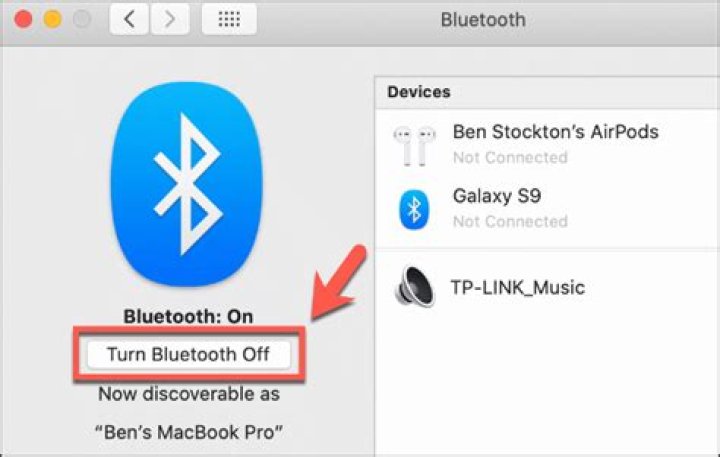
The Bluetooth transmission protocol is commonly used in wireless devices, eliminating the need for a cable between your Mac and the speakers. Although it’s convenient, Bluetooth can be subject to the same interference problems as a regular Wi-Fi connection. Keep your computer and speakers away from other wireless devices and do not place solid objects between the Mac and the speakers. To see whether your speakers are currently connected to the Mac over Bluetooth, you only need to click the “Bluetooth” icon on the Mac’s toolbar. It will display a list of all currently connected Bluetooth devices.
bluetooth speaker not available on macbook pro
” data-medium-file=” data-large-file=” src=” alt=”bluetooth speaker not available on macbook pro” width=”879″ height=”586″ srcset=” 879w, 150w, 300w, 768w, 1024w, 1348w” sizes=”(max-width: 879px) 100vw, 879px” />
For Macbook Pro Type C accessories : Take Advantage of 50% Off discount on Indiegogo here!
Although your Mac comes with the Magic Keyboard and Magic Mouse, both of which are Bluetooth devices, you may prefer the look and feel of something different. If you have opted for a third party Bluetooth Keyboard and mouse, it’s easy to set up, so follow along and we will show you how!
How to pair a Bluetooth mouse or keyboard with your Mac
- Click on the Apple logo in the top left corner of your screen. It looks like this .
Click on System Preferences.
Click on the Turn on Bluetooth button if Bluetooth is not currently on.
Click on the Pair button beside the mouse you want to pair.
Questions?
If you want to know anything else, just leave us a comment below!
Many people still prefer the feel and precision of a traditional mouse over a laptop trackpad. With advancing technology, Bluetooth mice have taken over as many people now prefer wireless mice instead of the wired ones. However, some users have submitted reports where they see Bluetooth mouse connected but not working on their computers.
Here I shall discuss some easy solutions that you can use to troubleshoot if you see Bluetooth mouse not connecting in Windows 10.
How To Fix If Bluetooth Mouse Connected But Not Working?
There can be many reasons because of which the Bluetooth mouse won’t connect to your computer. Here are some simple solutions that users reported solved the wireless mouse connection error.
Solution 1: Reconnect The Dongle Or Restart The Mouse
If your wireless mouse connects using a dongle, you can try reconnecting the dongle and reinitiate the connection. This simple method reported helped many users solve the Bluetooth mouse connection problem.
If the mouse connects via built-in Bluetooth receiver, you can also try switching the mouse off and then on. Meanwhile, also turn off the Bluetooth settings from the action center or from the settings app. Check if restarting the connection solves your error.
Solution 2: Update Device Drivers
If restarting the mouse did not help you solve this error, the error may occur due to outdated drivers. Since drivers are responsible for facilitating the connection between your devices, you can try updating the Bluetooth drivers and the mice drivers to troubleshoot this error.
Check out this article to know more about how to update device drivers.
Solution 3: Uninstall Ghost Devices
When you connect multiple devices to your computer, the drivers for all these devices are saved on your computer. There is a possibility that these device drivers may interfere with your current mouse and prevent the mouse from connecting to your computer.
To troubleshoot this, uninstall any such ghost devices from your computer and check if the error persists.
Solution 4: Prevent Windows From Turning Off Your Mouse
This is definitely one of the most common reasons as to why you may see Bluetooth mouse connected but not working. Windows 10 attempts to save power by turning off some devices when you are on battery power. If this setting is enabled, there is a possibility that the device may have locked up and hence not working.
To resolve this, disable the power management settings from the Bluetooth adapter properties. Then, reconnect the mouse by following the solution 1 above and check if the error persists. Your issue should now be resolved.
Solution 5: Check If The Bluetooth Service Is Running
Microsoft runs many services behind important apps and settings in order to maintain the functionality of the applications. If the Bluetooth service does not function properly, there is a chance that this may be the reason why Bluetooth mouse stopped working on your computer.
You can troubleshoot this by restarting the Bluetooth service. Follow these steps for the same:
- Open a Run dialog by pressing Win + R.
- Type services.msc and press Enter to launch the Services console.
- From the list of available services, locate and right click on the Bluetooth Support Service.
- From the context menu, click on Restart.
Now check if you are able to connect your Bluetooth devices to your computer. Your error should be resolved.
Solution 6: Run The Troubleshooters
In Windows 10, there are a host of troubleshooters which can be used to diagnose any problems with the hardware devices. If the solutions provided above failed to help you, try running the available Bluetooth troubleshooter to diagnose any errors with the hardware.
You will find the troubleshooters under Settings > Update & Security > Troubleshoot section.
Here, run the Bluetooth troubleshooter and let Windows check for any errors.
Next, run a hardware troubleshooter by following these steps:
- Open a Run dialog.
- Type the following command to launch the hardware troubleshooter:
%systemroot%\system32\msdt.exe -id DeviceDiagnostic
Wait while Windows locates any errors with your installed hardware.
Wrapping Up
So there you have it. Now you know how to fix if you see Bluetooth mouse connected but not working on your computer, using one or a combination of the solutions provided above. Comment below if you found this useful, and tell us how you fixed this on your computer.
Related posts:
About Anubhab Chakraborty
A blogger, tech enthusiast and a MBA student from Kolkata. A friendly person always in a mood for networking. Ping me up anytime or just throw an email.
Comments
JOHN FERRIER says
Thanks after hours of wrestling with my new wireless mmouse you saved my day and sanity. THANKS. John Ferrier




