Christian Cooper is a freelance writer for How-To Geek and has worked in the technology industry for over six years. After moving on from his own blog, Christian worked for a variety of tech companies as part of their marketing and communications teams. He’s worked with brands across the tech space that produce smart home, video game, VR, health, and mobile phone accessory products. He’s launched more than 150 consumer products and is now bringing that ability to communicate advanced technologies to consumers as part of the How-To Geek team. Read more.
If you’re looking to get the best audio experience out of your Google Assistant products, one of the best ways is to set up two as a stereo pair! It’s really easy, and a great way to upgrade your audio from just one Nest or Google Home speaker. Here’s how to do it!
How to Pair Google Assistant Nest Speakers
First, choose the two smart speakers you want to sync. If you have two in the same room, you’ve already done most of the work! For the best results, use two of the same Nest speakers. If you don’t have two of the same, though, you can link up any two Google Assistant products.
Open the Google Home app on your iPhone, iPad, or Android device and make sure your speakers are already set up. Then, select one of the speakers you’d like to use in the pair.
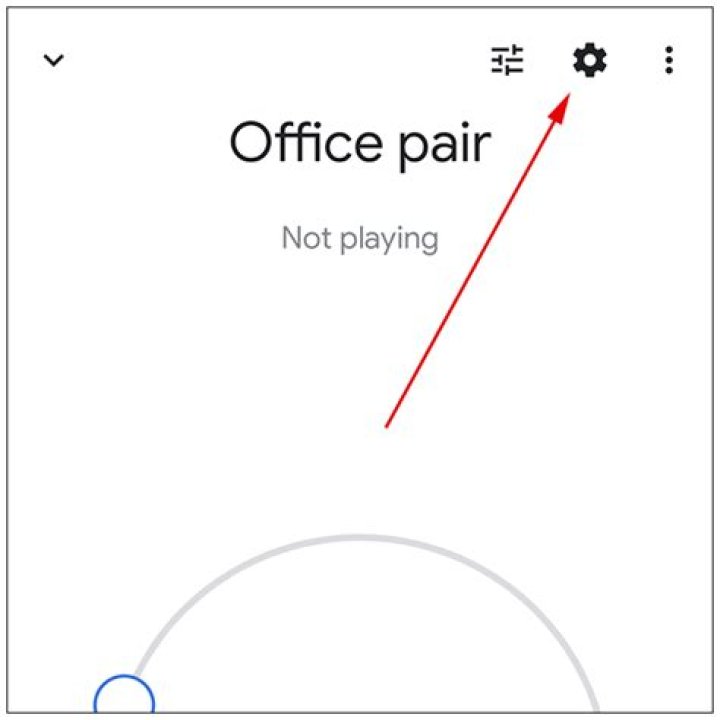
Next, tap the gear icon at the top right.
Scroll down and tap “Speaker Pair.”
Select “Next” at the bottom right.
Tap the second speaker you’d like to use in the stereo pair, and then tap “Next.”
The LED lights on one of the speakers will blink to help you assign it as the left or right stereo speaker.
Alternatively, you can tap “Play Sound” at the bottom left if you prefer an audio cue. Tap whether you’d like the blinking speaker to be the left or right speaker, and then tap “Next.”
Next, choose the room in which you’re setting up the speakers, and then tap “Next.”
Give the pair a name—this is how the Google Home app will refer to them when casting music. When the pairing process is complete, you’ll no longer see the speakers separately in the app; you’ll see the named pair. Tap “Next.”
The app will then pair your speakers, and you’re done!
You’ll now be able to experience stereo audio from two Google Home or Nest smart speakers.
How to Unpair Google Assistant Nest Speakers
Unpairing Google Assistant speakers is also pretty easy. Keep in mind, you might have to manually reassign the devices to your home or new rooms, and then relink them to your Google account after they’re separated.
To separate your Google Assistant speakers, select the pair in the Google Home app, and then tap the gear icon at the top right.
Next, scroll down and tap “Speaker Pair.” You’ll also see the names of the two individual speakers.
Tap “Separate Speaker Pair.”
A pop-up message will appear to confirm you want to separate the two speakers; tap “Separate.”
That’s it! If you want to take your smart home audio game even further, you can set up audio throughout your home with Google Assistant smart speakers.
Christian Cooper is a freelance writer for How-To Geek and has worked in the technology industry for over six years. After moving on from his own blog, Christian worked for a variety of tech companies as part of their marketing and communications teams. He’s worked with brands across the tech space that produce smart home, video game, VR, health, and mobile phone accessory products. He’s launched more than 150 consumer products and is now bringing that ability to communicate advanced technologies to consumers as part of the How-To Geek team. Read more.
Putting two Google Assistant smart speakers together in stereo is a great way to improve your smart home audio experience. If you need to unpair two speakers in a stereo pair to move them to new rooms or to upgrade, here’s how.
Before we proceed, you might need to manually reassign the devices to your home or new rooms and relink the speakers to your Google account once they are separated.
To separate your Google Assistant smart speakers, first select the pair you’d like to split up in the Google Home app on iPad, iPhone, or Android. From there, tap the gear icon in the top-right corner.
Next, scroll down and select the “Speaker Pair” option. You’ll see the names of the two individual speakers in the pair.
Tap the “Separate Speaker Pair” option.
A pop-up message will appear to confirm you would like to separate the two smart speakers. Finally, select “Separate.”
That’s it! You can always repair your speakers or create a new Google Assistant smart speaker pair again in the future to get stereo audio.
Putting two Google Assistant smart speakers together in stereo is a great way to improve your smart home audio experience. If you need to unpair two speakers in a stereo pair to move them to new rooms or to upgrade, here’s how.
Before we proceed, you might need to manually reassign the devices to your home or new rooms and relink the speakers to your Google account once they are separated.
To separate your Google Assistant smart speakers, first select the pair you’d like to split up in the Google Home app on iPad, iPhone, or Android. From there, tap the gear icon in the top-right corner.
Next, scroll down and select the “Speaker Pair” option. You’ll see the names of the two individual speakers in the pair.
Tap the “Separate Speaker Pair” option.
A pop-up message will appear to confirm you would like to separate the two smart speakers. Finally, select “Separate.”
That’s it! You can always repair your speakers or create a new Google Assistant smart speaker pair again in the future to get stereo audio.
RELATED: How to Pair Two Google Assistant Nest Speakers for Stereo Sound
- › How to Enable or Disable the Startup Sound on Mac
- › How to Unpair Google Assistant Speakers in a Stereo Pair
- › How to Transfer Chrome Tabs Between iPhone, iPad, and Mac
- › How to Uninstall an Application on Windows 10
- › How Backward Compatible Is the PlayStation 5?
If you’re looking to get the best audio experience out of your Google Assistant products, one of the best ways is to set up two as a stereo pair! It’s really easy, and a great way to upgrade your audio from just one Nest or Google Home speaker. Here’s how to do it!
How to Pair Google Assistant Nest Speakers
First, choose the two smart speakers you want to sync. If you have two in the same room, you’ve already done most of the work! For the best results, use two of the same Nest speakers. If you don’t have two of the same, though, you can link up any two Google Assistant products.
RELATED: How to Set Up Google Home
Open the Google Home app on your iPhone, iPad, or Android device and make sure your speakers are already set up. Then, select one of the speakers you’d like to use in the pair.
Next, tap the gear icon at the top right.
Scroll down and tap “Speaker Pair.”
Select “Next” at the bottom right.
Tap the second speaker you’d like to use in the stereo pair, and then tap “Next.”
The LED lights on one of the speakers will blink to help you assign it as the left or right stereo speaker.
Alternatively, you can tap “Play Sound” at the bottom left if you prefer an audio cue. Tap whether you’d like the blinking speaker to be the left or right speaker, and then tap “Next.”
Next, choose the room in which you’re setting up the speakers, and then tap “Next.”
Give the pair a name—this is how the Google Home app will refer to them when casting music. When the pairing process is complete, you’ll no longer see the speakers separately in the app; you’ll see the named pair. Tap “Next.”
The app will then pair your speakers, and you’re done!
You’ll now be able to experience stereo audio from two Google Home or Nest smart speakers.
How to Unpair Google Assistant Nest Speakers
Unpairing Google Assistant speakers is also pretty easy. Keep in mind, you might have to manually reassign the devices to your home or new rooms, and then relink them to your Google account after they’re separated.
To separate your Google Assistant speakers, select the pair in the Google Home app, and then tap the gear icon at the top right.
Next, scroll down and tap “Speaker Pair.” You’ll also see the names of the two individual speakers.
Tap “Separate Speaker Pair.”
A pop-up message will appear to confirm you want to separate the two speakers; tap “Separate.”
That’s it! If you want to take your smart home audio game even further, you can set up audio throughout your home with Google Assistant smart speakers.
RELATED: How to Set Up Whole House Audio Using Google Home
- › How to Share Your Apple Watch Face
- › How to Pair Two Google Assistant Nest Speakers for Stereo Sound
- › How to Remove Edge Browser Tabs From Alt+Tab on Windows 10
- › How to Uninstall Windows 10’s October 2020 Update
- › What’s New in Ubuntu 20.10 ‘Groovy Gorilla,’ Available Today
If you’re looking to get the best audio experience out of your Google Assistant products, one of the best ways is to set up two as a stereo pair! It’s really easy, and a great way to upgrade your audio from just one Nest or Google Home speaker. Here’s how to do it!
How to Pair Google Assistant Nest Speakers
First, choose the two smart speakers you want to sync. If you have two in the same room, you’ve already done most of the work! For the best results, use two of the same Nest speakers. If you don’t have two of the same, though, you can link up any two Google Assistant products.
Open the Google Home app on your iPhone, iPad, or Android device and make sure your speakers are already set up. Then, select one of the speakers you’d like to use in the pair.
Next, tap the gear icon at the top right.
Scroll down and tap “Speaker Pair.”
Select “Next” at the bottom right.
Tap the second speaker you’d like to use in the stereo pair, and then tap “Next.”
The LED lights on one of the speakers will blink to help you assign it as the left or right stereo speaker.
Alternatively, you can tap “Play Sound” at the bottom left if you prefer an audio cue. Tap whether you’d like the blinking speaker to be the left or right speaker, and then tap “Next.”
Next, choose the room in which you’re setting up the speakers, and then tap “Next.”
Give the pair a name—this is how the Google Home app will refer to them when casting music. When the pairing process is complete, you’ll no longer see the speakers separately in the app; you’ll see the named pair. Tap “Next.”
The app will then pair your speakers, and you’re done!
You’ll now be able to experience stereo audio from two Google Home or Nest smart speakers.
How to Unpair Google Assistant Nest Speakers
Unpairing Google Assistant speakers is also pretty easy. Keep in mind, you might have to manually reassign the devices to your home or new rooms, and then relink them to your Google account after they’re separated.
To separate your Google Assistant speakers, select the pair in the Google Home app, and then tap the gear icon at the top right.
Next, scroll down and tap “Speaker Pair.” You’ll also see the names of the two individual speakers.
Tap “Separate Speaker Pair.”
A pop-up message will appear to confirm you want to separate the two speakers; tap “Separate.”
That’s it! If you want to take your smart home audio game even further, you can set up audio throughout your home with Google Assistant smart speakers.
Is this normal? If so this is awful. It’s exactly why I’ve never been able to use them for surround sound with the beam and alexa.
My room is very long, now I have to shout all the way across when I’m at the other end of the room.
Best answer by Ryan S 15 May 2019, 18:55
Thanks for the feedback everyone. Yes, it is defaulted to the left side (as the left side is the “main” in a stereo pair, and for surrounds it also has a higher profile).
This was in part due to performance during the beta test, but I’ll make sure the team knows you’re looking for stereo mics, or the ability to select which of the two has Google Assistant installed.
42 replies
I just got my 2nd Sonos One (a gen2) and added it to a stereo pair with my first (a gen1). Worked ok the first time around, but then I thought since only one speaker is allowed to have the voice assistant, I should put it on the gen2 with the faster processor, which was initially on the right. So should be easy-peasy, right? Just unpair, re-pair, and this time press the button on the gen2 when asked to designate the left speaker. I can swap them physically.
Not so much. It turns out that most of what you read above is wrong. It is NOT the left speaker that gets the voice assistant in a pair, it is the one that had Google Assistant assigned to it first. In my case, the gen1, whether I designate it left or right. So I had to unpair again, remove Google Assistant from both, re-add Google Assistant to the gen2, re-pair, the change the name because now it has the wrong name. Ugh! What a mess.
Wouldn’t it be great if you could have Google Assistant on one and Alexa on the other?
THIS IS UNBELIEVABLE THAT GOOGLE ASST ONLY WORKS ON MY LEFT SPEAKER 20 FEET AWAY FROM MY KITCHEN. $2,000 SPEAKER IS PISSING US OFF.
You can switch it to the right speaker, either in software, or just swap the speakers physically if you don’t care which is left/right for music. You just can’t have both at once.
Any status updates on this? Really want this fixed. Also bunch of feature requests around this like being able to quickly switch between surround and individual control of the speakers.
Though I’ve not tried it, I understand that you can get GA onto the right speaker by:
- un-pairing
- installing GA on the right hand unit
- re-pairing
This didn’t work for me, unfortunately. Tried it five times now.
I have a 5.1 set up with two Ones as surrounds.
I removed the surrounds, added GA just on the right one and then re-added both as surrounds. Once they were re-added, neither had GA working on them; I had to add the service again. When I did that, it only added to the left one.
I also tried removing the surrounds, adding GA to both and then re-adding them as surrounds but, again, had the same issue.
I know it’s not a big global issue or anything, but the right One is closer to my groove in the couch!
Same problem as everyone else. Bought the beam and 4 ones. First find out you cant pair 4 ones with the beam, only 2. So so set 2 up the ones as surround and found out the mic’s are disabled when used as surrounds. So had to disable surround and use them as stereo pair and then find out the right mic is disabled in stereo pair.
Why did I pay so much for smart speakers that cant be used as smart speakers. And what kind of speaker system is this if they can only be setup individually to take advantage of smart features. Lastly 5.1 configuration have been around for decades and even that has issues?
Same problem as everyone else. Bought the beam and 4 ones. First find out you cant pair 4 ones with the beam, only 2. So so set 2 up the ones as surround and found out the mic’s are disabled when used as surrounds. So had to disable surround and use them as stereo pair and then find out the right mic is disabled in stereo pair.
Why did I pay so much for smart speakers that cant be used as smart speakers. And what kind of speaker system is this if they can only be setup individually to take advantage of smart features. Lastly 5.1 configuration have been around for decades and even that has issues?
If you set yours up in a 5.1 config using a Beam, Sub and two Ones as surrounds, is it the Beam that has the mic active?
Just asking because I have a Playbar, which doesn’t have a mic, so my left One surround ends up being ‘it’ in a 5.1 set up.
I would actually be pretty happy if the central sound bar could be the one with the active mic – it’s in the middle, after all… To be honest, having too many speakers with active mics in a small area gets a little annoying for me with Google Assistant since you can’t control which one is going to answer. I end up trying to talk to my One in the bedroom and the One in my ensuite bathroom answers and plays the news!
Connecting a pair of Google Home or Nest Home speakers can transform your laptop and TV listening experience.
If you have two Google Home or Nest Home smart speakers you can create a left/right stereo pairing — even if they aren’t the same color.
Google Home and Nest Home smart speakers are already great at just being speakers — especially since Google improved the Nest Mini internals to wring more bass out of the diminutive devices. However, a recent update now allows you to create left/right stereo speaker pairings that has really opened up the possibilities for what, where and how you can use your Google Home devices.
For example, who needs a dedicated soundbar when a pair of Google Nest Minis ($35 at Best Buy) , Google Homes or Google Home Maxes ($299 at Walmart) can give you sound that’s just as crisp and clear and broadcast a bedtime reminder to your family? Or how about this — whether you use a Mac, PC or Chromebook, a pair of Google Homes will sound just as good if not better than dedicated computer speakers.
For these uses and more, here are some ideas for taking advantage of Google Home’s new stereo pairing feature as well as how to set them all up.
Google Home Tips
All the latest Google news delivered to your inbox. It’s FREE!
How to pair Google Home or Nest Home Minis
First things first — Nest Home is Google’s new name for Google Home, so your speakers may be called either. By pairing the two speakers in stereo, what you’re actually doing is creating what’s called left/right pairing. That means that you’ll get more three-dimensional sound compared to what you’d hear from only one speaker (or two speakers paired in mono).
Google tests the Google Home and Nest smart speakers, like this Nest Mini, in a lab, then tweaks their responsiveness to squeeze the most sound out of the small devices.
Before any of these will work, the first thing you’ll have to do is create a speaker pair with two Google Home devices assigned to both left and right channels. Here’s how to do it:
1. Open the Google Home app on your phone or tablet and tap on one of the two speakers you want to pair.
2. Tap the settings icon (the gear symbol) in the upper right corner.
3. Scroll down to Device settings and tap Speaker pair.
4. Choose the second device for your speaker pair and tap Next.
5. The first device you selected will start blinking — in the app, select whether the blinking device should be used as the right or left channel (it doesn’t matter which) and tap Next. The other speaker will automatically become the opposite channel you choose.
6. Name your new pair something (like “Google Home Speaker Pair”) and tap Next.
7. Choose which home and room the speakers belong in, for example “Home” might be the name of your home and “Living room” may be the room where you’re putting the speakers.
The pair will now show up as a single speaker on your Google Home app as well as broadcast a single Bluetooth or Chromecast ($10 at eBay) signal, so that you can connect to a computer or TV, as detailed below. Note also that only the left speaker will listen for “Hey, Google” or “OK, Google” commands, as the right speaker’s microphone will be muted.
You can pair two original Google Home speakers, two Google Home Maxes or two Google Home or Nest Minis, but you can’t mix and match, not even with a Google Home and Nest Mini.
Cinema sound, with smarts
The best way to connect a TV or computer to the Google Home speaker group you just created is with Bluetooth. If your TV can’t connect with Bluetooth, you can give it that ability by adding a Google Chromecast streaming media player (which also will allow you to operate some TV controls with your voice – a win-win). If your computer doesn’t have Bluetooth, there’s a workaround for that too: You can stream audio from the Chrome browser to your Google Home over Wi-Fi .
Here’s how to connect pretty much any Bluetooth-enabled device to your Google Home stereo speaker pair:
1. Say, “Hey, Google, pair Bluetooth” to put your speakers into pairing mode.
2. Go to your Bluetooth settings on the device you want to pair and look for “Google Home Speaker Pair” (or whatever you named your stereo pair).
A look at all the Nest products Google announced for the smart home
How to unpair two previously paired speakers
If at some point you want to have two individual speakers instead of a stereo pair, unpairing is easy. Here’s how you do it:
1. Open the Google Home app and tap the icon for your speaker pair.
2. Tap the settings icon (the gear symbol) in the upper right corner.
3. Under Sound settings tap Speaker pair.
4. Tap Separate speaker pair, then when prompted tap Separate.
5. You may have to go back and set up the speaker you had on the right channel again. It will be listed under Local devices at the bottom of the Google Home app with the name you originally gave it.
Now that you have a speaker pair, you can include that in your Google Home whole-house audio setup , where it’ll appear as one speaker (called “Google Home Speaker Pair” or whatever you named it). If you’ll be hosting any gatherings this holiday season, Google Home can help you manage the chaos of your Thanksgiving Day get-together , too. And be sure to show off what Google Home can do that Alexa and Siri can’t to all your non-Google Home friends and family while they’re there.
If you’re looking to get the best audio experience out of your Google Assistant products, one of the best ways is to set up two as a stereo pair! It’s really easy, and a great way to upgrade your audio from just one Nest or Google Home speaker. Here’s how to do it!
How to Pair Google Assistant Nest Speakers
First, choose the two smart speakers you want to sync. If you have two in the same room, you’ve already done most of the work! For the best results, use two of the same Nest speakers. If you don’t have two of the same, though, you can link up any two Google Assistant products.
Open the Google Home app on your iPhone, iPad, or Android device and make sure your speakers are already set up. Then, select one of the speakers you’d like to use in the pair.
Next, tap the gear icon at the top right.
Scroll down and tap “Speaker Pair.”
Select “Next” at the bottom right.
Tap the second speaker you’d like to use in the stereo pair, and then tap “Next.”
The LED lights on one of the speakers will blink to help you assign it as the left or right stereo speaker.
Alternatively, you can tap “Play Sound” at the bottom left if you prefer an audio cue. Tap whether you’d like the blinking speaker to be the left or right speaker, and then tap “Next.”
Next, choose the room in which you’re setting up the speakers, and then tap “Next.”
Give the pair a name—this is how the Google Home app will refer to them when casting music. When the pairing process is complete, you’ll no longer see the speakers separately in the app; you’ll see the named pair. Tap “Next.”
The app will then pair your speakers, and you’re done!
You’ll now be able to experience stereo audio from two Google Home or Nest smart speakers.
How to Unpair Google Assistant Nest Speakers
Unpairing Google Assistant speakers is also pretty easy. Keep in mind, you might have to manually reassign the devices to your home or new rooms, and then relink them to your Google account after they’re separated.
To separate your Google Assistant speakers, select the pair in the Google Home app, and then tap the gear icon at the top right.
Next, scroll down and tap “Speaker Pair.” You’ll also see the names of the two individual speakers.
Tap “Separate Speaker Pair.”
A pop-up message will appear to confirm you want to separate the two speakers; tap “Separate.”
That’s it! If you want to take your smart home audio game even further, you can set up audio throughout your home with Google Assistant smart speakers.
Google Home devices typically produce formidable audio. However, some smaller devices like Google Home mini are lacking in this department.
This can be particularly frustrating for those who like all the other convenient options of Google Home. For instance, you can play music only using your voice commands and navigate your audio libraries smoothly.
But what if you could pair any Google Home with a first-rate Bluetooth speaker?
Luckily, you can do this fairly easily. Let’s dive right in and explain how to enhance your Google Home speaker.
Pairing Google Home Device with Bluetooth Speaker
Google Home supports third-party Bluetooth speakers on all of its devices. So if you have a Google Home app on your smartphone, you can set everything up in a few minutes. Just do the following:
- Launch the Google Home app on your smartphone.
- Select the “Devices” button at the top-right of the screen.
- Choose the “More” option (three vertical dots) on the top right of the Devices screen.
- Tap “Settings.”
- Go to the “Paired Bluetooth devices” option. This option will list all the available speakers that your Google Home device can connect to.
However, there’s a possibility that you won’t see your Bluetooth speaker among the results. In that case, make sure that your speaker is in pairing mode. If you’re unaware of how to do this, you should check your device’s instructions before you continue.
When your Google home app recognizes the device, select the “Pair Bluetooth speaker” button. Find your speaker and pair it.
Afterward, Google Home will recognize your Bluetooth speaker as the default speaker. Whenever you play audio over your Home device, the sound will go through the paired speaker (if it’s switched on).
Creating a Multi-Room Audio
Multi-room audio is an option that enables you to connect multiple Google devices. As a result, your entire home can simultaneously play your favorite song.
Or you can choose which Google devices you’ll merge and group them together. But how does this relate to Bluetooth speakers?
Well, if you have several Google Home devices, you can connect each to a separate Bluetooth speaker. Thus, you can enhance the audio of your multi-room system throughout your home.
First, use the instructions above to pair Google Home devices with their Bluetooth speakers. Then make sure all Home devices are on the same wireless network as your smartphone.
After that, just follow these instructions:
- Launch the Google Home app.
- Tap the “Add” button (plus sign) at the top left corner of the screen.
- Select “Create speaker group.”
Here you can choose all Home devices that you want to combine in a specific group. Add the group name (e.g. “First floor”) and save it.
Now, whenever you want to play audio on the entire group, you can use the following command:
“OK Google, play [name of the audio] on [name] Home group.”
Don’t worry, if you still want to use a single speaker, just follow the same process as before.
Are You Experiencing a Bad Bluetooth Connection?
If you’re having trouble keeping a connection between your Home device and Bluetooth speaker, you’re not alone.
Google Home and Nest users have long reported issues regarding Bluetooth connection.
Many users said that their devices weren’t maintaining a steady connection in particular situations. Specifically when they streamed something from their smartphone to the device, which then transferred audio to the speaker.
In March of 2020, Google acknowledged that they were aware of the connectivity issue and are working hard to fix it.
In the meantime, other users have found success using the Google Home app paired with the external speakers. The connection seems to be more stable and reliable.
Frequently Asked Questions
Here are some more answers to your questions about Google Home’s Bluetooth capabilities.
Can I connect multiple Bluetooth devices to my Google Home?
Yes! Following the instructions above you can connect one at a time. But, if you want to have all of your devices synced to play the same audio throughout your home you’ll need to use Google’s Multi-Room Audio functions.
Can I connect my Google Home to a soundbar?
Absolutely! As long as your soundbar has Bluetooth capabilities you can follow the same steps as above to pair the two devices.
Better Sound in a Few Taps
Although Google Home speakers sound pretty good, some audio aficionados want to take it up a level. That’s why the Bluetooth feature seems so essential.
Fortunately, all Google Home devices support almost all Bluetooth speakers. So if you have a top-quality speaker around, you should definitely connect it for boisterous vibes.
Also, make sure to try out the Multi-Room audio option for your own house party experience.
Have you managed to connect your Google Home to a Bluetooth speaker? Is the sound more enjoyable? Leave a comment below and share your experience with the TechJunkie community.




