@benjedwards
March 23, 2020, 8:30am EDT
Keeping your browser updated is essential for internet security. Mozilla regularly updates Firefox to cover any emerging threats. Updates are free, so here’s how you can install them and stay safe.
Manually Update on Windows
If you want to see if there’s an update for Firefox on your Windows computer, just open Firefox. Click the hamburger icon (the three horizontal lines) in the top-right corner.
Click “Help” near the bottom of the list.
In the Help menu, click “About Firefox.”
The “About Mozilla Firefox” window appears. It provides information about the current version of Firefox your computer is running. If you have the latest version, you’ll see “Firefox Is Up to Date” in this window.
If not, you’ll see a “Check for Updates” button. If an update has already loaded in the background, you’ll see a “Restart to Update Firefox” button.
Click either of these to allow Firefox to load or install the latest update.
After Firefox restarts, click Help > About Firefox again to make sure you now have the latest version.
Manually Update on a Mac
If you want to update Firefox on a Mac, open the browser. Click “Firefox” in the menu bar at the top of the screen, and then select “About Firefox.”
A window will appear with information about the current version of Firefox you’re Mac is running. If the browser is up to date, you’ll see “Firefox Is Up to Date” in this window.
If not, you’ll see a “Check for Updates” button. If an update has loaded in the background, you’ll see a “Restart to Update Firefox” button.
Click either button to allow Firefox to load an update or restart.
After Firefox restarts, click Firefox > About Firefox again to double-check that you have the latest version.
Turn on Automatic Updates
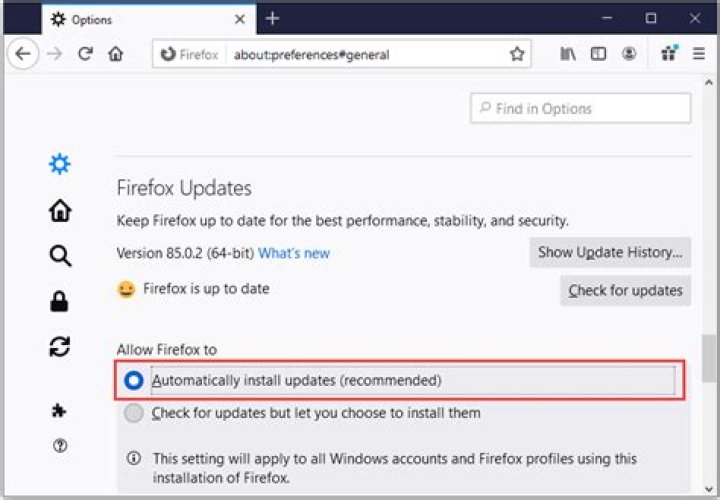
By default, Firefox automatically updates itself, but you can disable this. It might a good idea to check your update settings and make sure automatic updates are enabled.
To do so, open Firefox and click the hamburger icon (the three horizontal lines) in the top-right corner.
On Windows, click “Options”; On a Mac, click “Preferences.”
When the Options (Windows) or Preferences (Mac) tab opens, scroll down to the “Firefox Updates” section. Make sure the radio button next to the “Automatically Install Updates” option is selected.
In this menu, you can also click “Check for Updates” to manually check.
From now on, Firefox will automatically update any time Mozilla pushes a new release. You can now rest easy knowing you’ll receive the latest bug fixes as soon as possible.
By default, Firefox updates automatically. You can always update manually, in which case an update is downloaded but not installed until you restart Firefox.
- Click the menu button , click Help and select About Firefox . On the menu bar click the Firefox menu and select About Firefox .
- The About Mozilla FirefoxAbout Firefox window opens. Firefox will check for updates and download them automatically.
- When the download is complete, click Restart to update Firefox .
Stay safe: Download only from the official Mozilla links above to avoid malware and other online threats.
Update settings can be changed in Firefox Options Preferences . Click the menu button and select Options . Preferences . In the General panel, scroll down to the Firefox Updates section.
These fine people helped write this article:
Volunteer
Grow and share your expertise with others. Answer questions and improve our knowledge base.
Update to Firefox 83, the latest version of the Firefox browser
- Tweet
- Share
There are many reasons to update Firefox to the latest version. Most often, you might do this when the browser isn’t working correctly. Another reason is that hundreds of bugs are fixed with each release, which prevents problems so you never have to experience them.
It’s easy to update Firefox to the newest version. Here’s how:
How Do I Update Firefox?
To force the newest update, download and install Firefox directly from Mozilla:
Depending on how you configured Firefox, updating may be automatic, meaning you don’t need to manually download and install each update.
Check your update settings in Firefox from the menu bar at the top right. Depending on your version, go to Options > Firefox Updates or Options > Advanced > Update.
What Is the Latest Version of Firefox?
The latest version of Firefox is 83.0, which was released on November 17, 2020.
The Firefox release notes detail what has changed since the previous version. Here are a few of those changes:
- Improved page load performance by up to 15%, page responsiveness by up to 12%, and reduced memory usage by up to 8%.
- Firefox introduces HTTPS-Only Mode.
- Firefox users may now use pinch to zoom on touch-capable devices to zoom in and out of webpages.
- Picture-in-Picture now supports keyboard shortcuts.
Other Versions of Firefox
Firefox is available in many languages for Windows, Mac, and Linux, in both 32-bit and 64-bit. You can see all of these downloads on one page on Mozilla’s site.
Firefox is also available for Android devices from the Google Play store and for Apple devices from the iOS App Store.
A number of download sites offer the latest version of Firefox, but some of these sites bundle additional, probably unwanted, software with their download of the browser. Save yourself the trouble and use Mozilla’s website to download Firefox.
Seriously, go update your browser before you even read this.
Staff Writer, PCWorld |
Today’s Best Tech Deals
Picked by PCWorld’s Editors
Top Deals On Great Products
Picked by Techconnect’s Editors
We’re just 10 days into 2020, and already we have our first critical security flaw. It comes from Mozilla’s popular Firefox browser, and it’s so dangerous, the Homeland Security Cybersecurity and Infrastructure Security Agency is warning users about it.
The good news is that it’s already been patched. The bad news is that it’s already being exploited in the wild. And it’s about as bad as it can get. In technical terms, as Mozilla explains, “Incorrect alias information in IonMonkey JIT compiler for setting array elements could lead to a type confusion. That means that an attacker could exploit the Javascript code to surreptitiously hack a user’s PC and install malicious code outside of Firefox. Mozila says it is “aware of targeted attacks in the wild abusing this flaw,” but doesn’t give any information about how widespread the attacks are.
The Department of Homeland Security echoed that warning and urged users to “apply the necessary updates.” The government regularly tracks malware and vulnerabilities, but rarely do consumer apps rise to the level of a cyber alert.
The bug was first detected by Chinese security company Qihoo 360 just two days after the initial update was released, according to TechCrunch. The vulnerability is patched in Firefox 72.0.1 and Firefox Extended Support Release (ESR) 68.4.1. Firefox should check for updates immediately upon launch, but if you’ve disabled that setting, you can update your browser in the General tab inside settings.
Michael Simon covers all things mobile for PCWorld and Macworld. You can usually find him with his nose buried in a screen. The best way to yell at him is on Twitter.
I want to install the latest Firefox on my Ubuntu (64bit) box.
What is the best way to do this? Is there a specific update site or should I download the binaries manually? If doing manually, in which directory should I put the files? In my home directory, or is there a better place?
11 Answers 11
The latest version of Firefox is available for as a security updates in all supported releases of Ubuntu, just doing a normal update will pull it in. You need to enable at least one of the security or updates repositories (e. g. via Software & Updates → Updates); security should be enabled by default but it’s better to check, especially if the package manager doesn’t update Firefox yet.
Usually it’s available within a few hours of Mozilla’s announcement, sometimes faster, depending on the archive builders, and the speed of your local mirror, etc.
A generic way to install Firefox
You can either go to Firefox page and download the latest.
Then you could create a directory where you’re going to test this release of Firefox, unpack the downloaded package (I assume it is in your $HOME/Downloads folder) and launch it:
To launch it, it’s probably more interesting to create a “Launcher” (Gnome specific), an icon on your desktop to launch the beta. I guess there are similar steps for KDE. For this:
If you want the Beta you can use this PPA:
If you want the Bleeding Bloody Edge Next 2.0 Experience (Firefox 11.x now) then use this PPA:
Sources – Firefox Daily Builds (WARNING – Very unstable and you get several updates a day)
There are several methods of installing a non-default version of Firefox, that are covered by my tutorial Installing Other Versions, which has detailed explanations and method comparisons. So I will post here only the relevant information regarding Firefox 4. Please do not use multiple methods. Pick one and stick with it or revert the changes before trying a different one. I recommend the manual installation method, since depending on the PPA you choose, you will also update Firefox 3.6 and other Mozilla products.
Since it is still a Beta release and there are some radical changes in this version, is recommended that you install it side-by-side with the default version and use a different user profile, in order to avoid data loss.
Method #1 – Manual Download & Installation
First you need to download it form Mozilla [pick one only]:
The easiest way to install Firefox 4 downloaded from Mozilla is to use my extension FoxTester. It allows you to install any number of different Firefox versions, without interfering with your default installation and user profile. Everything is done through Firefox context menu, without typing commands or even closing Firefox. Although this extension is not intended for upgrading Firefox, it also allows to make any version installation permanent.
If you prefer to do it manually, then follow the instructions of method #1 from the Installing Other Versions tutorial. Basically, you will extract the downloaded file to your /home directory or the /opt and execute the firefox file inside it. There are also additional steps on that tutorial if you want to make it fully compatible with plugins.
Method #2 – Ubuntuzilla repository
This method will only be available to 32bit users, after the release of the final version of Firefox 4.
Method #3 – Installing from PPA repositories
Firefox 4 is currently available through ubuntu-mozilla-daily PPA repository (semi-official) and SilverWave PPA repository (non-official). You need to add one of those ppa repositories to your sources list, then update and install Firefox 4.
To install from ubuntu-mozilla-daily on Karmic, Lucid or Maverick, run the following commands:
Notes:
- The ubuntu-mozilla-daily ppa also upgrade your default Firefox installation with the latest testing version of Firefox 3.x and other Mozilla applications. So although the SilverWave PP is not official, it might be less troublesome to use it instead.
- When you install Firefox 4 using one of those repositories, a clone of your Firefox user profile is created under
/.mozilla/firefox-4.0. So everything you do on Firefox 4 won’t be saved on your default profile. This could cause confusion and apparent loss of data (bookmarks, passwords. ) if you switch back and forth between Firefox 3.6 and Firefox 4 or when the last one becomes default and start using the default profile folder (i.e
Add-on Compatibility
During the beta phase and to some extent after the final release of Firefox 4, most extensions and themes won’t be compatible with it and thus not activated. Usually when you are testing a minor update version, you can disable compatibility check, to force extensions to be installed and activated. But is not so simple in this case, due to radical changes in the UI and the extension API of Firefox 4. So even with the compatibility check disable, several extensions won’t work at all or could break other extensions and even Firefox.
If you are using a different profile or make regular backups, then you could use the Addon Compatibility Reporter extension, to disable the compatibility.
If something goes wrong and you can’t even access the add-ons manager to disable the extensions, then start Firefox in safe mode and disable all extensions. After starting Firefox in safe mode, you can enable only the compatible ones.
It is strongly advised to start the “Error Console” (CTRL+SHIFT+J) while using Firefox with extensions that are incompatible. Disable any extension that cause an error. You might have to enable only the error report to avoid lots of css messages from web sites.
Optimization
Although Firefox 4 is a lot faster than Firefox 3.6, is always a good idea to keep it fast by optimizing databases and tweaking some preferences.
Database Optimization: improves startup time and performance considerably, specially on features like the awesome bar suggestions or bookmark management.
Preferences Tweaks: improves network speed, page rendering, memory usage and fixes some common issues.
BarTab: this nice extension allows to prevent tabs from loading the page content until they are needed. So if you usually start Firefox with several tabs, this will save memory space and improve startup time and responsiveness.
Better Cache: this extension allows to better control how Firefox handle the content cache, allowing to avoid constantly reloading pages and elements, thus reducing page display time considerably. Make sure you read the manual, because you might prevent sites that need to constantly reloaded from displaying new content (works with compatibility disabled).
You’ve heard that the Firefox browser is fast, private and secure, thanks to its built-in Enhanced Tracking Protection. You’ve also heard it’s made by people who want the web to be awesome for everyone. And now you’re ready to switch from Microsoft Edge to Firefox, but you’re worried that it’s too technically difficult or that you’ll lose your settings and information in the process.
Fear not! Switching your browser from Microsoft Edge to Firefox is fast and easy. Here’s how to import your bookmarks, history and passwords from Edge to Firefox, and make your new browser a home base.
 How do I transfer my passwords, favorites and history from Microsoft Edge to Firefox?
Firefox guides you through an easy process to help you import your important personal data like cookies, browsing history, passwords and favorites (called Bookmarks in Firefox) from Microsoft Edge, saving you from having to configure many things yourself.
From Firefox:
- Windows users: Press ALT + F to bring up the menu bar. Then select Import from Another Browser.
- Mac users: click on the File menu, then select Import from Another Browser:
When you type ALT + F in Firefox for Windows, this menu will appear.
The import wizard will walk you through importing:
- Cookies: Small bits of information stored on your computer by some websites that are used to keep you logged in, store your options, or do other things.
- Browsing History: Information on the sites you have visited.
- Saved Passwords: Logins for websites.
- Favorites: Web pages you have saved in your Internet Explorer favorites.
Click Continue, and ta-da! Your imported favorites from Microsoft Edge will appear as a folder in your Firefox Bookmarks menu.
How do I set Firefox as my default browser?
If you have more than one web browser installed, any links that you click on will automatically open in your default browser. During a software update, your settings can also sometimes change, and you may end up with a different default browser than Firefox. That’s easy to fix.
Make the most of your Firefox browser
Now that you’re all moved in, you can customize your Firefox browser to your personal tastes. Here are a few suggestions:
- Add the Facebook Container extension for extra protection from Facebook tracking.
- Check Firefox Monitor to see if you’ve been involved in a data breach
- Install one of the 400,000+ graphic themes to style Firefox in a unique and colorful way.
- Sign up for a Firefox Account to take your passwords, open tabs and history with you on all your devices.
- Browse your favorite websites and check out your personal protection report to see how many trackers were blocked through Enhanced Tracking Protection.
The easy way to download and convert Web videos from hundreds of YouTube-like sites.
Extension Metadata
Used by
Video DownloadHelper is the most complete tool for extracting videos and image files from websites and saving them to your hard drive.
Just surf the web as you normally do. When DownloadHelper detects embedded videos it can access for download, the toolbar icon highlights and a simple menu allows you to download files by simply clicking an item.
For instance, if you go to a YouTube page, you’ll be able to download the video directly on your file system. It also works with most other popular video sites like DailyMotion, Facebook, Periscope, Vimeo, Twitch, Liveleak, Vine, UStream, Fox, Bloomberg, RAI, France 2-3, Break, Metacafe, and thousands of others.
Video DownloadHelper supports several types of streamings, making the add-on unique amongst Video downloaders: HTTP, HLS, DASH, … Whenever a site uses a non-supported streaming technology, Video DownloadHelper is able to capture the media directly from the screen and generate a video file.
Besides downloading, Video DownloadHelper is also capable of making file conversions (i.e. change audio and video formats) and aggregation (combining separate audio and video into a single file). This is an upgrade feature that helps pay for the free stuff (we need to eat too). You are not compelled to use conversion for downloading videos from websites, and you can avoid picking variants marked as ADP to avoid the need for aggregation.
Video overview on how to use Video DownloadHelper:
Support can be obtained from the dedicated support forum.
Please stay tuned by following us on Twitter (@downloadhelper), or Facebook.
Report this add-on for abuse
If you think this add-on violates Mozilla’s add-on policies or has security or privacy issues, please report these issues to Mozilla using this form.
Please don’t use this form to report bugs or request add-on features; this report will be sent to Mozilla and not to the add-on developer.
This add-on needs to:
- Exchange messages with programs other than Firefox
- Input data to the clipboard
- Download files and read and modify the browser’s download history
- Display notifications to you
- Access browser tabs
- Access browser activity during navigation
- Access your data for all websites
Learn more about permissions
Last updated: November 19, 2020
Firefox is a free web browser application developed by the Mozilla Foundation. It runs on desktops and laptops with the Windows, Mac OS X and Linux operating systems. A mobile version of Firefox is available for both Android and iOS devices. Information about how to update Firefox automatically and manually on your desktop or laptop computer is below. Mozilla releases a new version of Firefox every six weeks. You can check the RapidRelease calendar since the future release date are available.
Automatic Updates
By default, Firefox will automatically check for updates. As a result, it will notify you if an update is available. If you see an update prompt, click the Update Firefox button. The newest version will download and install on your computer. Otherwise, wait for the automatic Firefox update to download and install. Click the Restart to update Firefox button to begin using the new version.
Manual Updates
You may also manually check for Firefox updates at any time. In the Menu bar a t the top of the Firefox window, click the Help menu and select About Firefox .
If you chose not to display Firefox’s Menu Bar, click the Menu icon instead. Next, click the question mark icon to open the Help Menu, and select About Firefox.
The About Mozilla Firefox window will open, and Firefox will begin checking for updates. If an update is available, it will begin downloading and applying automatically.
If Firefox is already up to date, then just close the About Mozilla Firefox window. The automatic update will download and install since an update is available. Once the update has been both downloaded and applied, click the Restart to update Firefox button to complete the update process.
When your Firefox installation is up to date, Firefox is up to date will display with the version number.
A new Firefox tab may display once Firefox restarts that verifies Firefox is up to date.
If needed, you can manually download the latest version of Mozilla Firefox too. Just visit:
References for November 17, 2020, release of Firefox Browser 83.0
- See What’s New: Firefox 83.0 Release Notes
- Firefox Latest Security Advisories
- US-CERT:Mozilla Releases Security Update for Firefox
- Download Firefox 83.0
Thank you for visiting Tech Help Knowledgebase to learn how to update Firefox.
Tech Help Knowledgebase creates how-to articles and video tutorials for common issues, and provides technical support for the categories covered by our site.
Get Support.
Netizens up in arms over unexpected UI change, missing add-ons support
An update to the Android flavor of Firefox left fuming punters thinking a bad experimental build had been pushed to their smartphones. In fact, this was a deliberate software release.
A Reg reader yesterday alerted us to an August 20 version bump that was causing so many problems, our tipster thought it was a beta that had gone seriously awry. “To sum it up, on 20th of August, Firefox 79 was unexpectedly forced on a large batch of Firefox 68 Android users without any warning, way to opt out or roll back,” our reader reported. “A lot got broken in the process: the user interface, tabs, navigation, add-ons.”
Meanwhile, the Google Play store page for the completely free and open-source Firefox has a rash of one-star reviews echoing similar complaints: after the upgrade, little seemed to work as expected.
This is the worst ‘upgrade’ I’ve ever experienced
“This is the worst ‘upgrade’ I’ve ever experienced,” said netizen Martin Lindenmayer. “My main gripe is that there is no back button (to return to your previous page) anymore.”
“I have used Firefox since before it was called Firefox,” added Ace Medlock. “Since the update on Android yesterday, it has become unusable – it crashes every few minutes – when trying to search Google or DuckDuckGo, or (ironically) when I click the Crashes link in the help pages.”
“Firefox has been my browser of choice for several years, across different platforms and devices,” chimed in Filippo Conter. “The (forced) August 20th update made the Android version utterly unusable for me. It’s missing support for extensions critical to my needs, it has bare bones settings and doesn’t let me fine tune.”
Unfortunately for our source, and the other Firefox for Android users, this isn’t a mistaken release or a broken beta build: it’s the new version of Firefox for Android, and it’s set to hit the UK today, August 25, and the US on the 27th.
What’s happened is this: the last stable version of Firefox for Android was version 68, released in 2019. For over a year, Mozilla has been working on an overhaul of its browser in a project code-named Fenix. Moz has slowly rolled out the result of its work to netizens in preview and beta form – and since the end of July, as a proper release: version 79.
This new stable version is what appeared on people’s devices. As well as changes to the user interface and many new features that have thrown some users, it is also missing support for all extensions. In fact, by last count, only nine add-ons are supported so far, though this is expected to increase over time. The browser has also adopted Mozilla’s GeckoView engine.
Here’s how Mozilla put it to The Register in a statement last night:
We started to roll out the new Firefox for Android at the end of July 2020, making it available to users in Germany, France and the UK on August 25. Rolling out an entirely new product to a large group of users is a complex process that can easily result in issues when executed too quickly. That’s why we decided to roll the new Firefox for Android out gradually in order to provide users with a positive transition experience.
At Firefox, it’s our goal to enable users to be in control of their online experience while enjoying all the benefits of a modern, fast and secure browsing application. That’s why we revamped the Firefox for Android to be the most private mobile Firefox so far, powered by our own mobile browsing engine GeckoView for the first time. GeckoView is the only independent alternative to Blink, Chrome’s mobile browsing engine.
It allows us to be completely free of bias when it comes to implementation of standards and features, lets us create a user interface that, combined with an overall faster browsing pace, enables unprecedented performance and also protects our users from security issues in Blink that would affect all other major mobile browsers.
Those who want to know more about the upgrade process are advised to check out the browser’s FAQ page. If you want to roll back the update, “no, once you’ve upgraded to the new browser, you won’t be able to return to the old browser,” Moz says.
The gripes about the update land at a particularly inopportune time for Mozilla: a round of layoffs earlier this month hit roughly one in four Mozilla employees, leading to the Rust Project – raised and nurtured by Moz – considering forming its own foundation. ®




