Gmail is a very flexible email app that has improved steadily over the years to rival any of the other free email providers. One key advantage it has over Outlook or Yahoo for example is the ability to theme the inbox and interface. While most freemail providers allow you to edit and theme the emails, only Gmail currently allows you to customize the interface itself.
There are also a few other neat tricks you can do in Gmail that I’ll add after the background tweak.
How to change Gmail background
Theming is a big part of computing and device use. We all have different tastes and color preferences and tweaking our environment to suit those tastes makes us feel more relaxed. The more relaxed we feel, the longer we are willing to spend in these environments, which works in the provider’s favor.
While you can change colors in Outlook, you cannot do much else. Gmail on the other hand lets you do more. To change Gmail background, do this:
- Open Gmail in your browser and log into your Inbox.
- Select the settings icon in the top right and select Themes.
- Select a predefined theme from the popup box.
- Select Save and the box will close and the theme appear in your Inbox.
If you see nothing you like or would prefer to use an image of your own, you can.
- Select the settings icon in the top right of Gmail and select Themes.
- Select My Photos in the bottom right of the popup window.
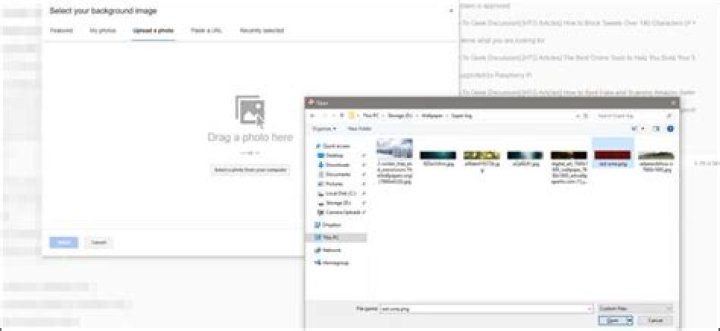
- Select an image in the next window. It will show images stored in Google Photos by default but you can choose to upload a new image or provide an image URL.
- Select the image and hit Save.
Now your Gmail theme should change to the image you selected. You can change theme as often as you like to keep things fresh.
Change Gmail email fonts and color
If you want to go one step further, you can also theme your emails. This is something other freemail services offer to one degree or another and is useful for personalizing your email to your tastes.
You can edit the font type, size, depth and color.
- Open Gmail in your browser and log into your Inbox.
- Select the settings icon in the top right and select Settings. This will land you in the General tab which is where you can change things up.
- Select Default text style and modify it as you see fit. Here you can change the font type, size, color and formatting.
- Scroll down to Signature and add or modify that if you like.
You can use any font type that Google has, which is limited to only a few. I would suggest keeping it simple, sans serif and readable. While it may be tempting to change colors and fonts into something a little mad, I wouldn’t. First, you may be able to read the text okay, but others may not. Secondly, if someone is reading your email on a mobile device, it needs to be clean and clear because of the small screen.
Setting your font to Comic Sans, the size to Huge and color to yellow may look cool to you but it isn’t likely to go down too well with your audience. That is amplified if the person reading the email is older, colorblind or using a small screen.
Use Gmail Labels to get more out of your email
The final tweak on offer today is Labels. Labels are alternatives to email folders and work very well in this way. They work much the same way as a folder but doesn’t hide email away. It’s a cross between folder and filter and works very well indeed.
- Select the settings icon in the top right of Gmail and select Settings.
- Select the Labels tab.
- Change or add Labels here are you need.
- Select Create new label and give it a name.
- Set the parameters for the new label in the main Label screen.
The parameters are useful for managing multiple labels. I tend to use Show for most of them with Show if unread for others. This just means that the label will only show if an unread email is labeled. Otherwise it stays invisible and out of the way.
Gmail is an excellent free email service whose spam filter seems to outperform those of Outlook and Yahoo by a significant margin. That aside, the ability to customize the look and feel of your Inbox as you like means it is much more comfortable to work in. Well I think so anyway!
Ashish Mundhra
13 Jul 2012
We have seen how we can add photos to Google homepage to give it a personal touch. The trick’s good but I can’t remember the last time I opened the Google homepage to search anything. Chrome’s omnibar (or the address bar) with integrated Google Instant search is all what I need.
Anyway, the point is that these background photos give a personalized feeling to the services, like they are designed exclusively for us. Gmail themes also did a decent job by providing many great themes one could apply to get rid of the monotonous black and white background, but with the latest integration of the ability to apply custom background as themes it has taken it up a notch and you can now put any picture you want as your Gmail background.
Sounds neat? Let us see how to do it.
Adding Personal Background Picture to Gmail
Step 1: Open Gmail and click on the Gear button to open a drop-down menu and select Themes.
Step 2: In the theme settings, scroll down to the custom themes section to find the options Light and Dark. Select the one you like to open the image selection frame.
Step 3: You can apply public photos from various Picasa users, or you may use the ones from your own Picasa/Google+ account. If you would like to use a photograph from the web, you can paste the direct URL to use it. If the photo you want to apply is in your hard disk you can upload it there itself.
Step 4: That’s all, the photo will be added instantly. The light and dark option has nothing to do with the pictures; they just recolor your buttons, like the gear icon button, to white or grey color to go with the photo. The next time you want to change the photo, click on the link Change your background image in the theme window.
Conclusion
So what do you think about the about the new integration? Well if you were to ask me, I think it’s a pretty cool feature, but you know what can spice it up even little better? The ability to cycle a set of photos at periodic intervals. Gmail team, you listening?
Last updated on 8 Feb, 2018
The above article may contain affiliate links which help support Guiding Tech. However, it does not affect our editorial integrity. The content remains unbiased and authentic.
Read Next
Top 17 Fixes for Gmail Not Showing New Emails on Android
Are your new emails not showing up in the # Gmail app on # Android? Find out 17 ways to fix # Gmail Android app not receiving emails.
Get Better Email Interface for Outlook and Yahoo on Android with myMail
Get Better # Email Interface for Outlook and Yahoo on # Android with myMail App.
Zoom vs WebEx: Should You Switch to the New Video Conferencing App
Learn the subtle and not so subtle differences between # Zoom and WebEx. Understand which # video conferencing app is more suitable for your video calling needs.
Top 12 Windows 10 Mail Features That You Shouldn’t Miss
Thinking of switching over to the # Windows 10 Mail app? These set of amazing features will help you in making the final leap. Read on!
Gboard vs Samsung Keyboard: Should You Switch to Gboard?
Should you ditch the default # Samsung # keyboard for # Gboard? Read on to find out why!
21 Best Zoom Privacy Tips, Settings, and Options For Safe Video Calling Experience
Concerned about your # privacy while using # Zoom? Worried about getting Zoombombed? Check out these Zoom privacy tips, # settings, and options for a safer experience.
Top 13 Gmail Labels Tips and Tricks to Organize and Manage Them
Want to organize # Gmail with the help of labels? Check out 13 tips to manage and organize labels in Gmail.
Top 8 Ways to Fix Gmail Missing Emails Error
# Gmail emails missing in your Inbox? Learn more about why this is happening, potential reasons, and then solutions to fix this weird, scary issue.
Working with the same Gmail interface everyday sometimes can cause a boredom. Gmail gives you a freedom to makeover your Gmail interface by changing its background. Read on to find out how.
Gmail have prepared a bunch of beautiful images you can use for free. If you don’t find the image that suit your taste, you can also use your own image. Who knows you are a photographer who have a bunch of beautiful photo collections. Or you want to add your narcissistic selfie, may be?.
To change the Gmail background, you can click the gear icon at the top-right corner and select the Themes option.
A new pop-up window will appear once you clicked the gear icon. Here, you can see a bunch of images you can choose from. Just click on the image you want and click the Save button to apply it as your Gmail background.
In addition to changing background, you can also change the text background from default (light) to dark. You can also apply the vignette effect on the image you have selected.
Use your own image
In addition to the free images provided by Gmail, you can also use your own image. You can use the images you have on your Google Photos or upload new one. To use your own image, click the My Photos button at the bottom-right of the pop-up window.
You will be shown the image collections you have on your Google Photos. If you want to upload a new image, just click the Upload a photo tab and select your best image.
Changing the Gmail background looks trivial, but it can avoid a boredom. As a result, you can keep be able to get your working spirit. Probably, it would be a nice idea to regularly change your background Gmail. Once a week, may be.




