Chris Hoffman is Editor-in-Chief of How-To Geek. He’s written about technology for over a decade and was a PCWorld columnist for two years. Chris has written for The New York Times, been interviewed as a technology expert on TV stations like Miami’s NBC 6, and had his work covered by news outlets like the BBC. Since 2011, Chris has written over 2,000 articles that have been read nearly one billion times—and that’s just here at How-To Geek. Read more.
Gmail’s a Google product, so of course it has powerful search features. But some of Gmail’s search features are hidden and don’t appear in the Search Options pane. Learn Gmail’s search tricks to master your massive inbox.
You can also create filters from any search you can perform. Filters automatically perform actions on incoming emails, such as deleting them, applying a label, or forwarding them to another email address.
Basic Search Features
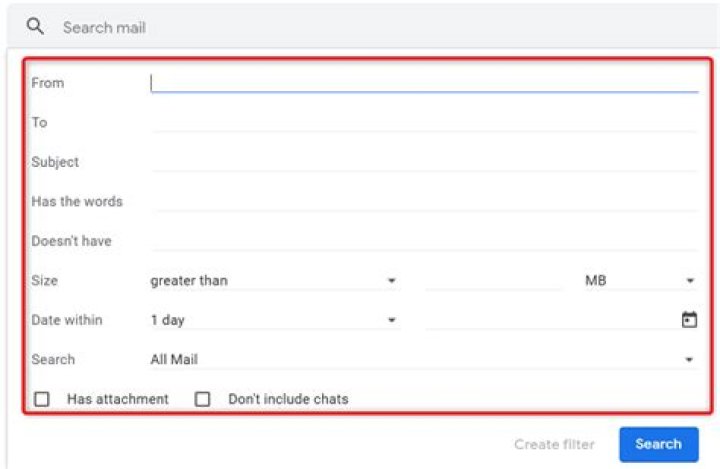
Instead of just typing a search query in the search box, click the down arrow to reveal more search options.
The search options dialog exposes many of Gmail’s basic search operators. But there are some search options that don’t appear in this dialog.
You can skip this dialog for basic searches. Perform a search with the search options dialog and you’ll see the search operator you’ll need in the future. For example, if you type howtogeek.com into the search box, you’ll see the following search appear in the search box:
Useful search operators you can access from the basic dialog include:
- to: – Search for messages sent to a specific address.
- from: – Search for messages sent from a specific address
- subject: – Search the subject field.
- label: – Search within a specific label.
- has:attachment – Search only for messages that have attachments
- is:chat – Search only chats.
- in:anywhere – Also search for messages in the spam and trash. By default, Gmail’s search ignores messages in the spam and trash.
Constructing Searches
To put together more complicated searches, you’ll need to know the basics.
- ( ) – Brackets allow you to group search terms. For example, searching for subject:(how geek) would only return messages with the words “how” and “geek” in their subject field. If you search for subject:how geek, you’d get messages with “how” in their subject and “geek” anywhere in the message.
- OR – OR, which must be in capital letters, allows you to search for one term or another. For example, subject:(how OR geek) would return messages with the word “how” or the word “geek” in their titles. You can also combine other terms with the OR. For example, from:howtogeek.com OR has:attachment would search for messages that are either from howtogeek.com or have attachments.
- “ “ – Quotes allow you to search for an exact phrase, just like in Google. Searching for “exact phrase” only returns messages that contain the exact phrase. You can combine this with other operators. For example, subject:”exact phrase” only returns messages that have “exact phrase” in their subject field.
- – – The hyphen, or minus sign, allows to search for messages that don’t contain a specific term. For example, search for -from:howtogeek.com and you’ll only see messages that aren’t from howtogeek.com.
Hidden Search Tricks
You can access many search operators from the search options dialog, but some are hidden. Here’s a list of the hidden ones:
- list: – The list: operator allows you to search for messages on a mailing list. For example, list:[email protected] would return all messages on the [email protected] mailing list.
- filename: – The filename: operator lets you search for a specific file attachment. For example, file:example.pdf would return emails with a file named example.pdf attached.
- is:important, label:important – If you use Gmail’s priority inbox, you can use the is:important or label:important operators to search only important or unimportant emails.
- has:yellow-star, has:red-star, has:green-check, etc. – If you use different types of stars (see the Stars section on Gmail’s general settings pane), you can search for messages with a specific type of star.
- cc:, bcc: – The cc: and bcc: features let you search for messages where a specific address was carbon copied or blind carbon copied. For example, cc:[email protected] returns messages where [email protected] was carbon copied. You can’t use the bcc: operator to search for messages where you were blind carbon copied, only messages where you bcc’d other people.
- deliveredto: – The deliveredto: operator looks for messages delivered to a specific address. For example, if you have multiple accounts in the same Gmail inbox, you can use this operator to find the messages sent to a specific address. Use deliveredto:[email protected] to find messages delivered to [email protected]
Saving a Filter
Create a filter to automatically perform actions when a message matches a specific search.
To create a filter, click the down arrow again, then click the “Create filter with this search” option.
Select an action and click the “Create filter” button.
You can manage your filters from the Filters pane on Gmail’s settings page.
Filters can also be used to block email addresses. We’ve covered using filters to block your crazy ex in the past.
Introduction: Advanced GMail Filters
A simple hack to show you how to create more advanced GMail filters then are currently available though the GMail Interface.
The one I will demo is a very simple (and more or less useless) filter that will automatically mark any mail that was filtered into spam as “read” since I don’t care to see the unread count on spam, But this technique cane be used for much more.
Step 1: Click “Settings” in the top right corner of GMail, then select the “Filters” and click on “Create a new filter” at the bottom of the list.
Step 2: You will need to fill out the “Has the words” field with “label:spam” without the quotes.
This is the important step. You can use any of the GMail advanced search operators in the “Has the words” or “Doesn’t have” Fields. More info about GMail search operators can be found at the link below.
This will allow you to create far more advanced (and useful) filters based on date ranges, attachment names, chats, labels, etc.
Step 3: Then Click “Next Step”, and ignore the popup warning
Step 4: Check the “Mark as read” checkbox, and the “Also apply filter to XX conversations below” checkbox.
Step 5: Click “Create Filter” and enjoy.
Be the First to Share
Did you make this project? Share it with us!
Recommendations
Stone, Concrete, Cement Challenge
Summer Fun: Student Design Challenge
Pets Challenge
6 Comments
I honestly found this very helpful.
Hello, and welcome to the Instructables community! It’s great that you’ve decided to tell the world about something you’ve made by publishing an Instructable. We just wanted to let you know that your project still needs a little more work if you want it to be well received on Instructables. Projects that don’t include certain basic elements tend not to get the attention that they deserve, and so we’d love for you to check out the list below of what makes a successful Instructable. Successful projects on Instructables include: – clearly written details of a finished project with instruction – as many steps as are necessary to explain your project – clear images that you took of your project for most, if not all of your steps – an intro image – proper spelling and grammar – appropriate cautions or safety considerations I’ll give you another opportunity to make any final changes to your project before we publish it. Once you’re all set to go, please republish your project and send me a quick comment letting me know that you’ve made some changes. I’ll give it a quick final check to make sure you’re on the right path, and then remove this note. Thanks for your submission and we hope to see your project published soon!
Reply 12 years ago on Introduction
Im not really sure what your asking for here, this instructable could hardly be simpler. It was all put on one step intentionally as this entire process will only take most people about 30 seconds. I added some additional pictures just incase that was the problem, but if it wasn’t please site something specific. Thanks.
Reply 10 years ago on Introduction
OK, for example, I’d like a filter that says, ‘If the mail comes from Fred, Bill, or Bob, label it ‘Shed Party’. I’d like to do that in one filter. And if Jane later decides to get involved in the shed party too, I’d like to add her to that filter, rather than make a new one.
Reply 10 years ago on Introduction
Yes you can use the “or” operator which is two pipe characters (i.e. “||”) to seperate the names.
So in the from box simply fill in “Fred || Bill || Bob” without the quotes. This tells Google you want email from Fred OR Bill OR Bob
This project looks awesome but there isn’t enough documentation of you actually making it to be a full Instructable. There are two things which you could do. 1) If you happen to have images of you making your project you can create some more steps, add those additional photos into your Instructable and then republish your Instructable. 2) If you don’t have any more pictures of you working on your project, that’s ok too. That just means that your project is better suited to be submitted as a slideshow. Your images are already in your library, and you can use the same text that you have already written for your Instructable so it should only take a few minutes to create your slideshow and show the world what you made! Thanks for your submission and let me know if you have any questions along the way.
Gmail filters help you automatically sort email messages based on rules. So if your boss has sent an email message, the filter can mark it as important. If the email has the word “Unsubscribe” somewhere in the message body, it can be marked as a promotional message and so on.
How to Create Advanced Gmail Filters
While the built-in Gmail filters are powerful, they do have certain limitations.
For instance, you cannot have a Gmail filter that does case-sensitive search. It will treat WHO and who as same. Gmail filters won’t do pattern matching (regular expressions) so you cannot have a filter for messages that contain phone numbers.
We often get spam messages that have a few dozen addresses in the TO and CC fields but there’s no filter to automatically redirect such messages to the SPAM folder of Gmail. That’s where Google Scripts can help. You can setup advanced filters that aren’t available in the native version of Gmail.
What you see above is a set of 10 Gmail filters that were created with Apps Script. You can have a filter to process messages that contain tons of links. Or messages that have too many attachments. Or messages that have just a word or two in the message body.
The best part is that you don’t have to know scripting to use either of these filters. Just follow these 3 easy steps:
- Click here to copy the Gmail Filters sheet into your Google Drive. You can write OFF to deactivate any of the available rules.
- Go to the Gmail Filters menu in the sheet, choose Initialize and grant the necessary permissions to the script.
- Now choose Turn-on Gmail Filter to activate your filters. You may close the Google sheet now.
Here’s what happens behind the scenes. The script will run in the background every 10 minutes and monitor any new unread messages in your Gmail inbox. It will then run the various rules against these messages. The native filters in Gmail take precedence and then your custom rules specified in the sheet are applied.
You can also look at the source code to understand how the various rules were created.
By Michael King
Today’s Best Tech Deals
Picked by PCWorld’s Editors
Top Deals On Great Products
Picked by Techconnect’s Editors
Email remains a popular tool for communication because it lets you quickly send your thoughts to anyone anywhere and at any time. If you don’t manage your inbox, however, email can easily become overwhelming. In this article I’ll walk you through Gmail’s filter features, which allow you to sort and automatically manage incoming mail. Here’s how to set them up.
Set the Filter Criteria
The first thing to do when creating a filter is to tell Gmail what kinds of messages you want it to look for. You can do this by setting search criteria for the filter.
- In the Gmail search box, click the expansion arrow for more-advanced search options. Start filtering your mail by determining your search criteria.
- Determine which types of mail you would like to manage with this filter, and fill in your criteria accordingly. For example, to find and manage mail pertaining to PCWorld, input pcworld in the ‘Has the words’ text box. You can create a filter based on the sender, recipient, subject, keywords, or date range, and on whether the mail contains an attachment. You can also use the asterisk wildcard character to match anything. For instance, you can use *@pcworld.com in your search terms to match any pcworld.com email address.
- Click the Create filter with this search link at the bottom of the search options.
Determine How to Handle the Messages
Once you have set the search criteria for the filter, you need to tell Gmail what to do with the messages. After applying your search criteria, Gmail will display any messages you’ve already received that match the search, along with filtering options. If Gmail found any existing mail that matches your search criteria, you know that your filter is set up correctly. If the filter is not finding the kinds of messages you want, click back to search options to readjust your filter criteria.
The filtering options window allows you to specify what to do with any future incoming messages that match your search criteria. For example, to flag new incoming messages from PCWorld as important and star them for reading later, check the Always mark it as important and Star it boxes. The actions you can apply to messages are: automatically archive (skip the inbox), mark as read, star, apply a label, forward, delete, never mark as spam, always mark as important, and never mark as important. You can also combine multiple actions, as in the example.
You can set up your filters to perform several different actions.
Optionally, you can retroactively apply your filter options to any existing matching messages by clicking the Also apply filter to x matching conversations box, where x is the number of messages that match the search criteria. After you have specified the actions, click Create filter to make the filter active. A confirmation will appear, and you will return to the inbox.
Now that the filter is active, Gmail will automatically handle any new messages that match your criteria, until you remove the filter.
Manage Filters
You can edit or delete any of your existing filters in Gmail’s settings.
Here you can edit or delete your existing filters.
- Click the gear icon in the top-right corner of the page, and then click Mail settings.
- In the settings page, click the Filters link to bring up a list of your current filters.
- On the filter you wish to manage, you can click edit to readjust the search criteria or actions, or delete to remove the filter and stop its actions from being applied to messages.
By Bryan Clark 12 July 2021
Not everything is deserving of a spot in your Gmail inbox
Most of us are guilty of complaining about unwanted emails or cluttered inboxes from time to time, yet few of us do anything about it. Gmail has powerful filtering options, options that are criminally underutilized. When honed in, and with a little bit of creativity, you too can tame your inbox. And it’s not as difficult as you may think.
The key is to apply filters as they make sense. You can start with a handful, like those mentioned below, but you should always be willing to adapt your filtering strategy as new methods make sense, or new emails flood your inbox that don’t trigger any of your existing filters. This is a game of incremental improvement, and each filter should make your life just a little easier.
Let’s get started. For all the tips below, you’ll start by clicking the gear icon near your account image in the upper right, clicking the “See all settings” button at the top, and choosing the “Filters and Blocked Addresses” tab. From there, just click “Create a new filter” toward the bottom and you’re ready to go.
Gmail already has great spam filters and you can mark messages as spam to help train the AI to spot new patterns. But there’s always that one company that manages to slip by undetected. You’ve tried unsubscribing from the list. You’ve tried marking it as spam, and somehow, without fail, it still manages to hit your inbox with each new mailing.
Here’s how to fix it.
1) In the “From” section, type in the email address you want to block. You can also add a wildcard by typing in an asterisk (*) before the @ symbol to filter all emails from that domain.
2) Click the Create filter button.
3) Choose Delete it and click the Create filter button.
Make sure you see important emails
On the opposite end of the spectrum, there are the emails that you want to make sure you see, but are commonly buried beneath countless emails you don’t. You can fix this with filters too.
1) Type the email address in the From section and click the Create filter button.
2) Choose “Star it” and “Always mark it as important” and then click the Create filter button.
These emails will now have a star and the “Important” label, making them much harder to miss. But if you still have doubts, check the next tip.
Create a new inbox with folders and labels
If you want to skip the inbox entirely, you can filter important emails to their own folder, automatically, giving you a de facto second (or third, fourth, etc.) inbox. This is handy for filtering work-related emails into their own folder, or perhaps you can use it for coupons, travel details and itineraries, or emails about school, family, or newsletters you subscribe to.
1) Add the email address in the From section and click the Create filter button. You can add multiple email addresses to the same filter by departing each with a comma and a space after the email address.
2) Choose “Skip the Inbox (Archive it)” and “Apply the label.”
3) Select a label, or create a new one and keep the name as specific as possible.
4) Click Create filter.
Now, all emails from these addresses will skip the inbox and appear only in the folder you selected. Clicking the folder in your Gmail sidebar will bring up an entirely new inbox with only these messages.
Categorize your spam
A little-known feature of Gmail is that it works even if you modify your email address. Try adding a period or a plus sign anywhere within your email address (before the @gmail.com suffix) and watch as these emails still manage to find your inbox.
Now, the cool thing here is that you can filter these email addresses separately from your main one. I use it to filter email newsletters, automatically, without the need to set up new filters.
1) Subscribe to a newsletter using your newly modified address. Mine looks something like this: [email protected] Adding the “+tech” suffix after my normal email address tells me that anything with “+tech” is an email newsletter I subscribed to. I can then filter for that modification.
2) In the “To” section, add your modified email address and click the Create filter button.
3) Click “Apply the label” and then choose your preferred label. I send anything with “+tech” to my “tech newsletters” label, meaning I can use this email when I subscribe to new newsletters and I don’t need to manually filter all of them into the appropriate label.
Kill calendar notification emails
My inbox is flooded every day with notifications that so and so has accepted my calendar invite for a meeting. You can filter these too, which is especially useful if you are using a calendar app and you get these notifications on your phone anyway.
1) In the “Subject” section, add “Accepted:” and make sure to use the colon after, and without the space. We don’t want to trigger the event when someone is talking about an accepted contract, or some other work-related thing we’d want to see.
2) Click the Create filter button.
3) Check Delete it and click the Create filter button.
These five should get you started with a cleaner inbox, but as we said previously, feel free to experiment and add new filters as they make sense. This is a powerful tool, limited only by your imagination when using it.
Hundreds of millions of people use Gmail but only a small subset of them dig deeper into the advanced features that are available in their inbox, such as filters. Setting up new rules for incoming can seem like an onerous task that doesn’t justify the effort put in, but here are seven filters that are easy to create and which can make a big difference to your email flow.
1. Prioritize emails from people you know
You might not use Google+ for your social networking needs but it can help you sort the wheat from the chaff inside your inbox. Enter is:circle or circle:”name of circle” in the Gmail search box to identify messages from people you’ve specifically added to your Google+ circles (or one circle in particular). Use the drop-down dialog to create a filter from the search and prioritize these messages by marking them as important. Alternatively, you could set up a particular circle in Google+ for the sole purpose of filtering messages and then apply a particular action to any emails coming from those contacts.
2. Filter out emails from other accounts
If you’re using Gmail to consolidate messages from other email accounts then you can easily direct these emails away from your main inbox. In the Gmail search box, enter to:[email protected] to pick up messages sent to your secondary address. Open up the drop-down dialog and create a filter from the search, then choose to mark these messages as read as they come in. You can also opt to shift the emails to Gmail’s Updates tab and mark them as unimportant as well, depending on the type of emails the account gets. The messages will sit under the Updates tab ready to be reviewed at your leisure.
3. Demote group emails
The group email can be the bane of your inbox, depending on how your office, family or soccer club operates. If you use the cc:me OR bcc:me query in the Gmail search field and then use the drop-down dialog to create a filter from it, you can deal with the messages that aren’t set directly to you as you see fit. You can move them to the Updates category, mark them as unimportant, mark them as read or consign them straight to the archive without touching the inbox at all. To limit the focus to a specific domain (such as work) use from:*@domain.com (cc:me OR bcc:me) as the search query instead.
4. Archive messages but keep them unread
A clean and empty inbox is often seen as the ultimate goal of our digital age, but it’s not actually that difficult to achieve: Just set up a filter that means all of your messages skip your inbox. A less drastic approach is to have some messages skip your inbox rather than all of them. Set up filters that assigns specific emails to specific labels (e.g. social media, newsletters, emails from work colleagues), set them to skip the inbox, but keep them unread. You can then catch up on these labels when you have time to get around to them, but by keeping them unread you won’t lose track of where they’ve gone.
5. Spot mailing lists and newsletters
Entering unsubscribe in the Gmail search box is a well-known way of identifying messages that are from mailing lists or newsletters, as long as your family and friends aren’t prone to using the word in their day-to-day conversations. A more effective method is to use the label:^unsub search, as this uses the hidden smart label that Google automatically assigns to emails you can unsubscribe from (and is less likely to trap messages from your contacts as well). Open up the drop-down dialog box underneath the search field and you can banish these emails from the inbox, star them for reference, or whatever else you like.
6. Star important social media messages
If you have notifications from Facebook, Twitter and other social sites pouring into your inbox then Gmail automatically filters them into the Social tab. Whether or not you’re using the default tabs layout for your inbox, the Social category is applied to these messages. Use the search term category:social friend’s name to run a search for posts, tweets and messages from anyone important in your life. If you open up the drop-down dialog beneath the search box, create a filter from the search and choose to apply a star, you won’t miss these messages in the flood of incoming social media notifications.
7. Label all of your incoming files and photos
You’re going to have to tweak this one a little bit so that it fits your exact needs, but there are many situations where it’s useful to affix a label to a message that has a particular type of attachment with it. For example, you could use the filter query has:attachment filename:(doc OR docx OR xls OR xlsx) to label all out-of-hours work messages with attached documents or spreadsheets (use the domain filter at the start if you need to); alternatively, you might want to try running has:attachment filename:(jpg OR jpeg OR gif OR png) to flag up all of the photos coming into your Gmail account and give them a relevant label.
Automate your inbox and enhance your organization by taking full advantage of what Gmail filters have to offer.
Contributing Editor, Computerworld |
Gmail for business
- The business user’s guide to Gmail
- 20 ways to maximize collaboration with.
- How Gmail filters can help organize.
- How to use Gmail labels to tame your.
- Is your Gmail inbox setup slowing you.
- How to fine-tune Gmail for maximum.
- How to save time with advanced Gmail.
- Gmail tips: Snoozing, shortcuts, and.
Show More
Gmail’s filled with hidden features and add-on possibilities, but one of the service’s most powerful organizational tools is sitting right in the heart of its regular settings.
As you may have guessed by now (especially if you read this story’s headline, you clever little cat), I’m talking about filters — Gmail’s long-standing system for automating your inbox with a series of custom-crafted rules. At a glance, filters can seem complicated. They can seem overwhelming. They can even seem unnecessary.
But don’t let yourself be fooled by the feature’s curiously crusty exterior. Gmail filters have the potential to completely reshape your inbox and the way your incoming messages are handled. They can help you keep your email in order with no ongoing thought or effort. And all it takes is a little one-time planning to get them working for you.
Follow the filter-centric Gmail tips in this guide, and your inbox will be running like a well-oiled (but not too greasy) machine in no time.
Part 1: Figuring out your Gmail filters
Let’s start by thinking through some Gmail filter possibilities to get an idea for the sorts of setups you might want to consider — then, we’ll go step by step through the process of creating them.
With Gmail filters, you could:
All right, so that last one isn’t really possible (not yet, anyway) — just wanted to make sure you were still paying attention. Everything else in that list, however, is absolutely doable and actually quite easy to set up with Gmail filters.
Got some ideas of your own? Good deal. Time to make ’em happen.
Part 2: Creating your Gmail filters
The simplest way to start a new Gmail filter is to click the search box at the top of the Gmail website and then type in whatever you want to use as the basis for filtering — a word or phase that might appear within an email’s subject or body, an address from which a message could originate, or any other variable you choose.
Once you’ve started typing, you’ll see a small downward-facing arrow appear at the far right of the search box. Click it, say “hocus-pocus,” if you’d like — and just like that, your first filter-related form will appear.
The form for creating a filter is filled with options for controlling email automation. (Click image to enlarge it.)
That form is where you can customize exactly what conditions will cause your filter to run. Fill in the fields as appropriate, using any combination of variables you want — even employing operators like “AND” and “OR” within fields, if you really want to get fancy — and then click “Create filter” at the bottom of the box.
You can use any combination of variables, even employing operators within a single field, to control when your filter will run. (Click image to enlarge it.)
One quick warning: By default, your filter will apply to any and all incoming messages — hence the “All Mail” setting that shows up next to the “Search” option in the filter creation pop-up. If you change that option to “Inbox,” you’re likely to see an error message informing you that the parameters you chose are not recommended and may not work properly. Leave that “Search” option set to “All Mail” — which is probably what you want, anyway — and you’ll steer clear of any errors and allow things to work the way they should.
Now it’s time for the fun part — the part where you decide exactly what happens when a message meeting your conditions arrives. You can select any combination of actions from the list and then configure them as needed. You can even tell Gmail to apply your filter retroactively to messages already in your account (as opposed to using it only for new messages that arrive from that point forward) by checking the “Also apply filter to matching conversations” option at the bottom of the box.
Gmail’s filters include a variety of actions that can execute when your conditions are met. (Click image to enlarge it.)
Once you’ve got that finished, click the blue “Create filter” button — and that’s it: Your new Gmail filter is officially in place and active. The next time any message comes in that meets the parameters you outlined, the actions you specified will automatically take place faster than you can say “sweet G Suite.”
Part 3: Managing your Gmail filters
Last but not least, make yourself a mental note in case you ever need to adjust your filters in the future: If you want to edit, delete, or even just revisit a filter you created, just click the gear-shaped icon in the upper-right corner of the Gmail website, click “Settings,” then click the “Filters and Blocked Addresses” tab at the top of the settings screen. You’ll see every filter you’ve ever created there and can tweak or remove any of ’em with a couple quick clicks.
Ah. automation. Sweet G Suite, it’s a spectacular power to wield.
Contributing Editor JR Raphael serves up tasty morsels about the human side of technology. Hungry for more? Join him on Twitter or sign up for his weekly newsletter to get fresh tips and insight in your inbox every Friday.
Mailtrack for Gmail has a feature that lets you filter emails in your sent mail folder to show only unread emails. It makes keeping on top of the email messages in your Gmail inbox a lot easier: An unread email isn’t lost amongst your read messages, helping you follow-up with people if necessary.
How to filter unread emails in Gmail
To use Mailtrack’s Unread Emails filter:
- In Gmail, go to your sent mail folder.
- Click on the Single Green Check Mark button (located at the top of your inbox, to the left of the Gmail refresh button).
And that’s it! That’s how to find an unread email in Gmail.
Mailtrack filters Gmail to display unread messages you’ve sent over the last month.
This way to view unread emails in Gmail is a lot simpler than if you were to create email filters in Gmail yourself or carry out a Gmail search. There’s no need to use the Gmail search box to search for unread messages. Nor think of which search parameter or search operator to use.
How to delete all unread emails in Gmail
So, you’d like to search for unread emails and delete them from Gmail. Maybe you’ve some old business messages cluttering up your Gmail mailbox. Or you know, for example, that an unread email remains unread because the email address you sent it to isn’t valid. Well, Mailtrack’s Unread Emails filter can help!
To delete unread emails from your Gmail account:
- Apply Mailtrack’s Gmail Unread Email filter to display messages that haven’t been opened.
- Check the Select All box to select unread mail.
- Click on the trash icon to delete all unread emails from the past month.
How to view unread emails in the Gmail app
Mailtrack’s Unread Emails filter can’t be used in the Gmail app. It’s only available on desktop. It’s still possible, though, to find unread emails on your phone using Mailtrack:
- You can use the Gmail app’s search bar to search for unread emails (remember to first enable the check marks on your phone option in your Mailtrack settings).
- You can install the Mailtrack mobile add-on and use it to view the tracking history for your sent mails (learn more). With the mobile add-on, there’s also the added bonus of being able to send tracked emails directly from your phone!
- You can also log into your Mailtrack activity dashboard via your phone’s web browser. To view your unread messages, select Unopened Emails from the menu inside your dashboard.
Learn more about Mailtrack
Did you find this article useful? Here are some other resources that can help answer your Mailtrack-related questions:
- What is Mailtrack? – Are you unsure of what Mailtrack is and how email tracking works? This article explains the ins and outs of Mailtrack (how to install, the type of tracking used etc.). There’s also a summary of the different Mailtrack features that you can use to keep on top of your inbox.
- Not Opened Reminders – Not Opened Reminders can find unread emails for you. It also sends you a reminder email alert, to let you know they haven’t been opened yet. That way you can take action if necessary. This article details how to enable Not Opened Reminders and how to use them.
- How to track Outlook emails – Are you interested in using Mailtrack but have an Outlook email account? This article talks about how to configure Gmail to send emails as an Outlook (or another non-Gmail) email address. So, you can benefit from Mailtrack without having to change your email address.
- Is Mailtrack safe? – It’s normal to have doubts about whether Mailtrack (or any other software for that matter) is safe to use. This article should hopefully allay your fears. It explains how Mailtrack interacts with your web browser and how we handle your data.
Learn how to create a filter list with JavaScript.
Filter List
How to use JavaScript to search for items in a list.
- Adele
- Agnes
- Billy
- Bob
- Calvin
- Christina
- Cindy
Create A Search List
Step 1) Add HTML:
Example
Note: We use href=”#” in this demo since we do not have a page to link it to. In real life this should be a real URL to a specific page.
Step 2) Add CSS:
Style the input element and the list:
Example
#myInput background-image: url(‘/css/searchicon.png’); /* Add a search icon to input */
background-position: 10px 12px; /* Position the search icon */
background-repeat: no-repeat; /* Do not repeat the icon image */
width: 100%; /* Full-width */
font-size: 16px; /* Increase font-size */
padding: 12px 20px 12px 40px; /* Add some padding */
border: 1px solid #ddd; /* Add a grey border */
margin-bottom: 12px; /* Add some space below the input */
>
#myUL /* Remove default list styling */
list-style-type: none;
padding: 0;
margin: 0;
>
#myUL li a border: 1px solid #ddd; /* Add a border to all links */
margin-top: -1px; /* Prevent double borders */
background-color: #f6f6f6; /* Grey background color */
padding: 12px; /* Add some padding */
text-decoration: none; /* Remove default text underline */
font-size: 18px; /* Increase the font-size */
color: black; /* Add a black text color */
display: block; /* Make it into a block element to fill the whole list */
>
#myUL li a:hover:not(.header) background-color: #eee; /* Add a hover effect to all links, except for headers */
>




