Have you ever had a need to connect to multiple machines of multiple types (RDP,SSH,VNC & more) simultaneously? Have you found that retyping the credentials is a pain? Take the HTG tour of mRemoteNG.
What is mRemoteNG?
Simply put, mRemote is a “remote connection aggregator”. That is, it handles the management of connection details, such as: credentials, hostname/IP, and type (I.E. RDP, SSH and so on), among others (I.E. port modifier, should local drive be redirected & etc’). When you open such a connection, it becomes a tab in the program’s window. This makes it easy to jump between the connections, just as you would between web pages in a browser. mRemoteNG is the “Next Generation” version of the original mRemote program. mRemote was a “remote connections manager, which was open sourced. mRemotNG, gives all the functionality that the original had and added some of its own, in addition to continually improving to give a smoother experience.”
Installation/Configuration
In order to install the program, head over to its site and download it and install using the regular “next -> next -> finish” method. Once the installation finished, open the program and you should be greeted by a screen such as the one below.
Create a new connection by clicking on the icon as shown below.
Give the connection a name, and move on to configure it. The mRemoteNG program will always create an RDP type of connection, so if you need another type, you need to switch. For now, let’s walk through setting up an RDP connection.
Remote Desktop Protocol (RDP)
The Remote Desktop Protocol is a way to remotely connect to Windows machines, which Microsoft has baked into its business grade OSes.
If you need a refresher, we have written articles on how to enable RDP and connect to it over the internet.
The settings for RDP are pretty straight forward, and while you can change them from the defaults, there isn’t a real need to.
You do need to fill in the information such as: UserName, Password & Domain (if applicable).
Once all the information is filled, you can double click on the connection name and you should be connected just as you would using good old MSTSC, with the only difference that the connection is contained in the program window (unless you specifically change that behavior), and never again will you have to re-enter the information.
RDP Tips
Though you do not need to change anything from the default, it is recommended that you do turn on the following settings under “Redirect”, because they are very useful:
Key Combinations – This setting makes it so that key combos, such as “Win + E” and the like, are redirected to the remote machine, despite the RDP connection not being in in full screen.
Disk Drives – Turning this setting on makes it so the remote computer gets a “mapped network drive” to the computer you are connecting from. This makes it very easy to transfer files from your computer, but do note that it does impose an infection vector for viruses.
Use Console Session – This “Protocol” option should be used to state that you wish to connect to the same session as the one that goes to the machine’s screen and not just a regular one in the background (which MS limits the amount of concurrent connections to).
Virtual Network Computing (VNC)
VNC is a nice replacement for RDP, and if you need a refresher on how to install it on Windows, we’ve got you covered. VNC has been baked into Ubuntu for quite a while now, too.
To create a VNC type of a connection, create a generic RDP connection and click on the “Protocol” setting. This will reveal the arrow to open the drop-down selection menu.
Select the VNC type, and once you’ve entered the information for the computer you’re connecting to, you should be good to go.
Secure Shell (SSH)
The Secure Shell, or SSH, protocol is the most prominent method for connecting to Linux machines, which if you’re doing any sort of Linux administration, you’ve probably come across already. If you haven’t yet, you can check out this primer.
To create an SSH type of a connection, again create the generic RDP connection and click on the “Protocol” setting. This will reveal the arrow to open the drop-down selection menu.
Select the SSH version 2 type (unless you have a specific reason to be using version 1), and once you’ve entered the information for the computer you’re connecting to, you should be good to go.
The search function
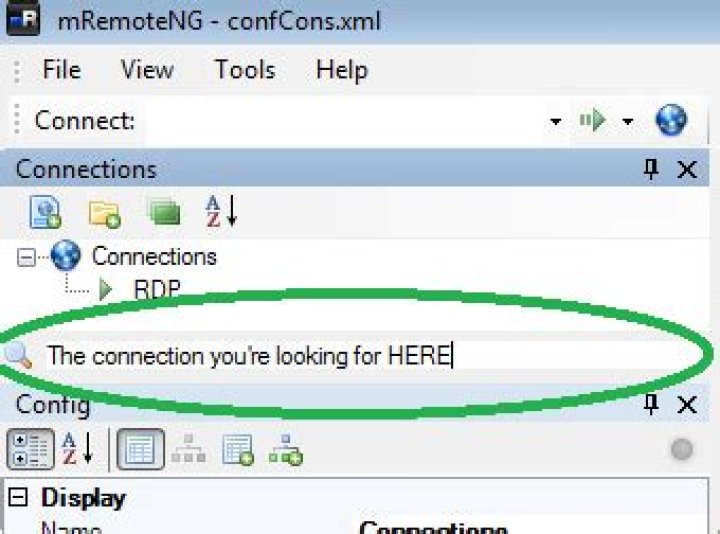
Without a doubt, one of the most useful aspects of mRemote/mRemoteNG is the ability to search for a connection. Instead of trying to recall the exact machine name, you need only to remember a fraction of it and type it into the search field.
This becomes extremely useful when your mRemote profiles count in the tens and upwards.
Stay tuned
We will be publishing some advance tips for mRemote soon.
Have you ever found yourself manually opening WinSCP to the same server you’ve just SSHed into with mRemoteNG? Or wishing you were able to extract the password from the mRemoteNG connection? HTG will guide you on how to unlock mRemote’s true power.
We gave an introductory tour of mRemoteNG in our “How to Use mRemoteNG to Manage All Your Remote Connections” guide. In this guide we will dive deeper and show you some tips that we have found useful when working with it on a regular basis.
WinSCP integration
We’ve mentioned WinSCP in the past; this program should be already in your arsenal if you’re administrating Linux machines from Windows.
Many people who’ve been enlightened to mRemoteNG are simply unaware that it is possible to integrate the two, and end up maintaining two sets of “connection databases”. More than that, a lot of the time, because mRemoteNG is such an “end all be all solution”, it is the only one to get “the love”, and every time WinSCP is invoked, the connection’s details are entered manually.
All of the above can be easily negated through mRemoteNG’s “External Tools” feature. With this feature, it is possible to invoke WinSCP and pass to it all of the connections details that mRemoteNG already has.
If you don’t have WinSCP installed, go ahead and do it now.
To add an “External Tool”, go to the “Tools” menu and select “External Tools”.
The “External Tools” tab will open.
Right click anywhere in the upper portion of the tab, and you will be presented with a menu to create a “New External Tool”.
In the lower portion of the screen, change the name for the tool you are adding under the “Display name” row to be “WinSCP”.
In the “Filename” field, write the following:
So it looks like:
You’re essentially done 🙂
In order to use your new ability, right click on an SSH type of a connections’ tab, find the “External Tools” entry, and click on your newly created “WinSCP” option.
Password Revealer
Due to the fact that mRemoteNG holds all of the passwords in a reversible encryption (so that it can use it), it is possible to extract them on a per connection basis. To achieve this, we will have mRemoteNG pass the “password” parameter to be “echo”ed in a regular old command prompt.
Add another “External Tool” as we’ve shown above, only this time you would name the tool “Password Revealer” and the “filename” field will only hold the “cmd” directive. However, unlike the previous example, you would fill the “Arguments” line with the below:
The finished work, would look like:
In order to use your new ability, right click on an SSH type of a connection’s tab, find the “External Tools” entry, and click on your newly created “Password Revealer” option.
Connection file sanitization
You’ve gotten tens or even hundreds of connection profiles in your mRemoteNG setup and then you get a new team member. You want to give your connection file to them, but if you do, you’ll be giving them your credentials… Fear not, for HTG has got you covered.
We will show how to globally erase passwords from mRemoteNG’s connection file.
Note: This will require you to bust out your uber geek, but it is not a very difficult procedure.
First of all, you will need a Text Editor that is capable of doing “Regular expressions“, like Notepad++ or Sublime (we’ll be using Notepad++ for this example). Then, close mRemoteNG and in one of these editors open its connection file (which by default is under “C:\Users\%your-username%\AppData\Roaming\mRemoteNG”).
Perform a “Replace” (using Ctrl +H) and change the “Search Mode” to “Regular expression”. Then replace:
Which would look like:
Click on “Replace All” and do a “Save As” to create the sanitized file.
The world is a bigger lab
Got an mRemoteNG trick that you would like to share? Send it to us in the discussion forum.
- The Unofficial M365 Changelog
- Sponsors
- Learn
- Forums
- Podcasts Toggle children
- Enterprise Dish
- M365 Knowledge
- MJF Chat
- Petri Dish
- Resources Toggle children
- Webinars
- Conferences
- Newsletters
How to Manage Remote Connections in mRemoteNG
Microsoft’s RemoteWebAccess Site Goes Down Because DNS is Hard
How to Manage Connections with Remote Desktop Connection Manager
One of the most popular tools for managing multiple remote desktop connections has been the Microsoft Remote Desktop Connection Manager. Unfortunately, in March of 2020, a vulnerability was discovered in the XML file format for that tool. Since RDCMan was original an internal Microsoft tool, it was decided to be discontinued and to move users to the newer Microsoft Store provided Microsoft Remote Desktop application.
Features
With the new tool, there are a number of useful features with more being added all the time. The what’s new page lists bug-fixes and added features.
General Settings
- Stored User AccountsThe client has the ability to store different accounts for use in connections. The following formats are allowed for the username: username, domain\username, or [email protected]. You also can choose whether using a particular account prompts for a password every connection or the password is stored.
- Gateway Server SupportThis option is usually used for internal corporate networks but allows for connecting to a gateway that then allows the connection to specific remote desktop resources.
- Grouping of ConnectionsThe ability to create different groups (or folders) of connections to easily sort connections logically.
- Prevent Screen TimeoutThis a useful setting that keeps the remote connection screen from timing out, often used when a long running script may be in use and no interaction is expected for a long period of time.
Connection Settings
- Copying of files between local and remote resourcesBy dragging and dropping a file from either the remote location or the local system, you are able to easily transfer files between systems.
- Connection to Administrative SessionUsed for Windows Servers, this allows connection to the console session. Very useful for troubleshooting a connection or if an additional session is needed.
- RemoteApp Resource SupportBy adding the URL of the remote resource such as a RemoteApp program, session-based desktop, or published virtual desktops, you can find and subscribe to those feeds.
- Audio Playback/RecordingThe ability to play sound from the local computer to the local devices or remote connection, same with audio recording.
- Thumbnail PreviewsFor ease in locating a given remote desktop and it’s last state, the Remote Desktop store application displays a thumbnail preview of the last connection state.
- Mouse Modes – Direct and MouseVery useful is the ability to use one of two modes. Direct touch passes all touch contacts, such as using Windows with a touch screen. Mouse pointer is the traditional method as if you used a touchpad or standard mouse input.
Differences from Remote Desktop Connection Manager
There are features that unfortunately have not been ported across yet. Notably the following:
mRemoteNG is the next generation of mRemote, an open source, tabbed, multi-protocol, remote connections manager.
- Board index‹mRemoteNG‹Support
- Change font size
- Print view
- FAQ
- Login
Lost All Connections
Lost All Connections
by RogueSolo » Mon Aug 08, 2011 10:08 am
I have been using mRemoteNG for a while now and have had no issues with it. About a week ago, when I went into mRemoteNG all of my saved connections were missing. I was pretty upset since I had a lot of saved connections. I re-added a lot of them that day, then the next day when I went back into mRemoteNG once again there were no connections.
This had worked fine for probably about a year and all of a sudden my connections keep disappearing. I am on version 1.68.4205.27581. I also checked the xml file in the install directory and it has none of my connections. Also, I am running Windows 7. It has been running fine on this OS, but I am not sure if there have been any recent windows updates that could have affected mRemoteNG.
Has anyone else encountered a similar issue? Does anyone know how to prevent this from occurring?
Lost All Connections
Re: Lost All Connections
by Fantasyfr » Tue Aug 09, 2011 1:48 am
Re: Lost All Connections
by RogueSolo » Tue Aug 09, 2011 10:05 am
Thanks for the advice, unfortunately the connection info wasn’t there.
I found a log file with nothing useful and a ‘user.config’ file which contained application settings but no connection information.
Does anyone have any other suggestions?
Thanks
Re: Lost All Connections
by Fantasyfr » Tue Aug 09, 2011 9:28 pm
Re: Lost All Connections
by RogueSolo » Fri Aug 12, 2011 7:11 am
Thanks again for the tip. I was able to find a copy of the connections config there and a backup. Unfortunately both were empty files. I have no idea what could have caused this and why my connections are no longer persisting. Any other suggestions would be appreciated.
Currently I am using a differrent remote connection manager, but I really dont like it and would prefer to go back to MRemoteNG which I’ve used for a long time and really liked. Thanks.
Re: Lost All Connections
by RogueSolo » Wed Aug 17, 2011 6:25 am
Re: Lost All Connections
by Annihilator » Wed Aug 17, 2011 8:35 am
Re: Lost All Connections
by RogueSolo » Thu Aug 18, 2011 8:42 am
Hi All,
I think I sorted this out. For some reason the application lost permission to read/write to this location: C:\Users\%username%\AppData\Roaming\mRemoteNG\
I uninstalled and re-installed. Then updated permissions on the folder to allow full access. For now it is working.
Re: Lost All Connections
by Bill_Black » Thu Sep 15, 2011 6:18 pm
I had the same problem when I loaded mremote tonight. At first, I thought I just would need to manually open my config file. When I did, nothing happened. I tried a couple of other older config files and got the same result. Then I made a blank folder and tried to import, but only got a folder named Import #0.
I was able to import a couple of older config files, but these are only “working” folders I was experimenting with for importing all my connections.
With the trouble I have importing, and now my config file not loading, looks like mRemoteNG is just too much trouble and not reliable enough to use.
Re: Lost All Connections
by ouafnico » Sat Oct 22, 2011 3:45 am
Are you looking for the best remote desktop connection manager?
Then you’re in the right place.
As a System Administrator, it is common to establish multiple RDP connections on a day to day basis. You may also make other daily connections like SSH or telnet to manage and troubleshoot network equipment.
To manually establish these connections over and over again is a major pain.
How many times a day do you enter in your credentials? Somedays I could end up making 50+ connections a day. That’s 50+ times I manually enter in my credentials to make a remote connection.
This is why I started using a remote desktop connection manager.
It saves me time and is much more efficient.
Let’s take a look at some of the best remote connection manager.
1. mRemoteNG
mRemoteNG is a multi tab remote connection manager. Just like RDCman it is a centralized tool that manages connections to remote systems. mRemoteNG has many features that RDCman does not have such as the ability to manage different connection types.
In addition to RDP, it supports VNC, ICA, SSH, Telnet, RAW, Rlogin and Http/S protocols.
The tab features comes in handy when you open multiple sessions and need to jump back and forth between them.
More features include, easy to organize and maintain a list of connections, store credentials for auto logons, importing from Active Directory, fullscreen mode, allows for grouping and nesting folders and more.
I really like this tool, it is easy to use and has a clean interface. I can group together all server connections and create separate groups for all other types of connections like SSH.
2. RoyalTS
RoyalTS is a connection manager that supports a variety of connection types such as RDP, VNC, SSH, S/FTP and web based interfaces.
It includes a built in credential manager, team sharing options so you can share a list of connections.
You can also automate tasks like command sequence and streamline workflows.
When researching connection managers, RoyalTS kept popping up on searches and in forums. It appears to be a popular choice by other System Admins.
I personally found it to be a bit clunky and complicated to get started. It does have a lot of features that other connection managers do not have but I just found it difficult to get started compared to other products.
3. Devolutions Remote Desktop Manager
Devolutions is another centralized connection manager that can handle different protocols and centralize credentials You can even integrate existing password managers such as keepass and lastpass.
This product includes a two factor authentication features. This will enforce two successive steps of authentication to grant access to the data source.
It also has the ability to manage desktops and servers with a mobile application. Devolutions comes in a free edition and paid edition. The free version is good for standalone users, the enterprise is best for teams.
4. DameWare Mini Remote Control
Damware is a tool primarily used by help desk staff and support technicians to easily establish connections with end user devices.
The main difference between this and an RDP connection manager is it allows the screen to be shared. With RDP the remote system will log off so you can’t share the screen with the end user. That’s why RDP managers are best for servers.
Damware is supported on Multiple platforms and allows remote control of Windows, Linux, and Max computers.
- Chat message to communicate with remote users
- Built in screenshot tool
- Secure file transfer
- Lock end users keyboard
- Remote Wake on LAN
- Remotely edit BIOS settings
- Active Directory integration
- and much more
5. Terminals
Terminals is a multi tab remote desktop manager that supports several protocols such as RDP, VNC, SSH, Telnet, Citrix, HTTP and HTTPS.
Key features include a multi tab interface, open terminal window in full screen, resizable windows, connection history, customizable toolbars and search.
Terminals also includes several network tools such as ping, tracert, wak on lan, port scanner and who is. This can come in handy for some basic troubleshooting.
Terminals is an open source project and is currently not under development. It does still work on Windows 10.
Bonus Pick: Dameware Remote Everywhere
Dameware remote everywhere is a cloud based remote support solution that allows IT professionals to access nearly any platform (Windows, Mac, Linux, iOS and Android).
Remote everywhere allows you to quickly gain remote access to systems that are on premise such as users in the office or remote workers like when they are at home, at a hotel or anywhere with an internet connection. The cloud based web portal makes it easy to manage connections and support remote workers. This is a great tool for helpdesk or any IT professional that needs to remotely support end users.
- Session recording
- Hide wallpaper and screen blanking
- Screen sharing and multi-monitor support
- Organize and manage connections
- Live chat and video conferencing
- Built in troubleshooting tools
- Remotely restart and shutdown devices
- and much more.
Final Thoughts
Each remote connection manager has its pros and cons. To find what best fits your needs I recommend downloading and trying them out for yourself. I personally use mRemoteNG and Damware mini remote control.
I use MremoteNG to manage RDP server connections and ssh connection to network switches. I like that it has a clean interface its simple to use and is not bloated with extra junk that I don’t need. I can also share the connection file with my team to make the whole team more efficient.
Helpdesk and my team use DamWare to connect to end users desktop and laptops. It allows us to remote shadow end users systems to troubleshoot and assist with any issues they have. With its wide range of features it’s a great tool for end user support.
That’s all. I hope that this list helped you find a remote connection manager for you and your team. You may also want to see check out my list of Active Directory Tools.
There are multiple ways to connect to your Windows VPS through Windows PC or MAC.
The default option is via the Windows Remote Desktop Connection (RDP) which is bundled into Windows PC or you can install 3rd party software such as mRemoteNG or Parallels Client.
Remote Desktop Connection
The simple way is to search for Remote Desktop Connection.
Or open up the command prompt and type: mstsc
Or locate the RDP by going to C:\Windows\System22\mstsc.exe
Once you open Remote Desktop Connection, enter in your IP address in the Computer field and click Connect. The username is Administrator. You will be prompted for your password.
mRemoteNG (Download)
Another option would be to use mRemoteNG, a software for remote connections and is a more modern way to manage your Windows VPS, with tabs, automatic reconnection and screen resizing.
After installing it, just go to File -> New connection
Then, in the lower left corner you would need to enter the details of your VPS, which can be found in the VPS information email or in the client area.
You can also download the Parallels client to connect to your Windows VPS. After you’ve installed just go to New Connection and select Standard RDP and enter in the credentials.
MAC PC
To connect through a MAC go to the App Store and download Microsoft Remote Desktop.
The list below of various examples is by no means a full list of ways to use External Tools but gives you a idea of how it can be used in different ways.
Ping
Ping a server via cmdline.
- Filename: %COMSPEC%
- Arguments: /c ping -t %HostName%
- Can integrate: Unknown
Traceroute
Run a traceroute via cmdline.
- Filename: %COMSPEC%
- Arguments: /c set /P = | tracert %HostName%
- Can integrate: Unknown
WinSCP
WinSCP is a free GUI Secure Copy program.
- Filename: C:\Program Files\WinSCP\WinSCP.exe (example path)
- Arguments: scp://%Username%:%Password%@%Hostname%/
- Can integrate: Unknown
FileZilla S/FTP
Free and open source FTP client for most platforms.
- Filename: C:\Program Files\FileZilla FTP Client\filezilla.exe (example path)
- Arguments (FTP): ftp://%Username%:%Password%@%Hostname%
- Arguments (SFTP): sftp://%Username%:%Password%@%Hostname%
- Can integrate: Unknown
Firefox
Don’t like the built-in browser support? Integrate with the Mozilla Firefox browser directly!
- Filename: C:\Program Files\Mozilla Firefox\firefox.exe (example path)
- Arguments: %Hostname%
- Can integrate: Unknown
Google Chrome
Google Chrome is a freeware web browser developed by Google.
- Filename: C:\Program Files (x86)\Google\Chrome\Application\chrome.exe (example path)
- Arguments: %Hostname%
- Can integrate: Unknown
Internet Explorer
- Filename: C:\Program Files\Internet Explorer\iexplore.exe
- Arguments: %Hostname%
- Can integrate: Unknown
MySql Workbench
MySQL Workbench provides data modeling, SQL development, and comprehensive administration tools for server configuration, user administration, backup, and much more. You will be prompted for a password when starting the connection.
- Filename: C:\Program Files\MySQL\MySQL Workbench 6.3 CE\MySQLWorkbench.exe (example path)
- Arguments: -query %USERNAME%@%HOSTNAME%
- Can integrate: Unknown
VNC Viewer
- Filename: C:\Program Files\RealVNC\VNC Viewer\vncviewer.exe (example path)
- Arguments: %HostName%
- Can integrate: Unknown
Windows Computer Manager
- Filename: %WINDIR%\system32\compmgmt.msc
- Arguments: /Computer=%HostName%
- Can integrate: Unknown
Zenmap GUI
Zenmap is a GUI front-end for nmap.
- Filename: C:\Program Files\Nmap\zenmap.exe (example path)
- Arguments: -p “Quick scan plus” -t %Hostname%
- Can integrate: Unknown
UltraVNC
UltraVNC is a free and open source program for connection to remote machines using the VNC protocol.
- Filename: C:\Program Files\UltraVNC\vncviewer.exe (example path)
- Arguments: %HostName%:%port% -password %PASSWORD%
- Can integrate: Unknown
COM Serial Port
This will allow you to connect to a specific COM serial port using PuTTY.
- Filename: putty.exe (example path)
- Arguments: -serial com%Port%
- Can integrate: Yes
Create a new connection entry with the following information:
- Name: Serial COM**X**
- Protocol: Ext. App
- External Tool: COM Serial Port
- Port: your desired COM port # here
Windows PowerShell (ISE)В
Windows PowerShell is a task-based command-line shell and scripting language designed especially for system administration.
- Filename: %WINDIR%\system32\WindowsPowerShell\v1.0\PowerShell_ISE.exe
- Arguments: args here
- Can integrate: Yes
Comments
seth-c-stenzel commented Nov 1, 2016
Can you add interface options for opening serial connections via Putty. This feature is the only-thing stopping me from exclusively using mRemoteNG for managing all my sessions and I sometimes have multiple serial interfaces up.
The text was updated successfully, but these errors were encountered:
We are unable to convert the task to an issue at this time. Please try again.
The issue was successfully created but we are unable to update the comment at this time.
kmscode commented Nov 2, 2016
seth-c-stenzel commented Nov 3, 2016
I can already open putty myself and do that now. Having to reconfigure connections that will be sure to change as things are connected and disconnected the request was to add full feature support making the tool all that much more usable especially for folks connecting via console port to different devices and with different settings.
The application should scan what com ports are active and allow them to be selected. I’ve had up to 4-5 serial connections running before. Second not all the devices I connect to use the same control, baud, etc, manually setting a list of external tools for each com, and each baud rate is more work then just using putty.
mcrossley commented Dec 23, 2016
My solution for Windows.
Create an external app:
Filename = putty.exe
Arguments = -serial COM%PORT% -sercfg %HOSTNAME%
Try to integrate = true
Then in each of connections, set them to External app, set the port to the required comm port number, and the Host/IP to the required speed.
DJSdev commented Oct 6, 2019
Am I able to pick this up? I have a solution ready, not sure how to go about assigning this to myself.
On many occasions we use Windows locally with all the applications that we have installed on the computer. At the same time, we take full advantage of the functions offered by the Redmond operating system and thus work better. But at the same time, more in recent years, working online through the Internet is also key. For this, we can use countless applications, such as mRemoteNG, which we will talk about below.
Through the Internet, as many of you already know, we have the possibility of carrying out a multitude of tasks of all kinds. From playing games, browsing, communicating with other users around the world, working in a group, etc. In addition, these types of use can also be divided into those related to leisure, as well as others that are more professional. Well, in this specific case we want to focus on a program that will be very helpful to all those who require, for one reason or another, to make remote connections with other computers.
This type of task can be carried out in a multitude of environments and for the most diverse reasons, many of them related to professional use. Also, those of you who know a little about this software sector will know that we have some interesting alternatives in the form of software clients . Well, in these same lines we will talk about one of them, mRemoteNG.
What can we do with mRemoteNG in our team
Well, for those who do not know very well what we are talking about in this case, we specifically refer to this free and open source program that allows us to manage multiple remote connections. These can be carried out using different protocols, and also all this from a single interface . It should be noted that these connections we are talking about are made from a window that acts as the mRemoteNG control center, and presents us with a simple and friendly aspect.
Furthermore, its developers intend, from the first moment, to make things easier for us to use them correctly, even for users who are not too expert in these matters. So much so that once we have put the application for the first time on our Windows computer, we find three options regarding its configuration . We want to highlight this because before starting to work, mRemoteNG allows us to use the default configuration, or to establish our own at that moment. We can also retrieve this window later.
From there we can start making remote connections from here. It goes without saying that users with doubts or little experience in these uses should, in principle, leave the default values presented by mRemoteNG.
Get started with the mRemoteNG user interface
Well, once we find the main user interface of the program, we will see that it is completely in Spanish. This is something that many will appreciate, to which we can add the fact that it is extremely simple and friendly. Well, to begin with, we will tell you that this is divided into several well-differentiated sections. In the central part we find the work desk where we will later see the remote computer to which we connect.
On the other hand, on the left side of it, we find a panel in which the connections that we have been making over time are stored. Meanwhile, below it, we find another panel that informs us of everything related to the active connection at that time.
How to make a connection from mRemoteNG
Therefore, to start in a basic way with a remote connection in this program, we only have to enter the name of the server in the field called Connect . Of course, what we must know here is the type of connection we want to carry out, since not all servers are compatible with all those supported by mRemoteNG.
In order to define the type of connection that we need to use at that moment, we specify it in the field next to the one referred to Connect. In this way, when clicking on RDP, we will see a drop-down list appear with all the compatible connection types from this client we are talking about.
Thus we tend to view all the compatible formats and select the one that interests us the most in that specific case. From there we can remotely access the server specified above, very simple.
Open mRemoteNG configuration options
But as you can imagine, this is an application that in turn has a multitude of customizable parameters so that we can adapt its operation. To access the customizable options window presented by this program, we just have to go to the Tools / Options menu option.
Here we find a separate window with the categories available in the left panel. We will see some of the importance of connections, the appearance of the program, updates or notifications . We only have to click on each of these categories to access the corresponding parameters that we can change.
Alternatives to mRemoteNG
PuTTY
One of the proposals of this type to connect remotely with servers and computers using Telnet or SSH , among other standards, is PuTTY . In this case we also find open source software that will be very helpful when making use of connections through the SSH protocol in Windows. We can download it from its official website and thus test all the functions it offers us.
Xshell
But if we want to try another similar proposal in order to compare and see the one that interests us the most, we can also use Xshell. Here we find a powerful terminal prepared to make remote connections through SSH, SFTP , RLogin, Telnet protocols in Windows . To use it first hand and see what it offers us, we recommend that you download it from this link .
Download mRemoteNG for free
But if we focus on the proposal that we have been talking about along these lines, we will tell you how to download mRemoteNG. We already mentioned before that it is a free and open source software , which many will surely appreciate. It is also worth knowing that we have both an installable version and a portable version, all from this link .




