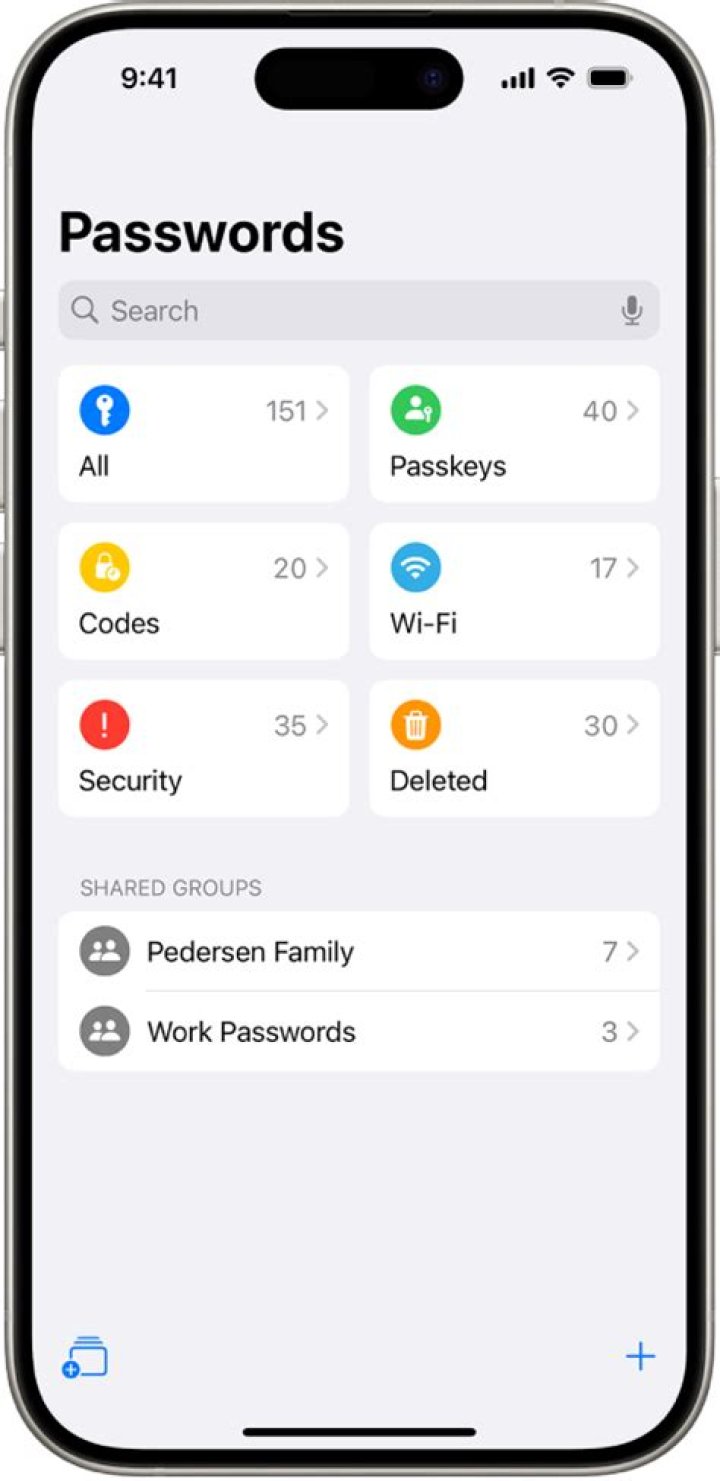
Source: iMore/Joseph Keller
Apple has made some excellent improvements to password and account management in iOS and iPadOS, including the ability to access stored accounts and passwords when you’re logging in on the web and in apps. In apps and on websites that use username and password fields, your iPhone or iPad will display a key icon above the keyboard. Tapping on the key will give you access to your stored accounts and passwords, letting you log in to your account with a few quick taps. If you’re looking for your accounts and passwords — either to edit them or add to them — here’s where you find them!
How to find your accounts and passwords on iPhone or iPad
- Open Settings on your iPhone or iPad.
- Tap Passwords & Accounts.
Tap Website & App Passwords. Authenticate as needed with Face ID or Touch ID.
Source: iMore
Tap the entry you’re looking for.
Source: iMore
Tap Copy to copy the username/email address or password.
Source: iMore
When you’ve gained access to your accounts and passwords, you’ll see a searchable list of entries. Tapping an entry will bring up a Username, a Password, and the Website that corresponds with your account. You can tap and hold on both the Username and Password entry to copy their contents.
How to add accounts and passwords on iPhone or iPad
iOS has a built-in mechanism for adding account and passwords to your iCloud Keychain. When you start to create an account, Safari will suggest a password for you. If you choose to use that password, Safari will also save your account details to iCloud Keychain. You can learn more about using iCloud Keychain by checking out the following post:
If you’d like to manually add accounts and passwords on iOS, here’s how!
- Open Settings on your iPhone or iPad.
- Tap Passwords & Accounts.
Tap Website & App Passwords. Authenticate as needed with Face ID or Touch ID.
Source: iMore
Tap Done.
Source: iMore
How to delete accounts and passwords on iPhone or iPad
- Open Settings on your iPhone or iPad.
- Tap Passwords & Accounts.
Tap Website & App Passwords. Authenticate as needed with Face ID or Touch ID.
Source: iMore
Tap to select the credential(s) you want to delete.
Source: iMore
Tap Delete.
Source: iMore
The password will be removed from iCloud Keychain and will no longer be accessible when you access the website associated with it.
Questions?
Having trouble getting your accounts and passwords all squared away? Have any questions we might have missed? Be sure to give us a shout in the comments so we can help you troubleshoot!
Updated February 2020: This article was updated to reflect changes to iOS.
Want to sync up all of your Apple devices, but you don’t know how? Well, I have just the thing for you. iCloud Keychain is just the handy-dandy tool you need.
What does iCloud Keychain do?
iCloud Keychain will automatically sync up your Safari login data, your credit or debit card data, your Wi-Fi network passwords, and every other username and password you use with on Safari on all of your Apple devices. iCloud Keychain will also sync up your Facebook, Twitter, Instagram and other social media login data. The only requirements are that you’re using iOS 7.0.3 or newer, or OS X MavericksВ 10.9 or newer.
Is iCloud Keychain safe?
iCloud Keychain will only preserve the login data and card information that you approve of. If it is not authorized, it will not save any passwords or usernames. If you enable iCloud Keychain on another device, your previous devices will be notified and will require your approval before the new device can be hooked up with the rest. If you authorize it iCloud Keychain will immediately sync up the new device with rest. The iCloud Keychain app is equipped with powerful encryption algorithms, which will protect the informationВ on all of your connected devices. Two-Factor Authentication will also apply if you have enabled it.
How do I enable iCloud Keychain?
First, make sure you have the at least iOS 7.0.3 or OS X MavericksВ 10.9. If you’re using an older version you will be unable to use iCloud Keychain. If you have newer versions skip this part.
Using iPhone, iPad, or iPod touch with iOS 10.3 or newer:
- Hit “Settings > [username] > iCloud”.
- On iOS 10.2 or earlier, tap “Settings > iCloud”.
- Hit “Keychain” and slide to enable iCloud Keychain.
- Enter your Apple ID password when prompted.
On your Mac using OS X Mavericks 10.9 and newer:
- Select the “Apple menu”, “System Preferences”, then choose “iCloud”.
- Press “Keychain”.
- Type yourВ Apple IDВ and password when prompted.
You’ll have to activate iCloud KeychainВ on every device that you want to sync up with the rest.
Can I enable iCloud Keychain on a new device without my other devices?
It’s still possible to set up iCloud Keychain on a device if you can’t access your other synced up devices provided you have an iCloud Security Code.
iCloud Security Code.
Once you enable iCloud Keychain on a device, you can make an iCloud Security Code. It can be auto-generated, or you can think up one on your own. The iCloud Security Code is used to permit extra devices to use your iCloud Keychain. It’s also used to verify your identity or to use other functions like recovering lost passwords or login info.
What if I lose my iCloud Security Code?
Don’t do that. Apple can’t recover your code if you misplace it. Also, be careful that you don’t enter a wrong iCloud Security Code too many times it will disable your iCloud Keychain. Then you’ll have toВ contact Apple Support, so they can verify your identity and re-activate your iCloud Keychain again.
What if I want to use iCloud Keychain, but I don’t want my information on the cloud?
You can opt to skip the iCloud Security Code step when you’re setting up iCloud Keychain. That way your info will be stored locally instead of on the cloud.
Simply tap “Create Different Code” when asked if you want to use your device’s password as the iCloud Security Code. However, without an iCloud Security Code, Apple won’t be able to recover your iCloud Keychain if something happens to it.
What kind of card information is stored in iCloud Keychain?
Only credit or debit card numbers and expiration dates. No passcodes or names are stored. iCloud Keychain does not autofill fields with credit card information.
1Password for iOS is the simple, beautiful password manager you’ve been looking for. Easily organize your secure information, save and fill passwords in your web browser, and have everything available at your fingertips.
Create and edit items
To create an item, tap and choose a category. Enter the details and tap Save.
To edit an item, tap it, then tap Edit. When you’re finished making changes, tap Done.
To see only certain types of items, tap Categories then choose a category from the list. Tap All Items to see everything in the current vault.
To return to the item list at any time, tap Categories.
Use 1Password in Safari and other apps
You can use 1Password to fill and save passwords in Safari and other apps on your iOS device.
Drag and drop to fill in other apps on your iPad
On your iPad, you can use Multitasking to open 1Password and another app at the same time. To open 1Password in Slide Over:
- Swipe up from the bottom of the screen to open the Dock.
- On the Dock, touch and hold 1Password, then drag it to the screen. To open 1Password in Split View, drag it to the right or left edge of the screen.
While using Multitasking, you can drag item details, like usernames and passwords, from 1Password to other apps.
Quickly access your favorite items
Tap Favorites to quickly access your favorite items. Your recently used items are listed at the top.
To mark a recent item as a favorite, tap it. Then tap and tap AddВ toВ Favorites.
To mark any other item as a favorite, tap Categories. Then tap the item and tap AddВ toВ Favorites.
To copy item details from Favorites, tap an item, then tap the detail you want to copy.
To change the number of recently used items listed at the top of Favorites, tap Settings > General and adjust Recently Used Items.
Organize with favorites and tags
You can organize your items with tags or mark them as favorites to quickly access them when you need them.
To mark an item as a favorite, tap it to see its details, then scroll down and tap Add to Favorites.
To create a tag, open an item and tap Add Tag in the tags section. Enter the name of a tag and tap Create Tag, or select a tag from the list. Then tap Done.
Search 1Password
Searching is the fastest way to find what you need in 1Password.
To search in 1Password, use the search field above the list of items. You can also search 1Password from your Home screen using Spotlight.
Sort items
You can sort items in any list to find what you need quickly.
To change how items are sorted in the list, tap “Sort by” at the top of the item list, then choose an option.
Each category has different sort options, and they can be set per category. For example, you can sort credit cards by card type and logins by date last used.
Switch vaults and accounts
You can use vaults in 1Password to organize your items and share them with others. If you have multiple 1Password accounts, each account will have its own vaults.
To switch to a specific vault or view items from all the vaults in an account, tap and choose a vault or account.
Move and copy items
To move or copy items from one vault to another:
- In any item list, scroll to the top and tap SelectВ Items.
- Select the items. You can select all the items in the list using the checkbox above the list.
- Tap Move or Copy and choose a vault.
Use Watchtower
Watchtower tells you about password breaches and other security problems on the websites you have saved in 1Password.
To get alerted when a website you have an account for is added to Watchtower, go to Settings > Notifications and turn on Watchtower Alerts.
Format secure notes
Add formatting to your secure notes with Markdown. View them in rich text, complete with headers, bold and italic styles, lists, and more.
Enlarge passwords
You can temporarily enlarge a password to make it easier to see while entering it on another device or reading it aloud.
To enlarge a password, tap it and choose LargeВ Type.
Archive and delete items
To move an item to the Archive, tap it, then tap Edit. Scroll down and tap Archive.
To restore an item from the Archive, tap Categories, then tap Archive. Select the item, then tap Restore.
To delete an item, tap it, then tap Edit. Scroll down and tap Delete.
Lock and unlock 1Password
When you’re done using 1Password, you can lock it. To lock 1Password, tap Settings > Security > LockВ Now. Unlock 1Password again by entering your Master Password. You can also use Touch ID or Face ID.
With iCloud Keychain, you can keep your passwords and other secure information updated across your devices.
iCloud Keychain remembers things, so that you don’t have to. It auto-fills your information—like your Safari usernames and passwords, credit cards, and Wi-Fi passwords on any device that you approve. Have more questions about iCloud Keychain?
How to turn on iCloud Keychain
When you update your device to the latest iOS or iPadOS, the setup assistant asks you to set up iCloud Keychain. Learn about availability by country or region.
Turn on iCloud Keychain on your iPhone, iPad, or iPod touch
- Tap Settings, tap [your name], then choose iCloud.
- Tap Keychain.*
- Slide to turn on iCloud Keychain. You might be asked for your passcode or Apple ID password.
Turn on iCloud Keychain on your Mac
- Choose Apple menu > System Preferences.
- Click Apple ID, then click iCloud in the sidebar. In macOS Mojave or earlier, click iCloud.
- Select Keychain.*
- If you choose to “Approve Later” when signing into your Apple ID, you need to approve with an old passcode or from another device when prompted. If you’re unable to approve, reset your end-to-end encrypted data when prompted.
*On your iPhone, iPad, or iPod touch with iOS 13 or later, or on your Mac with macOS Catalina or later, two-factor authentication is required to turn on iCloud Keychain. If you haven’t set it up yet, you’re prompted to update to two-factor authentication.
If you can’t turn on iCloud Keychain
If you can’t turn on iCloud Keychain after following these steps, make sure you meet the minimum system requirements for iCloud Keychain and that you’re using two-factor authentication.
If you’re not using two-factor authentication, you might be prompted to create an iCloud Security Code—six digits, complex alphanumerics, or randomly generated—to authorize additional devices and verify your identity. If you forgot your code, you might be able to reset it.
Frequently asked questions
Get answers to some of the most common questions about iCloud Keychain.
What information does iCloud Keychain store?
iCloud Keychain stores credit card numbers and expiration dates—without storing or autofilling the security code—and passwords and usernames, Wi-Fi passwords, Internet accounts, and more. Developers can also update their apps to use keychain, if the app is on a device that uses iOS 7.0.3 or later, or OS X Mavericks 10.9 and later. If you don’t see items stored in iCloud Keychain, learn what to do.
How does iCloud Keychain protect my information?
iCloud protects your information with end-to-end encryption, which provides the highest level of data security. Your data is protected with a key that’s made from information unique to your device, and combined with your device passcode, which only you know. No one else can access or read this data, either in transit or storage. Learn more.
What happens when I turn off iCloud Keychain on a device?
When you turn off iCloud Keychain for a device, you’re asked to keep or delete the passwords and credit card information that you saved. If you choose to keep the information, it isn’t deleted or updated when you make changes on other devices. If you don’t choose to keep the information on at least one device, your Keychain data will be deleted from your device and the iCloud servers.
Can Apple recover my iCloud Security Code?
No. If you enter your iCloud Security Code incorrectly too many times, you can’t use that iCloud Keychain. You can contact Apple Support to verify your identity and try again. After several incorrect attempts, your keychain is removed from Apple’s servers, and you need to set it up again.
How do I find my saved passwords?
iCloud Keychain stores your saved passwords so that you can view or change them at any time. Learn how to find your saved passwords on your iPhone, iPad, or iPod touch. You can also find your saved passwords on your Mac.
Information about products not manufactured by Apple, or independent websites not controlled or tested by Apple, is provided without recommendation or endorsement. Apple assumes no responsibility with regard to the selection, performance, or use of third-party websites or products. Apple makes no representations regarding third-party website accuracy or reliability. Contact the vendor for additional information.
With iOS, logging in with Dashlane has never been easier. Once you have updated to the latest version of Dashlane and configured your iOS device to use Dashlane as your password manager, you can access and fill your Dashlane passwords directly within Safari—the default browser on iOS—but even in Chrome, Firefox, and other apps that have chosen to include this capability.
Contents
- How to set up autofill with iOS
- How to log in with autofill on iOS
- Using the autofill feature
How to set up autofill on iOS
Go into your iOS device’s Settings, select Passwords & Accounts, then select AutoFill Passwords.
Once inside AutoFill Passwords, you will see the Keychain and Dashlane proposed for auto-filling. Select Dashlane. We very strongly recommend that you unselect the Keychain. Having both selected will create a confusing and less-effective user experience.
How to log in with autofill on iOS
Once you have Dashlane set up to autofill your passwords, note that your experience may vary slightly if you have more than one account on a website, or depending on how confident your device is about which password you would like to use.
When you have at least one account in Dashlane that matches the website or app
Simply click on the proposed account, and Dashlane will autofill the email and password. Note that the small key icon opens a menu allowing you to select other accounts.
When your device is especially confident it knows which account to use
If your device is confident about which of your accounts you would like autofilled, it will propose that account in place of the keyboard. Note that the keyboard is still available by clicking on the small icon on the lower left, and your other accounts are available by clicking on the small key icon on the lower right.
If your device does not recognize any account in Dashlane that matches the website or app
If you do not have an account for a website or app, or if the account you just tried did not work, your device will propose a generic Passwords button that opens a menu allowing you to select other accounts. Your device may systematically propose this option for some browsers and apps.
Using the autofill feature
Creating a new account
If Dashlane doesn’t have any credentials saved for the website you’re on, or if you want to add a new account for that site, you can create it directly from the login interface. Click on “Add a new password,” enter the new information, tap “Save”, and Dashlane will autofill it for you.
By default, Apple allows you to log into websites and apps using credentials saved in iCloud Keychain through a feature called autofill (password autofill). In case you want to use a dedicated third-party password manager instead of iCloud Keychain, you still set up that third-party tool as the default password autofill service on your iPhone and iPad. .
Apple allows you to use up to two password autofill services at the same time on your iPhone or iPad. You can use iCloud Keychain and other services like Bitwarden or LastPass. You can also turn off iCloud Keychain and set a third-party service as the default.
The default password autofill service change process is basically nothing complicated and different between third-party password management tools. However, we recommend that you fully enable Face ID or Touch ID (if applicable) on the third-party password manager app you plan to use. This ensures that you will not need to enter your master password every time you want to log in to the site using that third-party password manager.
Once the password manager setup is complete, navigate to the application “Settings”(Settings) on iPhone or iPad.
In the menu that appears, find and click the “Passwords” (Password).
Authenticate yourself using Face ID, Touch ID, or a pattern lock passcode, then choose the “AutoFill Passwords”(Password autofill).
Next, choose the third-party service you want to use. You can also click on the option “iCloud Keychain“To turn it off.
The service you choose will need to be verified. In the example in the article, Bitwarden will ask you to log into your account with your primary password (or authenticate with Face ID or Touch ID). Press the button “Submit”(Send) for verification.
After the authentication is complete, click on the button “Back” (Come back).
You can now continue using your iPhone or iPad as you normally would. The next time you visit or log in to a website, you will see a suggestion from the password manager of your choice.
Just choose a password and authenticate yourself (using your master password or Face ID), your username and password will be filled in automatically.
Source link: How to use autofill with third-party password managers on iPhone or iPad
Store and use strong passwords on your Apple device.
Why you need a password manager for your iPhone
Like most people, you probably have dozens and dozens of online accounts to manage everything from your finances to your social life. All those accounts come with passwords to remember and keep safe. And when it comes to practicing good online security, you should be using a different, strong password for every account.
A password manager gives you one secure place to store every account login. Passwords are autofilled for you, and new ones are generated on the spot when you sign up for a new account. A password manager is a smart way to organize your passwords and protect yourself online.
Should you use the iCloud Keychain password manager?
If you’re using an Apple iOS smartphone or tablet, you may have noticed that the iCloud Keychain is the built-in password manager for saving and filling logins for different websites. The built-in password manager saves you time and the hassle of remembering every password.
When it comes to protecting yourself online, you need more. You deserve to protect your data – and your money – with the best password manager. You need features that make your security stronger, with one safe place to manage your online life. You will never have to click the eye icon again when entering your password!
Is iCloud Keychain a good password manager?
For anyone using an iPhone, iPad, or Mac computers, it does seem like a convenient option that saves you time and the hassle of remembering every password. But saving and filling passwords is pretty much the only thing Keychain can do; it’s short on features to help you protect yourself online.
A standalone password manager like LastPass gives you the convenience of syncing passwords and other stored data to almost any device, regardless of OS and browser. LastPass also gives you extra security with options like two-factor authentication (including FaceID) and password alerts. When it comes to your personal information, you deserve strong protection. With the option to store addresses, credit cards, notes and other items, a password manager like LastPass also keeps the information you need every day just a few clicks away.
LastPass does more than save passwords
Generate stronger passwords.
With a built-in password generator, LastPass makes it easy to create a random password for every account so you’re always protected from hacking.
Cross-Device Syncing
LastPass doesn’t lock you in. With seamless sync, offline access, and an app for almost every device, you’ll always have your passwords no matter what device or browser you use. Any changes you make on your Android device will sync to your desktop browser extension and vice versa.
Get actionable security tips
From alerts about data breaches to an audit of your passwords, LastPass tells you when action is needed to update your accounts so you can stay on top of your security.
Jefferson Graham answers readers questions-on using password manager apps on the go.
PasswordBox interface (Photo: PasswordBox)
LOS ANGELES — Last week we spoke about using password manager apps to keep track of the ever-growing list of passwords and user names for favorite websites.
Free tools like Dashlane, PasswordBox and LastPass work great when used on a computer. But we heard from readers with follow-up questions about using them elsewhere.
Gary, for instance, on Facebook, comments: “Much harder on mobile than desktop.”
Considerably. For instance:
— Will Dashlane open the lock screen on my iPhone? (No.)
— Does PasswordBox throw the iTunes password in there for me when I pick up new apps? (Wouldn’t that be nice?)
— Can any of the password managers key in my password for websites I visit via Safari, like Facebook or Dropbox? (Most won’t, but PasswordBox will. On Android phones, it’s not as cut and dried: You can do way more with password managers.)
So let’s take a closer look, using, as examples, Dashlane and PasswordBox, two heavily downloaded apps.
Both apps have free versions. Dashlane charges $29.99 yearly for mobile access, while PasswordBox charges $12 yearly if you access more than 25 passwords.
The challenge for Dashlane is using it to create impossible-to-remember passwords, and then trying to open those sites on Safari, the Web browser for the iPhone and iPad.
Instead, think of Dashlane as a vault, a place to store those hard-to-remember combinations of letters, numbers and symbols that were created within the manager.
Open the app on the iPhone or iPad, and from there you can copy the password by clicking a tab, and then pasting into a website for sign-in.
Or, if you prefer signing in without copying and pasting, you can use the built-in browser — both Dashlane and PasswordBox have them — to bypass Safari. This is the workaround to open up sites and have sign-in credentials entered automatically.
It’s also a workaround for e-commerce. One of the benefits of Dashlane (a feature you can’t currently do with PasswordBox) is storing your credit card info — including the card number, expiration date and CVC code, along with address book info. When you want to buy, you just click one button for the transaction.
But you won’t be able to do this in Safari. You’ll need to use Dashlane’s browser on sites like Amazon, eBay and the like.
On Android, it’s a different story.
You still can’t use the manager to unlock the lock screen — although PasswordBox says it’s working on a solution with Samsung for the new Galaxy S5 to make this happen.
On most Android phones, like on PCs, the managers interact directly with Google’s Chrome browser, making the add-on browser tool or vault status unnecessary.
So, if you have an Android phone, you’re going to find the password manager experience to almost mirror that of the computer. And if you prefer the iPhone or iPad, either learn to use few passwords to make use of PasswordBox’s iPhone 25 password limit for mobile log-on, pay the subscription, or stick with and pay for Dashlane’s mobile access, and get used to copying and pasting those passwords within the built-in app browser.
Folks, keep the questions coming in. Look for me on Facebook, or on Twitter, where I’m @JeffersonGraham, and use the hastag #AskJeffTech so we can find you.
There are three things that I can remember without looking them up: the phone number for repair to my cable service, my favorite Pizza place, and my social security number. The rest I couldn’t tell you on a bet. My solution to this area of my life is Keychain. My personal keychain has around 300 entries and I rely on it daily. In case you are not familiar with Keychain on your Mac here is what you need to get up to speed.
Getting started with OS X’s Keychain
- Keychain is password management system in OS X developed by Apple. It was introduced with Mac OS 8.6, and has been included in all subsequent versions of Mac OS, including OS X. A Keychain can contain various types of data: passwords (for Websites, FTP servers, SSH accounts, network shares, wireless networks, groupware applications, encrypted disk images), private keys, certificates, and secure notes. You will find Keychain in the Utility folder in the Applications folder. Unless you indicate otherwise on a case-by-case basis, you can not open your keychain without your administrator password.
Keychain will generate and store all your Safari-based passwords and autofill them for you where and as needed. However, there may be times when a website doesn’t allow autofill (for example, at public terminals or when a site has been coded to specifically block autofill).
I love Keychain and have since it was first released. We are all bombarded with info every day. Who can remember all this stuff? This can be particularly true if you visit a website that you haven’t visited in a couple of months. Which password did you use the last time you were there?
And don’t even think about just creating a new account. Your account is in their databases and most of the time a site will not let you create another account. You get messages like “that email address is already in use”, or “the name you have entered already has an active account with us.”
Now we have Keychain available on our OS devices through iCloud.
iCloud Keychain
iCloud Keychain requires OS X v10.9 or later or iOS 7.0.3 or later. iIt keeps the following account information up to date across your Mac computers and iOS devices:
▪ Website account names and passwords that Safari autofills for you
▪ Credit card numbers and expiration dates that Safari autofills for you
▪ Most Wi-Fi network names and passwords
iCloud Keychain also keeps account names, passwords, and settings that you add to it, such as the registration codes for your software. Passwords and credit card information are encrypted in your OS X keychain and your iCloud Keychain.
Set up iCloud Keychain on your Mac
- Choose Apple menu > System Preferences, then click iCloud.
- Turn on Keychain, then follow the onscreen instructions.
Approve a device to use iCloud Keychain
If you set up iCloud Keychain on your Mac, and then you set it up on another device, you may receive a notification on your Mac asking if you want to let the other device use your iCloud Keychain.
Do one of the following:
- In the notification alert, click View, or
- In iCloud preferences, click Option to the right of Keychain, then click Details.
In the dialog that appears, enter your Apple ID password, then click Allow.
Change how new devices can be approved
After setting up iCloud Keychain on your Mac, you can change whether your iCloud Security Code can be used to approve iCloud Keychain on new devices. You can also change the iCloud Security Code or the phone number used to verify your identity after you use the iCloud Security Code.
- Choose Apple menu > System Preferences, then click iCloud.
- Make sure Keychain is on and your Mac is approved.
- Click Options next to Keychain, then make changes in the dialog that appears.
How to Set Up iCloud Keychain
- How to turn on (or turn off) iCloud Keychain on your iPhone, iPad, or iPod touch
- Launch Settings from the Home screen
- Tap on iCloud.
- Tap on Keychain.
- Toggle iCloud Keychain to On.
- You will be asked to either set up an iCloud Keychain password or enter the existing one. You can also choose to verify with another device if you choose.
How to Manually View Credit Card Numbers with iCloud Keychain
- Launch the Settings app on your iPhone or iPad.
- Tap on Safari.
- Tap on Passwords & AutoFill under the General section.
- Tap on either Saved Passwords or Saved Credit Cards.
I find it particularly helpful that I can now access Keychain info on either my iPhone or my iPad. Before this became an option I always had to wait until I was at my Mac to transact business. It’s that whole memory thing.




