Do you open a lot of windows on your Mac? Do you ever have trouble keeping track of them all? Then you need to know about Mission Control, which shows you all of your currently open windows, then gives you ways to organize them.
Mission Control is one of those Mac features that’s easy to ignore but makes everything better once you learn about it, mostly because of the multiple desktops feature. Master using those, and the quick ways to switch between them, and you’ll wonder how you ever used your Mac any other way.
How to Open Mission Control
You can access multiple desktops in a number of ways. To access it, swipe up with three or four fingers on your trackpad—the number of fingers you need to use depends on how you have your trackpad set up. You can also just tap the F3 button on your Mac, the Mission Control icon in the dock, or by pressing Control+Up on your keyboard.
The Touch Bar on new MacBook Pros doesn’t have such a button on the Control Strip, but you can add a button if you like.
Once you open Mission Control, it will show you all your open windows, so it’s easier to switch between them. This is similar to a feature called Exposé featured in older versions of macOS, but today we’re interested in the multiple desktops feature along the top.
Using Multiple Desktops in Mission Control
Move your mouse to the top of the screen, where it says “Desktop 1” and “Desktop 2”, and you’ll see two desktops revealed.
You can actually drag windows to one of these desktops, if you want, then switch to the window by clicking it.
With multiple desktops you can organize your workflow, allowing you to do things like research on one desktop while you write on another. And you can add as many desktops as you like by clicking the “+” button at far right.
To switch between desktops, you could just open Mission Control then click the desktop you want to open. It’s a lot faster, however, to use the keyboard shortcuts Control+Right and Control+Left, or to swipe three fingers to the left or the right. These will both switch your desktops immediately, and are a nice compliment to the keyboard and mouse shortcuts I mentioned earlier.
If you want a particular application to always show up on a certain desktop, or even on all desktops, simply right-click its dock icon, then move to the Options submenu.
From here you can assign an application to a given desktop, or even have it show up on all desktops.
Full Screen Applications
But wait…there’s more. Do you know about the full screen button? It’s the green one near the top-left of every window.
Click this button and the current application will enter full screen mode, meaning the dock and menu bar disappear and the current window takes up the entire screen.
You might think that you can’t use any other programs while full screen mode is active, or that you can’t use two programs in full screen at once, but it turns out Mission Control makes this all possible. While you’re in Mission Control, any full screen application acts as its own desktop; it’s placed to the right of all current desktops.
You can also drag any window to the space taken by a full screen application.
This allows you to run two full screen applications side by side, in what’s called split view mode.
This is perfect when you want as much space as possible to work with only two applications, such as when you’re browsing a high-quality website and taking notes.
How to Configure Mission Control
Mission Control mostly works without any configuration, but it’s possible that a few things about it annoy you. Head to System Preferences, then the Mission Control section.
From here you’ll find the main options for Mission Control
Here’s a quick breakdown of what these options do:
- By default Mission Control will organize your spaces automatically, based on what it thinks you want. This can be very confusing, so turn off the “Automatically rearrange Spaces based on most recent use” option if you’re constantly losing track of windows.
- When you use Command+Tab to switch applications, you probably also want to switch to an active window. The option “When switching to an application, switch to a Space with open windows for the application” ensures that will happen even if the window is on another desktop.
- The option “Group windows by application,” when checked, ensures that multiple windows from the same application appear side-by-side in Mission Control.
- The option “Displays have separate Spaces” applies to Macs with multiple monitors. By default switching desktops on one display will also switch the other, but with this option checked each display will have it own set of desktops.
- Finally, you can turn on the useless Dashboard, either as its own Space or as an overlay.
Below these options you can set custom keyboard and mouse shortcuts for launching Mission Control.
Stay organized and productive with multiple desktops
- Tweet
- Share
With Windows 10, Microsoft finally brought a feature that is standard on other desktop operating systems to Windows: multiple desktops, which the company calls virtual desktops. This is admittedly a power user feature, but it can be helpful for anyone who wants an extra bit of organization.
Instructions in this article apply to Windows 10.
It Starts With Task View
The key starting point for multiple desktops is Windows 10’s Task View. The easiest way to access it is the icon to the right of Cortana on the taskbar — it looks like a big rectangle with a smaller rectangle on each side of it. Alternatively, you can tap the Windows key+Tab.
Task View is a better-looking version of Alt+Tab. It shows all your open program windows at a glance, and it lets you choose between them.
The biggest difference between Task View and Alt+Tab is that Task View stays open until you dismiss it — unlike the keyboard shortcut.
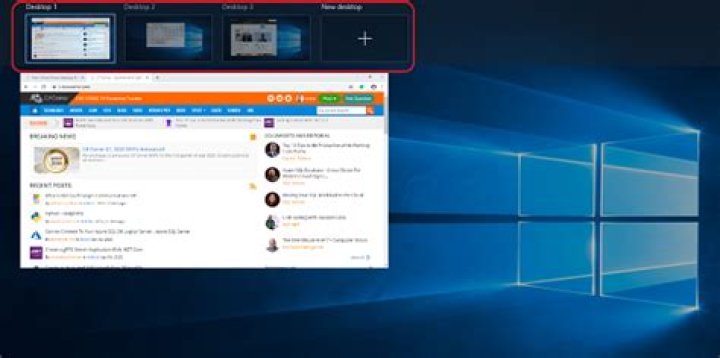
When you’re in Task View, if you look at the right corner, you’ll see a button that says New desktop. Select that, and at the bottom of the Task View area, two rectangles labeled Desktop 1 and Desktop 2 appear.
Select Desktop 2, and you land on a clean desktop with no programs running. Your open programs are still available on the first desktop, but now you have another one open for other purposes.
Why Multiple Desktops?
If you’re still scratching your head as to why you’d want more than one desktop, consider how you use your PC every day. If you’re on a laptop, switching between Microsoft Word, a browser, and a music app can be a pain. Putting each program in a different desktop makes moving between them much easier and removes the need to maximize and minimize each program as you need it.
Another way to use multiple desktops is to have all your productivity programs on one desktop, and your entertainment or game items on another, or you could put email and web browsing on one desktop and Microsoft Office on another. The possibilities are endless and depend on how you organize your programs.
You can move open windows between desktops by opening Task View and then using your mouse to drag and drop from one desktop to another.
After you have all your desktops set up, you can switch between them using Task View or by using the keyboard shortcut Windows key+Ctrl+right or left arrow key. Using the arrow keys is tricky because you have to be aware of which desktop you are on. Multiple desktops are organized on a virtual straight line with two endpoints. Once you reach the end of that line, you have to go back the way you came.
In practical terms, you move from desktop 1 to desktop 2, 3, and so on using the right arrow key. When you reach the last desktop, you go back through using the left arrow. If you find that you jump between numerous desktops out of order, it’s better to use Task View where all open desktops are consolidated in one spot.
Multiple Desktop Options
The multiple desktops feature has two key options you can adjust to your liking.
Select Start.
Choose Settings from the Start menu.
Select System.
Select Multitasking and scroll down until you see the heading Virtual desktops.
Here are two options that are easy to understand:
- The top option lets you decide whether you want to see the icons for every single open program across the taskbar of every desktop or only on the desktop where the program is open.
- The second option is a similar setting for the previously mentioned Alt+Tab keyboard shortcut.
Multiple desktops aren’t for everybody, but if you’re having trouble keeping your programs organized in one workspace, try creating two, three, or four in Windows 10.




