Android’s notification system is arguably one of its strongest features, but it can also be annoying if you accidentally dismiss those notifications. Fortunately, there’s a simple way to view all the notifications that have hit your phone.
How to Find Dismissed Applications on Jelly Bean and Above
While the feature we’re going to look at here has been around for a while—since Jelly Bean, in fact—it’s shocking how unknown it still is. It’s good that it’s still part of the operating system after all these years, because it’s truly a helpful setting to have access to.
There isn’t a simple way to get directly to this setting though the menu, so it’s actually accessed through a shortcut widget. In other words, you’ll have to add this as a shortcut on your home screen in order to use it. If you’re cool with that, let’s do this thing.
NOTE: This setting isn’t available on Samsung phones. If you’d like to access your notification history on a Galaxy device, we recommend using the Notification Saver app, which does the same thing.
First, long-press on your home screen, and then choose “Widgets.” This setting could be found elsewhere depending on which phone (or launcher) you’re using, but at this point it should be fairly ubiquitous.
Scroll down until you find the Settings option. Pull that out to the home screen.
A new menu immediately opens, with a slew of options for you to choose from—this is what the Settings widget links to. Find the “Notification Log” option and give it a tap.
Boom, that’s really all there is to it. From this point forward, you only need to tap this little icon to jump straight into a list of all your notifications, both current and dismissed. Keep in mind, however, that this won’t actually take you to said notification when you tap it. Instead, it opens all the intricate details of the notification—mostly bug tracking stuff for developers.
Un-dismiss Notifications on Android 8.0 (Oreo) with Unnotification
If you have a device running Android 8.0 (Oreo), you can also use an app called Unnotification, which is designed to un-dismiss notifications instantly if you accidentally dismiss them.
It’s a free download in the Play Store and is incredibly simple to set up and use, so go ahead and give it an install.
Setting Up and Using Unnotification
The first time you fire up the app, you’ll need to grant it Notification Access, which makes perfect sense—if it can’t see your notifications, it can’t bring them back from the dead. Tap the OK button, and then toggle “Unnotification” to the on position.
A warning will pop up—just tap “Allow” to turn the service on.
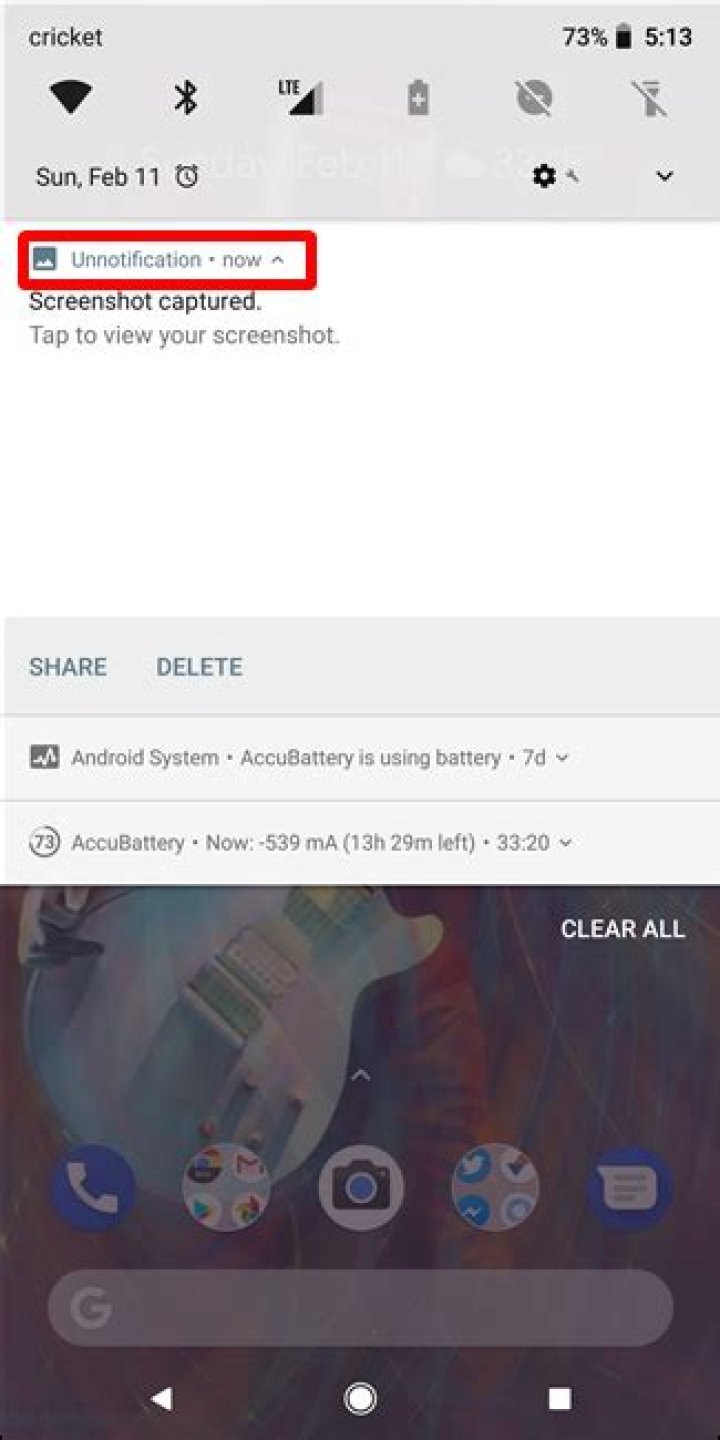
With that done, Unnotification is ready to do its thing. To give it a try, dismiss a notification. A new notification appears in its place, asking if you’d like to undo that dismissal—that’s what Unnotification does in a nutshell.
To bring your dismissed notification back, just tap this newly-generated notification. Poof—it’s like magic.
And if you choose not to bring back the notification, Unnotification will get rid of itself after five seconds. Super cool.
There’s also an optional Quick Settings tile that allows you to bring back the last dismissed notification anytime you want—even after that five second window has passed. You’ll need to add the tile to your Quick Settings panel, of course.
Tweaking Unnotification
Unnotification’s options are very simple, offering just a few tweaks to how the app works as well as a way to blacklist any apps that you don’t want Unnotification to work with.
To add a blacklisted app, just click the + button and choose the app. From then on, Unnotification won’t offer to bring back a notification for any app on the black list.
In the Settings menu (press the cog icon in the upper right corner to get here), you have a handful of options. You can set the amount of time before Unnotification disappears, use the Quick Settings tile only, enable the undo action, and choose which actions show up on Unnotification notifications.
That’s quite a mouthful, so here’s the breakdown:
- Undo Notification Timeout: Set how long it takes for the Unnotification notification to disappear. The default is five seconds.
- Use Quick Settings Tile Only: This will disable the undo notification and only use the Quick Settings tile to bring back dismissed notifications.
- Enable Undo Notification Action: With this enabled, tapping the Unnotification notification will undo the last notification. With it disabled, it will do nothing.
- Choose Undo Notification Actions: By default, you can choose to Ignore an app (this adds it to be blacklist automatically—you can remove it in the app’s main interface) or view the Notification Log (the very one highlighted earlier in this post). There’s also the option to add an Undo button, or you can disable either of the two default actions. Your call.
That’s pretty much all there is to it. The only other thing worth noting here is that Unnotification doesn’t actually “bring back” the undismissed notification—it actually generates a new one. As such, any notification that you choose to bring back will say it was generated by Unnotification. But you can still tap on it to interact just like if it was generation by the original application.
It’s not a perfect solution, but it really does work pretty well.
Works on Pixels and other phones with stock Android
Share this story
- Share this on Facebook
- Share this on Twitter
Share All sharing options for: How to view your notification history on Android
Photo by Amelia Holowaty Krales / The Verge
If you’ve used Android for quite some time, it’s likely you’ve mistakenly swiped away a notification or two for one reason or another. Maybe you’re swiping in a hurry, or you accidentally cleared everything in the notification drawer without meaning to, or maybe you just wonder where all your notifications go and if there’s a historical list of them after you’ve dismissed them.
But don’t worry. You can find everything from missed messages, emails, app updates, and even system messages in the stock Notification Log option — if your phone can access it.
How to find your Notification Log
- Long-press anywhere on your home screen.
- Select “Widgets” from the pop-up menu.
- Scroll down and long-press the “Settings” widget, then place it on your home screen.
- You’ll get a list of features that the Settings shortcut can access. Tap “Notification Log.”
- Tap the widget and scroll through your past notifications.
What if I can’t find the Notification Log?
Every Android phone may not have the stock Notification Log. I tested this shortcut on the Google Pixel 2 XL, Pixel 3, and Razer Phone 2 — all phones with stock or near-stock versions of Android. The Samsung Galaxy S9 and LG G7 didn’t have the log listed anywhere within Android’s system settings. But if your phone doesn’t offer the log, there is a workaround for this, as written up by Rita El Khoury on Android Police.
The notification log is super user unfriendly and not the same as bringing back the swiped away notification at all.
We seriously need this as a standard Android feature, an undo button.
For phones that don’t have the default log (or if you want a more user-friendly experience), you can also download Unnotification. The app brings back your last dismissed notification, as well as your notification history. You can find the app on the Play Store.
Update April 2nd, 2020, 4:50PM ET: This article was originally published on October 19th, 2018, and it has been updated to slightly change the directions and to link directly to the review of Unnotifcation.
Vox Media has affiliate partnerships. These do not influence editorial content, though Vox Media may earn commissions for products purchased via affiliate links. For more information, see our ethics policy.
The “Notification History Log” app is a great app, which will offer you more details than the stock Notification Log option.
- Ankita GargAnkita Garg –>
- Published: August 11, 2020 4:34 PM IST
In the past, you might have accidentally dismissed all the notifications on your Android phone, which you know is a bit frustrating. Notifications are an essential part of the phone, and even keeps people hooked to the device. If you have received an important message from someone or an alert from any app, you won’t know about it immediately. You must be thinking it will take only a few minutes to check all the apps and see if there is anything important. Also Read – Apple’s Craig Federighi admits the level of Mac malware is not acceptable, iOS fairs better
Yes, I agree. But, what if you don’t need to do that as there is a way to view the history of notifications on your Android phone. The only thing is this feature is not directly accessible on Android 10. Thankfully, Google will make it much easier for you to check notifications history with Android 11. The “Notification history” feature was spotted in the second developer preview, and it shows a list of all what notifications you’ve recently dismissed. Also Read – Android 12 Beta First Impressions: Google finally delivers
Watch: How to delete your Google account?
Alternative to stock Notification Log option
Currently, you can find every missed message or update in the Notification Log widget. But, if you can’t find this feature on your phone, you can download the “Notification History Log” app from Google Play Store. This is a great app, which will offer you more details than the stock Notification Log option. It will let you check full messages of apps like Twitter, WhatsApp, and others. Also Read – Google Phone gets caller ID announcement feature, similar to iOS
You don’t even need to close this app as it gives you the option to open that particular app (the messages of which you were reading). The popular dark theme option is also available here. There are some more features like blacklist apps, store unlimited notifications, and advanced filters. But for this, you will have to buy the Pro version. If you don’t want to use a third-party app, then here’s how you can recover accidentally deleted notifications using the stock widget option.
How to check accidentally cleared notifications on Android phones?
Step 1: Just long-press anywhere on your home screen, and tap on “Widgets.”
Step 2: You then need to scroll down and find “Settings” widget. Long-press it, and place it on your home screen. Tap on “Notification Log” to create a shortcut of it.
Step 3: Tap the widget and scroll through your recently dismissed notifications.




