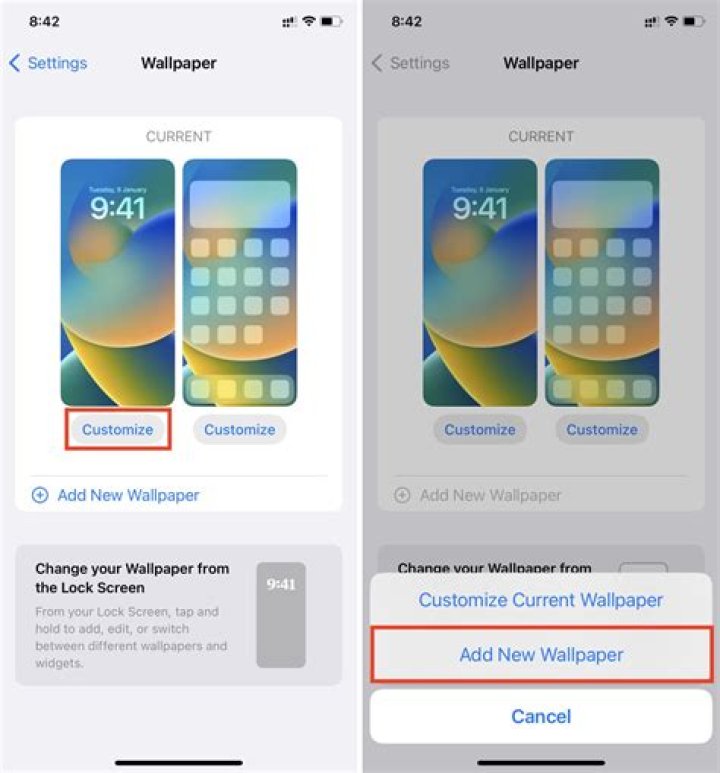
With iOS 16, you can set your wallpaper and customize your lock screen in a lot of new ways. You can choose dynamic astronomy and weather backgrounds, emoji art, photo album shuffles, add widgets, and more. But it’s not as easy as it used to be to set a different picture as the wallpaper for your home screen and lock screen. Here’s what to do…
The new wallpaper system in iOS 16 really wants you to set the same picture for your home screen and lock screen. This is how it works by default when you set a new background, and there is a reason for it.
When going from the lock screen to the home screen, iOS uses special transitions. When you swipe to unlock, for example, the Earth on the Astronomy wallpaper moves forward as you do so.
But you can use different photos for your lock screen photo and the photo behind your app icons if you want to. It might just not be very clear.
How to Change the Wallpaper for The First Time After Upgrading to iOS 16
When you first upgrade to iOS 16, your wallpaper will be in a mode called “legacy.” This method doesn’t work with any of the settings for iOS 16 and later. So, you’ll need to make a new wallpaper before making any changes.
You can press Add New Wallpaper from Settings > Wallpaper. Or, you can enter the Gallery from the lock screen by long-pressing the screen and tapping the blue + button. Then, do what is written below.
Also Read: How to Remove a Hidden App from Your iPhone’s Home Screen?
How to Change the Wallpaper on Your Home Screen and Lock Screen
- Go to Settings > Wallpaper and press Add New Wallpaper if you haven’t made a new wallpaper yet. You can also do this by long-pressing on the lock screen to open the Lock Screen Gallery and then pressing the blue Add button.
- Tap the button that says “Photos” at the top of the gallery. Choose a picture to be the lock screen. If you want to, you can change the lock screen even more.
- Tap the “Add” button at the top right of the screen. Then, when the panel comes up, choose the button that says “Customize Home Screen.”
- In this view, you can choose how your home screen will be different from the others. You can make it show a color or a gradient, blur the information on the lock screen, or choose a different photo. Tap the Pictures button to do this.
- Choose a new picture. You can choose to use the Blur effect. Then, tap Done in the upper right corner of the screen.
- All done. You now have a different photo on your lock screen and home screen.
Must Read: How to Add or Remove Trusted Phone Numbers on an iPhone, iPad, or Mac?
How to Change the Wallpaper on Your Home Screen Later
You can change your mind and choose a different photo later by going to Settings. If you have a lock screen that looks like iOS 16, go to Settings > Wallpaper and press Customize to change the picture.
The same user interface for setting up the home screen will be shown, letting you choose a color, a gradient, or another photo. Using the Blur switch, you can blur the chosen photo if you want to. When you’re done making changes, click Done to save.
Remember that you can set up more than one lock screen and switch between them if you like different styles. You can also use the Photo Shuffle wallpaper option to switch between more than one photo.




