Working with Hyperlinks
Lesson 5: Working with Hyperlinks
Introduction
A hyperlink is a piece of text or an image in an electronic document that can connect readers to another portion of the document or a different webpage. In addition, a hyperlink can be used to connect to and open an email client window.
Have you noticed the active links on webpages that allow you to jump from one page to another? You just used one to open this lesson. These are called hyperlinks. You can use these in electronic versions of your Word documents, just like you do in webpages. In this lesson, you will learn the basics of working with hyperlinks, including how to insert and remove them in your Word document.
Hyperlinks
Download the example to work along with the video.
To insert a hyperlink:
- Select the text or image you want to make a hyperlink.
- Select the Insert tab.
- Click Hyperlink in the Links group. The Insert Hyperlink dialog box appears. If you selected text, the words will appear in the Text to display: field at the top.
- Type the address you want to link to in the Address: field.
- Click OK. The text or image you selected will now be a hyperlink.
To make an email address a hyperlink:
- Type the email address.
- Highlight the text, and select the Insert tab.
- Click Hyperlink in the Links group, and the Insert Hyperlink box appears.
- On the left of the box where it says Link to: click Email Address.
- The Insert Hyperlink box will change to the one shown above.
- Type the email address you want to connect to in the Email Address box, then click OK.
You can also insert a hyperlink that links to another portion of the same document.
Word recognizes many email and web addresses as you type and will format them as hyperlinks automatically after you press the Enter key or spacebar.
To remove a hyperlink:
- Select the hyperlink you want to deactivate.
- Select the Insert tab.
- Click Hyperlink in the Links group. The Edit Hyperlink dialog box appears.
- Click Remove Link.
Challenge!
Use the cover letter or any other Word document you choose to complete this challenge.
Last updated Monday, Aug. 31, 2020, at 10:36 a.m.
This article is based on legacy software.
When creating documents, you may need to use a symbol or special character that does not appear on the keyboard. These symbols and special characters can be accessed through the Symbol dialog box.
Use the Symbol dialog box to locate symbols, characters from other languages, arrows, and other characters. Symbols inserted into documents can then be formatted as regular text. To see a video of these procedures, refer to video: Inserting Symbols.
Place the insertion point where the symbol will be inserted
From the Insert tab, in the Symbols group, click SYMBOL
Select one of the symbol options Word provides
OR
Select More Symbols.
The Symbol dialog box appears.
Select the Symbols tab
Select the desired symbol
NOTE: If you do not see the desired symbol, from the Font pull-down list, select another font.
Click INSERT
The symbol appears in your document.
Repeat steps 4-5 until you insert all symbols you want
Click CLOSE
Inserting Special Characters
Special characters, like symbols, do not appear on the keyboard; however, some have more functionality than symbols. For example, the nonbreaking hyphen appears like any other hyphen, but the words it separates will always remain on the same line (i.e., they will not be broken apart).
Place the insertion point where the special character will be inserted
From the Insert command tab, in the Symbols group, click SYMBOL » select More Symbols.
The Symbol dialog box appears.
Select the Special Characters tab
From the Character scroll box, select the desired character
Click INSERT
The special character appears in your document.
Repeat steps 4-5 until you insert all characters you want
Click CLOSE
Was this article helpful? Yes No
- Apply
- Visit
Connect with UWEC
- Snapchat
- YouTube
University of Wisconsin-Eau Claire
updated Feb 2019
Creating a mind map in Word is extremely easy. As you may very well know Microsoft Word is equipped with creation and drawing tools that are easy to use and navigate. With a bit of creativity you can make use of these tools to create excellent mind maps.
In fact, there is no real need for mind mapping software applications when you simply use MS Word only.
All you need to do is mind map in Word. Use a bit of imagination and creativity on the map. And you have a practical mind map in your Word file!
In this tutorial, I will show you 3 methods for mind mapping in Word. The first two don’t require additional tools. The last one is for people who want to move to the highest level in MS Word mind mapping 🙂
Steps on How to Create a Mind Map in Word
To get you started take a look at the steps below to create a mind map Microsoft word style.
- Open Microsoft Word. From the toolbar click the “Insert” tab then select “Shapes”. From the drop down menu you will have your choice of different shapes?
- For starter select a circle. You can simply adjust its size using the handles.
- Then from the “Insert Menu” click the “Text Box” tab to type in your main theme or main topic inside the circle.
- Right click on the text box and select “Format Text Box”. Click the “Colors and Lines” tab and select “No Color” in the Color drop-down menu. Click “OK” to confirm. This will hide the borders for your text box.
Repeat steps 1 to 4 to add related concepts or ideas to your mind map. Go to the “Insert” tab and select “Shapes” then click on a line to represent the relationship among the different branches of your main topic.
As you can see creating a mind map in word only takes five very simple steps.
Want to mind map in a real mind mapping tool?
Check out the Mind Mapping Made Easy workshop
Here Is The Next Level in MS Word Mind Mapping.
Once you understand how you can create a mind map easily using the Shapes option, you can also start doing the following.
Start using SmartArt. This is also available in the INSERT menu option. Under SmartArt menu, there are many different outlines you can use.
Some look like mind maps. Others are different visual overviews. Simply choose one and edit it to show your ideas.
Here’s an Additional Power Tip!
Next time you created a mind map or visual overview in MS Word, make sure you save it.
No, I don’t mean saving your file! I mean saving the mind map or visual. Select the entire map, and copy it to a file that has all your mind maps or visuals.
This way you don’t have to create one new every time you start mind mapping in Word.
And Now For The Highest Level in Word Mind Mapping!
There is another way you can use a mind map in Word. That is by using a mind mapping tool.
In the tool you create your mind map. Once you are finished, you simply take a screenshot of it and you paste that into your Word file. The problem of course is that your map can not be edited.
The beauty is that your maps look really professional!
Make Your Very Own Mind Map In Word
Now that you’ve seen how simple and easy it is to make a mind map in word it’s time you make one yourself!
Just follow the simple steps shown above or make use of a mind map template via SmartArt to make your mind mapping much easier.
You know you can get a lot more productive and communicate a lot better once you start using mind maps. Now let’s get started! Start mind mapping in MS Word right now!
Oh. here is a small infographic that will help you getting started immediately. It shows you the steps in creating a mind map in Word on 1 sheet. Download the infographic here (no email address needed).
Like what you are seeing?
Subscribe and I will help you manage your work and study information carefree
Learn more about Carefree Productivity by receiving our weekly newsletter and relevant updates
Still using Office 2007? Achieve more with the always up-to-date apps and services in Microsoft 365.
Office 2007 is now retired
Updates are required to stay supported. Please upgrade to Microsoft 365 or to get product support.
Exclusive, new features every month
Get always up-to-date Office applications—like Word, Excel, PowerPoint, Outlook, and OneNote—that you know and trust.
Work across multiple devices
Install Microsoft 365 on your Mac, PC, tablets, and phones. With full versions installed on your PC or Mac, there’s no need for an internet connection to access documents.
Access from anywhere
Collaborate, coauthor, and share with 1 TB of OneDrive cloud storage per user. Access all of your docs, photos, and videos whenever—and wherever—you need them.
Microsoft Support
Integrated apps and services mean one place to go for IT-level web support and 24/7 phone support. Solve critical issues and get the answers you need.
Ready for Microsoft 365?
Familiar apps with all the latest features
Familiar apps with all the latest features
Become a better writer with smart tools that help you create impressive documents.
Excel
Excel does complex analyses for you, empowering you to be the master of your data.
PowerPoint
Maximize the visual impact of your presentations with PowerPoint in Microsoft 365.
OneNote
Get organized with OneNote, the digital notebook that lets you type, draw, and more.
Outlook
Get more done with an intelligent inbox and focus on the emails that matter most.
Publisher
Simple tools to help you create professional newsletters, brochures, and more.
Top Questions
Office 2007 include applications such as Word, Excel, PowerPoint, and Outlook. They’re available as a one-time purchase for use on a single PC.
Microsoft 365 plans include premium versions of these applications plus other services that are enabled over the Internet, including online storage with OneDrive and Skype minutes for home use. With Microsoft 365 you get the full, installed Office experience on PCs, Macs, tablets (including iPad® and Android™ tablet) and phones. Microsoft 365 plans are available as a monthly or annual subscription.Learn more.
See system requirements for compatible versions of Windows and macOS, and for other feature requirements.
You don’t need to be connected to the Internet to use Office applications, such as Word, Excel, and PowerPoint, because the applications are fully installed on your computer.
However, Internet access is required to install and activate all the latest releases of Office suites and all Microsoft 365 subscription plans. For Microsoft 365 plans, internet access is also needed to manage your subscription account, for example to install Office on other PCs or to change billing options. Internet access is also required to access documents stored on OneDrive, unless you install the OneDrive desktop app.
You should also connect to the Internet regularly to keep your version of Office up to date and benefit from automatic upgrades. If you don’t connect to the Internet at least every 31 days, your applications will go into reduced functionality mode, which means that you can view or print your documents but cannot edit the documents or create new ones. To reactivate your Office applications, reconnect to the Internet.
Yes. Documents that you have created belong fully to you. You can choose to store them online on OneDrive or locally on your PC or Mac.
If you cancel your subscription or it expires, you can still access and download all your files by signing in to OneDrive directly using the Microsoft account you used to set up Microsoft 365. You do lose the additional storage that comes with your subscription, so you must save your files elsewhere or buy more OneDrive storage if your OneDrive account exceeds the free storage quota.
If you purchase an auto-renew subscription, your subscription starts when you complete your purchase. You can purchase auto-renew subscriptions from Microsoft365.com, MicrosoftStore.com, iTunes®, and some other retailers. If you purchase a pre-paid subscription, your subscription starts when you activate your subscription and land on your My Account page. You can purchase pre-paid subscriptions from a retailer or reseller, or a Microsoft support agent.
If you have an active Microsoft 365 Family subscription, you can share it with up to five members of your household. Each household member you share your subscription with can use any of your available installs on their PCs, Macs, iPads, Android tablets, Windows tablets, iPhones® or Android phones, get an additional 1 TB of OneDrive storage, and manage their own installs from
To add someone to your subscription, visit and follow the onscreen instructions to add a user. Each person you add will receive an email with the steps they need to follow. Once they have accepted and completed the steps, their information, including the installs they are using, will appear on your My Account page. You can stop sharing your subscription with someone or remove a device they are using at
“The cloud” is a friendly way of describing web-based computing services that are hosted outside of your home or organization. When you use cloud-based services, your IT infrastructure resides off your property (off-premises), and is maintained by a third party (hosted), instead of residing on a server at your home or business (on-premises) that you maintain. With Microsoft 365, for example, information storage, computation, and software are located and managed remotely on servers owned by Microsoft. Many services you use every day are a part of the cloud—everything from web-based email to mobile banking and online photo storage. Because this infrastructure is located online or “in the cloud,” you can access it virtually anywhere, from a PC, tablet, smartphone, or other device with an Internet connection.
Mind Map
- Create Mind Map on Word
- Draw Concept Map
- Run Brainstorming Session
- Make Tree Chart
- Mind Mapping Shapes
- Concept Map Symbols
- Bubble Diagram Symbols
- Brainstorming Diagram Symbols
- Use Mind Maps for Meeting Management
- Prepare for a Job Interview
- Make a Book Summary
- Plan a Trip with Mind Maps
- Part 1: What is a Mind Map?
- Part 2: 3 Steps to Create a Mind Map Using Microsoft Word
- Part 3: Insert a Mind Map into a Word Document
- Part 4: Mind Map Templates for Word
Part 1: What is a Mind Map?
Mind maps are perfectly used in many situations like a brainstorming session, which enables you to present ideas more effectively.
Part 2: 3 Steps to Create a Mind Map Using Microsoft Word
Microsoft Word is equipped with creation and drawing tools that are easy to use and navigate. It is also easy for beginners to create simple mind maps with basic shapes and lines.
Now, all you have to do is follow the steps below so that you can effortlessly create a mind map in Microsoft Word in minutes.
Step 1: Open MS Word and Select Available Shapes
In a new Word document, you can find most of the tools that you will use in the Illustration group on the Insert tab. Click Shapes to open the collapsed menu that has the basic shapes for making a mind map. You can use rectangles or circles to represent the central topic and subtopics, and label the shapes with text boxes.
Step 2: Start to Draft out a Mind Map
Now, you can start to create your mind maps by using the shapes in Word. When you draft out the map and place all the topics, connect them with straight lines or arrow lines to represent relationships between different topics.
Step 3: Format Your Mind Map
When the mind map is finished, click on the selected shape (topic or line), and then the Format tab will show on the Ribbon, where you can change the properties of the shape. Alternatively, right-click on the shape and select Format Shape on the context menu to open the right Format Shape pane.
Part 3: Insert a Mind Map into a Word Document Easily
As one can see, it’s certainly possible to make a mind map in Word, but it may be difficult to create more complex diagrams due to the limitations of the program.
Try EdrawMind – specially-designed for making mind maps. EdrawMind runs on all avaliable operating systems, including PC, tablet, mobile, and web. The powerful export features will help you to create a mind map and effortlessly insert it into a word document.
1. Open a Blank Mind Map Drawing Page/Choose a Built-in Template
On the File menu, click New. Select Mind Map in Template Categories list and then choose a template.
2. Add Main Topics and Subtopics
Simply press Insert key to add Main Topic shapes on the canvas. You can also select a shape and click the floating button to add a topic or sub-topic.
3. Add Content to Mind Map
To add text to shapes: double-click the shape and type text in the nodes now.
To add marks and clipart to shapes: go to Mark and Clipart panes on the right side of the canvas, there are various marks and clipart, such as priority numbers, flags, resource numbers, etc. You can just drag them onto nodes.
Tips: you can also insert pictures and add them into shapes.
4. Change Theme of Mind Map
Navigate to the right Page/Topic Format pane, where you can choose to change the theme, layout, connector style of the mind map.
5. Export Your Mind Map into a Word Document
When your mind map is complete, click the export button on the Quick Access Toolbar and choose MS Word File. See the video below and get to know more.
Part 4: Free Mind Map Templates for Word
Abundant mind map templates are offered to help users make a professional-looking mind map. Everything becomes extremely simple with our mind map templates. They are easily editable, high on readability, and rich in visuals.
To continuously learn and develop your skill set, it is important to first understand the criteria considered for demonstrating a basic, intermediate, or advanced skill level in the Microsoft Office suite of programs.
Pre-requisites for All Microsoft Office Programs
Before you begin your assessment to determine training options, you must be able to perform the following functions:
- Use a personal computer, keyboard and mouse
- Open and close applications
- Navigate basic file structures
- Manage files and folders
Microsoft Office Assessment
Note: Click the link and log in with your netID and password; then download to open the guide and learning plan.
Follow the Microsoft Office Assessment Guide and identify your areas of strength and development. Then download and complete your Microsoft Office Learning Plan to address any skill gaps and plan how you will acquire, practice and demonstrate the skill. It’s a good idea to discuss your plan with your supervisor.
Excel Basic
Categories
Tasks
Insert simple formulas (total, add, subtract, multiply, divide, count) and functions, show/hide formulas, orders of operations
Navigation, menus and ribbons, editing data, data entry: autofill, saving a workbook and managing versions
Modify a worksheet
Insert, delete, and adjust cells, columns, and rows, search and replace, add comments, create new worksheet from filtered worksheet
Fonts, borders, colors, numbering, aligning, naming ranges, using filters, applying styles and themes, templates
Preview, print, page layout, freeze panes, center/wrap header row
Excel Intermediate
Categories
Task
Set ranges, logical functions (if, and..), date and time, text functions (Left, Right, MID, concat, number value, …), Text-to-Columns, combining data, TRIM
Sort, filter, query with database functions, outline and subtotal data
Create and modify tables, apply intermediate and conditional formatting
Create, analyze Pivot Table data, present data with pivot charts, filter using timelines and slicers
Repeat file names, sharing documents, save options
Excel Advanced
Categories
Task
Working with multiple worksheets and workbooks
Use links and external references, 3-D references, consolidate
Lookup functions and formula auditing
Use lookup functions, trace cells, evaluate formulas
Sharing and Protecting worksheets
Collaborate on a worksheet, protect worksheets and workbooks
Automating workbook functionality
Data validation, macros, search for invalid data and formulas
Creating sparklines and mapping data
Create Sparklines, map data
Determine potential outcomes using data tables and scenarios, use goal seek feature, forecasting data trends
Repeat filed names, sharing documents, save options
Word Basic
Categories
Task
Insert and formatting text and paragraphs
Fonts, borders, colors, numbering, aligning, applying styles and themes, use templates
Modifying a document
Insert, delete, search and replace, spellcheck, thesaurus, add comments
Sort a list, format a list
Insert, modify, format a table, convert text to a table
Inserting graphic objects
Insert symbols and special characters, add images
Controlling page appearance
Border, color, headers and footers, page layout, add watermark
Preview, print, page layout
Preparing to publish a document
Check spelling, grammar, readability, research tools, check accessibility, save document other formats
Word Intermediate
Categories
Tasks
Organizing content using tables and charts
Sort table data, control cell out
Perform a calculation in table, create a chart, add an excel table
Inserting content using quick parts
Create and modify, Insert Building Blocks
Sort a list, format a list
Insert, modify, format table, convert text to a table
Inserting graphic objects
Insert symbols and special characters, add images
Controlling Page Appearance
Border, color, headers and footers, page layout, add watermark
Preview, print, page layout
Preparing to publish a document
Check spelling, grammar, readability, research tools, check accessibility, save document other formats
Word Advanced
Integrate pictures and text, adjust image appearance, insert other media elements
Custom graphic elements
Create text boxes and pull quotes, add word art and other text effects, draw shapes, complex illustrations with SmartArt
Personalized letters and envelopes to labels and email messages, merge names and addresses
Collaborating on documents
Prepare a document for collaboration, mark up a document, review markups, merge changes from other documents
Adding document references and Links
Add captions, cross-references, bookmarks, hyperlinks, insert footnotes and endnotes, add citations and a bibliography
Securing a document
Suppress information, set formatting and editing restrictions, restrict document access, add a digital signature to a document
Forms to manage content
Create forms, modify forms
Automating repetitive tasks with macros
Automate tasks by using macros, create a macro
Outlook Intermediate
Tasks
Scheduling appointments /recurring appointments, changing appointments, printing
The meeting planner
Scheduling a meeting / inviting other to a meeting, tracking meeting responses
Using calendar tools
Using flags, color code categories, using email to create calendar appointment
Review of advanced mail features
Creating folders, attaching files, distribution lists and internet addresses, Out of Office Assistant, Auto Signatures
Automating mail handling
The Rules Wizard, managing junk e-mail
Managing others with Outlook
Share calendar with others, redirecting meeting request to a delegate, delegate / track tasks, share contact / groups
Managing Outlook data files
Backup outlook items, change data file settings
PowerPoint Basic
Categories
Tasks
Creating a presentation
Select a presentation type, edit text, build a presentation
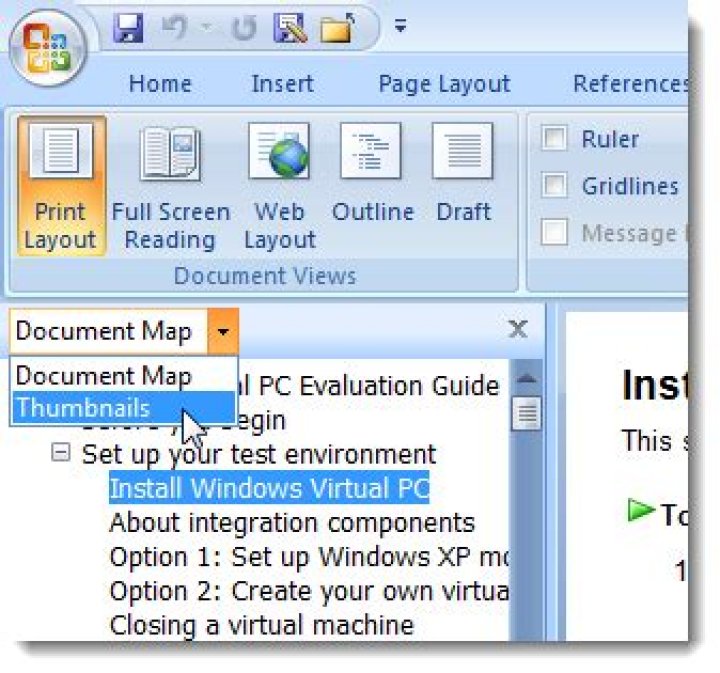
A document map provides a set of navigational links to report items in a rendered report. When you view a report that includes a document map, a separate side pane appears next to the report. A user can click links in the document map to jump to the report page that displays that item. Report sections and groups are arranged in a hierarchy of links. Clicking items in the document map refreshes the report and displays the area of the report that corresponds to the item in the document map.
To add links to the document map, you set the DocumentMapLabel property of the report item to text that you create or to an expression that evaluates to the text that you want display in the document map. You can also add the unique values for a table or matrix group to the document map. For example, for a group based on color, each unique color is a link to the report page that displays the group instance for that color.
You can also create a URL to a report that overrides the display of the document map, so that you can run the report without displaying the document map, and then click the Show/Hide Document Map button on the report viewer toolbar to toggle the display.
You can create and modify paginated report definition (.rdl) files in Report Builder and in Report Designer in SQL Server Data Tools. Each authoring environment provides different ways to create, open, and save reports and related items.
Document Maps and Rendering Extensions
The document map is intended for use in the HTML rendering extension-for example, in Preview and the Report Viewer. Other rendering extensions have different ways of articulating a document map:
PDF renders a document map as the Bookmarks pane.
Excel renders a document map as a named worksheet that includes a hierarchy of links. Report sections are rendered in separate worksheets that are included with the document map in the same workbook.
Word includes a document map as the table of contents.
Atom, TIFF, XML, and CSV ignore document maps.
To add a report item to a document map
In Design view, select the report item such as a table, matrix, or gauge that you want to add to the document map. The report item properties appear in the Properties pane.
To select a tablix data region, click in any cell to display the row and column handles, and then click the corner handle.
In the Properties pane, type the text that you want to appear in the document map in the DocumentMapLabel property, or enter an expression that evaluates to a label. For example, type Sales Chart.
If you do not see the Properties pane, on the View tab, in the Show/Hide group, select Properties.
Repeat steps 1 and 2 for every report item that you want to appear in the document map.
Click Run. The report runs and the document map displays the labels you created. Click any link to jump to the report page with that item.
To add unique group values to a document map
In Design view, select the table, matrix, or list that contains the group that you want to display in the document map. The Grouping pane displays the row and column groups.
In the Row Groups pane, right-click the group, and then click Edit Group. The General page of the Tablix Group Properties dialog box opens.
Click Advanced.
In the Document map list box, type or select an expression that matches the group expression.
Click OK.
Repeat steps 1-4 for every group that you want to appear in the document map.
Click Run. The report runs and the document map displays the group values. Click any link to jump to the report page with that item.
To hide the document map when you view a report
In the web portal, browse to the report that has the document map.
For example, for the AdventureWorks2012 sample reports, the following URL specifies the report named Product Catalog.
Copy the report path on the server. In the example, the report path is %2fAdventureWorks2012+Sample+Reports%2fProduct+Catalog .
Create a new URL with the following three components:
The report viewer on the report server:
The name of the report you copied in step 1, for example: %2fAdventureWorks2012+Sample+Reports%2fProduct+Catalog
The device information parameters that specify hiding the document map: &rs%3aCommand=Render&rc%3aFormat=HTML4.0&rc%3aDocMap=False
The following URL consists of these three components appended in the order they are listed.
To use this URL, copy it and remove all line breaks.
Paste the URL in the web portal, and then press ENTER. The report runs, and the document map is hidden.
For more information about downloading sample reports, see Report Builder and Report Designer sample reports.
Make your word processing tasks easier with this handy feature
- Tweet
- Share
What to Know
- First, open a Microsoft-provided template. Select File >New, then choose a template style and select Create.
- Then, after you open a template, replace the placeholder text and images with your own.
- Create a custom template: Go to File >New >Blank document, format the document, then save it as a Word Template (*.dotx).
This article explains how to create and use Microsoft Word templates. Instructions apply to Word for Microsoft 365, Word 2019, Word 2016, and Word 2013.
How to Open a Word Template
Word offers hundreds of free templates for you to use, or you can create your own.
Open Word. Go to the ribbon, select File, then select New.
Select a template style.
In the template preview screen, select Create.
If you don’t like any of the options shown on the main screen, choose one of the categories at the top of the screen, or use the search bar to perform a search.
After you open a template, replace the placeholder text with your own or start from scratch in blank areas. You can also add pictures to replace the image placeholders.
To replace existing text, select it and type your own text. To replace an image, right-click the image and select Change Picture.
Save the file with a descriptive name.
What Are Microsoft Word Templates?
A template is a Microsoft Word document that has some formatting in place, such as fonts, logos, and line spacing. Templates exist for many types of documents, for example, party invitations, flyers, and resumes. They can be used as a starting point when you want to create a specific type of document without starting from scratch.
How to Create a Word Template
You can also create your own custom Word template. Here’s how:
Open Word, then go to the ribbon and select File.
Select New > Blank document.
Add any elements you like, such as a business name and address, a logo, and other elements. You can also choose specific fonts, font sizes, and font colors.
Once you have the document formatted the way you want it, go to the ribbon and select File > Save As.
Enter a descriptive name for the template, select the File Type drop-down arrow and choose Word Template (*.dotx), then select Save.
To create a new document based on the template, open the template, give it a new name, and edit the document to include the new information.
Compare Documents in Word: Overview
You can easily compare documents in Word to note changes between them. One of the most commonly performed tasks in the legal profession is creating a legal blackline document. The terms “redlining” or “comparing documents” are two other ways to refer to this. When you compare documents in Word, you can show only the changed content between the two copies in a third, separate document.
Many legal professionals use this feature when reviewing contracts to note the revisions between two copies of a contract. This lets you create and compare multiple copies of a legal document, noting changes between the original, the first draft, the second draft, and so on. This helps you keep all copies of the drafts for historical purposes. It also shows the changes made and who requested the changes. This lesson shows how to compare documents in Word to create a legal blackline document.
To compare documents in Word, first open the two documents to compare in Microsoft Word. Then click the “Review” tab in the Ribbon. Then click the “Compare” drop-down button in the “Compare” button group. Then select the “Compare…” command from the button’s drop-down menu to open the “Compare Documents” dialog box.
In the “Compare Documents” dialog box, then select the name of the original document from the “Original document” drop-down menu. If you didn’t open the original document before opening the “Compare Documents” dialog box, you can select the document to use by either clicking the “Open” button that appears as a folder icon at the right end of the drop-down menu or by selecting the “Browse…” command from the drop-down menu’s listing of document choices. Microsoft Word then displays the “Open” dialog box, which you can use to find and open the original document.
Compare Documents in Word- Instructions: A picture of a user comparing two documents in Word within the “Compare Documents” dialog box.
Next, use the “Revised document” drop-down to select the name of the revised copy of the document from the drop-down menu. You can also use the “Open” button or the “Browse…” command with the “Revised document” drop-down, just as with the “Original document” drop-down if you did not open the revised document before opening the “Compare Documents” dialog box.
Next, underneath the “Revised document” drop-down, enter the name with which to label changes in the resultant legal blackline document into the “Label changes with” text box, if needed.




